
Is your iPhone feeling sluggish lately? Maybe apps take longer to open, scrolling feels choppy, or the device just doesn’t respond like it used to. You’re not alone—this is a common issue, especially as iPhones get older and iOS updates pile up.
Fortunately, you don’t need to replace your phone to get it running smoothly again. There are practical steps you can take today to speed up slow iPhone in 2026. From simple tweaks to deeper maintenance, these tips can make your device feel fresh without wiping it completely.
In this guide, we’ll walk through 12 proven tips that improve iPhone performance, help reduce lag, and extend your phone’s usable life.
Why Your iPhone Might Be Slow in 2026
Understanding why your iPhone is lagging helps you fix it efficiently. Several factors contribute to a slowdown: hardware limits, software demands, and accumulated clutter over time.
Aging Hardware vs. Software Demands
Older iPhone models can struggle with the latest iOS versions. For example, the iPhone X and earlier models might not fully leverage new features optimized for newer devices. Processor speed, RAM, and storage read/write capabilities all impact everyday performance.
Table: Hardware Impact on Speed
|
iPhone Model |
Release Year |
Max iOS Version |
Typical Slowdown Issues |
|
iPhone 8 |
2017 |
iOS 17 |
App launch delay, minor UI lag |
|
iPhone X |
2017 |
iOS 17 |
Occasional scrolling lag, multitasking slow |
|
iPhone 11 |
2019 |
iOS 17 |
Slight slowdown after multiple app updates |
iOS Updates and Feature Bloat
iOS updates bring new features, but they can also introduce heavier background processes. Animations, widgets, and system services demand more CPU cycles, which older devices can’t always handle smoothly.
Table: iOS Feature Impact
|
Feature |
Device Impact |
Notes |
|
Live Wallpapers |
Medium |
Can slow home screen animations |
|
Widgets & Smart Stack |
Medium |
Continuous refresh uses CPU |
|
Background Apps |
High |
Apps refresh even when idle |
App Overload and Background Processes
Apps running in the background constantly sync data. Social media, messaging, and navigation apps can hog RAM, making your iPhone feel slow. Over time, cached files build up, causing storage strain and occasional crashes.
Table: Common Culprits
|
App Type |
Effect on Speed |
Tip |
|
Social Media |
High |
Limit background refresh |
|
Games |
Medium |
Clear cache regularly |
|
Cloud Storage |
Medium |
Sync only essential folders |
Storage Issues and Full Memory
A nearly full storage slows down your iPhone. iOS needs free space to manage cache, temporary files, and app updates. Once storage dips below 10–15%, performance noticeably declines.
Table: Storage vs. Performance
|
Free Storage % |
Likely Symptoms |
|
<10% |
Laggy UI, slow app launches |
|
10–25% |
Minor delays in multitasking |
|
>25% |
Smooth performance |
12 Proven Tips to Speed Up a Slow iPhone
These tips range from simple daily habits to deeper fixes that restore speed.
1. Restart Your iPhone Regularly
A simple restart clears temporary files, stops background processes, and refreshes memory. Most people underestimate the power of a reboot. Even a few seconds of lag can disappear after a restart.
How to Restart:
- Press and hold the side button and volume button until the slider appears.
- Slide to power off, wait 30 seconds, then restart.
Read Also: iPhone GPS Not Working: 7 Quick Solutions
Table: Restart Benefits
|
Action |
Effect on iPhone |
|
Soft Restart |
Clears RAM, refreshes apps |
|
Scheduled Restart |
Prevents minor lag buildup |
2. Update iOS and Apps
Outdated software can slow down iPhones. Apple releases performance patches regularly, so staying updated matters. Likewise, app updates often fix bugs that affect speed.
How to Update iOS:
- Go to Settings → General → Software Update.
- Install available updates.
Table: Update Advantages
|
Update Type |
Benefit |
|
iOS |
Security, speed improvements |
|
Apps |
Bug fixes, performance enhancements |
3. Clear Storage Space
Freeing storage has an immediate impact on speed. Delete unused apps, old photos, or videos you can move to cloud storage.
Quick Tips:
- Offload unused apps: Settings → General → iPhone Storage → Offload Unused Apps.
- Move media to cloud services to reduce local storage.
Table: Storage Optimization Steps
|
Task |
Result |
|
Delete unused apps |
Frees MB–GB of space |
|
Move photos to cloud |
Reduces local storage load |
|
Clear downloads folder |
Improves app launch speed |
4. Reduce Motion and Animations
Fancy animations look nice, but they use processing power. Enabling “Reduce Motion” simplifies transitions and boosts responsiveness.
How to Enable:
- Settings → Accessibility → Motion → Reduce Motion → ON
Table: Reduce Motion Effect
|
Setting |
Performance Impact |
|
Reduce Motion |
Faster UI, smoother scrolling |
5. Disable Background App Refresh
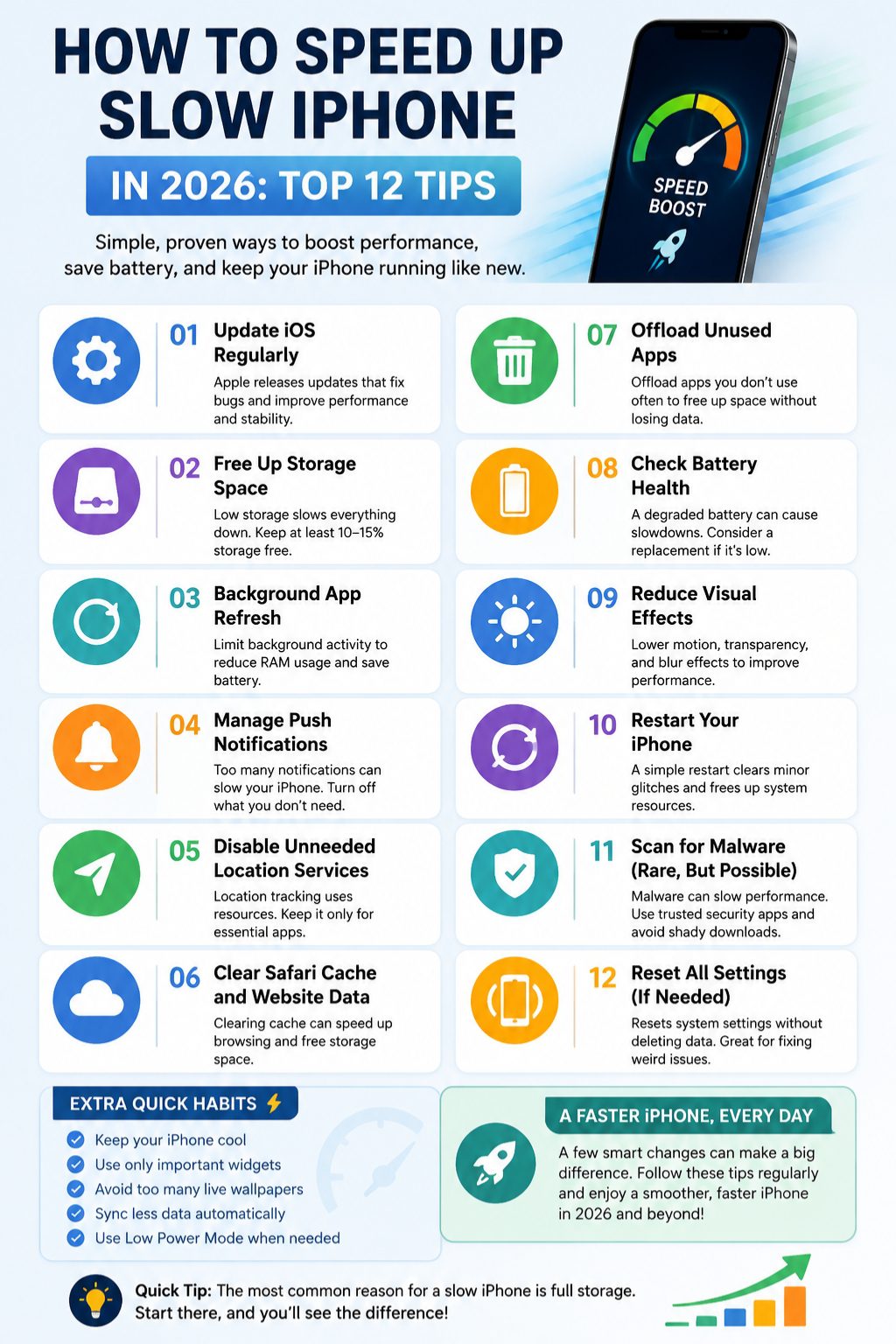
Apps constantly refreshing in the background eat resources and battery. Turn off for non-essential apps.
Settings:
- Settings → General → Background App Refresh → Select Apps
Table: Background Refresh
|
App Category |
Suggested Setting |
|
Social Media |
Off |
|
News Apps |
Off |
|
Productivity Apps |
On (essential only) |
6. Manage Widgets and Home Screen Clutter
Widgets look handy but they continuously refresh, slowing down the phone. Keep only essential widgets and organize apps efficiently.
Table: Widget Management
|
Widget Type |
Impact on Speed |
Suggested Action |
|
Weather |
Medium |
Keep minimal or remove |
|
News |
Medium |
Update manually |
|
Fitness |
Low |
Keep if essential |
7. Reset All Settings (Without Data Loss)
Sometimes settings misconfigurations cause lag. Resetting all settings can fix slow performance without deleting data.
Steps:
- Settings → General → Reset → Reset All Settings
Table: Reset Settings Effect
|
Setting Reset |
Result |
|
Network, display |
Resolves glitches |
|
Notifications |
Clears misconfigured apps |
8. Clear Safari Cache and Browser Data
Browsers accumulate cache and cookies, which slow down browsing and sometimes the system.
Steps:
- Settings → Safari → Clear History and Website Data
Table: Browser Cache Impact
|
Action |
Benefit |
|
Clear Cache |
Faster browsing |
|
Clear Cookies |
Resolves login issues |
9. Limit Background Processes and Notifications
Too many push notifications and location tracking services slow down your iPhone. Turn off non-essential ones.
Steps:
- Settings → Notifications → Select apps
- Settings → Privacy → Location Services → Select apps
Table: Background Process Control
|
Feature |
Recommended Action |
|
Push Notifications |
Only essential apps |
|
Location Tracking |
While using app only |
10. Check Battery Health and Optimize Performance
iPhone batteries degrade, which can throttle CPU performance. Check battery health and enable optimization.
Steps:
- Settings → Battery → Battery Health → Enable Optimized Battery Charging
Table: Battery Health Impact
|
Battery Status |
Effect on Speed |
|
Poor |
Reduced CPU performance |
|
Optimized |
Maintains consistent speed |
11. Use Lighter Alternatives for Heavy Apps
Some apps are resource-heavy. Try lighter versions or web apps.
Examples:
- Facebook → Facebook Lite
- Instagram → Instagram Web
Table: Heavy vs. Light Apps
|
App |
Heavy Version Effect |
Light Version Benefit |
|
|
High CPU/RAM usage |
Less lag, faster UI |
|
|
Medium |
Less memory usage |
12. Factory Reset as a Last Resort
If nothing works, a clean reset may be necessary. Back up first to iCloud or your computer.
Steps:
- Settings → General → Reset → Erase All Content and Settings
Table: Factory Reset
|
Action |
Result |
|
Backup + Reset |
Restores speed to near-new |
|
Restore data selectively |
Avoid reintroducing clutter |
Additional Tips for Maintaining iPhone Performance
- Keep storage free by removing large unused files regularly.
- Avoid installing apps from unverified sources.
- Keep your iPhone physically clean; dust can cause overheating and slowdowns.
Table: Maintenance Checklist
|
Task |
Frequency |
|
Restart device |
Weekly |
|
Update apps/iOS |
Monthly |
|
Backup data |
Monthly |
Final Thoughts
Following these steps can help speed up slow iPhone in 2026 and keep it running smoothly for years. Start with simple tweaks like restarting, clearing storage, and updating apps. Then, optimize settings, manage widgets, and consider battery health. For persistent lag, a factory reset might be the best solution.
A few minutes of proactive care today can save you from frustration tomorrow. Your iPhone doesn’t need to feel slow—just a little attention and smart habits will keep it zippy.
FAQs About Speeding Up Slow iPhone
Can I speed up my iPhone without losing data?
Yes, most tips like clearing cache, offloading apps, or reducing animations don’t erase data. Backup before major changes.
Why does my iPhone slow down after iOS updates?
New features and background processes can strain older hardware. Updating apps and managing settings helps.
Will clearing cache really make a difference?
For apps and Safari, yes. It frees storage and removes temporary files that can slow performance.
How often should I restart my iPhone?
At least once a week. A restart clears RAM and background processes.
Does battery replacement improve speed?
On older iPhones with degraded batteries, yes. Throttled CPUs from poor battery health slow performance.
Can removing widgets make a real difference?
Yes, fewer widgets mean fewer background refreshes, improving overall responsiveness.