
If your AirPods are not connecting to your iPhone, it usually feels like something has broken. One moment they work perfectly, and the next, nothing shows up on Bluetooth or the connection just refuses to complete.
In reality, most of these problems are temporary. It is usually a Bluetooth glitch, low battery, outdated software, or a pairing error stored inside your iPhone. Hardware failure is far less common than people assume.
The good news is you do not need to panic or rush into a reset. In most cases, a few simple steps will bring everything back to normal within minutes. This guide walks you through tested fixes in the right order so you can solve the problem quickly and avoid unnecessary steps.
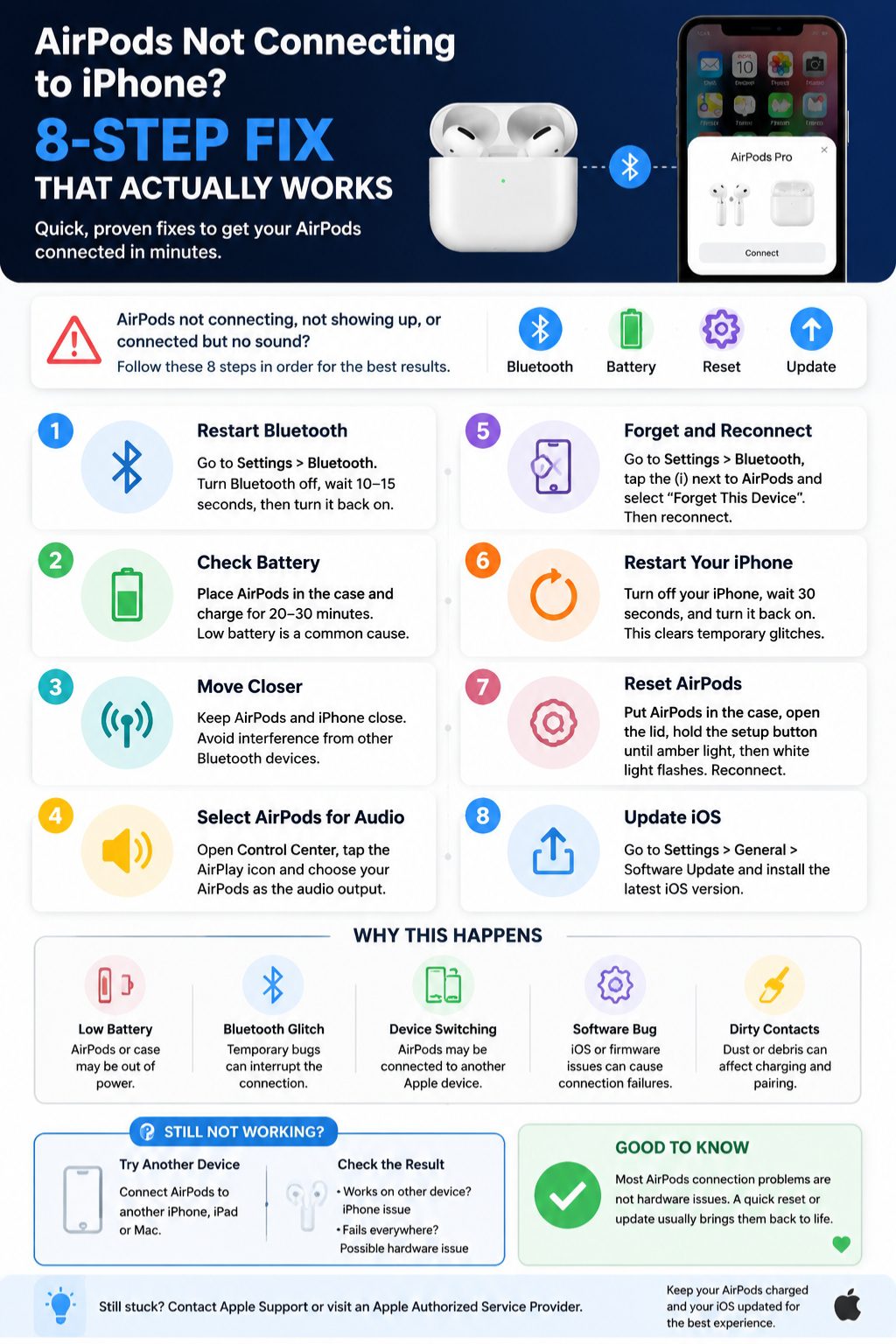
What to Try First
Before going deeper, start with the simplest checks. These alone solve a large percentage of AirPods connection issues.
Quick Checklist
- Turn Bluetooth off and on
- Charge AirPods and case for at least 20 minutes
- Restart your iPhone
- Make sure AirPods are selected as audio output
- Forget and re-pair AirPods
- Check for iOS updates
- Reset AirPods if nothing works
Table: Fast Fix Priority
|
Step |
Purpose |
Difficulty |
Effectiveness |
|
Bluetooth toggle |
Refresh connection |
Easy |
High |
|
Charging |
Fix power issues |
Easy |
High |
|
Restart iPhone |
Clear system glitches |
Easy |
Medium |
|
Re-pair AirPods |
Fix corrupted pairing |
Medium |
High |
|
Reset AirPods |
Full recovery |
Medium |
Very High |
Why AirPods Not Connecting Happens on iPhone
Most connection failures are not random. They usually come from small interruptions in Bluetooth communication or stored pairing data that becomes unstable.
Apple’s Bluetooth system also prioritizes switching between devices like iPad, Mac, and Apple Watch. That convenience can sometimes create confusion when the AirPods try to connect to the wrong device.
Understanding this helps you avoid unnecessary resets and focus on the real issue faster.
Common Causes
- Low battery in AirPods or charging case
- Bluetooth stuck or temporarily disabled
- AirPods connected to another Apple device
- iOS or firmware bugs after updates
- Dirty charging contacts affecting power flow
- Corrupted Bluetooth pairing history
- Outdated iOS version
Table: Cause vs Impact
|
Cause |
What Happens |
Best Fix |
|
Low battery |
No pairing response |
Charge fully |
|
Bluetooth glitch |
Device not detected |
Toggle Bluetooth |
|
Device switching |
Connects elsewhere |
Disconnect other devices |
|
Software issue |
Random failure |
Update iOS |
|
Pairing corruption |
Repeated failure |
Forget + re-pair |
Fix 1: Restart Bluetooth Connection
This is the fastest and most reliable first step. Bluetooth can freeze silently in the background without showing errors.
Steps
- Open Settings
- Tap Bluetooth
- Turn it off for 10–15 seconds
- Turn it back on
- Open AirPods case near iPhone
Table: Why This Works
|
Action |
Effect |
|
Bluetooth reset |
Clears temporary connection errors |
|
Re-scan devices |
Forces AirPods detection |
|
Fresh pairing window |
Improves connection success |
Fix 2: Charge AirPods and Case Properly
Battery issues are one of the most overlooked causes of connection failure.
If even one AirPod is low on power, pairing may fail or become unstable.
Steps
- Place AirPods in case
- Charge for 20–30 minutes
- Open lid near iPhone
- Check battery pop-up
Read Also: Google Pixel 8 Pro Buying Guide [Pros and Cons]
Table: Battery-Related Symptoms
|
Problem |
Symptom |
Solution |
|
Low charge |
No connection |
Charge fully |
|
Uneven charge |
One AirPod fails |
Clean contacts |
|
Dead case |
No response |
Charge case first |
Fix 3: Check Device Interference and Range
Bluetooth is sensitive to interference from nearby devices and distance.
Steps
- Move AirPods and iPhone closer
- Turn off nearby Bluetooth devices
- Disconnect AirPods from other Apple devices
- Avoid crowded wireless environments
Table: Interference Sources
|
Source |
Effect |
|
Mac or iPad |
Auto switching |
|
Smart TV |
Signal conflict |
|
Multiple devices |
Weak connection stability |
Fix 4: Manually Select AirPods for Audio
Sometimes AirPods are connected but not selected for sound output.
Steps
- Open Control Center
- Tap AirPlay icon
- Select AirPods
- Increase volume
Table: Audio Issues Explained
|
Issue |
Cause |
Fix |
|
No sound |
Wrong output |
Select AirPods |
|
Call works only |
App routing |
Restart app |
|
Silent playback |
Volume low |
Increase volume |
Fix 5: Forget and Reconnect AirPods
This step removes broken pairing data stored in your iPhone.
Steps
- Go to Settings → Bluetooth
- Tap AirPods
- Select Forget This Device
- Reconnect using setup popup
Table: When This Fix Helps
|
Situation |
Result |
|
After iOS update |
Fixes instability |
|
Old pairing data |
Clears corruption |
|
Multiple devices |
Stabilizes connection |
Fix 6: Restart Your iPhone
A restart clears temporary system-level Bluetooth and audio issues.
Steps
- Hold power + volume button
- Slide to power off
- Wait 30 seconds
- Turn iPhone back on
Table: Restart Benefits
|
Issue Type |
Fix Outcome |
|
Frozen Bluetooth |
Restored function |
|
Audio routing bugs |
Fixed output |
|
System lag |
Cleared memory |
Fix 7: Reset AirPods (Official Method)
This is the most effective fix when everything else fails.
Supported Models
AirPods (1st–3rd gen), AirPods Pro (1st–2nd gen)
Steps
- Place AirPods in case
- Open lid
- Go to Bluetooth settings and Forget Device
- Press and hold setup button on back of case
- Wait for amber light, then white flashing light
- Reconnect to iPhone
Table: Reset Results
|
Action |
Outcome |
|
Full reset |
Removes pairing errors |
|
Fresh setup |
Stable connection |
|
Fixes persistent issues |
High success rate |
Fix 8: Update iOS and Allow Firmware Updates
Software updates often fix hidden Bluetooth bugs.
AirPods firmware updates happen automatically when:
- AirPods are in case
- Charging
- Near an iPhone
- Connected to Wi-Fi
Steps
- Go to Settings → General → Software Update
- Install latest iOS
- Keep AirPods charging near iPhone
Table: Update Benefits
|
Update Type |
Fixes |
|
iOS update |
Bluetooth stability |
|
Firmware update |
Performance bugs |
|
System refresh |
Connection reliability |
When AirPods Connect but No Sound Works
This is a separate but common issue.
Fixes
- Check Control Center output
- Increase volume
- Turn off automatic ear detection temporarily
- Restart app or audio source
- Check Accessibility audio balance
Table: Sound Issue Causes
|
Problem |
Reason |
|
No audio |
Wrong output |
|
One-sided sound |
Balance setting |
|
App issue |
Playback routing |
When to Contact Apple Support
If none of the steps work, the issue may be hardware-related.
Signs of Hardware Issue
- Case does not charge
- AirPods never appear on any device
- Reset fails repeatedly
- One AirPod never responds
- Bluetooth does not detect AirPods at all
Table: Software vs Hardware
|
Type |
Indicator |
|
Software issue |
Works on other device |
|
Hardware issue |
Fails everywhere |
Final Thoughts
Most cases of airpods not connecting are caused by simple issues like Bluetooth glitches, low battery, or corrupted pairing data. Rarely is it a serious hardware problem.
If you follow the steps in order, you will usually fix the issue within a few minutes without needing advanced resets or support calls. Start simple, stay patient, and only escalate when necessary.
FAQs
Why are my AirPods not connecting to my iPhone?
Usually due to Bluetooth glitches, low battery, or a broken pairing record.
Why do AirPods connect but produce no sound?
Your iPhone may be sending audio to another output device. Check Control Center.
Why don’t AirPods show in Bluetooth?
They may not be in pairing mode or the case may be out of charge.
Can iOS updates fix AirPods issues?
Yes, many Bluetooth bugs are resolved through iOS updates.
Do AirPods resets delete everything?
They remove pairing data but do not affect Apple ID or cloud settings.