
If you’ve ever searched how to schedule a text on iPhone, you probably just wanted a simple thing. Write a message now, send it later. That’s it.
Maybe it’s a birthday wish at midnight. Maybe you don’t want to forget a work reminder. Or maybe you just don’t feel like texting at the exact right moment.
For a long time, iPhone users didn’t have a proper built-in way to do this. People relied on shortcuts, reminders, or third-party apps.
Now things are better. Apple added a feature called Send Later in newer iOS versions. It lets you schedule messages right inside the Messages app.
But it’s not perfect for everyone. Some features depend on your iOS version, and some message types behave differently. So let’s break it down in a simple, no-confusion way.
Can You Really Schedule Text Messages on iPhone?
Yes, you can. But it depends on how your phone is set up.
On newer iPhones, Apple gives you a built-in option called Send Later. You pick a time, write your message, and the phone handles the rest.
But here’s the catch. It works best with iMessage (blue chats). If you’re texting Android users or using SMS, things don’t always work the same way.
So the real answer is:
Yes, scheduling is possible, but the method changes depending on your setup.
Quick Reality Check
|
What you want |
What works |
|
Simple one-time scheduling |
Send Later |
|
Older iPhones |
Shortcuts |
|
Android contacts |
Limited options |
|
Repeating messages |
Shortcuts only |
What You Need Before You Start
Before trying anything, check a few basic things. Most issues happen here.
First, your iPhone needs to be updated. If you’re on an older iOS version, you might not see Send Later at all.
Second, make sure iMessage is turned on. Without it, scheduling won’t behave the same way.
Third, check the chat color. Blue means iMessage. Green means SMS. This matters more than people think.
Simple Checklist
- iOS is up to date
- iMessage is ON
- Chat is blue (iMessage)
- Internet is working
If all four are fine, you’re good to go.
How to Schedule a Text on iPhone Using Send Later
This is the easiest method if your iPhone supports it.
Open Messages. Go into a chat or start a new one. Tap the plus (+) button next to the text box. You’ll see an option called Send Later.
Pick your date and time. Then type your message and hit send.
That’s it. The message won’t go out immediately. It just sits there until the right time arrives.
What Happens After You Schedule It
Once scheduled, the message stays in the chat with a small label showing it’s planned.
When the time comes, your iPhone sends it automatically. The other person just sees a normal message. Nothing special or visible on their side.
Read Also: How to Speed Up Slow iPhone in 2026: Top 12 Tips
Important Things to Know
- You can change it before it sends
- You can delete it anytime
- It won’t notify the other person that it was scheduled
How to Edit or Change a Scheduled Message
Plans change. Messages do too.
If you want to fix something, just open the chat, find the scheduled message, and tap it.
From there, you can edit the text or change the time.
It’s pretty flexible as long as you do it before it gets sent.
What You Can Change
- Message text
- Delivery time
- Full message rewrite
- Or cancel completely
Once it’s sent, though, it becomes a normal message. No more edits.
How to Cancel a Scheduled Text on iPhone
Sometimes you just don’t need the message anymore.
Maybe plans changed. Maybe you sent it to the wrong person. Happens to everyone.
To cancel it, go to the conversation, tap and hold the scheduled message, and delete it.
Once deleted, it’s gone. It won’t be delivered.
When You Should Cancel
- Wrong recipient
- Wrong timing
- Message no longer needed
- You changed your mind
Simple as that.
How to Schedule Text Messages Using Shortcuts
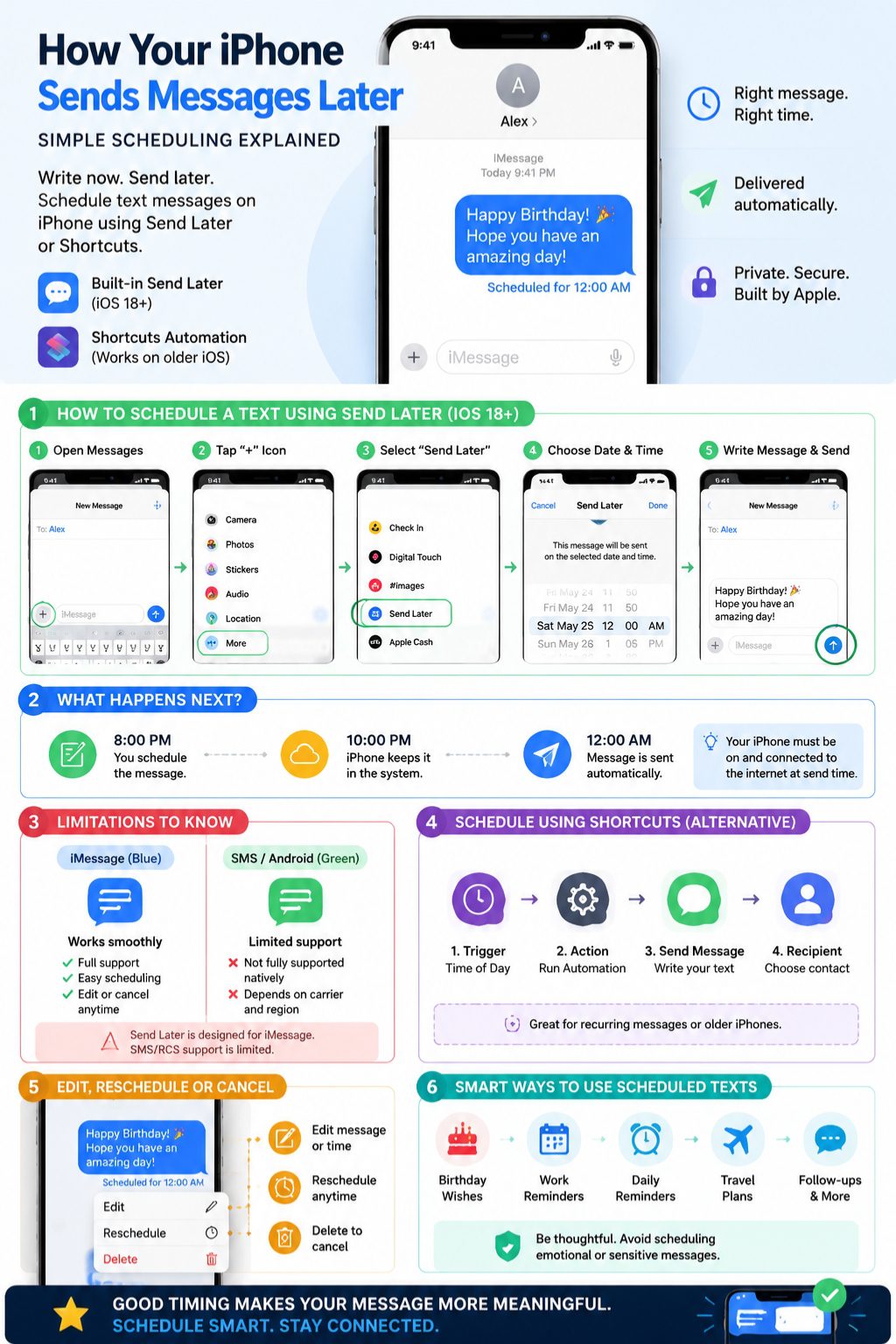
If you don’t see Send Later, don’t worry. There’s another way.
Apple’s Shortcuts app can send messages automatically at a set time. It takes a bit more setup, but it works.
Open Shortcuts, go to Automation, and pick Time of Day. Set when you want the message sent, then add the action “Send Message.”
Write your message, pick the contact, and save it.
Now your phone will send it at that time.
A Quick Warning
Shortcuts is powerful, but it can also repeat messages if you don’t turn it off later. So always double-check your automation after it runs.
When Shortcuts Makes Sense
- You don’t have Send Later
- You want recurring messages
- You like automation control
- You’re okay with a bit of setup
Send Later vs Shortcuts: Which One Feels Better?
Honestly, most people will prefer Send Later.
It feels natural. It’s built into Messages. No extra setup.
Shortcuts is more like a power tool. It’s useful, but not always necessary.
Simple Comparison
|
Feature |
Send Later |
Shortcuts |
|
Ease |
Very easy |
Takes time |
|
Setup |
None |
Required |
|
Repeating messages |
No |
Yes |
|
Best for |
Everyday users |
Advanced users |
Why You Can’t Always Schedule SMS or Android Texts
This is where a lot of confusion comes in.
iMessage runs on Apple’s system. SMS and RCS depend on mobile carriers.
That difference matters.
So scheduling works smoothly for iMessage, but not always for regular text messages.
What You Can Do Instead
- Use Shortcuts
- Set a reminder to send it manually
- Use calendar alerts
- Use messaging apps that support scheduling
Common Problems and Simple Fixes
Sometimes things don’t work as expected. Here’s what usually goes wrong.
Send Later Not Showing
This usually means:
- Your iPhone is not updated
- iMessage is off
- You’re in a non-iMessage chat
Fix it by updating iOS and checking settings.
Message Didn’t Send
This can happen if:
- The automation failed
- The message was deleted
- Your settings were changed
Check your Messages and Shortcuts app.
Shortcut Keeps Sending Again
This is a common one.
Just go into Shortcuts and turn off or delete the automation after it runs once.
Smart Ways to Use Scheduled Messages
Scheduling isn’t just convenient. It actually helps you communicate better.
Everyday Uses
- Birthday messages
- Morning greetings
- Work reminders
- Travel plans
- Follow-ups
Work Uses
- Meeting reminders
- Client messages
- Deadline alerts
- Time-zone coordination
Keep it simple. Keep it clear.
Safety and Privacy Notes
One thing people forget: scheduled messages are still real messages.
Once they go out, they behave like any normal text.
So don’t schedule anything you wouldn’t normally send in real time.
Avoid Scheduling
- Emotional messages
- Sensitive info
- Emergency updates
- Financial or legal details
Also, be careful with third-party apps. Some just remind you instead of sending automatically. Others may ask for too much access.
Final Thoughts
Once you understand the basics, how to schedule a text on iPhone becomes pretty simple. If you’ve got a newer iPhone, Send Later is the easiest way. It feels built-in because it is. If you don’t, Shortcuts still gets the job done, just with a bit more effort. Either way, scheduling helps you stay organized, save time, and send messages when they actually matter.
FAQs
Can I schedule a text on iPhone for free?
Yes. Both Send Later and Shortcuts are free.
Does the message send if my phone is off?
It usually needs your device active and connected at send time.
Can I schedule WhatsApp messages?
Not natively on iPhone.
Can I schedule group messages?
Yes, but only in iMessage groups.
Will people know it was scheduled?
No. It looks like a normal message.