
If you searched for password protect folder windows, you’re probably trying to keep private files away from other people. Maybe it’s tax papers, work files, scanned IDs, bank documents, family photos, or something personal.
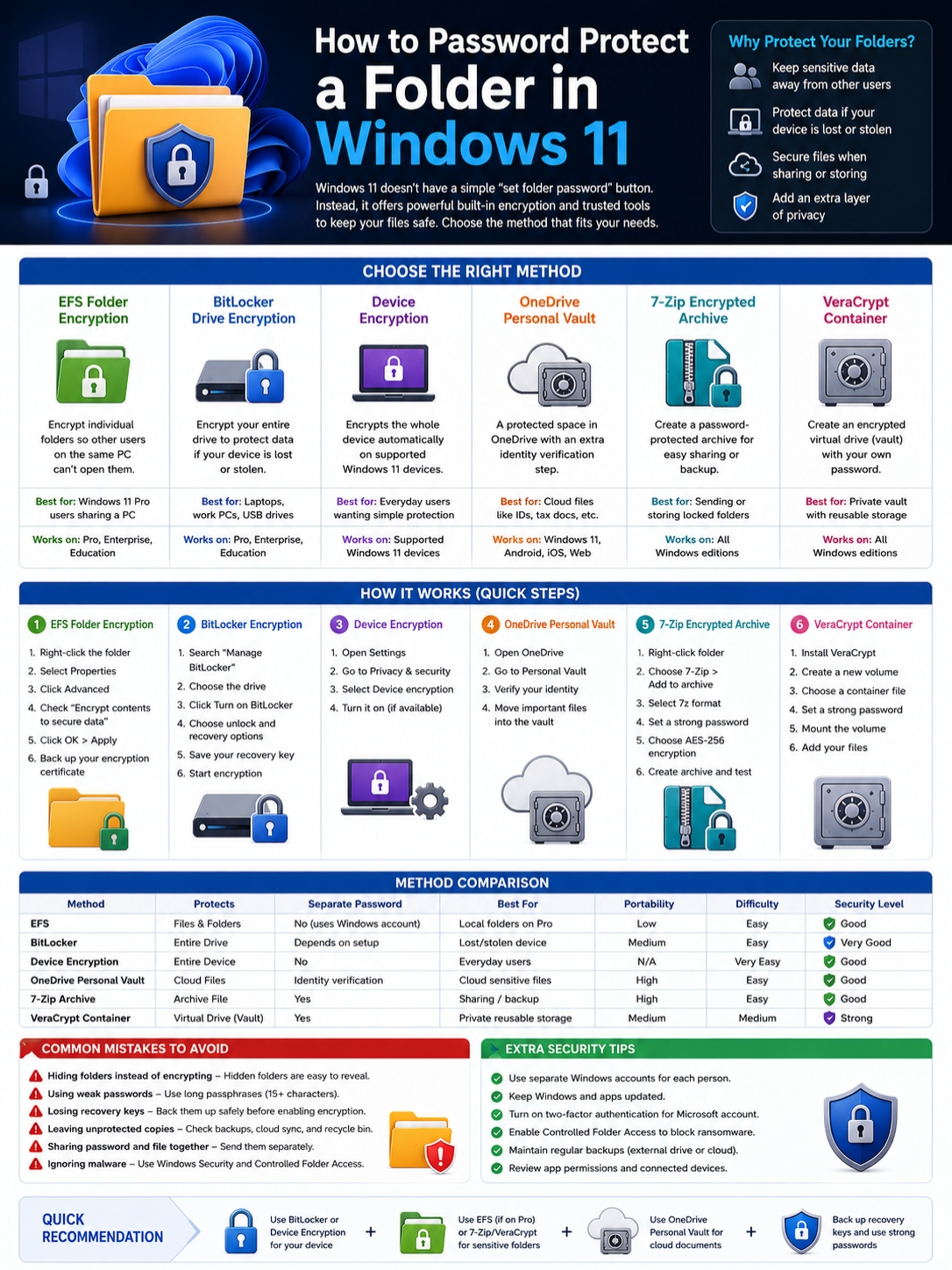
Here’s the truth: Windows 11 doesn’t have a simple “set password” button for folders. Instead, it gives you encryption tools. Some protect one folder. Some protect a whole drive. Some work only on Windows 11 Pro. Others work on any edition with third-party software.
So the right method depends on what you want to protect.
Want to stop another user on the same PC from opening your files? Use folder encryption if your Windows edition supports it.
Worried about laptop theft? Use drive encryption.
Need to send a locked folder to someone? Use an encrypted archive.
Want a private cloud space? Use OneDrive Personal Vault.
Let’s break it down in plain English.
Can You Password Protect a Folder in Windows 11?
|
Question |
Clear Answer |
|
Does Windows 11 have a built-in folder password button? |
No. |
|
Can Windows 11 encrypt a folder? |
Yes, but only on supported editions. |
|
Does Windows 11 Home support EFS folder encryption? |
No. |
|
Can BitLocker lock one folder? |
No. It protects drives. |
|
Best choice for Windows 11 Pro users |
EFS for folders, BitLocker for drives. |
|
Best choice for Windows 11 Home users |
7-Zip, VeraCrypt, OneDrive Personal Vault, or Device Encryption. |
|
Best method for sharing a locked folder |
7-Zip encrypted archive. |
Windows 11 doesn’t treat folder protection like a phone app lock. You can’t just add a folder PIN and walk away.
The built-in folder protection feature is called Encrypting File System, or EFS. It lets you encrypt files and folders. But Microsoft says this feature is not available in Windows Home editions.
That detail matters. A lot of tutorials skip it.
There’s also a difference between password protection and encryption.
A folder password blocks access with a separate password. Encryption scrambles the data so other users can’t read it without the right account, key, or password.
Encryption is usually safer. But you need to choose the right tool.
Best Ways to Password Protect Folder Windows Files
|
Method |
Best For |
Windows Edition |
Separate Password? |
Security Level |
|
EFS folder encryption |
Private folders on one PC |
Pro, Enterprise, Education |
No |
Good |
|
BitLocker |
Full drive protection |
Pro, Enterprise, Education |
Sometimes, depending on setup |
Very good |
|
Device Encryption |
Whole-device protection |
Supported Windows 11 devices |
No |
Good |
|
OneDrive Personal Vault |
Sensitive cloud files |
Windows 11 with OneDrive |
Uses account verification |
Good |
|
7-Zip encrypted archive |
Sending or storing locked folders |
Any Windows edition |
Yes |
Good |
|
VeraCrypt container |
A reusable private vault |
Any Windows edition |
Yes |
Strong |
There isn’t one perfect answer.
EFS works well if you use Windows 11 Pro and want to protect files from other local users.
BitLocker works better if you’re worried about someone stealing your laptop or removing your drive.
7-Zip works well when you need a real password-protected file.
OneDrive Personal Vault helps if your private files live in the cloud.
VeraCrypt is stronger, but it takes more effort.
So don’t pick a method just because it sounds secure. Pick it based on the risk.
Method 1: Encrypt a Folder with EFS in Windows 11 Pro
|
Step |
What to Do |
|
1 |
Right-click the folder. |
|
2 |
Select Properties. |
|
3 |
Click Advanced. |
|
4 |
Check Encrypt contents to secure data. |
|
5 |
Click OK. |
|
6 |
Click Apply. |
|
7 |
Choose whether to encrypt only the folder or everything inside it. |
|
8 |
Back up your encryption certificate when Windows asks. |
EFS is the closest built-in option for folder-level protection in Windows 11.
It doesn’t work like a normal password lock. You won’t type a new folder password each time you open the folder.
Instead, Windows ties access to your user account and encryption certificate. When you sign in to your account, your files open normally. Other users on the same PC should not be able to read them from their accounts.
That makes EFS useful for shared PCs.
When EFS Makes Sense
Use EFS when:
- You use Windows 11 Pro, Enterprise, or Education.
- You share a PC with other people.
- You want to protect a private folder inside your account.
- You don’t want to type a password every time.
- You mainly keep the files on the same computer.
Good folders to encrypt include:
- Work documents
- Financial files
- Legal papers
- Private notes
- Scanned IDs
- Client files
- Personal records
EFS Has One Big Catch
Back up your encryption certificate.
Don’t skip this.
If your Windows account breaks, you reinstall Windows, or you lose the certificate, you may lose access to your encrypted files.
That’s the trade-off with encryption. It protects your files from others, but it can also lock you out if you don’t manage it carefully.
EFS also isn’t great for sharing files. If you need to send a protected folder to someone else, use a password-protected archive instead.
Method 2: Use BitLocker or Device Encryption for Drive Protection
|
Feature |
What It Protects |
Best Use |
|
BitLocker |
Full internal or external drives |
Laptops, work PCs, USB drives |
|
Device Encryption |
The whole device on supported systems |
Consumer Windows 11 devices |
|
Recovery Key |
Emergency access to encrypted drives |
Login issues or hardware changes |
|
Microsoft Account Backup |
Saves the recovery key online |
Easier recovery for personal users |
BitLocker does not password protect one folder.
It protects the whole drive.
That makes it one of the strongest choices if your laptop gets stolen. If someone removes your SSD and connects it to another computer, drive encryption helps block access to your files.
Microsoft says BitLocker encrypts the entire drive to protect stored data. It also uses a recovery key when Windows needs extra proof that you’re allowed to access the drive.
That recovery key is important. It’s a 48-digit number.
If you lose it, you may lose access to the encrypted drive. Microsoft also says its support team can’t recreate a lost BitLocker recovery key.
So save the key before you need it.
Read Also: How to Fix No Sound on Windows 11
How to Check Device Encryption
On Windows 11:
- Open Settings.
- Go to Privacy & security.
- Select Device encryption.
- Turn it on if the option appears.
If you don’t see Device Encryption, your PC may not support it. You may also be using a standard account instead of an administrator account.
When BitLocker Is Better Than Folder Encryption
Use BitLocker when:
- You travel with your laptop.
- You store work files on your PC.
- You keep sensitive documents on an internal drive.
- You use external hard drives or USB drives.
- You want protection if someone steals the device.
BitLocker gives you a strong base layer.
But it has one limit: once you sign in and unlock the drive, your files are available to your account. So if you share your Windows account with someone else, BitLocker won’t stop them.
That’s why you may still need EFS, 7-Zip, or VeraCrypt for extra-sensitive folders.
Method 3: Create a Password-Protected Archive with 7-Zip
|
Setting |
Best Choice |
|
Tool |
7-Zip |
|
Archive format |
7z |
|
Encryption method |
AES-256 |
|
Password type |
Long, unique passphrase |
|
Best use |
Sending, storing, or backing up locked folders |
|
Main warning |
Test the archive before deleting the original folder |
For many people, 7-Zip is the simplest answer.
It turns a folder into an encrypted archive. You need the password to open or extract the files.
This works on Windows 11 Home, Pro, Enterprise, and Education. It also gives you a real password, not just account-based protection.
The official 7-Zip site lists AES-256 encryption support for 7z and ZIP formats.
How to Lock a Folder with 7-Zip
- Install 7-Zip from the official website.
- Right-click the folder.
- Choose 7-Zip.
- Click Add to archive.
- Set the archive format to 7z.
- Enter a strong password.
- Choose AES-256 encryption if shown.
- Enable file name encryption if available.
- Create the archive.
- Open it once and test the password.
Only delete the original folder after you test the archive.
That step matters. If you make a typo in the password and delete the original folder too early, you may lose access.
Use a Strong Password
A short password can ruin good encryption.
NIST’s password guidance recommends at least 15 characters for single-factor passwords. It also says systems should allow longer passwords, up to at least 64 characters.
So don’t use a short password like:
- 123456
- password11
- Your name
- Your birthday
- Your phone number
- A keyboard pattern
Use a long passphrase instead.
Example style:
glass-river-market-sun-84
Don’t use that exact one. Create your own.
A long passphrase is easier to remember and harder to crack.
Method 4: Use OneDrive Personal Vault for Cloud Files
|
Feature |
Why It Helps |
|
Extra identity check |
Adds another verification step |
|
Works with File Explorer |
Easy to access on Windows 11 |
|
Auto-lock |
Locks after inactivity |
|
Cloud sync |
Keeps files available across devices |
|
Sharing limits |
Files inside the vault can’t be shared directly |
OneDrive Personal Vault is useful if your files already live in OneDrive.
It’s not a normal folder password. It’s a protected area inside your OneDrive account. Microsoft says it uses strong authentication or a second identity check. That can include a fingerprint, face scan, PIN, email code, SMS code, or Microsoft Authenticator.
That extra step helps.
Personal Vault works on Windows 11, Windows 10, mobile apps, and supported browsers.
Best Files to Keep in Personal Vault
Use it for files like:
- Passport scans
- Tax documents
- Bank papers
- Insurance files
- Legal documents
- Emergency records
- Recovery codes
- Personal ID scans
OneDrive Personal Vault also auto-locks after inactivity. On the web, Microsoft says it locks after 20 minutes of no use.
That’s helpful if you open a file and forget to close it.
Personal Vault Has Limits
Personal Vault is not ideal for files you need to share often.
Microsoft says files inside Personal Vault cannot be shared directly. You need to move them out first.
Also, opened files may still appear in recent file lists or app history on Windows. So if you’re dealing with very sensitive files, open them through OneDrive.com instead of desktop apps when possible.
Method 5: Use VeraCrypt for a Private Encrypted Vault
|
Feature |
What It Means |
|
Encrypted container |
Creates a locked file that works like a private drive |
|
Separate password |
You choose the vault password |
|
Reusable storage |
Add and remove files after unlocking |
|
Works on more than Windows |
Useful across platforms |
|
Learning curve |
Stronger, but less beginner-friendly |
VeraCrypt is for people who want a real private vault.
It creates an encrypted container file. When you unlock it, Windows treats it like a drive. You can add files, edit them, and remove them.
When you lock the vault, the contents become unreadable without the password.
This is stronger and more flexible than a one-time ZIP archive. But it also takes more care.
When VeraCrypt Is Worth It
Use VeraCrypt if:
- You want a reusable password-protected vault.
- You use Windows 11 Home and don’t have EFS.
- You store private work files.
- You don’t want your files tied only to your Windows account.
- You’re comfortable managing passwords and backups.
VeraCrypt is powerful. But don’t use it casually if you often forget passwords.
If you forget the vault password, there may be no easy recovery.
Common Mistakes When Protecting Folders in Windows 11
|
Mistake |
Why It’s Risky |
Better Choice |
|
Hiding a folder only |
Anyone can reveal hidden files |
Use encryption |
|
Expecting EFS on Windows Home |
It isn’t available there |
Use 7-Zip, VeraCrypt, Personal Vault, or Device Encryption |
|
Losing the BitLocker recovery key |
You may lose drive access |
Save the key safely |
|
Using weak passwords |
Attackers can guess or crack them |
Use long passphrases |
|
Leaving unprotected copies |
The original files may still be exposed |
Secure or delete every copy |
|
Sending the file and password together |
Anyone who sees both can open it |
Share the password separately |
|
Ignoring malware |
Encryption doesn’t stop every attack |
Use Windows Security and backups |
The biggest mistake is hiding a folder and thinking it’s safe.
It isn’t.
A hidden folder is just out of sight. Anyone can turn on “show hidden files” in File Explorer.
Another mistake is protecting one copy but leaving three others exposed.
Sensitive files often sit in more places than you expect:
- Downloads
- Email attachments
- OneDrive folders
- Recent files
- App temp folders
- Recycle Bin
- External drives
- Old backups
If the file matters, check every copy.
Add Ransomware Protection Too
Folder locks and encryption won’t stop every threat.
If malware runs while you’re signed in, it may still reach files you can access.
Windows Security includes a feature called Controlled Folder Access. Microsoft says it helps protect folders from ransomware by blocking untrusted apps from changing protected files.
You can find it here:
- Open Windows Security.
- Go to Virus & threat protection.
- Open Ransomware protection.
- Turn on Controlled folder access.
It may block some normal apps until you allow them. That can feel annoying. But it can also stop suspicious file changes.
Which Method Should You Choose?
|
Situation |
Best Method |
|
You use Windows 11 Pro and want to protect one folder |
EFS |
|
You use Windows 11 Home |
7-Zip, VeraCrypt, OneDrive Personal Vault, or Device Encryption |
|
You travel with a laptop |
BitLocker or Device Encryption |
|
You want to send a private folder |
7-Zip encrypted archive |
|
You want cloud access with extra verification |
OneDrive Personal Vault |
|
You want a reusable local vault |
VeraCrypt |
|
You share a PC with family |
Separate Windows accounts plus EFS or encrypted archives |
|
You store business files |
BitLocker plus EFS, VeraCrypt, or secure cloud storage |
Here’s the practical setup I’d recommend for most people.
Start with separate Windows accounts. Don’t share one login with everyone in the house or office.
Then turn on Device Encryption or BitLocker if your PC supports it. That protects your data if the device is lost or stolen.
After that, use the right tool for the folder:
- Use EFS for local folders on Windows 11 Pro.
- Use 7-Zip when sending or storing locked copies.
- Use OneDrive Personal Vault for sensitive cloud files.
- Use VeraCrypt when you need a real private vault.
That’s the safest way to handle password protect folder windows needs without overcomplicating things.
Uncommon FAQs About Password Protecting Folders in Windows 11
|
FAQ |
Quick Answer |
|
Why is “Encrypt contents to secure data” grayed out? |
You may be using Windows Home or an unsupported setup. |
|
Can an admin open my encrypted folder? |
Admin access can still create risks. |
|
Can I lock a folder on a USB drive? |
Yes, with BitLocker, 7-Zip, or VeraCrypt. |
|
Can I share files from OneDrive Personal Vault? |
Not directly. You must move them out first. |
|
Does encryption stop ransomware? |
Not by itself. |
|
Can I recover a lost archive password? |
Usually no. |
Why is “Encrypt contents to secure data” grayed out?
The most common reason is your Windows edition.
Microsoft says file encryption is not available in Windows Home. So if you use Windows 11 Home, this option may not work.
It can also happen because of file system limits, company policies, or system settings.
Can I password protect a normal ZIP file in Windows 11?
Windows 11 can create ZIP files, but it does not give you the same strong password options as tools like 7-Zip.
For better protection, use 7-Zip with AES-256 encryption.
Can I password protect a folder on a USB drive?
Yes.
For full USB drive protection, use BitLocker To Go if your Windows edition supports it.
For a portable locked file, use a 7-Zip encrypted archive.
For a reusable vault, use VeraCrypt.
Can another administrator access my protected files?
It depends on the method.
EFS protects files from other normal users, but admin access still creates risks. An admin may change system settings, reset accounts, access backups, or install monitoring tools.
For more control, use a separate password-protected archive or VeraCrypt vault.
Does OneDrive Personal Vault hide file names?
Not perfectly in every case.
Microsoft notes that opened Personal Vault files may still appear in recent lists or other Windows locations. For very sensitive documents, open them through OneDrive.com and clear recent activity when needed.
What happens if I lose my BitLocker recovery key?
You may lose access to the encrypted drive.
Microsoft says its support team cannot recreate a lost BitLocker recovery key. So save it somewhere safe before you need it.
Does folder encryption protect against malware?
Not fully.
Encryption protects stored files from unauthorized access. But if malware runs while you’re signed in, it may still reach files you can open.
Use Windows Security, Controlled Folder Access, backups, and safe browsing habits.
Final Thoughts: Password Protect Folder Windows Files the Smart Way
|
Key Point |
Best Action |
|
Windows 11 has no simple folder password button |
Use encryption or a trusted archive tool |
|
Windows 11 Home does not support EFS |
Use 7-Zip, VeraCrypt, Personal Vault, or Device Encryption |
|
Stolen laptops need stronger protection |
Use BitLocker or Device Encryption |
|
Shared folders need portable protection |
Use 7-Zip encrypted archives |
|
Cloud files need account security |
Use OneDrive Personal Vault and two-factor authentication |
|
Recovery keys matter |
Back them up before there’s a problem |
The smartest way to password protect folder windows files is to stop looking for one magic button.
Windows 11 doesn’t work that way.
Use EFS if you have Windows 11 Pro and want to protect a folder from other local users. Use BitLocker or Device Encryption if you care about stolen-device protection. Use 7-Zip when you need a real password-protected archive. Use OneDrive Personal Vault for sensitive cloud files. Use VeraCrypt when you want a stronger private vault.
Keep it simple.
Protect the folder based on where it lives, who might access it, and how you plan to use it.
That gives you real security without making your daily work harder.