
A full C drive is annoying. Your laptop slows down. Apps take forever to open. Windows Update refuses to install. Downloads fail. Even saving a simple file can feel like a battle.
The good news? You don’t need a third-party cleaner app.
Windows already has solid tools for this job. You can clear temporary files, remove old update files, uninstall unused apps, move large files, and manage OneDrive storage without installing anything extra.
This guide shows you how to free up disk space windows users can reclaim safely. No sketchy cleaner software. No risky folder deleting. Just practical Windows tools that actually work.
The main rule is simple: let Windows clean Windows. Review your own files before deleting them. And never delete system folders by hand.
Why Windows Runs Out of Storage So Fast
Windows storage fills up quietly. Most of the time, nothing dramatic happens. Files just stack up in the background.
Updates need space. Browsers save cache. Apps create temporary files. Downloads stay forgotten. OneDrive files may sit on your PC even when they’re also in the cloud. Games, videos, and phone backups can eat a huge chunk of your drive.
Windows 11 also needs a 64 GB or larger storage device as a minimum requirement. But let’s be honest: 64 GB doesn’t feel like much once Windows, updates, apps, and personal files all share the same drive.
|
Storage area |
Why it grows |
Safe first move |
|
Temporary files |
Windows and apps create working files |
Use Storage Sense or Disk Cleanup |
|
Windows Update files |
Updates store downloads and rollback files |
Use Cleanup recommendations |
|
Downloads folder |
Installers, PDFs, videos, and ZIP files pile up |
Sort by size and review |
|
Apps and games |
Large programs can use many GBs |
Uninstall from Settings |
|
OneDrive files |
Cloud files may also stay on your PC |
Use “Free up space” |
|
Videos and photos |
Media files grow fast |
Move older files to another drive |
The biggest mistake is deleting random folders from the C drive. Don’t do that. Windows has storage tools for a reason. Use them.
Check What’s Taking Up Space First
Before you delete anything, find the real problem.
Open:
Start > Settings > System > Storage
Windows will show categories like Apps, Temporary files, Documents, Pictures, Videos, and System & reserved. This helps you see where the space has gone.
You can also open:
File Explorer > This PC
That shows how much free space is left on each drive.
|
Area to check |
Where to find it |
What it tells you |
|
Total free space |
File Explorer > This PC |
How serious the issue is |
|
Storage categories |
Settings > System > Storage |
What is using the most space |
|
Temporary files |
Storage > Temporary files |
What Windows can clean safely |
|
Installed apps |
Settings > Apps > Installed apps |
Which apps are large |
|
Other drives |
Advanced storage settings |
Whether you can move files |
Start with the biggest category you understand.
If Videos takes 50 GB, deal with that first. If Temporary files takes 8 GB, use Windows cleanup tools. If System & reserved looks large, don’t panic and start deleting folders. Use safer cleanup methods.
Free Up Disk Space Windows with Storage Sense
Storage Sense is the easiest cleanup tool in Windows. It can remove temporary files, old Recycle Bin items, and some cloud-backed local files if you allow it.
To turn it on:
- Open Settings.
- Go to System > Storage.
- Turn on Storage Sense.
- Click Storage Sense.
- Choose when it runs and what it can clean.
|
Storage Sense setting |
Best use |
Be careful with |
|
Temporary files |
Regular cleanup |
Close apps before cleaning |
|
Recycle Bin |
Removing old deleted files |
Review before emptying |
|
Downloads |
Optional cleanup |
Don’t auto-delete work files |
|
Cloud content |
Making old cloud files online-only |
Use only if files are backed up |
|
Run schedule |
Monthly or during low storage |
Daily cleanup may be too much |
I like Storage Sense because it doesn’t try to be clever in a dangerous way. It uses Windows’ own rules. That makes it safer than random cleaner apps.
Still, check the settings before turning everything on. Be extra careful with the Downloads folder. Many people save important files there without thinking.
This is one of the best ways to free up disk space windows users can manage without extra tools.
Use Cleanup Recommendations and Disk Cleanup
Windows gives you two useful cleanup options: Cleanup recommendations and Disk Cleanup.
Cleanup recommendations are easier for most people.
Go to:
Settings > System > Storage > Cleanup recommendations
Windows may suggest temporary files, large unused files, cloud-synced files, and unused apps. It also shows how much space you can save before you remove anything.
Disk Cleanup is older, but it still works well.
Search for Disk Cleanup from the Start menu. Choose your drive, usually C:. Then click Clean up system files for deeper cleanup.
|
Tool |
Best for |
Where to find it |
|
Cleanup recommendations |
Guided cleanup |
Settings > System > Storage |
|
Disk Cleanup |
Temporary files and system files |
Search “Disk Cleanup” |
|
Clean up system files |
Old Windows Update files |
Inside Disk Cleanup |
|
Temporary files page |
Fast cleanup |
Settings > Storage > Temporary files |
Be careful with Previous Windows Installation(s). This usually refers to the Windows.old folder after an upgrade.
If you delete it, you may lose the option to roll back to your previous Windows version. If your PC works fine after the upgrade and you don’t plan to roll back, removing it can free a lot of space. But don’t rush that decision.
Remove Apps, Games, and Features You Don’t Use
Apps can take more space than you think. Games are even worse. A single modern game can use more storage than thousands of documents.
Go to:
Settings > Apps > Installed apps
Sort the list by size. Start at the top. Remove anything you no longer need.
|
Item to review |
Where to check |
Why it matters |
|
Large apps |
Settings > Apps > Installed apps |
Quick space savings |
|
Games |
Installed apps or game launchers |
Often huge |
|
Optional features |
Settings > Apps > Optional features |
Some tools sit unused |
|
Language packs |
Settings > Time & language |
Extra languages add storage use |
|
Old printer tools |
Installed apps |
Device software often stays behind |
Don’t uninstall drivers unless you know what they do. If something looks tied to your graphics card, sound, Wi-Fi, Bluetooth, touchpad, or laptop brand, leave it alone unless you’re sure.
Also check old software you installed once and forgot. Trial apps, old editors, duplicate browsers, printer utilities, and abandoned launchers often sit there for years.
Removing one or two large apps may free more space than deleting hundreds of small files.
Move Large Files Instead of Deleting Everything
You don’t need to delete everything to fix a full drive. Moving files often makes more sense.
Videos, old photos, screen recordings, phone backups, ISO files, and project folders can take a lot of room. Move them to an external drive, SD card, NAS, or cloud storage.
|
File type |
Common location |
Best action |
|
Videos |
Videos, Downloads, Desktop |
Move to external storage |
|
Photos |
Pictures, phone import folders |
Archive older albums |
|
Installers |
Downloads |
Delete after installing |
|
ZIP/RAR files |
Downloads or Desktop |
Keep only what you need |
|
Screen recordings |
Videos or Captures |
Move or delete old clips |
|
Phone backups |
Documents or app folders |
Remove old backups carefully |
Sort folders by size. That makes cleanup much easier.
In File Explorer:
- Open a folder like Downloads or Videos.
- Right-click a blank area.
- Choose Sort by > Size.
- Review the largest files first.
After deleting files, empty the Recycle Bin. Deleted files still take space until you clear it.
This one step catches many people. They delete 20 GB of files and wonder why the drive still looks full. The files are often still sitting in the Recycle Bin.
Read Also: How to Fix No Sound on Windows 11
Use OneDrive Files On-Demand Properly
OneDrive Files On-Demand can save a lot of space if you use it the right way.
It lets you see your OneDrive files in File Explorer without keeping every full file on your PC. Online-only files show up like normal files, but they don’t use local storage until you open them.
To free local space:
- Open your OneDrive folder.
- Right-click a file or folder.
- Click Free up space.
This removes the local copy from your PC but keeps the file in OneDrive.
|
OneDrive status |
What it means |
Space impact |
|
Online-only |
Stored in cloud, visible on PC |
Saves local space |
|
Locally available |
Downloaded after opening |
Uses local space |
|
Always keep on this device |
Always stored offline |
Uses more space |
|
Free up space |
Removes local copy only |
Keeps cloud copy |
Don’t confuse Free up space with Delete.
Free up space keeps the file in OneDrive. Delete may remove it from OneDrive too, depending on sync settings. That’s a big difference.
This is a great option for large folders you don’t use every day, such as old photos, archived documents, or finished projects.
Clean Advanced Windows Files Safely
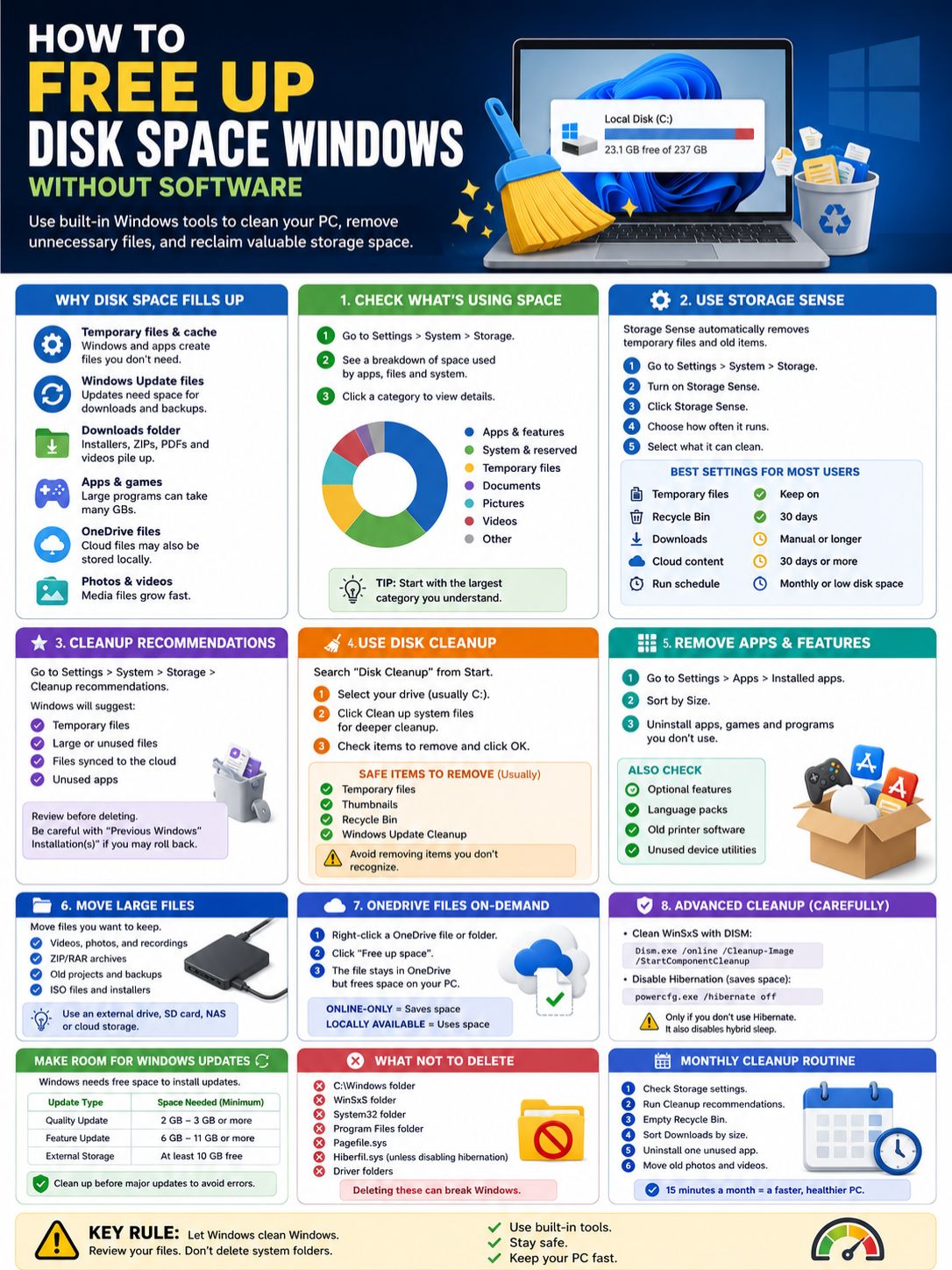
Some large Windows files are safe to reduce, but not safe to delete manually.
The WinSxS folder is a good example. It stores Windows component files. It may look huge, but Windows needs it for updates and repairs. Don’t open it and start deleting files.
Use Windows tools instead.
|
Advanced cleanup |
What it helps with |
Risk level |
|
DISM StartComponentCleanup |
Cleans older Windows component files |
Medium |
|
Hibernation off |
Removes or reduces hibernation file use |
Medium |
|
External storage for updates |
Helps when updates need space |
Low |
|
Windows Security scan |
Checks malware-related issues |
Low |
|
Disk Cleanup system files |
Removes old update files |
Low to medium |
Advanced users can run this command from Command Prompt as administrator:
Dism.exe /online /Cleanup-Image /StartComponentCleanup
This cleans older component versions from the Windows component store.
Only use advanced commands if you’re comfortable with them. For most users, Storage Sense, Cleanup recommendations, and Disk Cleanup are enough.
Should You Disable Hibernation?
Windows uses a hidden file called Hiberfil.sys for hibernation. This file can be large because it stores memory data when your PC hibernates.
To disable hibernation, open Command Prompt as administrator and run:
powercfg.exe /hibernate off
To turn it back on:
powercfg.exe /hibernate on
This can free space, but it has a trade-off. If you use Hibernate or hybrid sleep, don’t turn it off without understanding what changes.
For desktop users with stable power and no need for Hibernate, it may be useful. For laptop users, I’d think twice.
Make Room for Windows Updates
Windows Update often exposes storage problems. Your PC may seem fine until an update needs several gigabytes of working room.
Microsoft’s guidance says feature updates may need 6 GB to 11 GB or more of free space. Quality updates may need 2 GB to 3 GB or more. The exact number depends on your device, installed features, language packs, and update path.
|
Update situation |
Space guidance |
Best action |
|
Quality update |
2 GB to 3 GB or more |
Run Storage Sense |
|
Feature update |
6 GB to 11 GB or more |
Use Cleanup recommendations |
|
Low internal storage |
External storage may help |
Use a drive with at least 10 GB free |
|
Rollback files |
Stored temporarily |
Remove only after the update works |
Before a major update, do a quick cleanup:
- Run Storage Sense.
- Empty the Recycle Bin.
- Delete old installers.
- Move large videos or photos.
- Restart the PC.
That small routine can prevent update errors.
This is another smart time to free up disk space windows needs before it starts throwing warnings.
What You Should Not Delete on Windows
Some folders look tempting because they’re large. Leave them alone.
If you delete the wrong Windows folder, you may break updates, apps, drivers, or even Windows itself.
|
Don’t manually delete |
Why it matters |
Safer option |
|
C:\Windows |
Core operating system files |
Use Windows cleanup tools |
|
WinSxS |
Windows component store |
Use DISM or Disk Cleanup |
|
System32 |
Critical Windows files |
Never delete manually |
|
Program Files |
App files and shared components |
Uninstall apps properly |
|
Pagefile.sys |
Virtual memory |
Let Windows manage it |
|
Hiberfil.sys |
Hibernation file |
Use the powercfg command |
|
Driver folders |
Hardware support |
Leave unless guided by the manufacturer |
Also skip registry cleaners. They rarely free useful space. Worse, they can create problems that are hard to trace later.
A cleaner app may promise one-click magic. Windows’ own tools are less dramatic, but they’re safer.
A Simple Monthly Cleanup Routine
You don’t need to clean your PC every day. Once a month is enough for most people.
Set aside 15 minutes and run through this simple routine.
|
Step |
Time needed |
Why it helps |
|
Check Storage settings |
2 minutes |
Shows where space went |
|
Run Cleanup recommendations |
3 minutes |
Clears safe junk |
|
Empty Recycle Bin |
1 minute |
Reclaims deleted space |
|
Sort Downloads by size |
5 minutes |
Finds forgotten large files |
|
Remove one unused app |
3 minutes |
Cuts app bloat |
|
Move old media files |
5–10 minutes |
Frees serious space |
Use this rule:
- Review personal files before deleting them.
- Let Windows clean Windows files.
- Don’t touch system folders manually.
- Use Free up space for OneDrive files instead of deleting them.
- Move files you may need later.
This keeps cleanup simple and safe.
Final Thoughts
You don’t need cleaner software to fix a full drive. Windows already has the tools you need.
Start with Storage settings. Run Storage Sense. Check Cleanup recommendations. Use Disk Cleanup for system files. Remove large apps you don’t use. Move old photos and videos. Make OneDrive files online-only when you don’t need local copies.
|
Best method |
Best for |
Risk level |
|
Storage Sense |
Regular cleanup |
Low |
|
Cleanup recommendations |
Guided cleanup |
Low |
|
Disk Cleanup |
Temporary and system files |
Low |
|
App uninstall |
Large unused programs |
Low |
|
OneDrive Files On-Demand |
Cloud-backed files |
Low |
|
DISM cleanup |
Windows component store |
Medium |
|
Hibernation off |
Reclaiming Hiberfil.sys space |
Medium |
The safest way to free up disk space windows users can trust is simple: use built-in Windows tools and avoid risky shortcuts.
Don’t delete system folders. Don’t trust random cleaner apps with deep system access. Don’t remove files you don’t understand.
Clean what Windows recommends. Review your own files. Keep enough free space for updates.
That’s how you keep your PC lighter, faster, and far less frustrating.
Uncommon FAQs About Freeing Up Disk Space on Windows
|
Question |
Quick answer |
|
Why does space disappear after an update? |
Windows keeps temporary update and rollback files. |
|
Does Storage Sense delete Downloads automatically? |
Only if you set it that way. |
|
Is OneDrive “Free up space” the same as delete? |
No. It removes the local copy only. |
|
Can I delete Windows.old? |
Yes, but you lose rollback access. |
|
Should I delete WinSxS? |
No. Use DISM or Disk Cleanup. |
Why is my C drive full when I can’t find large files?
Hidden files may be taking the space. Windows updates, restore data, app caches, cloud sync files, and user profile files can all grow in the background.
Check Settings > System > Storage before digging through folders manually.
Can I delete everything in the Downloads folder?
No. Downloads often contains important files. You may have invoices, work documents, photos, PDFs, ZIP files, and installers there.
Sort by size and date first. Delete only what you recognize.
Does Disk Cleanup still matter in Windows 11?
Yes. Disk Cleanup still helps, especially when you choose Clean up system files. It can remove old update files, temporary files, thumbnails, and other items Windows no longer needs.
Why do temporary files come back after I delete them?
That’s normal. Windows and apps create temporary files all the time.
You’re not trying to keep temporary files at zero. You’re trying to stop them from growing too large.
Should I disable hibernation to save space?
Only if you don’t use Hibernate. Turning it off can free space, but it also changes sleep and power behavior.
If you use a laptop and rely on sleep or hibernation, leave it alone unless you know what you’re doing.
Can malware cause low disk space?
Yes. Malware can create junk files, damage system files, or fill storage in strange ways.
If your drive fills up suddenly and you can’t explain why, run a scan with Windows Security.