
You send a message. You wait. Then that red exclamation mark pops up with one frustrating line: Not Delivered.
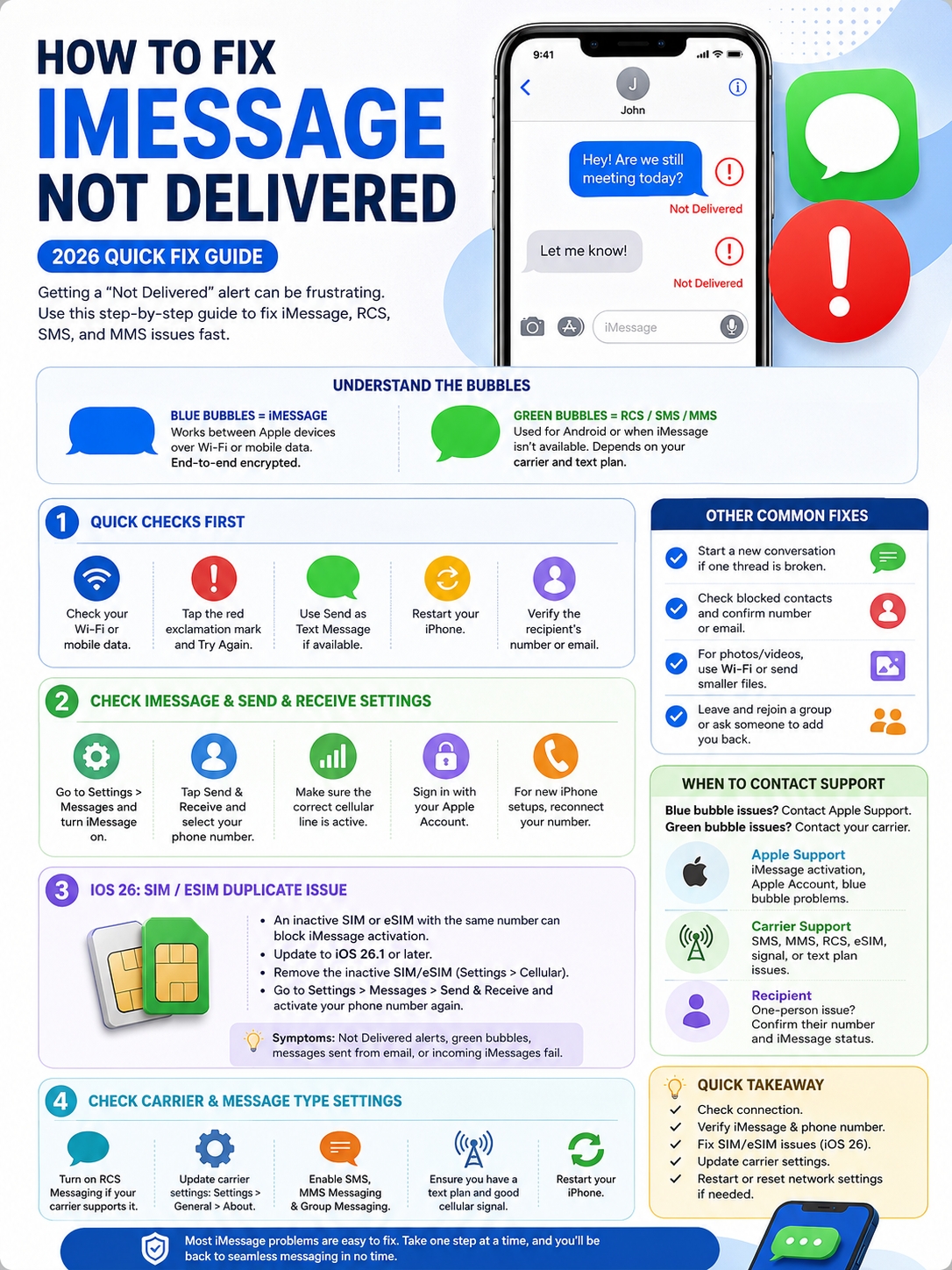
It feels personal, but most of the time, it isn’t. A failed iMessage doesn’t always mean someone blocked you. It usually means your iPhone lost its connection, iMessage didn’t activate correctly, your phone number isn’t selected, or your carrier couldn’t send the message through SMS, MMS, or RCS.
This imessage not delivered fix guide breaks it all down in plain English. We’ll cover the quick fixes first, then move into the deeper stuff like iOS 26 SIM issues, eSIM problems, RCS settings, group chats, and carrier updates.
The biggest 2026 change to know is this: some iPhones running iOS 26 may fail to activate iMessage with a phone number if an inactive SIM or eSIM still has that same number. Apple says this can cause “Not Delivered” errors, green bubbles, failed incoming iMessages, or messages sent from an email instead of your number.
Why iMessage Says Not Delivered in 2026
A “Not Delivered” alert means your iPhone tried to send the message but couldn’t complete the job.
That failure can happen in a few places. It may be your internet connection. It may be Apple’s iMessage setup. It may be your phone number. Or it may be your carrier, especially if the message is going through SMS, MMS, or RCS.
|
Cause |
What It Means |
Best First Move |
|
Weak Wi-Fi or mobile data |
iMessage can’t connect properly |
Switch networks and try again |
|
iMessage is off |
Your iPhone can’t send blue messages |
Turn iMessage back on |
|
Wrong Send & Receive setting |
Messages may send from email |
Select your phone number |
|
iOS 26 duplicate SIM issue |
An inactive SIM/eSIM may block activation |
Update iOS or remove the inactive SIM |
|
Carrier problem |
SMS, MMS, or RCS can’t send |
Check carrier settings |
|
Group chat issue |
The thread may be broken |
Start a new conversation |
Apple separates messages into two main groups.
Blue bubbles are iMessages. They work between Apple devices and use Wi-Fi or mobile data.
Green bubbles are RCS, SMS, or MMS messages. These depend on your carrier, text plan, region, and phone settings.
That difference matters. A blue-bubble failure usually points to iMessage, Apple Account, phone number, or internet trouble. A green-bubble failure usually points to your carrier, SIM, RCS, SMS, or MMS setup.
Blue bubbles vs green bubbles
A blue bubble means your iPhone is using iMessage. That allows texts, photos, videos, links, read receipts, typing indicators, and Apple’s end-to-end encrypted messaging between Apple devices.
A green bubble means your iPhone is using RCS, SMS, or MMS instead. RCS can support better photos, videos, typing indicators, read receipts, and delivery receipts. But it only works when your iPhone, carrier, region, and the other person’s phone all support it.
So don’t panic when a message turns green. It doesn’t always mean something is wrong. But if green messages also fail, you need to check your carrier side too.
imessage not delivered fix: Start With These Quick Checks
Don’t reset your iPhone right away. Most people don’t need that.
Start with the basics. They fix more iMessage problems than you’d expect.
|
Step |
What to Do |
Why It Helps |
|
1 |
Check Wi-Fi and mobile data |
iMessage needs internet |
|
2 |
Tap the red exclamation mark |
Lets you try sending again |
|
3 |
Use Send as Text Message |
Sends by SMS if iMessage fails |
|
4 |
Restart your iPhone |
Clears small glitches |
|
5 |
Check the contact details |
Old numbers and emails can break messages |
Check your connection first
Open Safari and load any website.
If the page doesn’t open, iMessage probably won’t work either. iMessage needs Wi-Fi or mobile data.
Try this:
- Turn Wi-Fi off and use mobile data.
- Turn mobile data off and use Wi-Fi.
- Turn Airplane Mode on for 10 seconds, then turn it off.
- Move closer to your router.
- Restart your router if Wi-Fi feels slow on every device.
This is often the fastest imessage not delivered fix because many failed messages come from a short connection drop.
Tap the red exclamation mark
Don’t keep sending the same message again and again. That can create duplicate messages when the connection comes back.
Tap the red exclamation mark beside the failed message. Then tap Try Again.
If it fails again, tap the alert once more and choose Send as Text Message if that option appears.
Turn on Send as Text Message
Go to:
Settings > Apps > Messages > Send as Text Message
Turn it on.
This lets your iPhone fall back to SMS when iMessage isn’t available. It’s useful when the other person has no internet but can still receive normal texts.
Just remember: SMS may cost money depending on your carrier plan.
Check iMessage Activation and Send & Receive Settings
If your iPhone sends from the wrong number, or from your email, messages can get messy fast.
This is common after setting up a new iPhone, switching SIMs, moving to eSIM, or changing Apple Account settings.
|
Setting |
Where to Find It |
What to Check |
|
iMessage |
Settings > Apps > Messages |
Make sure it’s on |
|
Send & Receive |
Settings > Apps > Messages > Send & Receive |
Select your phone number |
|
Cellular line |
Settings > Cellular |
Use the correct active line |
|
Apple Account |
Send & Receive |
Sign in if needed |
|
New iPhone setup |
Messages settings |
Reconnect your number |
Turn iMessage off and back on
Go to:
Settings > Apps > Messages
Turn iMessage off. Wait a few seconds. Then turn it back on.
Now go to:
Send & Receive
Make sure your phone number is selected.
If only your Apple Account email is selected, your messages may start from that email instead of your number. That can confuse people and split conversations into separate threads.
Pick the correct phone number
This matters a lot if you use Dual SIM or eSIM.
Go to:
Settings > Cellular
Make sure the correct line is active. If you use one number for work and one for personal messages, check which one iMessage is using.
Then go back to:
Settings > Apps > Messages > Send & Receive
Choose the phone number you want people to see.
Check your iPad and Mac too
Sometimes iMessage works on your iPad or Mac but fails on your iPhone. That usually means your devices don’t share the same Send & Receive setup.
On each device, check whether messages start from your phone number or Apple Account email.
For most people, the phone number should be selected on the iPhone.
Fix iOS 26, eSIM, and Duplicate SIM Problems
This is the big 2026 issue.
If you updated to iOS 26 and iMessage stopped working with your phone number, check your SIM setup.
Apple says iMessage activation can fail if an inactive SIM or eSIM has the same phone number as your active SIM. That can happen after switching devices, converting a physical SIM to eSIM, transferring a number, or leaving an old SIM profile on the phone.
|
2026 Issue |
Symptom |
Fix |
|
Inactive SIM with same number |
iMessage won’t activate |
Update to iOS 26.1 or later |
|
Duplicate number in Send & Receive |
Same number appears twice |
Remove inactive SIM/eSIM |
|
eSIM transfer issue |
Messages send from email |
Reactivate your number |
|
New iPhone setup |
Blue bubbles turn green |
Check Cellular and Messages settings |
|
Wrong active line |
One number works, one fails |
Select the right phone line |
Update to iOS 26.1 or later
Go to:
Settings > General > Software Update
Install the latest version available.
Apple says updating to iOS 26.1 or later can fix the duplicate SIM issue that blocks iMessage activation with your phone number.
This is one of the most important steps in this imessage not delivered fix guide if your problem started after an iOS 26 update.
Read Also: How to Recover Deleted Photos on iPhone
Remove the inactive SIM or eSIM
Go to:
Settings > Cellular
Look for two SIMs or eSIMs with the same phone number.
If one is inactive, remove it.
For a physical SIM, take it out of the phone.
For an eSIM, tap the inactive eSIM and delete it.
Then go to:
Settings > Apps > Messages > Send & Receive
Tap your phone number again and activate it for iMessage.
This fix is especially useful after upgrading to a new iPhone or moving your number from a physical SIM to an eSIM.
Fix RCS, SMS, MMS, and Carrier Problems
Not every failed message is an iMessage problem.
If the bubble is green, your iPhone is using RCS, SMS, or MMS. That means your carrier plays a big role.
|
Message Type |
Bubble Color |
Needs Internet? |
Needs Carrier Support? |
Common Problem |
|
iMessage |
Blue |
Yes |
No text plan needed |
Internet or Apple setup issue |
|
RCS |
Green |
Uses carrier data path |
Yes |
Carrier support or activation delay |
|
SMS |
Green |
No Wi-Fi needed |
Yes |
Weak signal or plan issue |
|
MMS |
Green |
Often needs mobile data |
Yes |
Photos, videos, or group messages fail |
Check RCS settings
RCS became more important on iPhone after iOS 18. It helps iPhone users message Android users with better media quality and richer chat features.
Go to:
Settings > Apps > Messages > RCS Messaging
Turn it on if your carrier supports it.
If you don’t see the RCS option, your carrier or region may not support it yet. RCS can also take some time to activate after you turn it on.
Don’t confuse RCS with iMessage
RCS is better than old SMS, but it is not iMessage.
iMessage is Apple’s own messaging system. RCS is carrier-supported messaging. It works across platforms, but support varies.
In 2026, Apple and Google began rolling out end-to-end encrypted RCS in beta for supported users. That sounds great, but don’t assume every RCS chat is encrypted. Look for the lock icon or encryption indicator.
If there’s no lock icon, treat that RCS chat like a standard carrier message.
Update carrier settings
Carrier settings help your iPhone connect to your mobile network correctly.
Go to:
Settings > General > About
Wait a few seconds. If a carrier update is available, your iPhone should show a prompt.
Install it.
This can help after changing SIMs, activating eSIM, switching carriers, or updating iOS.
Check SMS and MMS settings
Go to:
Settings > Apps > Messages
Make sure these options are on if available:
- Send as Text Message
- MMS Messaging
- Group Messaging
- RCS Messaging
Some carriers hide or control these settings. If they’re missing, contact your carrier.
Verizon and AT&T both recommend checking message settings, restarting the phone, updating iOS, checking blocked contacts, and testing cellular data when texts fail.
Fix One Contact, Group Chat, Photo, or Video Failures
If iMessage works with everyone except one person, don’t reset your phone yet.
The problem may sit inside that one contact card or message thread.
|
Problem |
Likely Cause |
Fix |
|
One person doesn’t receive messages |
Wrong number, old email, or recipient issue |
Check the contact card |
|
Group chat fails |
You left or were removed |
Ask someone to add you back |
|
Mixed iPhone/Android group fails |
SMS/MMS/RCS limit |
Start a new group thread |
|
Photos won’t send |
File size, data issue, or MMS limit |
Try Wi-Fi or send a smaller file |
|
Business code fails |
Carrier or blocked number issue |
Check blocked contacts |
Recheck the contact card
Open the contact and check:
- Is the phone number correct?
- Is the country code correct?
- Are there old emails listed?
- Are there duplicate contact cards?
- Did you block the number by mistake?
This takes one minute and can save you from doing bigger fixes you don’t need.
Start a fresh conversation
Old threads can break after a SIM change, iPhone transfer, iOS update, or Android-to-iPhone switch.
Start a new message thread with the correct number.
For group chats, this matters even more. If you left a group or someone removed you, you can only rejoin if someone adds you back. If a group thread keeps failing, create a new one.
Send smaller photos and videos
Plain text may send fine while photos fail.
That’s because photos and videos need more data. If the chat falls back to MMS, your carrier may also limit file size.
Try this:
- Send the file over Wi-Fi.
- Send one photo at a time.
- Compress the video.
- Use iCloud link sharing for large files.
- Turn on Low Quality Image Mode if needed.
Go to:
Settings > Apps > Messages > Low Quality Image Mode
This can help when media messages keep failing.
Advanced Fixes That Are Still Safe
Use these only after the simple fixes fail.
They won’t erase your photos or apps, but some will remove saved Wi-Fi passwords and network settings.
|
Advanced Fix |
What It Does |
Risk Level |
|
Update iOS |
Fixes bugs and compatibility problems |
Low |
|
Restart router |
Refreshes your home network |
Low |
|
Reset Network Settings |
Clears Wi-Fi, cellular, VPN, and APN settings |
Medium |
|
Sign out of iMessage |
Refreshes Apple Account connection |
Medium |
|
Remove inactive eSIM |
Fixes duplicate-number activation |
Medium |
Reset Network Settings
Go to:
Settings > General > Transfer or Reset iPhone > Reset > Reset Network Settings
This removes saved Wi-Fi networks, Wi-Fi passwords, cellular settings, VPN settings, and APN settings.
Use it when:
- iMessage fails on multiple networks.
- SMS or RCS keeps failing.
- Your iPhone has trouble after a SIM or eSIM change.
- Carrier settings seem broken.
- Nothing else works.
After the reset, reconnect to Wi-Fi and test Messages again.
Restart your router
If iMessage fails only on home Wi-Fi, restart your router.
Unplug it. Wait 30 seconds. Plug it back in.
Then reconnect your iPhone and try sending the message again.
If Messages works on mobile data but not Wi-Fi, your home network may be blocking or dropping the connection.
Sign out and back into iMessage
Use this if Messages keeps sending from the wrong email or refuses to activate properly.
Go to:
Settings > Apps > Messages > Send & Receive
Tap your Apple Account and sign out.
Then turn iMessage off, wait a few seconds, and turn it back on.
Sign in again and select your phone number.
When to Contact Apple or Your Carrier
Sometimes the problem isn’t on your phone.
If you’ve tried the steps above and messages still fail, split the problem by bubble color.
|
Contact |
Best For |
What to Say |
|
Apple Support |
Blue-bubble iMessage failures |
“iMessage fails with Not Delivered.” |
|
Carrier |
SMS, MMS, RCS, SIM, eSIM, or signal issues |
“Carrier messages won’t send.” |
|
Internet provider |
iMessage fails only on Wi-Fi |
“Apple services work on mobile data but not Wi-Fi.” |
|
Recipient |
One-person issue |
“Can you confirm your number and iMessage status?” |
|
IT admin |
Work or school iPhone |
“Messaging may be affected by device management.” |
Use this simple rule:
- Blue bubble failing? Check iMessage, Apple Account, phone number, internet, and iOS.
- Green bubble failing? Check carrier, RCS, SMS, MMS, SIM, signal, and text plan.
- Everything failing? Check network, iOS update, carrier settings, and SIM status.
Apple Support is the better option for iMessage activation problems.
Your carrier is the better option for SMS, MMS, RCS, eSIM, and mobile signal problems.
Final Thoughts
|
Key Fix |
Use It When |
|
Check your network |
Any Not Delivered alert appears |
|
Tap Try Again |
The message failed once |
|
Send as Text Message |
iMessage won’t send |
|
Check Send & Receive |
Messages send from email or wrong number |
|
Remove inactive SIM/eSIM |
iOS 26 shows duplicate phone numbers |
|
Update carrier settings |
SMS, MMS, RCS, or eSIM acts strange |
|
Reset Network Settings |
Nothing else fixes delivery |
The best imessage not delivered fix is usually simple.
Start with your connection. Tap the red exclamation mark and try again. If that fails, send the message as a text. Then check iMessage, Send & Receive, your active phone line, and carrier settings.
For 2026, pay close attention to SIM and eSIM issues. If your iPhone shows the same number twice or sends iMessages from your email instead of your phone number, update iOS and remove the inactive SIM or eSIM.
Most failed iMessages are fixable in minutes.
Blue bubble problems usually point to iMessage, Apple Account, or phone-number activation.
Green bubble problems usually point to RCS, SMS, MMS, carrier settings, or cellular service.
Fix the right side of the problem, and your messages should start moving again.
FAQs About iMessage Not Delivered in 2026
|
Question |
Short Answer |
|
Does Not Delivered mean blocked? |
No. It can be a network, iMessage, SIM, or carrier issue. |
|
Why did blue messages turn green? |
iMessage may be off or unavailable. |
|
Why does only one contact fail? |
The contact card or thread may be wrong. |
|
Is RCS the same as iMessage? |
No. RCS is carrier-supported messaging. |
|
Can iOS 26 break iMessage? |
A duplicate inactive SIM can block activation. |
Does “Not Delivered” mean I’m blocked?
No. That message alone does not prove blocking.
It usually means your iPhone couldn’t send the message through iMessage, RCS, SMS, or MMS at that moment.
Why does iMessage say Not Delivered but the person still gets it?
Your iPhone may fail to receive the delivery confirmation. The message might still arrive later.
Before sending it five more times, ask the person once.
Why did my iMessage turn green after updating?
Your iPhone may be using RCS, SMS, or MMS because iMessage is off, unavailable, or not activated with your number.
Check iMessage, Send & Receive, and your active SIM.
Why won’t iMessage activate with my phone number on iOS 26?
Apple says this can happen when an inactive SIM or eSIM has the same phone number as your active SIM.
Update to iOS 26.1 or later. If the issue continues, remove the inactive SIM or delete the inactive eSIM.
Why is RCS not showing on my iPhone?
RCS needs iOS support, carrier support, and regional availability.
If you don’t see the RCS setting, your carrier may not support it yet.
Why do photos fail but text works?
Photos and videos are larger than text. If your iPhone sends them through MMS, your carrier may limit the file size.
Try Wi-Fi, send a smaller file, or start a new thread.
Should I reset all settings to fix iMessage?
Not right away.
Start with network checks, iMessage settings, Send & Receive, iOS updates, and carrier settings. If those fail, try Reset Network Settings before doing anything more drastic.