
TikTok comments can be great. They bring jokes, questions, feedback, and sometimes even your next content idea.
But they can also get out of hand fast.
One video can attract spam, rude replies, personal attacks, or random arguments. Sometimes the comment section becomes louder than the video itself. When that happens, you don’t always need to delete the post. You can simply control who gets to reply.
That’s where the turn off comments tiktok setting helps. TikTok lets you disable comments before posting, after publishing, or through your main privacy settings.
The steps are simple. The hard part is knowing where TikTok hides the setting, because the app menu can change from time to time.
This guide walks you through everything in plain English. You’ll learn how to turn off comments on one TikTok video, how to manage comments before posting, how filters work, and what to do if the option doesn’t show up.
What Happens When You Turn Off Comments?
When you turn off comments on a TikTok video, people can’t leave new comments on that post.
Your video stays live. People can still watch it, like it, share it, and save it if your other settings allow those actions. You’re only closing the comment section.
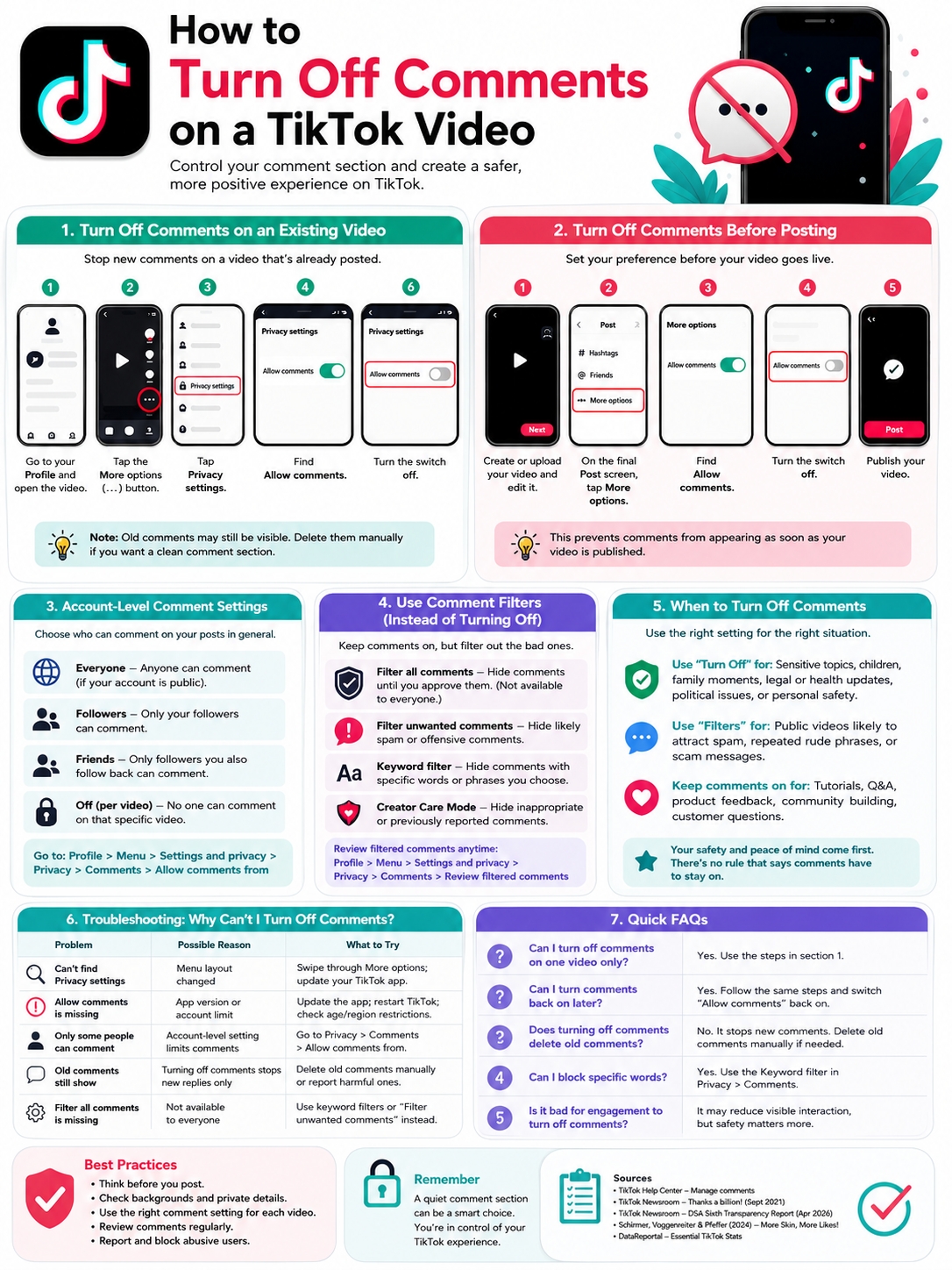
TikTok’s Help Center says users can manage comments on individual posts. For an existing video, you open the post, tap More options, go to Privacy settings, and switch Allow comments on or off.
|
Key Point |
What It Means |
|
Setting name |
Allow comments |
|
Works after posting |
Yes |
|
Works before posting |
Yes |
|
Deletes the video |
No |
|
Deletes old comments |
Not automatically |
|
Best for |
Privacy, safety, spam control, sensitive posts |
Turning comments off is the fastest way to stop replies. But it’s not always the only choice. If you still want helpful comments, use TikTok’s filters instead.
How to Turn Off Comments TikTok on an Existing Video
This is the option most people look for.
Maybe your video is getting spam. Maybe strangers are arguing under it. Maybe someone is asking personal questions. Or maybe the comment section just feels uncomfortable.
You can shut it down without deleting the video.
|
Step |
What to Do |
Why It Helps |
|
1 |
Open TikTok |
Use the mobile app for the easiest controls |
|
2 |
Tap Profile |
Your posted videos are there |
|
3 |
Open the video |
Settings work per video |
|
4 |
Tap More options |
This opens the video menu |
|
5 |
Tap Privacy settings |
Comment controls are there |
|
6 |
Turn off Allow comments |
New comments will stop |
Step-by-Step Instructions
- Open the TikTok app.
- Tap Profile at the bottom.
- Open the video you want to change.
- Tap the More options button.
- Swipe through the menu if needed.
- Tap Privacy settings.
- Find Allow comments.
- Turn it off.
That’s it. You’ve used the turn off comments tiktok option for that single video.
This won’t affect your other TikTok posts. It only changes the video you selected.
Read Also: How to Clear TikTok Cache on iPhone and Android
What Viewers See After Comments Are Off
Once comments are off, viewers can’t add new replies.
They may see that comments are unavailable, or the comment box may not appear. The exact layout can change depending on the app version.
Old comments may still stay visible. If you want those gone too, delete them manually. Turning off comments stops future replies. It doesn’t always clean up the past.
How to Turn Off Comments Before Posting a TikTok Video
Sometimes you already know a video doesn’t need comments.
This is common for personal updates, family clips, brand announcements, legal notices, health topics, or sensitive videos. In those cases, it’s smarter to close the comment section before the post goes live.
TikTok lets you do this from the final posting screen.
|
Before-Posting Choice |
Best For |
|
Comments on |
Tutorials, Q&A videos, product reviews, community posts |
|
Comments off |
Sensitive posts, formal updates, private moments |
|
Comment filters |
Public videos that may attract spam |
|
Keyword filters |
Videos that may draw repeated rude phrases |
Steps Before Publishing
- Create or upload your TikTok video.
- Edit it as usual.
- Go to the final Post screen.
- Tap More options.
- Find Allow comments.
- Turn it off.
- Publish the video.
This saves you from cleaning up the comment section later.
For creators, it works well when the video is meant to be watched, not debated. For brands, it helps with campaign posts, official updates, or crisis messages where replies should go through customer support instead.
Account-Level TikTok Comment Settings
You don’t have to manage every video one by one.
TikTok also lets you choose who can comment on your posts in general. This is useful if you want more control across your whole account.
Public accounts can usually allow comments from Everyone. Private accounts can allow comments from Followers. TikTok also has a Friends option, which means people you follow back.
|
Account Setting |
Who Can Comment |
|
Everyone |
Anyone can comment if your account is public |
|
Followers |
Your followers can comment |
|
Friends |
Only people you follow back can comment |
|
Individual video off |
Nobody can comment on that specific video |
How to Change Who Can Comment
- Open TikTok.
- Tap Profile.
- Tap the Menu button.
- Go to Settings and privacy.
- Tap Privacy.
- Tap Comments.
- Tap Allow comments from.
- Choose your preferred audience.
This gives you more control without closing every comment section.
For example, a casual user may only allow friends to comment. A creator may keep comments open on tutorials but turn them off on personal videos. A brand may allow comments but use filters to block spam.
Comment Filters vs Turning Comments Off
Turning comments off is the strongest move. But it also blocks helpful replies.
Sometimes you don’t need to close the whole comment section. You only need to block spam, insults, or repeated phrases.
That’s where TikTok comment filters help.
|
Option |
What It Does |
Best For |
|
Turn comments off |
Blocks all new comments |
Sensitive or risky posts |
|
Filter all comments |
Hides comments until approved |
High-control accounts |
|
Filter unwanted comments |
Hides likely spam or rude comments |
Public creators |
|
Keyword filter |
Hides comments with chosen words |
Repeated abuse or scams |
|
Creator Care Mode |
Adds stronger comment protection |
Larger creator accounts |
Filter All Comments
TikTok’s Filter all comments option hides comments unless you approve them.
Think of it as a review queue. People can comment, but their replies won’t appear until you allow them.
This gives you control, but it takes more time. It’s useful if your account gets a lot of comments and you want to review them first.
TikTok notes that this feature may not be available to everyone.
Filter Unwanted Comments
The Filter unwanted comments option helps hide comments that may be spammy or offensive.
It won’t catch everything. No tool does. But it can reduce the worst replies before they appear publicly.
This is a good middle ground if you still want engagement but don’t want to deal with every low-quality comment.
Use Keyword Filters
Keyword filters are very practical.
You can add words or phrases you don’t want to see. If someone uses those words in a comment, TikTok hides the comment unless you approve it.
Good words to filter may include:
- Scam phrases
- Slurs
- Personal details
- Repeated insults
- Fake giveaway terms
- Phone numbers
- Spam brand names
- Suspicious contact phrases
Be careful with broad words. If you block a normal word, TikTok may hide harmless comments too.
Why Comment Control Matters on TikTok
TikTok is huge. A video can move far beyond your followers in minutes.
TikTok announced in 2021 that more than 1 billion people used the platform each month. In its 2026 Digital Services Act update, TikTok said 178 million people in the EU used the platform monthly.
That kind of scale makes comment control important. A post that feels small at first can suddenly reach strangers, critics, spammers, or people with bad intentions.
|
Data Point |
Why It Matters |
|
1B+ monthly users reported in 2021 |
TikTok has massive global reach |
|
178M monthly EU users reported in 2026 |
Regional reach is still very large |
|
112M pieces of violating EU content removed in July–December 2025 |
Moderation is a major platform issue |
|
Comments included in TikTok’s EU moderation reporting |
Comment safety is now part of public reporting |
Use Comment Controls for Sensitive Videos
Some videos need extra care.
You should think twice before leaving comments open if your video includes:
- Children
- Family moments
- Medical updates
- Grief or loss
- School details
- Workplace issues
- Legal topics
- Personal safety concerns
- Political or social conflict
- Location-sensitive footage
A 2024 research paper on TikTok videos featuring children looked at 432,178 comments across 5,896 videos. The researchers found that 21% of comments related to visual appearance.
That’s a clear reminder. If children or private family moments appear in a public video, the comment section deserves extra thought.
Keep Comments Open When They Help
Comments aren’t bad by default.
They can help a video perform better. They can also give you useful feedback.
Keep comments open when you want:
- Questions
- Product feedback
- Tutorial requests
- Community replies
- Customer concerns
- Content ideas
- Story responses
A food creator may want recipe questions. A tech creator may need troubleshooting comments. A small business may want people to ask about price, size, or availability.
In those cases, filters may be better than turning comments off completely.
Privacy Checks Before You Post
Comment settings help, but they don’t fix everything.
Before posting, look at the video itself. Pause it. Check the background. Look for anything personal.
A comment section can turn risky when viewers notice private details.
|
Privacy Check |
What to Look For |
|
Location clues |
Street signs, house numbers, landmarks |
|
School or work details |
Uniforms, badges, screens |
|
Personal documents |
IDs, bills, notebooks, forms |
|
Children’s information |
Names, schools, routines |
|
Vehicle details |
|
|
Private screens |
Messages, emails, dashboards |
A Simple Pre-Post Checklist
Use this before publishing:
- Check the background.
- Think about who may see the video.
- Decide if comments should stay open.
- Add keyword filters if needed.
- Publish the video.
- Watch early comments.
- Turn comments off if things get messy.
For brand accounts, this matters even more. One poor comment thread can confuse customers or pull attention away from the message.
If you post about pricing, product issues, complaints, or public updates, assign someone to monitor replies.
Troubleshooting: Why Can’t I Turn Comments Off?
Sometimes the setting is hard to find.
TikTok changes menus often. Some features may also depend on your region, app version, account type, or age settings.
|
Problem |
Likely Reason |
What to Try |
|
Can’t find Privacy settings |
TikTok changed the menu layout |
Swipe through More options |
|
Allow comments is missing |
App version or account limit |
Update TikTok |
|
Only some people can comment |
Your account setting limits comments |
Check Privacy > Comments |
|
Old comments still show |
Turning comments off stops new replies only |
Delete old comments manually |
|
Filter all comments is missing |
Feature may not be available to you |
Use keyword filters instead |
Update TikTok
Start simple.
Update TikTok from the App Store or Google Play. Then close the app and open it again.
Old app versions may show different settings.
Make Sure It’s Your Video
You can only control comments on your own TikTok posts.
You can’t turn off comments on someone else’s video.
Check Your Main Comment Settings
If comments are off across many videos, check your account settings.
Go to:
Profile > Menu > Settings and privacy > Privacy > Comments
Then review who can comment on your posts.
Use Filters If You Don’t Need a Full Shutdown
If your main problem is spam or repeated insults, you may not need to turn comments off.
Try keyword filters first. They let you keep useful comments while hiding the worst ones.
Final Thoughts
The turn off comments tiktok setting is small, but it can save a post from becoming a headache.
You can turn comments off before posting, after publishing, or through your wider privacy settings. You can also use filters if you want to keep helpful replies while blocking spam.
The best approach is simple.
Keep comments open when they add value. Turn them off when they bring harassment, privacy risks, spam, or noise.
|
Situation |
Best Action |
|
You want no replies |
Turn off Allow comments |
|
You want safer replies |
Use comment filters |
|
You want trusted replies only |
Limit comments to friends or followers |
|
You get repeated spam |
Add keyword filters |
|
You face harassment |
Save evidence, report, block, then disable comments |
|
You post a sensitive video |
Turn comments off before publishing |
TikTok gives you enough tools to shape your comment section. Use them early. Sometimes, a quiet comment section is the smartest choice.
FAQs About TikTok Comment Settings
These quick answers cover common questions people have after changing comment controls.
|
FAQ Topic |
Short Answer |
|
One video only |
Yes, use individual post settings |
|
Before posting |
Yes, use More options on the Post screen |
|
Old comments |
Delete them manually if needed |
|
Filters |
TikTok supports several comment filters |
|
Teen accounts |
Some controls may differ |
|
Desktop |
The mobile app is usually best |
Can I turn off comments on only one TikTok video?
Yes. Open the video from your profile, tap More options, tap Privacy settings, and turn off Allow comments.
This only affects that video.
Can I turn comments back on later?
Yes. Follow the same steps and switch Allow comments back on.
People can comment again if your account-level settings allow it.
Does turning off comments delete old comments?
No. It mainly stops new comments.
If you want old comments gone, delete them manually. You can also report comments that break TikTok’s rules.
Why can only some people comment on my TikTok videos?
Your account settings may limit comments to followers or friends.
Check this path:
Profile > Menu > Settings and privacy > Privacy > Comments > Allow comments from
Can I block certain words instead of turning comments off?
Yes. Use TikTok’s keyword filter.
Add the words or phrases you want to block. TikTok will hide comments that include them unless you approve those comments.
Why don’t I see “Filter all comments”?
TikTok says this option isn’t available to everyone.
If you don’t see it, use keyword filters, unwanted comment filters, or turn comments off on the video.
Can I turn off comments on TikTok from desktop?
TikTok’s official steps focus on the mobile app.
For the smoothest experience, use TikTok on your phone.
Should brands turn off TikTok comments?
Sometimes.
Keep comments open when you want questions, feedback, or community replies. Turn them off for legal notices, crisis updates, sensitive announcements, or posts attracting abuse.
Is it bad for engagement to turn off comments?
It can reduce visible interaction because people can’t reply.
But safety matters more than comment count. If the comments are harmful, spammy, or distracting, turning them off is the better move.