
Windows Search is easy to ignore until it stops working.
You press the Windows key, type an app name, file, setting, or email, and nothing useful shows up. Maybe the search box freezes. Maybe File Explorer can’t find a file you’re staring at. Maybe Outlook search suddenly misses emails you know are there.
If windows search not working is the problem on your PC, don’t panic. You probably don’t need to reinstall Windows. Most search problems come from a stuck search process, a bad search index, wrong folder settings, a stopped service, or damaged system files.
Windows uses indexing to make search faster. It builds a catalog of your files, emails, file names, metadata, and supported file content. When that catalog breaks or skips the folders you use, search feels broken even though your files are still safe.
Start with the easy fixes below. Work down the list only if the problem sticks around.
Windows Search Not Working: Check the Problem First
Not every search problem has the same cause.
A frozen Start menu search is different from File Explorer missing files. Slow search is different from a stopped Windows Search service. So before changing settings, match your symptom with the most likely cause.
|
Symptom |
Likely Cause |
Best First Fix |
|
Search box won’t open |
SearchHost.exe or SearchUI.exe is stuck |
Restart the search process |
|
Search opens but shows no results |
Bad or incomplete index |
Run the Search and Indexing troubleshooter |
|
File Explorer misses files |
Folder is not indexed |
Check indexed locations |
|
Search feels very slow |
Index is rebuilding or too large |
Review indexing mode |
|
Outlook search misses emails |
Search catalog is incomplete |
Rebuild the search catalog |
|
Search still fails after basic fixes |
System file damage |
Run DISM and SFC |
Restart your PC first. It sounds basic, but it works more often than people expect. A restart clears stuck processes and applies pending updates.
Fix 1: Restart the Windows Search Process
Windows Search runs through its own background process.
On Windows 11, it usually appears as SearchHost.exe. On Windows 10, it may appear as SearchUI.exe. If that process hangs, the search panel may freeze, open blank, or stop accepting text.
|
Windows Version |
Process Name |
What It Does |
|
Windows 11 |
SearchHost.exe |
Runs the Windows Search interface |
|
Windows 10 |
SearchUI.exe |
Handles the older Windows Search interface |
|
Both |
Windows Search service |
Supports indexing and search results |
Here’s how to restart it:
- Press Ctrl + Shift + Esc to open Task Manager.
- Click Details.
- Find SearchHost.exe or SearchUI.exe.
- Right-click it.
- Select End task.
- Try searching again.
This does not delete anything. It only forces Windows Search to reload.
Try this first if the search box opens blank, freezes, or does nothing when you type.
Fix 2: Run the Search and Indexing Troubleshooter
Windows has a built-in troubleshooter for search problems. It can spot common indexing issues, missing results, and broken search behavior.
|
Troubleshooter Method |
Best For |
|
Settings app |
Most home users |
|
Command Prompt |
Fast direct access |
|
Get Help app |
Newer Windows builds |
|
IT-managed device |
Work or school PCs |
To run it from Command Prompt:
- Press Windows + R.
- Type cmd.
- Press Enter.
- Run this command:
msdt.exe -ep WindowsHelp id SearchDiagnostic
Pick the issue that matches your problem. For example, choose missing files, slow search, or search results that don’t appear.
The Settings path may look a little different depending on your Windows version, so the command method is often quicker.
Fix 3: Check the Windows Search Service
Windows Search depends on a service called Windows Search. If this service stops, search can fail across the Start menu, Settings, File Explorer, and some Microsoft apps.
|
Service Item |
Recommended Setting |
|
Service name |
Windows Search |
|
Startup type |
Automatic or Automatic (Delayed Start) |
|
Status |
Running |
|
Tool |
Services app |
Follow these steps:
- Press Windows + R.
- Type services.msc.
- Press Enter.
- Find Windows Search.
- Right-click it.
- Choose Restart.
- If it is stopped, choose Start.
If the service starts and then stops again, something deeper may be wrong. It could be damaged search files, corrupted logs, or a system-level issue.
Avoid random registry fixes from forums. Windows registry keys can be machine-specific, and copying fixes from another PC can make things worse.
Fix 4: Check Classic vs Enhanced Indexing
Windows gives you two main indexing modes: Classic and Enhanced.
Classic mode searches common folders like Desktop, Documents, Pictures, and Music. Enhanced mode searches much more of your PC.
|
Indexing Mode |
What It Covers |
Best For |
|
Classic |
Desktop, Documents, Pictures, Music |
Most users |
|
Enhanced |
Most files across the PC |
Users with files in many places |
|
Custom locations |
Selected folders only |
Faster, cleaner search |
To check your mode:
- Open Settings.
- Go to Privacy & security.
- Select Searching Windows.
- Look under Find my files.
- Choose Classic or Enhanced.
Enhanced mode sounds better, but don’t turn it on blindly. It can use more CPU and battery, especially on older laptops.
If you only work from a few folders, Classic mode plus custom indexed locations is often the better setup.
Fix 5: Add the Right Folders to Indexed Locations
Sometimes windows search not working really means Windows is searching the wrong places.
Maybe your files are in Downloads, an external drive, a synced folder, or a custom work folder. If Windows doesn’t index that location, search may skip it.
|
Problem |
Fix |
|
Downloads folder not searchable |
Add Downloads to indexed locations |
|
Project files missing |
Add the project folder |
|
External drive results missing |
Add the drive or key folder |
|
Search feels slow |
Remove folders you don’t need searched |
Here’s how to add folders:
- Open Settings.
- Go to Privacy & security.
- Select Searching Windows.
- Open Advanced indexing options.
- Click Modify.
- Select the folders you want Windows to index.
- Click OK.
Don’t index your whole drive unless you need to. Too many indexed folders can slow search down.
A smarter move is to index only the folders you actually search.
Fix 6: Rebuild the Search Index
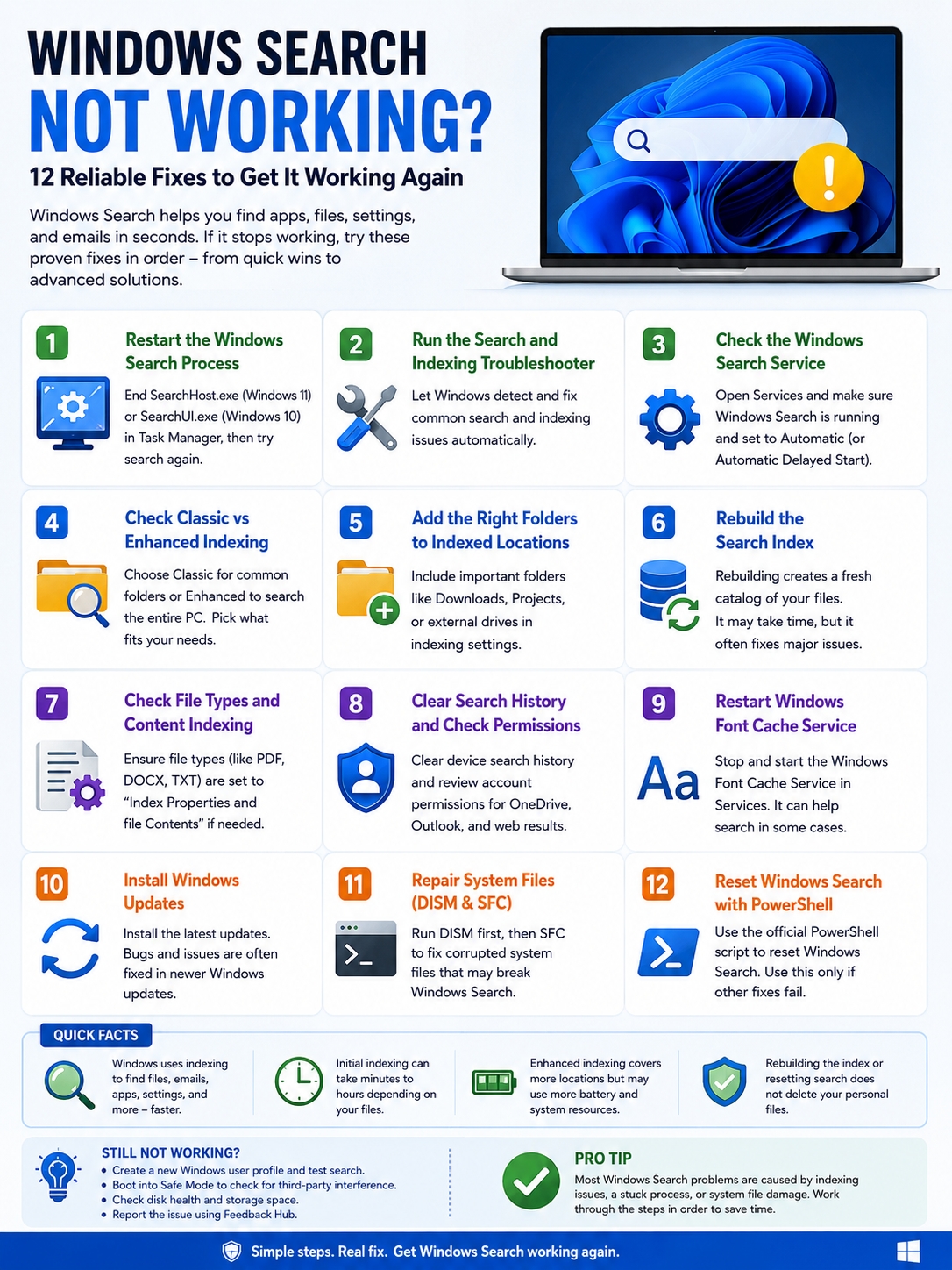
A damaged search index can cause all kinds of weird behavior.
You may see old results, missing files, duplicate entries, or painfully slow search. Rebuilding the index tells Windows to throw away the old catalog and build a fresh one.
|
Rebuild Detail |
What It Means |
|
Deletes personal files? |
No |
|
Takes time? |
Yes |
|
Search weaker during rebuild? |
Yes |
|
Best time to run |
When plugged in and idle |
Steps:
- Open Control Panel.
- Search for Indexing Options.
- Open Indexing Options.
- Click Advanced.
- Under Troubleshooting, choose Rebuild.
- Click OK.
Don’t expect perfect results right away. Windows needs time to rebuild the catalog.
On a large drive, it may take hours. Keep your PC plugged in and let it sit idle if possible.
Read Also: How to Password Protect a Folder in Windows 11
Fix 7: Check File Types and Content Indexing
Windows may find file names but miss words inside documents.
For example, you search for a phrase inside a PDF or Word file, but nothing appears. That usually means Windows is indexing file properties only, not file content.
|
Search Issue |
Setting to Check |
|
File name appears, but text inside does not |
File Types tab |
|
PDF content missing |
PDF content indexing/filter |
|
Word document text missing |
Index properties and contents |
|
Index is too large |
Index properties only |
To check file types:
- Open Indexing Options.
- Click Advanced.
- Open the File Types tab.
- Select a file extension, such as .pdf, .docx, or .txt.
- Choose Index Properties and File Contents if needed.
This matters a lot if you search inside documents often.
Writers, editors, researchers, students, lawyers, and accountants will notice this problem quickly.
Fix 8: Clear Search History and Check Search Permissions
Windows Search can pull results from your device, Microsoft account, OneDrive, Outlook, work account, school account, and sometimes the web.
That can make results messy if your permissions or account settings are off.
|
Setting |
Why It Matters |
|
Device search history |
Controls local suggestions |
|
Cloud content search |
Affects OneDrive and Outlook results |
|
Work or school account |
Affects SharePoint and business files |
|
SafeSearch |
Controls web result filtering |
To clear device search history:
- Open Settings.
- Go to Privacy & security.
- Select Search permissions.
- Find History.
- Click Clear device search history.
This won’t repair a broken index. But it can clean up stale suggestions and account-related search confusion.
It’s worth trying if search works but the results feel outdated or strange.
Fix 9: Restart Windows Font Cache Service
This fix looks odd, but it appears in Microsoft’s Windows Search troubleshooting guidance.
The Windows Font Cache Service can sometimes affect Windows Search behavior. Restarting it takes less than a minute.
|
Step |
Action |
|
1 |
Open services.msc |
|
2 |
Find Windows Font Cache Service |
|
3 |
Right-click and choose Stop |
|
4 |
Test Windows Search |
|
5 |
Right-click again and choose Start |
This is quick and safe.
Try it before moving into deeper repair commands.
Fix 10: Install Windows Updates and Check Release Health
Search can break after a failed update, missing update, buggy patch, or system change.
So yes, check Windows Update. It’s not exciting, but it’s important.
|
Task |
Where to Check |
|
Install updates |
Settings > Windows Update |
|
Known update issues |
Windows Release Health |
|
Business device updates |
Ask your IT admin |
|
After installing updates |
Restart the PC |
To check for updates:
- Open Settings.
- Go to Windows Update.
- Click Check for updates.
- Install available updates.
- Restart your PC.
Also check Microsoft’s Windows Release Health page if search broke right after a recent Windows update. It lists known Windows issues, update blocks, and servicing notices.
One more thing: Windows 10 reached end of support on October 14, 2025. Standard Windows 10 devices no longer receive normal feature updates, security updates, or technical support unless they use a supported extended path.
If you still use Windows 10, this matters. Troubleshooting may get harder over time.
Fix 11: Repair System Files With DISM and SFC
If windows search not working after all the indexing fixes, damaged system files may be the reason.
This can happen after crashes, failed updates, malware cleanup, sudden shutdowns, or disk problems.
Use DISM first. Then run SFC.
|
Tool |
Purpose |
Command |
|
DISM |
Repairs the Windows image |
DISM.exe /Online /Cleanup-image /Restorehealth |
|
SFC |
Repairs protected system files |
sfc /scannow |
|
Restart |
Applies repairs |
Restart after scans |
Steps:
- Open Command Prompt as administrator.
- Run this command:
DISM.exe /Online /Cleanup-image /Restorehealth
- Wait for it to finish.
- Then run:
sfc /scannow
- Wait until verification reaches 100%.
- Restart your PC.
Don’t close Command Prompt while the scan is running.
If SFC finds and repairs files, test Windows Search again after restarting.
Fix 12: Reset Windows Search With PowerShell
Use this only if the earlier fixes fail.
Microsoft provides a PowerShell reset method for Windows Search on supported Windows 11 and Windows 10 versions. It needs administrator rights, and some work or school PCs may block scripts.
|
Reset Detail |
What to Know |
|
Deletes files? |
No |
|
Needs admin rights? |
Yes |
|
Can affect result relevance? |
Temporarily, yes |
|
Best for |
Search still broken after normal fixes |
Resetting Windows Search does not remove your personal files. But search results may feel less accurate for a while as Windows rebuilds and relearns.
If you’re using a company laptop, don’t change PowerShell execution policy without checking with IT.
What If Outlook Search Is Also Broken?
Outlook search can break when the Windows or Office search catalog is incomplete.
You may see partial results, missing emails, or no results at all, even when the email is clearly in your mailbox.
|
Outlook Search Issue |
What to Check |
|
Emails missing from search |
Outlook indexing status |
|
Results incomplete |
Search catalog may not be complete |
|
Wrong mailbox results |
Search scope |
|
Search still broken |
Rebuild the catalog |
In classic Outlook:
- Open Outlook.
- Go to File.
- Select Options.
- Choose Search.
- Under Sources, open Indexing Options.
- Make sure Microsoft Outlook is included.
If results are still incomplete, rebuild the search catalog.
This can take time, especially with large mailboxes.
Advanced Fixes for Stubborn Search Problems
If nothing works, test whether the problem is tied to your Windows profile.
A damaged user profile can break search, Start menu behavior, Settings, and other built-in tools.
|
Advanced Test |
Why It Helps |
|
Create a new Windows account |
Checks profile corruption |
|
Boot into Safe Mode |
Checks third-party interference |
|
Remove huge folders from indexing |
Reduces index overload |
|
Check disk health |
Rules out storage issues |
|
Use Feedback Hub |
Reports Windows Search bugs |
A new local user account is one of the safest advanced tests.
If Windows Search works in the new account, your old profile may be damaged. That gives you a clear direction without touching the registry.
Avoid advanced registry edits unless you know what you’re doing or have IT support. A bad registry change can create new problems.
Final Thoughts
When windows search not working, don’t start with the hardest fix.
Start simple. Restart the search process. Run the troubleshooter. Check the Windows Search service. Review indexed folders. Rebuild the index if results look wrong.
If that doesn’t work, go deeper. Install updates. Run DISM and SFC. Reset Windows Search only when the easier fixes fail.
Most search problems come from a few common places: a stuck SearchHost.exe process, wrong indexing locations, a damaged search catalog, incomplete Outlook indexing, stopped services, or corrupted Windows files.
The good news? Most fixes are safe and don’t touch your personal files.
Work through the steps in order, and you should be able to bring back Start menu search, File Explorer search, Settings search, and Outlook search without reinstalling Windows.
Common FAQs About Windows Search
|
Question |
Quick Answer |
|
Does rebuilding the index delete files? |
No. It rebuilds the search catalog only. |
|
Why is Windows Search slow? |
It may still be indexing or searching too many folders. |
|
Why does File Explorer search miss files? |
The folder may not be indexed. |
|
Why does Search use high CPU? |
Windows may be rebuilding the index. |
|
Is Enhanced indexing better? |
Not always. It searches more places but can use more power. |
Why does Windows Search find file names but not text inside files?
Windows may be indexing file properties only.
Open Indexing Options, go to Advanced, then File Types. Choose the file type you need, then select Index Properties and File Contents.
Why does Windows Search pause indexing?
Windows may pause or slow indexing to save battery, reduce CPU use, or avoid slowing your PC.
Plug in your laptop. Then check indexing status under:
Settings > Privacy & security > Searching Windows
Can OneDrive files appear in Windows Search?
Yes, but it depends on your sync status, account settings, and cloud search permissions.
Check Search permissions and make sure the right Microsoft, work, or school account is connected.
That often points to a stuck search process, Start menu issue, or user profile problem.
Restart SearchHost.exe first. If that fails, test search from a new Windows account.
Should I disable Windows Search indexing?
Usually, no.
A better move is to adjust indexed folders. Disable indexing only if it clearly hurts performance on a low-power device or special setup.