
Private photos aren’t always embarrassing selfies or personal messages. They may include passport scans, medical documents, payment receipts, work screenshots, legal papers, boarding passes, or authentication QR codes.
Those files deserve more protection than a quick swipe into another album.
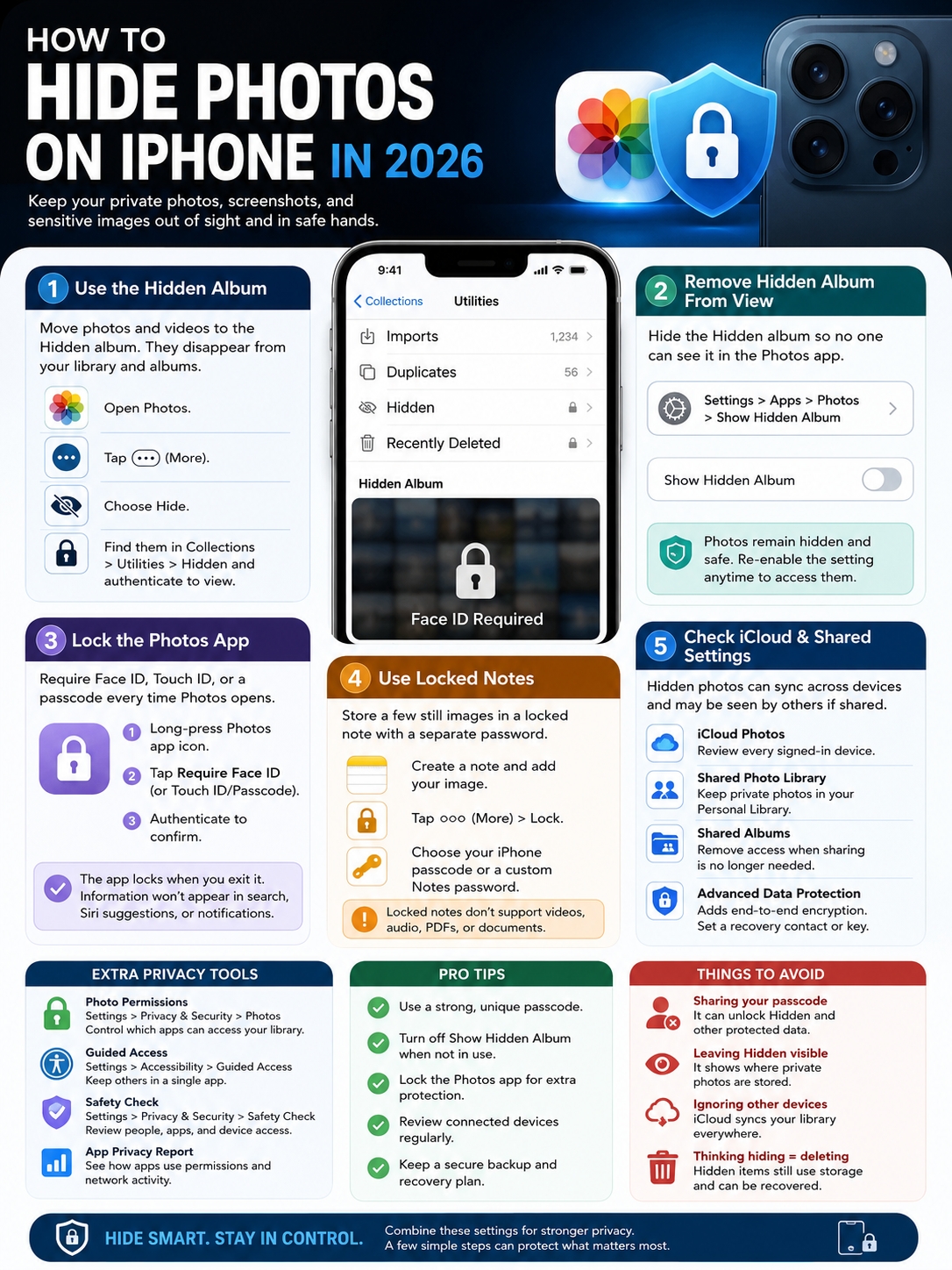
Apple now gives iPhone users several built-in ways to hide photos on iPhone. You can move images and videos into the locked Hidden collection, remove that collection from view, lock the whole Photos app, or place a few still images inside a password-protected note.
Each method works differently. The Hidden collection is quick and convenient. Locking Photos adds another barrier when someone borrows your phone. Locked Notes can help when you want a separate password for a small number of images.
None of these tools is perfect on its own. Hidden photos still exist on the device. They may sync through iCloud, and someone who knows your passcode may still be able to reach them.
The safest approach is to use more than one privacy layer.
What Happens When You Hide a Photo on iPhone?
|
Privacy feature |
What it does |
What it doesn’t do |
|
Hidden collection |
Removes items from the main library and normal albums |
It doesn’t delete the files |
|
Face ID or Touch ID |
Locks Hidden and Recently Deleted |
It doesn’t create a separate album password |
|
Show Hidden Album toggle |
Removes Hidden from the Photos interface |
It doesn’t add extra encryption |
|
iCloud Photos |
Syncs hidden status across Apple devices |
It doesn’t keep the item on one device only |
|
Photos app lock |
Blocks the whole photo library |
It doesn’t hide the built-in Photos icon |
When you hide a photo or video, Apple moves it into the Hidden collection under Utilities. It disappears from the main library, regular albums, and the Photos widget.
The original file stays in your photo library.
Apple locks both Hidden and Recently Deleted by default on supported versions of iOS. You need Face ID, Touch ID, or the device passcode to open them.
That works well when you hand someone your phone and let them browse a few pictures. They can scroll through the normal library without seeing the items you’ve hidden.
Still, the Hidden collection isn’t the same as a private vault with its own password. The iPhone passcode remains a possible way in.
Think of it as a strong privacy screen rather than a completely separate storage space.
How to Hide Photos on iPhone With the Hidden Album
|
What you need to do |
Where to tap |
Best for |
|
Hide one photo |
Open photo > More > Hide |
One sensitive image or video |
|
Hide several items |
Select > choose items > More > Hide |
A batch of screenshots or documents |
|
Open Hidden |
Collections > Utilities > Hidden |
Reviewing protected items |
|
Restore an item |
Hidden > select item > Unhide |
Returning it to the main library |
Hide One Photo or Video
- Open the Photos app.
- Find the photo or video.
- Touch and hold the item.
- Tap Hide.
- Confirm your choice.
You can also open the image, tap the three-dot More button, and choose Hide.
The item will move out of your main library and into Hidden.
Hide Several Photos at Once
You don’t need to move every image separately.
- Open Photos.
- Tap Select.
- Choose the photos or videos.
- Tap the More button.
- Tap Hide.
- Confirm the move.
This is handy when you have a group of private screenshots, scanned documents, travel records, or personal videos.
Take a second to review the selection before confirming. It’s easy to include the wrong image when working through a large batch.
Find Hidden Photos
- Open Photos.
- Tap Collections.
- Scroll down to Utilities.
- Tap Hidden.
- Tap View Album.
- Authenticate with Face ID, Touch ID, or your passcode.
Hidden may not appear if you’ve turned off the Show Hidden Album setting.
Unhide a Photo
Open Hidden and authenticate. Touch and hold the photo, then tap Unhide.
The image returns to its original position in your library timeline. Photos normally places it according to the date stored in its metadata, not the day you restored it.
Remove the Hidden Album From View
|
Setting |
Where to find it |
What changes |
|
Show Hidden Album on |
Settings > Apps > Photos |
Hidden appears under Utilities |
|
Show Hidden Album off |
Settings > Apps > Photos |
Hidden disappears from the Photos app |
|
Hidden files |
Stay on the device |
Nothing gets deleted |
|
Album lock |
Still uses device authentication |
No separate password is added |
The name “Hidden” can attract attention on its own. Apple lets you remove that collection from the Photos interface entirely.
To do it:
- Open Settings.
- Tap Apps.
- Select Photos.
- Turn off Show Hidden Album.
The album will disappear from Photos. The pictures and videos inside it stay hidden and stored.
To view them again, return to the same settings page and switch Show Hidden Album back on.
This is worth doing if you rarely open Hidden. Someone casually browsing your albums won’t see an obvious folder labelled “Hidden.”
Just don’t mistake invisibility for stronger security. Anyone who knows your passcode may be able to reopen the setting, make the album visible, and unlock it.
For better protection, remove the album from view and lock the Photos app as well.
Read Also: How to Use Standby Mode on iPhone
Lock the Entire Photos App With Face ID
|
App-lock feature |
What it changes |
Main limitation |
|
Require Face ID |
Stops Photos from opening without authentication |
The passcode may still work as a fallback |
|
Automatic relocking |
Locks Photos again after you leave the app |
An already-open session remains visible |
|
Hide app option |
Works with many downloaded apps |
Apple’s Photos app can’t be fully hidden |
|
Stolen Device Protection |
Can require biometric authentication |
Rules depend on settings and location |
Locking Hidden protects one part of your library. Locking Photos protects all of it.
To lock the app:
- Find Photos on the Home Screen or in the App Library.
- Touch and hold the Photos icon.
- Tap Require Face ID, Require Touch ID, or Require Passcode.
- Authenticate to confirm.
Photos will lock again after you leave the app.
This is one of the most practical ways to hide photos on iPhone when friends, children, coworkers, or family members regularly use your device. It blocks access to the main library, screenshots, albums, videos, and Hidden.
Locking the app can also stop photo-related information from appearing in search results, Siri suggestions, and some system previews.
There is one catch. Apple lets you lock the built-in Photos app, but you can’t move it into the Hidden Apps folder. Full app hiding is mainly available for downloaded apps.
Turn On Stolen Device Protection
Stolen Device Protection can make app locks harder to bypass when the phone is away from familiar places.
In some situations, locked apps require Face ID or Touch ID instead of accepting the device passcode.
That matters because passcode theft is a real weakness. Someone who watches you enter your code may gain access to far more than your photo library.
A private passcode remains one of the most important parts of iPhone security.
Store Selected Images in a Locked Note
|
Notes option |
Where it helps |
What to watch for |
|
iPhone passcode |
Easy access across Apple devices |
It uses the same main device credential |
|
Custom Notes password |
Adds a separate secret |
Forgotten passwords may block access permanently |
|
Face ID or Touch ID |
Makes unlocking faster |
Biometrics still rely on the password setup |
|
Photo attachment |
Good for a few still images |
Locked notes don’t support video attachments |
Locked Notes can work well when you want a few still images outside the Photos app.
It also gives you the option of using a separate Notes password instead of the normal iPhone passcode.
Create a Locked Note
- Open Notes.
- Create a new note.
- Add the photo.
- Tap the note’s More button.
- Tap Lock.
- Choose your iPhone passcode or a custom Notes password.
- Lock the note and test that it opens correctly.
Only delete the original from Photos after checking the protected copy.
That last step matters. A locked note is no help if the attachment failed to save or the password doesn’t work.
Apple allows you to lock notes stored on the device or in iCloud. However, there are limits. Notes containing videos, audio files, PDFs, Pages documents, Numbers files, Keynote files, or certain other attachments can’t be locked.
Shared notes can’t be locked either.
The note title also remains visible. Avoid obvious titles such as “Passport Copy,” “Private Photos,” or “Medical Records.” Pick something neutral.
Don’t Lose the Password
A custom Notes password gives you useful separation from the iPhone passcode.
It also creates a recovery risk.
Forgetting that password may leave older locked notes inaccessible. Store it in a secure password manager and create a hint that helps you without giving the answer away.
Locked Notes makes sense for a handful of still images. It becomes awkward when you try to use it as a large photo or video vault.
|
iCloud feature |
The privacy issue |
What to do |
|
iCloud Photos |
Hidden items sync to connected devices |
Secure every device using the account |
|
Shared Photo Library |
Participants can access contributed files |
Keep private items in Personal Library |
|
Shared Albums |
Other people can save copies |
Remove access when sharing ends |
|
Advanced Data Protection |
Adds stronger cloud encryption |
Set recovery options before enabling it |
|
iCloud web access |
Your library may be available in a browser |
Review account security and trusted devices |
Hiding a photo on one iPhone may affect more than that phone.
When iCloud Photos is on, the hidden status syncs across other devices using the same Apple Account and photo library.
That’s convenient, but it widens the number of places where the file can be opened. An old iPad, family Mac, or secondary iPhone may still provide access.
Open your Apple Account settings and review the list of connected devices. Remove anything you no longer own or recognize.
An iCloud Shared Photo Library allows several people to contribute to and manage the same collection.
Once you add a picture to that library, other participants may be able to view, edit, or delete it.
Keep private images in your Personal Library. Don’t assume that hiding a photo on your phone will remove access for everyone else.
Shared Albums deserve the same caution. People can save shared pictures and videos to their own devices. Removing them later won’t erase copies they already downloaded.
The safest assumption is simple: once you share an image, the recipient may keep it.
Use Advanced Data Protection Carefully
Advanced Data Protection expands end-to-end encryption to more iCloud categories, including Photos, Notes, and iCloud Backup.
That gives your cloud data stronger protection, but it also puts more responsibility on you.
You need a recovery contact or recovery key before turning it on. Apple can’t restore end-to-end encrypted data if you lose your trusted devices and recovery method.
Shared Albums don’t receive the same Advanced Data Protection coverage.
Read the recovery instructions carefully before enabling it.
Limit Access When Someone Uses Your Phone
|
Privacy control |
Where it lives |
When it helps |
|
Photo permissions |
Settings > Privacy & Security > Photos |
Limiting third-party app access |
|
Guided Access |
Settings > Accessibility |
Keeping someone inside one app |
|
Safety Check |
Settings > Privacy & Security |
Reviewing people, apps, and devices |
|
App Privacy Report |
Settings > Privacy & Security |
Checking app access and network activity |
|
Photos app lock |
Home Screen or App Library |
Blocking the whole photo library |
Review App Permissions
Photo editors, messaging apps, social platforms, cloud services, and printing apps often ask for access to your library.
Go to:
Settings > Privacy & Security > Photos
Check every app on the list.
Remove access from apps you no longer use. Where possible, allow access only to selected photos rather than your full library.
Hiding an image doesn’t erase copies already imported or uploaded by another app. A cloud-storage or editing app may still hold its own version.
Use Guided Access When Lending Your iPhone
Guided Access keeps the phone inside one app.
It’s useful when a child wants to play a game, a friend needs to check a webpage, or a customer needs to view a form without opening anything else.
To set it up:
- Open Settings.
- Tap Accessibility.
- Tap Guided Access.
- Turn it on.
- Set a passcode or enable Face ID.
- Open the app the other person needs.
- Triple-click the side button to begin.
Guided Access doesn’t hide or store photos. It simply stops someone from wandering into Photos, Messages, Notes, or other apps.
Review Sharing With Safety Check
Safety Check can help when your privacy concern involves another person rather than casual phone use.
It lets you review:
- Information shared with people
- App permissions
- Connected devices
- Trusted phone numbers
- Apple Account access
- Your device passcode
You’ll find it under:
Settings > Privacy & Security > Safety Check
Use Manage Sharing & Access for a detailed review. Emergency Reset can quickly stop broad sharing when personal safety is at risk.
Common Mistakes That Weaken Photo Privacy
|
Mistake |
Why it creates risk |
Better choice |
|
Sharing your passcode |
It may unlock Photos and Hidden |
Keep the code private |
|
Leaving Hidden visible |
It shows exactly where private files live |
Turn off Show Hidden Album |
|
Ignoring old devices |
iCloud may sync the same library to them |
Remove unused devices |
|
Forgetting Recently Deleted |
Deleted files stay recoverable for 30 days |
Clear it when permanent removal matters |
|
Trusting any vault app |
Export or recovery may fail |
Test the app before deleting originals |
|
Treating sync as backup |
Deletions may spread everywhere |
Keep a separate secure copy |
Hidden Doesn’t Mean Deleted
A hidden photo still takes up storage. It remains part of the photo library and may continue syncing through iCloud.
To remove a photo permanently, delete it and then clear it from Recently Deleted.
Apple normally keeps deleted photos and videos there for 30 days. That gives you time to recover mistakes, but it also means the file hasn’t vanished yet.
Deleting an item from iCloud Photos also removes it from other devices using the same synced library.
Face ID and Touch ID help, but the passcode still acts as a fallback in many situations.
Anyone who knows it may be able to open protected albums, change privacy settings, access your Apple Account, or weaken other controls.
Avoid birthdays, repeated digits, and familiar number patterns. Don’t reuse a code that friends or family already know.
Be Careful With Vault Apps
Some third-party vault apps offer separate PINs, fake screens, hidden folders, disguised icons, and cloud backup.
Those extras can be useful. They can also create new problems.
Before trusting an app, check:
- The developer’s identity
- Its privacy policy
- How it encrypts files
- Whether it uploads files to the cloud
- How password recovery works
- Whether original-quality export is available
- What happens when a subscription ends
- Whether you can create an independent backup
Test the full process. Import a sample file, lock it, export it, and reopen it elsewhere.
Never delete the only copy of an important image until you know recovery works.
Final Thoughts
|
Final check |
Best setting |
|
Hidden collection |
Keep authentication turned on |
|
Album visibility |
Turn it off when you rarely need Hidden |
|
Photos app |
Lock it when others use your phone |
|
Device passcode |
Keep it private and hard to guess |
|
Apple devices |
Remove old or unfamiliar devices |
|
Shared content |
Review Shared Albums and Shared Library |
|
Recovery |
Keep secure backup and account recovery options |
The fastest way to hide photos on iPhone in 2026 is still Apple’s Hidden collection. It takes seconds, works with photos and videos, and keeps private files out of normal browsing.
For better privacy, don’t stop there. Lock the Photos app, remove Hidden from view, and use a passcode nobody else knows.
Locked Notes can help when a few still images need a separate password. Guided Access is useful when someone needs to borrow your phone without exploring the rest of it.
Keep an eye on iCloud too. Hidden photos may sync to other Apple devices, while pictures placed in Shared Albums or a Shared Photo Library may remain available to other people.
One setting won’t cover every risk. A few simple privacy layers work far better and still let you recover important files when you need them.
FAQs About Hiding Photos on iPhone
|
Question |
Answer |
|
Can Hidden have another password? |
No, it uses device authentication |
|
Do hidden photos appear in widgets? |
No |
|
Does locking Photos lock Camera? |
No |
|
Does hiding save storage? |
No |
|
Can recipients keep shared photos? |
Yes |
Can I Set a Different Password for the Hidden Album?
No. The Hidden collection uses Face ID, Touch ID, or your iPhone passcode.
For a few still images, a locked note with a custom Notes password is the closest built-in alternative.
Do Hidden Photos Appear in the Photos Widget?
No. Hidden photos and videos don’t appear in the main Library, normal albums, or the Photos widget.
They remain inside the locked Hidden collection.
Does Locking Photos Also Lock Camera?
No. Photos and Camera are separate apps.
Locking Photos blocks access to your existing library. It doesn’t stop someone from opening Camera and taking new pictures.
Can Hidden Photos Appear on Another Apple Device?
Yes. When iCloud Photos is enabled, hidden items can sync to other devices using the same Apple Account.
They should remain inside Hidden, but each device still needs its own security settings.
Does Hiding Photos Free Up Storage?
No. Hiding only changes where the file appears.
The original image or video stays on the device or in iCloud and continues using storage.
Yes. Removing access stops future viewing of the album, but it won’t erase copies the person already saved.
Once a photo has been shared, assume it may exist outside your control.