
Your X account may hold years of posts, photos, videos, Direct Messages, account updates, and personal data.
The problem is that much of this history is hard to reach through the normal timeline. X only shows up to 3,200 of your latest posts on your profile. If your account is old or highly active, that leaves a lot of content buried.
Downloading your archive gives you a much broader copy of your account history. It can help you find old posts, save uploaded media, review personal data, audit a business account, or back everything up before leaving the platform.
The process is free, but it takes time. You’ll need to verify your identity, request the file, and wait for X to prepare it.
Here’s how to download Twitter archive data from X in 2026, open the files, and fix the most common problems.
What Is an X or Twitter Archive?
An X archive is a downloadable copy of information linked to your account.
Most people still call it a Twitter archive because the platform used the Twitter name for years. The feature itself works the same way: you request your data, X prepares it, and you receive a ZIP file.
The archive includes more than your posts. X provides the data in HTML and JSON formats, along with folders that may contain media and account records.
|
Archive Category |
What It May Include |
|
Profile information |
Account and profile details |
|
Posts |
Your published posts and related data |
|
Direct Messages |
Messages linked to your account |
|
Media |
Photos, videos, and GIFs |
|
Connections |
Followers and accounts you follow |
|
Lists |
Lists you created or followed |
|
Address book |
Contacts previously uploaded to X |
|
Personalization data |
Interests and demographic details inferred by X |
|
Advertising data |
Ads you viewed or engaged with |
|
Moments |
Information linked to Moments, where available |
The archive is a snapshot. It doesn’t update after you download it.
Any posts, messages, or profile changes made later won’t appear unless you request a new archive.
The size of the file also depends on your account. A newer account with a few posts may produce a small download. A ten-year-old account packed with videos and photos may produce a much larger one.
Why Download Twitter Archive Data?
You don’t need to be planning to delete your account. A personal archive is useful even when you intend to keep using X.
|
Reason |
Why It Helps |
|
Back up your history |
Keeps an offline copy of your available account data |
|
Find old posts |
Helps you reach content beyond the profile timeline |
|
Save media |
Preserves available photos, videos, and GIFs |
|
Review personal data |
Shows information tied to your account |
|
Audit a brand account |
Helps teams review old publishing activity |
|
Prepare for deactivation |
Saves data before the account disappears |
|
Research your activity |
Provides structured files for offline review |
Find Old Posts More Easily
X says your profile timeline shows up to 3,200 recent posts.
That’s usually enough for casual users. It’s not enough for people who have posted for years.
Your archive can go back to your first post, making it much easier to search through old material that no longer appears during normal scrolling.
X Advanced Search may still help when you know a keyword, date, or account name. The archive works better when you want a full offline record instead of one specific post.
Read Also: How to Make Twitter Account Private in 2026
Save Photos and Videos
The archive may include images, videos, and GIFs attached to your posts, Direct Messages, or Moments.
This can be valuable for:
- Creators
- Journalists
- Businesses
- Researchers
- Long-time users
- Anyone who has shared important media
Still, don’t treat your X archive as a replacement for your original files.
Social platforms often compress or resize uploaded media. Keep the original photos and videos in cloud storage, on a hard drive, or both.
Review Personalization and Ad Data
Your archive may also include interests and demographic details that X has inferred from your activity.
You may find information about ads you viewed or interacted with as well.
Keep in mind that inferred data isn’t always correct. It reflects how the platform has categorized you, not necessarily information you entered yourself.
Back Up Your Account Before Deleting It
Request your archive before deactivating your account.
X gives you a 30-day deactivation window. If you don’t sign back in during that period, the account is permanently deleted.
Use this order:
- Request the archive.
- Wait for X to prepare it.
- Download the ZIP file.
- Extract the files.
- Make sure the archive opens properly.
- Deactivate the account only after checking everything.
Don’t submit the request and deactivate your account straight away. Wait until the archive is safely stored.
What to Check Before You Request the Archive
A few quick checks can save you from getting stuck later.
|
Check |
What to Do |
|
Password |
Make sure you know the current password |
|
Email address |
Confirm that you can access it |
|
Phone number |
Check that it can receive verification codes |
|
Account status |
Resolve locked or suspended access if possible |
|
Browser session |
Stay signed in to the correct account |
|
Storage space |
Leave room for the ZIP and extracted folders |
|
Device security |
Use a private and trusted device |
Check Your Email and Phone Number
X may send a verification code to the email address or phone number linked to your account.
Before requesting your archive, make sure:
- You can open the connected email account.
- The email address is confirmed.
- Your phone number is still active.
- You can receive text messages.
- You know the current password.
If X can’t verify your identity, it may block the archive request.
Use a Private Device
Your archive may contain private messages, contacts, account history, and other personal information.
Avoid using:
- Public computers
- Shared office devices
- Borrowed phones
- Unsecured Wi-Fi
- Browsers packed with unknown extensions
A desktop or laptop is usually the better choice. ZIP files, folders, and media are much easier to manage on a larger screen.
How to Download Twitter Archive Data on a Computer
The current desktop path is usually:
More → Settings and privacy → Your account → Download an archive of your data
Some accounts may still show an older path:
Account → Your X data → Download your data
Both routes lead to the same archive request.
|
Step |
What to Do |
|
1 |
Sign in to X.com |
|
2 |
Select More |
|
3 |
Open Settings and privacy |
|
4 |
Choose Your account |
|
5 |
Select Download an archive of your data |
|
6 |
Confirm your password |
|
7 |
Verify your identity |
|
8 |
Select Request archive or Request data |
|
9 |
Wait for the notification |
|
10 |
Download the ZIP file |
Step 1: Open Your Account Settings
Sign in to the correct account at X.com.
Select More from the left-side menu. Then open Settings and privacy.
Choose Your account, followed by Download an archive of your data.
If your account shows Your X data instead, open that section and look for the download option.
Step 2: Enter Your Password
X will ask you to confirm your password.
Only enter it on X.com.
Be careful with fake archive emails. X won’t ask you to send your password by email, Direct Message, reply, or attachment.
Step 3: Verify Your Identity
X may send a code to your email address or phone number.
Choose the available option and enter the code when it arrives.
If you don’t see the email, check:
- Spam
- Junk
- Promotions
- Other inbox tabs
Also make sure you’re checking the email address linked to the correct X account.
Step 4: Request the Archive
After verification, select Request archive or Request data.
The wording may vary, but both buttons start the same process.
X then begins preparing your account information. You won’t get the ZIP file immediately.
Step 5: Wait for the File
X says archive preparation may take a few days.
When it’s ready, you may receive:
- An email
- An in-app notification
- A push notification
- A message inside the archive settings page
There’s no fixed delivery time for every account. Older accounts and media-heavy accounts may take longer.
Avoid submitting the same request again and again. It won’t usually speed things up.
Step 6: Download the ZIP File
Return to the archive page after X tells you the file is ready.
Stay signed in to the same account and, where possible, use the same browser session.
Select the download button and save the ZIP file somewhere easy to find.
A clear folder name helps:
X-Archive-Username-2026-08-02
Keep the original ZIP file untouched. Extract a separate copy for browsing.
How to Request an X Archive on iPhone or Android
The mobile steps are almost the same on iPhone and Android.
Use this path:
Profile icon → Settings and privacy → Your account → Download an archive of your data
|
Step |
What to Do |
|
1 |
Open the X app |
|
2 |
Tap your profile icon |
|
3 |
Open Settings and privacy |
|
4 |
Select Your account |
|
5 |
Tap Download an archive of your data |
|
6 |
Confirm your password |
|
7 |
Complete verification |
|
8 |
Tap Request archive |
|
9 |
Wait for the notification |
|
10 |
Download the file |
Some versions of the app may first show a Settings & Support menu. Open it, then select Settings and privacy.
Should You Download It on Your Phone?
You can, but desktop is usually easier.
A computer makes it simpler to:
- Extract the ZIP file
- Keep the folders organized
- Open HTML files
- Read JSON files
- Browse large media folders
- Copy the archive to external storage
Requesting the archive on mobile is fine. Opening and managing it on a computer is usually the better move.
How Long Does an X Archive Take?
X doesn’t give one exact delivery time.
The official guidance says it may take a few days.
|
Account Type |
What to Expect |
|
New account |
May finish more quickly |
|
Long-running account |
May take longer |
|
Media-heavy account |
May produce a large file |
|
Business account |
Timing depends on activity and account history |
|
High-demand period |
Processing may take several days |
Don’t rely on unofficial promises such as “24 hours guaranteed.” Some requests may finish quickly, but X doesn’t promise that result.
If several days pass and you don’t receive an email, check the archive settings page directly. The file may already be available.
How to Open the Downloaded Archive
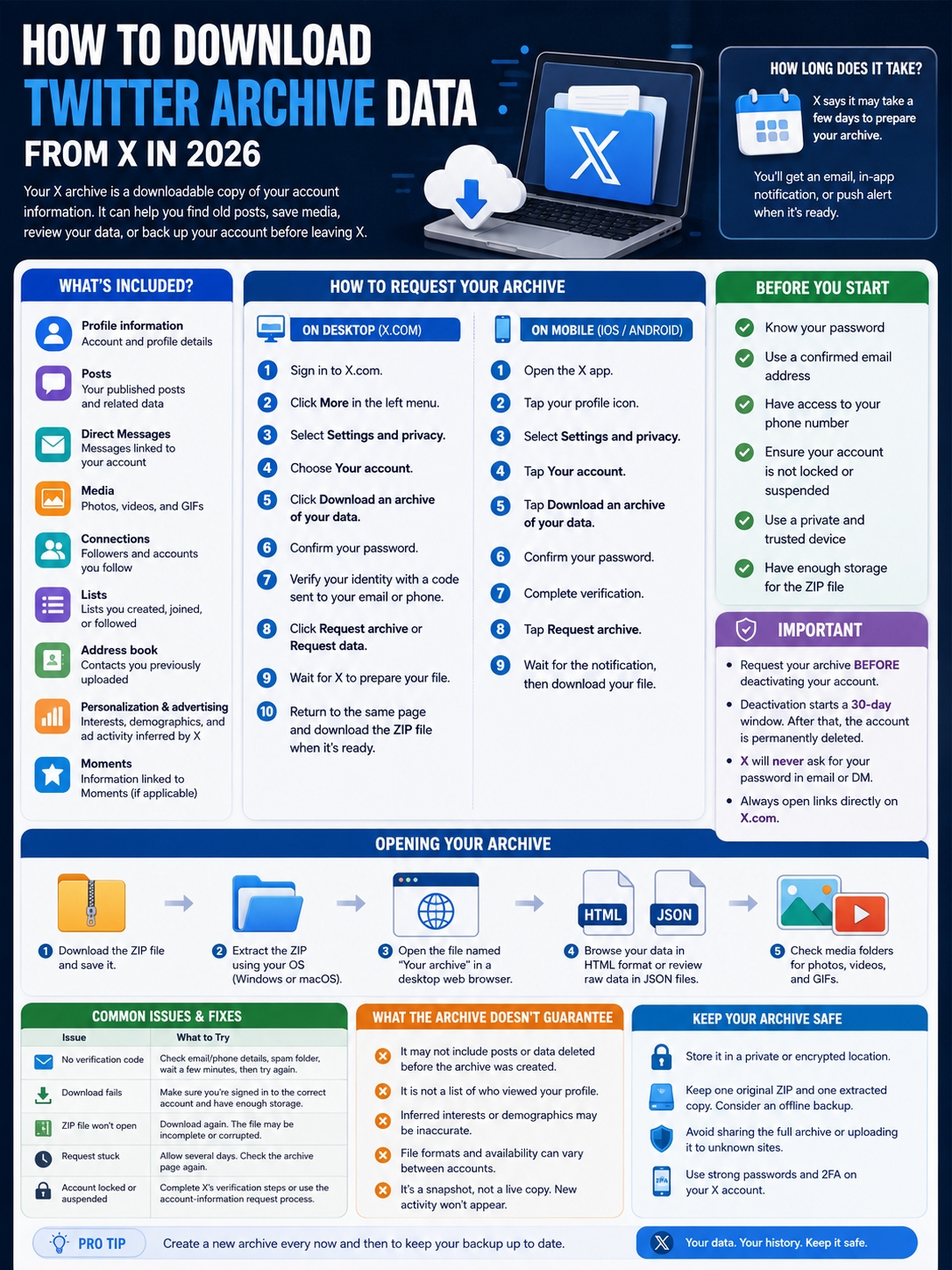
The archive arrives as a ZIP file. You need to extract it before browsing the contents.
|
Task |
Best Method |
|
Keep the original |
Save an untouched copy of the ZIP |
|
Extract the archive |
Use the built-in Windows or macOS tool |
|
Browse the data |
Open the included archive file in a browser |
|
Review raw files |
Use a text or code editor for JSON |
|
Find media |
Browse the extracted media folders |
|
Protect the files |
Store them in a private or encrypted location |
Open the ZIP on Windows
- Open File Explorer.
- Find the ZIP file.
- Right-click it.
- Select Extract All.
- Choose a destination folder.
- Open the extracted folder.
Open the ZIP on macOS
- Open Finder.
- Locate the ZIP file.
- Double-click it.
- Wait for macOS to create an extracted folder.
- Open that folder.
Use the Built-In Archive Viewer
X says the download includes a file called Your archive.
Open it in a desktop browser.
This gives you a more readable way to explore the account data without digging through raw files.
Keep the folder structure intact. Moving or renaming individual files may break links inside the archive viewer.
What Are HTML and JSON Files?
X provides archive data in HTML and JSON formats.
HTML files are easier to read in a browser.
JSON files contain structured data. They’re more useful for developers, researchers, or anyone who wants to analyze the archive with scripts or data tools.
Don’t upload your full archive to a random online viewer. It may expose private messages, contact details, and account records.
What Does the Archive Include?
The archive covers a wide range of account data, but it isn’t a perfect copy of everything you have ever seen or done on X.
|
Data X May Include |
Possible Limitation |
|
Profile information |
May look different from your live profile |
|
Posts |
Reflects data available when X prepares the archive |
|
Direct Messages |
Formatting may differ from the app |
|
Attached media |
May not match your original file quality |
|
Followers and following |
Represents a snapshot |
|
Address-book contacts |
Only appears if you uploaded them |
|
Lists |
Depends on your account activity |
|
Inferred interests |
May be inaccurate |
|
Advertising activity |
May not show every ad in visual form |
|
Moments |
Only relevant to accounts that used the feature |
X says it includes the information it considers most relevant and useful.
That doesn’t mean every internal record connected to your account will appear.
Can It Recover Deleted Posts?
Don’t count on it.
Posts deleted before X prepares the archive may not appear in the download.
Copies may still exist elsewhere, including:
- Screenshots
- Reposts
- Quotes
- Search-engine caches
- Third-party websites
- Other people’s saved files
Download the archive before deleting important posts when you need to keep a record.
Does It Include Every Message and Media File?
X lists Direct Messages and attached media among the archive categories.
Still, it doesn’t promise that every historical item will appear in every account download.
Treat the archive as an official export, not as a flawless backup of everything.
How to Fix Common Archive Problems
Most problems come from account access, verification, browser sessions, or interrupted downloads.
|
Problem |
What to Try |
|
Archive option missing |
Use X.com on a desktop browser |
|
Password rejected |
Reset your X password |
|
Verification code missing |
Check contact details and spam folders |
|
Request stuck |
Wait several days and check again |
|
Download button fails |
Confirm you’re signed in to the right account |
|
ZIP won’t open |
Download a fresh copy |
|
Viewer looks broken |
Extract the full ZIP and keep all folders together |
|
Account locked |
Complete X’s verification steps |
|
Account suspended |
Use X’s account-information request process |
The Verification Code Doesn’t Arrive
Check these first:
- Is the email address correct?
- Are you checking the right inbox?
- Is the message in spam or junk?
- Can your phone receive texts?
- Is your internet connection stable?
- Have you requested too many codes in a short period?
Wait a few minutes before requesting another code.
If you no longer have access to the connected email address or phone number, you may need to recover the account first.
The Archive Is Ready, but the Download Fails
Try these fixes:
- Sign in to the correct X account.
- Use a current browser.
- Allow downloads from X.com.
- Stay in the same browser session.
- Check your internet connection.
- Free up storage space.
- Disable any extension blocking downloads.
The download link may fail when you’re signed in to the wrong account or using an expired session.
The ZIP File Is Corrupted
An incomplete download may create a damaged ZIP file.
Delete it and download the archive again.
Use a stable connection and keep the browser open until the download finishes.
A very small file size compared with your account history may also point to an interrupted download.
Your Account Is Locked or Suspended
A locked account may require email, phone, or CAPTCHA verification.
A suspended account may not have access to the normal archive page. In that case, use X’s support process to request your personal account information.
How to Store Your Archive Safely
Your archive may contain far more private information than your public profile.
Treat it like a sensitive document.
|
Security Step |
Why It Matters |
|
Encrypt the drive |
Protects the archive if the device is lost |
|
Use a strong device password |
Keeps other people out |
|
Keep an offline backup |
Gives you a second copy |
|
Avoid public sharing links |
Reduces accidental exposure |
|
Delete temporary copies |
Limits unnecessary duplicates |
|
Use trusted software |
Reduces malware risks |
|
Keep the original ZIP |
Preserves an unchanged backup |
A sensible setup looks like this:
- Keep one untouched ZIP file.
- Keep one extracted copy for browsing.
- Save a second encrypted copy on an external drive.
- Remove any copies from public or shared devices.
- Avoid sending the archive by email unless absolutely necessary.
Be cautious with archive notification emails. Fake messages can look convincing.
Open X directly in your browser instead of clicking a suspicious link.
Final Thoughts
Knowing how to download Twitter archive data gives you more control over your X history.
Start by checking your password, email address, and phone number. Then go to:
Settings and privacy → Your account → Download an archive of your data
Verify your identity and submit the request.
Once X prepares the file, download the ZIP while signed in to the correct account. Extract it on a trusted computer and open the built-in archive viewer.
Keep the original ZIP in a safe place. Store a second backup if the account contains important personal or business material.
And if you’re planning to leave X, don’t rush the process. Download the archive, make sure it opens, and confirm that your files are there before deactivating the account.
Frequently Asked Questions
|
Question |
Quick Answer |
|
Is the archive free? |
Yes |
|
How long does it take? |
Usually a few days |
|
Does it include old posts? |
It can include posts from the start of the account |
|
Can I request it on mobile? |
Yes |
|
Is it a ZIP file? |
Yes |
|
Does it include Direct Messages? |
X lists them as part of the archive |
|
Should I request it before deactivation? |
Yes |
Do I Need X Premium?
No.
The archive is an account-data feature. You don’t need X Premium to request it.
Can I Download Someone Else’s X Archive?
No.
You need access to the account, its password, and its verification method.
You can save publicly available content where allowed, but you can’t use the archive feature to download another person’s private account data.
Will My Followers Be Notified?
No public notification appears on your profile.
X sends archive updates privately through email, the app, or account settings.
Does the Archive Update Automatically?
No.
Each archive is a one-time snapshot.
Request a new one later when you need a more recent copy.