
A bright white YouTube screen is fine during the day. At midnight, it can feel like someone switched on a desk lamp two inches from your face.
That’s where YouTube dark mode helps. It swaps much of YouTube’s bright interface for darker shades, making the site or app less glaring in a dim room.
YouTube gives you a few ways to control the look. You can keep it dark all the time, stick with light mode, or let YouTube follow your phone or computer’s theme.
The menus are slightly different depending on the device, though. YouTube Studio has its own quirks, and smart TVs don’t always offer the same controls you’ll find on a phone.
Here’s how it all works.
YouTube Dark Mode: The Quick Setup
If you just want the setting and don’t need the extra explanation, start here.
On a computer, open YouTube, click your profile picture, choose Appearance, then select Dark theme.
On Android 10 or newer, go to:
Profile picture > Settings > General > Appearance > Dark theme
On an iPhone or iPad running a supported recent version of iOS or iPadOS, use the same basic path:
Profile picture > Settings > General > Appearance > Dark theme
You can also choose Use device theme on supported devices. That tells YouTube to copy whatever theme your phone, tablet, or computer is using.
|
Device |
Where to find the setting |
Best choice |
|
Desktop browser |
Profile picture > Appearance |
Dark theme |
|
Android 10+ |
Settings > General > Appearance |
Dark theme or Use device theme |
|
Older Android versions |
Settings > General |
Light or Dark |
|
iPhone/iPad |
Settings > General > Appearance |
Dark theme or Use device theme |
|
YouTube Studio on Android |
Profile picture > Settings > Device |
Dark Theme |
|
YouTube Studio on iPhone/iPad |
iOS Display & Brightness |
System Dark Mode |
There’s one useful distinction to remember.
Dark theme keeps YouTube dark no matter what your device is doing.
Use device theme lets YouTube change with your phone or computer.
If you want YouTube dark all day, pick Dark theme. If you like light mode during the day and dark mode at night, the device-theme option makes more sense.
How to Turn On YouTube Dark Mode on a Computer
You don’t need a browser extension to make YouTube dark. The desktop site already includes its own theme switch.
Here’s the quickest route:
- Open YouTube in your browser.
- Click your profile picture in the top-right corner.
- Select Appearance.
- Choose Dark theme.
You’ll usually see three choices:
|
Setting |
What it does |
|
Dark theme |
Keeps YouTube dark |
|
Light theme |
Keeps YouTube light |
|
Use device theme |
Matches your computer |
If you use your computer in dark mode all the time, Use device theme is convenient.
But if you want YouTube dark while the rest of Windows or macOS stays light, choose Dark theme directly.
What if you use more than one browser?
It’s worth checking YouTube’s Appearance menu in each browser or browser profile you use.
A setting you choose in Chrome may not always behave exactly the way you expect in Firefox, Edge, Safari, or a separate browser profile.
If your goal is simple—YouTube should always be dark—setting it manually in each browser is the least confusing approach.
Read Also: How to Turn Off YouTube Shorts in 2026
How to Turn On YouTube Dark Mode on Android
On Android 10 and newer, the setting sits inside YouTube’s General menu.
Follow these steps:
- Open the YouTube app.
- Tap your profile picture.
- Tap Settings.
- Open General.
- Tap Appearance.
- Choose Dark theme.
You can also select Use device theme.
|
Android option |
What it’s good for |
|
Dark theme |
Keeping YouTube dark all the time |
|
Light theme |
Keeping YouTube bright |
|
Use device theme |
Matching Android automatically |
What about older Android phones?
Older supported Android versions may not show the same Appearance submenu.
In that case, open:
Profile picture > Settings > General
Then look for the Light or Dark theme control.
So if you’re following a newer tutorial and can’t find Appearance, your Android version may simply use a different menu.
Make YouTube follow Android automatically
Android has its own system-wide Dark theme.
You’ll usually find it under:
Settings > Display > Dark theme
If YouTube is set to Use device theme, changing Android’s theme can change YouTube too.
That’s handy if you already switch your phone between light and dark modes.
Why did YouTube suddenly turn dark?
If you didn’t change anything yourself, check Battery Saver.
On some Android phones, Battery Saver can trigger the system Dark theme. If YouTube follows the device theme, it may turn dark at the same time.
If that happens, check three places:
- YouTube’s Appearance setting
- Android’s Dark theme setting
- Battery Saver
There’s usually no need to reinstall YouTube just because the colors changed unexpectedly.
How to Enable YouTube Dark Mode on iPhone and iPad
The YouTube app on iPhone and iPad also gives you control over its appearance.
Use this path:
- Open YouTube.
- Tap your profile picture.
- Tap Settings.
- Open General.
- Tap Appearance.
- Choose Dark theme.
You can also choose Use device theme.
|
Setting |
What happens |
|
Dark theme |
YouTube stays dark |
|
Light theme |
YouTube stays light |
|
Use device theme |
YouTube follows iOS or iPadOS |
Want YouTube dark only at night?
You don’t have to switch it manually every evening.
Apple lets you schedule system Dark Mode.
Go to:
Settings > Display & Brightness > Automatic
Then open Options to set the schedule.
If YouTube uses Use device theme, it can follow that schedule automatically.
You can also switch system Dark Mode quickly from Control Center. Press and hold the brightness control, then use the Dark Mode button.
That’s useful when you want a darker screen for a late-night video without digging through Settings.
YouTube Studio Dark Mode Works a Little Differently
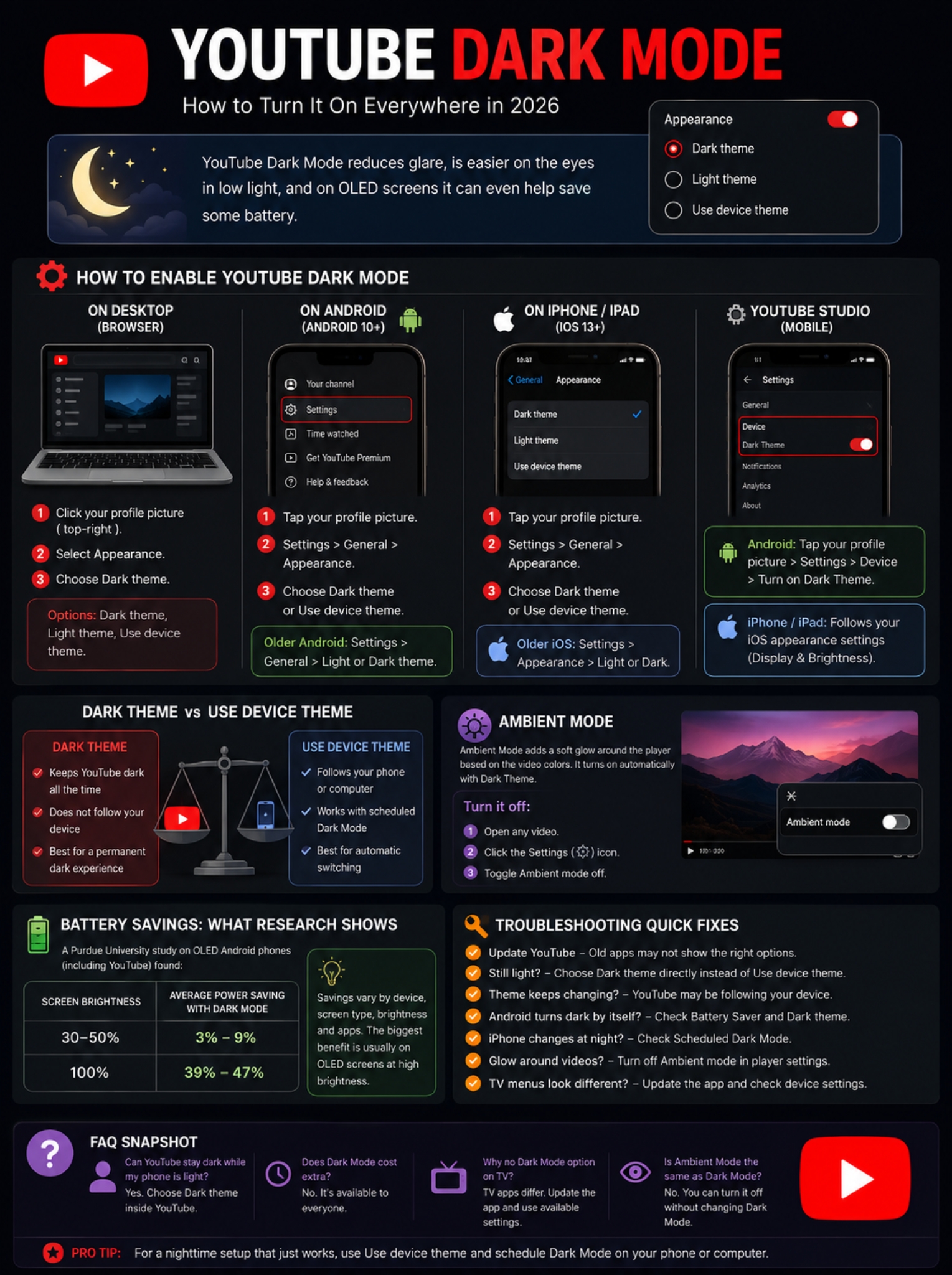
YouTube Studio is where things get slightly less consistent.
The Android and iPhone versions don’t handle Dark Mode in exactly the same way.
YouTube Studio on Android
Android users can turn Dark Theme on from inside the Studio app.
Go to:
- Open YouTube Studio.
- Tap your profile picture.
- Tap Settings.
- Look under Device.
- Turn on Dark Theme.
YouTube Studio on iPhone and iPad
On iPhone and iPad, YouTube’s Studio guidance points users to the device’s own appearance setting instead.
Go to:
Settings > Display & Brightness > Dark
The Studio app then follows the darker iOS appearance.
|
Platform |
How Dark Mode works |
|
YouTube Studio Android |
Has its own Dark Theme toggle |
|
YouTube Studio iPhone/iPad |
Follows iOS Dark Mode |
|
YouTube on desktop |
Uses YouTube’s Appearance menu |
It’s a small difference, but it explains why a tutorial written for Android may not match what you see on an iPhone.
What About YouTube Dark Mode on Smart TVs and Consoles?
This is where “everywhere” gets a little messy.
YouTube’s official Dark theme instructions clearly cover computers, Android devices, iPhones, and iPads.
Smart TVs, streaming boxes, and game consoles don’t all share one universal Dark Mode menu.
Some TV versions of YouTube already use a dark-looking interface. Others may expose different appearance controls depending on the platform, app version, or TV manufacturer.
|
Situation |
What to do |
|
YouTube already looks dark |
You may not need to change anything |
|
A theme option appears |
Use the settings available on that device |
|
No Appearance option exists |
That may be normal |
|
The interface looks old |
Check for a YouTube update |
|
Android TV |
Check Google Play updates |
|
Apple TV |
Check YouTube in the App Store |
The main thing is not to assume the phone instructions will work on your TV.
If a guide tells you to open Settings > General > Appearance and that menu simply isn’t there, your app may use a different interface.
Keeping the app updated is the best first step.
Dark Theme or Use Device Theme: Which Should You Pick?
Both options work. They just solve different problems.
Choose Dark theme when you want YouTube dark all the time.
Choose Use device theme when you want YouTube to follow your phone, tablet, or computer.
|
Feature |
Dark theme |
Use device theme |
|
Keeps YouTube dark permanently |
Yes |
No |
|
Follows system appearance |
No |
Yes |
|
Works with scheduled Dark Mode |
Not needed |
Yes |
|
Lets YouTube look different from your phone |
Yes |
No |
Here’s a simple example.
Say you prefer a light phone during the day but switch everything to dark mode after sunset. Set YouTube to Use device theme and forget about it.
But maybe you keep your phone bright and only want YouTube dark because you watch videos in bed. In that case, use YouTube’s own Dark theme.
Neither option is better. It depends on how you use the app.
What Is YouTube Ambient Mode?
You may notice something else after turning on Dark theme: a soft glow around the video player.
That’s Ambient mode.
It takes colors from the video and spreads a subtle version of them into the area around the player.
It can look nice, but it’s not the same thing as Dark theme.
|
Feature |
What it changes |
|
Dark theme |
The main YouTube interface |
|
Ambient mode |
The area around the video player |
|
Can Ambient mode work with Dark theme? |
Yes |
|
Can you switch Ambient mode off? |
Yes |
YouTube turns Ambient mode on automatically when Dark theme is active on supported watch pages.
How to turn Ambient mode off
If you like the dark interface but don’t want the extra glow:
- Open a video.
- Click or tap the player Settings icon.
- Find Ambient mode.
- Turn it off.
You can keep Dark theme enabled.
This is useful because some people assume the shifting colors are part of Dark Mode itself. They aren’t.
Why YouTube Dark Mode Isn’t Working
Most dark-mode problems come down to one of four things: an old app, the wrong appearance setting, a system theme taking control, or a platform that uses different menus.
Start with the basics.
|
Problem |
What to check first |
|
Appearance option is missing |
Update YouTube |
|
YouTube stays light |
Choose Dark theme directly |
|
Theme keeps changing |
Check Use device theme |
|
Android turns dark unexpectedly |
Check Battery Saver |
|
iPhone changes at night |
Check scheduled system Dark Mode |
|
Colored glow appears |
Turn off Ambient mode |
|
TV menus look different |
Check device-specific settings |
Update the YouTube app
If the menus in a guide don’t match your screen, update the app before doing anything more drastic.
On Android:
- Open Google Play Store.
- Tap your profile picture.
- Choose Manage apps & device.
- Open Updates available.
- Update YouTube if it appears.
On iPhone and iPad, check the App Store for available updates.
An old version can make settings look different or hide newer options.
Stop YouTube from following your phone
If YouTube keeps switching between light and dark, check whether Use device theme is turned on.
If you want the app to stay dark no matter what happens elsewhere, choose Dark theme instead.
Check Android Battery Saver
On some Android devices, Battery Saver can bring Dark theme with it.
If YouTube goes dark whenever your battery gets low, the app may simply be following the device.
Check:
Settings > Battery > Battery Saver
Check iPhone’s automatic Dark Mode
If YouTube becomes dark at roughly the same time every evening, your iPhone may have automatic appearance changes enabled.
Check:
Settings > Display & Brightness > Automatic
If YouTube follows the device theme, it’ll follow that schedule too.
Does YouTube Dark Mode Save Battery?
It can, but this claim needs some context.
Dark mode can reduce power use on phones with OLED displays because dark pixels need less power than bright ones. The effect can be much smaller on LCD screens.
Researchers from Purdue University tested dark mode on several OLED Android phones using popular apps, including YouTube.
Their results changed sharply with screen brightness.
|
OLED test condition |
Average power saving |
|
30–50% brightness |
About 3–9% |
|
100% brightness |
About 39–47% |
That doesn’t mean every phone will save exactly that much battery.
The test covered specific OLED phones, apps, brightness levels, and conditions. Your results can vary.
The useful takeaway is simpler: dark mode can save battery on OLED screens, but the benefit is usually much smaller at ordinary indoor brightness than it is at maximum brightness.
So don’t expect YouTube dark mode to suddenly add hours to your battery life.
For many people, reduced glare is the bigger reason to use it.
Does Dark Mode Reduce Eye Strain?
Dark Mode can make a bright interface feel easier to look at in a dark room. YouTube itself describes the feature as a way to tone down glare.
But that doesn’t mean Dark Mode automatically prevents eye strain.
Screen brightness, viewing distance, room lighting, text size, contrast, and how long you stare at the screen all matter.
If YouTube still feels too bright at night, lower your display brightness as well. A dark interface at full brightness can still be uncomfortable.
Final Thoughts
Turning on YouTube dark mode is simple once you know where your device keeps the setting.
On desktop, use Profile picture > Appearance > Dark theme.
On Android and iPhone, open YouTube’s Appearance settings and choose either Dark theme or Use device theme.
The choice comes down to preference. Want YouTube dark all the time? Pick Dark theme. Want it to change with your phone? Let it follow the device.
YouTube Studio deserves a separate mention because Android has an in-app Dark Theme setting while the iPhone and iPad version relies more heavily on iOS appearance settings.
And if you see a colored glow around videos after switching themes, that’s Ambient mode. You can turn it off without giving up the dark interface.
Battery savings are possible too, especially on OLED screens, but don’t expect miracles at normal brightness levels.
For most people, the biggest win is much simpler: fewer bright white screens when you’re watching YouTube at night.
FAQs About YouTube Dark Mode
Can YouTube stay dark while my phone stays in light mode?
Yes.
Choose Dark theme inside YouTube instead of Use device theme.
That keeps YouTube dark without changing the rest of your phone.
Can YouTube switch to Dark Mode automatically at night?
Yes, if you let it follow your device.
Set YouTube to Use device theme, then use your phone’s automatic Dark Mode settings.
On iPhone and iPad, you can schedule Dark Mode under Settings > Display & Brightness > Automatic.
Why does YouTube turn dark when my Android battery gets low?
Battery Saver may be changing your phone’s system theme.
If YouTube is set to follow the device, it can change too.
Check your Android Battery Saver and Dark theme settings.
Is Ambient mode the same as YouTube Dark Mode?
No.
Dark theme changes the main interface.
Ambient mode adds a colored lighting effect around the video player.
They work together, but they’re separate features.
Can I turn Ambient mode off without losing Dark theme?
Yes.
Open a video, go to the player settings, and turn Ambient mode off.
Your dark interface will remain.
Do I need YouTube Premium for Dark Mode?
No.
Dark theme is a regular YouTube appearance setting. It isn’t a YouTube Premium-only feature.