
A new smartwatch may be small, but setting one up properly now involves much more than connecting Bluetooth.
Modern watches can store payment cards, messages, health information, workout history, location data, apps, emergency details, and sometimes their own cellular connection. If you want to set up new smartwatch hardware correctly in 2026, pairing is only the beginning.
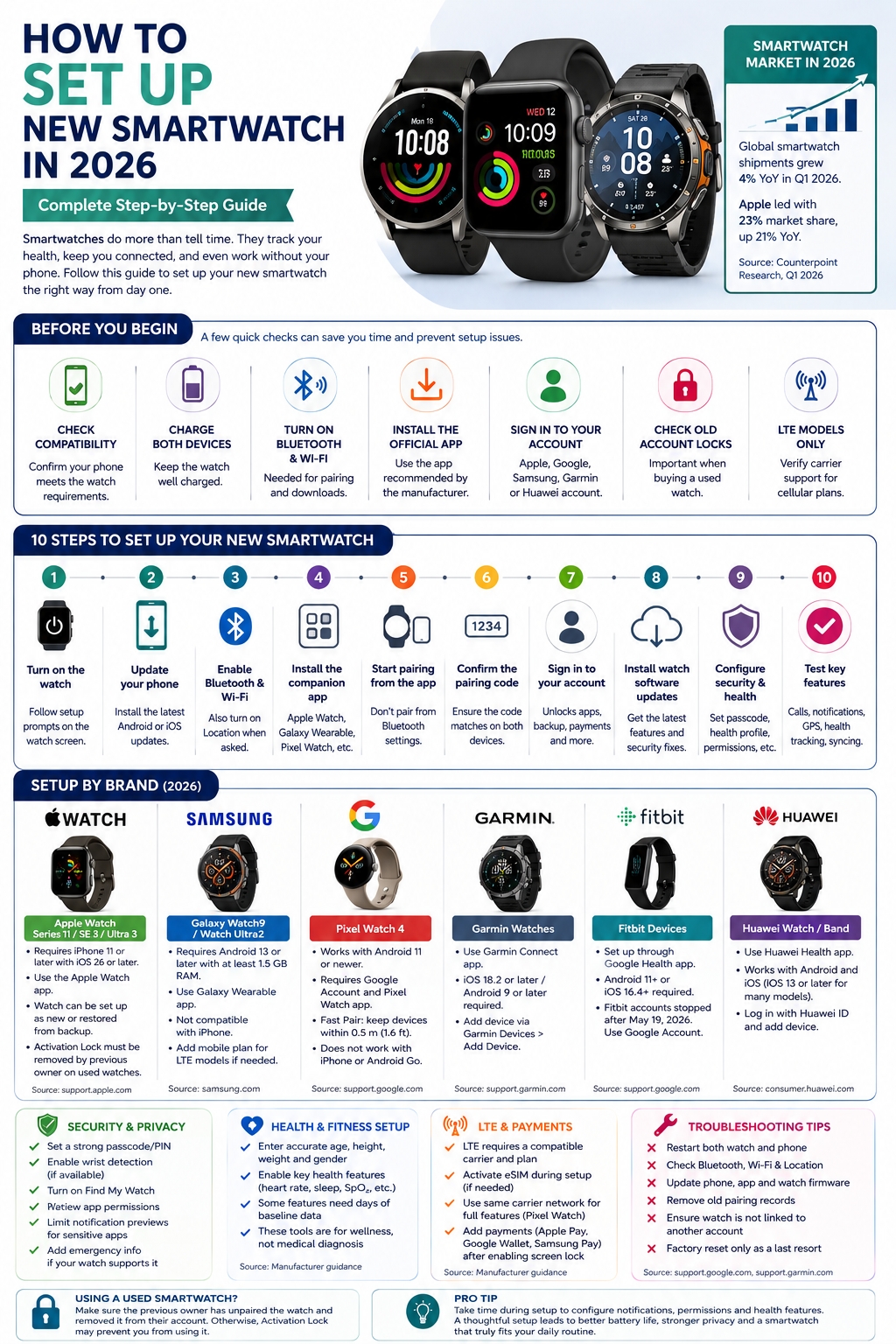
Compatibility matters more than ever. Apple’s current Apple Watch models require an iPhone. Google’s Pixel Watch 4 requires Android. Samsung’s new Galaxy Watch9 and Watch Ultra2 also require Android and won’t work with iPhones. Garmin and Huawei cover both major phone platforms, while Fitbit setup has moved into Google’s newer Google Health ecosystem.
The smartwatch market is still growing. Counterpoint Research reported that worldwide smartwatch shipments rose 4% year over year in Q1 2026. Apple held a 23% shipment share, while its shipments increased 21% year over year. Counterpoint also found that average selling prices rose 6%, with improved health sensors and more advanced technologies among the drivers.
So it makes sense to spend a few extra minutes on setup. The right choices at the start can save battery, protect private data, prevent missed notifications, and make phone upgrades much easier later.
Before You Set Up a New Smartwatch
Don’t start by tapping the first watch name you see in your phone’s Bluetooth settings. With most modern watches, the manufacturer’s companion app should control the initial pairing process.
|
Check before setup |
What to verify |
Why it matters |
|
Phone compatibility |
Android/iPhone model and OS |
Some watches support only one ecosystem |
|
Companion app |
Correct official app |
Handles pairing, settings, updates, and syncing |
|
Watch charge |
Preferably well charged |
Prevents interrupted setup or updates |
|
Phone software |
Install pending OS updates |
Reduces compatibility problems |
|
Bluetooth |
Turn it on |
Required for most initial pairing |
|
Wi-Fi |
Connect to a stable network |
Useful for updates, apps, and cloud restore |
|
User account |
Apple, Google, Samsung, Garmin, Huawei |
Enables cloud and ecosystem services |
|
Old account lock |
Especially on used watches |
May prevent activation |
|
Carrier support |
For LTE watches |
Cellular service isn’t universal |
Check phone compatibility before anything else
This is the most important pre-setup check.
Apple’s current Apple Watch lineup consists of Apple Watch Series 11, Apple Watch SE 3, and Apple Watch Ultra 3. Apple says these models require an iPhone 11 or later running iOS 26 or later. Older watches can have different requirements.
Samsung’s current Galaxy Watch9 and Watch Ultra2 require a phone running Android 13 or later with at least 1.5 GB of RAM. Samsung also states that tablets and Huawei phones aren’t supported for these models. Because the Watch9 generation runs Google’s Wear OS, it isn’t compatible with iOS.
Google’s current watch is the Pixel Watch 4. It works with most phones running Android 11 or newer, requires a Google Account and Google Pixel Watch app, and doesn’t support iPhones or Android Go edition.
Charge before starting
You don’t need to wait for every watch to reach 100%, but avoid starting a major update with a nearly empty battery.
Apple requires at least 50% charge before installing a watchOS update and says the watch should remain on its charger while the update completes.
Samsung notes that some Galaxy Watch updates may not install with less than approximately 30% charge.
Keeping the phone charged is sensible too. Initial setup can include firmware downloads, cloud restoration, app installation, account authentication, and data syncing.
How to Set Up New Smartwatch Devices Step by Step
The screens vary by brand, but the core process is surprisingly consistent.
|
Step |
What to do |
Purpose |
|
1 |
Charge and switch on the watch |
Avoid interruptions |
|
2 |
Update the phone |
Improve compatibility |
|
3 |
Turn on Bluetooth and Wi-Fi |
Enable pairing and downloads |
|
4 |
Install the official app |
Start the correct setup process |
|
5 |
Keep phone and watch close |
Improve device discovery |
|
6 |
Confirm matching codes |
Verify the connection |
|
7 |
Sign in |
Enable cloud services |
|
8 |
Review permissions |
Control health, location, notifications |
|
9 |
Update watch software |
Install current fixes/features |
|
10 |
Test key functions |
Confirm everything works |
1. Turn on the watch
Hold the watch’s power, side button, or crown until the startup logo appears.
Choose your language and region when prompted.
2. Update your phone
Check for Android or iOS updates before starting watch setup.
Apple explicitly recommends updating the paired iPhone before updating or configuring an Apple Watch. Google similarly advises keeping the phone, Pixel Watch app, and watch firmware current when resolving setup problems.
3. Enable Bluetooth and Wi-Fi
Bluetooth handles short-range discovery and communication for most smartwatch platforms.
Wi-Fi is commonly needed for firmware downloads, cloud data, app installation, and other online services.
Google recommends enabling Bluetooth, Wi-Fi, and Location when troubleshooting Pixel Watch pairing. Fast Pair requires the phone to be within roughly 0.5 metres, or 1.6 feet, of the watch.
4. Install the official companion app
Current examples include:
- Apple Watch: Apple Watch app on iPhone
- Galaxy Watch9/Ultra2: Galaxy Wearable
- Pixel Watch 4: Google Pixel Watch app
- Garmin: Garmin Connect
- Fitbit devices: Google Health
- Huawei Watch: Huawei Health
Samsung’s Watch9 setup guide starts inside Galaxy Wearable, while Garmin directs users to Garmin Connect → Garmin Devices → Add Device. Huawei similarly tells users to add the wearable through Huawei Health rather than relying on Bluetooth settings alone.
5. Confirm the pairing code
Most platforms display matching numbers on the phone and watch.
Check that the codes match before tapping Connect or Pair. Samsung’s current Watch9 setup process explicitly uses this step.
6. Sign in to the right account
Depending on the watch, that may include an:
- Apple Account,
- Google Account,
- Samsung account,
- Garmin account,
- Huawei ID.
Account sign-in can be necessary for backups, health synchronization, app downloads, device-finding tools, payments, and data restoration.
Smartwatch Compatibility and Setup by Brand in 2026
The phrase “smartwatch setup” hides some major ecosystem differences.
|
Platform |
Main app |
Verified phone requirement |
iPhone support |
|
Apple Watch Series 11/SE 3/Ultra 3 |
Apple Watch |
iPhone 11+, iOS 26+ |
Required |
|
Galaxy Watch9/Ultra2 |
Galaxy Wearable |
Android 13+, 1.5 GB RAM |
No |
|
Pixel Watch 4 |
Pixel Watch app |
Android 11+ |
No |
|
Garmin |
Garmin Connect |
Android/iOS supported |
Yes |
|
Fitbit devices |
Google Health |
Android 11+ or iOS 16.4+ |
Yes |
|
Huawei Watch/Band |
Huawei Health |
Model/app dependent |
Yes |
Apple Watch
Bring the powered-on watch near your unlocked iPhone.
The iPhone should display an Apple Watch setup prompt. Tap Continue. If it doesn’t appear, open the Watch app, choose All Watches, and select Add Watch. Apple also provides manual pairing when camera-based pairing isn’t available.
Apple lets eligible users set up a watch as new or restore supported data from a previous backup.
One warning matters especially for second-hand watches: Activation Lock.
If the watch still belongs to the previous owner’s Apple Account, simply resetting it won’t necessarily make it usable. Apple confirms that erasing an Apple Watch without properly unpairing it can leave Activation Lock enabled.
Samsung Galaxy Watch9 and Watch Ultra2
Samsung introduced the Galaxy Watch9 and Watch Ultra2 in July 2026. The new generation runs Wear OS and requires Android 13 or later with at least 1.5 GB RAM.
Setup is straightforward:
- Install or open Galaxy Wearable.
- Turn on the watch.
- Tap Start in Galaxy Wearable.
- Select Galaxy Watch9 or Watch Ultra2.
- Confirm that the pairing numbers match.
- Review permissions.
- Choose watch orientation and other preferences.
- Add a cellular plan if you bought an LTE model and want mobile service.
Samsung confirms that Watch9 and Ultra2 aren’t compatible with iOS.
Non-Samsung Android support is more complicated. Some older/current Galaxy watches can connect to compatible third-party Android phones, but Samsung warns that feature support varies by phone, carrier, market, and watch generation.
Google Pixel Watch 4
Google’s current Pixel Watch is Pixel Watch 4, available in 41 mm and 45 mm sizes. It ships with Wear OS 6 and works with most Android 11-or-newer phones.
To set it up:
- Turn on the Pixel Watch.
- Enable Bluetooth on the Android phone.
- Install/open Google Pixel Watch.
- Keep the devices close.
- Follow Fast Pair or the app prompts.
- Confirm the pairing code.
- Sign in with your Google Account.
- Complete health, permissions, and backup setup.
Pixel Watch doesn’t support iPhone. It also doesn’t support Android Go edition.
Garmin
Garmin continues to use Garmin Connect.
Open:
Garmin Connect → More → Garmin Devices → Add Device
Then place the watch in pairing mode and complete the prompts.
Garmin’s current support documentation lists iOS 18.2 or later for compatible Apple devices, while its current Android requirement is Android 9 or later. Exact compatibility can still depend on the handset and Garmin product.
Fitbit devices and Google Health
This area changed substantially in 2026.
Google’s current instructions tell users to set up supported Fitbit devices through the Google Health app. Open Google Health, choose Connections → Add device, select the device, and follow the prompts.
Google Health currently requires:
- Android 11 or later, or
- iOS 16.4 or later.
Google also ended access through legacy Fitbit accounts after May 19, 2026. Existing Fitbit-account users needed to move to a Google Account to continue using the service.
Google Health now brings supported Fitbit and Pixel Watch health information into one application, although the separate Pixel Watch app remains the device-management tool for Pixel Watch setup.
Huawei Watch
Huawei takes a more cross-platform approach.
Huawei Health is available for both Android and iOS. Huawei’s pairing instructions direct users to log in with a Huawei ID and choose Add device or scan the QR code displayed by the watch.
Huawei’s current iPhone instructions list iOS 13 or later for the pairing process, although features and app availability can differ by product and region.
Update the Smartwatch Before Customizing Everything
Once pairing succeeds, check for watch firmware before downloading a pile of apps or spending half an hour perfecting the watch face.
|
Update |
Best time |
Why |
|
Phone OS |
Before pairing |
Reduces compatibility issues |
|
Companion app |
Before or during setup |
Gets current setup logic |
|
Watch firmware |
Immediately after pairing |
Security fixes and feature updates |
|
Watch apps |
After firmware |
Improves app compatibility |
|
Health apps |
Before advanced health setup |
Ensures current feature support |
Apple’s watchOS 26 supports Apple Watch Series 6 and later, Apple Watch SE 2 and later, and every Apple Watch Ultra model. Updating to watchOS 26 requires an iPhone 11 or later, or iPhone SE 3 or later, running iOS 26.
Apple also says the watch should remain on its charger during the update and warns against restarting the iPhone or watch while installation is in progress.
Samsung places watch software updates under Galaxy Wearable → Watch settings → Watch software update on supported models.
The practical rule is simple: update first, customize second.
Configure Security, Privacy, and Health Settings
Pairing makes the watch work. This part makes it safe and useful.
|
Setting |
Recommended action |
|
Passcode/PIN |
Turn it on |
|
Device finding |
Enable while you still have the watch |
|
Health profile |
Enter accurate information |
|
Emergency information |
Add if supported and wanted |
|
Notification previews |
Hide sensitive content where appropriate |
|
App permissions |
Review instead of approving blindly |
|
Location |
Give only to features that need it |
|
Health sharing |
Check recipients/apps carefully |
Protect the watch with a passcode
A smartwatch can display private messages, financial alerts, account codes, health information, and contact details.
That makes a screen lock worth enabling even if the watch spends most of the day on your wrist.
Review health permissions
Don’t automatically give every fitness app access to every category of health information.
A sleep app may need sleep and heart-rate information. A calculator probably doesn’t.
Google Health now centralizes health information from supported Pixel Watch and Fitbit devices, making permission review especially relevant for users connecting multiple health services.
Expect some health features to need baseline data
Not every metric appears after your first night.
For example, Samsung says its Vitals feature needs at least seven nights of sleep data and requires users to wear a compatible Galaxy Watch or Galaxy Ring during sleep. Samsung also describes Vitals as a wellness feature rather than a diagnostic tool.
Read Also: Best Smartwatches for Android Users in 2026
Treat medical-style readings carefully
ECG, blood-pressure, sleep-apnea, irregular-rhythm, SpO2, and similar tools can depend on the watch model, phone, age, country, and regulatory availability.
Samsung, for example, handles ECG through Samsung Health Monitor on supported Galaxy watches and Galaxy phones.
A consumer wearable can provide useful trends and alerts, but a smartwatch reading shouldn’t be treated as a diagnosis by itself.
Set Up LTE, eSIM, Calls, and Payments
Cellular service is a separate step from normal Bluetooth pairing.
|
Feature |
What it usually requires |
|
Bluetooth calling |
Paired phone nearby |
|
Wi-Fi features |
Known Wi-Fi network |
|
LTE/cellular |
Cellular smartwatch model |
|
eSIM |
Compatible carrier |
|
Number sharing |
Carrier support |
|
Standalone calls |
Active wearable plan |
|
NFC payments |
Supported wallet, bank, region, and device lock |
LTE isn’t automatically active
Buying an LTE watch only gives you cellular-capable hardware.
You still need a compatible carrier and, in many markets, a smartwatch or number-sharing plan.
Samsung’s current Watch9 setup explicitly offers Mobile Plan near the end of the setup process for LTE models. Users can also skip it and continue using the watch through Wi-Fi and Bluetooth.
Google says Pixel Watch LTE service requires a separate compatible cellular plan. For full talk, text, and data functionality, the Pixel Watch and its Android companion phone must use the same carrier network.
Don’t erase an eSIM to fix an ordinary Bluetooth problem
A broken phone-watch connection doesn’t automatically mean the cellular plan is responsible.
Start by fixing Bluetooth, the companion app, or the old pairing record. Removing a mobile plan too early can turn one setup issue into a separate carrier-activation problem.
Control Notifications, Apps, and Battery Drain
The default setup often gives the watch permission to do more than you actually want.
|
Setting |
Sensible starting point |
|
Calls |
On |
|
Important messages |
On |
|
Calendar reminders |
On |
|
Security/banking alerts |
On |
|
Shopping promotions |
Off |
|
Social-media likes |
Usually off |
|
Always-on display |
Personal preference |
|
Brightness |
Auto/moderate |
|
GPS |
Enable where useful |
|
LTE |
Automatic when supported |
|
Third-party apps |
Install selectively |
Don’t mirror every phone notification
A smartwatch becomes exhausting if every email, promotion, comment, game alert, and group message taps your wrist.
Start with calls, direct messages, calendar events, security alerts, travel updates, and truly time-sensitive apps.
Then add notifications only when you notice you’re missing something important.
Don’t judge battery life during setup day
The first several hours can include:
- firmware downloads,
- application updates,
- cloud restoration,
- account syncing,
- health-service initialization,
- repeated screen use,
- Wi-Fi activity.
That isn’t necessarily representative of normal battery life.
Pixel Watch 4, for example, has different rated battery figures for its two sizes: Google rates the 41 mm version for up to 30 hours with the always-on display and the 45 mm version for up to 40 hours, under Google’s specified test conditions. Actual runtime varies with settings and usage.
Give the watch a few normal days before deciding its battery performance is poor.
Moving to a New Phone or Replacing an Old Watch
Transfers deserve more planning than ordinary first-time setup.
|
Situation |
Best approach |
|
New watch, same phone |
Back up/sync old watch first |
|
Same watch, new phone |
Use official transfer feature |
|
Selling a watch |
Unpair and remove account locks |
|
Cellular watch |
Decide what happens to mobile plan |
|
Used purchase |
Verify previous account is removed |
Pixel Watch transfer
Google supports a Transfer watch process on compatible Pixel Watches running Wear OS 4 or later.
This can move the watch to a different phone without immediately factory-resetting it. Google says the watch disconnects from the old phone after the new connection succeeds.
Backup also requires a little planning. Google warns that Pixel Watch backup can take up to a few days, so starting immediately before a phone replacement isn’t ideal.
Apple Watch transfer and backup
When an Apple Watch is properly unpaired using its paired iPhone, Apple says the iPhone tries to create a backup that can later be used with another Apple Watch. Proper unpairing also removes Activation Lock.
If it’s a cellular watch, Apple asks whether you want to keep or remove the plan. Keep it if you’re pairing the same watch again; remove it if you’re selling or giving away the device.
Garmin and a new phone
Garmin recommends pairing through Garmin Connect. Garmin also recommends using one smartphone or tablet at a time for optimal Bluetooth performance.
What to Do When a Smartwatch Won’t Pair
Factory resetting should be near the bottom of your troubleshooting list, not the top.
|
Problem |
Try first |
|
Watch isn’t discovered |
Bring devices closer |
|
Pairing code never appears |
Restart both devices |
|
Setup freezes |
Update phone and companion app |
|
Watch was paired before |
Remove old pairing record |
|
Used Apple Watch asks for account |
Check Activation Lock |
|
Galaxy Watch9 + iPhone |
Incompatible combination |
|
Pixel Watch + iPhone |
Incompatible combination |
|
Pixel Fast Pair fails |
Enable Bluetooth, Wi-Fi, Location |
|
Garmin pairing fails |
Restart both, toggle Bluetooth |
|
LTE fails |
Check carrier support separately |
Work through problems in this order
- Charge the watch.
- Confirm the phone meets the minimum requirements.
- Restart the phone and watch.
- Toggle Bluetooth off and on.
- Connect the phone to reliable Wi-Fi.
- Update the phone OS.
- Update the companion app.
- Remove stale watch entries from Bluetooth where the manufacturer recommends it.
- Retry from the official companion app.
- Check whether the watch is still linked to another account or phone.
- Factory-reset only when the earlier steps fail.
Google’s current Pixel Watch guidance recommends checking watch firmware, the Pixel Watch app, phone firmware, Bluetooth, Wi-Fi, Location, and physical distance before escalating pairing troubleshooting.
Garmin says many pairing failures can be resolved by restarting both devices and toggling the phone’s Bluetooth off and back on.
Samsung’s Watch9 troubleshooting starts from Galaxy Wearable and requires a compatible Android phone; trying repeatedly with an iPhone won’t solve the problem because iOS isn’t supported.
Buying or Setting Up a Used Smartwatch
Used watches deserve an extra checklist.
|
Check |
Why |
|
Exact model |
Determines compatibility |
|
Previous account removed |
Prevents activation lock |
|
Watch reaches setup mode |
Confirms basic reset |
|
Battery condition |
Older batteries may be degraded |
|
Original/compatible charger |
Avoids charging surprises |
|
Cellular status |
Prevents carrier confusion |
|
Physical sensors/buttons |
Confirms hardware functions |
Apple Watch deserves special attention
Apple’s Activation Lock is designed to stop someone else from activating a lost or stolen Apple Watch.
If a seller simply erases the watch from its own Settings menu, Activation Lock can remain. Apple says proper unpairing from the paired iPhone removes the lock; alternatively, the owner can remove the watch from their account through Apple’s web tools.
If a used Apple Watch asks for another person’s Apple Account information during setup, don’t assume another factory reset will solve it.
The previous owner needs to remove the device from their account.
Final Thoughts
A smartwatch isn’t completely set up just because its clock face appears and Bluetooth says “connected.”
|
Before you finish |
Check |
|
Compatibility |
Phone and watch officially support each other |
|
Software |
Phone, watch, and companion app are current |
|
Security |
Passcode and account protection are enabled |
|
Health |
Profile and permissions are reviewed |
|
Notifications |
Only useful alerts reach your wrist |
|
Backup |
Enabled where supported |
|
LTE |
Activated only if needed |
|
Used watch |
Previous account and activation lock removed |
|
Testing |
Calls, syncing, GPS, health and alerts work |
The biggest lesson in 2026 is that there is no universal smartwatch setup method.
Apple Watch Series 11, SE 3, and Ultra 3 live inside Apple’s iPhone ecosystem. Galaxy Watch9 and Watch Ultra2 need Android 13 or newer. Google’s current Pixel Watch 4 requires Android 11 or newer. Garmin remains broadly cross-platform, Huawei Health supports Android and iOS, and Fitbit owners now need to understand the move into Google Health.
So when you set up new smartwatch hardware, don’t rush past compatibility, permissions, backups, updates, and security just to reach the watch face.
A careful setup takes a little longer on day one, but it pays off with fewer pairing problems, cleaner notifications, safer personal data, more reliable health tracking, and a much easier upgrade when your next phone or watch arrives.
FAQs About How to Set Up New Smartwatch Devices
|
Question |
Short answer |
|
Should I pair from Bluetooth settings first? |
Usually no—use the official app |
|
Can Galaxy Watch9 work with iPhone? |
No |
|
Does Pixel Watch 4 work with iPhone? |
No |
|
Can Pixel Watch move to a new phone without reset? |
Often yes |
|
Does resetting Apple Watch remove Activation Lock? |
Not always |
|
Does an LTE watch include cellular service? |
No |
|
Has Fitbit setup changed in 2026? |
Yes—Google Health now handles it |
|
Can one watch pair with two phones? |
Usually one active phone is recommended |
Should I pair my smartwatch directly from Bluetooth settings?
Usually not.
Use the manufacturer’s companion app first unless the official instructions for your specific watch say otherwise. Samsung, Google, Garmin, Fitbit/Google Health, and Huawei all provide app-driven setup flows.
Can Galaxy Watch9 connect to an iPhone?
No.
Samsung explicitly says Galaxy Watch9 and Watch Ultra2 use Wear OS and aren’t compatible with iOS.
Does Pixel Watch 4 work with an iPhone?
No.
Google lists Pixel Watch 4 as compatible with most Android 11-or-newer phones and states that iPhones aren’t supported.
Why can’t I follow older Fitbit setup tutorials?
Fitbit’s software environment changed in 2026.
Google now directs supported Fitbit-device setup through Google Health → Connections → Add device. Legacy Fitbit accounts also stopped being usable for continued Fitbit access after May 19, 2026 unless migrated to a Google Account.
Can I transfer a Pixel Watch without factory-resetting it?
Yes, on supported software.
Google’s Watch Transfer process requires Wear OS 4 or later and is designed to move the watch to a new phone without the old reset-first workflow.
Can I use an LTE smartwatch without buying a smartwatch plan?
You can generally use its Bluetooth/Wi-Fi functions without activating LTE.
Samsung explicitly lets Watch9 LTE owners skip Mobile Plan setup and continue using the device through Bluetooth/Wi-Fi. Cellular functions require compatible carrier service.
Does a factory reset remove Apple Watch Activation Lock?
Not necessarily.
Apple says erasing a watch without properly unpairing it can leave Activation Lock in place.
Can I pair a smartwatch with two phones at once?
Don’t assume you can.
Most watch ecosystems are built around one primary phone connection. Garmin, for example, recommends pairing its devices with only one smartphone or tablet at a time for optimal Bluetooth performance. Pixel Watch uses an official transfer process when changing phones.
Why doesn’t my new smartwatch show every advertised health feature?
Health functions can depend on the watch, paired phone, software version, region, age requirements, and regulatory approval.
Samsung’s ECG tools, for example, rely on Samsung Health Monitor and supported Galaxy hardware, while availability differs by country.
Do I need Wi-Fi after the watch is paired?
Not constantly.
Bluetooth normally handles much of the phone-watch connection, but Wi-Fi can be used for software updates, app downloads, cloud services, and other online tasks. LTE watches can perform additional connected functions away from the phone when an eligible mobile plan is active.