
X makes it easy to discover posts you never asked to see. Open the Home timeline and the For you tab can combine posts from people you follow with recommended accounts, Topics, popular conversations, reposts, and other content selected by X’s recommendation system. X confirms that For you can draw content from both inside and outside your network.
If you would rather see posts from accounts you deliberately chose, an x following feed only setup is the closest native option.
The basic method is simple: switch from For you to Following. But there is an important 2026 catch. X introduced ranking inside the Following feed in late 2025, so some users may also need to switch Following from Popular to Recent or Most recent to get a chronological timeline. Independent reporting documented that change, even though X’s current Help Center still describes Following as reverse chronological by default.
That documentation gap is important. The safest approach today is to check the controls actually visible in your account rather than assuming every version of X behaves the same way.
Can You Really Turn Off the For You Feed on X?
|
Question |
Verified answer |
|
Can you permanently delete the For you tab? |
X does not document a native setting for this |
|
Can you avoid using For you? |
Yes |
|
Which feed limits normal feed content to followed accounts? |
Following |
|
Is Following always chronological? |
X’s Help Center says yes, but current product behavior can include Popular ranking |
|
Can X remember your last feed? |
Officially yes, though recent rollout behavior has sometimes differed |
|
Is Premium required? |
No |
There is no documented switch in X’s current settings labeled Disable For you or Remove For you. X instead gives users two main Home choices: For you and Following.
X’s Help Center says:
- For you includes recommended content.
- Following displays posts from accounts you follow.
- Users can switch between the two timelines.
- X should return to whichever timeline was open when the service was closed.
So when people talk about “turning off For you,” they usually mean staying on Following rather than literally removing the For you tab.
There is no need to subscribe to X Premium just to access Following. X documents Following as a standard Home timeline option.
X Following Feed Only: The Best Current Setup
|
Setting |
Choose this |
|
Main Home feed |
Following |
|
Following sort, if shown |
Recent or Most recent |
|
For you |
Avoid when you don’t want recommendations |
|
Noisy accounts |
Mute or turn off Reposts |
|
Unwanted subjects |
Muted words |
|
Small focused groups |
Pinned Lists |
For the closest thing to the traditional follower-based Twitter timeline, use two layers of control.
1. Select Following
Open X and go to Home.
At the top of the timeline, switch from For you to Following.
X says the Following timeline is designed to show content from accounts you follow rather than personalized recommendations from outside your network.
2. Check how Following is sorted
This second step has become much more important.
X’s current recommendation documentation still says Following posts appear in reverse chronological order.
However, X changed the product in late November 2025. Social Media Today reported that X began using Grok to rank posts in Following according to predicted engagement and relevance, while retaining access to an unfiltered chronological version.
Axios confirmed in March 2026 that, on desktop, users could click a control beside Following and switch between Popular and Recent.
That means the practical 2026 setup is:
Following + Recent/Most recent
when that sorting option appears.
How to See Following Instead of For You on iPhone and Android
|
Step |
What to do |
|
1 |
Open X |
|
2 |
Return to Home |
|
3 |
Tap Following |
|
4 |
Check for a feed-sorting control |
|
5 |
Choose the chronological option if available |
|
6 |
Leave Following open when exiting |
|
7 |
Recheck after reopening X |
On mobile, start by opening X and returning to the Home timeline.
Tap Following at the top.
X’s official documentation says you can click, tap, or swipe between the For you and Following timelines.
Next, inspect the Following interface.
Depending on the version and rollout affecting your account, you may see a choice related to Popular, Recent, or Most recent. X’s late-2025 change introduced an algorithmically ranked Following experience while preserving access to chronological posts.
Because X regularly rolls out interface changes unevenly, the exact label or control may not look identical on every phone. The reliable rule is:
If you see a choice between ranking and recency, select the recency option.
Do not assume an older screenshot showing only “Following” represents what every account sees today.
Read Also: How to Recover Suspended X (Twitter) Account
How to Get a Chronological Following Feed on X.com
|
Desktop control |
Recommended choice |
|
Main Home tab |
Following |
|
Following dropdown |
Recent |
|
For you |
Skip for follower-only browsing |
|
Focused feed |
Pin a List |
Desktop users currently have the clearest documented workaround.
Axios reported in March 2026 that X’s Following tab could default to the most popular posts and that desktop users could click the small arrow beside Following to toggle between Popular and Recent.
So on X.com:
- Open Home.
- Click Following.
- Look for the small arrow or sorting control near the Following label.
- Select Recent if you want the newest posts first.
This distinction is particularly useful for breaking news, sports, live events, financial updates, product launches, or any situation where posting time matters more than predicted popularity.
Why Following Is Not as Simple as It Used to Be
|
Source |
What it currently says |
|
X Help Center |
Following is reverse chronological |
|
X timeline Help page |
X should remember your last-used timeline |
|
X product rollout, late 2025 |
Following can be ranked |
|
Axios, March 2026 |
Popular and Recent choices appear on desktop |
|
Practical conclusion |
Check your own current UI |
This is the most important accuracy point in the entire guide.
X’s Help Center currently says the Following timeline shows posts only from accounts you follow in reverse chronological order.
It also says that when you close X on For you or Following, the service should return you to whichever timeline you last had open.
But X’s product changes do not line up perfectly with that wording.
Social Media Today reported in November 2025 that Following had become algorithmically ranked and that X had also started pushing users back toward For you in some circumstances.
Axios then documented the Popular/Recent control in March 2026.
These sources are not necessarily describing mutually exclusive systems. X can roll out different behavior across app versions, devices, tests, or accounts while older Help Center wording remains online.
For readers, the practical takeaway is straightforward:
Trust the controls visible in your current X interface, and use X’s documentation to understand what the features are intended to do.
For You vs. Following vs. Recent
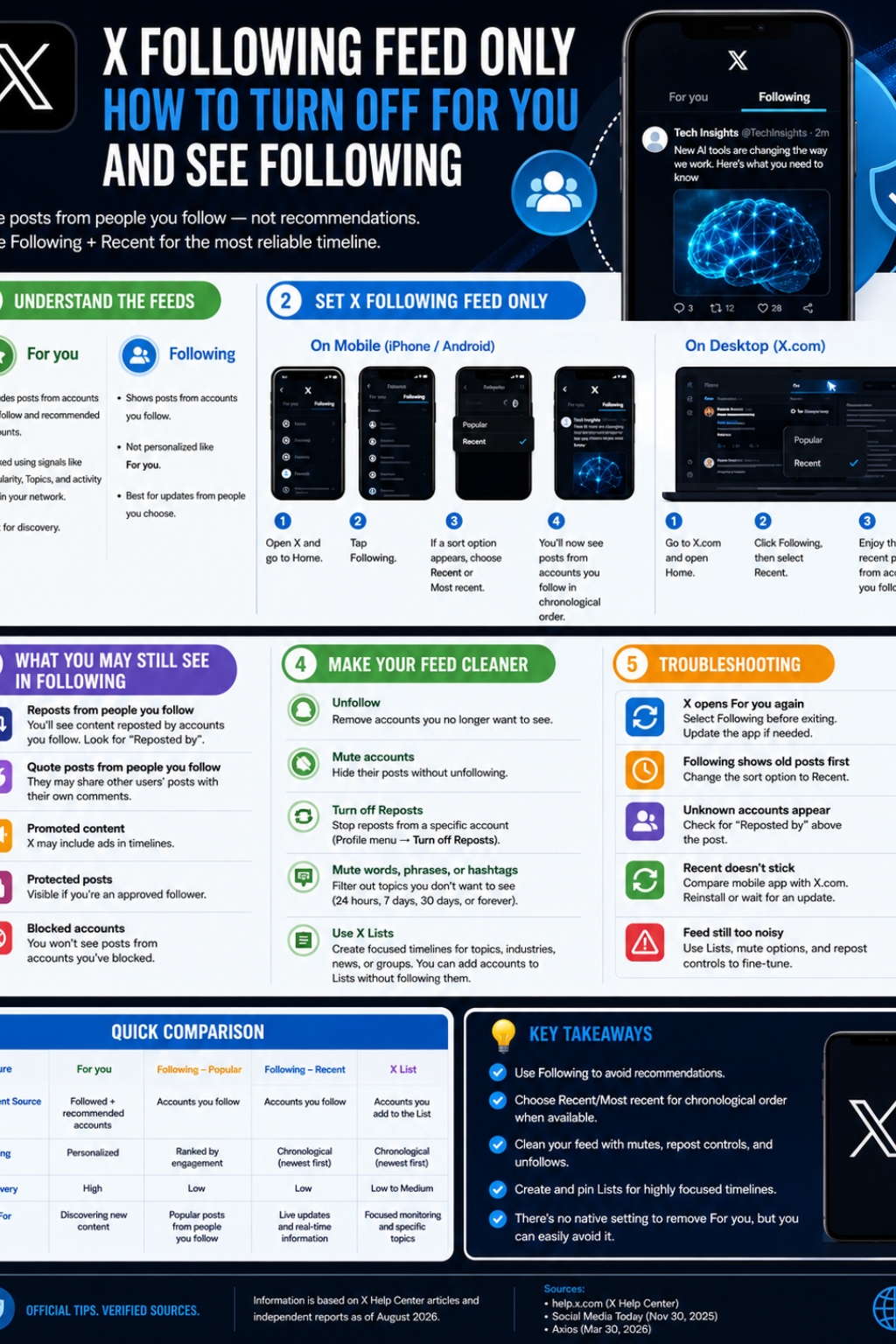
|
Feature |
For you |
Following — Popular |
Following — Recent |
|
Accounts you follow |
Yes |
Yes |
Yes |
|
Recommended outside accounts |
Yes |
Not the main purpose |
Not the main purpose |
|
Personalized ranking |
Yes |
Yes |
No, intended to be chronological |
|
Newest post first |
No guarantee |
No |
Yes |
|
Discovery |
Strong |
Limited |
Limited |
|
Best for live updates |
Weaker |
Moderate |
Strongest |
The feeds solve different problems.
For you is for recommendations
X says For you uses information from your network and activity to decide what to show.
Signals can include accounts and Topics you follow, posts you Like, Repost, share, or reply to, media you watch, posts liked by people in your network, and accounts followed by people in your network.
X’s current recommendation documentation says its systems are choosing from roughly 500 million posts made each day and narrowing that enormous pool into a much smaller set for individual users.
That figure comes directly from X’s own 2026 Help Center documentation.
Following controls the source of your feed
Following is intended to restrict the feed to accounts you deliberately follow. X describes it as the option for seeing posts that are not personalized through the For you recommendation system.
Recent controls the order
Where the newer Following sorter is available, Recent determines whether those followed-account posts are shown according to time rather than predicted popularity.
So the easiest way to remember the difference is:
Following decides whose posts you get.
Recent decides how those posts are ordered.
Why Do Accounts I Don’t Follow Appear in My Following Experience?
|
Cause |
What it means |
|
Repost |
Someone you follow shared another account’s post |
|
Quote post |
Someone you follow added commentary to another post |
|
Accidentally switched to For you |
X may be recommending the account |
|
Different feed/tab |
You may be viewing a List, Search, or another timeline |
An unfamiliar author does not automatically mean Following is broken.
X’s Repost FAQ says posts that people you follow repost or quote-post can appear in your Home timeline. It specifically tells users who see an unfamiliar author to look for “Reposted by” information; the reposter should be someone they follow.
For example:
You follow Alex.
You do not follow Jordan.
Alex reposts Jordan.
Jordan’s post can appear in your Home timeline because Alex, whom you follow, shared it.
That is different from X independently selecting Jordan as a For you recommendation.
You can turn off reposts from individual accounts
If one person’s reposts dominate your feed, visit that person’s profile and choose Turn off Reposts.
X confirms three useful limitations:
- Reposts can be disabled for a specific account.
- The setting is not retroactive.
- X does not offer a native switch to disable all reposts from all accounts at once.
That makes per-account repost control one of the best ways to clean up an x following feed only timeline without unfollowing useful people.
How to Clean Up Following Without Unfollowing Everyone
|
Tool |
What it does |
Best use |
|
Unfollow |
Removes an account from your followed network |
You no longer need the account |
|
Mute account |
Hides its posts without unfollowing |
Temporary or quiet filtering |
|
Turn off Reposts |
Hides its reposted material |
Heavy reposters |
|
Mute words |
Filters unwanted subjects |
Events, spoilers, repetitive topics |
|
Lists |
Creates separate curated feeds |
Work, news, research |
Following becomes less useful when you follow so many accounts that the timeline itself turns into noise.
X provides several native controls that can help.
Mute accounts without unfollowing them
X says muting removes an account’s posts from your timeline without requiring you to unfollow or block that account. The muted account is not notified.
That can be useful when you want to keep the connection but don’t need every post in your Home feed.
X’s muted-word controls are more flexible than many users realize.
The platform lets you mute:
- Words
- Phrases
- Usernames
- Emojis
- Hashtags
You can apply those filters to the Home timeline, Notifications, or both.
X currently offers mute periods of:
- 24 hours
- 7 days
- 30 days
- Forever
This is especially useful for spoilers, recurring trends, elections, sports tournaments, conferences, celebrity news, or short-lived topics you do not want filling your feed.
Use X Lists When Following Is Still Too Busy
|
Lists feature |
Verified behavior |
|
Create a dedicated feed |
Yes |
|
Add accounts you don’t follow |
Yes |
|
Follow somebody else’s List |
Yes |
|
Follow every member automatically |
No |
|
Make your own List private |
Yes |
|
Pin Lists beside Home feeds |
Yes |
X Lists are often more useful than Following when you need a tightly controlled timeline.
X defines a List as a curated group of accounts. Opening a List shows a timeline made from posts by accounts included in that List.
You might create separate Lists for:
- Breaking news
- Technology reporters
- AI researchers
- SEO professionals
- Competitors
- Clients
- Local news
- Sports reporters
- Friends
- Industry leaders
You do not need to follow List members
X explicitly says you can add an account to one of your Lists without following that account.
You can also follow another person’s List without automatically following each account contained in it.
This is especially useful for professional monitoring. You can watch competitors, journalists, companies, or industry experts without putting all of them into your main Following feed.
Pin Lists beside For you and Following
X allows Lists to be pinned to the Home timeline. Its current Help Center says pinned Lists appear to the right of the For you and Following timelines, and users can reorder their pinned Lists.
For power users, a setup such as this can be more efficient:
Following | Breaking News | Industry | Clients | Competitors
Instead of forcing one timeline to handle everything, each group gets its own feed.
What to Do If X Keeps Opening For You
|
Problem |
Recommended check |
|
X starts on For you |
Switch to Following again |
|
Following shows older popular posts first |
Look for Popular/Recent sorting |
|
X forgets your last tab |
Compare mobile with X.com |
|
Controls suddenly changed |
Check for an X app update |
|
Unknown author appears |
Look for “Reposted by” |
|
Feed remains too noisy |
Use Lists, mutes, and repost controls |
According to X’s Help Center, closing the service while Following is selected should cause X to reopen on Following.
That is the official documented behavior.
However, independent reporting around X’s late-2025 Following update found that some versions were pushing users back toward For you instead.
Therefore, if Following does not remain selected:
- Make sure the X app is current.
- Open Home.
- Select Following.
- Look for Popular/Recent controls.
- Select Recent if available.
- Close X while Following is still open.
- Reopen the app.
- Compare the result with X.com on desktop.
If mobile and desktop behave differently, the problem is more likely to be related to the app version or rollout than to your basic Following list.
Should You Use Third-Party Tools to Force Following?
|
Option |
Control |
Risk |
|
Native Following |
Good |
Low |
|
Following + Recent |
Better |
Low |
|
X Lists |
Excellent for curation |
Low |
|
Browser customization |
Potentially strong |
Depends on permissions |
|
Connected third-party app |
Varies |
Can access account data depending on permissions |
Native X controls should be your first choice.
Third-party apps can request substantial account permissions. X’s own security documentation warns that connected applications may be able to read posts, see who you follow, change settings, post on your behalf, manage follows, manage Lists, and—in higher-permission cases—even access Direct Messages.
X therefore recommends reviewing connected apps and revoking access when you no longer trust or use them.
If a browser tool merely changes how X appears locally, its permission model may be different from an app connected directly to your X account. Either way, check permissions and publisher reputation before installing anything.
For most users, these native controls are enough:
Following → Recent → Lists → Muted accounts → Muted words → Turn off Reposts
Final Thoughts
|
If you want… |
Use… |
|
Fewer recommendations |
Following |
|
Newest posts first |
Following + Recent |
|
A small hand-picked feed |
X Lists |
|
Fewer reposts |
Turn off Reposts per account |
|
Fewer unwanted subjects |
Muted words |
|
Temporary relief from an account |
Mute |
|
Discovery and recommendations |
For you |
You cannot currently rely on a single “Turn off For you” switch because X does not document such a setting.
The best x following feed only setup is therefore based on several native controls working together.
Start with Following. X describes it as the timeline for accounts you follow rather than the personalized recommendation system used by For you.
Then check the order of that feed.
Because X introduced algorithmic ranking inside Following in late 2025, some users now need to choose Recent rather than Popular to get the chronological experience they expect. Axios documented that choice on desktop in March 2026, while X’s own Help Center still describes Following as reverse chronological.
After that, clean the feed instead of fighting it.
Turn off reposts from accounts that share too much. Mute accounts you temporarily do not want to see. Use timed muted words for topics you want to avoid. Build Lists when your full Following feed is too broad. X currently supports all of those controls.
For most users, the strongest 2026 setup is:
Following → Recent/Most recent → Curated follows → Repost controls → Muted words → Pinned Lists
That won’t remove the For you tab from X’s interface. But it gives you much more control over whose posts you see and whether X—or you—decides what deserves your attention.
Frequently Asked Questions
|
Question |
Short answer |
|
Can Following disappear after an X update? |
Interface changes can alter where controls appear |
|
Is Following the same as a List? |
No |
|
Does muting someone unfollow them? |
No |
|
Can a muted account still DM you? |
Yes, unless other settings prevent it |
|
Can you make a private List? |
Yes |
|
Does changing Topics replace Following? |
No |
Does muting an account automatically unfollow it?
No. X specifically says you can continue following an account you have muted. Muting removes its posts from your timeline but does not change the follow relationship.
Can a muted account still send me Direct Messages?
Potentially, yes. X says muting an account does not itself affect that account’s ability to send Direct Messages.
If DMs are the problem, review your messaging or blocking settings separately.
Can I make an X List private?
Yes. X lets List creators choose between public and private Lists. A private List is accessible only to the account that created it.
If I follow somebody else’s List, do I follow every account in it?
No. X explicitly allows users to follow a List without following the individual accounts included in it.
Does muting a hashtag also mute the same word without the hashtag?
X says muting a word also covers its hashtag form. For example, muting a word can also filter the corresponding #word form.
Does X guarantee that Following will always remain chronological?
The current Help Center describes Following as reverse chronological, but X’s newer product rollout introduced algorithmic ranking and a Popular/Recent choice. Because those two sources are currently inconsistent, users should check the sorting controls available in their version of X.