
Ads on Android can get annoying fast. One minute you’re reading an article. The next, a pop-up covers the screen. A free game may throw a full-screen ad at you, while another site keeps sending promotional notifications long after you’ve closed Chrome.
The tricky part is that these ads don’t all come from the same place.
That’s why there isn’t one switch that will block ads on Android everywhere. Android doesn’t include a universal ad blocker. What it does offer is a set of built-in tools that can cut down a lot of unwanted advertising without making you install another app.
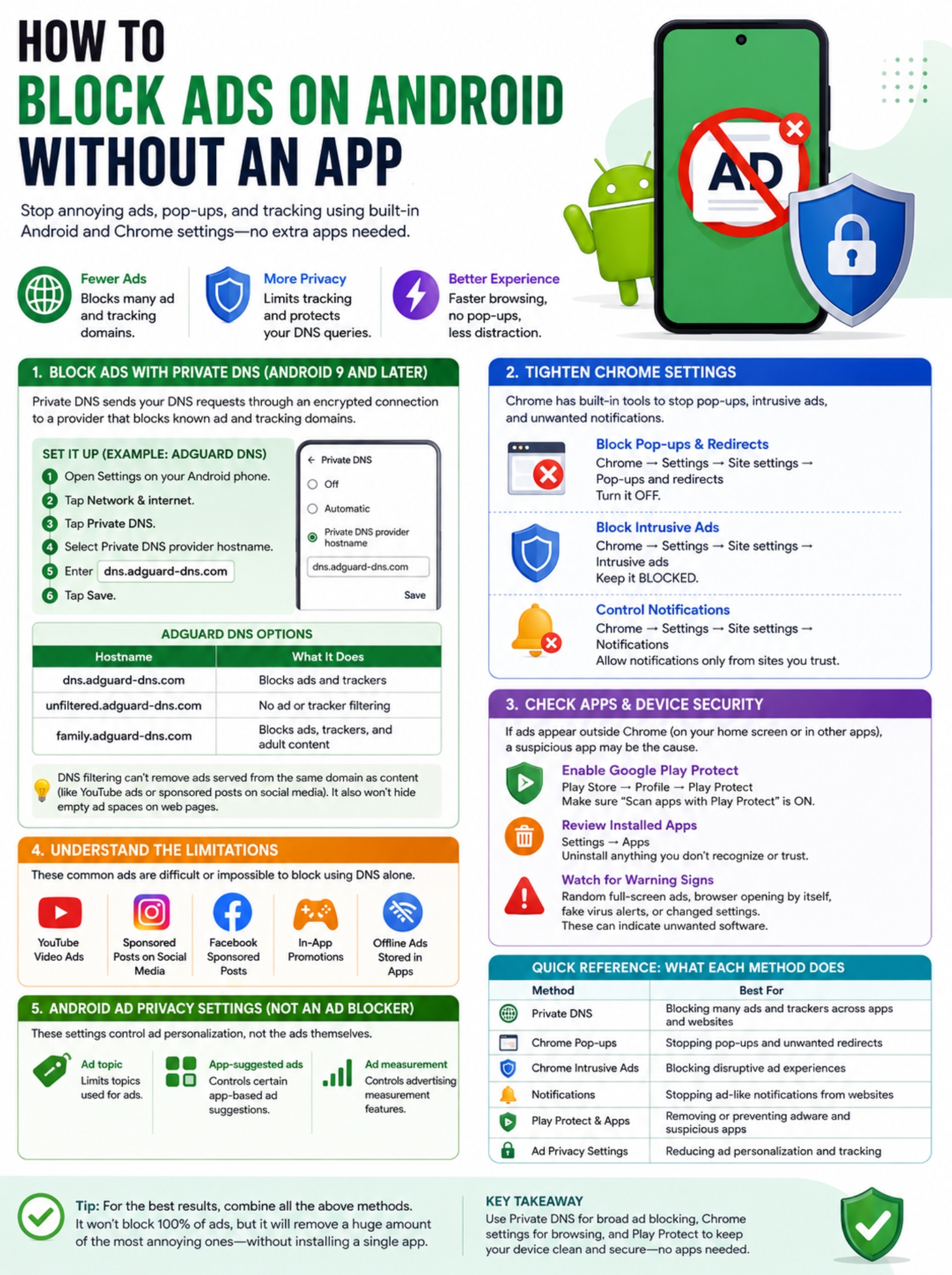
The most useful option is Private DNS. When paired with a DNS provider that filters advertising and tracking domains, it can stop many ad requests before they reach your phone.
Chrome adds another layer. Its built-in settings can block pop-ups, redirects, disruptive ads, and unwanted website notifications.
Used together, these tools can make Android noticeably cleaner. Just don’t expect them to remove every YouTube ad, sponsored Instagram post, or promotion built directly into an app.
Can You Block Ads on Android Without an App?
Yes, but only up to a point.
Android has supported system-wide Private DNS since Android 9 Pie. The feature uses DNS-over-TLS, which lets your phone send DNS requests through an encrypted connection to a DNS provider you choose.
Private DNS itself doesn’t block ads.
The filtering comes from the DNS provider.
If the provider keeps a list of known advertising and tracking domains, it can stop your phone from connecting to many of them. That means ads served from those domains may never load.
Chrome handles a different set of problems. It can block pop-ups, redirects, notification spam, and ads on websites that violate Google’s standards for intrusive advertising.
Neither option is a complete ad blocker on its own.
|
Method |
What it helps with |
Works outside Chrome? |
|
Filtering Private DNS |
Many ad and tracking domains |
Often |
|
Chrome pop-up controls |
Pop-ups and redirects |
No |
|
Chrome Intrusive ads setting |
Disruptive ad experiences |
No |
|
Site notification controls |
Website notification spam |
No |
|
Play Protect and app removal |
Suspicious or harmful apps |
Yes |
|
Android ad privacy settings |
Ad targeting and measurement |
Yes, but doesn’t block ads |
The best results come from using the right tool for the right problem.
How to Block Ads on Android With Private DNS
If you want to block ads on Android without installing anything, Private DNS is the best place to start.
Google currently places the setting under:
Settings → Network & internet → Private DNS
Phone makers often rearrange menus, though. Samsung, Xiaomi, OnePlus, Motorola, and other brands may put it somewhere slightly different.
If you can’t find it, open Settings and search for Private DNS.
First, Check Your Android Version
System-wide Private DNS requires Android 9 or later.
Older Android phones may let you change DNS settings for a specific Wi-Fi network, but that’s not the same thing. It usually won’t apply across both Wi-Fi and mobile data.
If your phone runs Android 9 or newer, the setup is much easier.
Use a Filtering DNS Provider
One widely used option is AdGuard DNS.
Its current public filtering hostname is:
dns.adguard-dns.com
To set it up:
- Open Settings.
- Tap Network & internet.
- Open Private DNS.
- Choose Private DNS provider hostname.
- Enter dns.adguard-dns.com.
- Tap Save.
That’s it.
You don’t need to install the AdGuard app for this setup. Android sends DNS requests directly to the chosen DNS server.
AdGuard currently lists these public hostnames:
|
Hostname |
What it does |
|
dns.adguard-dns.com |
Blocks known ads and trackers |
|
unfiltered.adguard-dns.com |
Uses AdGuard DNS without filtering |
|
family.adguard-dns.com |
Blocks ads, trackers, and adult content |
One detail worth watching: older guides still mention dns.adguard.com. For a new setup, use the hostname shown in AdGuard’s current documentation: dns.adguard-dns.com.
What Happens After You Turn It On?
You may notice fewer banners on websites and inside some free apps.
Some tracking requests may also disappear.
You might still see a blank box where an ad used to be. That’s normal.
DNS filtering blocks a connection to an advertising domain. It doesn’t redesign the webpage after the ad disappears. So the empty space can stay behind.
That’s one of the biggest differences between DNS filtering and a full browser ad-blocking extension.
What Private DNS Can and Can’t Block
This is where expectations matter.
DNS filtering works at the domain level.
Imagine an app loads its main content from:
example.com
but loads ads from:
ads.example.net
A filtering DNS service can block ads.example.net while leaving the main app alone.
Now imagine the app serves both normal content and advertising from the same domain.
DNS can’t easily separate one from the other. Blocking the domain could break the whole service.
That’s why Private DNS works well in some places and poorly in others.
|
Type of ad |
How well Private DNS works |
Why |
|
Third-party banner ads |
Often well |
Ads come from separate domains |
|
Tracking requests |
Often well |
Known tracker domains can be blocked |
|
YouTube video ads |
Poorly |
Ads and videos may share infrastructure |
|
Instagram sponsored posts |
Poorly |
Ads appear inside the main feed |
|
Facebook sponsored posts |
Poorly |
Ads and content use the same platform |
|
In-app promotions |
Often poorly |
Promotion may come from the app’s own server |
|
Offline ads |
Not at all |
No network request is needed |
This is why you shouldn’t expect Private DNS to remove YouTube ads reliably.
The same goes for sponsored posts on Facebook, Instagram, X, and similar platforms.
Those ads are often delivered as part of the platform itself rather than from a separate ad server that DNS can simply block.
Private DNS Also Can’t Clean Up the Page
A full content blocker can remove an ad and then hide the empty space around it.
DNS can’t do that.
It blocks the network request. That’s all.
So if a website shows a large empty gap after an ad disappears, the DNS filter isn’t necessarily broken. It’s simply doing what DNS filtering is designed to do.
Block Pop-Ups and Intrusive Ads in Chrome
If most of the annoying ads appear while you’re browsing, check Chrome’s own settings too.
Chrome already blocks many pop-ups by default.
To confirm the setting:
Chrome → More → Settings → Site settings → Pop-ups and redirects
Keep Pop-ups and redirects turned off.
This helps stop sites from launching unwanted windows or pushing you from one page to another.
|
Chrome setting |
What it helps stop |
Does it remove all ads? |
|
Pop-ups and redirects |
Automatic pop-ups and redirects |
No |
|
Intrusive ads |
Disruptive or abusive ad experiences |
No |
|
Notifications |
Website notification spam |
No |
|
Safe Browsing |
Dangerous and deceptive sites |
No |
Check Chrome’s Intrusive Ads Setting
Chrome also has an Intrusive ads control.
You can usually find it under:
Chrome → Settings → Site settings → Intrusive ads
Keep that setting blocked.
There’s an important detail here: Chrome doesn’t remove every normal advertisement.
Its built-in system mainly targets sites that violate the Better Ads Standards. In other words, Chrome tries to stop particularly disruptive ad experiences rather than make every website ad-free.
That’s why you may still see ordinary display ads after turning the setting on.
Stop Ad-Like Notifications From Websites
Some of the most annoying “ads” on Android aren’t webpage ads at all.
They’re notifications.
A website may ask:
Read Also: How to Schedule Text Messages on Android
Allow notifications?
If you tap Allow, that site can keep sending alerts after you’ve left.
Some sites use the feature responsibly. Others don’t.
The result can be promotional messages, fake virus warnings, clickbait headlines, or alerts that open Chrome when you tap them.
If one site keeps bothering you, remove its permission.
Depending on your Chrome version, you can usually open the site, tap the icon beside the address bar, and go to:
Permissions → Notifications
Then block or reset the permission.
|
What you’re seeing |
Likely cause |
What to do |
|
Promotions in notification shade |
Website notifications |
Revoke permission |
|
Fake virus warning |
Suspicious site notification |
Block the site |
|
Alert opens Chrome |
Browser notification |
Review site permissions |
|
Banner appears only on webpage |
Website advertising |
Use DNS and Chrome controls |
|
Full-screen ad appears over other apps |
Installed app may be responsible |
Check installed apps |
There’s no need to disable all notifications if only one site is causing trouble.
Block the problem site instead.
Random Full-Screen Ads? Check Your Installed Apps
Here’s a useful rule of thumb:
If ads appear while Chrome isn’t open, look at your apps.
Full-screen ads on the home screen, lock screen, or over unrelated apps can point to unwanted software.
The problem often begins after installing a free utility, game, launcher, wallpaper app, file downloader, cleaner, or APK from an unknown source.
Think back to when the ads started.
Then check recently installed apps.
You can usually do that from:
Settings → Apps
Remove anything you don’t recognize or no longer trust.
|
Warning sign |
What to check |
|
Ads started after installing an app |
Recent installations |
|
Browser opens by itself |
Suspicious app or redirect |
|
Fake security warnings keep returning |
App or website permissions |
|
Ads appear above unrelated apps |
Apps with overlay behavior |
|
Search engine changed unexpectedly |
Browser settings or unwanted software |
Run Google Play Protect
Google Play Protect can also help.
Open:
Google Play Store → Profile picture → Play Protect
Make sure Scan apps with Play Protect is turned on.
Google says Play Protect checks installed apps and can warn you about potentially harmful software. In some cases, it can disable or remove an app.
If an app behaves suspiciously, removing it is better than trying to hide its ads with DNS.
Android Ad Privacy Settings Don’t Block Ads
Android also has advertising privacy controls, but they’re often misunderstood.
Depending on your Android version, you may see options such as:
- Ad topics
- App-suggested ads
- Ad measurement
These settings affect how supported advertising systems use information about your interests and app activity.
They do not stop ads from appearing.
|
Setting |
Main purpose |
Blocks ads? |
|
Ad topics |
Controls interest-based ad topics |
No |
|
App-suggested ads |
Controls certain app-based ad suggestions |
No |
|
Ad measurement |
Controls advertising measurement |
No |
|
Filtering Private DNS |
Blocks selected ad domains |
Often |
So if your goal is privacy, these controls are worth checking.
If your goal is to block ads on Android, Private DNS is more useful.
The two features solve different problems.
What to Do If Private DNS Breaks an App or Website
DNS blocking isn’t perfect.
Sometimes a filter blocks a domain that an app needs for login, payments, analytics, media, or another feature.
If something suddenly stops working after you turn on Private DNS, test the DNS setting first.
Go to:
Settings → Network & internet → Private DNS
Switch it temporarily to Automatic.
Then reopen the app or website.
If it starts working again, the DNS filter is probably involved.
|
Problem |
First thing to try |
|
Internet stops after setup |
Check the hostname for typos |
|
One app won’t connect |
Switch Private DNS to Automatic |
|
YouTube still has ads |
That’s an expected limitation |
|
Blank boxes remain on pages |
DNS can’t do cosmetic filtering |
|
Chrome still shows pop-ups |
Review Chrome site settings |
|
Notifications keep arriving |
Check notification permissions |
|
Ads show outside browser |
Review installed apps |
Public Wi-Fi can sometimes cause trouble too.
Hotels, airports, schools, and offices may use login pages or network systems that don’t play nicely with a manually selected Private DNS provider.
If a network suddenly stops working, switching Private DNS back to Automatic is a quick way to test the issue.
Final Thoughts
You can cut down a surprising amount of advertising without installing another app, but there’s no one-button fix.
For Android 9 and later, a filtering Private DNS provider gives you the broadest no-app coverage. Chrome’s own settings can then handle pop-ups, redirects, disruptive ads, and notification spam.
If ads start appearing outside the browser, don’t assume they’re normal ads. Check your installed apps and run Google Play Protect.
|
Problem |
Best no-app fix |
|
Ads across many apps and sites |
Filtering Private DNS |
|
Chrome pop-ups |
Block pop-ups and redirects |
|
Disruptive website ads |
Keep Intrusive ads blocked |
|
Website notification spam |
Revoke notification permission |
|
Random full-screen ads |
Check apps and Play Protect |
|
Ad targeting concerns |
Review Android ad privacy settings |
|
YouTube and social-media ads |
Expect DNS limitations |
The key is knowing what each setting can actually do.
If you want to block ads on Android without an app, start with Private DNS. Then tighten Chrome’s permissions and check for unwanted apps if the problem goes beyond the browser.
It won’t make every corner of Android ad-free. YouTube, social-media feeds, first-party promotions, and locally stored ads can still get through.
But for ordinary banner ads, tracking domains, pop-ups, redirects, and notification spam, this setup can make a real difference without adding another app to your phone.
Frequently Asked Questions About Blocking Ads on Android
|
Question |
Quick answer |
|
Does Private DNS work on mobile data? |
Usually, yes |
|
Can apps bypass Private DNS? |
Some can |
|
Is dns.google an ad blocker? |
No |
|
Is Private DNS the same as a VPN? |
No |
|
Can it block YouTube ads? |
Not reliably |
|
Does it work on Android 8? |
Not as system-wide Private DNS |
Does Private DNS Work on Wi-Fi and Mobile Data?
On Android 9 and later, Private DNS is a device-level setting and generally works across supported Wi-Fi and mobile networks.
That’s one reason it’s more useful than manually changing the DNS address for a single Wi-Fi connection.
Is dns.google an Ad Blocker?
No.
dns.google belongs to Google Public DNS.
It can act as a DNS resolver and support encrypted DNS, but Google Public DNS isn’t designed as a general ad-blocking service.
If you want ad filtering, you need a DNS provider that specifically blocks advertising domains.
Is Private DNS the Same as a VPN?
No.
Private DNS encrypts DNS lookups between your phone and the DNS resolver.
A VPN handles much more of your network traffic.
So don’t treat Private DNS as a replacement for a VPN. They’re different technologies with different jobs.
Can Apps Bypass Android’s Private DNS?
Some can.
Apps that handle their own DNS requests may not rely entirely on Android’s normal system resolver.
That’s another reason no DNS-based method can guarantee that every app on your phone will be ad-free.
Why Am I Still Seeing YouTube Ads?
Because YouTube doesn’t always serve ads from an easy-to-block standalone advertising domain.
Ads and video content can share the same delivery infrastructure.
Block too much, and you may break the video instead of just removing the advertisement.