
Typing your name, job title, phone number, and website at the end of every email gets old quickly. Gmail can do that job for you.
If you want to add signature in Gmail, the desktop version is the easiest place to start. It gives you control over text formatting, links, images, multiple signatures, and different defaults for new messages and replies.
The Gmail apps on Android, iPhone, and iPad also support signatures, but the mobile setup is simpler. That difference catches plenty of people out.
This guide walks through the current Gmail signature setup in 2026, including logos, multiple signatures, aliases, mobile settings, and common fixes when something doesn’t work.
What Is a Gmail Signature?
A Gmail signature is a block of text or other content that Gmail can automatically place at the end of your messages.
For personal email, that might be nothing more than your name.
For work, you might include:
- your full name;
- job title;
- company name;
- phone number;
- website;
- logo;
- a useful professional link.
Gmail currently allows desktop signatures of up to 10,000 characters. Images count toward that limit too, so a large logo or heavily formatted design can sometimes trigger a “signature too long” warning even when the visible text looks short.
|
Gmail signature feature |
Current support |
|
Automatic email signature |
Yes |
|
Text formatting |
Yes on desktop |
|
Images and logos |
Yes on desktop |
|
Multiple saved signatures |
Yes |
|
Separate reply signature |
Yes |
|
Manual signature switching |
Yes |
|
Different signature by sending address |
Yes |
|
Mobile signature |
Yes |
|
Desktop signature limit |
Up to 10,000 characters |
One small but important distinction: an email signature isn’t the same as a digital signature used to verify documents or secure email. Gmail’s normal signature tool is simply an email footer.
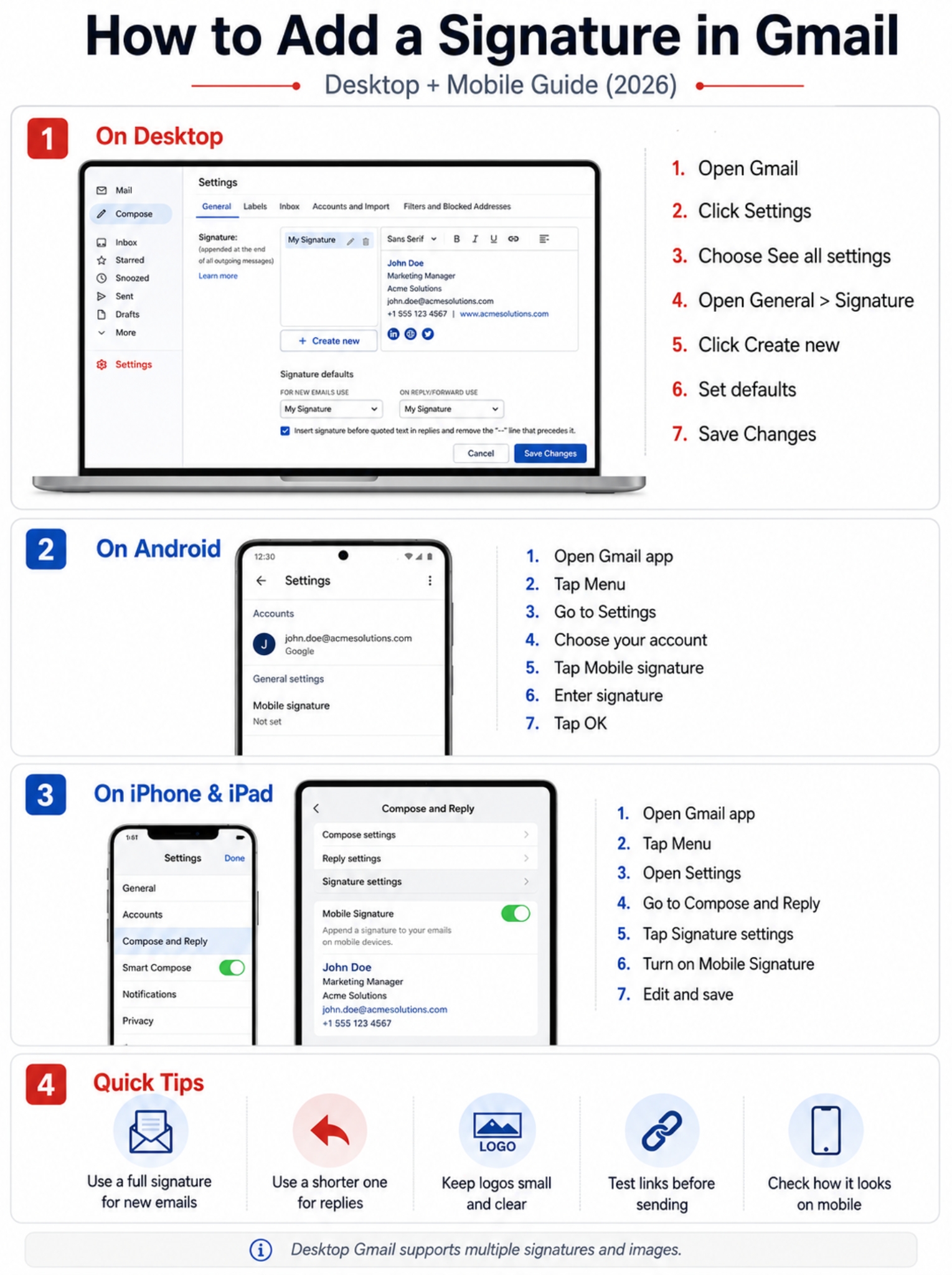
How to Add Signature in Gmail on Desktop
For most people, desktop Gmail is the best place to build a proper signature.
The settings are easy to reach once you know where to look.
|
Step |
What to do |
|
1 |
Open Gmail |
|
2 |
Click Settings |
|
3 |
Choose See all settings |
|
4 |
Find Signature under General |
|
5 |
Create or edit your signature |
|
6 |
Choose your defaults |
|
7 |
Save changes |
Step 1: Open Gmail Settings
Open Gmail in your browser and sign in.
Click the gear icon in the upper-right corner.
Then choose See all settings.
Gmail opens the full settings page.
Step 2: Find the Signature Section
Stay on the General tab and scroll down until you see Signature.
If you don’t already have one, click Create new.
Give it a simple name that makes sense to you.
For example:
- Work
- Personal
- Sales
- Client Replies
- Support
- Editorial
That name is only there to help you manage your signatures. Your recipients won’t normally see it.
Step 3: Add Your Details
Now type the information you want to appear at the bottom of your emails.
A clean business signature might look like this:
Alex Morgan
Senior Editor
Example Media
+1 555 010 1234
example.com
You can format the text, add links, and insert an image from the desktop editor.
There’s no need to fill every available line. A shorter signature usually looks better and is easier to read.
Step 4: Choose Your Signature Defaults
This is the part people often miss.
Creating a signature doesn’t always mean Gmail will automatically use it.
Look for the signature default settings and choose what Gmail should use for:
- new emails;
- replies and forwards.
You can use the same signature for both, choose two different ones, or select No signature for either option.
A practical setup is:
New emails: full business signature
Replies: shorter signature
That keeps long email threads cleaner.
Step 5: Save Your Changes
Scroll to the bottom of the page and click Save Changes.
Then open a new message and check that the signature appears the way you expected.
It’s worth sending yourself a test email before using it with clients or customers.
How to Add a Logo or Image to a Gmail Signature
A small logo can make a business signature look more polished. The key word here is small.
Google currently recommends signature images around 70–100 pixels high and 300–400 pixels wide. The stated maximum is 100 pixels high by 1,000 pixels wide.
|
Image setting |
Recommended size |
|
Height |
About 70–100 px |
|
Width |
About 300–400 px |
|
Maximum height |
100 px |
|
Maximum width |
1,000 px |
How to Insert the Image
Place your cursor where you want the logo to appear.
Then click Gmail’s Insert image button.
You can usually add an image in three ways:
- upload it from your computer;
- select it from Google Drive;
- use a public image URL.
Once it’s inserted, check how it looks in the signature itself. A company logo that seems normal on a website can look enormous inside an email.
Watch Google Drive Permissions
If you use an image stored in Google Drive, make sure recipients can actually view it.
This is one of those problems that’s easy to miss because the image may look perfectly fine to you while appearing broken to someone else.
Work and school Google accounts can also have stricter sharing rules set by an administrator.
If people can’t see the image, check the Drive sharing settings or use another supported image method.
Read Also: How to Merge Cells in Excel Without Losing Data
How to Add Links to Your Gmail Signature
A useful signature doesn’t need many links. It just needs the right ones.
You might link to:
- your company website;
- portfolio;
- LinkedIn profile;
- booking page;
- support page;
- author profile.
|
Link type |
When it makes sense |
|
Company website |
Most business emails |
|
Portfolio |
Freelancers and creators |
|
|
Professional networking |
|
Booking page |
Consultants and sales teams |
|
Help center |
Customer support |
|
Social profile |
Only when relevant |
Highlight the text you want to link and use Gmail’s link tool.
Keep the visible text clean.
For example, this:
Visit Our Website
usually looks better than a long raw URL full of tracking parameters.
I’d also avoid turning the signature into a mini homepage. Too many links make the important ones harder to spot.
How to Add Signature in Gmail on Android
The Android Gmail app has its own Mobile signature setting.
Here’s the current setup:
- Open the Gmail app.
- Tap the menu icon.
- Scroll down and tap Settings.
- Choose the Google Account you want to edit.
- Tap Mobile signature.
- Enter your signature.
- Tap OK.
|
Android option |
What it does |
|
Account selection |
Lets you edit each account separately |
|
Mobile signature |
Adds a signature to Gmail app messages |
|
Rich desktop editor |
Not available in the same form |
|
Save |
Tap OK |
If you have several Gmail accounts on your phone, make sure you’re editing the right one.
That’s an easy mistake to make.
Google also notes that if you don’t set a mobile signature in the Android app, new messages may use the signature you’ve created on your computer.
Even so, it’s smart to test your setup rather than assume desktop and mobile will look exactly the same.
How to Add a Gmail Signature on iPhone or iPad
The Gmail app on iPhone and iPad uses slightly different wording.
The usual path is:
- Open Gmail.
- Tap the menu icon.
- Open Settings.
- Find Compose and Reply.
- Tap Signature settings.
- Turn on Mobile Signature.
- Enter or edit the text.
- Go back to save.
|
iPhone/iPad setting |
Action |
|
Gmail menu |
Open Settings |
|
Compose and Reply |
Find signature controls |
|
Signature settings |
Open the editor |
|
Mobile Signature |
Turn it on |
|
Save |
Return to the previous screen |
The mobile editor is simpler than Gmail on desktop.
If your desktop signature uses a logo, several links, or careful formatting, don’t assume the mobile version will reproduce it perfectly.
Send yourself a test message and check.
How to Create Multiple Signatures in Gmail
Using one signature for every email isn’t always ideal.
Gmail lets you save several signatures and use them for different situations.
|
Situation |
Useful signature |
|
First client email |
Full professional signature |
|
Long email thread |
Short signature |
|
Personal message |
Personal signature |
|
Sales outreach |
Sales signature |
|
Support email |
Support signature |
|
Freelance proposal |
Portfolio signature |
For example:
Full Signature
Sarah Ahmed
Account Director
Example Agency
Phone | Website | LinkedIn
Short Reply Signature
Sarah
Example Agency
You could then set the full version for new emails and the short version for replies.
That small change can make long email chains much easier to read.
You can also switch signatures while writing an email. Look for the Insert signature control at the bottom of the Compose window and choose the version you want.
How to Use Different Signatures for Gmail Aliases
If you send email from more than one address, Gmail can keep those identities separate.
For example, you might send from:
Each address can use a different signature when it’s configured through Gmail’s Send mail as feature.
|
Sending address |
Possible signature |
|
Personal work signature |
|
|
Sales contact details |
|
|
Support team signature |
|
|
General company signature |
In the Signature section, use the address selector above the editor to choose which sending address you’re working with.
If you don’t see the address you need, check:
Settings > Accounts and Import > Send mail as
The address needs to be configured there first.
This is especially handy for freelancers, agencies, support teams, and anyone managing several brands from one inbox.
Gmail Signature Not Showing? Try These Fixes
A missing signature doesn’t always mean Gmail deleted it.
Sometimes the default isn’t set. Sometimes the image permissions are wrong. And sometimes Gmail has simply hidden the signature inside trimmed content.
|
Problem |
First thing to check |
|
No signature on new email |
New-message default |
|
Missing on replies |
Reply/forward default |
|
Can’t format text |
Plain Text mode |
|
Logo not showing |
Image source or permissions |
|
Formatting looks broken |
Remove copied formatting |
|
Signature seems hidden |
Show trimmed content |
|
Image won’t upload |
Browser or cache issue |
|
Signature too long |
Image size and formatting |
Check the Default Setting
Go back to:
Settings > See all settings > General > Signature
Check which signature is selected for new emails and replies.
If it says No signature, Gmail won’t add one automatically.
Turn Off Plain Text Mode
If you can’t make text bold, add links, or use normal formatting, Gmail may be in Plain Text mode.
Open a Compose window.
Click More options.
Make sure Plain text mode isn’t turned on.
Remove Weird Formatting
Copied signatures can carry messy formatting from Word, websites, design tools, or other email platforms.
If things look strange, highlight the signature and use Remove formatting.
Then rebuild the parts you need.
I’ve found that starting with clean text is often faster than trying to repair a heavily styled signature line by line.
Check Behind Gmail’s Three Dots
Sometimes your signature is there, but Gmail has hidden it.
In longer conversations, Gmail may trim repeated content and tuck it behind the three dots at the bottom of a message.
Click Show trimmed content before assuming the signature disappeared.
Fix a Broken Signature Image
If the logo won’t upload or other people can’t see it, try these steps:
- check the image source;
- check Google Drive sharing permissions;
- clear your browser cache;
- clear Gmail cookies;
- try an Incognito window;
- try another browser;
- delete the image and add it again;
- switch to another supported image method.
Start with the simple fixes first. There’s no point clearing every browser setting if the real problem is just a private Drive image.
Why Gmail Says Your Signature Is Too Long
This error can be confusing.
You may have only a few lines of visible text and still get a warning.
The reason is that images count toward Gmail’s 10,000-character signature limit too.
|
Possible cause |
What to do |
|
Large logo |
Resize it |
|
Too much text |
Shorten the signature |
|
Heavy copied formatting |
Remove formatting |
|
Large banner image |
Replace it with a smaller graphic |
|
Complex template |
Rebuild a simpler version |
If there’s a large image in the signature, I’d check that first.
A compact logo is usually enough. You don’t need a full-width marketing banner beneath every email.
What Should a Professional Gmail Signature Include?
A good signature answers three basic questions:
Who are you?
What do you do?
How can someone reach you?
That’s usually enough.
|
Signature element |
Worth including? |
|
Full name |
Yes |
|
Job title |
Usually |
|
Company name |
Usually |
|
Phone number |
If useful |
|
Website |
Often |
|
Logo |
Optional |
|
|
Optional |
|
Home address |
Usually not |
|
Long quote |
Rarely |
|
Many social links |
Usually avoid |
A simple format works well:
Your Name
Job Title | Company
Phone
Website
Remember that your signature goes out with a lot of emails.
Think twice before adding:
- your home address;
- personal phone number;
- private social accounts;
- information that doesn’t need to be public.
A business signature should make contact easier, not expose unnecessary personal details.
Keep Branding Under Control
A logo can look professional.
A giant logo usually doesn’t.
The signature should support the email, not overpower it.
Gmail Signature Best Practices for 2026
Once you add signature in Gmail, a few small choices can make it look much better.
|
Best practice |
Why it helps |
|
Use a short reply signature |
Keeps threads tidy |
|
Keep images compact |
Looks better on phones |
|
Test every link |
Prevents broken destinations |
|
Check mobile appearance |
Catches layout problems |
|
Review aliases |
Avoids wrong signatures |
|
Update your details |
Prevents stale information |
|
Keep the design simple |
Works better across email apps |
Use a Shorter Signature for Replies
This is one of the best Gmail signature settings to use.
Your full name, job title, phone number, website, and social links may be useful in the first email.
They don’t need to appear after every two-line reply.
Test Before You Trust It
Send yourself an email.
Open it on:
- desktop Gmail;
- Gmail mobile;
- another mail app, if you use one.
Check the logo, line spacing, links, and text wrapping.
Email formatting can behave differently across apps, so a quick test is worth the trouble.
Update Your Signature When Your Details Change
It’s surprisingly easy to forget about an old signature.
Review it after changing your:
- job title;
- employer;
- phone number;
- company website;
- social profile;
- logo;
- portfolio.
An outdated signature can make a polished email look careless.
Final Thoughts
Once you know where the settings are, it’s easy to add signature in Gmail.
Desktop Gmail gives you the most control. You can add text formatting, images, links, several signatures, separate reply defaults, and different signatures for multiple sending addresses.
The Android and iPhone apps also support signatures, but their mobile settings are simpler. If you send important work emails from your phone, check those settings separately.
Keep the finished signature clean. Use a small logo, add only useful contact details, test your links, and check how it looks on mobile.
A signature should save you time and make your emails easier to identify. It shouldn’t become the biggest thing in the message.
Frequently Asked Questions About Gmail Signatures
|
Question |
Short answer |
|
Can new emails and replies use different signatures? |
Yes |
|
Can Gmail aliases use different signatures? |
Yes |
|
Can I switch signatures while composing? |
Yes |
|
Why is my signature behind three dots? |
Gmail may have trimmed it |
|
Do images count toward the signature limit? |
Yes |
|
What image size works best? |
Around 70–100 × 300–400 px |
Can Gmail use one signature for new emails and another for replies?
Yes.
Gmail lets you set separate defaults for new messages and replies or forwards.
You can also choose No signature for replies if you want cleaner email threads.
Can I switch signatures while I’m writing an email?
Yes.
Use the Insert signature button in the Compose window and choose another saved signature.
Can Gmail aliases have different signatures?
Yes.
Addresses configured through Send mail as can use different signatures.
That makes it much easier to keep personal, sales, support, and brand identities separate.
Gmail sometimes hides repeated content in long conversations.
Click the three dots or Show trimmed content at the bottom of the message.
Your signature may be sitting there.
Does a Gmail logo count toward the 10,000-character limit?
Yes.
Images count toward Gmail’s signature limit, which is why an oversized graphic can cause problems even when the text itself is short.
What size should a Gmail signature image be?
Google currently recommends roughly 70–100 pixels high and 300–400 pixels wide.
The stated maximum is 100 pixels high by 1,000 pixels wide.