
You just bought a brand new PC or finally upgraded your operating system, and the first thing you see is an advertisement. Windows 11 is sleek and capable, but Microsoft has baked promotional content right into the fabric of the user interface. From subtle suggestions about cloud storage to loud prompts to try a new web browser, these interruptions can quickly become annoying.
If you want to disable windows 11 lock screen ads, you are not alone. Let us walk through exactly how to clean up your system, turn off the telemetry, and get back to a distraction-free digital life.
Introduction to Windows 11 Lock Screen Ads
Microsoft configured Windows 11 to display a dynamic lock screen by default right out of the box. You get beautiful daily photographs from around the globe, but these stunning landscapes come with a catch. Hidden inside those images are subtle advertisements and prompts designed to keep you inside the Microsoft ecosystem. Removing them is the best way to make your computer truly feel like yours again.
|
Feature |
Description |
Impact on User |
|
Windows Spotlight |
Dynamic wallpaper service |
Downloads daily images but includes promotional text |
|
Lock Screen Tips |
Clickable facts and suggestions |
Clutters the screen with upsells and app promotions |
|
Telemetry |
Background data collection |
Tracks user behavior to serve personalized ads |
What Are Lock Screen Ads?
Lock screen ads in Windows 11 rarely look like the banner advertisements you see on websites. Microsoft weaves them right into the interface as clickable text overlays on your wallpaper. You might spot a fun fact about a scenic background image, immediately followed by a nudge to sign up for Xbox Game Pass or try out Microsoft Edge features.
They masquerade as helpful tips or interesting trivia. However, their main goal is to drive engagement toward other paid Microsoft services. Leaving them on means your computer acts like a billboard every time you wake it from sleep.
Why Does Microsoft Include Ads in Windows 11?
The software industry shifted its business model dramatically over the last few years. Microsoft no longer views Windows 11 as just a standalone operating system that you buy once. They treat it as a service gateway to sell you recurring subscriptions.
Putting suggestions on your lock screen, inside your Start menu, and through your notification center is a strategy to convert everyday users into active subscribers. They track your usage habits to serve you tailored content. It makes perfect business sense for them, but it leaves you dealing with unwanted sales pitches when you just want to log in.
Why You Should Disable Lock Screen Ads
Turning off these promotional messages does more than just stop a sales pitch. You take back control of your machine’s performance, privacy, and visual appeal. Cleaning up your system settings takes only a few minutes and offers immediate benefits.
|
Benefit |
Detail |
Why It Matters |
|
Visual Clarity |
Removes text overlays from backgrounds |
Allows you to enjoy personal photos or clean art |
|
Privacy Boost |
Stops localized behavioral tracking |
Keeps your app usage and habits private |
|
Focus |
Eliminates unwanted pop-ups and suggestions |
Creates a distraction-free work environment |
Reclaiming Your Visual Space
Your lock screen is the first thing you see when you boot up your computer. You probably want to customize this space with personal photos of family, pets, or your favorite travel destinations. When promotional text overlays these pictures, it completely ruins the aesthetic.
When you disable windows 11 lock screen ads, you ensure your chosen wallpaper displays clearly. You get a pleasant start to your computing session without random text blocking your view.
Enhancing System Privacy
Windows 11 uses background telemetry and a unique Advertising ID to serve you relevant ads and suggestions. The system constantly monitors your activities and preferences to figure out which promotions you might actually click.
If you care about digital privacy, this background tracking is a major red flag. Shutting down lock screen ads and disabling your Advertising ID cuts off the behavioral data Microsoft collects. You get a more private experience simply by flipping a few toggles.
Reducing Distractions and Clutter
Your PC is a tool for getting things done. Every extra icon, notification, or pop-up steals your attention. Sitting down to write a critical report or study for a final exam requires focus, and you definitely do not need a prompt asking you to explore a web browser you never use.
Stripping away these elements gives you a quiet, less demanding environment. You can focus entirely on the work that actually matters instead of closing out suggestion boxes.
Step-by-Step Guide to Disable Windows 11 Lock Screen Ads
Now that we know exactly what we are dealing with, we can fix it. Disabling these ads takes just a few clicks if you know which menus to open. Follow these steps to clear your lock screen for good.
|
Step |
Action |
Result |
|
1 |
Open Settings > Personalization |
Accesses system appearance controls |
|
2 |
Click Lock screen |
Opens specific pre-login screen settings |
|
3 |
Change background type |
Disables Windows Spotlight |
|
4 |
Uncheck the tips box |
Removes all text overlays and ads |
Step 1: Access the Personalization Settings
Start by opening your main Settings application. Click on the Start button in the center of your taskbar and hit the gear icon labeled Settings. You can also press the Windows Key and the letter I at the same time for a faster shortcut.
Look at the left-hand navigation pane and click on Personalization. This entire section controls the visual layout, themes, and background behaviors of your machine.
Read Also: Windows 11 Slow After Update: 10 Speed-Up Tips
Inside the Personalization menu, you will spot options for Background, Colors, Themes, and more. Scroll down until you find the Lock screen option.
Click on it to open the configurations for the screen you see right before you type in your password or PIN. This is where the magic happens.
Step 3: Switch Away from Windows Spotlight
Look at the top of the Lock screen settings page for a dropdown menu next to the words Personalize your lock screen. This usually defaults to Windows spotlight. Windows spotlight downloads those pretty daily wallpapers, but it also serves as the main delivery system for unwanted tips and ads.
Click the dropdown menu and change it from Windows spotlight to either Picture or Slideshow. You have to make this change because Microsoft forces ads on you if you leave Windows spotlight active.
Step 4: Uncheck the Tips and Suggestions Box
Right after you select Picture or Slideshow, a new checkbox appears right below the background selection area. It says Get fun facts, tips, tricks, and more on your lock screen.
This is the exact toggle that controls your advertisements. Click the checkbox so it is completely empty. You just successfully disabled the ads. The next time you wake your computer, you will see your clean image without any promotional text.
How to Disable Other Intrusive Ads in Windows 11
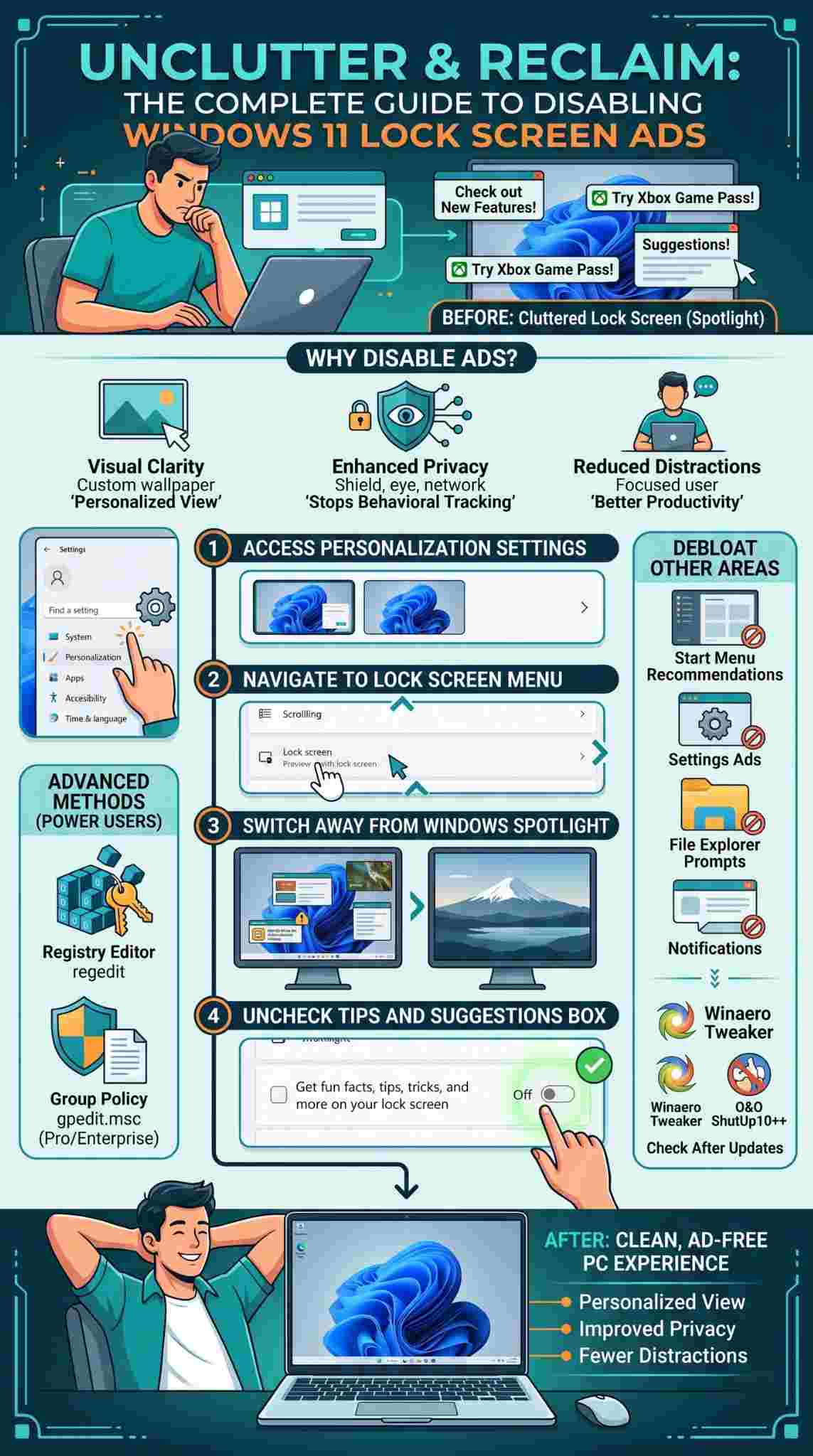
The lock screen is just one place Microsoft hides promotions. Getting a truly clean experience means digging into a few other system menus. Here are the best ways to rip ads out of the rest of your operating system.
|
Location |
Setting to Change |
What it Removes |
|
Start Menu |
Show recommendations for tips… |
Stops app suggestions below pinned items |
|
Settings App |
Show me suggested content… |
Removes subscription upsells in menus |
|
File Explorer |
Show sync provider notifications |
Blocks OneDrive storage prompts |
|
System Notifications |
Get tips and suggestions… |
Stops pop-ups in the corner of your screen |
|
Privacy & Security |
Let apps show me personalized ads… |
Turns off your unique Advertising ID |
Turning Off Start Menu Recommendations
The Start menu is the hub of your computer. Right below your pinned apps is a massive section called Recommendations. It sometimes shows recent files, but it loves to suggest new apps from the Microsoft Store that you never asked for.
Open the Settings app and go to Personalization, then click Start. Find the toggle switch labeled Show recommendations for tips, shortcuts, new apps, and more. Flip it off to stop the Start menu from acting like a billboard.
Disabling Ads in the Settings App
Even the system configuration menus push suggestions. You might see banners at the top of your Settings window telling you to link your smartphone or buy Microsoft 365.
Go to Settings, click Privacy and security on the left, and choose General. Toggle off the option that says Show me suggested content in the Settings app. Your menus will now stay functional and free of random sales pitches.
Removing File Explorer Sync Provider Notifications
Navigating your files should be a peaceful experience. Instead, you occasionally get banners at the top of File Explorer telling you to set up OneDrive or buy extra cloud storage space. Microsoft calls these sync provider notifications.
Open File Explorer and click the three horizontal dots at the top right of the toolbar. Select Options to open the Folder Options dialog box, then click the View tab. Scroll through the Advanced settings until you see Show sync provider notifications. Uncheck the box, hit Apply, and click OK.
Stopping Notification and Suggestion Pop-ups
Windows 11 has a notification center that slides out from the right side of your screen. It handles emails and calendars perfectly, but Microsoft uses it to push random tips about using Windows features.
Open Settings, click System, and choose Notifications. Scroll to the very bottom and click Additional settings. You will see two checkboxes regarding the Windows welcome experience and getting tips and suggestions. Uncheck them both. This kills those annoying pop-ups that interrupt your workflow.
Disabling the Windows Advertising ID
Windows hands your user profile a unique identifier to track your behavior and serve personalized ads across different apps. Shutting this down is critical for your privacy.
Go to Settings, choose Privacy and security, and click General. Turn off the toggle for Let apps show me personalized ads by using my advertising ID. This stops Microsoft from profiling your local usage to target you with specific ads, even if it does not block regular internet ads.
Advanced Methods for Disabling Ads
Power users and IT administrators usually want to enforce these rules at the system level. If you are comfortable getting your hands dirty, you can use advanced methods to completely strip ads from the core of the operating system.
|
Tool |
Capability |
Best For |
|
Registry Editor |
Modifies low-level system keys |
Windows 11 Home users |
|
Group Policy Editor |
Applies system-wide restrictions |
Windows 11 Pro and Enterprise users |
|
Debloat Utilities |
Automates registry and policy changes |
Users who want quick, one-click solutions |
Using the Windows Registry Editor
The Windows Registry holds the blueprint for your operating system. Tweaking it can force features off even if the Settings app hides the toggle. Always back up your registry before you start messing around in here.
Press the Windows Key and R to open the Run dialog. Type regedit and hit Enter. Navigate through the folders to HKEY_CURRENT_USER\Software\Microsoft\Windows\CurrentVersion\ContentDeliveryManager. Find the value named SubscribedContent-338389Enabled. Double-click it and change the Value data from 1 to 0 to kill lock screen tips. Restart your computer to apply the fix.
Using the Local Group Policy Editor (Pro and Enterprise)
Windows 11 Professional and Enterprise users get access to the Local Group Policy Editor. It provides a much safer interface for restricting system behaviors compared to the raw Registry Editor.
Press the Windows Key and R, type gpedit.msc, and hit Enter. Go to Computer Configuration, Administrative Templates, Windows Components, and click Cloud Content. Find the policy named Do not show Windows tips. Double-click it, select Enabled, and hit OK. Next, find Turn off Microsoft consumer experiences, enable it, and click OK. Microsoft is now blocked from pushing consumer ads to your machine entirely.
Third-Party Tools to Debloat Windows 11
Digging through menus and registry keys gets tedious fast. Thankfully, developers built free tools that automate the whole process. You can debloat your system and disable windows 11 lock screen ads with just a few clicks.
|
Tool Name |
Core Function |
Usability |
|
Winaero Tweaker |
Customizes extensive system UI and ad settings |
Beginner friendly with clear explanations |
|
O&O ShutUp10++ |
Focuses purely on privacy and telemetry blocking |
Highly effective with recommended profiles |
|
Chris Titus Tech Tool |
PowerShell-based debloat and tweaking |
For advanced users wanting maximum speed |
Winaero Tweaker
Winaero Tweaker is a massive, free utility that lets you change almost anything in Windows. You download it, install it, and browse through a categorized list of tweaks.
It gives you simple checkboxes to turn off lock screen ads, remove web results from the Start menu, and disable annoying background services. The app explains exactly what every single checkbox does so you never break your system by accident.
O&O ShutUp10++
Do not let the name fool you; O&O ShutUp10++ works flawlessly on Windows 11. It is a portable app entirely dedicated to crushing telemetry, data collection, and system advertisements.
You open it up and see a huge list of toggles. The best part is that the developers include a recommended settings profile. You apply their profile, and it instantly kills your advertising ID, blocks lock screen suggestions, and stops app tracking in one clean sweep.
Maintaining an Ad-Free Experience After Windows Updates
Windows is notorious for resetting your custom preferences. Whenever Microsoft pushes a major feature update, you might suddenly see advertisements popping up again as if you never changed a thing.
|
Update Type |
Risk Level |
Action Required |
|
Security Patch |
Low |
None usually required |
|
Feature Update |
High |
Check Personalization and Privacy settings |
|
OS Upgrade |
Very High |
Reapply all registry and debloat tools |
Dealing with Feature Updates
Big annual feature updates often flip your settings back to factory defaults. This means Windows Spotlight and lock screen tips will suddenly turn back on without your permission.
Get into the habit of doing a quick settings check after your computer installs a massive update. Go right back to the Personalization menu and make sure your background is still set to Picture or Slideshow. If you use a tool like O&O ShutUp10++, open the app after the update finishes. It usually highlights the settings Microsoft changed so you can revert them with one click.
Final Thoughts
You bought your computer to work, play, and create. You did not buy it to serve as an advertising board for Microsoft subscriptions. While the operating system is increasingly built around recurring services, you hold the power to shut the noise down.
Taking five minutes to disable windows 11 lock screen ads fundamentally changes how your computer feels. You stop the background tracking, reclaim your visual aesthetic, and eliminate daily distractions. Go through your settings, flip those toggles, and enjoy a faster, quieter, and entirely private PC experience.
Frequently Asked Questions (FAQs)
Can I completely disable the lock screen in Windows 11?
Yes. If you use Windows 11 Pro or Enterprise, you can open the Group Policy Editor, navigate to Computer Configuration > Administrative Templates > Control Panel > Personalization, and enable Do not display the lock screen. Windows 11 Home users must use the Registry Editor to create a NoLockScreen DWORD value under HKEY_LOCAL_MACHINE\SOFTWARE\Policies\Microsoft\Windows\Personalization and set it to 1.
Why do ads appear even if I turned off suggestions?
If you leave your background set to Windows Spotlight, Microsoft forces promotional text onto the screen regardless of your other settings. You must change your background type to Picture or Slideshow before the checkbox to disable tips and tricks even becomes available to uncheck.
Will turning off telemetry break my Windows updates?
No. Disabling your Advertising ID and turning off consumer experiences does not impact Windows Update functionality. You will still receive critical security patches and driver updates perfectly fine. Telemetry only deals with diagnostic data and behavioral tracking for personalized advertising.
How do I stop Microsoft Edge from popping up on my desktop?
Microsoft frequently pushes Edge promotions via startup tasks and desktop prompts. Open Task Manager, go to the Startup apps tab, and disable Microsoft Edge if it is listed. You should also go to Settings > System > Notifications and uncheck the boxes for Windows welcome experience and tips and suggestions to stop Edge upsell pop-ups.
Can I revert registry changes if something goes wrong?
Absolutely. This is why you should always create a System Restore point or export your registry branch before making edits. If a change causes instability, you can simply run the registry backup file to overwrite the mistakes and return your system to its previous state.