
You just finished installing the latest patch, grabbed a coffee, and sat back down to work, only to find your computer moving like it is stuck in a bowl of thick oatmeal. Clicks take seconds to respond, windows stutter when you drag them, and your once-snappy machine feels like a relic from 2010. If you are noticing your Windows 11 slow after update, you are definitely not alone. It is a common frustration that hits even the most powerful rigs after a big Microsoft rollout.
While these updates are meant to fix bugs and keep you safe, they often trigger a mountain of background tasks that eat up your CPU and RAM. The good news is that this lag is usually something you can fix yourself in a few minutes. You do not need to be an IT pro to get your speed back. This guide breaks down the real reasons behind the post-update crawl and gives you ten practical, no-nonsense ways to make your PC feel brand new again.
Why Is Windows 11 Slow After an Update?
When your PC starts acting up right after an update, it is usually because the operating system is doing a lot of heavy lifting behind the scenes. Windows does not just “finish” an update when the progress bar hits 100%. For several hours afterward, it is busy re-indexing your entire hard drive so that your search bar works correctly. It is also scanning new system files for security threats and trying to optimize how your apps talk to the new version of the OS.
Another big reason for the lag is driver conflict. Sometimes, the new Windows code does not play nice with your old graphics or network drivers. This causes your hardware to work harder than it should, leading to heat and slow performance. Lastly, Windows often leaves behind massive “Undo” files—the leftovers from the previous version—that take up precious space and can clutter your system’s memory pathing.
Common Causes of Post-Update Lag
|
Cause |
What Is Happening |
Impact Level |
|
Background Indexing |
Windows is rebuilding its file map for search. |
Moderate |
|
Driver Mismatch |
Old hardware drivers are fighting with new OS code. |
High |
|
System File Cleanup |
The OS is trying to purge temporary installation files. |
Moderate |
|
New Feature Overhead |
New features are enabled by default and hogging RAM. |
Variable |
1. Prune Your Startup Applications
Every time you turn on your PC, a group of apps tries to jump into the front of the line. After a big update, Windows often sneaks a few of its own apps back into your startup list, like Teams or OneDrive, even if you previously turned them off. These apps sit in the background, sucking up your memory before you even open a browser.
To fix this, right-click your taskbar and open the Task Manager. Click on the Startup Apps tab. Look for anything with a High impact rating. If you do not need Spotify, Steam, or your printer software to open the second you log in, right-click them and hit Disable. This does not delete the app; it just keeps it quiet until you actually need to use it.
Startup Impact Breakdown
|
App Type |
Recommended Action |
Why |
|
Cloud Storage |
Disable (Manual Launch) |
Constant syncing slows down your internet and disk. |
|
Game Launchers |
Disable |
They check for updates constantly in the background. |
|
Browser Helpers |
Disable |
Browsers launch fast enough without “helpers.” |
|
Security Software |
Leave Enabled |
You need your antivirus running from the start. |
2. Optimize Storage Sense and Clear Temporary Files
When you update, Windows keeps a full copy of your old system just in case something goes wrong. This is helpful for about ten minutes, but after that, it is just a multi-gigabyte paperweight sitting on your drive. If your drive is nearly full, Windows cannot move files around quickly, which is a major reason why you find Windows 11 slow after update.
Go to your Settings, then System, and click on Storage. Turn on Storage Sense. This tool is like a digital janitor that throws out the trash for you. Click on Temporary Files and wait for the scan to finish. You will likely see a box for Previous Windows Installations that is taking up 20GB or more. Check that box and hit Remove Files. Giving your SSD some breathing room is one of the fastest ways to kill the lag.
Read Also: Windows 10 will Continue to Receive Security Updates Until October 2025
Temporary File Cleanup Summary
|
File Category |
Size Potential |
Safe to Delete? |
|
Windows Update Cleanup |
5GB – 30GB |
Yes (Once update is stable) |
|
Delivery Optimization |
1GB – 5GB |
Yes |
|
Thumbnails |
500MB |
Yes |
|
Downloads Folder |
Varies |
Be careful! (Check first) |
3. Reconfigure Virtualization-Based Security (VBS)
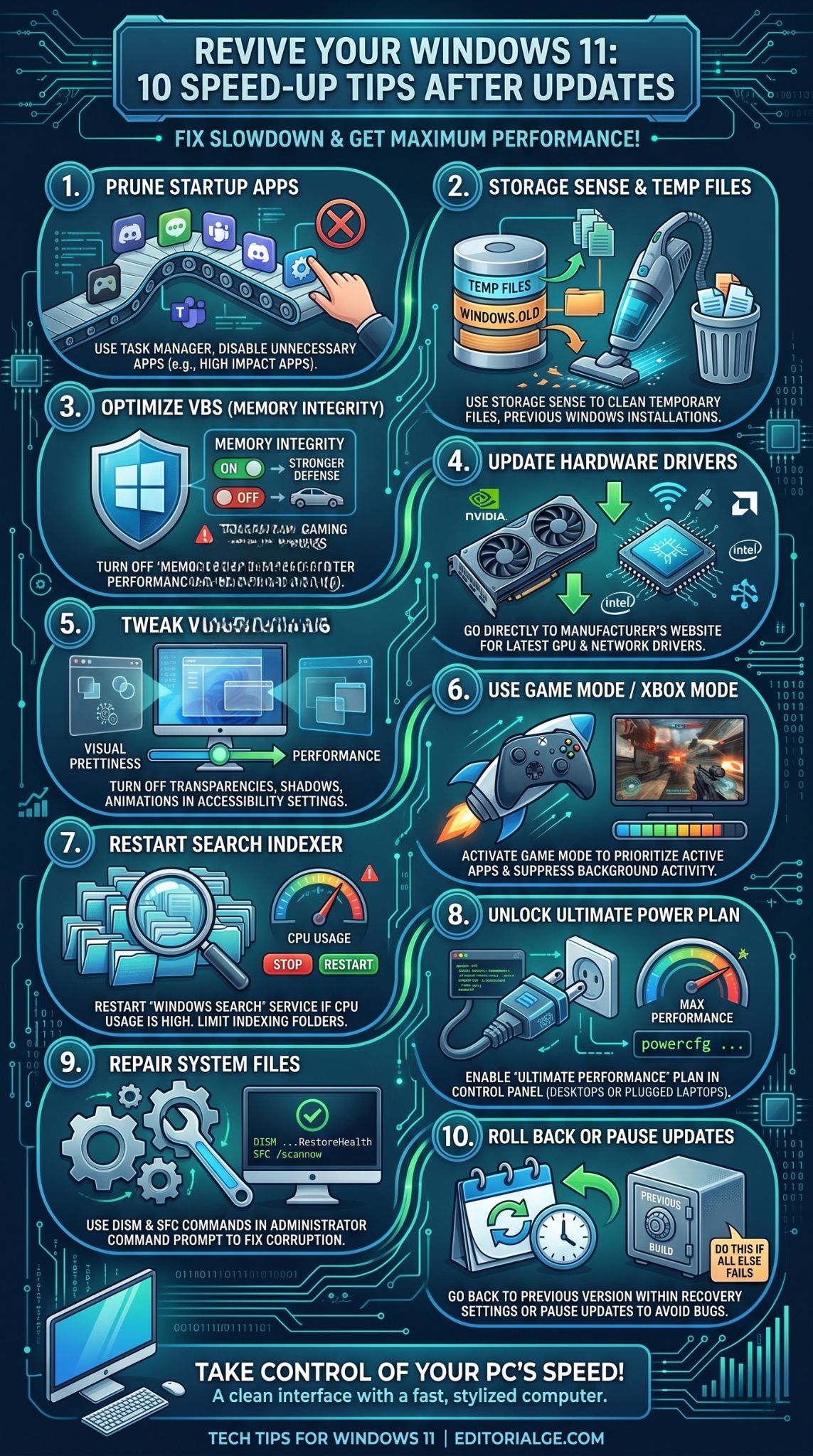
Virtualization-Based Security (VBS) is a fancy security layer that Windows 11 uses to protect itself from deep-level attacks. It is great for corporate security, but for a home user or a gamer, it can be a performance killer. Some updates turn this back on by default, and on older processors, it can slow down your system by up to 25%.
If your PC feels sluggish specifically during gaming or heavy video editing, check this setting. Type Core Isolation in your search bar and open it. Look for the Memory Integrity toggle. If it is on, try turning it off and restarting your machine. You might notice an immediate jump in how “snappy” the interface feels. Just remember that this does lower your security slightly, so only do it if the lag is making your PC unusable.
VBS Performance Comparison
|
Feature State |
Security Level |
System Impact |
|
VBS Enabled |
Maximum |
Higher CPU overhead |
|
VBS Disabled |
Standard |
Lower CPU overhead (Faster) |
4. Update GPU and Network Adapters
Microsoft updates the core of Windows, but they are not always great at updating the specific drivers for your hardware. If your screen flickers or your internet feels like dial-up after a patch, your drivers are likely out of sync. This is a classic reason for Windows 11 slow after update issues.
Do not just rely on Windows Update for this. Go directly to the source. If you have an NVIDIA or AMD graphics card, download their specific app to get the latest gaming-ready drivers. For your internet, go to the Device Manager, find your Network Adapter, and check for updates there. A fresh driver acts like a translator, helping your hardware and the new Windows code understand each other without any stuttering.
Driver Update Source Guide
|
Hardware |
Where to Get the Driver |
Recommendation |
|
Graphics Card |
NVIDIA / AMD / Intel Website |
Always use the manufacturer site. |
|
Motherboard / Chipset |
Manufacturer Website (ASUS, MSI, etc.) |
Update every 6 months. |
|
Network / Wi-Fi |
Device Manager |
Only update if having connection issues. |
5. Tweak Visual Effects and UI Animations
Windows 11 is pretty to look at, but all those fading windows, transparent taskbars, and rounded corners take a lot of work to render. If your update added even more visual polish, your hardware might be struggling to keep up. This is especially true if you are running a laptop with integrated graphics.
You can turn off these “candy” settings to save resources. Go to Settings > Accessibility > Visual Effects. Turn off Transparency effects and Animation effects. Your windows will now snap open instantly instead of “sliding” open. If you want to go even further, search for Adjust the appearance and performance of Windows and select Adjust for best performance. It makes the OS look a bit more like Windows 95, but the speed increase is massive.
Visual Effects to Disable for Speed
|
Effect Name |
Resource Cost |
Impact on User Experience |
|
Transparency |
High |
Makes menus look modern but laggy. |
|
Window Animations |
Moderate |
Makes opening apps feel “heavy.” |
|
Shadow under Mouse |
Low |
Purely cosmetic, safe to kill. |
6. Leverage Xbox Mode for Heavy Tasks
Microsoft has built a really smart “Game Mode” into Windows 11 that most people ignore. It is not just for games. When you turn this on, Windows prioritizes your active window over everything else. It tells background updates and notifications to wait their turn, which can help if your windows 11 slow after update problems are interrupting your work.
Go to Settings > Gaming > Game Mode and toggle it on. In the 2026 version of Windows 11, this mode has been improved to manage RAM more aggressively. If you are working in a big Excel sheet or editing a 4K video, this mode ensures that the OS does not try to run a virus scan or a cloud sync while you are in the middle of something important.
Game Mode Benefits
|
Feature |
How It Helps |
|
Thread Prioritization |
Gives your app the fastest CPU cores. |
|
Background Blocking |
Stops Windows Update from starting mid-task. |
|
Memory Management |
Keeps more RAM available for the active app. |
7. Restart the Windows Search Indexer
The search indexer is like a librarian that constantly reorganizes your files. After an update, the librarian often goes into overdrive, trying to re-read every single document on your computer at once. This is a primary reason why many users find Windows 11 slow after update. You can see this in the Task Manager as a process called “SearchIndexer.exe” taking up 20% or 30% of your CPU.
You do not have to wait for it to finish. You can reset it. Type Services in your start menu and open it. Find Windows Search in the list, right-click it, and hit Restart. This often clears out any “stuck” files that were causing the indexer to loop. If it keeps happening, you can go to Settings > Privacy & Security > Searching Windows and tell it to stop indexing folders you never use, like your massive “Downloads” or “Pictures” folders.
Search Indexing Management
|
Action |
Result |
When to Do It |
|
Restart Service |
Clears temporary glitches. |
If CPU usage is high. |
|
Limit Folders |
Reduces background work. |
If you have millions of small files. |
|
Disable Entirely |
Breaks the Search bar. |
Not recommended. |
8. Switch to the Ultimate Performance Power Plan
If you are on a desktop or a laptop that stays plugged in, you might be surprised to learn that Windows is still trying to “save energy” by slowing down your processor. Updates often reset your power plan to “Balanced,” which can make the OS feel laggy during simple tasks.
You can unlock a hidden “Ultimate Performance” mode that removes all limits. Open the Command Prompt as an admin and paste this: ~powercfg -duplicatescheme e9a42b02-d5df-448d-aa00-03f14749eb61~. Now, go to your Control Panel > Hardware and Sound > Power Options. You will see a new option for Ultimate Performance. Select it. Your CPU will now stay at its peak speed, eliminating those tiny micro-stutters when you click around.
Power Plan Comparison
|
Plan |
Best For |
Behavior |
|
Balanced |
Most People |
Throttles CPU based on usage. |
|
High Performance |
Gamers |
Keeps CPU at high speeds. |
|
Ultimate Performance |
Power Users |
Zero latency, maximum CPU clock. |
9. Run DISM and SFC Scans to Repair System Files
Updates are basically a giant game of “swap the file.” Sometimes, a file gets swapped incorrectly or corrupted during the download. This leads to weird bugs, like the Start menu not opening or the settings app crashing, and it makes Windows 11 slow after update.
You can fix this with two simple commands. Open the Command Prompt as an administrator. First, type ~DISM /Online /Cleanup-Image /RestoreHealth~ and hit Enter. This talks to the Microsoft servers to get fresh, healthy copies of your system files. Once it is done, type ~sfc /scannow~. This command checks your computer for any broken files and replaces them with the healthy ones. It is like a self-healing tool for your PC.
System Repair Tools
|
Command |
Function |
Time Required |
|
DISM |
Fetches repair data from the cloud. |
10 – 20 minutes |
|
SFC |
Fixes local file errors. |
5 – 10 minutes |
10. Pause Updates or Roll Back to a Previous Build
If you have tried everything and your PC is still a mess, it is possible that the update itself is just bad. It happens even to the best of us. Microsoft occasionally releases a patch that has a bug specifically for your type of motherboard or CPU. If your windows 11 slow after update issues started the second you hit “Restart,” and none of the fixes worked, you should go back.
Go to Settings > System > Recovery. Under “Go Back,” click the button to return to your previous version of Windows. You usually have 10 days to do this. Once you are back to the version that worked, go to Windows Update and hit Pause for 1 week. This gives Microsoft time to realize they made a mistake and release a fix. It is much better to have a slightly older, working computer than a “modern” brick.
Recovery Options
|
Option |
What It Does |
Best Case Scenario |
|
Rollback |
Reverts to the old version. |
Fixes issues caused by a buggy patch. |
|
Reset PC |
Reinstalls Windows 11. |
Fixes deep software corruption. |
|
Pause Updates |
Stops new patches temporarily. |
Prevents buggy updates from coming back. |
Advanced Troubleshooting: What If It Still Lags?
If you have gone through all ten steps and you are still seeing your Windows 11 slow after update, we need to look at the hardware. Sometimes an update’s higher resource demand is the “last straw” for an aging component. Check your SSD health using a free tool like CrystalDiskInfo. If your drive is dying, it will manifest as severe system lag.
Also, look at your RAM usage. In 2026, 8GB of RAM is the bare minimum, and 16GB is the real-world standard. If you are constantly hitting 90% RAM usage just by opening Chrome, no amount of software tweaking will fix that. You might just need a hardware upgrade. Lastly, check your temperatures. If your PC is running hot (over 90°C), it will throttle your speed to prevent melting. A simple can of compressed air to clean out the dust can sometimes be the best “speed-up tip” there is.
Final Thoughts
Dealing with a windows 11 slow after update situation is annoying, but it is rarely a sign that your computer is dying. Most of the time, it is just a matter of cleaning up the digital mess Microsoft left behind. By clearing out temporary files, managing your startup apps, and ensuring your drivers are fresh, you can usually get your speed back to where it belongs.
Remember that a computer is a tool, and like any tool, it needs a bit of maintenance after a big job. Take ten minutes to run through these steps, and you will likely find that your PC is not just back to normal—it might even be faster than it was before the update. Keep your drive lean, your drivers updated, and don’t be afraid to tell Windows to turn off the flashy animations if you prefer raw speed over style.
Frequently Asked Questions (FAQs)
Why does my mouse stutter after a Windows 11 update?
This is usually a driver conflict between the new Windows kernel and your USB or Bluetooth controller. Try plugging your mouse into a different port or checking the manufacturer’s website for a firmware update. Disabling “Enhance Pointer Precision” in mouse settings can also help.
Can I delete the “Windows.old” folder manually?
Yes, but it is better to use the Storage Sense tool mentioned in step 2. Manually deleting it can sometimes leave behind stubborn permissions issues. If you delete it, you lose the ability to “Roll Back” to the previous version, so make sure your current system is stable first.
Is it safe to disable the SysMain (formerly Superfetch) service?
If you are using a modern SSD, disabling SysMain can actually help reduce unnecessary disk writing and CPU usage if you notice your windows 11 slow after update. For older mechanical hard drives, however, it is better to leave it on as it helps pre-load your most-used apps.
Does Windows 11 perform better on a clean install?
Generally, yes. A “clean install” removes all the bloatware and leftover registry junk from years of updates. If your PC has been through five or six major updates without a refresh, a clean install will make a night-and-day difference in speed.
Will a BIOS update help with Windows 11 lag?
Absolutely. Many performance issues in Windows 11 are caused by how the OS communicates with the motherboard. Manufacturers like ASUS or Dell often release BIOS updates specifically to fix performance bugs introduced by new Windows patches.