
Instagram gives you several ways to control likes. The tricky part is knowing which setting does what.
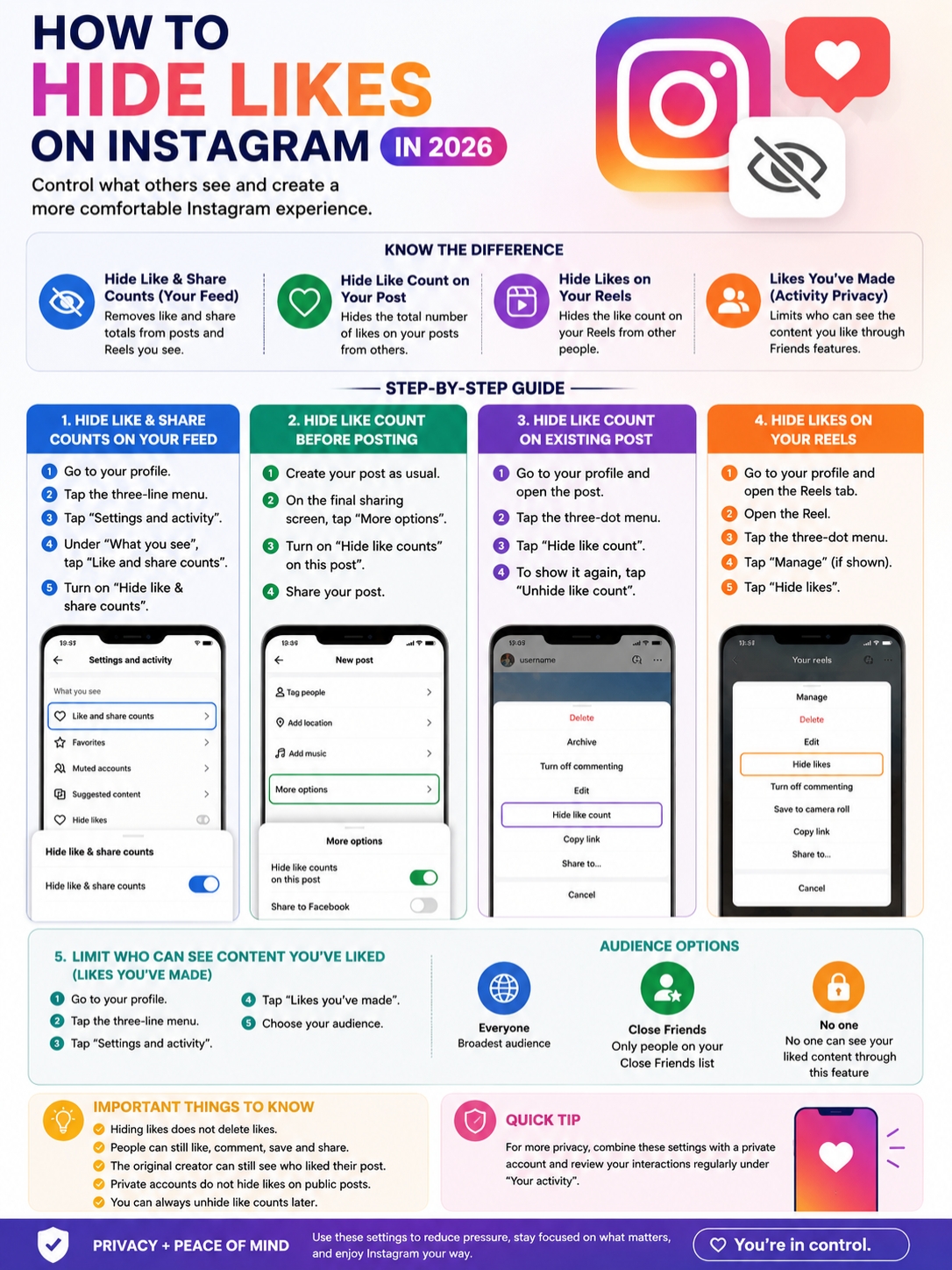
You can hide like and share totals while browsing. You can remove the public like count from your own posts and Reels. You can also limit who sees the content you’ve liked through Instagram’s Friends features.
Those settings sound similar, but they aren’t interchangeable.
Hiding a number doesn’t delete the likes. It doesn’t stop people from liking your content. It also doesn’t always hide the fact that you liked someone else’s post.
This guide explains how to hide likes on Instagram in 2026, where each setting lives, and what remains visible after you turn it on.
The steps and privacy details below reflect Instagram and Meta’s current documentation as of July 13, 2026.
What Hiding Likes on Instagram Actually Does
Instagram’s like controls fall into three separate groups.
One setting changes what you see while browsing. Another changes how engagement appears on your own content. The third controls whether your likes can appear through Instagram’s social discovery features.
That’s where most of the confusion starts.
|
Control |
What It Changes |
What It Doesn’t Do |
|
Hide like and share counts |
Removes totals from posts and Reels you view |
Doesn’t change what other people see |
|
Hide like count on your post |
Removes the public total from that post |
Doesn’t delete likes |
|
Hide likes on a Reel |
Removes the public like total from the Reel |
Doesn’t stop new likes |
|
Likes you’ve made |
Limits who can see liked content through supported social features |
Doesn’t hide your like from the original creator |
Instagram introduced global controls for public like counts in 2021. It later expanded privacy controls around Friends tab activity, including likes, comments, reposts, and Reel activity.
The easiest way to remember the difference is this:
Hiding a count changes the number people see. Hiding activity changes where your interaction may appear. Neither option removes the like itself.
How to Hide Likes on Instagram for Posts and Reels You See
This setting removes like and share totals from the posts and Reels that appear in your feed.
It only changes your own viewing experience. Other users may still see those numbers on their accounts.
To turn it on:
- Open Instagram.
- Tap your profile picture in the bottom-right corner.
- Tap the three-line menu in the top-right corner.
- Scroll to What you see.
- Tap Like and share counts.
- Turn on Hide like & share counts.
|
Step |
Menu Option |
What Happens |
|
Open your profile |
Profile picture |
Takes you to your account page |
|
Open the main menu |
Three-line icon |
Shows Settings and activity |
|
Find the display setting |
Like and share counts |
Opens the visibility controls |
|
Turn on the toggle |
Hide like & share counts |
Removes totals from content you browse |
This setting is useful if visible numbers make Instagram feel like a popularity contest.
It can also make your feed feel cleaner. You see the post first, not the score attached to it.
You can turn the setting off whenever you like. Instagram will restore visible totals where the creator allows them to appear.
How to Hide Like Counts Before Publishing a Post
You don’t have to hide counts on every post.
Instagram lets you turn the setting on for one post before publishing it. This works well when you want to keep engagement visible on most content but hide it on something specific.
Here’s how:
- Create a new Instagram post.
- Select your photo, video, or carousel.
- Make your edits and continue to the final sharing screen.
- Scroll down and tap More options.
- Turn on Hide like counts on this post.
- Return to the main screen and publish.
|
Publishing Choice |
Result |
|
Leave the option off |
Instagram may show the like count publicly |
|
Turn the option on |
The public like count stays hidden |
|
Change it later |
You can hide or unhide the count after publishing |
Some older guides refer to Advanced settings. Instagram’s current instructions use More options, so look for that wording if the screen seems different from an old tutorial.
People can still like, comment on, save, and share the post.
You can also see the total number of likes on your own content. Instagram hides the count from viewers, not from the account that published it.
How to Hide Likes on an Existing Instagram Post
You can also hide the count on a post that’s already live.
There’s no need to delete it, archive it, or upload it again.
Follow these steps:
- Open your Instagram profile.
- Select the post.
- Tap the three-dot menu.
- Choose Hide like count.
To bring the number back, open the same menu and choose Unhide like count.
|
Existing Post Action |
What It Does |
|
Hide like count |
Removes the visible total |
|
Unhide like count |
Restores the current total |
|
Archive |
Removes the whole post from your public profile |
|
Delete |
Removes the post and its visible engagement |
The setting is reversible because Instagram doesn’t remove the underlying likes.
One limitation is worth knowing. Instagram doesn’t currently document a bulk option for hiding counts on every old post at once.
You’ll usually need to change older posts one by one.
That can feel tedious if you have years of content, but it gives you control over which posts keep visible engagement and which ones don’t.
How to Hide Likes on Instagram Reels
Reels have their own like visibility control.
To hide the total on an existing Reel:
- Open your profile.
- Tap the Reels tab.
- Open the Reel you want to edit.
- Tap the three-dot menu.
- Choose Manage if Instagram shows that extra step.
- Tap Hide likes.
|
Reel Setting |
What Viewers See |
|
Hide likes |
The public like total disappears |
|
Show likes again |
The current total becomes visible |
|
Archive |
The Reel leaves your public profile |
|
Pin to your Reels |
The Reel moves to the top of your Reels tab |
Instagram may place the option in a slightly different spot depending on the app version or device.
The label may also appear as Hide likes rather than Hide like count.
Read the menu carefully because Reel likes and Reel views are separate metrics. Hiding likes doesn’t automatically hide views, comments, reposts, or other numbers.
People can also continue liking the Reel after you hide the count.
How to Limit Who Sees the Content You Like
This setting deals with your activity, not the public count on your own posts.
Instagram’s Friends tab can surface eligible content that friends have liked, commented on, reposted, or created. The company expanded these controls in 2025.
To manage who can see what you’ve liked:
- Open Instagram.
- Go to your profile.
- Tap the three-line menu.
- Tap Likes you’ve made.
- Choose the audience you prefer.
Read Also: How to Fix Instagram Notes Not Showing Up
Instagram currently lists three audience options:
- Everyone
- Close Friends
- No one
|
Audience Option |
Who Can See the Activity |
|
Everyone |
The widest available audience |
|
Close Friends |
Only people on your Close Friends list |
|
No one |
Other users can’t see the activity through this feature |
Choosing Close Friends limits this type of activity to a smaller group.
Choosing No one prevents your likes from appearing through the supported social activity feature.
There’s still an important exception.
The person who published the post or Reel can see that you liked it. This setting doesn’t make your interaction invisible to the original creator.
It gives you more control over social discovery, but it isn’t a complete anonymity tool.
Can People Still See That You Liked a Public Post?
Yes, they may be able to.
When you like a public post, that interaction can remain visible to people who can view the content. Your username may also appear in the list of people who liked it.
This can happen even if your own account is private.
A private account protects your posts, Stories, and profile content from people who don’t follow you. It doesn’t automatically hide every action you take on public content.
|
Situation |
Who May See the Like |
|
You like a public post |
People who can access that post |
|
You like a private post |
People approved to view that private account |
|
Your account is private |
Your profile stays private, but likes on public content may remain visible |
|
You select No one under Likes you’ve made |
Friends activity is restricted, but the original creator still sees the like |
This is one of the most important privacy limits to understand.
The Likes you’ve made setting controls where your activity may be surfaced. It doesn’t erase the interaction.
To remove the like completely, you need to unlike the post.
Instagram also lets you review and remove several likes from the Your activity section.
What Hiding Likes Does Not Change
Hiding a like count changes how a number appears. It doesn’t change the post’s audience or shut down engagement.
People can usually still:
- Like the content
- Comment on it
- Save it
- Share it where sharing is allowed
- Visit the creator’s profile
- View the post if its privacy settings allow access
|
Common Assumption |
What Really Happens |
|
“The likes are deleted” |
The likes stay in place |
|
“Nobody can like the post” |
The heart button still works |
|
“The post becomes private” |
Privacy settings stay the same |
|
“Everyone who liked it becomes anonymous” |
The creator may still see individual likes |
|
“Comments and shares disappear too” |
Those use separate controls |
|
“All old posts change at once” |
Existing posts usually need individual changes |
The owner of the content can still see the total number of likes, even when viewers can’t.
If your main concern is who can see the post itself, hiding likes won’t solve the problem.
A private account gives you broader control. Only approved followers can see private account posts, while public account content can usually be viewed by anyone.
That’s a much bigger privacy change than hiding a number.
Does Hiding Likes Affect Reach or Instagram Insights?
Hiding the public count doesn’t stop Instagram from recording the engagement.
Likes still count as interactions. The creator can still see the total, and professional accounts can continue using Instagram Insights.
|
Metric or Feature |
What Happens After Hiding Likes |
|
Likes received |
Instagram still records them |
|
Public like count |
Hidden from viewers |
|
Creator’s total |
Still available |
|
Comments |
Continue as normal |
|
Saves and shares |
Continue as normal |
|
Insights |
Remain available to eligible accounts |
Instagram uses signals such as likes, comments, saves, shares, viewing behavior, and watch time when ranking content.
Hiding the number doesn’t stop those signals from existing.
Instagram also doesn’t say that hiding like counts causes a reach penalty.
That said, no one should promise that a hidden-count post will perform exactly like a visible-count post. Reach depends on many factors, including the content itself, audience response, timing, watch time, and relevance.
Creators and businesses should look beyond likes anyway.
Useful performance signals include:
- Reach
- Watch time
- Saves
- Shares
- Comments
- Profile visits
- Website clicks
- Product enquiries
- Follows generated by the post
A large public like count can look impressive, but it doesn’t always show whether the content did its job.
Should Creators and Brands Hide Like Counts?
There’s no single right answer.
A personal user may hide likes to make Instagram feel less competitive. A new creator may want people to focus on the post instead of an early number. A publisher may prefer attention to stay on the story.
Brands may keep likes visible when strong engagement adds social proof.
|
Account Type |
Why Hiding Likes May Help |
Why Showing Likes May Help |
|
Personal account |
Reduces comparison and pressure |
Friends may enjoy visible reactions |
|
New creator |
Keeps attention away from small early numbers |
Shows growth over time |
|
Established creator |
Creates a cleaner visual experience |
Displays strong engagement |
|
Brand |
Useful for testing or sensitive campaigns |
Builds social proof |
|
Publisher |
Keeps focus on the information |
Shows audience interest |
A balanced approach often works best.
Try hiding counts on a small group of posts rather than changing everything at once. Then compare the results in Insights.
Look at meaningful actions, not just likes.
A post with fewer likes but more saves, shares, or clicks may be far more useful than a post with a big public number and little real impact.
Why the Hide Likes Option May Be Missing
Instagram changes its menus often.
The same setting may appear in a different place after an update, and some features roll out gradually across devices, regions, and account types.
Look for these current labels:
- Like and share counts
- Hide like & share counts
- Hide like counts on this post
- Hide like count
- Hide likes
- Likes you’ve made
|
Problem |
What to Try |
|
The setting doesn’t appear |
Update Instagram through the App Store or Google Play |
|
You can’t find the menu |
Search Settings and activity for “like” |
|
An old guide looks different |
Look for More options instead of Advanced settings |
|
The Reel option is missing |
Open the Reel menu and check Manage |
|
The setting doesn’t seem to work |
Close and reopen the app |
|
The feature is still unavailable |
Report the issue through Instagram Help |
You can also try logging out and signing back in.
Avoid third-party apps that promise to hide likes or unlock extra privacy tools. Instagram’s own settings handle this job.
An outside app can’t create a privacy control that Instagram doesn’t support. Giving an unknown service your login details can also put your account at risk.
Final Thoughts
Instagram gives you several like controls, but each one solves a different problem.
|
What You Want to Do |
Setting to Use |
|
Stop seeing like totals while browsing |
Hide like & share counts |
|
Hide the total on a new post |
Hide like counts on this post |
|
Hide the total on an old post |
Hide like count |
|
Hide the total on a Reel |
Hide likes |
|
Limit activity shown to other users |
Likes you’ve made |
|
Remove a like completely |
Unlike it through Your activity |
Use the feed-wide setting if you want a less competitive browsing experience.
Use the post or Reel menu if you want to hide engagement totals on your own content.
Use Likes you’ve made if you want more control over activity that may appear through Instagram’s Friends features.
Keep the privacy limit in mind. The original creator can still see that you liked their content, and likes on public posts may remain visible to people who can access those posts.
The best way to hide likes on Instagram is to first decide what you’re trying to hide: the number, the social activity, or the like itself.
Instagram treats each one differently.
Frequently Asked Questions
These questions cover a few details that aren’t obvious from the main settings menu.
|
Question |
Quick Answer |
|
Can I hide the count from one follower? |
No |
|
Can I hide every old count at once? |
Instagram doesn’t document a bulk option |
|
Can the original creator see my like? |
Yes |
|
Are Story likes public? |
No |
|
Can I restore a hidden count? |
Yes |
Can I Hide My Like Count From Only One Person?
No.
Instagram doesn’t offer a custom audience list for a post’s like count. You can hide the total from viewers generally or leave it visible.
To stop one person from seeing the post itself, you would need a broader privacy tool such as blocking or changing your account settings.
Can I Hide Like Counts on Every Old Post at Once?
Instagram doesn’t currently document a bulk option for this.
You’ll normally need to open each old post and select Hide like count.
The feed-wide Hide like & share counts switch is different. It changes what you see while browsing. It doesn’t edit all the posts on your profile.
Can the Original Poster See That I Liked Their Content?
Yes.
The account that published the content can still see your like, even if you choose No one under Likes you’ve made.
To remove the interaction, you need to unlike the post or Reel.
Are Instagram Story Likes Public?
No.
Only the person who shared the Story can see that you liked it. Other viewers don’t see a public Story like count.
Story likes work differently from likes on feed posts and Reels.
Can People Still Like My Post After I Hide the Count?
Yes.
Hiding the number doesn’t disable the heart button. People can keep liking the content, and the creator can still see the total.
Will Unhiding the Count Restore the Old Likes?
Yes.
The likes never disappeared. Instagram simply stopped displaying the public total.
When you choose Unhide like count, the current number should appear again, including likes received while the count was hidden.
Does a Private Account Hide Likes I Leave on Public Posts?
Not always.
Your private account protects your own profile content, but a like left on a public post may still be visible to people who can view that post.
Private account status and activity visibility are separate issues.
Can I Remove Several Likes at Once?
Yes.
Instagram’s Your activity section lets you review and remove likes from multiple posts.
That removes the interactions themselves. It’s different from limiting who sees them through the Likes you’ve made setting.