
Notifications are useful until every app starts acting as if its latest alert can’t wait.
A work message arrives during dinner. A shopping app interrupts a meeting. A group chat lights up the screen long after you meant to stop checking your phone.
That’s where Focus comes in.
This iphone focus modes guide explains how to control interruptions without cutting yourself off from the people and alerts that matter. In iOS 26, Focus can silence selected contacts and apps, change your Lock Screen and Home Screen, filter work and personal content, and turn itself on based on time, location, app use, sleep, or driving.
On supported iPhones, Apple Intelligence can also help decide which notifications may deserve immediate attention.
The trick isn’t to block everything. It’s to build a setup you can trust.
What Focus Modes Do in iOS 26
Focus is Apple’s system for managing notifications around different parts of your day.
Apple includes several ready-made options, such as:
- Do Not Disturb
- Personal
- Work
- Sleep
- Driving
- Fitness
- Gaming
- Mindfulness
- Reading
You can also create your own Focus for studying, recording, prayer, family time, travel, or anything else that needs fewer distractions.
A Focus can control who gets through, which apps may send alerts, what screens appear, and when the profile starts or stops.
|
Focus Feature |
What It Controls |
Practical Example |
|
People settings |
Calls and messages from selected contacts |
Let family reach you during work |
|
App settings |
Notifications from selected apps |
Allow Calendar but silence social apps |
|
Customized screens |
Lock Screen and Home Screen pages |
Show only work tools during office hours |
|
Focus filters |
Content shown inside supported apps |
Display one Mail account or calendar |
|
Schedules |
Automatic activation rules |
Start Work Focus at the office |
|
Apple Intelligence |
Priority-based alert filtering |
Surface an urgent change of plans |
Focus is not the same as Silent mode.
Silent mode mainly controls sound. Focus decides which notifications can interrupt you in the first place.
It’s also different from Screen Time. Focus manages interruptions. Screen Time tracks app use and can restrict access.
Only one Focus can run at a time. When you turn on a new one, the previous profile switches off.
iPhone Focus Modes Guide: Set Up Your First Profile
Start small.
You don’t need six profiles, three schedules, and a complicated web of exceptions on day one. Pick one problem and solve that first.
Work, Sleep, and Personal are good starting points.
Open Settings > Focus and choose an existing profile. To create a new one, tap the Add button in the top-right corner. Pick one of Apple’s suggested options or select Custom.
For a custom profile, choose a name, icon, and color. Then tap Customize Focus.
|
Setup Area |
A Sensible Starting Point |
|
People |
Close family and essential colleagues |
|
Apps |
Phone, Calendar, authentication and security apps |
|
Lock Screen |
A screen that matches the activity |
|
Home Screen |
One page with only relevant apps |
|
Schedule |
Add after manual testing |
|
Filters |
Limit Mail or Calendar to the needed account |
Turn a Focus On Manually
Open Control Center and tap Focus.
Choose the profile you want to use. You may also see temporary options such as:
- For 1 hour
- Until this evening
- Until I leave this location
These options are useful for meetings, appointments, study sessions, or short breaks.
Siri can help too. Say, “Turn on Work Focus.”
Test It Before Adding Automation
This step is easy to skip. Don’t.
Turn the Focus on manually. Ask a trusted person to call or message you. Send test notifications from the apps you can’t afford to miss.
Check whether:
- Normal calls stay silent
- Allowed contacts can reach you
- Repeated calls get through
- Important apps still send alerts
- The correct Lock Screen appears
- Alarms still sound
A profile can look fine in Settings and still behave badly because of an old schedule, contact exception, or Emergency Bypass setting.
Choose Who Can Reach You
Open Settings > Focus, select a profile, and tap People.
You can either allow notifications from selected contacts or silence selected contacts.
That choice matters.
|
People Setting |
How It Works |
Good Use Case |
|
Allow Notifications From |
Only selected people may interrupt |
Sleep, meetings, deep work |
|
Silence Notifications From |
Selected people are blocked |
Personal time with a few work exceptions |
|
Allow Calls From |
Permits calls from a selected group |
Family or Favorites |
|
Allow Repeated Calls |
Lets a second call within three minutes through |
Possible emergencies |
|
Emergency Bypass |
Allows sound and vibration from one contact |
A child, parent, or caregiver |
Use an Allow List for Strict Focus Modes
Choose Allow Notifications From when you want tight control.
This works well for:
- Sleep
- Deep work
- Reading
- Recording
- Important meetings
Only the contacts you select will be able to interrupt you through that Focus, apart from other enabled exceptions.
Use a Silence List for Lighter Filtering
Choose Silence Notifications From when most people can still contact you, but a few sources cause problems.
This can work well for Personal Focus. You may want to silence work contacts while leaving family, transport, banking, and security alerts alone.
Check Repeated Calls
When Allow Repeated Calls is on, a second call from the same person within three minutes may ring through.
That can help in a real emergency.
It can also let a persistent caller or spam number break through. Think carefully before leaving it on during Sleep or Deep Work.
Use Emergency Bypass Carefully
Emergency Bypass is stronger than a normal Focus exception.
Open Contacts, choose a person, tap Edit, and open Ringtone or Text Tone. Turn on Emergency Bypass.
Calls or messages from that person can then make sound and vibrate even when other notifications are silenced.
Use it for someone who may genuinely need immediate access. A partner, child, parent, caregiver, or close family member may qualify.
Your entire contact list does not.
Control Which Apps Can Interrupt You
Go to Settings > Focus, choose a profile, and tap Apps.
You can allow selected apps or silence selected apps.
Don’t add an app just because it might be useful someday. Add it because an alert from that app may require action while the Focus is active.
|
App Type |
Suggested Treatment |
Why |
|
Phone and calling apps |
Usually allow |
Direct communication |
|
Calendar |
Allow for work or meetings |
Schedule changes may matter |
|
Authentication apps |
Allow |
Login approvals can expire |
|
Banking and security |
Consider allowing |
Fraud or account warnings |
|
Social media |
Usually silence |
Rarely urgent |
|
Shopping and entertainment |
Silence |
High interruption, low urgency |
|
News apps |
Use sparingly |
Breaking alerts can become excessive |
Understand Time Sensitive Notifications
A Focus can allow Time Sensitive Notifications.
When this setting is on, apps may send alerts they classify as urgent through the Focus.
Useful examples might include:
- A delayed flight
- A ride arriving
- A security warning
- A calendar change
- A delivery at the door
The problem is that app developers decide which alerts receive that label. Some are careful. Others are generous.
For a strict Focus, leave Time Sensitive Notifications off at first. Turn them on only when you know you need them.
Customize Your Lock Screen and Home Screen
Focus can change more than notifications.
It can also change what you see.
That matters because distraction often starts before a notification arrives. You unlock the phone to check the time, notice a social app, and lose ten minutes.
A cleaner screen helps.
|
Screen Setup |
Useful Apps or Widgets |
|
Work |
Calendar, Mail, Files, Notes, task manager |
|
Personal |
Messages, Camera, Music, Maps |
|
Sleep |
Clock, Health, weather, battery |
|
Fitness |
Fitness, Music, timer, workout app |
|
Reading |
Books, Notes, dictionary, timer |
Link a Lock Screen to a Focus
Press the side button, then touch and hold the Lock Screen.
Choose the wallpaper you want, tap Focus, and link it to a profile.
When that Focus turns on, the linked Lock Screen appears. You can also activate the Focus by switching to that Lock Screen.
It creates a useful visual cue. A work wallpaper tells you that work rules are running. A sleep wallpaper makes it obvious that most alerts are being held back.
Create a Focus-Specific Home Screen
Build one Home Screen page with only the apps needed for that activity.
A Work page might include:
- Calendar
- Files
- Notes
- Slack or Teams
- A task widget
A Sleep page might include only Clock, Health, weather, and battery.
Other apps are not deleted. You can still open them through App Library or Search.
They are simply less visible, which adds a small but helpful pause before you open them out of habit.
Use Focus Filters for Mail, Calendar, and Other Apps
Focus filters change what supported apps show while a profile is active.
Open Settings > Focus, choose a profile, scroll to Focus Filters, and tap Add Filter.
The available options depend on the apps installed on your iPhone.
|
Focus Filter |
Example |
|
Mail account |
Show only your company inbox during Work |
|
Calendar |
Display only professional calendars |
|
System filter |
Change supported system behavior |
|
Third-party app filter |
Limit content inside a compatible app |
A Work Focus can show your work inbox and company calendar while hiding personal accounts.
A Personal Focus can do the opposite.
One detail is easy to miss: Focus filters do not sync across devices.
Even when Share Across Devices is on, you must set up Mail, Calendar, and other filters separately on each iPhone, iPad, or Mac.
That’s one of the most useful things to remember from this iphone focus modes guide. The Focus itself may sync correctly while the wrong inbox still appears on another device.
Schedule Focus Modes Automatically
Once a profile works properly, you can automate it.
Open Settings > Focus, choose a profile, and tap Add Schedule.
You can trigger a Focus by:
- Time
- Location
- App use
- Sleep schedule
- Driving activity
|
Trigger |
Useful Example |
Possible Problem |
|
Time |
Work from 9:00 a.m. to 5:00 p.m. |
Holidays or changing shifts |
|
Location |
Turn on at the office |
Nearby locations may overlap |
|
App |
Reading when Books opens |
App may be opened for another reason |
|
Sleep schedule |
Start at bedtime |
Health schedule may be outdated |
|
Driving |
Car Bluetooth or CarPlay |
May activate while you’re a passenger |
Use Time Schedules for Regular Routines
Time-based schedules work well for standard office hours, study blocks, family time, and planned breaks.
Choose the correct days. A weekday Work Focus should not keep turning on every Saturday unless you actually work weekends.
Use Location Triggers With Care
A location trigger can start Work Focus at the office, Fitness at the gym, or Personal when you get home.
Test the boundary.
Your iPhone may activate the Focus shortly before you enter the building or leave it running briefly after you go.
Start a Focus When You Open an App
App-based triggers work best when one app clearly marks the start of an activity.
Examples:
- Reading Focus when Books opens
- Fitness Focus when a workout app opens
- Gaming Focus when a game starts
- Recording Focus when a camera or audio app opens
Avoid using an app that serves several unrelated purposes.
Watch for Overlapping Schedules
Only one Focus can run at once.
Suppose Work runs until 5:30 p.m., but Personal starts at 5:00 p.m. Personal wins at 5:00.
When a profile switches unexpectedly, check the schedules for every Focus. The problem may be hiding in a different one.
Use Reduce Interruptions and Apple Intelligence
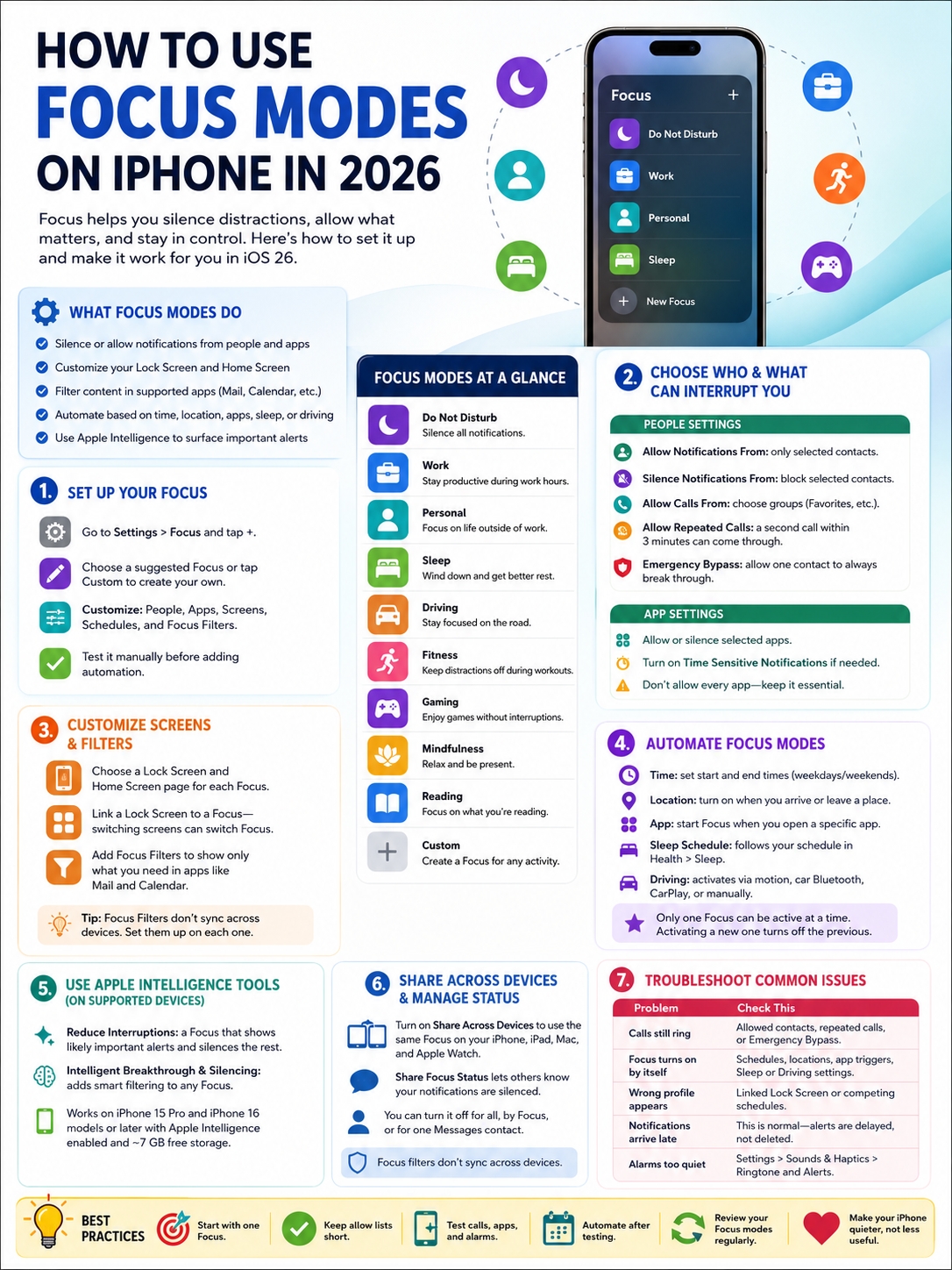
On compatible iPhones, Apple Intelligence adds two smarter Focus tools:
- Reduce Interruptions
- Intelligent Breakthrough & Silencing
Reduce Interruptions is a separate Focus profile. It looks at notification content and tries to show alerts that may need quick attention.
Intelligent Breakthrough & Silencing can be added to another Focus.
|
Apple Intelligence Tool |
What It Does |
|
Reduce Interruptions |
Filters alerts based on likely importance |
|
Intelligent Breakthrough & Silencing |
Adds smart filtering to another Focus |
|
Prioritize Notifications |
Places likely important alerts higher |
|
Summarize Notifications |
Condenses long or grouped alerts |
Set Up Reduce Interruptions
Go to Settings > Focus, tap the Add button, and choose Reduce Interruptions.
Select the people and apps that should always be allowed or always be silenced.
Apple Intelligence then reviews alerts that fall outside those fixed rules.
It may help catch a sudden pickup change, travel delay, appointment update, or urgent family message without opening the door to every notification.
Check Whether Your iPhone Supports It
Apple Intelligence requires:
- iPhone 15 Pro or iPhone 15 Pro Max
- Any iPhone 16 model or later
- Supported software
- Apple Intelligence turned on
- Matching supported device and Siri languages
- About 7 GB of device storage
Availability can vary by language and region.
Older iPhones can still use standard Focus features, including people rules, app rules, schedules, custom screens, and supported filters.
Read Also: How to Turn Off iPhone Read Receipts for One Contact
Don’t Trust Smart Filtering With Everything
Apple Intelligence can help, but it should not be your only safeguard.
Manually allow essential contacts and apps. Use Emergency Bypass for the very small number of people who must always reach you.
Smart filtering works best as a second layer, not the foundation.
Set Up Sleep and Driving Focus Properly
Sleep and Driving have a few extra rules.
|
Profile |
Main Trigger |
Important Detail |
|
Sleep |
Health sleep schedule |
Some settings live in Health or Clock |
|
Driving |
Motion, Bluetooth, CarPlay, or manual control |
Calls and alerts are heavily limited |
|
Do Not Disturb |
Manual or scheduled |
General-purpose silencing |
|
Personal |
Custom schedule or trigger |
Useful for blocking work alerts |
Sleep Focus
Sleep Focus follows the sleep schedule stored in the Health app.
To change it, open Health, find Sleep, and review Full Schedule & Options.
You can also turn off Use Schedule for Sleep Focus when you don’t want the profile tied to your sleep plan.
A common mistake is changing the Focus settings while an old Health schedule is still active.
Standard Clock alarms still sound during Focus and Silent mode.
If an alarm seems too quiet, go to Settings > Sounds & Haptics and check the Ringtone and Alerts slider.
Driving Focus
Driving Focus can turn on:
- When iPhone detects driving-like movement
- When it connects to car Bluetooth
- When it connects to CarPlay
- When you activate it manually
You can also set an automatic reply for selected contacts.
A simple message works best:
“I’m driving with notifications silenced. I’ll reply when I stop.”
While Driving Focus is active, most notifications stay quiet. Incoming calls are limited and work best through CarPlay, car Bluetooth, or a hands-free accessory.
Driving Focus is not a safety guarantee. Don’t handle the phone while driving just because the profile is active.
Go to Settings > Focus and turn on Share Across Devices to use the same Focus across Apple devices signed in to the same Apple Account.
A profile turned on from your iPhone can then affect your iPad, Mac, and Apple Watch.
|
Sharing Setting |
What It Does |
|
Share Across Devices |
Uses the active Focus across linked Apple devices |
|
Share Focus Status |
Tells supported contacts that alerts are silenced |
|
Per-profile status sharing |
Controls which profiles may share that status |
|
Per-contact status control |
Stops sharing with one Messages contact |
|
Focus filters |
Must still be configured on each device |
What Other People Can See
When Focus Status is on, supported apps such as Messages may tell people that your notifications are silenced.
They do not see the name of the active Focus.
They won’t know whether you are sleeping, working, driving, or using a custom profile.
Messages may also offer an option to notify you anyway when the sender marks something as urgent.
Stop Sharing With One Person
Open the conversation in Messages, tap the contact icon, and turn off Share Focus Status.
To control it more broadly, go to Settings > Focus > Focus Status.
Focus Setups That Work in Real Life
A good Focus has a clear purpose, a short exception list, and a clear end point.
|
Focus |
Allow |
Silence or Filter |
Trigger |
|
Deep Work |
Family, Phone, Calendar, task app |
Social, shopping, news |
Two-hour schedule |
|
Sleep |
Household and emergency contacts |
Most apps and work accounts |
Health sleep schedule |
|
Driving |
Hands-free calls and navigation |
Messages and app alerts |
Car Bluetooth or CarPlay |
|
Personal |
Family, banking, transport, security |
Work chat and work email |
Evening schedule |
|
Reading |
Household and timer |
Social and entertainment |
Books app |
|
Meeting |
Key contacts and Calendar |
Messaging and email |
One hour |
Deep Work
Keep the allow list short.
Phone, Calendar, a task manager, and one communication app may be enough.
Email often works better as something you check between sessions instead of something that interrupts every session.
Personal
Silence work chat, project-management apps, professional social accounts, and company email.
Keep family, transport, banking, weather, security, and calls available.
Meeting
Use a temporary duration instead of creating a permanent schedule for every meeting.
Control Center can run a Focus for one hour or until you leave the location.
Reading or Study
Use an app trigger if the activity always begins in one app.
A simple Home Screen with Books, Notes, a dictionary, and a timer is usually enough.
Fix Common Focus Mode Problems
Most problems come from an overlooked exception, schedule, linked Lock Screen, or another Apple device.
|
Problem |
Likely Cause |
What to Check |
|
Calls still ring |
Allowed caller, repeated calls, or Emergency Bypass |
People settings and contact card |
|
Focus turns on by itself |
Active time, location, or app schedule |
Set a Schedule |
|
Wrong profile appears |
Linked Lock Screen or competing schedule |
Wallpaper and all profiles |
|
Messages shows notifications silenced |
Focus Status or another device |
Sharing settings |
|
Wrong inbox appears |
Missing device-specific filter |
Recreate the filter |
|
Alarm is too quiet |
Ringtone and Alerts volume |
Sounds & Haptics |
Focus Keeps Turning On
Open Settings > Focus, select the profile, and review its schedules.
Check for:
- Time rules
- Location triggers
- App triggers
- Health sleep schedules
- Driving automation
- Linked Lock Screens
- Activation from another Apple device
Do Not Disturb may seem to turn itself on for no reason when an old schedule is still active.
Calls Still Ring
Check these settings in order:
- People allow list
- Allowed call group
- Allow Repeated Calls
- Calls from silenced people
- Emergency Bypass
- Intelligent Breakthrough & Silencing
Repeated calls and Emergency Bypass cause many of the “Focus isn’t working” problems people run into.
Notifications Arrive Late
That’s usually normal.
Focus delays or silences notifications. It does not delete them.
Open Notification Center after the Focus ends to review anything that didn’t interrupt you.
Focus Status Appears When Focus Is Off
Check whether another Focus is active.
Then review Share Across Devices on your iPhone, iPad, Mac, and Apple Watch. A profile running elsewhere may be affecting the phone.
Final Thoughts
The best iphone focus modes guide isn’t the one with the most complicated setup.
It’s the one that works quietly in the background and doesn’t make you worry about missed calls.
|
Best Practice |
Why It Matters |
|
Start with one Focus |
Easier to understand and test |
|
Keep allow lists short |
Stops exceptions from taking over |
|
Test calls and alarms |
Reduces missed communication |
|
Automate after testing |
Prevents bad settings from repeating |
|
Check all Apple devices |
Finds unexpected cross-device activation |
|
Set filters on each device |
Focus filters do not sync |
Start with Work, Sleep, Personal, or Driving.
Choose the people and apps that genuinely need access. Turn the profile on manually and test it before adding schedules.
Use a linked Lock Screen as a clear visual reminder. Add Focus filters when you want cleaner separation between work and personal accounts.
On a compatible iPhone, Reduce Interruptions can make the system more flexible. Still, your manual rules should do most of the heavy lifting.
A good Focus setup doesn’t make your phone useless.
It simply stops your phone from demanding attention every few minutes.
Frequently Asked Questions
|
Question |
Quick Answer |
|
Can two Focus profiles run together? |
No |
|
Do Clock alarms work during Focus? |
Yes |
|
Can contacts see the Focus name? |
No |
|
Do Focus filters sync? |
No |
|
Can repeated calls break through? |
Yes, when enabled |
|
Does Apple Intelligence work on every iPhone? |
No |
Can I Allow Calls From Someone but Silence Their Messages?
Focus doesn’t offer a perfect calls-only switch for every contact setup.
You can manage call groups and message notifications separately, but the final result depends on your People settings and that contact’s notification options.
Test the profile before relying on it.
Why Can Someone Notify Me Anyway in Messages?
When Focus Status is shared, Messages may let the sender mark something as urgent and try to notify you.
You can turn Focus Status off for all profiles, for one profile, or for a single Messages conversation.
Will an Alarm Ring During Sleep Focus?
Yes.
Standard alarms in Apple’s Clock app still sound during Sleep Focus, Do Not Disturb, and Silent mode.
Check the Ringtone and Alerts volume if the alarm is too quiet.
Can One Contact Bypass Every Focus?
Yes.
Turn on Emergency Bypass in that person’s Ringtone or Text Tone settings.
Use it carefully because their alerts can make sound even when most others cannot.
Why Doesn’t My Work Mail Filter Appear on My Mac?
Focus filters do not sync across devices.
Set up the Mail filter separately on the Mac.
Can I Use Different Focus Modes on My iPhone and Mac?
Yes.
Turn off Share Across Devices if you want each device to behave independently.
Does Reduce Interruptions Replace Do Not Disturb?
No.
Do Not Disturb follows your fixed rules. Reduce Interruptions uses Apple Intelligence to judge which alerts may deserve attention.
Use Do Not Disturb when you want predictable silence. Use Reduce Interruptions when you need more flexibility.
Can Home Screen Web Apps Be Allowed or Silenced?
Yes.
Web apps added to the Home Screen can be included in Focus app rules when they support notifications.