
Opening a message doesn’t always mean you’re ready to reply.
You might be working, driving, thinking about your answer, or simply not in the mood to chat. Still, once the sender sees “Read,” the pressure can start almost immediately.
The good news is that you don’t have to turn the feature off for everyone. Apple lets you manage iphone read receipts one contact at a time inside a direct iMessage conversation.
That means you can keep receipts on for close family members or trusted colleagues while turning them off for someone else.
The setting only takes a few taps. There’s one important catch, though. Apple’s contact-specific read receipt option is designed for iMessage.
Green-bubble conversations may use RCS, SMS, or MMS. RCS can support read receipts, but Apple doesn’t document the same one-person override for RCS chats.
Here’s how the feature works, what the other person sees, and what to check when the setting is missing.
iPhone Read Receipts One Contact: The Exact Steps
Apple places the individual read receipt switch inside the Messages conversation. You won’t usually find it by opening the person’s profile in the Contacts app.
|
Step |
What to Do |
|
1 |
Open the Messages app |
|
2 |
Select the conversation |
|
3 |
Tap the person’s name or photo |
|
4 |
Find Send Read Receipts |
|
5 |
Turn the switch off |
Follow these steps:
- Open Messages on your iPhone.
- Tap the one-to-one conversation.
- Tap the contact’s name, photo, or icon at the top.
- Scroll down if needed.
- Turn off Send Read Receipts.
- Return to the conversation.
Apple says both people need to be using iMessage for this contact-level setting to work.
You don’t need to restart your iPhone or close the Messages app. The change should apply to future messages right away.
The sender may still see that a message was delivered. They just won’t see a “Read” label when you open it.
What Read Receipts Actually Do
A read receipt tells the sender that you opened their message.
That’s all it does.
It doesn’t control whether messages arrive, whether the person can contact you, or whether your phone shows a notification.
|
Message Status |
What It Means |
|
Delivered |
The message reached the recipient’s device or messaging service |
|
Read |
The recipient opened the message while receipts were enabled |
|
No Read label |
Receipts may be off, unsupported, or the message hasn’t been opened |
|
Typing indicator |
The other person is writing a reply |
When iMessage read receipts are on, the sender sees “Read” beneath the message after you open it. Before that, the message usually shows “Delivered.”
Turning read receipts off does not:
- Block the contact
- Stop incoming messages
- Mute alerts
- Hide your Focus Status
- Remove the “Delivered” label
- Erase a receipt that was already sent
The setting only controls the information sent from your device.
It also works one way. Turning off your receipts stops the other person from seeing when you read their messages. It doesn’t change whether you can see their receipts.
You can’t turn on another person’s read receipts from your iPhone. They control that setting on their own device.
How Individual and Global Settings Work Together
The Messages app gives you two levels of control.
You can set one rule for most conversations, then create exceptions for individual people.
|
Global Setting |
Contact Setting |
What That Person Sees |
|
On |
On |
Read receipts appear |
|
On |
Off |
Read receipts stay hidden |
|
Off |
Off |
Read receipts stay hidden |
|
Off |
On |
Read receipts may still appear |
This is where many iPhone users get confused.
You might turn read receipts off in Settings and assume nobody can see them. But if you previously enabled receipts inside one conversation, that person may still get them.
The opposite can happen too. You may leave the global setting on while turning receipts off for one specific person.
The individual conversation setting acts as an override.
This setup can be useful when you want different rules for different people.
For example, you might keep receipts on for:
- A partner waiting for a safety update
- A family member arranging travel
- A manager handling an urgent task
- A caregiver sharing important information
At the same time, you can turn them off in conversations where instant replies aren’t necessary.
When the feature behaves differently than expected, check both settings. Don’t rely on the global switch alone.
How to Turn Off Read Receipts for Everyone
The global setting is the fastest option when you want read receipts off by default.
|
Setting |
Current Menu Path |
|
Messages controls |
Settings > Apps > Messages |
|
Read receipt option |
Send Read Receipts |
|
Turn off globally |
Disable the switch |
|
Check exceptions |
Review individual conversations |
Here’s the current path:
- Open Settings.
- Tap Apps.
- Select Messages.
- Find Send Read Receipts.
- Turn it off.
Older guides may tell you to go straight to Settings > Messages. On current iOS versions, Apple lists the path as Settings > Apps > Messages.
After switching the global option off, check any conversations where you created an individual exception.
A contact-specific setting may still stay active.
For complete control over iphone read receipts one contact, open the conversation itself and confirm the switch is off there too.
Read Also: How to Transfer Data to a New iPhone in 2026
Why the Send Read Receipts Option May Be Missing
Sometimes the switch isn’t there at all.
That usually comes down to the type of conversation you’re using.
|
Possible Reason |
What to Check |
|
The conversation isn’t using iMessage |
Look for blue bubbles |
|
iMessage is turned off |
Check Settings > Apps > Messages |
|
You opened a group chat |
Try the direct conversation |
|
The contact has several phone numbers or emails |
Look for another thread |
|
The chat uses RCS, SMS, or MMS |
Apple’s one-contact option may not appear |
|
Messages has a temporary issue |
Close and reopen the thread |
Check Whether the Conversation Uses iMessage
Apple’s one-person read receipt control requires iMessage.
Open:
Settings > Apps > Messages
Make sure iMessage is turned on.
Then check the conversation. Blue bubbles usually mean the chat is using iMessage.
Green bubbles may mean RCS, SMS, or MMS.
Look for Another Thread With the Same Person
A person can receive iMessages through more than one address.
That may include:
- Their phone number
- An Apple Account email address
- Another saved number
It’s possible to have two separate conversations with the same person.
One thread may use their phone number. Another may use their email address. The settings may not behave exactly the same across both threads.
Open the conversation you currently use and check the read receipt switch there.
Make Sure It’s a Direct Conversation
Apple documents the individual control for a one-to-one chat.
It doesn’t offer a documented way to hide your read receipt from only one person inside a group conversation.
A group chat works as one thread. You can’t normally share your read status with some members while hiding it from one specific participant.
iMessage, RCS, SMS, and MMS Read Receipts
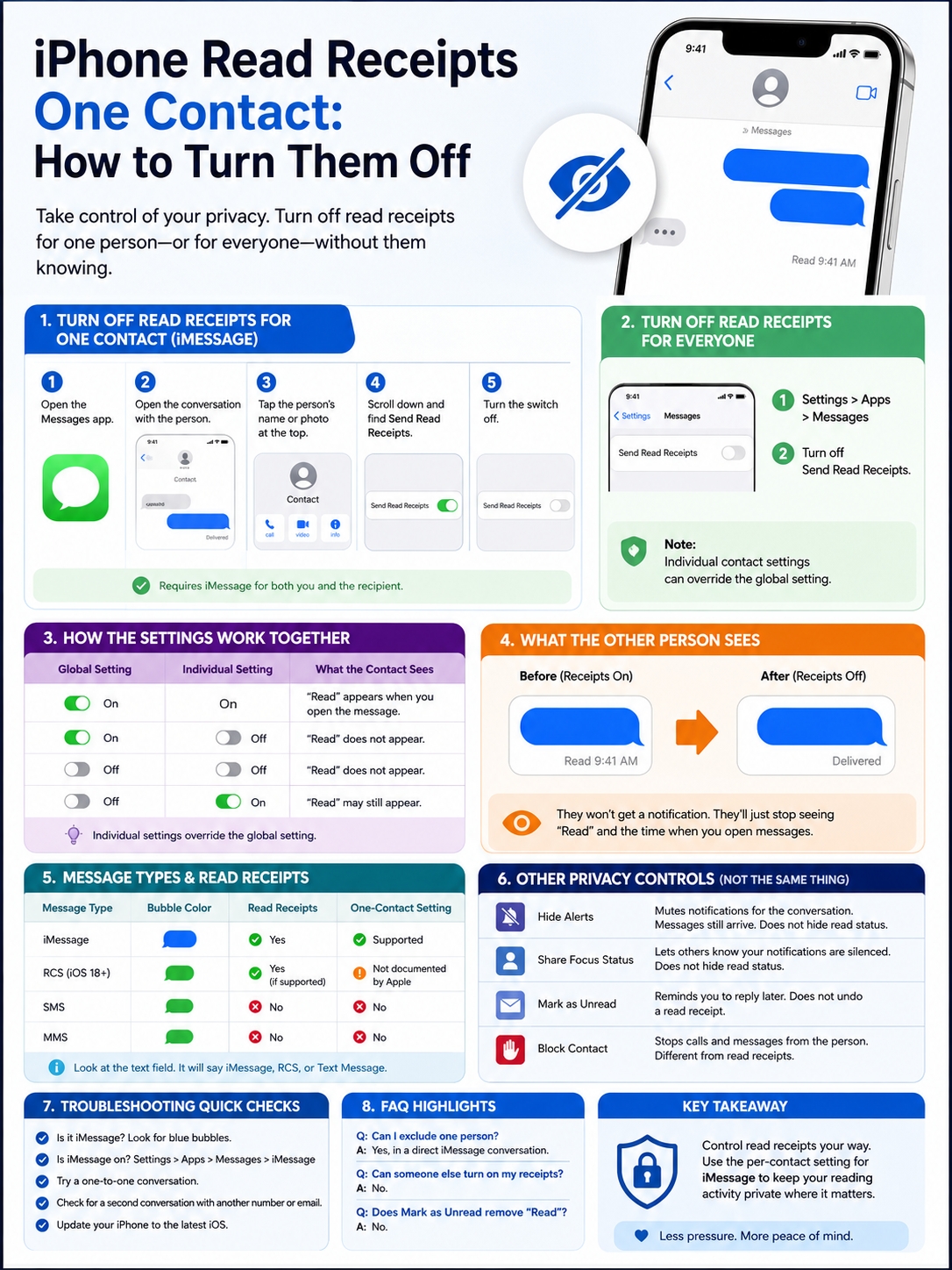
Not every message in the Messages app uses the same service.
That matters because each service handles read receipts differently.
|
Message Type |
Bubble Color |
Read Receipts |
Contact-Level Apple Setting |
|
iMessage |
Blue |
Yes |
Officially supported |
|
RCS |
Green |
Yes, when supported |
Not documented in the same way |
|
SMS |
Green |
No standard support |
No |
|
MMS |
Green |
No standard support |
No |
iMessage
iMessage works between Apple devices using Wi-Fi or mobile data.
It supports:
- Read receipts
- Delivery receipts
- Typing indicators
- High-quality photos and videos
- Message effects
- End-to-end encryption
This is the service Apple covers in its instructions for turning read receipts off for one person.
RCS
RCS brings more modern messaging features to conversations between iPhone and compatible Android devices.
It can support:
- Read receipts
- Delivery receipts
- Typing indicators
- Better photo and video quality
- Messaging over Wi-Fi
RCS requires iOS 18 or later, a supported carrier, and regional availability.
Not every carrier supports it. The option may not appear on every iPhone.
Apple introduced beta support for end-to-end encrypted RCS in iOS 26.5 on supported carriers, with availability expanding over time.
Even so, Apple still documents its one-contact read receipt switch as an iMessage feature. You shouldn’t assume an RCS chat will offer the same control.
SMS and MMS
Traditional SMS and MMS don’t offer the same built-in read receipt system.
Both appear as green bubbles, but a green bubble doesn’t automatically tell you which service the chat uses.
Look at the text field before sending a message. It may say:
- iMessage
- RCS
- Text Message
That label gives you a better answer than bubble color alone.
What the Other Person Sees After You Turn It Off
Apple doesn’t send a notification telling the person that you changed the setting.
The difference appears under future messages.
|
Before Turning It Off |
After Turning It Off |
|
“Read” appears after you open the message |
The message usually stays on “Delivered” |
|
A read time may appear |
No new read time appears |
|
The sender knows you opened it |
The sender can’t confirm it |
|
Messages continue arriving |
Messages still arrive normally |
The person may notice that new messages no longer change to “Read.”
That doesn’t tell them exactly why.
You may have turned receipts off. You may not have opened the message. iMessage may be unavailable. The conversation may have switched to another service.
A receipt that was already sent won’t disappear.
Turning the setting off only affects later messages and future reading activity.
Marking a conversation as unread won’t remove an existing receipt either. That feature only adds an unread reminder on your own device.
Read Receipts and Other Privacy Settings
Several Messages features sound similar, but they do very different things.
|
Feature |
What It Does |
Hides Read Status? |
|
Send Read Receipts |
Shares or hides when you open a message |
Yes |
|
Hide Alerts |
Mutes notifications |
No |
|
Share Focus Status |
Shows that notifications are silenced |
No |
|
Mark as Unread |
Adds a reminder |
No |
|
Block Contact |
Stops calls and messages |
Not its main purpose |
Hide Alerts
Use Hide Alerts when you want messages to arrive quietly.
Open the conversation, tap the contact’s name, and enable Hide Alerts.
You can also swipe left on the conversation and tap the mute icon.
Muting a chat doesn’t turn off read receipts. If you open the message while receipts are on, the sender may still see “Read.”
Focus Status lets people know that your notifications are silenced.
It doesn’t tell them which Focus mode you’re using.
To stop sharing it with one person:
- Open the conversation.
- Tap the contact’s name or icon.
- Turn off Share Focus Status.
This setting is separate from read receipts.
Mark as Unread
Marking a conversation as unread can help when you want to answer later.
Swipe right on the thread to add the unread indicator.
This only changes how the conversation looks on your device. It doesn’t take back a read receipt that has already been sent.
Troubleshooting Contact-Level Read Receipts
When the setting doesn’t work as expected, start with the basics.
|
Problem |
What to Check |
|
One person still sees “Read” |
Review that conversation’s individual setting |
|
Everyone sees “Read” |
Check the global Messages setting |
|
Only one person gets receipts |
Look for a contact-level override |
|
The switch is missing |
Confirm the chat uses iMessage |
|
The person has duplicate threads |
Check both the number and email conversations |
|
Mac behavior seems different |
Review Messages settings on the Mac |
Check Both Settings
First, go to:
Settings > Apps > Messages > Send Read Receipts
Then open the individual conversation and check its own switch.
One of those settings may be overriding the other.
Check Messages on Mac
Messages on Mac also offers global and contact-level read receipt controls.
Open the conversation on your Mac, click the contact details, and review Send Read Receipts.
Pay attention to the exact conversation. A thread tied to an email address may behave differently from one tied to a phone number.
Check the Address Used for the Conversation
Your iPhone can start new iMessage conversations from your phone number or Apple Account email.
You can review that under:
Settings > Apps > Messages > Send & Receive
Existing threads may stay tied to the address originally used.
That can explain why two conversations with the same person don’t always appear to follow the same preference.
Final Thoughts
|
Your Goal |
Best Setting |
|
Hide your read status from one person |
Turn off Send Read Receipts in that iMessage conversation |
|
Hide it from most people |
Turn off the global setting |
|
Keep receipts on for one trusted person |
Enable the contact-level exception |
|
Stop notification sounds |
Use Hide Alerts |
|
Remember to reply later |
Mark the thread as unread |
|
Stop the person from contacting you |
Block the contact |
Managing iphone read receipts one contact at a time is simple once you know where Apple puts the setting.
Open the direct iMessage conversation, tap the person’s name, and turn off Send Read Receipts.
The main thing to remember is that individual settings can override the global option. When something doesn’t look right, check both places.
Also check the messaging service. Apple officially supports the one-person control in iMessage. RCS can show read receipts, but its controls and carrier support work differently. SMS and MMS don’t offer the same feature.
Once the right switch is off, you can read new messages from that person without sending a “Read” confirmation.
Frequently Asked Questions
These details often cause the most confusion.
|
Question |
Quick Answer |
|
Can I exclude one person? |
Yes, in a direct iMessage conversation |
|
Can someone else turn my receipts on? |
No |
|
Does Mark as Unread erase a receipt? |
No |
|
Can Android users see read receipts? |
Yes, through supported RCS |
|
Can I exclude one group member? |
No documented option exists |
|
Can Apple Watch mark a message as read? |
Yes |
Can I Leave Read Receipts On for Everyone Except One Person?
Yes.
Leave the global setting on. Then open that person’s direct iMessage conversation and turn off Send Read Receipts.
That conversation becomes the exception.
Can Someone Else Turn On My Read Receipts?
No.
Only you can control the receipts sent from your device.
The other person can ask you to turn them on, but they can’t change the setting themselves.
Does Marking a Message Unread Remove the Read Receipt?
No.
Mark as Unread is only a reminder for you.
It doesn’t remove “Read” from the sender’s device once the receipt has already been sent.
Can an Android User See When I Read a Message?
Yes, if the conversation uses RCS and read receipts are supported and enabled.
That doesn’t apply to every green-bubble message.
Basic SMS and MMS don’t provide the same feature.
Can I Hide My Receipt From One Person in a Group Chat?
No documented setting allows that.
Apple’s contact-level control applies to a direct conversation with one person.
You can’t normally hide your status from one member while sharing it with the rest of the group.
Can Apple Watch Mark a Message as Read?
Yes.
Reading and dismissing a message on Apple Watch can mark it as read.
If read receipts are enabled, that action may send a receipt to the sender.
Does Turning Off Read Receipts Hide Delivered Status Too?
No.
“Delivered” and “Read” are different.
The sender may still see that the message reached your device. They just won’t see confirmation that you opened it.