
Want to share your iPhone screen on a big TV but don’t have Apple TV? You’re not alone. Many iPhone users want to show photos, videos, apps, or presentations without buying extra Apple hardware. The good news is there are multiple ways to mirror iPhone to TV, whether you prefer wireless options, wired connections, or smart TV apps.
In this guide, we’ll cover AirPlay-compatible TVs, HDMI adapters, Roku, Chromecast, Fire TV, and trusted third-party apps. By the end, you’ll know exactly how to mirror your iPhone to a TV safely and easily, even without Apple TV.
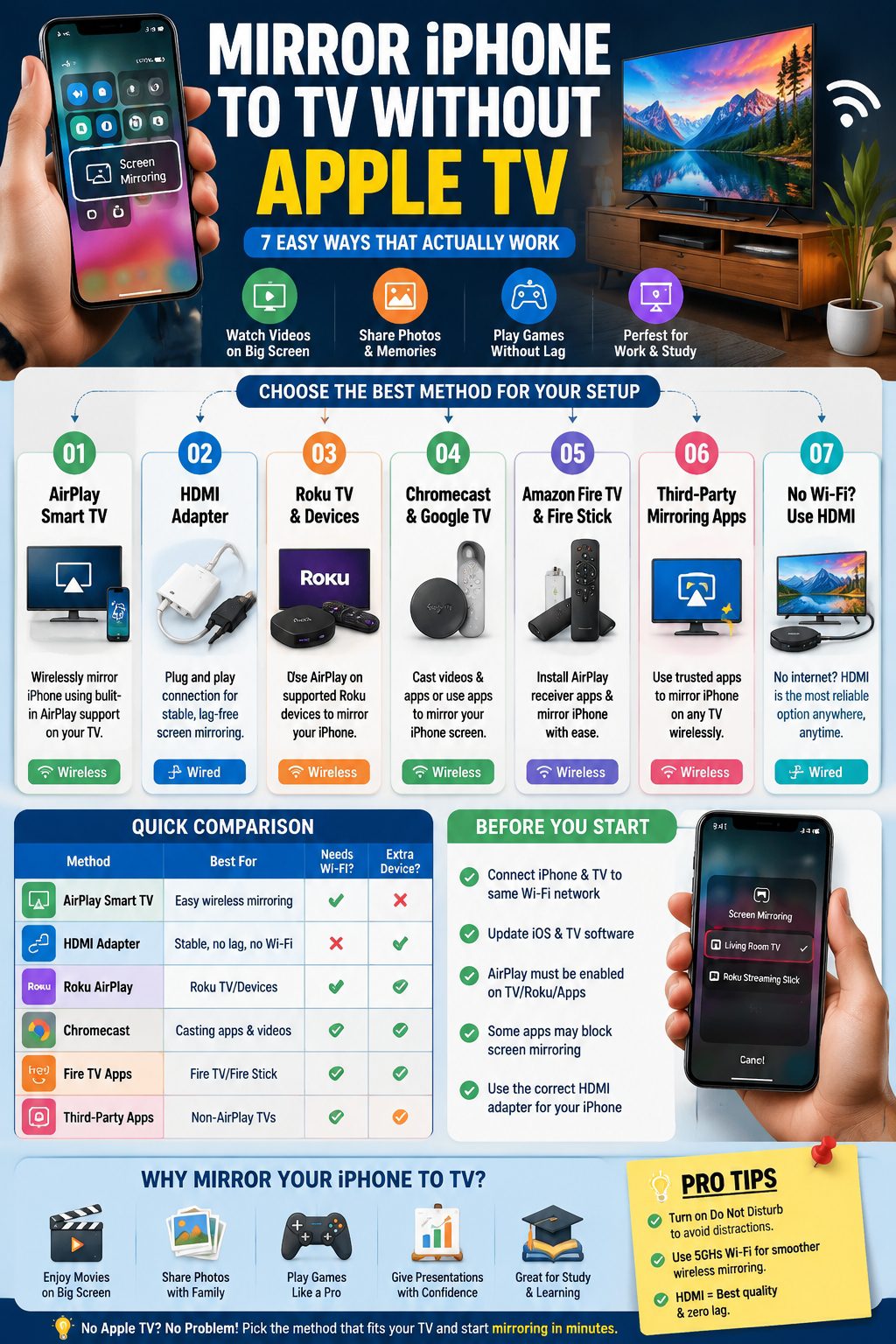
Best Ways to Mirror iPhone to TV Without Apple TV
Before diving into the step-by-step instructions, here’s a quick snapshot of the main options:
|
Method |
Best For |
Wi-Fi Required? |
Extra Device Needed? |
Main Limitation |
|
AirPlay Smart TV |
Wireless ease |
Yes |
No |
TV must support AirPlay |
|
HDMI Adapter |
Stability & no Wi-Fi |
No |
Yes |
Cable required, less portable |
|
Roku AirPlay |
Roku owners |
Yes |
Roku device/TV |
Only supported Roku models |
|
Chromecast |
App casting |
Usually yes |
Chromecast |
Full iPhone screen mirroring may need apps |
|
Fire TV Apps |
Fire TV users |
Yes |
App installed |
Might require third-party receiver app |
|
Third-Party Apps |
Non-AirPlay TVs |
Yes |
App installed |
Lag, ads, or paid features |
What Does “Mirror iPhone to TV” Actually Mean?
Mirroring can be confusing. It’s not the same as casting, and understanding the difference helps you choose the right method.
Screen Mirroring
Screen mirroring displays exactly what’s on your iPhone screen on the TV. Photos, apps, websites, games, and video calls all appear in real time.
Casting
Casting only streams content from supported apps. Your TV plays the video or audio, while the iPhone works as a remote. YouTube and Netflix support casting, but it doesn’t show your full iPhone interface.
Why This Difference Matters
Some people use the word “mirror” when they mean “cast.” It’s important to clarify because Chromecast, Roku, and other devices might only support app casting without additional apps.
Before You Start: Check These Things First
Check Your TV Type
Identify your TV system:
- AirPlay-compatible smart TV
- Roku TV or Roku Stick
- Chromecast / Google TV
- Fire TV or Fire Stick
- Standard HDMI TV
Check Your iPhone Port
Your iPhone port affects adapter choice:
- Lightning port → Lightning Digital AV Adapter
- USB-C port → USB-C to HDMI adapter
Same Wi-Fi Network
AirPlay and most wireless methods require iPhone and TV to be on the same Wi-Fi network.
Update Devices
Keep iOS and TV firmware updated to avoid compatibility issues.
App Restrictions
Some apps block mirroring due to copyright protections. Don’t worry—it’s normal.
Method 1: Mirror iPhone to AirPlay-Compatible Smart TV
When This Works Best
AirPlay-compatible TVs from Samsung, LG, Sony, Vizio, and TCL can mirror your iPhone screen without extra devices.
Step-by-Step Instructions
- Turn on the TV.
- Connect iPhone and TV to the same Wi-Fi.
- Open Control Center on iPhone.
- Tap Screen Mirroring.
- Select the TV name.
- Enter AirPlay code if prompted.
- Wait for your iPhone screen to appear.
How to Stop Mirroring
Open Control Center → Screen Mirroring → Stop Mirroring.
Common Problems and Fixes
|
Issue |
Fix |
|
TV not appearing |
Check Wi-Fi network, AirPlay settings, restart devices |
|
Lag or choppy video |
Reduce distance to router, close background apps |
|
Black screen on certain apps |
Some apps block mirroring, use native TV app |
Method 2: Mirror iPhone With an HDMI Adapter
Why HDMI Works Best
Wired connections don’t depend on Wi-Fi. Perfect for presentations, travel, or classrooms.
What You Need
- Lightning iPhones → Lightning Digital AV Adapter + HDMI cable
- USB-C iPhones → USB-C to HDMI adapter + HDMI cable
- TV with HDMI port
Step-by-Step Instructions
- Connect adapter to iPhone.
- Plug HDMI cable into adapter.
- Connect cable to TV.
- Switch TV input to HDMI.
- iPhone screen should display on TV.
Best Use Cases
- Watching downloaded videos
- Family photo sharing
- Presentations in classrooms or offices
- Travel without Wi-Fi
Read Also: Top 5 Apple TV Sleep Timer Advantages in 2024
Things to Consider
- Phone stays connected via cable
- Some apps may limit playback
Method 3: Mirror iPhone to Roku Without Apple TV
Compatibility
Supported Roku devices and Roku TVs work with AirPlay.
Step-by-Step Instructions
- Turn on Roku TV/device.
- Go to Settings → Apple AirPlay & HomeKit.
- Turn on AirPlay.
- Ensure iPhone and Roku share the same Wi-Fi.
- Open Control Center → Screen Mirroring.
- Select Roku device → Enter code if prompted.
Troubleshooting
- Missing AirPlay option → Update Roku firmware
- Device not detected → Check Wi-Fi network
- Guest networks may block discovery
Method 4: Mirror iPhone With Chromecast or Google TV
What Works
You can cast directly from apps that support Chromecast (YouTube, Netflix, etc.).
How to Cast
- Connect iPhone and Chromecast to same Wi-Fi.
- Open app → Tap Cast icon → Select device.
- Play video/audio.
Full Screen Mirroring
Requires third-party apps; native iPhone mirroring isn’t fully supported.
Limitations
- Some apps may not cast
- Third-party apps can introduce lag or ads
Method 5: Mirror iPhone to Amazon Fire TV
Why Fire TV Needs Special Setup
Fire TV doesn’t natively support full iPhone screen mirroring. AirPlay receiver apps are required.
Step-by-Step
- Install AirPlay receiver app on Fire TV.
- Connect iPhone and Fire TV to same Wi-Fi.
- Open app → Control Center → Screen Mirroring → Select Fire TV.
Things to Watch
- Ads or subscription prompts
- Lag may occur
- Check app reviews before installing
Method 6: Use Third-Party Mirroring Apps
When They’re Useful
- Non-AirPlay TVs
- Wireless mirroring without adapters
Common Apps
- Smart TV mirroring apps
- DLNA sharing apps
- Chromecast mirroring apps
Things to Consider
- Free apps may add ads or watermarks
- Some only mirror photos/videos, not full screen
- Performance varies by app
Method 7: Mirror iPhone Without Wi-Fi
HDMI adapters are the simplest no-Wi-Fi solution. Steps are identical to Method 2. Best for hotels, classrooms, and offices.
Mirror iPhone by TV Brand
|
TV Brand |
Method |
|
Samsung |
AirPlay if supported; otherwise HDMI or third-party app |
|
LG |
AirPlay supported on newer models; update firmware |
|
Sony |
AirPlay or HDMI; newer Google/Android TVs compatible |
|
TCL |
Roku TV → AirPlay; Google TV models follow Chromecast steps |
|
Vizio |
AirPlay supported on selected models |
Choosing the Right Method
|
Situation |
Recommended Method |
|
Smart TV with AirPlay |
AirPlay |
|
Old TV or no Wi-Fi |
HDMI adapter |
|
Roku user |
AirPlay via Roku |
|
Chromecast owner |
Cast apps or third-party mirroring |
|
Fire TV user |
AirPlay receiver app or HDMI |
|
Quick family sharing |
AirPlay or HDMI |
|
Office presentation |
HDMI or AirPlay |
Common Problems & Fixes
|
Problem |
Fix |
|
TV not showing up |
Same Wi-Fi, restart devices, check AirPlay |
|
Audio plays on iPhone only |
Check AirPlay target, app settings, HDMI connection |
|
Black screen on apps |
Some apps block mirroring; use native TV app |
|
Laggy video |
Improve Wi-Fi, reduce distance, close apps |
|
Aspect ratio issues |
Adjust TV or app settings |
Privacy & Security Tips
- Turn on Focus Mode / Do Not Disturb
- Avoid mirroring sensitive content
- Disconnect when done
- Use trusted apps only
Final Thoughts
Mirroring your iPhone to a TV without Apple TV is easier than it seems. AirPlay is convenient for wireless sharing, HDMI is most reliable for no-Wi-Fi situations, and Roku, Chromecast, or Fire TV expand your options. By understanding your devices, ports, and app compatibility, you can mirror your iPhone quickly and securely, whether at home, work, or on the go. Mirroring iPhone to TV has never been this flexible.
FAQs
Can I mirror iPhone to TV without Apple TV?
Yes. AirPlay TVs, HDMI adapters, Roku, Chromecast, Fire TV apps, and third-party apps all work.
Can I mirror without Wi-Fi?
Yes. HDMI adapters are the best no-Wi-Fi solution.
Why isn’t my TV showing in Screen Mirroring?
iPhone and TV may be on different networks, AirPlay off, or devices need restart/updates.
Can I mirror to Chromecast?
iPhone can cast supported apps; full-screen mirroring needs third-party apps.
Can I mirror to Roku?
Yes, if Roku supports AirPlay. Turn it on in Settings → Apple AirPlay & HomeKit.
Why does some content show black?
Apps may block mirroring due to copyright. Try native TV apps or HDMI.