
We’ve all been there—Firefox opens, but websites crawl. Images load late, tabs freeze, and sometimes Chrome or Edge feels snappier. If you’ve noticed Firefox slow loading pages, you’re not alone. The reasons can range from outdated browser files, heavy extensions, or overloaded cache to DNS settings, hardware acceleration, or a damaged profile.
This guide walks you through 7 easy, safe, and practical fixes. Whether you’re on Windows, macOS, or Linux, these steps are designed for real users, not tech gurus. We’ll cover everything from simple cache clearing to creating a new profile, helping you speed up Firefox without breaking your bookmarks or passwords.
Why Firefox Pages Load Slowly
Firefox slow loading can happen for multiple reasons:
- Corrupted cache slowing down content rendering.
- Overloaded cookies causing login delays.
- Extensions or themes interfering with scripts.
- Outdated browser lacking performance improvements.
- Hardware acceleration conflicts on some systems.
- DNS, proxy, or VPN issues delaying connections.
- Profile corruption from years of data accumulation.
Common Signs of Firefox Slow Loading
- Pages stay blank for several seconds.
- Images or videos load late.
- Certain websites fail to load while others work fine.
- Firefox feels slower after an update.
- Tabs freeze or respond sluggishly.
Before You Start
Test the same page in another browser. Restart your router. Check internet speed. If all browsers are slow, the issue is likely network-related rather than Firefox-specific.
Fix 1: Restart Firefox and Update It
Restarting Firefox can clear temporary glitches, free memory, and reset slow processes. Updating ensures you’re on the latest performance patches.
How to Restart Firefox Properly
- Save your work and close tabs.
- Exit Firefox completely.
- Wait a few seconds and reopen.
- Test the slow pages again.
How to Update Firefox
|
Step |
Action |
|
1 |
Open Firefox menu → Help → About Firefox |
|
2 |
Let Firefox check for updates automatically |
|
3 |
Restart Firefox if an update installs |
Note: Linux users may need to update via package manager or Flatpak/Snap depending on installation method.
When This Fix Works Best
- After long sessions without reboot.
- Following a failed or pending update.
- When the browser hasn’t been updated for months.
Fix 2: Clear Firefox Cache and Cookies
Old cache can hold broken scripts, causing pages to hang. Cookies overloaded with data can slow login-heavy websites.
Clear Cache Only
|
Step |
Action |
|
1 |
Settings → Privacy & Security → Clear Data |
|
2 |
Select Cached Web Content only |
|
3 |
Clear and reload page |
Clear Cookies for a Single Site
- Settings → Privacy & Security → Manage Data.
- Search for the problem site.
- Remove selected cookies.
- Restart tab and sign in again.
Clear All Cookies (Optional)
Use this if multiple sites are slow. Warning: You’ll log out of most accounts.
Fix 3: Disable Problem Extensions and Themes
Extensions can inject scripts, block content, or monitor web traffic, slowing page loads.
Use Troubleshoot Mode
- Menu → Help → Troubleshoot Mode → Restart
- Test the slow pages.
- If pages load faster, an extension or theme is causing the problem.
Read Also: How to Recover Closed Tabs in Any Browser
Identify the Problem Extension
- Disable all extensions.
- Re-enable one by one.
- Test pages after each.
- Remove or replace the culprit.
Extensions That Often Affect Speed
- Ad blockers / script blockers
- VPN or proxy tools
- Shopping / coupon extensions
- Download helpers
- Translation or grammar tools
Fix 4: Adjust Performance Settings and Hardware Acceleration
Hardware acceleration uses your GPU to render content. On some setups, it slows Firefox instead of speeding it up.
Turn Off Hardware Acceleration
|
Step |
Action |
|
1 |
Settings → General → Performance |
|
2 |
Uncheck “Use recommended performance settings” |
|
3 |
Uncheck “Use hardware acceleration” |
|
4 |
Restart Firefox and test pages |
When Hardware Acceleration Slows Browsing
- Old graphics drivers
- Low-end laptops
- External monitors
- Media-heavy websites
Fix 5: Check Network Settings (DNS, Proxy, VPN)
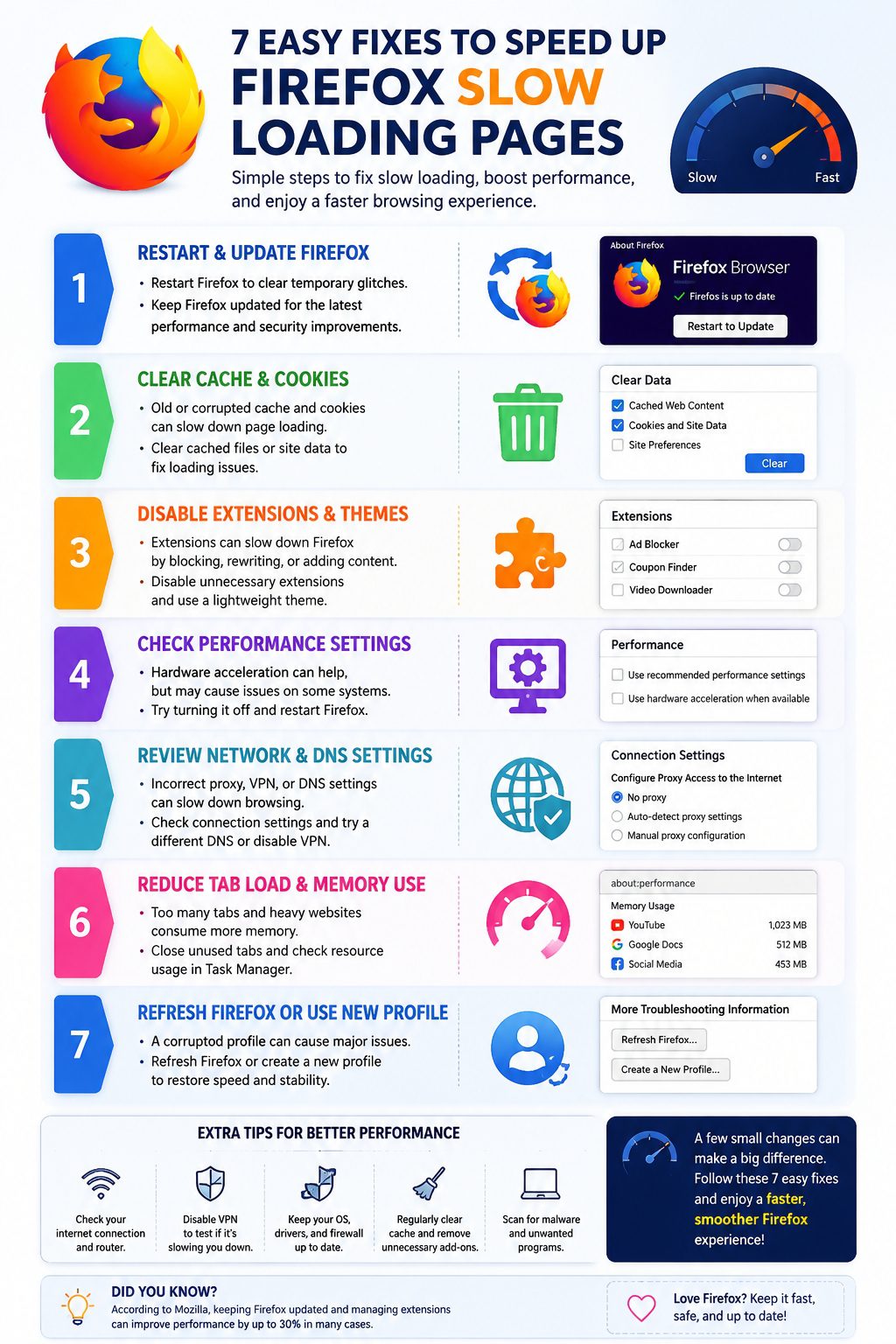
Slow loading may come from how Firefox connects to the internet.
Proxy Settings
- Settings → General → Network Settings → Settings
- Choose “No proxy” unless required by work network
VPN
Disconnect temporarily to test page speed. Slow VPN servers can cause lag.
DNS Over HTTPS
Test different settings to see if pages load faster. Keep the one that works best.
Security Software Interference
Antivirus, firewall, or HTTPS scanning may inspect traffic and slow pages. Check if recent updates coincide with slow performance.
Fix 6: Reduce Tab Load and Memory Use
Heavy tabs and full memory can slow Firefox.
Close Heavy Tabs
- Video platforms, maps, analytics dashboards, large web apps consume memory.
Check System Resource Usage
- Use Task Manager (Windows) or Activity Monitor (macOS)
- Identify high CPU/memory usage
Firefox Task Manager
- Type about:performance in the address bar
- Close or reload high-resource tabs or extensions
Fix 7: Refresh Firefox or Create a New Profile
Profile corruption can make Firefox sluggish.
Refresh Firefox
- Menu → Help → More Troubleshooting Information → Refresh Firefox
- Keeps bookmarks, passwords, and history
- Removes extensions and settings
Create a New Profile
- Type about:profiles
- Create new profile → test page load
- If faster, old profile has issues
Reinstall Firefox (Optional)
Only if program files may be damaged. Combine with a new profile for best results.
Extra Checks
- Test Private Window to bypass cookies and cache.
- Try a different network or mobile hotspot.
- Scan for malware, browser hijackers, or background apps.
- Confirm if the website itself is slow (heavy scripts or ads).
Quick Troubleshooting Checklist
- Restart Firefox
- Update Firefox
- Test in another browser
- Clear cache
- Clear cookies (site-specific)
- Test Troubleshoot Mode
- Disable extensions one by one
- Turn off hardware acceleration
- Check proxy/DNS/VPN
- Close heavy tabs
- Use Firefox Task Manager
- Refresh Firefox
- Test new profile
Final Thoughts
Start simple: restart, update, clear cache, and test pages. Then tackle extensions, performance settings, and profiles. Firefox slow loading often comes from a single bad extension, network setting, or corrupt profile. Take one step at a time. You don’t need to reset everything at once, and small changes usually give the biggest boost.
FAQs About Firefox Slow Loading
Why is Firefox slow but Chrome is fast?
Different extensions, cache, or privacy settings can cause the difference.
Does clearing cache make Firefox faster?
Yes, when old files are causing page delays.
Can extensions slow page loading?
Yes, especially ad blockers, script blockers, or VPN extensions.
Should I refresh Firefox if pages are slow?
Refresh is safe when simpler fixes fail; it keeps bookmarks and passwords.
Why is Firefox slow after an update?
It may be extensions, cache, or security software interference.
Is slow browsing always Firefox’s fault?
No, network speed, router issues, or the website itself can cause slow loading.
How to speed up Firefox without losing data?
Update, clear cached content, disable unnecessary extensions, close heavy tabs, and test Troubleshoot Mode.