
Ever tried connecting your headphones or Magic Mouse to your Mac, only to realize nothing works? If you’ve landed here, chances are you’re frustrated because macos bluetooth not working and you need a quick, reliable fix.
Bluetooth issues on Mac can pop up out of nowhere. Maybe it’s a temporary software glitch, a low accessory battery, or a device that’s stuck connecting to another gadget. Sometimes it’s interference from other wireless devices, outdated macOS software, or corrupted Bluetooth settings. Whatever the reason, the good news is most problems are fixable without calling Apple.
This guide walks you through 9 practical solutions—from the simplest quick fixes to advanced troubleshooting—so you can get your AirPods, Magic Mouse, Magic Keyboard, or other Bluetooth devices working smoothly again.
Why macOS Bluetooth Stops Working
Understanding why Bluetooth misbehaves on Mac makes troubleshooting faster. Problems usually stem from either software or accessory issues.
Common Causes Behind Mac Bluetooth Problems
- Bluetooth is off or stuck after sleep mode
- Accessory isn’t in pairing mode
- Device already connected to another phone or computer
- Low accessory battery
- macOS needs an update
- Wireless interference from Wi-Fi, USB hubs, or other devices
- Glitches in Bluetooth preference files
- Too many old paired devices
- Accessory hardware problems
- Mac’s Bluetooth module may be faulty
|
Cause |
Description |
Common Symptom |
|
Bluetooth turned off |
Bluetooth might disable after sleep |
Devices not showing in settings |
|
Accessory not in pairing mode |
Device not discoverable |
Unable to connect |
|
Low battery |
Devices fail intermittently |
Connection drops, lag |
|
Outdated macOS |
Fixes missing in old version |
Random disconnects, pairing fails |
|
Interference |
2.4 GHz devices, USB hubs |
Audio cuts, mouse lags |
|
Corrupt preference file |
macOS cache glitch |
Devices appear but unresponsive |
Quick Symptoms Users May Notice
- Toggle for Bluetooth won’t respond
- Device doesn’t appear in settings
- AirPods connect but no audio
- Magic Mouse disconnects frequently
- Keyboard lags or stops typing
- Speakers connect but cut out randomly
- Devices vanish after macOS update
Before You Start: Quick Checks
Check the Basics
Before diving deep, make sure you cover these quick wins:
- Restart your Mac
- Turn the Bluetooth accessory off and on
- Charge the device
- Move it closer to the Mac
- Remove metal objects or USB hubs around the device
- Test the accessory on another device
- Keep a wired mouse or built-in trackpad handy
Check Your macOS Version
Go to Apple Menu → About This Mac. Some steps vary slightly depending on whether you’re running Sonoma, Ventura, or older macOS.
|
Check |
Why It Matters |
|
Accessory charged |
Devices with low battery disconnect or fail to pair |
|
macOS updated |
Fixes bugs and compatibility issues |
|
Proximity |
Bluetooth works best within ~10m |
|
Wired backup |
Ensures navigation if mouse/keyboard fails |
9 Solutions When macOS Bluetooth Is Not Working
1. Turn Bluetooth Off and On Again
This simple step often fixes temporary glitches.
Steps:
- Click Control Center → Bluetooth
- Turn Bluetooth off
- Wait 10–15 seconds
- Turn it back on
- Try reconnecting your device
|
Tip |
When It Works |
|
Restart if toggle is unresponsive |
Fixes sleep-mode glitches |
|
Use built-in trackpad temporarily |
For mouse connection failures |
2. Restart Your Mac and Bluetooth Device
Restarting clears minor software conflicts.
Read Also: Mac Won’t Connect to WiFi: Quick Fix Guide for 2026
Steps:
- Disconnect accessory
- Turn device off
- Restart Mac
- Turn accessory back on
- Reconnect
|
Benefit |
Common Issue Fixed |
|
Clears temporary cache |
Device connects but unresponsive |
|
Resets hardware handshake |
Magic Mouse lag |
3. Ensure Device Is Charged and in Pairing Mode
Many issues are accessory-side, not macOS.
AirPods: Ensure case and AirPods are charged and in pairing mode.
Magic Mouse/Keyboard: Check power switch, battery, and pairing cable if supported.
|
Device |
Key Checks |
|
AirPods |
Case charged, hold button to pair |
|
Magic Mouse |
Power switch on, clean sensor |
|
Magic Keyboard |
Fully charged, connect via cable if pairing fails |
4. Forget and Re-Pair the Device
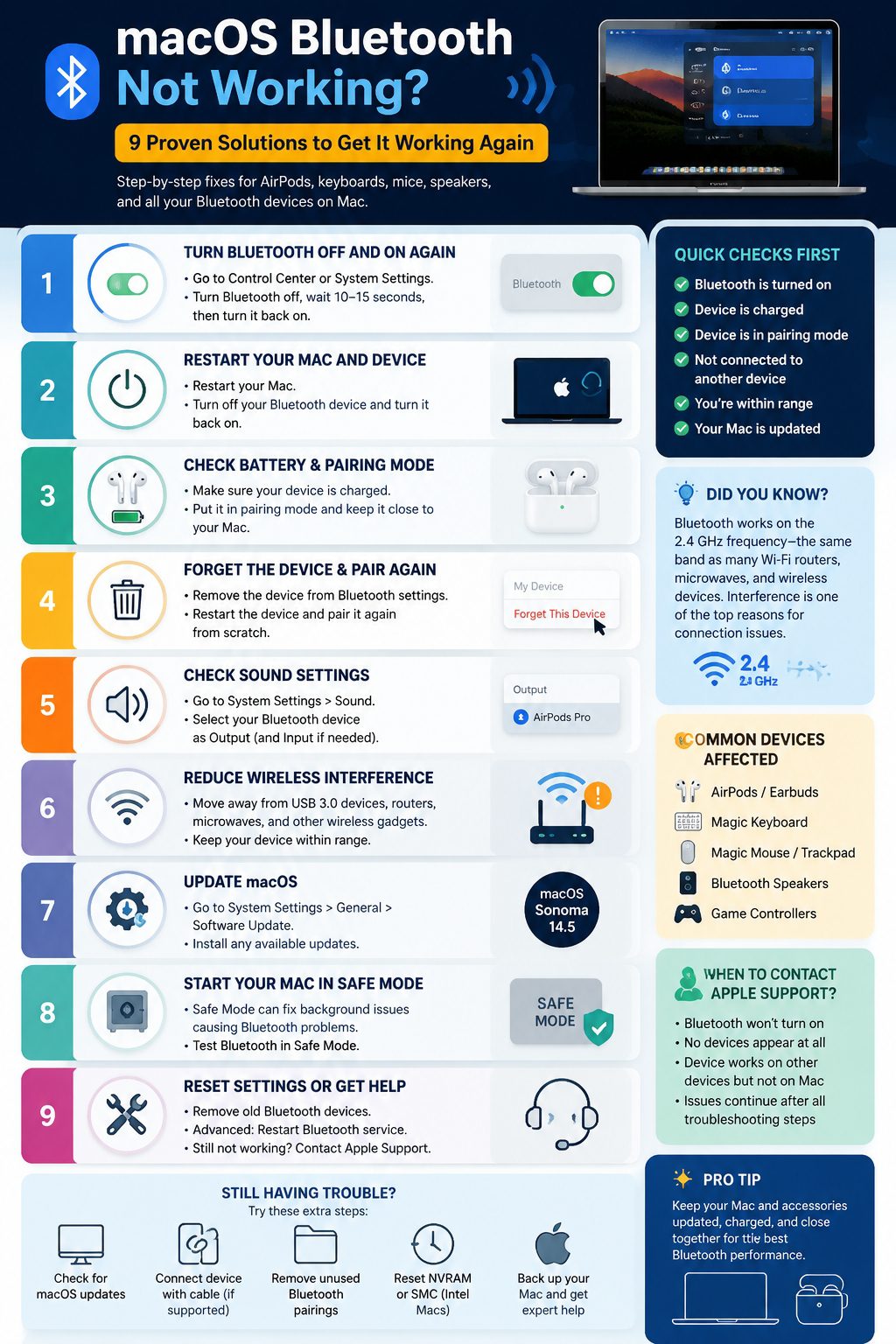
Steps:
- System Settings → Bluetooth
- Find the device → Forget This Device
- Restart accessory → Re-pair
|
Situation |
Why It Works |
|
Device connects but doesn’t respond |
Clears corrupted pairing info |
|
Device keeps disconnecting |
Forces a fresh connection |
5. Check Sound Settings for Bluetooth Audio
Steps:
- System Settings → Sound → Output
- Select Bluetooth device
|
Symptom |
Fix |
|
AirPods connected, no sound |
Change output to device |
|
Speaker silent |
Disconnect from other devices |
6. Reduce Wireless Interference
Common Interference Sources:
- USB hubs & cables
- External drives
- Microwave ovens
- Multiple Wi-Fi/Bluetooth devices
Steps:
- Move device closer
- Keep USB hubs away
- Disconnect unused devices
|
Interference |
Effect |
|
USB 3.0 hubs |
Causes audio dropouts |
|
Metal surfaces |
Mouse sensor issues |
7. Update macOS
Steps:
- Apple Menu → System Settings → General → Software Update
- Install updates
- Restart
|
Benefit |
When It Helps |
|
Fixes Bluetooth bugs |
Post-update disconnects |
|
Improves compatibility |
New AirPods or speakers |
8. Boot Mac in Safe Mode
Apple Silicon: Hold power → Startup options → Shift → Continue in Safe Mode
Intel Mac: Hold Shift during restart
|
Advantage |
Typical Use |
|
Isolate background app conflicts |
Bluetooth works in Safe Mode but not normal mode |
9. Reset Bluetooth Settings / Contact Apple Support
Steps:
- Forget unused devices
- Restart Bluetooth service (advanced users only)
- Check for hardware issues
|
Tip |
When to Contact Support |
|
Device works elsewhere |
Mac hardware might be faulty |
|
Bluetooth won’t turn on |
Persistent failure after Safe Mode |
Device-Specific Fixes
AirPods
- Charge fully
- Pair in case
- Forget & re-pair
Magic Mouse
- Charge or replace batteries
- Clean sensor
- Forget & re-pair
Magic Keyboard
- Check battery
- Connect via cable
- Remove old pairings
Bluetooth Speakers
- Select output in Sound settings
- Increase device volume
- Disconnect other devices
|
Device |
Common Fixes |
Notes |
|
AirPods |
Forget & re-pair |
Works across Mac/iPhone conflicts |
|
Magic Mouse |
Sensor cleaning |
Avoid interference |
|
Speakers |
Output selection |
Check volume & app |
Quick Troubleshooting Checklist
- Bluetooth on
- Restart Mac & accessory
- Accessory charged
- Device in pairing mode
- Forget & re-pair old devices
- Check Sound output
- Reduce interference
- Update macOS
- Test in Safe Mode
- Contact Apple if still broken
FAQs About macOS Bluetooth Not Working
Why is my Mac not finding devices?
Accessory may not be in pairing mode or connected elsewhere.
Why does my Bluetooth keep disconnecting?
Low battery, interference, too many paired devices, or outdated macOS.
Can updating macOS fix Bluetooth?
Yes, updates often fix software glitches and improve compatibility.
How do I reset Bluetooth on Mac?
Turn off/on, forget device, re-pair, or restart service (advanced).
AirPods connected but no sound – why?
Mac may still be using internal speakers; select output device in Sound settings.
When to contact Apple?
If Bluetooth never turns on, no devices show, or Safe Mode doesn’t help.
Final Thoughts
Most macos bluetooth not working issues are caused by simple glitches, low battery, or interference. Start with quick fixes, then move to Safe Mode and advanced troubleshooting if needed. With these steps, your devices—AirPods, Magic Mouse, or speakers—should be up and running smoothly. If nothing works, Apple Support can check hardware problems, saving you time and frustration.