
Are you tired of watching your battery percentage drop like a countdown timer? You are not alone. Dealing with pixel battery drain is a frustrating experience for many users. You wake up with a fully charged phone, send a few texts, and suddenly you are staring at a 70 percent battery before lunch. This issue spans across multiple generations, from older models to the latest Pixel 10 running Android 16. The good news is that you do not have to live tied to a charger. Most power issues stem from aggressive software defaults or temporary bugs like the recent CPU Doze issue from the March 2026 update.
You can regain control of your device endurance by adjusting a few hidden settings. In this guide, I will walk you through practical, step-by-step methods to stabilize your power consumption. We will cover everything from diagnosing background apps to tweaking network settings. Get ready to fix your pixel battery drain once and for all.
Understanding the Root Causes of Pixel Battery Drain
Before you start turning off every feature on your device, you need to understand what is actually consuming your power. Smartphones act like pocket-sized computers that never truly sleep. The processor, modem, and display constantly pull energy to keep you connected and updated. When these components work harder than necessary, your battery suffers. Let us break down the exact hardware and software factors driving this rapid power loss.
|
Root Cause |
Description |
Impact Level |
|
Software Updates |
System optimization right after an update |
High but temporary |
|
Cellular Modems |
Searching for weak 5G signals |
High and persistent |
|
High Refresh Displays |
Drawing 120 frames per second |
Moderate |
|
Background Processing |
Apps refreshing data constantly |
Moderate to High |
|
OS Bugs |
CPU failing to enter Deep Doze mode |
Extreme |
Software Updates and Optimization Periods
A very common trigger for battery anxiety happens right after you install a new monthly security patch or a major Android version drop. You reboot your phone, and suddenly it burns through its charge in half the normal time. This is normal behavior for the first day or two. When your system restarts after an update, it runs heavy background optimization tasks. The operating system recompiles app code to ensure everything runs smoothly with the new files. This process demands a lot of processing power and generates heat. Many users assume the update broke their phone and rush to factory reset it. The best thing you can do is wait. Leave the phone on a charger overnight and let it finish its housekeeping.
Cellular Modems and Signal Hunting
Since the move to custom Tensor chips, including the latest G5 processors, Google devices have sometimes struggled with modem efficiency. This flaw becomes obvious when you enter an area with terrible cell service. The modem refuses to accept defeat and constantly ramps up power to find a stronger signal. This network standby drain is a silent killer. Your phone might just sit in your pocket, yet the modem works overtime trying to connect to a distant tower. If you notice your device getting warm while doing nothing, signal hunting is likely the culprit.
High Refresh Rate Displays and Background Processing
Modern screens look incredible. Scrolling feels smooth because the display refreshes up to 120 times every single second. Pushing that many frames requires serious graphical power, which directly eats into your battery capacity. Combine that with the background activity of modern apps, and you have a recipe for rapid drain. Weather apps ping your GPS, social media platforms pull new feeds, and system features listen for audio cues. These tiny, constant power draws prevent the processor from resting.
How to Diagnose Your Pixel Battery Drain First
You cannot fix a problem if you do not know where it originates. Changing random settings blindly will only degrade your user experience without solving the core issue. Android gives you excellent built-in tools to monitor your power usage. By analyzing these metrics, you can separate hardware degradation from rogue software behavior. Here is how you can effectively track down the power vampires on your phone.
|
Diagnostic Tool |
What It Reveals |
Best Use Case |
|
Battery Usage Menu |
Total system and app drain |
Daily monitoring |
|
Screen Time Stats |
Active usage versus background drain |
Spotting rogue apps |
|
Safe Mode |
Isolates third-party software |
Testing hardware health |
Using the Built-In Battery Diagnostics Tool
Your first stop should always be your settings menu. Navigate to the battery section and open the battery usage dashboard. You want to check this page at the end of a long day when your charge is low. A healthy device will show the screen as the top consumer, followed by the apps you actually used. An unhealthy device will show system idle or mobile network taking up massive chunks of power. If the battery graph shows a steep drop during the night when you were sleeping, your phone is failing to enter deep sleep. Recent reports from early 2026 indicate a widespread CPU Doze bug preventing idle sleep, so spotting this early is crucial.
Identifying Rogue Applications
Beneath the main usage graph, you will see a list of individual applications. Pay close attention to the split between screen time and background time. A rogue app is one that you barely opened but somehow ran for hours in the background. For example, if a shopping app shows two minutes of active use but ten hours of background activity, you have found a problem. These apps get stuck in infinite loops, constantly waking the system to sync data. Pinpointing these offenders is the fastest way to restore your endurance.
Safe Mode Testing
Sometimes the usage graph does not point to an obvious culprit. In these cases, safe mode is your best diagnostic friend. Safe mode temporarily disables all the third-party apps you installed, running only the stock Google software. Bring up your power menu, tap and hold the restart button, and accept the prompt to boot into safe mode. Use your phone like this for half a day. If the battery drain completely stops, you know a downloaded app is causing your misery. If the device still dies rapidly, you are dealing with an operating system bug or a degraded lithium cell.
9 Proven Solutions to Fix Pixel Battery Drain
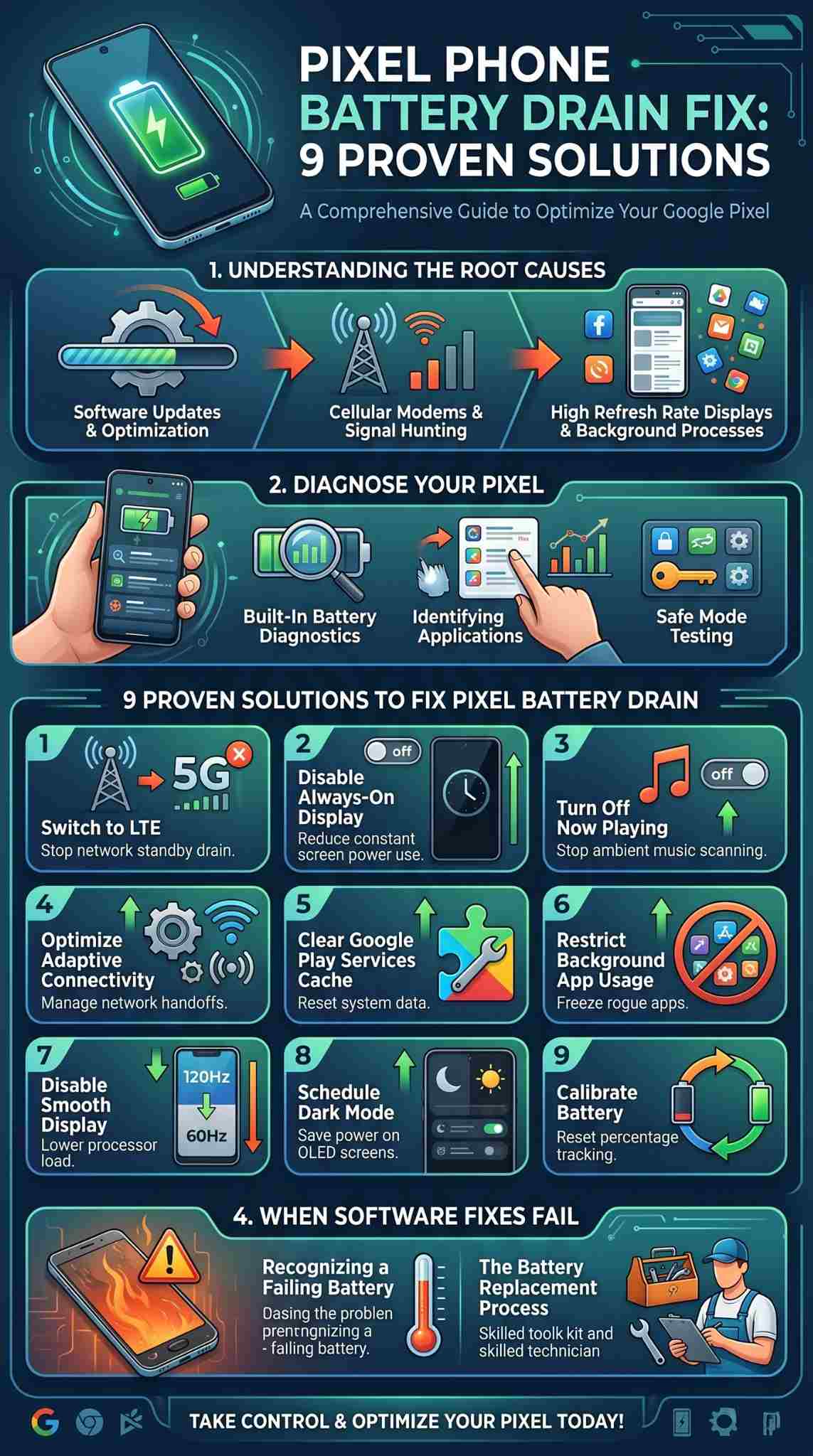
Now that you have diagnosed the issue, it is time to take action. You do not need to implement every single step below. Start with the most impactful changes, test your device for a day, and move down the list if you need further improvement. These strategies target the most common sources of pixel battery drain without ruining your smartphone experience. Let us optimize your settings for maximum endurance.
|
Solution |
Primary Benefit |
User Effort |
|
Switch to LTE |
Stops modem signal hunting |
Low |
|
Disable Always-On Display |
Reduces constant screen power draw |
Low |
|
Turn Off Now Playing |
Stops background audio processing |
Low |
|
Optimize Connectivity |
Prevents unnecessary network switching |
Low |
|
Clear Play Services Cache |
Fixes system syncing loops |
Medium |
|
Restrict Background Apps |
Freezes misbehaving software |
Medium |
|
Disable Smooth Display |
Lowers graphics processing load |
Low |
|
Schedule Dark Mode |
Saves power on OLED screens |
Low |
|
Calibrate Battery |
Resets software percentage tracking |
High |
Solution 1: Switch Preferred Network to LTE
Unless you live under a 5G tower, your phone is probably wasting energy. Weak 5G signals force the modem to work incredibly hard. For texting, browsing, and streaming music, a solid LTE connection is perfectly fine and much kinder to your power reserves. Open your network and internet settings, tap on your SIM, and find the preferred network type. Change it from 5G to LTE. Your phone will instantly run cooler, and you will retain much more charge while the device sits idle in your pocket.
Solution 2: Disable Always-On Display
Having the time and weather constantly visible on your locked screen is neat, but it comes with a cost. Even though OLED screens only light up the necessary pixels, the phone still has to remain partially awake to update the clock and check for notifications. Over a twelve-hour day, this consumes a noticeable chunk of power. Go to your display settings, navigate to the lock screen menu, and turn off the always show time and info toggle. You can enable lift to check phone instead, which keeps the screen totally dark until you physically pick up the device.
Solution 3: Turn Off the Now Playing Feature
Google devices have a magical ability to listen to ambient music and display the song title on the lock screen. To do this, the microphone and processor must stay active at all times. If you want your battery to last, you need to turn this off. Go to your sound and vibration settings, find Now Playing, and disable the background identification. You can add a manual song search button to your quick settings panel instead. This way, you only use power to identify a song when you actually want to know what is playing.
Solution 4: Optimize Adaptive Connectivity Settings
Adaptive connectivity tries to manage the handoff between Wi-Fi and cellular data to save power. However, if your Wi-Fi is spotty, this feature constantly switches radios on and off, which drains the battery faster. In Android 16, Google split this into two toggles. Go to your network and internet settings and find adaptive connectivity. Turn off the auto-switch to mobile network option. Leave the optimize network for battery life toggle turned on. This stops the aggressive radio switching while keeping the underlying power management active.
Solution 5: Clear Google Play Services Cache
Google Play Services controls all background syncing, location tracking, and push notifications. If it encounters a bug, it will spin out of control and drain your battery in hours. You cannot delete this core system app, but you can clear its temporary files. Open your settings, go to apps, and find Google Play Services. Tap on storage and cache, then hit the clear cache button. Restart your device immediately. This simple maintenance trick resolves countless sudden overheating and power drain issues.
Solution 6: Restrict Background App Usage
When you identify an app that hogs background power, you have to put limits on it. Go to your app settings and tap on the offending application. Open the battery usage menu. You will see options for unrestricted, optimized, and restricted. Change it to restricted. The operating system will now aggressively freeze the app the second you close it. It will stop refreshing data in the background entirely. Use this for social media and shopping apps, but avoid restricting essential messaging apps or you might miss important texts.
Solution 7: Disable Smooth Display
Running a screen at 120 frames per second is a luxury. If you are struggling to make it to the end of the day, you should cap the refresh rate. Navigate to your display settings and turn off the smooth display toggle. This locks the screen at 60 hertz. Animations will look slightly less fluid, but your graphics processor will work half as hard. This translates to massive power savings when you are actively reading articles or scrolling through endless feeds.
Solution 8: Schedule Dark Mode
OLED screens turn individual pixels completely off to display the color black. Using a dark interface is a literal energy saver. Go to your display settings and tap on dark theme. Instead of leaving it on permanently, use the scheduling feature. Set it to activate automatically from sunset to sunrise. This guarantees that your screen uses minimal power during the evening hours when your battery is already running low from the day. It is a passive change that yields excellent results.
Solution 9: Properly Calibrate Your Pixel Battery
Sometimes your physical battery is fine, but the software tracking the voltage gets confused. This causes the phone to shut down randomly when it still shows a ten percent charge. To fix this, you must recalibrate the software. Let your phone die completely until it powers off. Leave it alone for an hour. Then, plug it into a high-quality charger and do not turn it on. Let it charge to one hundred percent and leave it plugged in for an extra hour. Unplug it and turn it on. Your system software will now accurately read the true capacity of the cell.
When Software Fixes Fail: Hardware and Replacement
You can optimize every single setting in the operating system, but you cannot defeat physics. Lithium-ion batteries degrade over time. Every charge cycle wears down the internal chemistry, reducing the total amount of energy the cell can hold. If you have followed all the software steps and your phone still dies by lunchtime, you need to look at software behavior. Recognizing a failing component early can save you from a complete device failure.
|
Hardware Indicator |
Symptom |
Action Required |
|
Rapid Discharging |
Battery drops in huge chunks |
Plan for replacement |
|
Excessive Heat |
Phone burns hot during basic use |
Monitor closely |
|
Physical Swelling |
Screen or back panel lifting |
Power down immediately |
Recognizing a Failing Battery
A typical smartphone battery lasts about two to three years before its total capacity drops below eighty percent. You will notice the degradation in your daily usage. The battery percentage might jump from forty percent straight down to fifteen percent in a matter of minutes. The device will also get unusually hot doing simple tasks like sending an email because the degraded cell is working inefficiently. The most dangerous sign is a swollen battery. If the back glass starts popping off or the screen feels spongy, the battery has bloated with toxic gas. Turn the device off immediately to prevent a fire hazard.
The Battery Replacement Process
Swapping a battery is no longer a simple task you can do at the kitchen table. Modern devices use intense industrial adhesives to maintain water resistance. The process involves heating the phone to soften the glue, carefully slicing open the glass panel, and removing fragile ribbon cables. Google secures the internal battery with heavy stretch-release strips that break easily. Technicians often have to use chemical solvents to free the old battery without puncturing the pouch. Because the risk of damaging the display is so high, you should absolutely take your phone to a certified repair shop for a professional replacement.
Final Thoughts
Dealing with a phone that cannot hold a charge is incredibly stressful, but it is rarely a permanent death sentence for your device. By taking a methodical approach, you can isolate the problem and apply targeted fixes. Start by evaluating your system usage charts and making the simple network adjustments we discussed. Whether you restrict a rogue background app or simply turn off the always-on display, these small changes add up to massive power savings. Keep your system updated to catch important bug patches, and remember that sometimes a physical hardware replacement is the only logical step. Take control of your settings today and permanently fix your pixel battery drain.
Frequently Asked Questions (FAQs)
When dealing with complex power issues, users often have highly specific concerns. Many people wonder if their charging habits are causing permanent damage or if new software features are to blame. Below are some of the most common and uncommon questions regarding device endurance. These answers address recent updates and long-term hardware care to keep your phone running smoothly.
|
FAQ Topic |
Core Answer |
|
AI Features |
Contextual suggestions can cause slight drain |
|
Update Bugs |
The March 2026 CPU Doze bug is widespread |
|
Fast Charging |
Heat degrades the battery, not the speed itself |
Does the new Contextual Suggestions AI feature drain the battery?
Yes, it can. Introduced in Android 16, this AI feature constantly analyzes your location and activity to suggest playlists or smart home actions. Because it runs background algorithms and checks your GPS, it uses power. You can mitigate this by turning off the device location permission for this specific feature under the developer services menu.
Why is my Pixel draining so fast after the March 2026 update?
You are likely experiencing the CPU Deep Doze bug. A massive software glitch in the March 2026 update prevents the processor from sleeping when the screen is off. It forces the system to run continuously, causing massive standby drain and heat. Google is aware of the issue. While clearing the Google Play Services cache helps some users temporarily, a permanent fix requires an upcoming software patch from Google.
Does fast charging permanently ruin my battery health?
The fast charging process itself is safe, but the heat it generates is not. Lithium cells hate extreme temperatures. If you fast charge your phone while playing a heavy game or leaving it in a hot car, that combined heat will permanently degrade the chemical capacity much faster than normal.
Should I keep Adaptive Charging turned on?
You absolutely should. Adaptive Charging is brilliant. When you plug your phone in at night with an alarm set, it charges to eighty percent and stops. It waits until just before your alarm goes off to fill the remaining twenty percent. This prevents the cell from sitting at maximum voltage for eight hours, which drastically extends the overall lifespan of the hardware.