
Deleting an Instagram chat by mistake feels terrible, especially when the conversation had something important inside it. Maybe it was a work lead, a payment detail, a travel plan, a saved address, a personal memory, or a message you simply did not mean to lose.
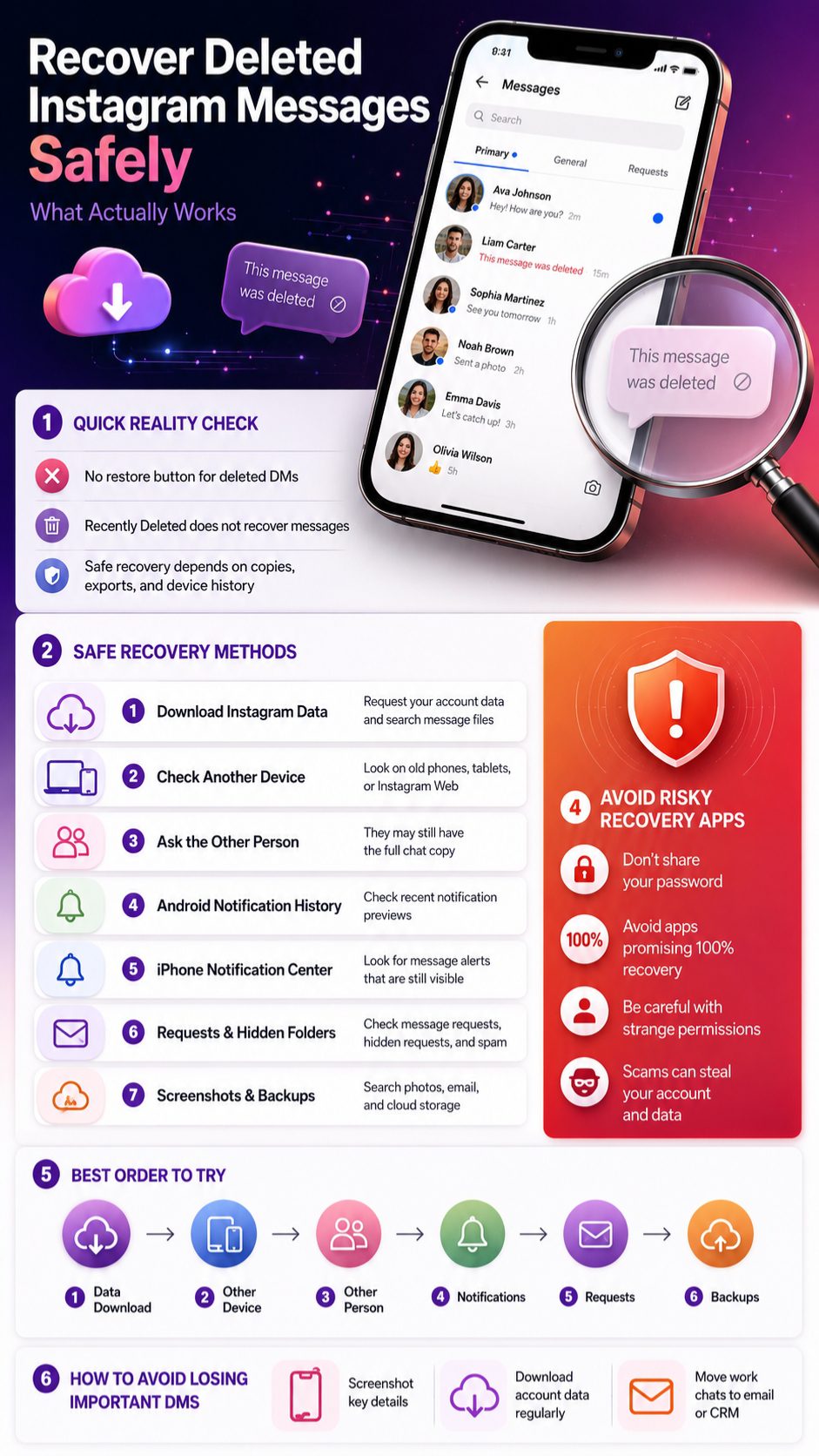
That is why so many people search for how to recover deleted instagram messages. The honest answer is this: Instagram does not give users a simple recycle bin for deleted DMs. There is no magic “restore chat” button inside the app. But that does not mean every option is gone.
You may still be able to find old message data through Instagram’s official data download, another logged-in device, phone notifications, screenshots, backups, or the other person’s copy of the chat. The key is to avoid risky recovery apps and start with safe methods first.
Can You Really Recover Deleted Instagram Messages?
You can sometimes recover parts of deleted Instagram messages, but not always from inside the Instagram app itself. Instagram’s official help page says deleted messages cannot be restored through the Recently Deleted feature, which is made for deleted posts, reels, videos, and stories. Content in Recently Deleted is usually kept for up to 30 days, while some stories may only stay for 24 hours. That means DM recovery works differently from photo or reel recovery.
|
Key Question |
Honest Answer |
|
Can deleted Instagram DMs be restored inside the app? |
Usually no |
|
Does Recently Deleted recover messages? |
No |
|
Can Instagram data download help? |
Sometimes |
|
Can the other person still have the chat? |
Yes, in many cases |
|
Are recovery apps safe? |
Many are risky |
What Instagram Allows
Instagram lets users download or export a copy of their information through Accounts Center. That data may include message-related information, depending on the account, date range, and available records. This is the safest place to start because it does not require giving your password to a third-party tool.
What Instagram Does Not Promise
Instagram does not promise that every deleted DM will appear in your downloaded file. If a message was deleted, unsent, removed long ago, or tied to a changed account state, it may not show up. So the goal is not to expect a perfect restore. The goal is to check every safe place where a copy may still exist.
Why You Should Be Careful
Many websites and apps promise instant Instagram DM recovery. Be careful with those claims. Any tool asking for your Instagram password, recovery code, or full device access can put your account and private data at risk.
Before You Try to Recover Deleted Instagram Messages
Before you begin, understand what kind of message loss happened. A deleted conversation is not the same as an unsent message. A hidden message request is not the same as a deleted chat. A restricted account can also make a conversation harder to notice.
Instagram says deleting a chat removes it from your inbox, but it may still appear for other people in the conversation. That is why asking the other person for a copy is often more realistic than trying random recovery software.
|
Situation |
What It Means |
Recovery Chance |
|
You deleted the whole chat |
Removed from your inbox |
Medium if other person still has it |
|
A message was unsent |
Removed from the conversation |
Low |
|
Chat moved to requests |
Not deleted, just filtered |
High |
|
Message appeared in notification |
May still be in notification history |
Medium |
|
Chat was in Vanish Mode |
Designed to disappear |
Low |
Deleted Chat vs Deleted Message
A deleted chat usually means the full conversation disappeared from your inbox. A deleted message may mean only one message was removed. Instagram also has “Delete for you” and “Unsend” actions, and they do not behave the same way.
Unsent Messages Are Harder to Recover
Instagram says when you unsend a message, it is no longer visible to people included in the chat. That makes unsent messages harder to recover than conversations that were only deleted from your own inbox.
Recently Deleted Is Not for DMs
This is the mistake many users make. Instagram’s Recently Deleted section helps recover deleted content like posts, reels, videos, and stories. It does not work like a deleted-message folder for Instagram Direct messages.
Method 1: Use Instagram Data Download
The best first step is Instagram’s official data download. It is safer than using unknown apps and gives you a copy of information tied to your account. It may not recover every deleted message, but it is the most trustworthy method to try first.
Instagram allows users to export account information from Accounts Center. Users can choose the account, type of data, date range, file format, and download method. For most readers, HTML is easier to open and read. JSON is better for people who are comfortable searching raw data files.
|
Step |
What to Do |
Why It Matters |
|
1 |
Open Instagram settings |
Starts from your own account |
|
2 |
Go to Accounts Center |
Meta manages data access there |
|
3 |
Select Your information and permissions |
This area includes export tools |
|
4 |
Choose Instagram information |
Helps avoid downloading unrelated data |
|
5 |
Select messages if available |
Keeps the file focused |
|
6 |
Choose HTML or JSON |
HTML is easier, JSON is more technical |
|
7 |
Download and search the file |
Look for inbox or message folders |
How to Request Your Instagram Data
Open Instagram and go to your profile. Tap the menu icon and look for Accounts Center. From there, find Your information and permissions, then choose the option to download or export your information.
Pick the Instagram account you want to check. This matters if you manage more than one profile. Then choose the information type, date range, and format. If you only need messages, keep the export focused instead of downloading everything.
HTML or JSON: Which One Should You Choose?
Choose HTML if you want to open the file like a normal webpage. It is easier for most users because the message history is more readable.
Choose JSON if you want to search through structured data. It is useful for advanced users, but it can look confusing if you are not used to raw data files.
Where to Look After Downloading the File
After the file is ready, download it and unzip it. Look for folders or files related to messages, inbox, conversations, or direct messages. Search for the username, a keyword from the chat, a date, a link, or a phrase you remember.
Why Some Messages May Not Appear
Your deleted Instagram DMs may not appear if the message was removed before the export, if the date range was too narrow, if you selected the wrong account, or if the message was unsent. The data file is useful, but it is not a guaranteed backup of every old DM.
Method 2: Check Another Logged-In Device
Sometimes a deleted chat may still be visible on another device for a short time. This is not guaranteed, but it is worth checking if you use Instagram on more than one phone, a tablet, or a browser.
This method works best when the deletion happened recently and another device has not synced or refreshed yet. If the old device was offline, outdated, or not opened for a while, it may still show older inbox data. Act carefully if you see the conversation.
|
Device to Check |
What to Look For |
What to Do If Found |
|
Old phone |
Instagram inbox |
Screenshot important parts |
|
Tablet |
Same account chat list |
Save media or text |
|
Desktop browser |
Instagram Direct |
Copy important details |
|
Secondary phone |
Cached chat view |
Avoid refreshing too fast |
|
Business inbox |
Primary or general messages |
Check message filters |
Check Instagram Web
Open Instagram in a desktop browser where you may already be logged in. Go to the messages area and search for the conversation. If the chat appears, copy the details you need before refreshing the page.
Check an Old Phone or Tablet
If you have an old phone or tablet where Instagram is still logged in, open it carefully. Turn off mobile data or Wi-Fi first if you want to check whether an old cached version appears before syncing.
Save the Chat Immediately
If the conversation appears, take screenshots or copy the message details. Save links, phone numbers, order details, and shared media right away. Once the app syncs, the chat may disappear again.
Read Also: How to Download Instagram Reels Without Apps in 2026
Method 3: Ask the Other Person for a Copy
This is often the simplest recovery method. If you deleted a conversation only from your inbox, the other person may still have the same chat. Instagram’s help page says deleting a chat removes it from your inbox, but the conversation may still appear for others.
This method works especially well for business chats, client messages, event details, addresses, or shared links. You do not need to ask for the full conversation if you only need one piece of information.
|
What You Need |
What to Ask For |
|
A date or appointment |
Screenshot around that date |
|
A payment detail |
Copied text or screenshot |
|
A shared photo or video |
Ask them to resend it |
|
A link |
Ask them to search and forward it |
|
Full chat proof |
Ask for screen recording or screenshots |
When This Method Works Best
This works best when you deleted the chat, but the other person did not. It also works if you changed phones, lost access to old screenshots, or only need one small part of the conversation.
How to Ask Without Making It Awkward
Keep the message simple. Say you accidentally deleted the chat and need a specific detail. Ask for only what you need. This is more respectful and more likely to get a quick reply.
Privacy Reminder
Do not pressure anyone to share private messages they are not comfortable sharing. If a conversation involves other people, sensitive details, or private media, ask carefully and respect their choice.
Method 4: Check Android Notification History
Android notification history can help if the Instagram message appeared as a notification before it was deleted or unsent. Some Android devices let users view recently dismissed notifications and a short history of notifications. Settings and availability can vary by phone brand and Android version.
This method will not recover full chats. It only helps with message previews that appeared in notifications. Still, it can be useful when someone sent a message, removed it quickly, and you had notifications turned on.
|
Requirement |
Why It Matters |
|
Instagram notifications were enabled |
No notification means no preview |
|
Message previews were visible |
Hidden previews may not show text |
|
Notification history was available |
Not all Android devices support it |
|
Message arrived recently |
Older notifications may disappear |
|
Notification was not blocked |
Muted chats may not appear |
How to Check Android Notification History
Open your phone Settings. Go to Notifications. Look for Notification History. If it is available and turned on, check Instagram notifications from the current day or recent period.
What You Might Find
You may see the sender name, part of the message, or the full notification preview. Long messages may be cut off. Photos, videos, and disappearing content may not appear in a useful way.
When This Method Will Not Work
It will not work if notification history was off, Instagram notifications were muted, the chat was muted, previews were hidden, or the message never reached your notification panel.
Method 5: Check iPhone Notification Center
iPhone users can also check Notification Center, but it is not the same as Android’s notification history. Notification Center shows recent notification history and lets users scroll back to see what they missed.
This can help only if the Instagram message notification is still there. If you cleared it, opened it, or if iOS removed it, you may not be able to bring it back.
|
iPhone Check |
What It Can Show |
Limit |
|
Lock Screen notifications |
Recent Instagram alerts |
May disappear after clearing |
|
Notification Center |
Older visible alerts |
Not a full archive |
|
Message previews |
Sender and text preview |
Depends on privacy settings |
|
Instagram badge |
Unread message hint |
Does not restore deleted text |
How to Open Notification Center
From the Lock Screen, swipe up from the middle of the screen. From another screen, swipe down from the top area. Then look for Instagram notifications and check if the message preview is still visible.
Why Preview Settings Matter
If your iPhone was set to hide message previews, the notification may only show that someone sent a message. It may not show the actual text. This protects privacy, but it also limits recovery.
Save It Before It Disappears
If you see the message preview, take a screenshot immediately. Do not tap or clear it before saving, because it may vanish from the notification list.
Method 6: Check Message Requests, Hidden Requests, and Spam
Sometimes people think a message is deleted when it is actually sitting in a filtered inbox. Instagram has message requests for people you have not accepted yet. It also has areas for hidden or spam-like requests, depending on your settings.
Message requests that may be offensive, unwanted, spam, or hidden by safety preferences can appear in a separate folder. So before assuming your DM is gone, check every inbox area.
|
Inbox Area |
What It May Contain |
|
Primary inbox |
Normal accepted chats |
|
General inbox |
Business or creator chats |
|
Message requests |
Messages from people you have not accepted |
|
Hidden requests |
Filtered or sensitive requests |
|
Spam folder |
Unwanted or suspicious messages |
Check Message Requests
Open Instagram messages and look for Requests. If you use a creator or business account, also check Primary and General tabs. The chat may not be deleted; it may simply be outside your main inbox.
Check Hidden or Spam Requests
Open hidden requests or spam areas if they are available. These sections may contain messages filtered by Instagram’s safety tools or your Hidden Words settings.
Check Restricted, Muted, or Blocked Accounts
If you restricted, muted, or blocked someone, their messages may not appear where you expect. Search the username directly and check your privacy settings before assuming the chat is permanently gone.
Method 7: Search Screenshots, Email, and Cloud Backups
Many people save important chats without remembering it. You may have taken a screenshot, downloaded an Instagram data file earlier, saved a shared photo, or backed up your gallery to the cloud.
This method is not direct Instagram recovery, but it can still solve the problem. If the goal is to recover an address, number, link, photo, or proof of a conversation, screenshots and cloud backups may be enough.
|
Place to Search |
Useful Search Terms |
|
Gmail or email app |
Instagram, download your information, Meta |
|
Google Photos |
Instagram, screenshots, chat |
|
iCloud Photos |
Screenshots, Instagram |
|
Phone gallery |
Instagram folder, screenshots |
|
Cloud storage |
Backup, Instagram data, messages |
Search Your Email
Search your inbox for Instagram data download emails. Use terms like “Instagram information,” “download your information,” “Meta,” “Instagram data,” or “messages.”
Check Your Screenshot Folder
Open your phone gallery and check the Screenshots folder. Search around the date when the chat happened. If your gallery is backed up, also check Google Photos, iCloud Photos, Dropbox, OneDrive, or any backup app you use.
Be Careful With Full Phone Restore
Restoring an old phone backup may erase newer data. Do not reset your phone only to look for one Instagram chat unless you fully understand what will be replaced.
Should You Use Third-Party Apps to Recover Instagram DMs?
Third-party recovery apps are tempting because they promise fast results. But many of them are not safe. Some ask for your Instagram login. Some ask for device permissions they do not need. Some show fake previews and ask for payment before giving results.
The safer rule is simple: try official and device-based methods first. Use Instagram data download, check another device, search notifications, ask the other person, and check backups before even thinking about outside tools.
|
Red Flag |
Why It Is Risky |
|
Asks for Instagram password |
Can lead to account theft |
|
Promises 100% recovery |
Usually unrealistic |
|
Asks for two-factor codes |
Serious security risk |
|
Requires strange permissions |
May expose private files |
|
Charges before showing proof |
Could be a scam |
Why Recovery Apps Can Be Dangerous
Your Instagram inbox may include personal messages, business leads, photos, payment details, private links, and contacts. Giving an unknown app access to your account or phone can expose all of that.
What a Safe Tool Should Never Ask For
A safe tool should not ask for your Instagram password, two-factor authentication code, backup codes, or private recovery links. It should also not ask you to disable account security.
Best Safety Rule
If a tool claims it can recover every deleted Instagram message instantly, do not trust it. Real recovery is limited, and official Instagram options are safer.
How to Avoid Losing Instagram Messages Again
The best time to protect your messages is before you lose them. This matters even more if you use Instagram for business, influencer deals, client communication, sales, bookings, or networking.
Instagram is a social platform first, not a professional archive system. If a DM contains something important, save it somewhere safer. This habit can save you stress later.
|
What to Save |
Better Place to Keep It |
|
Client details |
CRM or spreadsheet |
|
Payment notes |
Email or accounting app |
|
Addresses |
Notes app or contacts |
|
Work instructions |
Project management tool |
|
Important chats |
Screenshots or data export |
Download Your Instagram Data Regularly
If you use Instagram for work, download your information every few months. This gives you a safer personal archive, even if it does not guarantee perfect recovery.
Screenshot Important Details
Screenshot addresses, prices, project instructions, meeting dates, phone numbers, and links. Save them in a clear folder so you can find them later.
Move Business Chats to Safer Channels
For serious work, move the conversation to email, WhatsApp, Slack, a CRM, or a project management tool. Instagram DMs are useful, but they are not ideal for long-term record keeping.
Quick Comparison: Best Ways to Recover Deleted Instagram Messages
There is no single best method for every user. The right method depends on what happened, how recently the chat disappeared, and whether another copy still exists.
If the chat was deleted only from your inbox, the other person’s copy may help. If the message appeared as a notification, your phone may help. If you need account records, Instagram data download is the safest starting point.
|
Method |
Best For |
Difficulty |
Recovery Chance |
Safety |
|
Instagram data download |
Account message records |
Easy |
Medium |
High |
|
Other device check |
Recently deleted chats |
Easy |
Low to medium |
High |
|
Ask the other person |
Chats deleted only by you |
Easy |
High |
High |
|
Android notification history |
Recent message previews |
Easy |
Medium |
High |
|
iPhone Notification Center |
Recent visible alerts |
Easy |
Low |
High |
|
Screenshots and backups |
Saved proof or details |
Medium |
Medium |
High |
|
Third-party apps |
Last resort only |
Varies |
Unclear |
Low |
Best Method for Most Users
Start with Instagram data download. It is official, safe, and does not require sharing your password with anyone.
Best Method for Recently Deleted Chats
Check another logged-in device and your phone notifications. These methods work best soon after the message disappears.
Best Method for Important Business Details
Ask the other person for screenshots or copied text. If the conversation was deleted only from your inbox, they may still have it.
Frequently Asked Questions About Recover Deleted Instagram Messages
Can Instagram support recover deleted DMs for me?
In most normal cases, no. Instagram does not offer a simple support request that restores deleted DMs back into your inbox. You should try official data download and other safe methods first.
Does Instagram data download show deleted messages?
It may show message history that is still available in your account data, but it may not include every deleted message. It is useful, but not guaranteed.
Can I recover messages after blocking someone?
Blocking someone does not always mean the chat is deleted. Search the username, check message requests, and review your blocked or restricted account settings.
Can I recover Vanish Mode messages?
Usually, recovery is unlikely. Vanish Mode and disappearing messages are designed to disappear after they are seen or after the chat is closed, depending on the feature and location.
Can I recover Instagram messages from Google Drive or iCloud backup?
Not directly as Instagram DMs. But you may find screenshots, downloaded files, saved media, or older phone data if they were backed up.
Can I recover a message someone unsent?
Usually, no. If the message appeared in your notification preview before it was unsent, you may still see part of it through notification history. Otherwise, it is difficult.
Why did my Instagram chat disappear without deleting it?
It may be in message requests, hidden requests, spam, a business inbox tab, or tied to a restricted, blocked, deactivated, or deleted account. Check those areas before assuming it is gone forever.
Final Thoughts
Trying to recover deleted instagram messages can be frustrating, but do not let panic push you into unsafe apps or fake recovery services. Instagram does not provide a normal restore button for deleted DMs, and Recently Deleted does not work for messages.
Start with the safe options. Download your Instagram information. Check another device. Look through Android notification history or iPhone Notification Center. Search screenshots, email, and cloud backups. If the chat was deleted only from your side, ask the other person for a copy.
The most important lesson is simple: save important Instagram messages before you need them. Screenshots, data exports, email, and proper backups can prevent one accidental tap from becoming a real problem.