
Your phone is on. The screen lights up. Notifications are coming in. Maybe someone is calling you. But your finger taps, swipes, and presses do absolutely nothing. That is the annoying moment when you search for android touchscreen not working and hope the fix is not a screen replacement.
The good news is that many touchscreen problems are not permanent. A frozen app, dirty screen, faulty charger, bad screen protector, full storage, or buggy update can make an Android phone feel broken. The bad news is that cracks, water damage, dead zones, and ghost touches can point to hardware trouble.
This guide walks you through the simple fixes first. Then we’ll move into Safe Mode, updates, storage, touch settings, dead-zone testing, external mouse access, factory reset, and repair signs. The aim is simple: help you know what to try at home and when to stop before you make the problem worse.
What To Do First If Your Android Touchscreen Is Not Working
When the screen stops responding, don’t jump straight to factory reset or repair. Start with the basics. A lot of Android touch issues come from temporary software freezes, moisture, dirt, bad accessories, or a stuck app.
Google’s Android support recommends restarting the phone first when the screen is not working properly. On most Android phones, holding the power button for about 30 seconds can restart the device. If the issue continues, Google also suggests checking whether a downloaded app is causing the problem.
Try these first before doing anything risky.
|
First Step |
Why It Helps |
Best For |
|
Restart the phone |
Clears temporary glitches |
Frozen screen or lag |
|
Remove the screen protector |
Checks accessory problems |
Missed taps or weak touch |
|
Clean the screen |
Removes oil, sweat, dust, and moisture |
Random touch failure |
|
Use a trusted charger |
Rules out power-related ghost touch |
Touch issues while charging |
|
Try Safe Mode |
Checks app conflicts |
Touch problems after installing apps |
|
Back up data |
Protects files before advanced fixes |
Unstable or damaged phones |
Restart Before You Panic
Hold the power button and restart the phone if the screen still lets you tap. If the screen is fully frozen, hold the power button for around 30 seconds on most Android phones. Wait for the logo to appear, then test touch again.
Remove The Case And Screen Protector
A thick case or badly fitted screen protector can press against the screen edges. A cracked protector can also confuse touch input. Take both off and test the phone bare for a few minutes.
Clean And Dry The Screen
Use a soft microfiber cloth. Wipe the screen gently. Don’t spray liquid directly on the display. If the phone is wet, turn it off and let it dry before testing again.
Why Your Android Touchscreen May Stop Working
An Android touchscreen has two main jobs. The display shows the image, and the digitizer reads your touch. Sometimes the display works but the digitizer fails. That is why a phone can stay on, ring, and show notifications while ignoring your finger.
Software issues are usually easier to fix. Hardware issues are more serious. The trick is to look at the symptoms. Did the problem start after an update? After installing an app? After dropping the phone? After charging with a cheap cable? Those clues matter.
Android is also fragmented across many brands and versions. StatCounter data for April 2026 shows Android 16, Android 15, Android 13, Android 14, Android 12, and Android 11 all still active worldwide. That means menus and settings can vary from phone to phone.
|
Symptom |
Likely Cause |
First Fix To Try |
|
Touch works after restart |
Temporary software glitch |
Restart and update apps |
|
One area never responds |
Digitizer or screen damage |
Test for dead zones |
|
Screen taps by itself |
Ghost touch, moisture, charger, damage |
Clean screen and change charger |
|
Touch fails after update |
Software bug or app conflict |
Safe Mode and app updates |
|
Touch stopped after drop |
Hardware damage |
Repair inspection |
Software Causes
A frozen app, launcher bug, keyboard issue, Android update problem, or full storage can make the screen feel unresponsive. If touch works sometimes and fails at other times, software is a strong possibility.
Hardware Causes
Cracks, dead zones, black spots, green lines, loose display connectors, and water damage usually point to hardware. If the screen stopped working right after a fall, pressure, or liquid exposure, don’t waste hours on app fixes.
Accessory Causes
Screen protectors, phone cases, cheap chargers, magnetic mounts, and damaged cables can affect touch behavior. This is especially common when ghost touch happens only while the phone is charging.
Fix 1: Restart Or Force Restart Your Android Phone
A restart is boring, but it works more often than people expect. It shuts down stuck apps, clears temporary memory issues, and reloads Android’s touch input services. This should always be your first proper step.
If the phone still responds partly, use the normal restart option. If the screen is frozen, use the physical buttons. Button combinations vary by brand, but the basic idea is the same: force the phone to reboot without using the touchscreen.
Samsung says that if a Galaxy touchscreen is not working at all, users can press and hold Volume Down and the Power or Side button together for about 10 seconds to restart the device.
|
Phone Type |
Button Method |
When To Use |
|
Most Android phones |
Hold Power for around 30 seconds |
Frozen screen |
|
Samsung Galaxy |
Hold Volume Down + Power or Side button for around 10 seconds |
Touch not working at all |
|
Pixel phones |
Hold Power, or Power + Volume Up on newer models for power menu actions |
Frozen or app-related issues |
|
Other brands |
Try Power first, then Power + Volume Down |
If normal restart fails |
Normal Restart
Press and hold the power button. Tap Restart if the screen lets you. Wait until the phone fully boots. Don’t start opening apps immediately. Give it a minute, then test taps, swipes, typing, and edge gestures.
Force Restart
If the screen is fully stuck, press the physical button combo for your brand. Don’t repeat the process again and again if the phone is hot, wet, cracked, or swelling. That can make a hardware problem worse.
After The Restart
If the touchscreen works again, update your apps, remove suspicious apps, and check storage. A restart may fix the moment, but the same issue can return if the cause stays there.
Fix 2: Clean The Screen And Remove Accessories
A phone screen collects sweat, oil, pocket lint, dust, sunscreen, food marks, and moisture. That thin layer can mess with touch input. It sounds too simple, but it’s one of the easiest things to rule out.
Screen protectors can also cause trouble. Thick glass protectors, cheap plastic films, bubbles, cracks, and dust trapped under the protector can block accurate touch. Cases can press the edges and trigger false taps.
Samsung notes that Galaxy phones include a touch sensitivity option for use with screen protectors, and the company also says a cracked screen may need repair if the device does not respond.
|
Item To Check |
Problem It Can Cause |
What To Do |
|
Dirty screen |
Missed taps and swipes |
Clean with microfiber cloth |
|
Moisture |
Ghost touch or dead touch |
Turn off and dry the phone |
|
Screen protector |
Weak touch response |
Remove and test |
|
Phone case |
Edge pressure |
Remove and test |
|
Cheap charger |
Ghost touch while charging |
Try a certified charger |
Clean The Display Properly
Turn the phone off if possible. Remove the case. Wipe the screen with a dry microfiber cloth. Clean the edges too, because dust and moisture often sit near the frame.
Remove The Screen Protector
If touch fails near the edges or fingerprint area, remove the protector. Test the phone without it before installing a new one. A better protector can solve the issue without any repair.
Test Without The Case
Some cases are too tight. Others press on curved displays or edge panels. Use the phone without the case for a while and see whether the problem stops.
Fix 3: Turn On Touch Sensitivity And Check Display Settings
If your touchscreen still works but feels weak, slow, or inaccurate, check display settings. Samsung Galaxy phones, for example, have a Touch sensitivity option that can help when a screen protector is attached.
This fix is useful when the phone reads some touches but misses lighter taps. It won’t fix a cracked digitizer or water-damaged display. Still, it’s worth checking before you remove a protector or pay for repair.
Also check accessibility settings. TalkBack, touch delay, magnification, and gesture settings can change how the screen reacts. Sometimes the phone is not broken; it is just using a setting that changes normal touch behavior.
|
Setting |
What It Affects |
Where To Look |
|
Touch sensitivity |
Screen protector response |
Settings > Display |
|
Touch and hold delay |
Long press behavior |
Settings > Accessibility |
|
TalkBack |
Touch gestures and voice feedback |
Settings > Accessibility |
|
Gesture navigation |
Swipe behavior |
Settings > System or Display |
|
Accidental touch protection |
Pocket touch prevention |
Settings > Display |
Enable Touch Sensitivity
On Samsung phones, go to Settings > Display > Touch sensitivity. Turn it on, then test typing, swiping, and edge taps.
Check Accessibility Settings
If your phone suddenly needs two fingers to scroll or speaks every item you touch, TalkBack may be on. Go to Accessibility and turn it off if you do not need it.
Gesture navigation can feel like a broken screen if you are used to buttons. Check whether the navigation mode changed after an update.
Fix 4: Use Safe Mode To Find Problem Apps
Safe Mode is one of the best ways to check if an app is causing the problem. It starts Android with downloaded third-party apps disabled. If the touchscreen works normally in Safe Mode, one of your installed apps is likely the cause.
Google’s Pixel support says that after you enter Safe Mode, you should wait and see whether the problem goes away. If it does, you can restart normally and remove downloaded apps one by one.
This step is especially useful if the touchscreen started acting up after you installed a launcher, screen recorder, gesture app, keyboard, cleaner app, or APK from outside the Play Store.
|
Safe Mode Result |
What It Means |
Next Step |
|
Touch works normally |
App conflict likely |
Remove recent apps |
|
Touch still fails |
System or hardware issue possible |
Continue troubleshooting |
|
Ghost touch stops |
Overlay or background app may be involved |
Remove display/gesture apps |
|
Phone runs smoother |
Heavy app or storage issue possible |
Clean apps and storage |
How To Enter Safe Mode
Hold the power button. On many Android phones, touch and hold Power Off, then tap Safe Mode. On newer Pixel phones, users may need to press Power and Volume Up first, then touch and hold Power Off or Restart.
Apps To Remove First
Start with apps installed recently. Focus on launchers, keyboard apps, cleaners, battery savers, gesture tools, screen filters, and apps installed outside Google Play.
Read Also: Android Phone Stuck on Boot Screen: Recovery Guide
Restart To Exit Safe Mode
Restart the phone normally. If the issue returns after leaving Safe Mode, keep uninstalling recent apps until the problem stops.
Fix 5: Update Android, Apps, And Security Patches
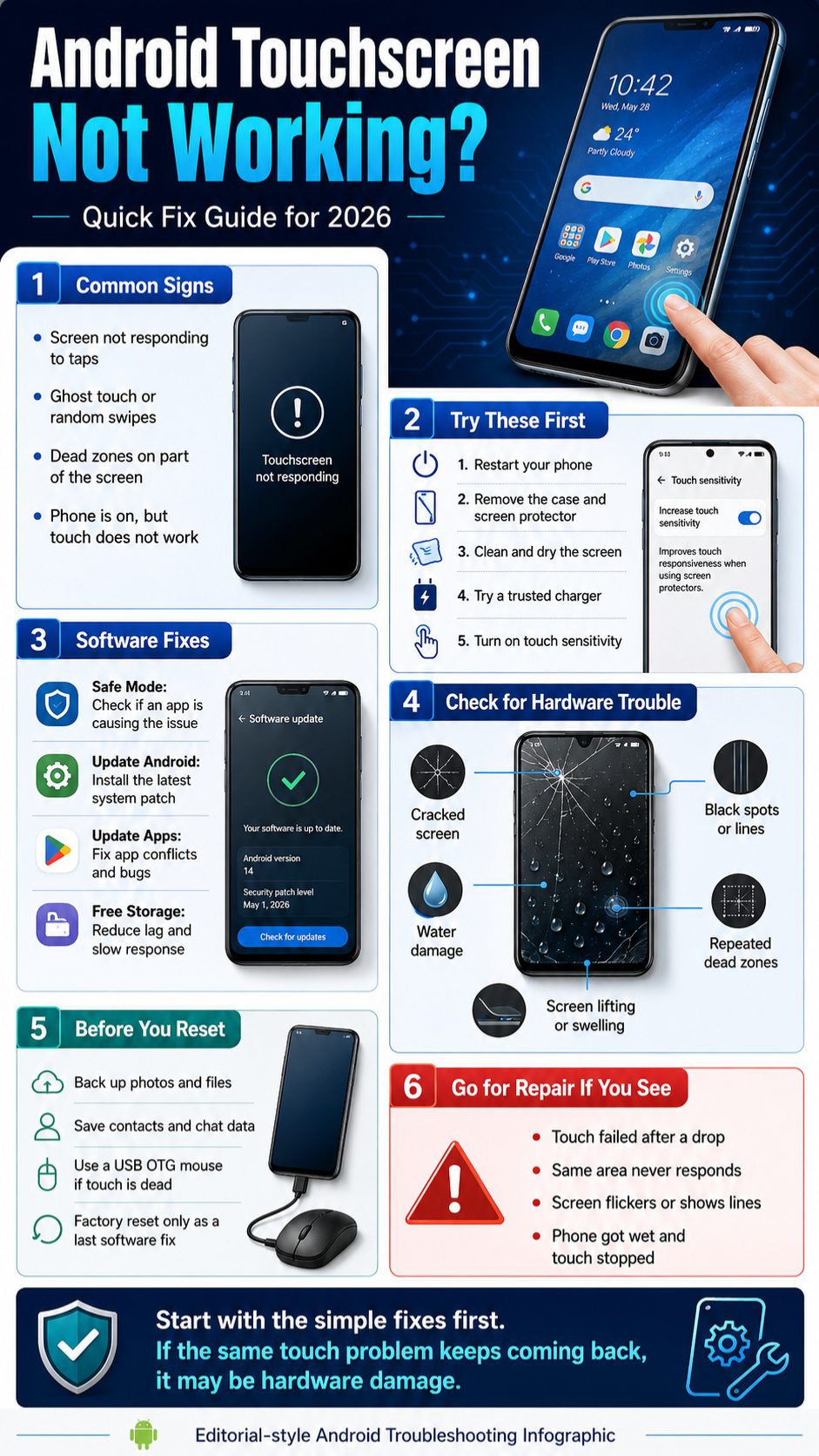
Updates can both cause and fix touchscreen problems. A fresh update may create a bug with gestures, display drivers, or third-party apps. But later patches often fix those issues. That’s why updating is still worth doing.
Check Android system updates first. Then update apps from the Google Play Store. Older apps can clash with new Android versions, especially launchers, keyboards, screen overlays, and accessibility tools.
Android 16 had the highest Android version share worldwide in April 2026 according to StatCounter, but many phones still run older Android versions. That mix matters because the same touchscreen bug may not appear on every device or software skin.
|
Update Type |
Why It Matters |
Where To Check |
|
Android system update |
Fixes system bugs and security issues |
Settings > System > Software Update |
|
App updates |
Fixes app conflicts |
Google Play Store |
|
Security patch |
Improves stability and protection |
Settings > Security |
|
Brand update |
Fixes Samsung, Xiaomi, Oppo, Vivo, Pixel issues |
Software Update menu |
Check For Android Updates
Go to Settings > System > Software Update. On Samsung, this may be Settings > Software update > Download and install. Menu names differ by brand.
Update Apps
Open Google Play Store. Tap your profile icon. Go to Manage apps and device. Update apps, especially apps that control screen behavior.
If Touch Failed After An Update
Restart first. Then update apps. Try Safe Mode. If a patch is available, install it. If nothing helps and there is no hardware damage, back up your data before considering factory reset.
Fix 6: Free Up Storage And Reduce Phone Lag
Sometimes the screen is not truly dead. The phone is just too slow to respond. Low storage, too many background apps, heavy games, large video files, and packed messaging folders can make Android lag badly.
When the system has little room left, apps open slowly, keyboards freeze, and taps feel delayed. This can look like an android touchscreen not working issue, especially on budget phones or older devices.
Start with the obvious storage hogs: videos, duplicate photos, downloads, WhatsApp media, offline maps, unused games, and large app caches. You don’t need to delete everything. You just need breathing room.
|
What To Clean |
Why It Helps |
Safe First Move |
|
Videos |
Frees large storage quickly |
Move to cloud or computer |
|
WhatsApp media |
Removes duplicate files |
Delete forwarded media |
|
Unused apps |
Reduces background load |
Uninstall old apps |
|
Downloads folder |
Clears forgotten files |
Delete old APKs and PDFs |
|
App cache |
Frees temporary data |
Clear cache for large apps |
Delete Large Files First
Videos and downloads usually free the most space. Move important files to a computer or cloud storage before deleting.
Uninstall Apps You Don’t Use
Unused apps can still run services, send notifications, or use storage. Remove games, launchers, cleaners, and tools you no longer need.
Restart After Cleaning
After freeing storage, restart the phone. This helps Android rebuild temporary files and run more smoothly.
Fix 7: Test For Dead Zones And Ghost Touch
Dead zones and ghost touch are two of the biggest signs that the problem may be physical. A dead zone is a part of the screen that never responds. Ghost touch happens when the phone taps or swipes by itself.
Ghost touch can come from moisture, chargers, cracked glass, poor protectors, heat, or damaged replacement screens. Dead zones often mean the digitizer is damaged, especially if the same part of the screen fails every time.
Before going to repair, test it carefully. You want to know whether the problem is random, app-based, or tied to one part of the display.
|
Test |
What It Shows |
What A Bad Result Means |
|
Drawing app test |
Touch path across screen |
Dead zones or skipping |
|
Keyboard test |
Missed letters |
Lower-screen issue |
|
Edge swipe test |
Gesture response |
Case or screen edge issue |
|
Charging test |
Ghost touch while plugged in |
Charger or grounding problem |
|
Landscape test |
Same issue after rotation |
Hardware more likely |
Use A Drawing App
Open a simple drawing app. Draw lines from top to bottom, left to right, and corner to corner. If the line breaks in the same area every time, that area may have touch damage.
Check For Ghost Touch While Charging
Unplug the charger. If ghost touch stops, try another cable, adapter, and wall socket. Cheap chargers can create unstable input.
Let The Phone Cool Down
Heat can make the screen behave strangely. Stop gaming, remove the case, and let the phone cool before testing again.
Fix 8: Use An External Mouse To Back Up Data
If the phone display works but touch does not, a USB mouse can save you. Many Android phones support USB OTG. With a USB-C OTG adapter and wired mouse, you can control the phone with a cursor.
This is useful when you need to unlock the phone, back up photos, remove apps, accept update prompts, or transfer files before repair. It is not a touchscreen fix. It is a rescue method.
If your phone supports video output through USB-C, a hub may also help if the screen is broken. But support varies by brand and model.
|
Tool |
Use |
Best For |
|
USB OTG adapter |
Connects mouse to phone |
Touch dead but display visible |
|
Wired USB mouse |
Controls phone with cursor |
Unlocking and backup |
|
USB-C hub |
Adds mouse, storage, monitor options |
Advanced recovery |
|
Bluetooth mouse |
Works if already paired |
No adapter available |
|
Computer cable |
Transfers files |
Photos and documents |
Connect A USB Mouse
Plug the mouse into the OTG adapter. Plug the adapter into the phone. Wait for the cursor. Use the mouse to unlock and control the screen.
Back Up Important Files
Move photos, videos, documents, and app data where possible. Back up WhatsApp and authenticator access before repair or reset.
Use This Before Factory Reset
If touch is unreliable, back up first. A factory reset deletes data and may not fix hardware damage.
Fix 9: Factory Reset Only As A Last Software Fix
A factory reset can fix deep software problems, bad settings, app conflicts, and update bugs. But it also deletes your data. Don’t use it as the first move.
Try factory reset only when the phone has no visible damage, Safe Mode does not help, updates do not help, and you have backed up your files. If the screen is cracked or has dead zones, factory reset probably won’t solve it.
Google’s Android support lists factory reset as a later step when screen issues continue after basic troubleshooting.
|
Before Reset |
Why It Matters |
|
Back up photos and videos |
Reset deletes local files |
|
Save contacts |
Avoid losing numbers |
|
Back up chat apps |
WhatsApp and others may need manual backup |
|
Save authenticator access |
Avoid account lockouts |
|
Check repair signs |
Hardware damage won’t reset away |
Back Up First
Use Google backup, Google Photos, a computer transfer, Samsung Smart Switch, or a USB mouse if touch does not work.
Reset From Settings
Go to Settings > System > Reset options > Erase all data. On some phones, this may appear under General management or About phone.
Do Not Reset A Damaged Phone Too Soon
If the screen is broken, focus on data recovery first. A reset can make recovery harder if you cannot complete setup afterward.
Android Touchscreen Not Working After Update
Touch problems after an update can happen for several reasons. The update may clash with an old launcher, keyboard, overlay app, or accessibility tool. It may also introduce a temporary bug that gets fixed in a later patch.
This is why you should not panic right after an update. Give the phone a restart. Update apps. Test Safe Mode. Remove old tools that change screen behavior. Then check for another software patch.
The phrase android touchscreen not working often spikes in search when users experience update bugs, ghost touch, or frozen screens after system changes. The fix is usually a process of elimination.
|
Update Problem |
Possible Cause |
Fix |
|
Touch slow after update |
App not optimized |
Update apps |
|
Screen freezes randomly |
System bug or cache issue |
Restart and check patch |
|
Gestures changed |
Navigation setting changed |
Review gesture settings |
|
Touch works in Safe Mode |
Third-party app issue |
Uninstall recent apps |
|
Touch dead after drop and update |
Hardware may be blamed on update |
Test for damage |
Restart And Wait
After a big update, the phone may run background tasks. Restart it once and give it a few minutes before testing.
Update All Apps
Old apps can behave badly on newer Android versions. Update apps from the Play Store, then restart again.
Remove Display-Control Apps
Screen dimmers, gesture apps, launchers, and floating button apps are common suspects after updates.
When You Need A Repair Center
Some touchscreen problems cannot be fixed with settings. If the digitizer is damaged, the display cable is loose, or liquid has reached the screen layer, you need hardware service.
Do not keep pressing hard on a cracked screen. Do not heat the phone. Do not open it unless you know what you’re doing. Modern phones use adhesives, fragile display cables, and water-resistance seals that are easy to damage.
If the phone is under warranty, check official service first. If not, use a trusted repair shop and ask about display quality, warranty, and data handling.
|
Repair Sign |
What It May Mean |
What To Do |
|
Cracked glass |
Physical screen damage |
Repair inspection |
|
Black spots |
OLED/LCD damage |
Screen replacement likely |
|
Green or white lines |
Display panel issue |
Service center |
|
Same dead zone every time |
Digitizer damage |
Replace screen assembly |
|
Touch failed after water |
Liquid damage |
Stop charging and repair |
|
Screen lifting |
Battery swelling or adhesive failure |
Stop using and repair quickly |
Go To Repair If There Are Dead Zones
If one strip or corner never responds, the digitizer may be damaged. Software fixes rarely repair that.
Act Fast After Water Damage
Turn the phone off. Don’t charge it. Get it inspected. Liquid damage can worsen over time.
Check Battery Swelling
If the screen is lifting or the phone body looks bent, stop using it. A swollen battery is a safety issue.
How To Prevent Touchscreen Problems Later
You can’t prevent every failure, but you can reduce the risk. Use a good case, a proper screen protector, and a trusted charger. Keep your phone dry and cool. Avoid sketchy APKs and fake cleaning apps.
A lot of touch issues come from small habits. Charging with a poor adapter, gaming while the phone is hot, using the phone with wet hands, or ignoring cracks can slowly create bigger problems.
Also, back up your phone regularly. The worst time to think about backup is when the screen is already dead.
|
Prevention Tip |
Why It Helps |
|
Use a quality charger |
Reduces ghost touch risk |
|
Keep the phone dry |
Prevents moisture-related faults |
|
Avoid overheating |
Protects battery and display |
|
Use a good case |
Reduces drop damage |
|
Back up regularly |
Protects data before repair |
|
Update apps |
Reduces software conflicts |
Use Better Accessories
Cheap chargers and poor screen protectors are not worth the trouble. Use certified chargers and properly fitted protectors.
Avoid Heat And Moisture
Don’t leave the phone in direct sunlight, in a hot car, or near steam. Heat and moisture are bad for displays and batteries.
Back Up Weekly
Use Google backup, cloud photo backup, or a computer. This makes repairs and resets far less stressful.
Final Thoughts
When you face an android touchscreen not working problem, start with the easy fixes. Restart the phone. Clean the screen. Remove the case and protector. Try another charger. Turn on touch sensitivity if your phone supports it. Then move to Safe Mode, app updates, storage cleanup, and dead-zone testing.
If the phone has cracks, water exposure, black spots, green lines, or the same dead area every time, it is probably not a normal software issue. Back up your data with a USB mouse if needed, then get the phone checked.
The smart move is to separate software from hardware before spending money. That saves time, protects your files, and helps you avoid pointless resets.
FAQs About Android Touchscreen Problems
Why does my Android touchscreen work sometimes and stop later?
Intermittent touch problems often come from software glitches, heat, moisture, storage pressure, or a failing digitizer. If it happens after opening a certain app, test Safe Mode and remove that app.
Can a bad charger cause ghost touch on Android?
Yes. A poor-quality charger, damaged cable, or unstable wall socket can cause ghost touch while charging. Test the phone unplugged, then try a trusted charger.
Why does only the bottom part of my screen not work?
A bottom-screen dead zone can point to digitizer damage, especially if the same area fails in every app. Test it with a drawing app and rotate the screen to confirm.
Can I fix an Android touchscreen without losing data?
Yes, if the issue is minor. Restarting, cleaning the screen, removing the protector, Safe Mode, app removal, updates, and using a USB mouse do not erase data. Factory reset does.
Why does my touchscreen stop working after a screen replacement?
The replacement display may be low quality, poorly connected, or not fully compatible. Return to the repair shop and ask them to test the digitizer and connector.
Is ghost touch a software or hardware problem?
It can be either. Moisture, chargers, and apps can cause it. Cracked screens, bad replacement displays, and damaged digitizers can also cause it.
Should I keep using my phone if the screen is cracked but touch works?
You can, but it is risky. Cracks can spread, moisture can enter, and touch may fail later. Back up your data and consider repair before it gets worse.