
When your iPhone GPS stops working, it can turn a simple task into a headache. Maps may place you on the wrong street. Google Maps may show a huge blue circle. Find My may stop updating. A rideshare app may send your driver to the wrong pickup point. Fitness apps may record a strange route that looks like you ran through buildings.
The good news is that iphone gps not working problems are usually caused by settings, app permissions, weak signal, outdated software, or temporary bugs. It does not always mean your iPhone has a broken GPS chip.
Your iPhone uses more than GPS satellites to find your location. It can also use Wi-Fi, Bluetooth, cellular towers, and app-level location settings to improve accuracy. That is why one small setting can make location apps behave badly.
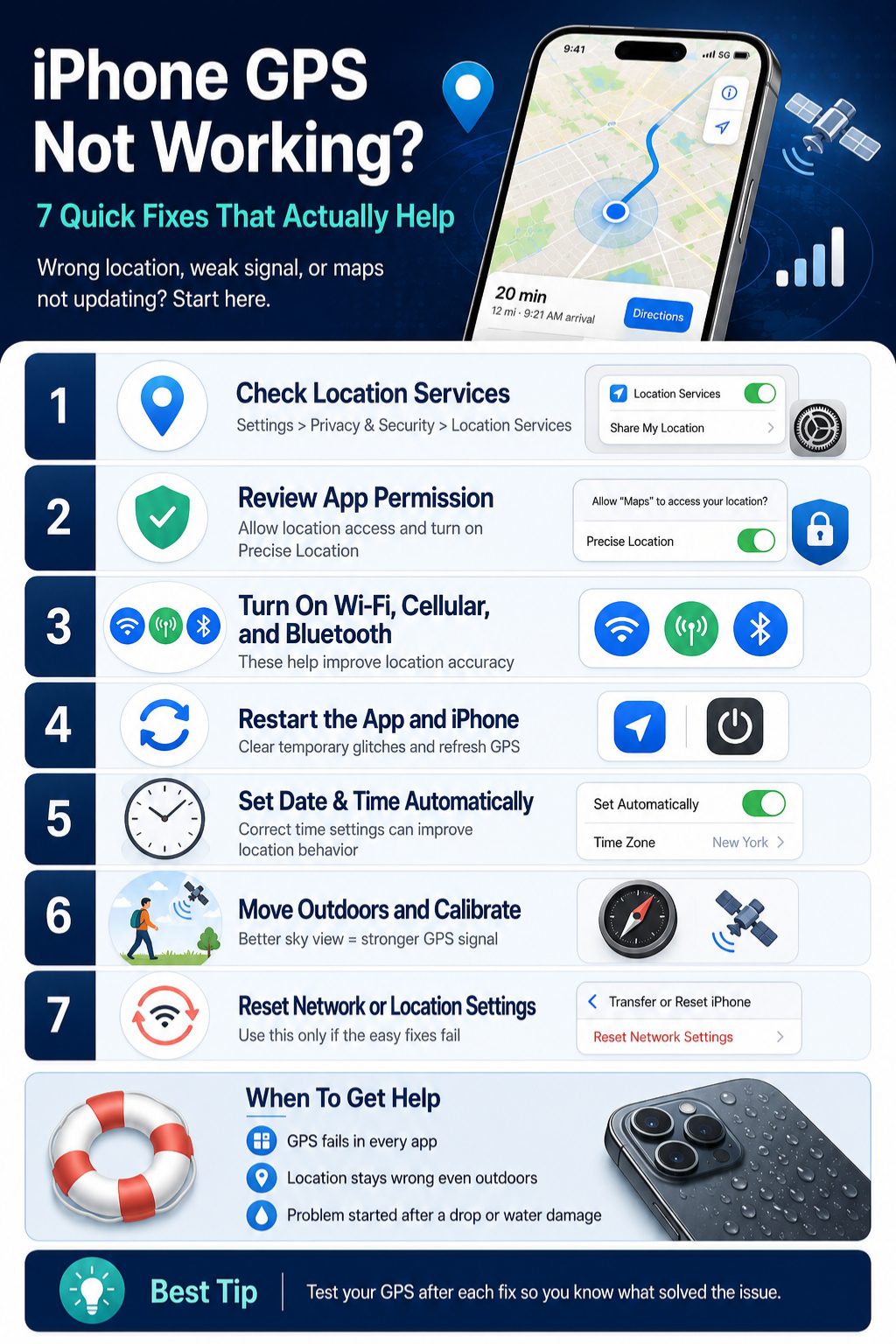
This guide walks you through 7 practical fixes first. Then it explains app-specific issues, common symptoms, prevention tips, and when it may be time to contact Apple Support.
What Should You Try First?
If your iPhone location is wrong or GPS is not updating, start with the basic checks before resetting anything. In many cases, the issue comes from Location Services being disabled, an app losing permission, or the phone struggling to get a strong signal.
A good rule is to test your GPS after each fix. Do not change ten settings at once. That makes it harder to know what actually solved the problem.
Fast Checklist for iPhone GPS Issues
|
Quick Fix |
Why It Helps |
|
Turn Location Services off and on |
Refreshes system-level location access |
|
Check app location permission |
Fixes app-specific GPS problems |
|
Turn on Wi-Fi and cellular data |
Helps iPhone estimate location faster |
|
Restart the app and iPhone |
Clears temporary glitches |
|
Set Date & Time automatically |
Helps location and navigation work correctly |
|
Move outdoors or near a window |
Improves satellite signal |
|
Reset Location & Privacy |
Restores broken permission behavior |
Why Is My iPhone GPS Not Working?
Your iPhone GPS can fail for several reasons, and the cause is not always obvious. Sometimes Apple Maps works fine, but Google Maps does not. Sometimes your location works outdoors but fails inside a shopping mall, basement, office building, or underground parking area.
Location apps also depend on permission settings. If an app only has approximate location access, it may not work well for navigation, rideshare pickup, delivery tracking, or fitness route recording.
Common Reasons Behind iPhone GPS Problems
|
Cause |
What It Looks Like |
|
Location Services is off |
No app can detect your location properly |
|
App permission is blocked |
One app cannot use GPS, but others work |
|
Precise Location is off |
Location works but is too broad |
|
Weak satellite signal |
Blue dot jumps or shows a wide circle |
|
Wi-Fi or cellular is off |
Location takes longer to update |
|
Incorrect date or time |
Navigation and location may behave strangely |
|
App bug |
One app freezes or shows old location |
|
Outdated iOS |
GPS issue may continue until software is updated |
How iPhone Location Works in Simple Words
Your iPhone does not depend on GPS alone. It can combine GPS, Bluetooth, Wi-Fi hotspot data, and cellular tower information to estimate where you are. This helps the phone find your location faster, especially in cities and indoor spaces.
That is why turning on Wi-Fi can help even if you are not connected to a Wi-Fi network. The phone can still use nearby network signals to improve location accuracy.
iPhone GPS Not Working: 7 Quick Solutions
This is the main troubleshooting section. Start from the first fix and move down the list. The early steps are safe, fast, and easy to reverse. The reset options should come later because they remove saved preferences.
1. Turn Location Services Off and Back On
Location Services is the main switch for GPS and location access on your iPhone. If this setting is off, apps cannot use your location in the normal way. Even if it is already on, toggling it off and on can refresh the system.
Go to Settings, then Privacy & Security, then Location Services. Turn Location Services off, wait a few seconds, and turn it back on. After that, open Apple Maps or Google Maps and tap the current location button.
|
Step |
Action |
|
1 |
Open Settings |
|
2 |
Tap Privacy & Security |
|
3 |
Tap Location Services |
|
4 |
Turn it off for 10-15 seconds |
|
5 |
Turn it on again |
|
6 |
Test Maps or another location app |
This fix is useful when several apps fail at once. It is also helpful when your iPhone shows an old location or refuses to detect your current position.
Do not leave Location Services off if you use Maps, Find My, emergency sharing, rideshare apps, weather alerts, or location-based reminders.
2. Check Location Permission for the App
Sometimes your iPhone GPS is fine, but one app is blocked from using it. This is common after installing a new app, changing privacy settings, restoring a backup, or updating iOS.
Go to Settings, then Privacy & Security, then Location Services. Scroll down and tap the app that is having trouble. For navigation apps, choose While Using the App. If the app needs background location, such as Find My, family safety apps, fitness tracking, or timeline features, Always may be needed.
|
Permission Setting |
Best Use |
|
Never |
Apps that should not use location |
|
Ask Next Time or When I Share |
Apps you use occasionally |
|
While Using the App |
Maps, rideshare, delivery, travel, weather |
|
Always |
Find My, safety apps, tracking apps, timeline features |
|
Precise Location |
Navigation, pickup, delivery, fitness tracking |
If Precise Location is turned off, the app may only get a general area. That might be fine for weather, but it is not good enough for turn-by-turn directions or a rideshare pickup point.
Use permission carefully. You do not need to give every app Always access just to fix one GPS issue. Give apps only the level of access they actually need.
Read Also: How to Mirror iPhone to TV Without Apple TV
3. Turn On Wi-Fi, Bluetooth, and Cellular Data
Many users turn off Wi-Fi or cellular data to save battery, reduce distractions, or avoid roaming charges. That can make location accuracy worse in some cases. Your iPhone can use nearby Wi-Fi hotspots and cellular towers to improve location detection.
Open Control Center and make sure Airplane Mode is off. Turn on Wi-Fi and Bluetooth. Then go to Settings and check Cellular Data. Open your map app again and test your current location.
|
Setting |
Why It Matters |
|
Wi-Fi |
Helps improve location estimation, especially indoors |
|
Bluetooth |
Helps with nearby location signals and accessories |
|
Cellular Data |
Helps apps load routes, traffic, and live location |
|
Airplane Mode |
Can block connections that support location accuracy |
This matters most in cities, airports, shopping malls, office buildings, hotels, and streets surrounded by tall buildings. GPS satellites can be harder to reach in these places, so your iPhone uses other signals to improve accuracy.
If you are traveling abroad, check your data settings carefully. Offline maps can help with basic navigation, but live traffic, rerouting, rideshare pickup, and real-time sharing usually need a working connection.
4. Restart the App and Restart Your iPhone
A temporary app bug can make GPS look broken. The app may freeze your location, fail to refresh the blue dot, or keep showing where you were earlier. This happens with map apps, fitness apps, weather apps, and delivery apps.
Close the affected app first. Swipe up from the bottom of the screen and pause, then swipe the app away. Reopen it and test again. If that does not help, restart the iPhone.
|
Restart Option |
When to Use It |
|
Restart the app |
One app has a GPS issue |
|
Restart the iPhone |
Several apps behave strangely |
|
Restart after update |
GPS issue started after an app or iOS update |
|
Restart after travel |
Location is stuck in an old city or country |
A restart can clear temporary memory issues and reconnect the phone to nearby networks. It is one of the simplest fixes, but many users skip it and jump straight into advanced settings.
If only one app is failing, check for an app update too. Developers often release fixes for navigation, route tracking, and location bugs.
5. Fix Date, Time, and Software Updates
Incorrect date, time, or time zone settings can affect location-related behavior. It may not be the first thing users think of, but it is worth checking when GPS is acting strangely.
Go to Settings, then General, then Date & Time. Turn on Set Automatically. This lets your iPhone use the correct time zone and network-based time settings.
|
Setting or Update |
What to Check |
|
Date & Time |
Use Set Automatically |
|
iOS Update |
Go to Settings > General > Software Update |
|
App Update |
Update Maps, Google Maps, rideshare, delivery, or fitness apps |
|
Storage Space |
Make sure there is enough free space for updates |
|
Backup |
Back up important data before major iOS updates |
If your iPhone GPS problem started after an update, check again for another update. Early software bugs are often fixed in later patches. Also update the specific app that is failing.
For older iPhones, software updates can take longer and may need free storage. Remove unnecessary downloads, old videos, and unused apps before updating if your storage is almost full.
6. Improve GPS Signal and Calibrate Direction
Sometimes nothing is wrong with your settings. The problem is the location around you. GPS accuracy depends heavily on signal conditions. Buildings, vehicle roofs, mountains, tunnels, basements, and underground parking areas can block or weaken satellite signals.
Step outside if possible. If you are indoors, move near a window. If you are in a dense city area, walk away from tall buildings and give the iPhone a minute or two to improve accuracy.
|
Problem |
Practical Fix |
|
Blue dot has a large circle |
Move outdoors and wait |
|
Direction arrow points wrong way |
Calibrate direction or compass |
|
GPS fails in basement |
Move above ground |
|
Walking route starts wrong |
Turn around slowly and let Maps adjust |
|
Location jumps in city streets |
Move away from tall buildings if possible |
|
Compass acts strangely |
Remove magnetic accessories or thick cases |
For Google Maps, tap the blue dot and look for calibration options. Some users may see options to improve accuracy using the camera or compass movement. Follow the on-screen instructions if available.
If the location is correct but the arrow points the wrong way, the issue may be direction rather than GPS. This happens often when walking. Move slowly, rotate your phone, and wait for the app to adjust before starting the route.
7. Reset Network Settings or Location & Privacy Settings
Reset options should come after the simpler fixes. They can help when settings are corrupted or permission behavior feels broken, but they also remove saved preferences.
Start with Reset Network Settings if Wi-Fi, cellular, VPN, or carrier-related issues may be involved. Go to Settings, then General, then Transfer or Reset iPhone, then Reset, then Reset Network Settings.
|
Reset Option |
What It Does |
When to Use It |
|
Reset Network Settings |
Clears Wi-Fi, cellular, VPN, and network preferences |
Location fails with network issues |
|
Reset Location & Privacy |
Restores app permission prompts |
Apps do not ask for location correctly |
|
Factory Reset |
Erases the phone after backup |
Last resort only |
Reset Network Settings removes saved Wi-Fi passwords and VPN settings, so be ready to reconnect afterward.
If app permissions seem broken, use Reset Location & Privacy. After doing this, apps will ask for location permission again when you open them. Choose carefully when each prompt appears.
Avoid factory reset unless you have backed up your iPhone and tried the safer fixes first.
App-Specific Fixes for iPhone Location Problems
GPS problems often show up inside one app, not across the whole phone. That is why it helps to separate Apple Maps, Google Maps, Find My, and fitness or delivery apps.
If one app fails but others work, focus on that app’s permission, update status, and internal settings. If every app fails, return to system-level fixes such as Location Services, Date & Time, and reset options.
Apple Maps GPS Not Working on iPhone
Apple Maps needs Location Services and a working connection to find your current location, load routes, and update traffic. If Maps cannot find you, check whether Location Services is enabled for Maps.
Close the Maps app and reopen it. Make sure Wi-Fi or cellular data is active. Restart the iPhone if Maps still refuses to update your location.
|
Apple Maps Issue |
Best Fix |
|
Cannot find current location |
Check Location Services for Maps |
|
Route does not update |
Turn on Wi-Fi or cellular data |
|
App freezes |
Close and reopen Maps |
|
Wrong place or business appears |
Report the map issue |
|
Location still fails |
Restart iPhone and check updates |
If the problem is a wrong road, missing address, closed business, or incorrect route detail, that may be a map data issue rather than an iPhone GPS issue.
Google Maps Not Working on iPhone
Google Maps needs correct iPhone permission settings. Go to Settings, then Privacy & Security, then Location Services, then Google Maps. Choose While Using the App or Always depending on how you use it. Turn on Precise Location for accurate navigation.
If the blue dot is too wide, turn on Wi-Fi and cellular data. If the direction arrow is wrong, use the calibration option if Google Maps shows it.
|
Google Maps Problem |
Best Fix |
|
Blue dot missing |
Turn on Location Services |
|
Blue dot too wide |
Enable Wi-Fi, cellular, and Precise Location |
|
Timeline not accurate |
Check Always permission if using Timeline |
|
Direction arrow wrong |
Use calibration option |
|
App still fails |
Update Google Maps |
Also check Low Power Mode if Google Maps does not update in the background. Some live tracking and route features may not work as expected when the phone is limiting background activity.
Find My Location Not Updating
Find My depends on the device being powered on, connected, and allowed to share location. If the iPhone is offline, out of battery, or has no network connection, location may not update in real time.
Check Settings, then your Apple Account name, then Find My. Make sure Find My iPhone and location sharing settings are correct.
|
Find My Issue |
Possible Reason |
|
Location not available |
Device offline or permission issue |
|
Old location shown |
Phone has not updated recently |
|
No movement update |
Weak connection or battery issue |
|
Sharing not working |
Find My settings may be disabled |
Find My is not always instant. If the phone is offline, it may show the last known location instead of the current one.
Fitness apps need accurate GPS to record distance and routes. Rideshare and delivery apps need precise location to place pickups and drop-offs correctly. These apps usually need Precise Location turned on.
Start outdoor workouts after the app has found your location. If you start tracking indoors, the first part of the route may be inaccurate.
|
App Type |
Best Location Setting |
|
Running and cycling apps |
While Using the App plus Precise Location |
|
Delivery apps |
While Using the App plus Precise Location |
|
Rideshare apps |
While Using the App plus Precise Location |
|
Family safety apps |
Always, if background location is needed |
|
Weather apps |
Approximate may be enough |
If you use an Apple Watch with fitness tracking, also check whether the watch and iPhone are connected properly.
Troubleshooting by Symptom
The fastest way to solve a location issue is to match the symptom with the likely cause. A missing blue dot is not the same as a wrong direction arrow. A frozen location is not the same as a weak signal.
Use this section as a quick diagnostic guide before choosing the next fix.
Match the Problem With the Right Fix
|
Symptom |
Likely Cause |
Best Fix |
|
Blue dot missing |
Location Services or app permission is off |
Turn on Location Services and app access |
|
Blue dot has a large circle |
Weak signal or approximate location |
Move outdoors and enable Precise Location |
|
Location is frozen |
App glitch or stale connection |
Restart app and iPhone |
|
Wrong city appears |
VPN, network issue, or approximate location |
Check VPN, Wi-Fi, cellular, and Precise Location |
|
Direction arrow points wrong way |
Compass or direction issue |
Calibrate direction |
|
GPS works in one app only |
App-specific permission issue |
Check that app’s location settings |
|
Find My not updating |
Device offline or sharing issue |
Check Find My settings and connection |
|
Fitness route is wrong |
Weak GPS lock at start |
Start tracking outdoors after GPS connects |
This avoids unnecessary resets. If your GPS works in Apple Maps but not in a delivery app, the problem is probably not the phone. It is more likely the app permission or app data.
What Not to Do When iPhone GPS Is Not Working
When GPS fails, it is tempting to try random fixes from forums or install “GPS repair” apps. That usually wastes time. Some advice can also weaken your privacy settings.
Do the basic fixes first. Keep your changes controlled. Then move to resets only when needed.
Mistakes to Avoid
|
Mistake |
Better Option |
|
Factory resetting immediately |
Try Location Services, permissions, restart, and updates first |
|
Giving every app Always access |
Give only necessary apps full access |
|
Installing random GPS repair apps |
Use iPhone settings and official app updates |
|
Ignoring Precise Location |
Turn it on for apps that need exact location |
|
Testing only indoors |
Test outdoors for better GPS signal |
|
Keeping VPN on during testing |
Turn it off temporarily and compare |
|
Blaming hardware too early |
Check software and permissions first |
A careful step-by-step process saves time. It also protects your privacy because you are not opening location access more than necessary.
How to Prevent Future iPhone GPS Problems
You cannot prevent every app bug or weak signal problem, but you can reduce how often GPS issues happen. A few habits make location apps more reliable, especially before travel, commuting, workouts, or emergency use.
Review app permissions occasionally. Keep key navigation apps updated. Check settings before long trips. These small steps can prevent a lot of stress later.
Keep Location Settings Clean
Open Location Services every few months and review which apps can access your location. Remove access from apps you no longer use. Keep Precise Location only for apps that truly need it.
|
Habit |
Why It Helps |
|
Review app permissions |
Prevents privacy and access problems |
|
Keep Maps apps updated |
Fixes bugs and improves reliability |
|
Download offline maps before travel |
Helps when signal is weak |
|
Keep Wi-Fi and Bluetooth available |
Improves location accuracy |
|
Check Date & Time |
Prevents avoidable location errors |
Prepare Before Travel or Long Drives
Update Apple Maps, Google Maps, airline apps, hotel apps, rideshare apps, and travel apps before leaving. If you are going somewhere with weak coverage, download offline maps first.
Offline maps help, but they do not replace live data for traffic, rerouting, pickup accuracy, or real-time sharing. Keep that in mind if you are traveling in a new city.
When Should You Contact Apple Support?
Most iPhone GPS issues are caused by settings or software. Still, hardware problems can happen, especially after a hard drop, water exposure, or poor-quality repair.
Contact Apple Support if the issue affects every location app and continues after the main troubleshooting steps.
Signs You May Need Professional Help
|
Warning Sign |
Why It Matters |
|
GPS fails in every app |
May be system-level or hardware-related |
|
Location is wrong outdoors too |
Not just an indoor signal issue |
|
Problem started after damage |
Hardware may be affected |
|
Issue began after repair |
Antenna or sensor connection may be involved |
|
Reset options did not help |
Deeper diagnosis may be needed |
|
iPhone also overheats or crashes |
Could point to broader device problems |
Before contacting support, write down what you already tried. Mention whether the issue happens in Apple Maps, Google Maps, Find My, rideshare apps, and fitness apps. That makes the support process easier.
Final Thoughts
The most frustrating part of GPS trouble is that it feels bigger than it usually is. A map app showing the wrong street can make you think the phone is broken, but many iphone gps not working problems come from simple settings.
Start with Location Services. Then check the affected app’s permission and Precise Location setting. After that, test Wi-Fi, Bluetooth, cellular data, app restart, iPhone restart, Date & Time, and software updates. Only use reset options after the easy fixes fail.
If GPS still fails in every app, even outdoors with a strong connection, Apple Support is the safer next step. But for most users, one of these seven fixes should get Maps, Google Maps, Find My, rideshare apps, delivery apps, and fitness tracking working again.
Frequently Asked Questions About iPhone GPS Not Working
These questions cover search issues that users often ask after trying basic fixes.
Why Is My iPhone GPS Not Working Suddenly?
Your iPhone GPS may stop working suddenly because Location Services is off, the app lost permission, the signal is weak, or the app has a temporary bug. It can also happen after an iOS update, app update, network issue, or privacy setting change. Start with Location Services and app permission before trying resets.
Why Does My iPhone Show the Wrong Location?
Your iPhone may show the wrong location when it has a weak GPS signal, approximate location is enabled, Wi-Fi or cellular support is unavailable, or a VPN is affecting location data. Indoor spaces, tall buildings, tunnels, and underground parking areas can also make location less accurate.
How Do I Reset GPS on My iPhone?
There is no single “reset GPS” button on iPhone. You can refresh GPS behavior by toggling Location Services, restarting the iPhone, resetting Network Settings, or resetting Location & Privacy. Use reset options only after checking app permissions and signal conditions.
Why Is Google Maps Not Finding My Current Location on iPhone?
Google Maps may not find your current location if Location Services is off, Google Maps permission is blocked, Precise Location is disabled, or the phone has poor network support. Update Google Maps and check whether Wi-Fi, Bluetooth, and cellular data are turned on.
Does Airplane Mode Stop GPS on iPhone?
Airplane Mode disables wireless connections that help with location accuracy. Some location functions may behave differently depending on the app and offline data, but navigation can become less reliable without Wi-Fi, Bluetooth, and cellular support.
Can Low Power Mode Affect GPS Accuracy?
Low Power Mode can reduce background activity. That may affect apps that depend on live location updates, background tracking, or route recording. If a navigation or fitness app is not updating properly, test it once with Low Power Mode turned off.
Why Does My iPhone GPS Work Outdoors but Not Indoors?
GPS signals are weaker indoors because roofs, walls, basements, elevators, and underground spaces can block satellite signals. Your iPhone may rely more on Wi-Fi and cellular data indoors, so location may be less precise.
Should I Factory Reset My iPhone If GPS Is Not Working?
A factory reset should be the last option, not the first. Try Location Services, app permissions, Precise Location, Wi-Fi, cellular data, app updates, iOS updates, and reset settings first. Always back up your iPhone before erasing it.