
You plug in your phone, leave it for half an hour, and come back to find the battery has moved by only a few percent. That’s annoying, especially when you’re about to leave home.
Slow charging doesn’t always point to a bad battery. A worn cable, weak adapter, dirty charging port, hot phone, or hidden battery setting could be the real problem.
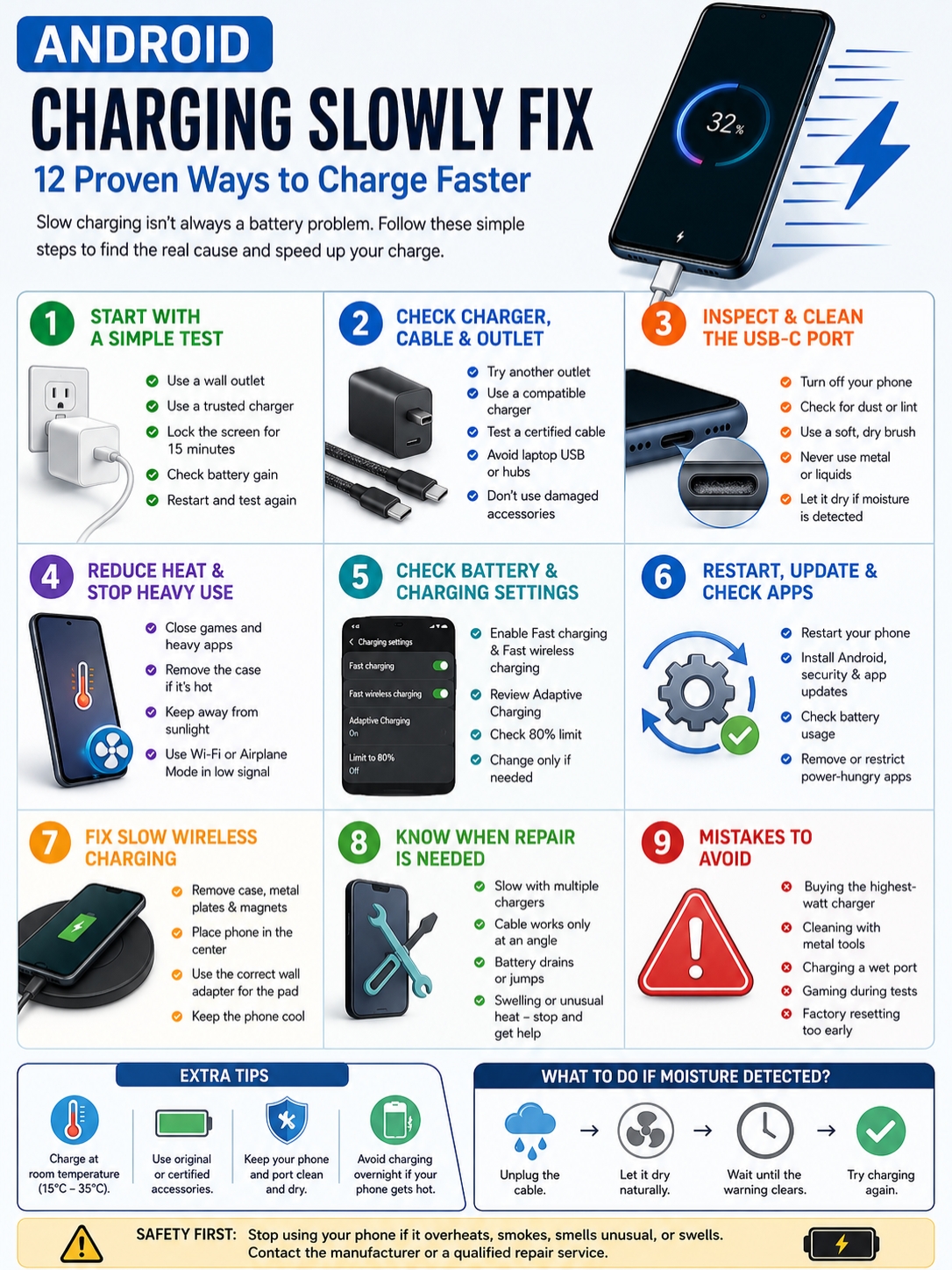
This android charging slowly fix guide walks you through the checks in the right order. Start with the simple ones. Test one thing at a time. There’s no point replacing the battery before checking a cable that costs far less.
Why Is Your Android Phone Charging Slowly?
|
Possible cause |
What you may notice |
First thing to check |
|
Weak or incompatible charger |
Fast charging message is missing |
Charger type and wattage |
|
Damaged cable |
Charging stops or reconnects |
Try another cable |
|
Dirty USB-C port |
Plug feels loose |
Inspect the port |
|
Excess heat |
Phone feels warm or hot |
Stop using it and let it cool |
|
Battery protection |
Charging slows near 80% |
Check Battery settings |
|
Worn hardware |
Several chargers stay slow |
Run device diagnostics |
Your phone doesn’t control charging speed on its own. The wall outlet, adapter, cable, charging port, battery temperature, battery level, and current phone use all affect the result.
The number printed on a charger can also be misleading. A 65W charger can supply up to 65 watts, but that doesn’t mean your phone will accept the full amount. The charger and phone first agree on a safe charging level.
The cable matters too. Some USB-C cables handle basic charging but can’t carry enough power for the phone’s fastest charging mode.
Battery level also changes the speed. Phones often charge faster when the battery is low, then gradually reduce power as it gets closer to full. Heat can slow it even more.
That’s why you shouldn’t compare a cool phone at 15% with a warm phone at 85%. The conditions aren’t the same.
Android Charging Slowly Fix: Start With a Simple Test
|
Step |
What to do |
What it checks |
|
1 |
Plug into a wall outlet |
Weak computer or hub power |
|
2 |
Use a trusted charger and cable |
Accessory problems |
|
3 |
Lock the screen for 15 minutes |
Heavy phone use |
|
4 |
Check the battery gain |
Actual charging performance |
|
5 |
Restart and test again |
Temporary software issues |
Before changing settings or buying anything, run a quick test.
Write down the current battery percentage. Connect the phone directly to a wall outlet using a reliable charger and cable. Lock the screen and leave the device alone for about 15 minutes.
Don’t play games, watch videos, use GPS navigation, run a hotspot, or make video calls during this test. Those activities use a lot of power and produce heat.
Check the battery percentage when the 15 minutes are up. Also look at the charging message on the lock screen or Battery menu.
Depending on the phone, you may see:
- Charging
- Fast charging
- Rapidly charging
- Super fast charging
- Charging wirelessly
- Charging slowly
These labels vary by brand. Samsung, Google, OnePlus, Xiaomi, Motorola, and other manufacturers don’t always use the same wording.
If the phone charges normally while the screen is off, the charger and battery may be fine. Your apps or screen use could be consuming most of the incoming power.
A restart is also worth trying. It can clear a stuck background process, temporary USB error, or inaccurate charging estimate.
Read Also: How to Recover Deleted Contacts on Android
Check the Charger, Cable, and Wall Outlet
|
Part |
Common problem |
Best test |
|
Wall outlet |
Loose or unstable connection |
Try another outlet |
|
Charger |
Wrong power standard |
Use a compatible adapter |
|
Cable |
Internal wear or low power rating |
Test a known-good cable |
|
USB hub |
Limited power output |
Plug into the wall |
|
Multiport charger |
Power shared between devices |
Disconnect other devices |
Start with the accessories. They’re responsible for more slow-charging problems than many people realize.
A cable can look perfectly normal on the outside while damaged wires inside limit the power flow. The phone may still show a charging icon, but the battery rises very slowly.
Try another cable first. Use one from a trusted brand that supports the charging speed your phone needs.
Then test another adapter. Check the phone manufacturer’s support page to see which charging standard the device uses.
Common Android charging systems include:
- USB Power Delivery
- Programmable Power Supply
- Qualcomm Quick Charge
- Samsung Super Fast Charging
- Brand-specific fast-charging systems
USB-C only describes the connector shape. It doesn’t guarantee a certain speed.
Some Android phones need both a matching adapter and cable to reach their fastest rate. A third-party charger may still work, but it could fall back to standard charging.
A high-watt laptop charger won’t always solve the problem. If the phone and charger don’t support the same power profile, the phone will charge at a lower rate.
Follow this order:
- Try another wall outlet.
- Reconnect the cable at both ends.
- Test a different cable.
- Test a compatible charger.
- Disconnect other devices from a multiport adapter.
- Avoid charging through a laptop, monitor, or USB hub.
Stop using any cable or charger that has:
- Frayed insulation
- Bent connectors
- Loose plugs
- Dark marks
- A burning smell
- Unusual heat
- Sparking
- Frequent disconnections
Don’t keep using damaged accessories just because they still charge occasionally. A weak electrical connection can create more heat and damage the charging port.
Inspect and Clean the USB-C Port
|
What you notice |
Possible cause |
What to do |
|
Cable feels loose |
Dust, lint, or port wear |
Switch off and inspect |
|
Charging stops when moved |
Damaged cable or connector |
Test another cable |
|
Moisture alert appears |
Water or condensation |
Unplug and let it dry |
|
Port becomes hot |
Poor electrical contact |
Stop charging |
|
Plug works only at an angle |
Physical port damage |
Arrange a repair |
Pocket lint can build up inside the USB-C port over time. Eventually, the plug can no longer sit all the way in.
The phone may still show that it’s charging, but the loose connection can slow the process or make it stop whenever the cable moves.
Turn off the phone and look inside the port under a bright light. Hold the opening downward. If you can see loose dirt or lint, use a clean, dry, soft brush.
Be gentle. The connector inside the port is small and easy to damage.
Never use:
- Needles
- Safety pins
- Paper clips
- Metal tweezers
- Liquid cleaner
- Wet cotton swabs
- Strong compressed air
A metal object can scratch, bend, or short the contacts. Liquid can leave moisture behind and trigger a warning.
If the phone detects moisture, unplug it. Place it in a dry, ventilated area and let the port dry naturally.
Don’t use a hair dryer, heater, oven, or direct sunlight. High heat can damage the battery, port seals, or internal parts.
Once the phone is fully dry, test it again with another cable.
If charging only works when you bend or hold the cable in a certain position, stop doing that. The port may already be damaged, and repeated pressure can make it worse.
Reduce Heat and Stop Using the Phone While It Charges
|
Source of heat |
What happens |
Better approach |
|
Gaming |
Processor and graphics use more power |
Close the game |
|
Video calls |
Screen, camera, and network stay active |
End the call |
|
Direct sunlight |
Battery temperature rises |
Move indoors |
|
Thick case |
Heat may remain trapped |
Remove it temporarily |
|
Weak phone signal |
Device works harder to stay connected |
Use Wi-Fi or Airplane Mode |
Heat and fast charging don’t work well together.
Android phones monitor battery temperature throughout the charging process. When the phone gets too warm, it may reduce the incoming power. In some cases, it may pause charging until the temperature drops.
You may notice this while:
- Playing games
- Recording video
- Using GPS navigation
- Running a hotspot
- Streaming high-resolution video
- Making a long video call
- Charging in direct sunlight
- Using the phone inside a hot car
For a proper charging test, remove the case if the phone feels warm. Close demanding apps and turn off the display.
Place the device on a desk, table, or another firm surface. Don’t leave it under a pillow, blanket, or pile of clothes. Those materials trap heat.
Poor network reception can also raise power use. When the signal is weak, the phone works harder to stay connected.
Airplane Mode may help in that situation, but it isn’t a guaranteed fix. It simply switches off some wireless connections and reduces background activity.
Use it only when you don’t need calls, texts, or mobile data.
Stop charging the phone if it becomes painfully hot, smells strange, produces smoke, or starts to swell. Those signs go beyond normal charging warmth.
Check Fast Charging and Battery Protection Settings
|
Setting |
What it does |
Why charging may seem slow |
|
Fast charging |
Allows supported wired speeds |
It may be switched off |
|
Fast wireless charging |
Enables faster wireless power |
It may be disabled |
|
Adaptive Charging |
Delays the final charge |
Phone waits before reaching 100% |
|
80% charging limit |
Stops around 80% |
Battery won’t fill completely |
|
Battery protection |
Reduces long-term battery stress |
Charging may pause or slow |
Sometimes the phone isn’t broken at all. A battery setting may be controlling the charge.
Open Settings > Battery and look for options such as:
- Charging settings
- Battery protection
- Battery health
- Charging optimization
- Adaptive Charging
- Fast charging
- Fast wireless charging
The exact path depends on the phone brand and Android version.
On supported Samsung Galaxy phones, the Battery menu may include Fast charging and Fast wireless charging switches.
On newer Pixel phones, Charging optimization can include Adaptive Charging and an 80% limit.
Adaptive Charging studies when you normally unplug the device. It may hold the battery below 100% for part of the night, then finish charging closer to your usual wake-up time.
An 80% limit does exactly what the name suggests. It stops charging near 80% to reduce the time the battery spends fully charged.
This is one of the easiest android charging slowly fix checks because no repair is needed.
Before switching anything off, read the setting description. The phone may be slowing down on purpose to protect the battery.
You can temporarily allow a full charge before a trip or long day. There’s no need to disable the protection permanently.
Restart the Phone, Update Android, and Check Apps
|
Software check |
Why it matters |
What to do |
|
Restart |
Clears temporary errors |
Restart and test again |
|
Android update |
May include system fixes |
Install official updates |
|
App updates |
Fix app bugs and high power use |
Update through Google Play |
|
Battery usage |
Shows demanding apps |
Review recent activity |
|
Safe Mode |
Tests without downloaded apps |
Follow the brand’s instructions |
A temporary software problem can interfere with charging estimates or keep the phone busy in the background.
Restart the phone, reconnect the charger, and run the 15-minute test again.
Next, check for:
- Android system updates
- Security updates
- Google Play system updates
- App updates
After a major software update, battery use may stay higher than usual for a short time. The phone might be updating apps, indexing files, syncing photos, or optimizing the system.
Give it time to finish, then test charging again.
Open the Battery usage screen and look for an app consuming an unusually large amount of power.
Common offenders include:
- Games
- Navigation apps
- Social media platforms
- Cloud backup services
- Video apps
- VPN services
- Hotspot tools
- Recently installed apps
Update the app first. If the problem continues, restrict its background use or uninstall it for a test.
Safe Mode can help you find out whether a third-party app is causing the problem. It temporarily disables downloaded apps while leaving the core Android system running.
The Safe Mode method differs by phone brand, so follow the manufacturer’s instructions for your model.
Don’t jump straight to a factory reset. A reset deletes your data and won’t repair a bad charger, worn cable, blocked port, or damaged battery.
Fix Slow Wireless Charging
|
Wireless charging issue |
What it causes |
What to try |
|
Poor alignment |
Weak power transfer |
Recenter the phone |
|
Thick case |
Extra distance and heat |
Remove the case |
|
Metal or magnetic accessory |
Charging interference |
Remove the accessory |
|
Weak wall adapter |
Charging pad runs below full power |
Use the required adapter |
|
Hot phone |
Speed drops |
Let the phone cool |
Wireless charging has its own set of problems.
The charging coils inside the phone and pad need to line up. A small shift can reduce the power or stop charging completely.
Remove anything that sits between the phone and the charger, including:
- Wallet cases
- Metal plates
- Magnetic rings
- Credit cards
- Pop-out grips
- Thick protective cases
Place the phone in the center of the pad. Lock the screen and leave it alone for a few minutes.
The charging pad also needs enough power. A pad sold as a 15W model may charge much more slowly if it’s connected to a weak adapter.
Check the manufacturer’s instructions for the required adapter type and wattage.
Wireless charging naturally creates more heat than a direct wired connection. Keep the charger on a flat, uncovered surface with good airflow.
Don’t compare wireless and wired charging as though they should take the same amount of time. Instead, compare the current wireless speed with the speed you previously got from the same pad and adapter.
Know When the Battery or Port Needs Repair
|
Warning sign |
What it may mean |
Next step |
|
Several chargers remain slow |
Battery or charging circuit problem |
Run diagnostics |
|
Plug must be held at an angle |
Worn or damaged port |
Book an inspection |
|
Battery percentage jumps |
Battery health has declined |
Check battery status |
|
Phone dies with charge left |
Battery or software fault |
Test and diagnose |
|
Back cover or screen lifts |
Swollen battery |
Stop using the phone |
Phone batteries don’t last forever. Every rechargeable lithium-ion battery loses capacity as it ages.
Heat, charging habits, use, and the number of full charging cycles all affect how quickly that happens.
Some phones include built-in battery and charging tests. Recent Pixel devices offer Battery Diagnostics. Samsung phones can run tests through the Samsung Members app.
Run those checks if:
- Different chargers and cables stay slow.
- The charging port feels loose.
- The phone disconnects when moved.
- Battery percentage rises or falls suddenly.
- The phone shuts down before reaching 0%.
- The port or connector gets unusually hot.
- Battery health reports a problem.
A repair technician can check the battery, USB-C port, and charging circuit.
Back up your photos, messages, and important files before handing over the device.
Take swelling seriously. If the back cover or screen starts lifting, stop charging and using the phone. Don’t press the cover back into place or puncture the battery.
Mistakes That Can Make the Problem Worse
|
Mistake |
Why it’s risky or unhelpful |
Better option |
|
Buying the highest-watt charger |
It may not match the phone |
Check compatibility |
|
Cleaning with metal tools |
Contacts can bend or short |
Use a soft, dry brush |
|
Charging a wet port |
Moisture can cause corrosion |
Let it dry naturally |
|
Gaming during a charging test |
It hides the real result |
Keep the screen off |
|
Factory resetting too early |
It erases data without fixing hardware |
Test accessories first |
|
Ignoring swelling or smoke |
It may be unsafe |
Stop using the phone |
Avoid apps that claim to “unlock” faster charging. Software can’t increase the charger’s electrical output or add a charging standard that the phone doesn’t support.
At best, such apps may close background processes. Android already gives you the tools to manage those apps from the Battery and Apps menus.
Don’t keep twisting a damaged cable until charging starts. That puts extra pressure on the phone’s connector.
Don’t choose a charger based only on the largest wattage number on the box. A compatible 25W charger can work better than an incompatible 100W one.
Final Thoughts
|
Priority |
What to do |
|
First |
Test the wall outlet, charger, and cable |
|
Second |
Inspect the USB-C port and control heat |
|
Third |
Check charging settings, updates, and apps |
|
Last |
Run diagnostics and arrange repair |
The right android charging slowly fix usually comes from testing the basics in order.
Start with the wall outlet, adapter, and cable. Inspect the USB-C port. Let the phone cool and test it with the screen off.
After that, check Fast charging, Adaptive Charging, battery protection, software updates, and app activity.
If several reliable chargers give the same poor result, run the phone’s built-in diagnostics. A technician can then check whether the fault is in the battery, port, or charging circuit.
Stop using the phone if you notice swelling, smoke, a burning smell, or extreme heat. Those aren’t normal charging problems and need professional attention.
Frequently Asked Questions
|
Question |
Quick answer |
|
Why does charging slow near 80%? |
Heat control or battery protection may be active |
|
Does a bigger charger always help? |
No, the charging standards must match |
|
Can weak signal affect charging? |
Yes, it can increase power use |
|
Should you replace the battery first? |
No, test the accessories and port first |
Why Does My Android Charge Fast at First but Slow Down Near 80%?
Phones often lower charging power as the battery gets full. Heat, Adaptive Charging, or an 80% battery limit can slow or stop the final stage.
Check the Battery settings before assuming something is wrong.
Why Does the Phone Say Fast Charging but Gain Power Slowly?
The phone may have started a fast-charging mode, but it could still be using a lot of power.
Turn off the screen, close demanding apps, and let the device cool. Then check the result again.
Can Airplane Mode Make an Android Phone Charge Faster?
It can help when the phone is struggling with a weak network signal. Airplane Mode reduces activity from the cellular and wireless radios.
The difference may be small if the phone is already idle and has a strong signal.
Why Does the Battery Percentage Stay the Same While Plugged In?
The phone may be using power as quickly as the charger provides it.
Stop gaming, video calls, GPS navigation, and hotspot use. Lock the screen and test with a compatible wall charger.
Can a High-Watt Laptop Charger Damage an Android Phone?
A compliant USB Power Delivery charger and compatible phone negotiate the power level before charging.
The phone shouldn’t draw the charger’s full rated wattage unless it supports that amount. Stick to certified, undamaged accessories.
Is Slow Overnight Charging Bad for the Battery?
Not necessarily. Adaptive Charging may delay the final part of the charge on purpose.
An 80% charging limit can also stop the phone from reaching 100%. Check the charging optimization settings.
Should I Replace the Battery if Battery Life Still Seems Normal?
Not right away.
Test the outlet, charger, cable, USB-C port, temperature, and battery settings first. Battery replacement makes more sense when slow charging comes with rapid drain, shutdowns, swelling, or failed diagnostics.