
You open your browser. Then a Word file. Then email. Then Teams, Slack, Spotify, a spreadsheet, and five tabs you swear you still need. Before long, your desktop feels like a junk drawer.
That’s why a second monitor still makes so much sense in 2026. It gives your work room to breathe. You can write on one screen and research on the other. You can keep a video call open while checking notes. You can edit, compare, stream, code, study, or manage tasks without flipping between windows all day.
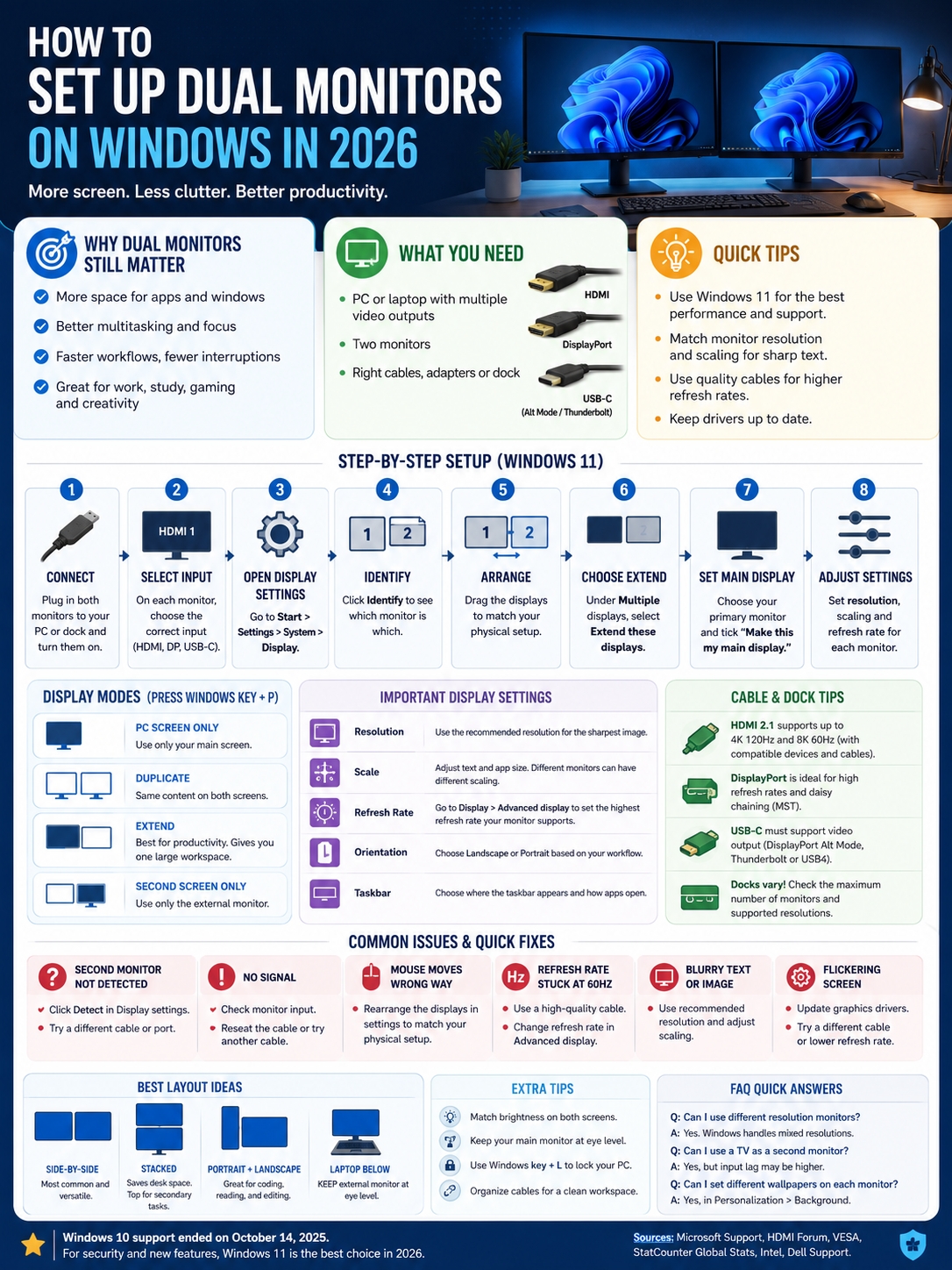
If you want to set up dual monitors windows, the process is much easier than it looks. Windows 11 has built-in tools for detecting displays, arranging screens, changing resolution, adjusting scale, and choosing your main monitor.
Windows 11 is also the better choice for most users now. StatCounter reported Windows 11 at 69.92% of desktop Windows version share worldwide in June 2026, while Windows 10 had 28.1%. Microsoft also ended Windows 10 support on October 14, 2025. So yes, Windows 10 still runs, but it no longer gets standard security updates or regular technical support.
This guide walks you through the full setup. No guesswork. No tech jargon. Just clear steps that help you get both screens working properly.
Why Dual Monitors Still Make Sense in 2026
A second monitor gives you space. That sounds basic, but it changes how your desk feels.
With one screen, you spend too much time hiding, resizing, and hunting for windows. With two screens, your main work stays open. Your notes, browser, chat, preview, or call can sit beside it.
That saves clicks. It also saves patience.
Windows 11 also handles multitasking better than older versions. Snap layouts let you place windows side by side quickly. On a dual monitor setup, that feels even more useful because you have more room to organize your work.
|
Use Case |
Best Dual Monitor Setup |
Why It Helps |
|
Office work |
Laptop plus one external monitor |
Keeps email, documents, and meetings visible |
|
Writing |
Two landscape monitors |
Draft on one screen, research on the other |
|
Coding |
One landscape and one portrait monitor |
Code fits better on a vertical screen |
|
Gaming |
Fast main monitor plus side monitor |
Game on one screen, chat or stream tools on the other |
|
Video editing |
Large main screen plus preview display |
Timeline and preview stay separate |
|
Online classes |
Laptop screen plus monitor |
Class video and notes stay open together |
A dual monitor setup won’t fix messy work habits. But it removes a lot of daily friction. That alone makes it worth considering.
What You Need Before You Connect Two Monitors
Before changing any Windows settings, check your ports and cables.
Most problems start here. The monitor is fine. Windows is fine. The real issue is often the wrong cable, the wrong input, a weak adapter, or a dock that doesn’t support two displays.
You need three things:
- A Windows PC or laptop that supports more than one display.
- Two working monitors.
- The right cable, adapter, hub, or dock.
Windows can manage multiple screens. Your hardware decides how many displays you can run and how good they’ll look.
|
Item |
What to Check |
Best 2026 Advice |
|
Monitor ports |
HDMI, DisplayPort, USB-C, VGA, DVI |
Use HDMI, DisplayPort, or USB-C when possible |
|
PC ports |
HDMI, DisplayPort, USB-C, Thunderbolt, USB4 |
Check if the port supports video output |
|
Cable |
Cable type and bandwidth |
Use certified cables for high refresh rates |
|
Dock |
Maximum monitor support |
Read the dock specs before buying |
|
GPU |
Number of supported displays |
Check your laptop or graphics card page |
|
Resolution |
1080p, 1440p, 4K, ultrawide |
Higher resolution needs more bandwidth |
HDMI
HDMI is the port most people recognize. You’ll find it on laptops, desktops, TVs, and monitors.
It works well for simple dual monitor setups. For high-end screens, the HDMI version matters. HDMI 2.1 can support higher resolutions and refresh rates, including 4K at 120Hz and 8K at 60Hz, if the monitor, cable, and PC all support it.
That last part matters. A fancy monitor won’t hit its best refresh rate if the cable or port can’t keep up.
DisplayPort
DisplayPort is common on desktop graphics cards and many PC monitors. It’s often the better option for high refresh rates, gaming displays, and serious desk setups.
It also supports MST, short for Multi-Stream Transport. That lets some monitors connect in a chain from one DisplayPort connection. This is called daisy chaining.
Not every monitor supports it, though. Your PC, cable, and monitors all need to support the feature.
USB-C
USB-C looks simple, but it can be confusing.
Some USB-C ports handle charging and file transfer only. Others can also send video. For dual monitor work, you need USB-C with video support, such as DisplayPort Alt Mode, Thunderbolt, or USB4.
So don’t buy a random USB-C dock and hope it works. Check your laptop specs first.
Look for terms like:
- DisplayPort Alt Mode
- Thunderbolt 3, 4, or 5
- USB4
- External display support
- Video output over USB-C
VGA and DVI
VGA and DVI are old ports. They can still work, especially with older monitors, but they’re not ideal in 2026.
VGA often looks soft because it’s analog. DVI has limits too. Use HDMI, DisplayPort, or USB-C when you can.
How to Set Up Dual Monitors Windows Step by Step
Now let’s get both screens working.
These steps focus on Windows 11, but the process is similar on Windows 10. The bigger difference is support. Windows 10 passed its normal support end date in October 2025, so Windows 11 is the smarter long-term choice.
|
Step |
Action |
Why It Matters |
|
1 |
Connect both monitors |
Windows needs a video signal |
|
2 |
Turn on each monitor |
Some displays don’t wake automatically |
|
3 |
Select the right input |
HDMI 1, HDMI 2, DisplayPort, USB-C, etc. |
|
4 |
Open Display settings |
This is where Windows controls monitors |
|
5 |
Click Identify |
Shows which screen is number 1 or 2 |
|
6 |
Arrange display boxes |
Matches mouse movement to your desk |
|
7 |
Choose Extend |
Creates one large desktop |
|
8 |
Set resolution and scale |
Makes text sharp and readable |
Step 1: Connect the First Monitor
Plug your first monitor into your PC or laptop.
Use the best port you have:
- Use DisplayPort for high refresh rate PC monitors.
- Use HDMI for common monitors and TVs.
- Use USB-C if your laptop supports video output.
- Use Thunderbolt or USB4 if you’re running a modern dock.
If you use a desktop PC with a dedicated graphics card, plug the cable into the graphics card ports. These usually sit lower on the back of the case.
Avoid plugging the monitor into the motherboard video port unless your system is built for that.
Step 2: Connect the Second Monitor
Now connect the second screen.
If your desktop has two display outputs, plug both monitors in directly. If your laptop has HDMI and USB-C video, you can use both.
If your laptop only has one video output, you may need a dock or hub. Read the specs carefully before buying. Some docks support only one external monitor. Others support two screens, but only at 1080p. Higher-end docks may support dual 4K at 60Hz, but often only through Thunderbolt or USB4.
Step 3: Open Windows Display Settings
Go to:
Start > Settings > System > Display
This is your control center for multiple monitors.
Here you can:
- Detect connected displays
- Rearrange screen positions
- Change display mode
- Set the main monitor
- Adjust scale
- Change resolution
- Change orientation
- Open advanced display settings
Step 4: Click Identify
Click Identify.
Windows will show a large number on each screen. This tells you which display is 1 and which is 2.
Now look at your desk. If monitor 2 sits on the right, drag box 2 to the right inside Display settings. If your laptop sits below your external monitor, drag the laptop display below the monitor box.
This small step matters. It controls how your mouse moves between screens.
Step 5: Choose Extend These Displays
Under display options, choose Extend these displays.
This is the setting most people want. It turns both screens into one wide workspace. You can drag apps from one monitor to the other.
This is the real reason people search for set up dual monitors windows. You get more space without buying a huge single monitor.
Choose the Right Display Mode
Windows gives you four main display modes. You can switch between them quickly with:
Windows key + P
That shortcut is handy when a monitor doesn’t show what you expect.
|
Display Mode |
What It Does |
Best For |
|
PC screen only |
Uses only the main PC or laptop screen |
Laptop-only use |
|
Duplicate |
Shows the same image on both displays |
Presentations and classrooms |
|
Extend |
Spreads your desktop across screens |
Real dual monitor work |
|
Second screen only |
Uses only the external display |
Desk setups with closed laptop |
Use Extend for Daily Work
Extend is the best mode for productivity.
You can place your browser on one screen and your document on the other. Or keep Zoom on your laptop while your main work stays on the monitor.
A few easy setups:
- Browser on one screen, Word or Google Docs on the other.
- Email on the side screen, spreadsheet on the main screen.
- Code on one display, preview window on the second.
- Game on the main monitor, Discord or stream tools on the side.
If you want to set up dual monitors windows for real multitasking, use Extend.
Use Duplicate for Sharing
Duplicate shows the same thing on both screens.
It works well for:
- Presentations
- Classrooms
- Training rooms
- Projectors
- In-person screen sharing
It’s not great for daily work because both screens show the same content.
Use Second Screen Only for a Desk Setup
This mode is useful if you use a laptop with a large external monitor.
You can close the laptop and work from the external screen with a keyboard and mouse. You may need to change power settings so the laptop doesn’t sleep when you close the lid.
Arrange, Scale, and Match Your Displays
Getting both screens connected is only half the job.
Now you need to make them feel right.
A bad layout makes your mouse move the wrong way. Wrong scaling makes text too big or too tiny. Wrong resolution makes a sharp screen look blurry.
Take a few minutes here. It makes the whole setup better.
|
Setting |
What It Controls |
Recommended Choice |
|
Display arrangement |
Mouse direction between screens |
Match your physical desk |
|
Main display |
Where Start and apps open first |
Choose your primary work screen |
|
Scale |
Text and app size |
Use what feels readable |
|
Resolution |
Sharpness and screen space |
Use the recommended setting |
|
Orientation |
Landscape or portrait |
Use portrait for reading or coding |
|
Taskbar behavior |
How taskbar appears on displays |
Pick based on your workflow |
Set the Main Display
Your main display is the screen Windows treats as primary.
To set it:
- Open Settings > System > Display.
- Select the monitor you want as your main screen.
- Click Make this my main display.
Use your best screen as the main display. For most people, that means the largest, sharpest, or most centered monitor.
Read Also: How to Fix High CPU Usage on Windows 11
Fix Scaling
Scaling controls the size of text, icons, buttons, and apps.
A 24-inch 1080p monitor may look right at 100%. A 27-inch 4K monitor may need 150%. A laptop screen often looks better at 125% or 150%.
Don’t force both monitors to use the same scale. Mixed screens often need mixed settings.
Use Portrait Mode When It Helps
Portrait mode is underrated.
It works well for:
- Coding
- Reading long articles
- Editing documents
- Checking mobile web layouts
- Viewing PDFs
- Keeping chat apps open
Rotate the monitor first. Then change orientation in Windows Display settings.
Fix Resolution, Refresh Rate, and Color Problems
Sometimes both monitors connect, but one still looks wrong.
Maybe the text looks blurry. Maybe your 144Hz screen is stuck at 60Hz. Maybe the colors look washed out. Maybe one screen looks huge and the other looks tiny.
Most of these issues come from settings, cables, or hardware limits.
|
Problem |
Likely Cause |
Best Fix |
|
Blurry screen |
Wrong resolution |
Use the recommended resolution |
|
Text too small |
Scaling too low |
Increase scale on that display |
|
144Hz monitor stuck at 60Hz |
Cable or port limit |
Use DisplayPort, HDMI 2.1, or correct cable |
|
Washed-out colors |
HDR or color setting mismatch |
Check HDR, monitor mode, and GPU settings |
|
Flickering |
Bad cable or refresh mismatch |
Try another cable or lower refresh rate |
|
Apps too large on one screen |
Mixed scaling |
Adjust scale per display |
Set the Correct Refresh Rate
Go to:
Settings > System > Display > Advanced display
Select the monitor. Then choose the refresh rate.
For office work, 60Hz is fine. For gaming, fast scrolling, design work, or smoother movement, 120Hz or 144Hz feels much better.
If the higher option doesn’t appear, check the cable and port. A weak cable can hold back a good monitor.
Use the Recommended Resolution
Windows usually labels one resolution as Recommended.
Use that first.
If your monitor is 2560 x 1440, run it at 2560 x 1440. If it’s 3840 x 2160, run it at 3840 x 2160 and adjust scaling instead of lowering resolution.
Lowering the resolution often makes text look soft.
Check Cable Bandwidth
Cables matter more than people think.
A monitor may support 4K at 120Hz, but your HDMI cable may not. HDMI 2.1 can handle high-bandwidth output, but the full chain needs to support it: PC, GPU, port, cable, and monitor.
If your monitor is stuck at 60Hz, try another cable before blaming Windows.
Laptop, Docking Station, and USB-C Setup Tips
Laptops make dual monitor setups a little trickier.
A desktop PC often has several display ports. A laptop may only have one HDMI port and one USB-C port. And that USB-C port may not support video at all.
|
Setup Type |
What You Need |
Watch Out For |
|
Laptop plus one monitor |
HDMI or USB-C video output |
Easy if the port supports display |
|
Laptop plus two monitors |
Dock, hub, or multiple video ports |
Not all docks support dual display |
|
USB-C dock |
USB-C port with video support |
Some USB-C ports are data-only |
|
Thunderbolt dock |
Thunderbolt laptop and dock |
Better for dual 4K setups |
|
DisplayPort daisy chain |
MST support |
Not supported through HDMI |
|
Closed-lid setup |
External keyboard, mouse, and power |
Change lid close behavior |
Check USB-C Video Support
Don’t assume every USB-C port can run a monitor.
Check your laptop specs for:
- DisplayPort Alt Mode
- Thunderbolt 3, 4, or 5
- USB4
- External display support
- Video output over USB-C
If you don’t see any of those terms, your USB-C port may not support video.
Know What Thunderbolt Can Do
Thunderbolt docks are usually stronger than basic USB-C hubs.
A compatible Thunderbolt 4 setup can support two 4K 60Hz monitors through the right dock or adapter. That makes Thunderbolt a good choice for laptop users who want a clean one-cable desk setup.
It’s not cheap, but it saves cable mess.
Daisy Chain Only When Supported
Daisy chaining means you connect displays like this:
PC or laptop → Monitor 1 → Monitor 2
It can clean up your desk, but it only works with supported hardware.
DisplayPort MST, USB-C with DisplayPort Alt Mode, and Thunderbolt MST can support daisy chaining. HDMI does not support monitor daisy chaining.
Wireless Display Setup: Useful, But Not Perfect
Wireless display sounds great. No cable. No mess. Quick connection.
But it’s not always the best choice.
It can work for slides, quick sharing, or connecting to a TV. For daily work, a cable is usually better. Wired connections are sharper, faster, and more stable.
|
Wireless Use |
Good Choice? |
Reason |
|
Presenting slides |
Yes |
Easy for meetings |
|
Watching video |
Sometimes |
Depends on Wi-Fi quality |
|
Gaming |
No |
Delay can feel bad |
|
Editing video |
No |
Compression and lag get in the way |
|
Office work |
Sometimes |
Fine for light tasks |
|
Permanent setup |
Usually no |
Wired is more reliable |
To connect a wireless display:
- Press Windows key + K.
- Choose the wireless display.
- Wait for Windows to connect.
- Press Windows key + P if you need to switch between Duplicate and Extend.
Use wireless display when convenience matters. Use a cable when performance matters.
Troubleshooting Dual Monitor Problems
Most dual monitor problems look bigger than they are.
Start with the simple stuff. Check the cable. Check the monitor input. Check the display mode. Restart the monitor. Then move to drivers and docks.
|
Problem |
Quick Fix |
Deeper Fix |
|
Second monitor not detected |
Click Detect in Display settings |
Try another cable or port |
|
No signal |
Select correct monitor input |
Test the cable on another display |
|
Mouse moves wrong way |
Rearrange display boxes |
Match the desk layout |
|
Monitor stuck at 60Hz |
Change refresh rate |
Use a better cable or port |
|
Screen flickers |
Reseat cable |
Update graphics driver |
|
Apps open on wrong monitor |
Set main display |
Close and reopen apps on the right screen |
|
Blurry text |
Use recommended resolution |
Adjust scaling per monitor |
Click Detect
Go to:
Settings > System > Display > Multiple displays > Detect
If Windows doesn’t show your second screen, click Detect.
If nothing happens, don’t panic. Move to the cable, input, and port checks.
Check the Monitor Input
Many monitors don’t switch input automatically.
Open the monitor’s physical menu and choose the right input:
- HDMI 1
- HDMI 2
- DisplayPort
- USB-C
- VGA
- DVI
This fixes a lot of “no signal” problems.
Restart the Display Chain
Try this simple reset:
- Shut down the PC.
- Turn off both monitors.
- Unplug the video cables.
- Wait 30 seconds.
- Plug everything back in.
- Turn on the monitors.
- Start the PC.
This can clear connection issues between Windows, the graphics card, the cable, and the monitor.
Update Graphics Drivers
Use Windows Update first. Then check your graphics software:
- NVIDIA App
- AMD Software
- Intel Graphics Command Center
- Your laptop brand’s support app
Driver updates can fix flicker, detection issues, HDR problems, scaling bugs, and refresh rate limits.
Best Dual Monitor Layouts for Different Users
There’s no perfect setup for everyone.
The best layout depends on your desk, work style, monitor size, and how much you move your head during the day.
Keep your main monitor directly in front of you. Put the second screen close enough that you don’t twist your neck every few minutes.
|
User |
Best Layout |
Example Workflow |
|
Writer |
Two landscape monitors |
Draft on one, research on the other |
|
Programmer |
One portrait, one landscape |
Code vertically, preview horizontally |
|
Designer |
Large main monitor plus side screen |
Canvas center, tools and references side |
|
Gamer |
Fast main display plus side screen |
Game center, chat or stream dashboard side |
|
Student |
Laptop below monitor |
Lecture on monitor, notes on laptop |
|
Remote worker |
External monitor plus laptop screen |
Meeting on laptop, work on main display |
Side-by-Side Setup
This is the easiest layout.
Place both monitors at the same height. Keep the main monitor centered. Angle the second monitor slightly inward.
It works well for most people and needs no special hardware.
Laptop Below External Monitor
This setup is common for home offices.
Put the external monitor at eye level. Keep the laptop below it. Use the laptop screen for chat, calls, notes, or music.
This works best with an external keyboard and mouse.
Portrait Plus Landscape
This layout is great for writers, coders, editors, and researchers.
Use the landscape screen for your main work. Use the portrait screen for long pages, notes, code, PDFs, or chats.
Once you get used to a vertical monitor, it’s hard to go back.
Privacy, Comfort, and Power Tips
A good dual monitor setup should feel comfortable, not just impressive.
Two screens can help your workflow. But bad screen height, bad brightness, and messy cables can make the setup annoying fast.
|
Area |
What to Do |
Why It Helps |
|
Ergonomics |
Keep main screen at eye level |
Reduces neck strain |
|
Brightness |
Match both screens |
Reduces eye fatigue |
|
Privacy |
Angle screens away from others |
Protects sensitive work |
|
Security |
Press Windows key + L when away |
Locks your PC quickly |
|
Cables |
Tie cables neatly |
Keeps the desk clean |
|
Power |
Use sleep settings |
Saves energy |
Don’t place one screen too far to the side. If you keep turning your neck, move the monitor closer.
Also try to match brightness and color temperature. A bright blue-white screen beside a warm dim screen can tire your eyes faster.
And if you work in a shared space, lock your screen before walking away. Press:
Windows key + L
It takes one second.
Final Thoughts
|
Key Point |
Best Advice |
|
Best display mode |
Use Extend for real dual monitor work |
|
Best first setting |
Arrange displays to match your desk |
|
Best cable choice |
Use HDMI, DisplayPort, or USB-C video |
|
Best fix for no signal |
Check input, cable, and Detect |
|
Best 2026 Windows choice |
Use Windows 11 when your PC supports it |
Learning how to set up dual monitors windows is one of the easiest upgrades you can make to your desk.
You don’t need to be a tech expert. You just need the right cable, the right port, and a few minutes in Windows Display settings.
Start simple. Connect both screens. Open Settings > System > Display. Choose Extend. Arrange the monitor boxes. Set your main display. Then fix resolution, scaling, and refresh rate.
If something goes wrong, check the basics first. Most problems come from the wrong input, a loose cable, a weak adapter, an unsupported dock, or the wrong display mode.
Once everything feels right, two monitors are hard to give up. You get more space, fewer clicks, and a cleaner workflow. That’s why people still search for set up dual monitors windows in 2026, and it remains one of the most practical upgrades for work, study, gaming, and everyday PC use.
Uncommon FAQs About Dual Monitors on Windows
These questions usually come up after the basic setup is done.
|
Question |
Short Answer |
|
Can I use two different monitor brands? |
Yes |
|
Can I mix 1080p and 4K monitors? |
Yes |
|
Can one monitor be vertical? |
Yes |
|
Can a TV be a second monitor? |
Yes, but input lag may be higher |
|
Can I use HDMI and DisplayPort together? |
Yes |
|
Does dual monitor use more power? |
Yes, because two screens are on |
Can I use two monitors with different refresh rates?
Yes. Windows can run one monitor at 60Hz and another at 144Hz if your hardware supports it.
Go to Advanced display, select each monitor, and set the refresh rate separately.
Why does my second monitor turn off when I close my laptop?
Your laptop is probably set to sleep when the lid closes.
Go to power settings and change what closing the lid does. For a desk setup, keep the laptop plugged in and use an external keyboard and mouse.
Why does my mouse get stuck between monitors?
Your display boxes are not lined up properly.
Open Display settings and drag the monitor boxes until they match your real desk layout.
Can I use a USB splitter for two monitors?
Usually, no.
A normal USB splitter is not a display adapter. You need a dock, hub, or adapter that clearly supports external monitors.
Is DisplayPort better than HDMI for dual monitors?
For many PC monitor setups, yes. DisplayPort often works better for high refresh rates and daisy chaining.
HDMI is still fine for simple setups. It’s also common on TVs and laptops.
Choose based on your monitor, PC, cable, and refresh rate needs.
Can I set up dual monitors on Windows 10 in 2026?
Yes. Dual monitors still work on Windows 10.
But Microsoft ended Windows 10 support on October 14, 2025. That means Windows 10 no longer gets standard software updates, security updates, or technical support.
For long-term use, Windows 11 is the better choice.