
Managing a thriving online community takes serious time and effort. Trying to welcome every new user, moderate chats, and keep things engaging by yourself will quickly lead to burnout. Luckily, automation makes this entire process simple. Knowing how to add bots discord server is the first step toward building a highly active, self-moderating community. Bots do the heavy lifting so you can actually enjoy the space you built.
Whether you need a way to filter out spam, play music in your voice channels, or set up a complex level system that rewards your most active members, bots make it happen. The process might seem highly technical if you have never done it before, but it only takes a few minutes. This guide will walk you through everything you need to know about inviting, configuring, and managing these virtual assistants safely and securely.
What Are Discord Bots and Why Do You Need Them?
Discord bots are software applications programmed to execute specific commands and automate daily tasks within your community. They run on external hardware maintained by their original developers, which means they stay online round the clock without using your personal computer. You need them because manual human moderation simply does not scale once your server starts growing rapidly. Implementing these automated tools saves you from staring at a chat screen all day.
|
Feature Category |
Primary Function |
Real World Benefit |
|
Moderation |
Auto-deleting spam and filtering bad words |
Keeps chat clean without 24/7 human monitoring |
|
Utility |
Assigning roles and posting announcements |
Saves hours of manual administrative work |
|
Entertainment |
Playing music, running trivia, virtual economy |
Retains users and keeps voice channels active |
Moderation and Safety
When your member count spikes, chat channels move faster than any human can reasonably read. You need a way to instantly flag malicious links, mute abusive users, and filter out bad words before they cause drama. Moderation bots handle this automatically based on a strict set of rules you define in their web dashboard. They never sleep, they never take breaks, and they do not make emotional decisions when enforcing the rules.
Engagement and Entertainment
A quiet server usually dies quickly because people get bored. Bots bring interactive elements that give your members a reason to stick around even when the main conversation slows down. You can integrate trivia games, virtual economies, and gambling mechanics using fake currency. Music bots allow users to queue up their favorite tracks from external platforms and listen together in voice channels, creating a shared experience.
Utility and Automation
Bots streamline the tedious administrative tasks that eat up your day. Instead of manually giving a member role to every single person who joins, a bot can assign default roles the second a new user verifies their account. You can also set up bots to pull automated feeds from your YouTube channel, Twitch stream, or Twitter account directly into a dedicated announcements channel, keeping your audience updated effortlessly.
“Bots are the silent gears that keep the community engine running smoothly.” ~ A Server Administrator
Prerequisites for Adding Bots to Your Server
You cannot just invite automated applications into any community you want. Discord enforces strict security measures to prevent malicious software from ruining established communities and stealing data. Before you begin searching for the perfect music or moderation tool, you need to verify your account holds the correct administrative authority within that specific community space. Without these permissions, the system will instantly block your request.
|
Permission Type |
Access Level |
Can Add Bots? |
|
Server Owner |
Absolute Control |
Yes |
|
Administrator |
Full Access Bypass |
Yes |
|
Manage Server |
High Level Setup Access |
Yes |
|
Regular Member |
Standard Chat Access |
No |
Checking Your Permissions
If you created the community yourself, you are the designated owner and hold all permissions by default. You can invite anything you want. However, if you are acting as a moderator in a community owned by someone else, you must check your assigned roles. Click the server name at the top left corner of your screen, navigate to the settings menu, and check the roles tab. If the box next to Manage Server or Administrator is not checked, the system will block you from authorizing any external applications.
Server Ownership vs Admin Roles
There is a slight difference between being the owner and holding an administrator role. Owners have absolute control and cannot be kicked or banned by bots or other humans under any circumstances. Administrators have the power to add bots discord server, but they are still subject to the role hierarchy. If you lack the required access, you will need to message the owner directly and ask them to temporarily elevate your status or invite the bot themselves.
Read Also: How to Clear Discord Cache: A Guide for All Devices
Step-by-Step Guide: How to Add Bots to Discord Server
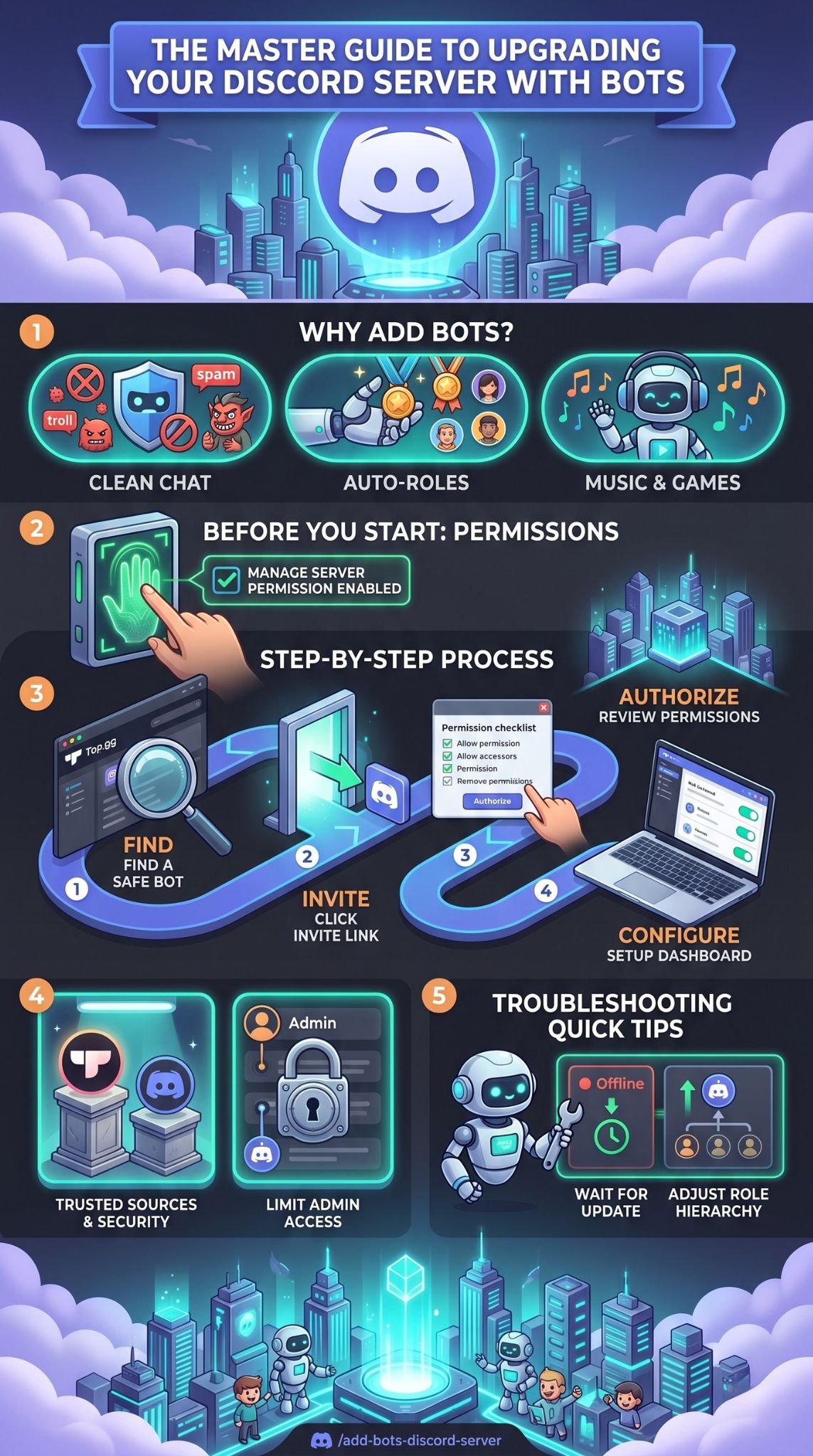
Adding a new automated tool is essentially giving a third-party application permission to read your chat logs and interact with your user base. You need to follow a secure path to ensure you do not accidentally compromise your community data. We will walk through the exact process of how to add bots discord server from finding a safe application to getting it fully configured and running perfectly.
|
Step Number |
Action Required |
Important Detail |
|
Step 1 |
Locate the software |
Use trusted directories like Top.gg |
|
Step 2 |
Trigger the invite |
Log into the official Discord OAuth2 page |
|
Step 3 |
Review access |
Uncheck unnecessary administrative rights |
|
Step 4 |
Configure settings |
Use web dashboards or text commands |
Step 1: Find the Right Bot for Your Community
Do not blindly search the internet and click the first download link you see. You must pull these tools from reputable directory websites that vet developers. First, figure out exactly what problem you are trying to solve. If you need a music player, look specifically for top-rated audio bots. Once you locate a potential option, check its total server count. High adoption rates usually indicate stable software and active developer support.
Step 2: Invite the Bot to Your Server
Once you pick the right tool, locate the primary invite button on its directory page. Clicking this will redirect you away from the directory and onto the official Discord website for OAuth2 authorization. A secure prompt will ask you to log into your account if you are not already signed in. A drop-down menu will appear, displaying only the communities where you currently hold the Manage Server permission. Select your target destination and hit the continue button.
Step 3: Authorize Permissions
The authorization screen presents a checklist of specific actions the application wants to perform. A music tool needs permission to join voice channels and speak, while a moderation tool needs the ability to kick users and manage messages. Review this list carefully. If a basic utility tool asks for full administrative rights, that is a massive red flag. Uncheck any permissions that seem unnecessary for its core function, then click authorize. Complete the CAPTCHA to finalize the transfer.
Step 4: Configure the Bot via Dashboard or Commands
The application will now appear in your offline or online member list. However, it will not do anything useful until you tell it how to operate. Most top-tier developers provide a web-based dashboard where you can log in and adjust settings using a visual interface. This is where you configure custom welcome messages, set up moderation filters, and change the prefix used to trigger commands. If no dashboard exists, you will need to type specific slash commands directly into your text channels to configure the setup.
Best Places to Find Safe Discord Bots
Security should dictate every decision you make when bringing outside software into your community. Since anyone with basic coding knowledge can build a bot, you need to rely on trusted platforms that curate and review these applications. These directories act as a safety net, filtering out broken scripts or malicious code before it reaches the general public. Finding a tech-savvy community is much easier when you use the right resources.
|
Directory Name |
Best Feature |
Target Audience |
|
Top.gg |
Massive user voting system |
General server owners |
|
Discord Bot List |
Strict manual review process |
Security conscious users |
|
GitHub |
Open source raw code |
Advanced programmers |
Top.gg
This directory stands as the most popular platform on the internet for finding community tools. It categorizes thousands of active projects by their primary function, coding language, and user ratings. The site relies on a community voting system that naturally pushes the most reliable and highly updated software to the front page. You can easily filter results to find exactly what you need in seconds without sifting through abandoned projects.
Discord Bot List
This is another highly trusted platform featuring a clean, easy-to-read interface. What sets this directory apart is its strict approval process. Developers must submit their projects for manual review before they appear in public search results. This extra layer of security effectively eliminates abandoned projects and low-quality code, ensuring you only install software that works safely and exactly as advertised on the tin.
GitHub for Advanced Users
If you are highly tech-savvy and want to run custom scripts, GitHub offers thousands of open-source projects. You can review the raw code yourself to ensure it is secure. However, these projects rarely come with a simple invite link. You will need to create your own application in the developer portal, compile the code, generate a unique client ID, and host the software on your own private hardware or a rented cloud server.
Managing Bot Permissions and Security
Just because an application has millions of downloads does not mean you should blindly grant it absolute power over your users. Proper permission management is the only thing protecting your community if a developer’s account gets compromised. When you add bots discord server, you must structure your role hierarchy carefully to prevent massive data deletion or unauthorized mass bans that can ruin years of community building.
|
Security Practice |
Execution Method |
Why It Matters |
|
Limit Admin Rights |
Uncheck the Administrator box |
Prevents full server deletion |
|
Hierarchy Structure |
Place bot roles below humans |
Allows human staff to overrule bots |
|
Channel Isolation |
Use category overrides |
Keeps automated spam out of general chat |
Keep Administrator Rights Restricted
The Administrator permission is a literal skeleton key that bypasses all standard channel restrictions. You should only grant this to complex, all-in-one security systems that absolutely require it to function. For everything else, take the time to manually assign granular permissions. A leveling system only needs to read and send messages. It does not need the power to delete channels, alter server settings, or randomly ban users.
Create Dedicated Bot Roles
Keeping your member list organized makes managing security much easier. You should create a master role specifically for automated applications. Make sure you place this master role high enough in your server hierarchy to moderate standard members, but keep it strictly below your human moderator roles. This structural setup ensures your human staff can always overrule, mute, or kick a bot if it starts malfunctioning or spamming.
Setting Up Channel Specific Overwrites
Sometimes you only want an application to operate in a specific text channel to prevent it from cluttering up your general chat with game prompts or music queues. You can use channel overwrites to block the bot from reading or sending messages anywhere else. Open your specific channel settings, navigate to the permissions tab, add the bot directly, and manually deny its ability to view the channel. This keeps your community clean and highly organized.
Troubleshooting Common Discord Bot Issues
Technology is never perfect, and automated software will inevitably break down or stop responding to your commands at the worst possible time. When this happens, you need to identify whether the problem is on your end or the developer’s end. Understanding how to diagnose basic permission errors and recognize external connection drops will save you hours of frustration and keep your server running.
|
Common Issue |
Likely Cause |
How to Fix It |
|
Bot is offline |
Developer hosting crashed |
Wait for the developer to push a fix |
|
Command ignored |
Wrong prefix used |
Check the dashboard for the correct prefix |
|
Cannot ban user |
Role hierarchy error |
Move the bot’s role higher in server settings |
Bot Is Offline or Not Responding
If an application suddenly goes offline and disappears from your active user list, there is nothing you can do to fix it from your desktop. This usually means the developer is pushing a major software update or their hosting hardware crashed completely. You just have to wait for them to bring it back online. If the bot is online but ignores your text, verify that you are using the correct command prefix or the updated slash command system.
Bot Lacks Permissions
When an application attempts to perform an action but throws an error message in chat, it almost always means it lacks the hierarchy clearance. A bot cannot assign a role to a user if that specific role sits higher than the bot’s own role in your server settings. You need to open your server configuration, navigate to the roles list, and drag the bot’s role higher up the chain. Also, verify it actually has permission to read the specific channel where you are typing.
Dealing with Command Conflicts
If you invite multiple moderation or utility tools that share the exact same command prefix, they will often try to answer you at the same time. This creates massive chat spam and confusing logic errors. You can fix this by logging into each application’s web dashboard and changing their default prefixes. Assign an exclamation point to your music tool, a question mark to your leveling tool, and a period to your moderation system to keep them separated.
Final Thoughts
Building a successful community requires a careful balance of genuine human interaction and smart automated efficiency. Now that you fully understand how to add bots discord server, you can transform a quiet text chat into a fully interactive, self-moderating hub of activity. Taking the time to set up these tools properly today will save you countless hours of stress tomorrow.
|
Takeaway Focus |
Actionable Advice |
Long Term Result |
|
Software Sourcing |
Always use vetted directories |
Prevents malicious code infiltration |
|
Security Setup |
Limit administrative privileges |
Protects community infrastructure |
|
System Updates |
Monitor bot offline status |
Ensures continuous moderation coverage |
Community Growth
Your community will grow much faster when users have interactive games, leveled rewards, and seamless music integration. By automating the boring stuff, you free up your schedule to actually talk to your members and foster real relationships. This human connection is what ultimately keeps people returning to your server every single day.
Long Term Automation
Remember to always pull your software from trusted directories, double-check your role hierarchies, and never grant administrative powers unless absolutely necessary. With the right tools correctly configured and securely locked down, managing thousands of active users becomes an incredibly simple and highly rewarding experience.
Frequently Asked Questions (FAQs)
When setting up external software for the first time, users frequently run into the same technical roadblocks. We have gathered the most uncommon but important questions based on recent search trends to help you troubleshoot advanced setups. Review these answers to ensure your automated systems run exactly as intended.
|
FAQ Topic |
Core Issue |
Quick Resolution |
|
Manual Invites |
Adding via Client ID |
Use the OAuth2 URL format manually |
|
Slash Commands |
New Discord UI rules |
Type forward slash to see available actions |
|
Mobile Access |
Managing on a phone |
Use the mobile browser to access dashboards |
Can I add a bot without an invite link?
Yes, but you need to know the specific Client ID of the application. You can paste a standard Discord OAuth2 URL into your browser and replace the blank Client ID section with the specific numbers tied to the software. This is exactly how developers invite their own private code into testing environments before making them public.
Why do some bots use slash commands now?
Discord recently changed its API rules to make community spaces safer and cleaner. Instead of typing exclamation points or question marks, many applications now force you to type a forward slash. This triggers a native pop-up menu directly inside your chat box, showing you exactly what commands are available and what parameters you need to type, making it much easier for beginners to use.
Can mobile users manage bot permissions?
You can absolutely manage automated software from a smartphone. The process is exactly the same as desktop. However, many web dashboards are not perfectly optimized for small mobile screens. For the best experience, you should open the dashboard link in your mobile web browser and request the desktop site version to ensure you can see all the configuration toggles clearly.