
It is Monday morning, you have ten tabs open for a project, and suddenly, everything vanishes. The window blinks out of existence, and you are left staring at your wallpaper. If this sounds familiar, you are dealing with the frustrating reality of the edge browser crashing.
Microsoft Edge has come a long way since its early days, turning into a fast, Chromium-based powerhouse. But even the best software hits a wall sometimes. Whether it is a conflict with a new update, a rogue extension, or just a cluttered cache, a crashing browser is a massive productivity killer. This guide is built to take you from a broken browser to a stable one, covering every step from simple restarts to deep system repairs.
Why Does Microsoft Edge Keep Crashing?
Before we jump into the how, we need to look at the why. Browsing apps are complex. They handle video rendering, script execution, and memory management all at once. When Edge fails, it is usually because one of these gears got stuck. It is rarely just one thing, but rather a combination of small errors that eventually tip the browser over the edge.
Understanding the root cause helps you pick the right fix. If Edge crashes the moment you open a specific site, it might be a script error. If it closes as soon as it launches, it is likely a corrupted file or a deeper system conflict. We see this often after a major Windows update or when a third-party antivirus decides Edge is suddenly a threat.
Common Technical Triggers
The technical side of a crash usually involves the way the browser interacts with your computer hardware. When the code asks the processor for a resource that isn’t there, the app shuts down to prevent further system damage.
Identifying Patterns in Crashes
Pay attention to when the crash happens. Does it happen when you play a 4K video? That points to a graphics issue. Does it happen when you open twenty tabs? That is likely a memory problem. Identifying these patterns saves you hours of trial and error.
Summary of Common Triggers
|
Trigger Type |
Common Cause |
Impact Level |
|
Extensions |
Ad-blockers or VPNs |
High |
|
System Files |
Corrupted Windows DLLs |
Medium |
|
Hardware |
Old GPU drivers |
High |
|
Cache |
Overloaded browser data |
Low |
Phase 1: Quick Fixes for Immediate Relief
Most of the time, the solution is simpler than you think. Do not spend an hour digging into registry files if a simple restart will do the trick. We often overlook the basics because we assume technology is more complicated than it actually is.
The first thing you should do when facing edge browser crashing is to look at what else is running. If your PC is struggling to keep up with other apps, Edge will be the first thing to go. Clearing out the background noise gives the browser the breathing room it needs to function.
Close Ghost Processes in Task Manager
Sometimes Edge does not fully close even when the window is gone. These ghost processes can prevent the browser from launching correctly next time. Use the Task Manager to force a total shutdown of every Edge-related task.
The Power of a System Restart
It sounds like a cliché, but restarting your computer clears out temporary memory glitches that might be causing the browser to fail. It resets the environment and gives the software a fresh slate.
Check for Immediate Updates
Microsoft releases patches constantly. If there is a known bug causing crashes, the fix is probably already waiting in an update. Open the About Microsoft Edge page to force the browser to look for the latest version.
Summary of Quick Fixes
|
Action |
Purpose |
Expected Result |
|
Task Manager Kill |
Force stops stuck processes |
Fresh launch |
|
PC Restart |
Clears RAM and temp files |
System stability |
|
Edge Update |
Patch known bugs |
Updated software |
Phase 2: Cleaning Browser Data and Cache
If the basic restarts did not work, the problem might be hidden inside the browser’s own data folders. Over time, the files Edge saves to speed up your browsing can become corrupted. When the browser tries to read a broken file, it simply gives up and closes.
Think of your browser cache like a junk drawer. It is meant to be helpful, but when it gets too full, you cannot find what you need, and the drawer gets stuck. Cleaning this out is a standard maintenance step that every user should do every few months to avoid edge browser crashing.
Clear Cache and Cookies Thoroughly
Navigate to the privacy settings and select everything from the beginning of time. This removes outdated site data that might be conflicting with the current version of the web pages you visit.
Read Also: Sosoactive: Connecting Millennials With Cutting-Edge Strategies
Managing Site Permissions
Sometimes a site asks for a permission (like your camera or location) and the request itself triggers a crash. Resetting your site permissions can often stabilize the browser if it only crashes on specific websites.
Dealing with Corrupted History
While history seems harmless, a massive history file can slow down the browser’s indexing. If Edge is struggling to suggest URLs in the search bar before it crashes, clearing the history might be the secret fix.
Summary of Data Cleaning
|
Data Type |
Why Clear It? |
Benefit |
|
Cache |
Fixes broken web assets |
Faster loading |
|
Cookies |
Resolves login session errors |
Stability |
|
Permissions |
Stops hardware request loops |
Better security |
Phase 3: Managing Extensions and Add-ons
Extensions are great for productivity, but they are also the most common cause of instability. A poorly coded ad-blocker or a VPN extension can easily trigger an edge browser crashing loop. These tools inject their own code into every page you visit, which is a recipe for disaster if the code is not perfect.
We recommend the 50/50 method for troubleshooting. Turn off half of your extensions and see if the crash persists. If it does, you know the culprit is in the remaining half. This is much faster than checking them one by one if you have a long list of add-ons.
Testing in InPrivate Mode
Before you start deleting things, open an InPrivate window. By default, extensions are disabled here. If Edge works perfectly in this mode, you have 100% confirmation that an extension is the problem.
Updating Rogue Extensions
Sometimes an extension just needs an update to match the latest version of Edge. Go to the extension management page and toggle Developer Mode to see the Update button for your add-ons.
Removing Old Tools
If you have extensions you have not used in six months, get rid of them. They are just extra weight that could cause a conflict during the next browser update.
Summary of Extension Management
|
Troubleshooting Step |
Goal |
User Action |
|
InPrivate Test |
Rule out extensions |
Press Ctrl+Shift+N |
|
50/50 Disable |
Find the specific culprit |
Toggle off half |
|
Remove Unused |
Lighten the browser load |
Delete old add-ons |
Phase 4: Intermediate System Tweaks
Sometimes the way Edge uses your computer’s hardware is the problem. Modern browsers use a feature called hardware acceleration, which offloads tasks like video decoding to your graphics card. If your graphics drivers are old or the hardware is failing, this causes a total collapse.
Another hidden area is the experimental flags. These are features Microsoft is still testing. If you have ever tweaked these settings in the past, they might be the reason for your current edge browser crashing issues. Resetting these to default is a quick way to restore stability.
Disable Hardware Acceleration
Go to the system settings within Edge and turn off this feature. If your browser stops crashing immediately after this, you know your graphics card or its drivers are the root of the problem.
Resetting Edge Flags
Navigate to edge://flags and click the Reset all button. This ensures that no “under-the-hood” experiments are causing the software to behave in ways it was not intended to.
Adjusting Efficiency Mode
Edge has a built-in efficiency mode to save battery and RAM. On older systems, this mode can be too aggressive, putting tabs to sleep and causing a crash when you try to wake them up. Try disabling it to see if performance improves.
Summary of System Tweaks
|
Feature |
Default State |
Why Change It? |
|
Hardware Acceleration |
On |
Fixes GPU driver conflicts |
|
Experimental Flags |
Default |
Stops unstable features |
|
Efficiency Mode |
Balanced |
Prevents tab sleep errors |
Phase 5: Repairing and Resetting the Installation
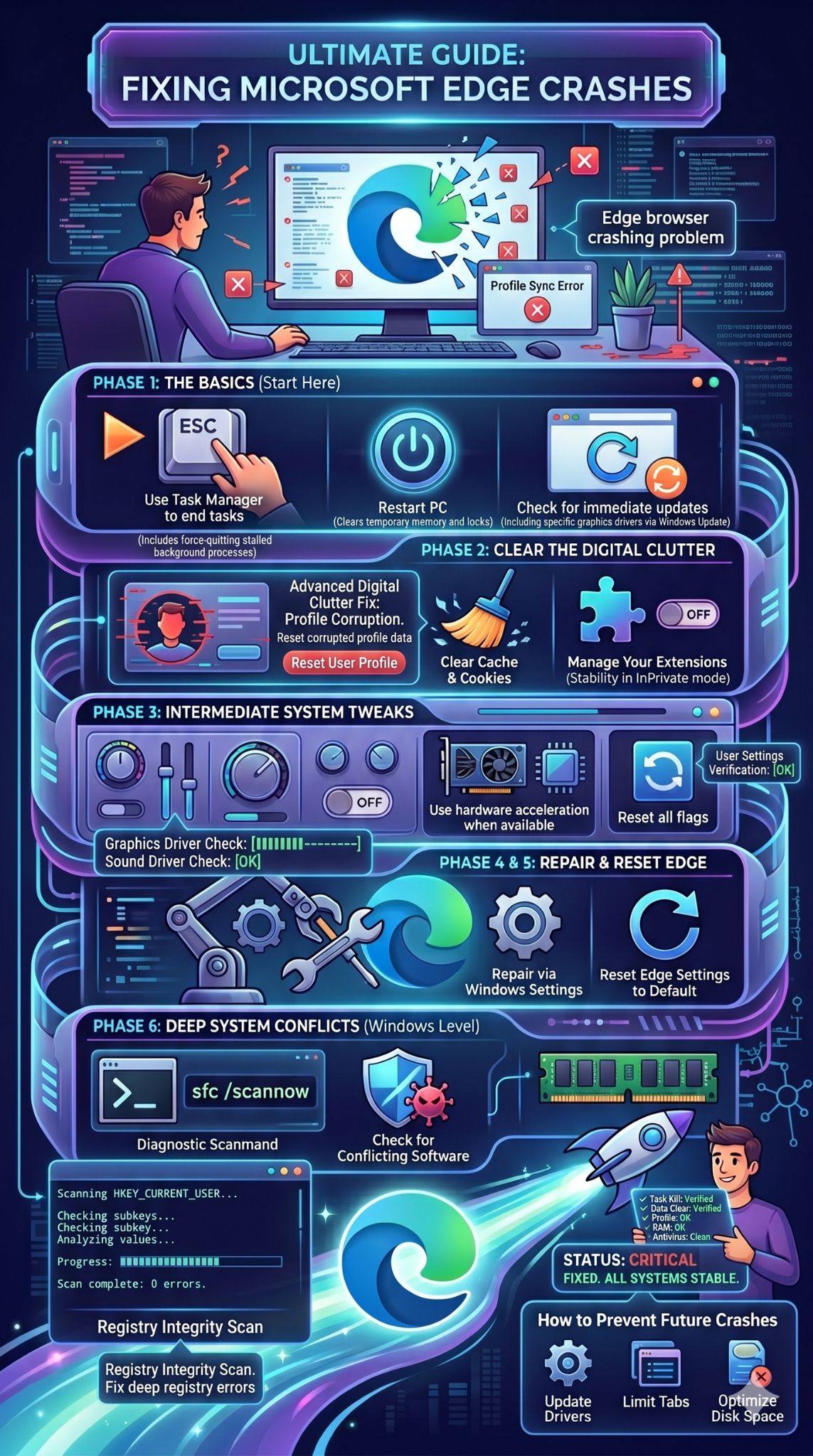
If the browser is still acting up, it is time to use the Windows repair tools. This is more effective than a standard uninstall/reinstall because it fixes the core installation files. The Repair function is like a surgical strike on broken code while keeping your personal data safe.
When you use the Windows Settings to repair Edge, it downloads a fresh copy of the installer and verifies every file on your drive. This is the ultimate way to fix an edge browser crashing problem that stems from a bad update or a malware attack that damaged the app’s integrity.
Repair Edge via Windows Settings
Close the browser and find it in your list of installed apps. Select Modify and then Repair. This process takes a few minutes and requires an internet connection, but it is one of the most reliable fixes available.
Resetting Edge to Factory Defaults
If the repair does not work, use the internal Reset settings option. This is a bit more drastic as it resets your home page, search engine, and pinned tabs, but it often fixes deep configuration errors that the repair tool might miss.
Creating a New User Profile
Sometimes the crash is tied specifically to your user profile. Try adding a new profile within Edge. If the new profile does not crash, your original profile might have a corrupted sync file or a broken local database.
Summary of Repair Options
|
Method |
Data Loss? |
Success Rate |
|
Windows Repair |
No |
High |
|
Settings Reset |
Yes (Settings only) |
Very High |
|
New Profile |
No (Starts fresh) |
Medium |
Phase 6: Dealing with Deep System Conflicts
When the problem is not actually Edge, but the environment it is running in, you need to look at Windows itself. A corrupt system file in the background can prevent any app from running correctly. This is where we look at the health of your operating system.
Often, edge browser crashing is just a symptom of a larger sickness in your PC. This could be anything from a failing hard drive to a virus that has latched onto the browser’s processes. Running system-wide scans ensures that your foundation is solid before you blame the browser again.
Run a System File Checker (SFC) Scan
Open the Command Prompt as an administrator and run the scan command. This tool will look for any broken Windows files and replace them automatically. It is a vital step for overall PC health.
Checking for Conflicting Software
Some third-party antivirus programs or “system boosters” can be over-aggressive. They might flag a legitimate Edge process as a threat, causing it to shut down. Try temporarily disabling your antivirus to see if the crashes stop.
Testing Your Physical RAM
If your browser crashes with an Out of Memory error, your physical RAM might be failing. Use the Windows Memory Diagnostic tool to see if your hardware is actually the problem.
Summary of System Scans
|
Scan Type |
Command / Tool |
What it Fixes |
|
SFC Scan |
sfc /scannow |
Corrupted Windows files |
|
DISM Scan |
dism /online /cleanup-image |
Windows Image errors |
|
Memory Test |
Windows Memory Diagnostic |
Failing RAM hardware |
Common Edge Error Codes Explained
When Edge crashes, it often leaves a small code behind. These codes are not just random letters; they are a map to the solution. Knowing what they mean can save you from trying fixes that have nothing to do with your specific problem.
Most users ignore these codes, but if you want to stop the edge browser crashing for good, you should look them up. They tell you if the problem is your internet, your hardware, or the website itself.
Deciphering the Jargon
Errors like STATUS_BREAKPOINT usually point to a conflict between the browser and your processor. Errors that mention “Memory” are a sign that you need to close other apps or buy more RAM.
Finding Error Logs
You can find more detail by typing edge://crashes into your address bar. This hidden page lists every time the browser has failed and gives you a report you can send to Microsoft for help.
Error Code Reference Table
|
Error Code |
Potential Meaning |
Quick Fix |
|
STATUS_BREAKPOINT |
Code conflict |
Disable extensions |
|
OUT_OF_MEMORY |
RAM is full |
Close other apps |
|
RESULT_CODE_KILLED |
Process terminated |
Restart Edge |
|
DLG_FLAGS_INVALID |
Security error |
Check date and time |
How to Prevent Future Edge Browser Crashing Issues
Once you have fixed the problem, you want to keep it that way. Stability is a habit, not just a one-time fix. A well-maintained browser is a fast browser, and a fast browser rarely crashes.
Think of it like a car. If you never change the oil, it will eventually break down. If you never clear your browser data or update your software, you are inviting an edge browser crashing loop. Follow these simple steps to stay ahead of the curve.
Keeping Your Tab Count Low
Each tab uses a slice of your PC’s power. If you keep 50 tabs open, you are asking for trouble. Use the Collections feature to save pages for later instead of keeping them active in the background.
Regular Software Maintenance
Check for updates once a week. Not just for Edge, but for Windows and your graphics drivers. This ensures that all the pieces of your PC puzzle fit together perfectly.
Using Trusted Sources Only
Only install extensions from the official Microsoft or Chrome stores. Third-party sites often offer “free” tools that are poorly optimized and lead to constant crashes.
Summary of Prevention Tips
|
Habit |
Frequency |
Difficulty |
|
Clear Cache |
Once a month |
Easy |
|
Update Drivers |
Every 3 months |
Medium |
|
Limit Tabs |
Daily |
Varies |
|
Update Edge |
Weekly |
Easy |
Final Thoughts
Dealing with a browser that won’t stay open is a massive headache, but it is rarely a fatal problem for your computer. Most of the time, an edge browser crashing issue is just a sign that some digital housekeeping is overdue. Whether it was a rogue extension, a corrupted cache file, or a hardware setting that needed a tweak, the solutions are usually within your reach.
By following a logical path—starting with simple restarts and moving toward system repairs—you can usually solve the problem in under ten minutes. Keep your browser clean, your extensions minimal, and your system updated to ensure your next browsing session is smooth and uninterrupted. Remember that a stable browser is the foundation of a productive workday.
Frequently Asked Questions
Why does Edge crash only on YouTube or Netflix?
This is almost always related to hardware acceleration or your graphics driver. Since these sites rely heavily on your GPU to render video, a driver conflict will cause the browser to fail. Try turning off hardware acceleration in Edge settings to see if it stops.
Will I lose my favorites if I repair Edge?
No. Using the Repair function in Windows Settings is designed to preserve your user data. However, if you perform a full Reset within the browser settings, your extensions and temporary settings will be cleared, though your synced favorites usually remain.
Can a virus cause Edge to crash?
~Absolutely.~ Malware often tries to hijack browser processes to inject ads or steal data. If the injection fails, the browser crashes. Run a full scan with Windows Defender if the crashes are accompanied by random pop-ups or slow performance.
Is Edge better than Chrome for stability?
Both use the same Chromium engine, so their core stability is very similar. However, Edge is more deeply integrated into Windows, which can sometimes make it more efficient with system resources, but also more susceptible to Windows update bugs.
What should I do if Edge crashes on launch and I cannot access settings?
Use the Windows Settings Repair method. Since this is done outside of the browser, it works even if the browser won’t open at all. You can also try launching Edge via the Command Prompt in “safe mode” by adding –disable-extensions to the launch command.