
Smart plugs are still one of the easiest ways to make your home smarter without spending much money. You don’t have to replace your lamp, fan, coffee maker, or holiday lights. You just plug a smart plug into the wall, connect it to Alexa, and control the device with your voice, phone, schedule, or routine.
Simple, right?
Most of the time, yes. But smart plugs can still be annoying during setup. Alexa may not find the plug. Your phone may be on the wrong Wi-Fi band. A Matter plug may ask for a QR code. The plug may show up with a weird name. Or a routine may work once and then randomly stop.
That’s why this smart plugs alexa setup guide keeps things practical. No confusing tech talk. No overcomplicated steps. Just a clear walkthrough for 2026, when regular Wi-Fi plugs, Matter smart plugs, Zigbee plugs, Alexa-only plugs, and outdoor smart plugs are all sitting in the same search results.
By the end, you’ll know how to choose the right plug, connect it to Alexa, name it properly, build useful routines, and avoid the mistakes that cause most setup problems.
Smart Plugs Alexa Setup in 2026: What Has Changed?
|
Key Point |
What It Means for You |
|
Alexa app is still the main setup tool |
Most smart plugs are added through the Alexa app. |
|
Matter plugs are more common now |
Some newer plugs use a Matter QR code or setup code. |
|
2.4 GHz Wi-Fi still matters |
Many smart plugs still need 2.4 GHz during setup. |
|
Clear names matter |
Alexa works better when device names sound natural. |
|
Safety matters more than convenience |
Not every appliance should be connected to a smart plug. |
Smart plugs look simple, but the smart home world has become a little more crowded.
In 2026, you’ll see plugs labeled as:
- Works with Alexa
- Matter-certified
- Wi-Fi smart plug
- Zigbee smart plug
- Outdoor smart plug
- Energy monitoring plug
- Alexa-only smart plug
A regular Wi-Fi smart plug connects to your home router. Some work directly with Alexa. Others need the brand’s app first.
A Matter smart plug is built to work across supported smart home systems. That can include Alexa, Apple Home, Google Home, SmartThings, and other platforms. Matter is useful if your home has mixed devices.
A Zigbee smart plug usually needs a hub. Some Echo models have a built-in smart home hub, but not every Echo does. So don’t assume your plug will connect just because you own an Echo speaker.
The best starting point is simple: choose a plug that clearly says “Works with Alexa.” If you want future flexibility, look for Matter support too.
Check Compatibility Before You Start
|
What to Check |
Why It Matters |
|
Alexa support |
Confirms the plug can work with Alexa. |
|
Wi-Fi band |
Many plugs still need 2.4 GHz Wi-Fi. |
|
Matter support |
Helpful if you use more than one smart home platform. |
|
Hub requirement |
Zigbee or Thread plugs may need a compatible hub. |
|
Power rating |
Keeps you from overloading the plug. |
|
Indoor or outdoor use |
Outdoor areas need outdoor-rated plugs. |
Before you open the Alexa app, take one minute to check the plug box, product page, manual, and label.
That small check can save you from a lot of frustration.
If the plug says it only supports 2.4 GHz Wi-Fi, connect your phone to the 2.4 GHz network before setup. Many modern routers combine 2.4 GHz and 5 GHz under one network name. That sometimes works fine. But some smart plugs still fail during setup when the router tries to switch bands.
If the plug says Matter, keep the QR code safe. It may be printed on the plug, box, manual, or setup card.
If the plug says Zigbee, check whether your Echo device can act as a Zigbee hub. If it can’t, Alexa may not find the plug at all.
Also check the electrical rating. A smart plug may be fine for a lamp or fan, but that doesn’t mean it can handle a heater, large air conditioner, or heavy appliance.
What You Need Before Smart Plugs Alexa Setup
|
Requirement |
Why You Need It |
|
Alexa app |
Used to add, name, group, and control the plug. |
|
Amazon account |
Needed for Alexa device management. |
|
Stable Wi-Fi |
Keeps the plug online after setup. |
|
Phone Bluetooth |
Some setup flows use Bluetooth pairing. |
|
Matter QR code |
Needed for many Matter smart plugs. |
|
Plug reset button access |
Useful if setup fails. |
Get everything ready before you start.
You’ll need the Alexa app on your phone or tablet. Sign in with the Amazon account you already use for Alexa. If you have Echo speakers at home, use the same account.
Update the Alexa app if an update is available. Smart home setup can be buggy when the app is old.
Now plug the smart plug into a wall outlet near your router. You can move it later. Starting near the router helps avoid weak Wi-Fi during setup.
Keep the manual nearby. If the plug has a Matter QR code, don’t throw away the box too quickly. You may need that code later.
Also test the device you want to control.
Try this:
- Turn the device on.
- Unplug it from the wall.
- Plug it back in.
- See if it turns on again by itself.
If it turns back on, it may work well with a smart plug.
If it stays off until you press a button, Alexa may only be able to supply power. It may not fully operate the device.
This matters for coffee makers, fans, air purifiers, lamps, and older appliances.
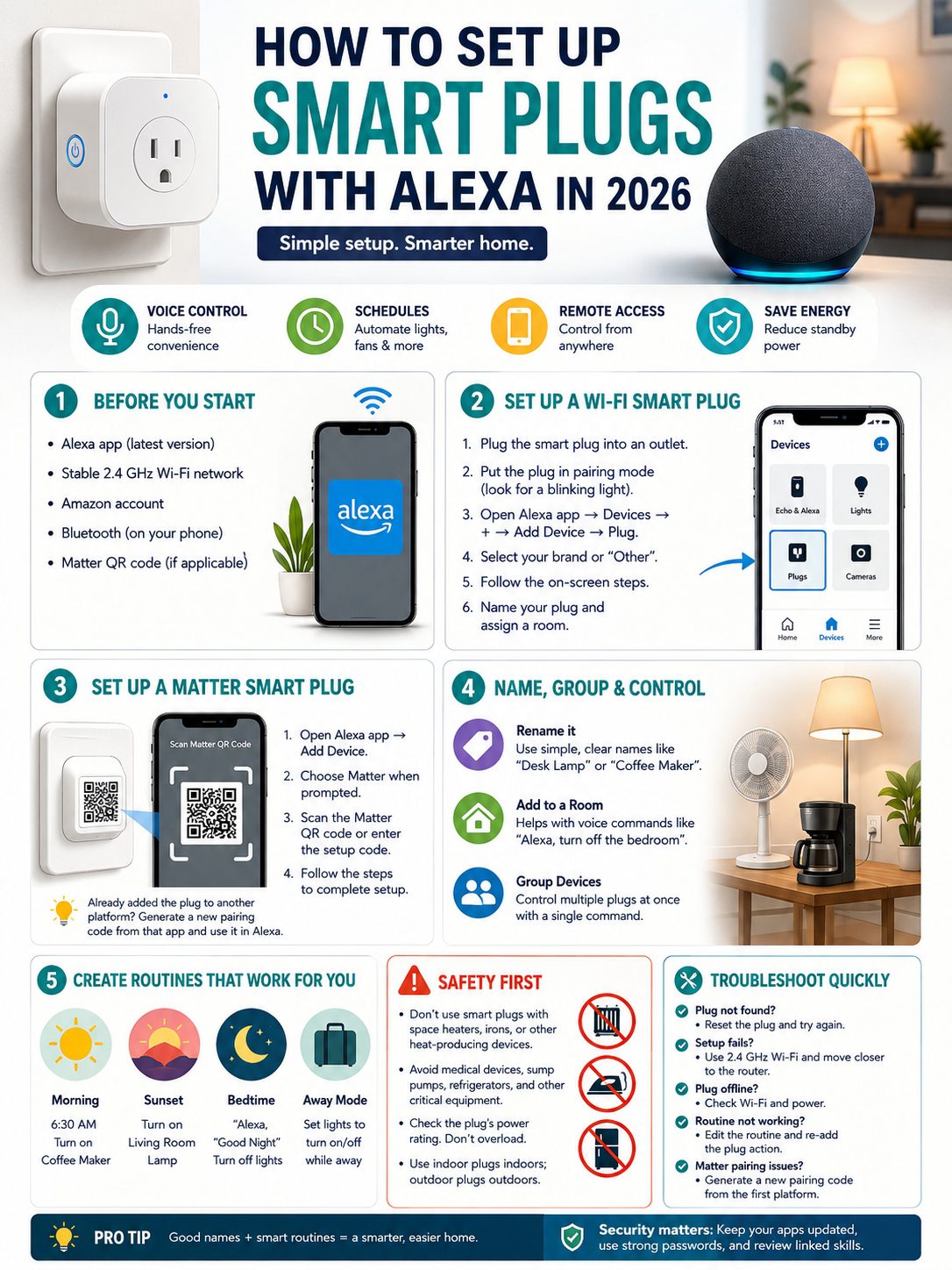
How to Set Up a Wi-Fi Smart Plug with Alexa
|
Step |
What to Do |
|
1 |
Plug the smart plug into a wall outlet. |
|
2 |
Put the plug in pairing mode. |
|
3 |
Open the Alexa app. |
|
4 |
Tap Devices. |
|
5 |
Tap the plus icon. |
|
6 |
Choose Add Device. |
|
7 |
Select Plug. |
|
8 |
Follow the setup steps on screen. |
This is the most common smart plugs alexa setup process.
First, plug the smart plug into the wall. Look for a blinking light. That blinking light usually means the plug is ready to pair.
If the light doesn’t blink, press and hold the button on the plug. The reset time depends on the brand. Some plugs need five seconds. Some need ten. Check the manual if you’re unsure.
Now open the Alexa app.
Tap Devices.
Tap the plus icon.
Choose Add Device.
Select Plug.
Alexa may ask you to choose the plug brand. Pick it if you see it. If you don’t, choose “Other” if that option appears.
Some smart plugs connect directly inside Alexa. Others need the brand app first. For example, plugs from brands like Kasa, Tapo, Meross, Govee, or Smart Life may ask you to set up the plug in their own app before Alexa can control it.
If your plug needs a brand app, follow this flow:
- Set up the plug in the brand app.
- Open the Alexa app.
- Link the brand’s Alexa skill if needed.
- Run device discovery.
- Rename the plug inside Alexa.
Once Alexa finds the plug, test it inside the app. Tap it on and off. If it responds quickly, the main setup is done.
How to Set Up a Matter Smart Plug with Alexa
|
Matter Setup Item |
What to Do |
|
Matter QR code |
Scan it in the Alexa app when prompted. |
|
Pairing code |
Enter it manually if scanning fails. |
|
First platform |
Add it to Alexa first if Alexa is your main smart home system. |
|
Multi-platform setup |
Use the first app to add the plug to another system later. |
|
Saved code |
Keep the QR code or setup card. |
Matter sounds technical, but the idea is simple.
A Matter smart plug is made to work across supported smart home platforms. That means one plug may work with Alexa, Apple Home, Google Home, or SmartThings, depending on your devices and setup.
To set up a Matter smart plug with Alexa, open the Alexa app and start adding a device. Choose the Matter setup option if Alexa shows it. Then scan the Matter QR code or enter the setup code manually.
You may find the code on:
- The plug body
- The product box
- A setup card
- The manual
- The brand app
Keep the plug close to your phone and Alexa controller while pairing. Don’t close the app while the setup is running.
If you already added the Matter plug to another platform, such as Apple Home or Google Home, the original printed code may not work the same way for Alexa. You may need to open the first smart home app and choose an option like “add to another app” or “generate pairing code.”
For most Alexa users, the easiest path is clear: add the Matter plug to Alexa first. Add other platforms later only if you need them.
Rename and Group Your Smart Plug in Alexa
|
Weak Name |
Better Name |
|
Plug 1 |
Desk Lamp |
|
Smart Plug |
Living Room Fan |
|
Socket 3 |
Coffee Maker |
|
Outlet |
Christmas Tree |
|
Device 2 |
Office Printer |
Don’t skip this part.
Alexa works much better when device names sound like normal speech. A plug named “Plug 1” may work, but nobody wants to say, “Alexa, turn on Plug 1” every day.
Name the plug after the device it controls.
Good names include:
- Desk Lamp
- Bedside Lamp
- Living Room Fan
- Coffee Maker
- Christmas Tree
- TV Backlight
- Office Printer
Read Also: How to Use Fitbit Without Subscription in 2026
Avoid names that sound too similar. If you have “Lamp,” “Lamp Plug,” and “Smart Lamp,” Alexa may get confused.
Use clear names like:
- Desk Lamp
- Floor Lamp
- Reading Lamp
Now add the plug to a room group.
If the plug controls a bedroom lamp, add it to the Bedroom group. Then you can say:
“Alexa, turn off the bedroom.”
That command can turn off the plug along with other devices in that room.
This is where your smart plug starts to feel useful. You’re not just adding a device. You’re making Alexa easier to live with.
Create Alexa Routines for Smart Plugs
|
Routine Idea |
Trigger |
Action |
|
Morning light |
6:30 AM |
Turn on bedroom lamp. |
|
Work mode |
Voice command |
Turn on desk lamp and monitor plug. |
|
Sunset lights |
Sunset |
Turn on living room lamp. |
|
Bedtime |
“Alexa, good night” |
Turn off selected plugs. |
|
Away mode |
Evening schedule |
Turn lights on and off while you’re away. |
Voice control is nice. Routines are where smart plugs become really useful.
A routine lets Alexa control your plug automatically. You can trigger it by time, voice, sunrise, sunset, location, or another smart home device.
To create a routine:
- Open the Alexa app.
- Tap More.
- Tap Routines.
- Tap the plus icon.
- Choose a trigger.
- Choose a smart home action.
- Select your smart plug.
- Save the routine.
Start with simple routines.
A bedtime routine is a great first one. Say, “Alexa, good night,” and Alexa turns off the living room lamp, desk fan, and TV backlight.
A sunset routine is also handy. Alexa can turn on a lamp around sunset and turn it off at bedtime.
A work routine can turn on your desk lamp, monitor plug, and speaker with one command.
Don’t build ten routines on the first day. That usually creates confusion. Start with two or three routines you’ll actually use.
Best Devices to Use with Alexa Smart Plugs
|
Good Use Case |
Why It Works Well |
|
Lamps |
Simple on/off control. |
|
Fans |
Easy voice and schedule control. |
|
Holiday lights |
Great for timers. |
|
Coffee makers |
Works if the machine has a physical switch. |
|
Air purifiers |
Works if the device restarts after power returns. |
|
Desk setups |
Useful for lights, speakers, and monitors. |
|
Phone chargers |
Helpful for scheduled charging blocks. |
Smart plugs work best with simple devices.
Lamps are the easiest. They only need power on or off.
Fans can also work well, especially if they have a physical switch. If the fan uses touch controls, test it first.
Holiday lights are perfect for smart plugs. Set them to turn on at sunset and off before bed.
Coffee makers can work too, but only if they have a physical on/off switch. You also need to prepare them safely. A smart plug won’t add water, place the filter, or check whether the pot is in place.
Air purifiers may work if they restart after power returns. Some do. Some don’t.
Desk setups are another good option. You can turn off your desk lamp, speakers, monitor light, and charger with one command.
The best smart plug setup is not about controlling every appliance in the house. It’s about picking the right things.
What Not to Connect to a Smart Plug
|
Avoid These Devices |
Why You Should Be Careful |
|
Space heaters |
High heat and high power draw. |
|
Irons |
Fire risk if turned on by accident. |
|
Hair straighteners |
Heat risk if left plugged in. |
|
Large air conditioners |
May exceed the plug or outlet rating. |
|
Refrigerators |
Power loss can affect food safety. |
|
Medical devices |
Accidental shutoff can be dangerous. |
|
Sump pumps |
Shutoff can cause water damage. |
|
Washing machines |
Motors and restart behavior can be risky. |
A smart plug only controls power. That’s it.
It doesn’t know if a heater is too close to a curtain. It doesn’t know if an iron is face down. It doesn’t know if your refrigerator should stay on while you’re traveling.
Be extra careful with heat-producing devices. That includes space heaters, irons, kettles, hot plates, and hair tools.
Even if the device appears to fit within the plug’s wattage limit, remote control can still create risk. It’s too easy to turn something on when you’re not nearby.
Also be careful with important devices. Don’t connect medical equipment, security systems, sump pumps, routers, or refrigerators unless you fully understand the risk.
Use outdoor smart plugs outdoors. Don’t use indoor plugs in rain, snow, or damp areas.
And always check the rating. Look at the smart plug’s amps and watts. Then check the appliance label. If you’re not sure, don’t connect it.
Convenience is good. Safety comes first.
Troubleshooting: Why Alexa Can’t Find Your Smart Plug
|
Problem |
Likely Cause |
Fix |
|
Alexa can’t discover the plug |
Plug isn’t in pairing mode |
Reset the plug and try again. |
|
Setup fails |
Wrong Wi-Fi band |
Use 2.4 GHz if the plug requires it. |
|
Plug shows offline |
Weak Wi-Fi signal |
Move it closer to the router. |
|
Voice command fails |
Bad device name |
Rename the plug clearly. |
|
Brand app works, Alexa doesn’t |
Skill isn’t linked |
Re-link the Alexa skill. |
|
Matter setup fails |
Code or pairing issue |
Scan again or generate a new code. |
|
Routine fails |
Old device reference |
Remove and re-add the plug action. |
Most setup problems come from Wi-Fi, pairing mode, or naming.
Start with the light on the plug. If it’s not blinking, it may not be ready to pair. Reset it and try again.
Next, check Wi-Fi. Many smart plugs still need 2.4 GHz. If setup fails on a mesh router, move closer to the router or try separating the 2.4 GHz network temporarily.
If the plug works in the brand app but not in Alexa, the Alexa skill may not be linked. Open the Alexa app, find the brand skill, sign in, and discover devices again.
If Alexa controls the wrong plug, fix the names. Similar names can confuse voice control.
If a routine stops working after you rename a plug, edit the routine. Remove the old plug action and add the renamed plug again.
For Matter plugs, check the QR code. If the plug was already added to another platform, use that platform to create a new pairing code for Alexa.
Privacy and Security Tips for Smart Plug Users
|
Security Tip |
Why It Helps |
|
Use known brands |
Better support and firmware updates. |
|
Update apps |
Fixes bugs and security issues. |
|
Use a strong Wi-Fi password |
Protects your home network. |
|
Enable account protection |
Adds another layer of safety. |
|
Remove old devices |
Keeps Alexa clean. |
|
Review linked skills |
Removes unused third-party access. |
A smart plug may seem harmless, but it still connects to your smart home account and network.
Use brands that provide real support, clear setup guides, and app updates. Very cheap no-name plugs may work at first, but support can disappear later.
Keep the Alexa app updated. If your plug uses a brand app, update that too.
Review linked Alexa skills every few months. If you no longer use a smart plug brand, unlink the skill and remove old devices from Alexa.
Use a strong Wi-Fi password. Don’t share your main Wi-Fi password casually. If your router supports a guest network or smart home network, consider using it for smart devices.
Also think about what the plug controls. A lamp is low risk. A router, camera, or medical device is not.
Useful Alexa Commands for Smart Plugs
|
Goal |
Voice Command |
|
Turn on one plug |
“Alexa, turn on the desk lamp.” |
|
Turn off one plug |
“Alexa, turn off the fan.” |
|
Control a room |
“Alexa, turn off the bedroom.” |
|
Start a routine |
“Alexa, start movie night.” |
|
Check status |
“Alexa, is the desk lamp on?” |
|
Stop a device |
“Alexa, turn off the coffee maker.” |
Good Alexa commands should sound natural.
You shouldn’t have to remember weird device names. That’s why naming matters so much.
Use the names people already use at home. If everyone calls it the “floor lamp,” name it Floor Lamp. If everyone says “coffee machine,” use Coffee Machine instead of Kitchen Plug.
Avoid names that sound too close to each other.
Good examples:
- Office Lamp
- Window Fan
- Reading Light
- TV Backlight
- Kitchen Coffee Maker
Poor examples:
- Plug One
- Smart Plug
- Outlet
- Switch
- Device Two
The easier the name, the better the voice control.
Common Smart Plug Setup Mistakes
|
Mistake |
Better Choice |
|
Buying without checking Alexa support |
Look for “Works with Alexa.” |
|
Ignoring Wi-Fi requirements |
Check if the plug needs 2.4 GHz. |
|
Using vague names |
Name the actual device. |
|
Skipping room groups |
Add plugs to rooms after setup. |
|
Throwing away Matter codes |
Save QR codes and setup cards. |
|
Automating risky appliances |
Stick to low-risk devices. |
|
Overloading outlets |
Check power ratings first. |
The most common mistake is buying the cheapest plug without checking compatibility.
A low price is nice. But a cheap plug that takes an hour to connect is not really a deal.
Another mistake is leaving the default name. “First Plug” may work in the app, but it sounds awkward in real life.
People also forget to test the appliance. Some devices don’t turn back on after power returns. A smart plug cannot fix that.
With Matter plugs, the big mistake is losing the QR code. Take a photo of it. Keep the setup card in a drawer.
And don’t use smart plugs as a shortcut for unsafe appliances. If a device creates heat, uses heavy power, protects your home, or keeps food or health equipment safe, think twice.
Final Thoughts
A good smart plugs alexa setup should feel simple after the first try.
Plug it in. Add it in the Alexa app. Give it a clear name. Put it in the right room. Build one or two routines you’ll actually use.
Start small. A lamp, fan, holiday light, or desk setup is a much better first choice than a large appliance. Once you understand how Alexa handles plugs, groups, and routines, you can build from there.
Matter makes smart plugs more flexible in 2026, especially if your home uses more than one smart home platform. But the basics still matter most.
Check compatibility. Use the right Wi-Fi. Save the Matter code. Respect the power rating. Avoid risky devices. Name every plug like a normal person would say it.
Do that, and your smart plugs won’t feel like gadgets anymore. They’ll become quiet little helpers that make your home easier to manage.
FAQs About Smart Plugs and Alexa
|
FAQ Theme |
Quick Answer |
|
Echo speaker needed? |
Not always, but it helps with voice control. |
|
5 GHz support? |
Some plugs support it, but many still need 2.4 GHz. |
|
Matter required? |
No, but it helps in mixed smart homes. |
|
Brand app needed? |
Sometimes, depending on the plug. |
|
Outdoor use? |
Only use outdoor-rated smart plugs outside. |
Do I need an Echo speaker to use a smart plug with Alexa?
Not always. You can often set up and control compatible smart plugs from the Alexa app. But an Echo speaker makes voice control easier. Some hub-based plugs may also need a compatible Echo model or another hub.
Why does my smart plug only work on 2.4 GHz Wi-Fi?
Many smart plugs use 2.4 GHz because it has better range through walls and works well for low-power smart home devices. Some newer plugs support more options, but many still need 2.4 GHz during setup.
Are Matter smart plugs better than regular Alexa smart plugs?
Matter plugs are better if you want one device to work across different smart home systems. If you only use Alexa, a regular Alexa-compatible Wi-Fi plug can still work well.
Can Alexa turn on a smart plug when I’m away from home?
Yes, if the plug is online and connected to the Alexa app. You can control it from your phone or use routines. Don’t use remote control for risky appliances.
Why does Alexa say my smart plug is not responding?
The plug may be offline, too far from the router, disconnected from the brand app, or stuck after a power outage. Restart the plug, check Wi-Fi, and run discovery again.
Can I plug a power strip into a smart plug?
It may work for low-power devices, but be careful. The smart plug controls the whole strip at once. The total load must stay within the plug’s rating.
Can I use a smart plug with a coffee maker?
Yes, but only if the coffee maker has a physical switch and restarts when power returns. Prepare it safely before the routine runs.
Why won’t my Matter smart plug pair with Alexa?
The QR code may not scan clearly. The plug may already be paired to another platform. Your app or controller may also need an update. Reset the plug or generate a new pairing code from the first platform.
Will my smart plug work after a power outage?
Most smart plugs reconnect after power and Wi-Fi return, but it depends on the model. Check the app after an outage, especially if the plug controls something important.