
Switching to a new Galaxy phone should feel good. New screen. Fresh battery. Better camera. Everything feels ready.
Then Smart Switch refuses to work.
Maybe the phones won’t connect. Maybe the transfer freezes at 99%. Maybe your photos show up, but your messages don’t. Or maybe the PC app just sits there and says it can’t find your phone.
If samsung smart switch not working is your problem, don’t rush into a factory reset. Most Smart Switch issues come from simple things: low storage, a weak Wi-Fi connection, the wrong USB mode, an old app version, missing permissions, or a cheap cable that only charges.
Samsung Smart Switch can move contacts, photos, videos, messages, call logs, apps, settings, documents, calendars, and more to a Galaxy phone. But it doesn’t copy everything in every situation. Some app data, game progress, cloud files, WhatsApp chats, Secure Folder content, and protected media may need a separate step.
Let’s fix the problem the smart way.
Why Smart Switch Stops Working
Smart Switch errors often look the same from the outside. But the real cause can be different. Before you keep trying the same transfer again and again, match the problem with the likely reason.
|
What You See |
Common Reason |
Best First Move |
|
Phones won’t connect |
Wi-Fi, cable, or permission issue |
Restart both phones and reconnect |
|
Transfer freezes |
Large files, low storage, or app cache problem |
Clear cache and transfer smaller batches |
|
PC or Mac can’t detect phone |
Wrong USB mode or bad cable |
Set USB to file transfer |
|
Wireless transfer keeps dropping |
VPN, battery saver, or weak Wi-Fi |
Turn off connection blockers |
|
iPhone transfer fails |
Apple ID, iCloud, or cable issue |
Check login and try cable transfer |
|
Some files are missing |
Unsupported data or cloud-only content |
Sign in to accounts again |
Start with the easy checks.
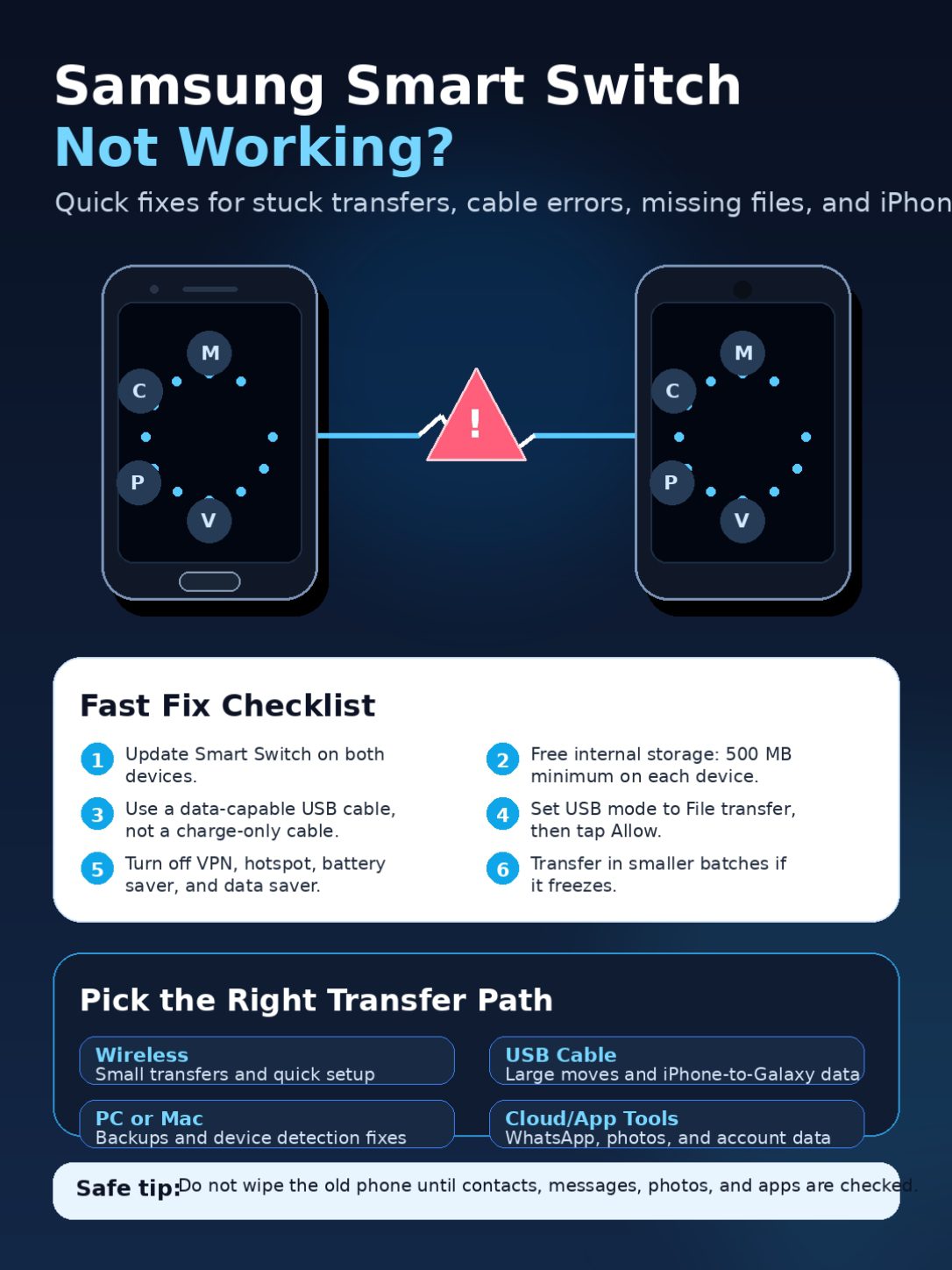
Make sure both phones have enough battery. Keep them unlocked. Keep them close. Update Smart Switch. Free up internal storage. Don’t depend on SD card space only.
Samsung’s app listing says Smart Switch needs at least 500 MB of free internal storage on both devices. That’s the bare minimum. If you’re moving years of photos and videos, give it much more room.
Also, don’t wipe your old phone yet. Keep it until you confirm everything important moved safely.
Samsung Smart Switch Not Working: Try These Safe Fixes First
When samsung smart switch not working, start with fixes that don’t risk your personal files. These steps solve many transfer problems without making things worse.
|
Fix |
Why It Helps |
Risk |
|
Restart both phones |
Clears stuck connection requests |
Low |
|
Update Smart Switch |
Fixes bugs and compatibility issues |
Low |
|
Clear app cache |
Removes broken temporary files |
Low |
|
Free internal storage |
Gives Smart Switch room to work |
Low |
|
Transfer one category at a time |
Avoids one bad file blocking everything |
Low |
|
Reinstall Smart Switch |
Fixes a damaged app install |
Medium |
Restart both phones
Yes, it sounds basic. But it works more often than people expect.
Restart the old phone and the new Galaxy. Then open Smart Switch again and try the transfer from the start.
This clears stuck background tasks, frozen permission requests, and temporary Wi-Fi or USB issues.
Update Smart Switch
Smart Switch may already be installed on your Galaxy phone. You can usually find it here:
Settings > Accounts and backup > Bring data from old device
You can also update it from the Galaxy Store or Google Play.
Update the app on both devices if possible. If you’re using Smart Switch on a computer, update the desktop app too.
Read Also: How to Block Spam Calls on Samsung Galaxy
Clear Smart Switch cache
If the app keeps freezing or crashing, clear its cache.
On your Galaxy phone:
- Open Settings.
- Tap Apps.
- Find Smart Switch.
- Tap Storage.
- Tap Clear cache.
- Restart the phone.
- Try the transfer again.
If the problem stays, tap Clear data as well. This resets Smart Switch settings, but it won’t delete your photos, messages, contacts, or files.
Don’t transfer everything at once
The “All” option looks easy. But it can also cause trouble.
If one video, app, or message thread causes an error, the whole transfer may stop. A better method is to transfer in groups.
Try this order:
- Contacts
- Call logs
- Messages
- Calendar
- Photos
- Videos
- Documents
- Apps and settings
This gives you more control. It also helps you spot the exact category causing the issue.
Fix Wireless Smart Switch Problems
Wireless transfer feels convenient. No cables. No computer. Just two phones sitting near each other.
But wireless transfer can fail if the connection is weak or unstable. VPNs, battery saver, mobile hotspot, or auto Wi-Fi switching can also interrupt it.
|
Wireless Problem |
What to Do |
|
Phones can’t find each other |
Keep them close and restart Wi-Fi |
|
Transfer disconnects |
Turn off VPN, hotspot, and battery saver |
|
Transfer is slow |
Move heavy media later |
|
Transfer fails on photos/videos |
Transfer media in smaller batches |
|
Public Wi-Fi causes problems |
Use a private home network |
Keep both phones close
Place both phones on the same table. Keep them unlocked. Don’t move them around during transfer.
Avoid public Wi-Fi, hotel Wi-Fi, school Wi-Fi, or office Wi-Fi. These networks may block phone-to-phone connections. A private home network is safer.
Turn off settings that interrupt the connection
Before trying again, turn off:
- VPN
- Mobile hotspot
- Battery saver
- Data saver
- Private DNS
- Auto Wi-Fi switching
- Smart network switching
Some Android phones switch networks when they think Wi-Fi is weak. That’s helpful during normal use, but it can break Smart Switch.
Move photos and videos separately
Photos and videos are often the biggest part of a transfer. If you have thousands of files, don’t move them with everything else.
Move contacts and messages first. Then move photos. Then move videos.
This takes longer, but it fails less often.
Fix USB Cable and PC/Mac Connection Issues
A cable can charge your phone and still fail to transfer data. That’s a common trap.
Some cables are charge-only. Smart Switch needs a cable that supports data transfer.
|
USB or Desktop Issue |
Best Fix |
|
Phone charges but won’t connect |
Use a data-capable cable |
|
PC doesn’t detect phone |
Unlock phone and tap Allow |
|
No USB option appears |
Restart phone and reconnect |
|
Smart Switch can’t find device |
Reinstall the device driver |
|
Transfer stops when cable moves |
Try another cable or USB port |
|
Mac transfer fails |
Reinstall Smart Switch and check permissions |
Use the right cable
Use the original Samsung cable if you still have it.
If you’re moving from iPhone to Galaxy, use the correct Lightning or USB-C cable with a compatible adapter. Avoid cheap adapters that feel loose.
A tiny disconnect can stop the transfer.
Set USB mode to file transfer
After connecting your Galaxy phone to a computer:
- Unlock the phone.
- Swipe down from the top.
- Tap the USB notification.
- Choose Transferring files or File transfer.
- Tap Allow if a permission prompt appears.
If the phone only charges, Smart Switch may not see it.
Reinstall the device driver
If Smart Switch on Windows or Mac won’t detect your phone, reinstall the device driver from the Smart Switch desktop app.
Then unplug the phone, restart it, and connect again.
Also check your computer. Samsung says Smart Switch desktop support depends on the operating system. Chromebooks do not support the Smart Switch desktop app.
Fix iPhone-to-Galaxy Smart Switch Problems
Moving from iPhone to Galaxy can work well, but the method matters.
Smart Switch supports cable transfer, wireless transfer, and iCloud import. Cable usually supports more data types. Wireless may feel easier if the transfer is long and both phones need to stay charged.
|
iPhone Transfer Issue |
Best Fix |
|
iCloud login fails |
Check Apple ID, password, and 2FA code |
|
Messages don’t transfer |
Try cable transfer |
|
Photos are missing |
Let iCloud Photos finish syncing |
|
WhatsApp doesn’t move |
Use WhatsApp’s own transfer tool |
|
iPhone won’t connect |
Tap Trust on the iPhone |
|
Transfer takes too long |
Try wireless or move data in parts |
Try cable transfer for more complete data
On your Galaxy phone:
- Open Smart Switch.
- Tap Receive data.
- Choose iPhone/iPad.
- Select Cable.
- Connect both phones.
- Tap Trust on the iPhone.
- Choose what you want to move.
- Start the transfer.
Keep both devices close and unlocked. If the cable is loose, replace it.
Use iCloud only after checking sync
If you choose iCloud transfer, make sure your iPhone data is already synced to iCloud.
Check photos, contacts, calendars, and notes on the iPhone first. If they haven’t uploaded to iCloud, Smart Switch can’t import them from iCloud.
Move WhatsApp the official way
WhatsApp is different. Don’t expect it to move like photos or contacts.
Use WhatsApp’s official transfer process. In many cases, you need the same phone number, updated WhatsApp versions, and a cable or QR-code step.
Also, don’t rush through WhatsApp setup on the new phone. If you skip the import screen, moving chats later can become harder.
Fix Stuck, Slow, or Crashing Transfers
Smart Switch can look frozen when it’s still working. This often happens near the end of a large transfer.
But if it sits for too long with no progress, it’s time to step in.
|
Problem |
What to Try |
|
Stuck at 0% |
Restart both phones and reconnect |
|
Stuck at 99% |
Wait a bit, then retry in smaller groups |
|
“1 minute left” never ends |
Stop and transfer one category at a time |
|
App crashes on phone |
Clear cache/data and update the app |
|
App crashes on PC |
Reinstall Smart Switch desktop |
|
Same category fails |
Skip it and use another method |
Give large transfers some time
If you’re moving years of messages or a large video library, the last part can take longer than expected.
Keep both phones awake. Don’t close the app. Don’t switch between apps.
If nothing changes for a long time, stop the transfer and restart both phones.
Split the transfer
Run Smart Switch again, but don’t select everything.
Start with contacts and call logs. Then messages. Then photos. Then videos.
This is one of the best fixes when samsung smart switch not working during a large move.
Reinstall only when needed
Reinstall Smart Switch if it keeps crashing, won’t open, or fails after clearing cache.
After reinstalling, restart the phone before trying again.
Fix Missing Photos, Messages, Apps, or Settings
Sometimes Smart Switch says the transfer finished, but the new phone still looks incomplete.
That doesn’t always mean the transfer failed. Some data lives in cloud accounts. Some apps block data migration for security. Some files need time to appear.
|
Missing Data |
Likely Reason |
What to Do |
|
Google contacts |
They’re synced to Google |
Sign in to Google |
|
Calendar events |
They belong to Google, Outlook, or iCloud |
Add the same account |
|
Game progress |
Game data may not transfer |
Sign in to the game account |
|
Banking apps |
Security blocks migration |
Install and verify again |
|
WhatsApp chats |
Needs WhatsApp transfer tool |
Use official WhatsApp steps |
|
Photos not in Gallery |
Gallery is still indexing |
Check My Files |
|
Protected music/videos |
DRM blocks transfer |
Download from original service |
Sign in to your accounts first
After transfer, sign in to your main accounts:
- Samsung
- Microsoft
- iCloud, where needed
- Telegram
- Google Photos
- OneDrive
- Banking apps
- Password manager
- Authenticator app
A lot of “missing” data appears only after account sync.
Check My Files
If photos don’t show in Gallery, open My Files and check these folders:
- DCIM
- Pictures
- Downloads
- Documents
- WhatsApp Media
The files may be there. Gallery may just need time to scan them.
Understand Smart Switch limits
Smart Switch does a lot, but it can’t copy every private app database.
Game saves, banking app data, work profiles, some Secure Folder content, DRM media, and certain app settings may not move. Use the app’s own backup or login system when needed.
When Smart Switch Isn’t the Best Option
Smart Switch works best when the new device is a Samsung Galaxy phone or tablet.
If you’re moving to another brand, use the official transfer tool for that device.
|
Situation |
Better Choice |
|
Samsung to iPhone |
Apple Move to iOS |
|
iPhone to Android |
Android setup transfer or brand tool |
|
Photos only |
Google Photos, OneDrive, or USB copy |
|
Documents only |
Cloud drive or manual USB transfer |
|
WhatsApp chats |
WhatsApp transfer tool |
|
Huge video library |
Computer or external drive |
|
Old phone screen is broken |
Cloud backup, PC backup, or repair first |
Use manual transfer for files
For photos, videos, and documents, manual transfer can be faster.
- Connect the old phone to a computer.
- Copy DCIM, Pictures, Downloads, and Documents.
- Connect the new Galaxy phone.
- Paste the folders into the same locations.
This won’t move messages or app settings, but it works well for personal files.
Use cloud backup as a safety net
Use Smart Switch and cloud backup together if the data matters.
Google Photos, OneDrive, Google Drive, Samsung Cloud, and iCloud can protect your files if one transfer method fails.
Don’t rely on a single transfer method for important photos, business files, or family videos.
Common Smart Switch Mistakes to Avoid
Most Smart Switch problems get worse when people rush. Slow down before wiping anything.
|
Mistake |
Why It’s a Problem |
|
Wiping the old phone too soon |
You may lose files that didn’t move |
|
Using a charge-only cable |
Smart Switch can’t transfer data |
|
Moving everything at once |
One bad file can stop the whole transfer |
|
Ignoring storage warnings |
Smart Switch needs working space |
|
Skipping app backups |
Some app data won’t transfer |
|
Opening WhatsApp too early |
You may miss the chat import step |
|
Not checking old files |
You may find missing data too late |
Before resetting the old phone, check the new phone carefully.
Open:
- Contacts
- Messages
- Call logs
- Gallery
- Notes
- Calendar
- My Files
- Banking apps
- Authenticator apps
- Password manager
- Work apps
Keep the old phone for a few days if you can. That gives you time to catch anything missing.
Final Thoughts
When samsung smart switch not working, don’t panic and don’t wipe the old phone too early.
Start with the simple fixes. Restart both phones. Update Smart Switch. Clear the cache. Free up storage. Use a proper data cable. Set USB mode to file transfer. Move your data in smaller groups.
For iPhone-to-Galaxy transfers, choose the method that fits your data. Cable transfer often moves more. iCloud helps when your iPhone data is already synced. WhatsApp needs its own transfer process.
Most Smart Switch problems are fixable. The key is to slow down, check the basics, and move your data safely.
A fast transfer feels nice. A complete transfer matters more.
FAQs About Samsung Smart Switch Not Working
Here are a few common questions that don’t always get clear answers.
|
Question |
Short Answer |
|
Can I use Smart Switch after setup? |
Yes |
|
Does Smart Switch delete old data? |
No |
|
Can it move game progress? |
Usually not |
|
Can it move Secure Folder? |
It may need separate steps |
|
Can it transfer eSIM? |
Usually no |
|
Can it create duplicates? |
Yes, sometimes |
Can I use Smart Switch after setting up my Galaxy phone?
Yes. You can run Smart Switch later. You don’t always need to factory reset the new phone.
Does Smart Switch erase data from my old phone?
No. It copies data. It does not delete anything from the old phone.
Why does Smart Switch say I don’t have enough space?
Smart Switch needs free internal storage to prepare and receive files. SD card space may not be enough.
Can Smart Switch transfer game data?
Usually no. Many games store progress online or inside protected app storage. Sign in to your game account after transfer.
Why are my apps installed but logged out?
Most login sessions don’t transfer for security reasons. Open each app and sign in again.
Can Smart Switch transfer Secure Folder?
Secure Folder data may need separate backup or export steps. Check it before wiping the old device.
Why are my iCloud photos missing?
They may not have finished syncing to iCloud. Connect the iPhone to Wi-Fi, let iCloud Photos sync, and try again.
Is cable transfer better than wireless?
For many transfers, yes. Cable can support more data types, especially from iPhone to Galaxy. But wireless can help during very long transfers because both phones can stay charged.
Why do I see duplicate contacts?
Duplicates can happen if the same contacts exist on SIM, Google, Samsung account, and phone storage. Use the Contacts app’s merge option after transfer.
Can I use Smart Switch on a Chromebook?
No. Samsung says the Smart Switch desktop app does not support Chromebooks.