
You never think about saved passwords until the moment one goes missing.
Maybe your banking app logs you out. Maybe Safari stops filling in your Netflix password. Maybe you buy a new iPhone and one old login doesn’t move over. Or maybe someone asks for the home Wi-Fi password, and you realize you haven’t typed it in years.
That’s when you search find saved passwords iphone and hope the answer doesn’t take all afternoon.
The good news? In 2026, finding saved passwords on an iPhone is much easier than it used to be. Apple now has a dedicated Passwords app on iOS 18 and later. It keeps your website logins, app passwords, passkeys, Wi-Fi passwords, verification codes, and security alerts in one place.
But there’s still a catch.
Not every password on your iPhone lives in Apple’s Passwords app. Some may sit inside Chrome. Some may be saved in Google Password Manager. Some may be inside 1Password, Bitwarden, Dashlane, Keeper, or another password manager. And some accounts may not use a regular password at all anymore because they use passkeys.
This guide breaks it down in plain English. You’ll learn where to look, what to tap, why a password may be missing, and how to keep your saved logins safer.
What Changed With Saved Passwords on iPhone in 2026?
Apple used to hide saved passwords inside the Settings app. You had to open Settings, scroll to Passwords, unlock with Face ID or Touch ID, and then search.
That worked, but it wasn’t obvious. Many iPhone users had no idea their phone already had a built-in password manager.
With iOS 18, Apple made a big change. It introduced the standalone Passwords app. In 2026, that app is now the easiest place to check saved passwords on updated iPhones.
It brings together website passwords, app passwords, passkeys, Wi-Fi passwords, verification codes, shared password groups, and security warnings.
|
Key Area |
What It Means |
|
Main password location |
The Passwords app is the best place to start on iOS 18 or later |
|
Older iPhone method |
Settings > Passwords still works on older iOS versions |
|
iCloud Keychain |
Syncs saved passwords across Apple devices |
|
AutoFill |
Fills saved logins into apps and websites |
|
Passkeys |
Lets you sign in without typing a regular password |
|
Wi-Fi passwords |
Shows saved network passwords in the Passwords app |
|
Chrome passwords |
May be stored in Google Password Manager instead of Apple Passwords |
Passwords App vs iCloud Keychain
These two names can confuse people.
Here’s the simple version:
Passwords is the app you open.
iCloud Keychain is the system that syncs your saved passwords across Apple devices.
So if iCloud Keychain is turned on, your saved logins can move between your iPhone, iPad, Mac, and other supported setups. If it’s turned off, some passwords may stay only on one device.
That’s why two iPhones signed into the same Apple Account may not always show the same saved passwords. Sync settings matter.
Why the Passwords App Matters
A password manager only helps when people can actually find it.
That’s what makes the Passwords app useful. It gives iPhone users one clear place to check saved logins, fix weak passwords, view Wi-Fi passwords, and manage passkeys.
It’s not just about convenience. It’s also about security.
People still reuse passwords. They still forget old logins. They still save passwords in Notes, screenshots, or messages. The Passwords app gives them a safer place to manage all of that.
How to Find Saved Passwords iPhone Users Need
Here’s the fastest way to find a saved password on a newer iPhone.
- Open the Passwords app.
- Unlock it with Face ID, Touch ID, or your iPhone passcode.
- Tap All.
- Use the search bar.
- Type the website, app name, email address, or username.
- Tap the saved account.
- View, copy, edit, or use the saved password.
This is the main find saved passwords iphone method for iOS 18 and later.
|
Step |
What to Do |
Quick Tip |
|
1 |
Open Passwords |
Search “Passwords” from the Home Screen if you don’t see it |
|
2 |
Unlock |
Use Face ID, Touch ID, or your passcode |
|
3 |
Tap All |
This shows saved website and app logins |
|
4 |
Search |
Try the website, app name, username, or email |
|
5 |
Open the account |
Check username, password, website, and notes |
|
6 |
Copy carefully |
Don’t paste passwords into unknown apps or links |
Search More Than One Way
If your first search doesn’t work, don’t assume the password is gone.
Saved passwords don’t always appear under the name you expect.
For example, your Facebook password may be saved under:
- facebook.com
- m.facebook.com
- Meta
- Your email address
- Your username
The same thing can happen with banks, shopping apps, streaming services, and old accounts.
Try searching by:
- Website name
- Full domain name
- App name
- Email address
- Username
- Old brand name
- Company name
A few extra searches can save you a lot of frustration.
How to Copy a Saved Password
Open the saved login and tap the password field. Your iPhone should show an option to copy it.
Use copy and paste when needed, but be careful where you paste.
Avoid pasting passwords into:
- Unknown websites
- Random messages
- Notes apps
- Screenshots
- Untrusted forms
- Suspicious login pages
Also, don’t screenshot passwords. Screenshots can sync to photo libraries, cloud backups, shared albums, or other devices. Copying is cleaner and safer.
How to Edit a Saved Password
Sometimes your iPhone keeps filling in an old password. That usually means the saved entry needs an update.
To edit it:
- Open Passwords.
- Search for the account.
- Tap the saved login.
- Tap Edit.
- Update the username, password, website, or note.
- Save the change.
This helps when you changed a password on a website, but your iPhone still remembers the old one.
How to Find Saved Passwords Through Settings on Older iPhones
Not every iPhone runs iOS 18 or later. Some users still have older devices. Others delay software updates.
If you don’t see the Passwords app, use the older Settings path.
- Open Settings.
- Scroll down and tap Passwords.
- Unlock with Face ID, Touch ID, or your passcode.
- Search for the app or website.
- Tap the account to view the saved login.
This older method still helps many people who want to find saved passwords iphone entries but haven’t updated to the newest software.
|
iPhone Setup |
Where to Look First |
|
iOS 18 or later |
Passwords app |
|
Older iOS version |
Settings > Passwords |
|
Safari login page |
AutoFill suggestion above the keyboard |
|
Chrome user |
Chrome > Password Manager |
|
Google Account user |
Google Password Manager |
|
Third-party manager user |
1Password, Bitwarden, Dashlane, Keeper, or similar app |
|
Work or school iPhone |
Access may be limited by device management rules |
What If You Can’t Find Passwords in Settings?
Try this first: open Settings and use the search bar at the top. Type Passwords.
If it still doesn’t appear, check these possibilities:
- Your iPhone may need a software update.
- The Passwords app may be in the App Library.
- Your device may be managed by a company or school.
- Screen Time restrictions may block some settings.
- The password may be saved in Chrome, not Apple Passwords.
- You may use a third-party password manager.
- iCloud Keychain may be turned off.
Work phones can be tricky. If your iPhone belongs to your employer, the IT team may control password saving, AutoFill, Wi-Fi settings, or app access.
Can You See Saved Passwords Without Face ID or Passcode?
No. And that’s a good thing.
Saved passwords are private. Your iPhone requires Face ID, Touch ID, or the device passcode before showing them.
If Face ID fails, your iPhone may ask for the passcode. But if you don’t know the passcode, you can’t simply bypass the lock to view saved passwords.
That extra step protects you if someone picks up your phone.
How to Use AutoFill Instead of Opening Passwords
Sometimes you don’t need to see the password. You just want your iPhone to fill it in.
That’s what AutoFill does.
Here’s how to use it:
- Open the app or website login page.
- Tap the username or password field.
- Look above the keyboard.
- Tap the suggested login.
- Unlock with Face ID, Touch ID, or passcode.
- Let your iPhone fill in the details.
|
AutoFill Issue |
What It Usually Means |
What to Do |
|
One login appears |
iPhone found a match |
Tap it and authenticate |
|
Several logins appear |
More than one account is saved |
Pick the right username |
|
No login appears |
AutoFill may be off or password is stored elsewhere |
Open Passwords manually |
|
Wrong password fills |
The saved password is old |
Edit or delete the old entry |
|
Chrome fills the login |
Chrome may be your active password manager |
Check Chrome Password Manager |
|
Another manager appears |
A third-party app may control AutoFill |
Open that password manager |
How to Check AutoFill Settings
On newer iPhones, go to:
Settings > General > AutoFill & Passwords
From there, check whether password AutoFill is turned on. Also check which password providers are selected.
You may see options like:
- Passwords
- iCloud Keychain
- Google Password Manager
- 1Password
- Bitwarden
- Dashlane
- Keeper
- Other installed password apps
If you use too many password managers at once, AutoFill can get messy. Choose the one you trust and use most often.
Why AutoFill May Not Work
AutoFill can fail for simple reasons.
The password may not be saved. The website may use a different login domain. The app may not match the saved website. Or the password may live inside Chrome instead of Apple Passwords.
AutoFill may also fail if:
- The account uses a passkey.
- AutoFill is turned off.
- iCloud Keychain is disabled.
- The login page is unusual.
- Your work phone has restrictions.
- You changed your password but didn’t update the saved entry.
When in doubt, open the Passwords app and search manually.
How to Find Saved Wi-Fi Passwords and Passkeys on iPhone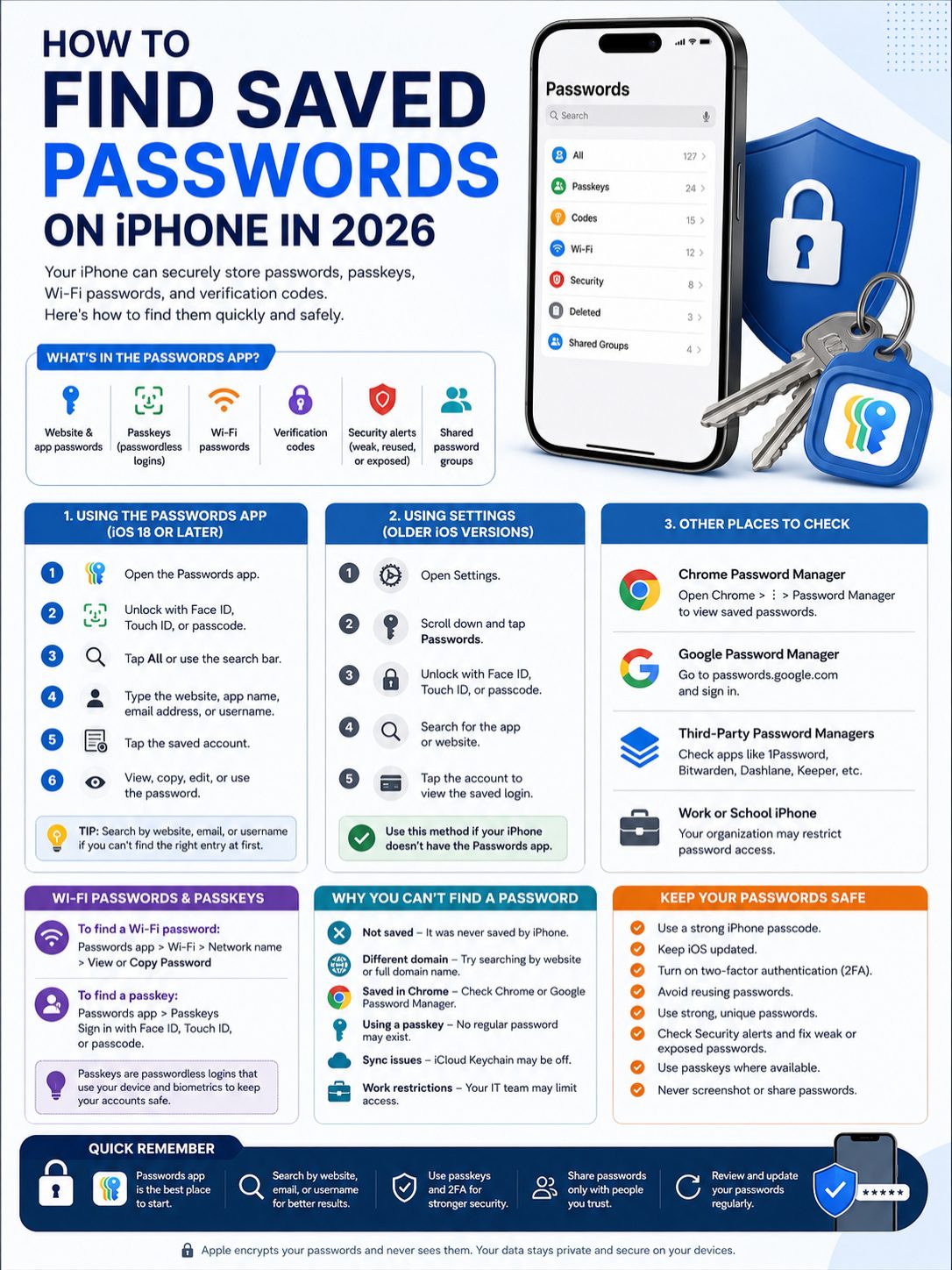
The Passwords app isn’t only for website logins. It can also help you find saved Wi-Fi passwords and passkeys.
To find a saved Wi-Fi password:
- Open Passwords.
- Unlock with Face ID, Touch ID, or your passcode.
- Tap Wi-Fi.
- Search for the network name.
- Tap the network.
- View, copy, or share the password if available.
|
Item |
Where to Look |
What to Know |
|
Wi-Fi password |
Passwords app > Wi-Fi |
Best place to search saved networks |
|
Current network |
Settings > Wi-Fi |
Some iOS versions show password options here |
|
Passkeys |
Passwords app > Passkeys |
These are not typed like normal passwords |
|
Verification codes |
Passwords app > Codes |
Useful for two-factor authentication |
|
Shared passwords |
Passwords app shared groups |
Good for family or trusted contacts |
What Are Passkeys?
A passkey is a passwordless login.
Instead of typing a password, you approve the login with Face ID, Touch ID, or your device passcode.
Behind the scenes, passkeys use cryptographic keys. You don’t need to remember them. You don’t need to type them. And you usually can’t copy them like a regular password.
That’s why some accounts may show a passkey but no visible password.
Why Passkeys Are Becoming More Common
Passkeys solve some of the biggest password problems.
They help reduce:
- Weak passwords
- Reused passwords
- Phishing attacks
- Fake login pages
- Password leaks from websites
- Forgotten passwords
They’re not everywhere yet. Many sites still rely on normal passwords. But big platforms, banks, email providers, and payment services are slowly adding support.
Read Also: How to Disable iCloud on iPhone Safely
Should You Use Passkeys?
For important accounts, yes.
Start with accounts like:
- Apple Account
- Google Account
- Microsoft account
- Banking apps
- Payment apps
- Cloud storage
- Work tools
- Social media
Before switching, make sure your recovery options are updated. Check your recovery email, phone number, trusted devices, and backup login methods.
Why You Can’t Find a Saved Password on iPhone
This is common.
You open Passwords. You search the app name. Nothing shows up.
That doesn’t always mean the password is gone.
|
Problem |
Likely Reason |
Best Fix |
|
Password is missing |
It was never saved |
Check Chrome or another password manager |
|
Website name doesn’t show |
It may be saved under the domain |
Search by email, username, or full website |
|
Old password keeps filling |
Saved entry is outdated |
Edit or delete the old entry |
|
Password is in Chrome |
Google saved it, not Apple |
Open Chrome > Password Manager |
|
App uses passkey |
No normal password may exist |
Check the Passkeys section |
|
iCloud sync failed |
iCloud Keychain may be off |
Check iCloud settings |
|
Work app login missing |
Device policy may block saving |
Ask your IT team |
|
Password only exists on old phone |
Sync may not have been enabled |
Check the old device if available |
Check Chrome Password Manager
If you use Chrome on your iPhone, check there next.
- Open Chrome.
- Tap the three-dot menu.
- Tap Password Manager or Passwords.
- Search for the website.
- Tap the saved login.
- Authenticate if asked.
Chrome can save passwords to your Google Account instead of Apple Passwords. So Apple Passwords may look empty even when Chrome has the login.
Check Third-Party Password Managers
Many iPhone users rely on password manager apps.
Check apps like:
- 1Password
- Bitwarden
- Dashlane
- Keeper
- NordPass
- LastPass
Open the app and search for the website, username, or email address.
Also check your AutoFill settings. Your iPhone may be using one of these apps as the main password provider.
Check Your Old iPhone, iPad, or Mac
If you recently switched devices, the password may still be on your old device.
Check your old iPhone, iPad, or Mac if you still have access to it. Then turn on iCloud Keychain so future passwords can sync properly.
How to Keep Saved iPhone Passwords Safer
Finding one password is helpful. Protecting all your passwords is even better.
Your iPhone may hold access to your email, banking apps, cloud storage, social accounts, work tools, shopping accounts, and subscriptions. Treat it like a digital keyring.
|
Safety Step |
Why It Matters |
|
Use a strong iPhone passcode |
Your saved passwords depend on device security |
|
Keep iOS updated |
Updates fix bugs and security issues |
|
Use Face ID or Touch ID |
Adds a fast lock before password access |
|
Turn on two-factor authentication |
Protects accounts if a password leaks |
|
Avoid reused passwords |
One breach should not unlock many accounts |
|
Use strong suggested passwords |
iPhone can create long, unique passwords |
|
Check Security alerts |
Helps spot weak, reused, or exposed passwords |
|
Use passkeys where available |
Reduces phishing and password reuse risks |
|
Don’t screenshot passwords |
Screenshots can sync or leak |
|
Don’t share main account passwords |
Email, Apple Account, and banking logins should stay private |
Start With Your Email Password
Your email account is one of the most important accounts you own.
Why? Because email resets other passwords.
If someone gets into your email, they may be able to reset your banking, shopping, cloud, social media, and work accounts.
So start here:
- Use a long, unique email password.
- Turn on two-factor authentication.
- Add a passkey if supported.
- Update your recovery email.
- Update your phone number.
- Remove old devices you don’t use.
Fix Reused Passwords First
Reused passwords are risky.
If one old website leaks your password, attackers may try that same password on your email, bank, social accounts, and shopping apps.
Start with your most important accounts:
- Apple Account
- Banking apps
- Payment apps
- Cloud storage
- Social media
- Work tools
- Shopping accounts
- Old accounts you no longer use
You don’t need to fix everything in one sitting. Change the most important ones first. Then clean up the rest over time.
Don’t Save Passwords in Notes
A lot of people still save passwords in Notes, screenshots, text messages, or contact cards.
Don’t do that.
Use Apple Passwords, Chrome Password Manager, or a trusted password manager instead. These tools are built to store sensitive logins. Notes is not.
Find Saved Passwords iPhone: Mistakes to Avoid
The steps are simple, but a few common mistakes can waste time or create security risks.
|
Mistake |
Why It’s a Problem |
Better Move |
|
Searching only by app name |
Password may be saved under a website domain |
Search by domain, email, and username |
|
Assuming Apple stores every password |
Chrome or another app may store it |
Check all password managers |
|
Screenshotting passwords |
Screenshots can sync or leak |
Copy only when needed |
|
Sharing passwords by message |
Messages can be forwarded or exposed |
Use secure sharing tools |
|
Ignoring security alerts |
Risky passwords stay active |
Change important ones first |
|
Reusing one password |
One breach can unlock many accounts |
Use unique passwords |
|
Forgetting about passkeys |
Some accounts don’t have visible passwords |
Check the Passkeys section |
Your iPhone passcode is more powerful than it looks.
It protects your phone, saved passwords, Apple Account access, payment apps, email, photos, files, and private data.
Avoid simple passcodes like:
- 123456
- 000000
- Your birthday
- Your phone number
- Repeated digits
- Easy patterns
A longer passcode is better. An alphanumeric passcode is even stronger if you can remember it.
Shared password groups can be useful for families and small teams.
They work well for:
- Streaming accounts
- Home Wi-Fi
- Shared subscriptions
- Household apps
- Family travel accounts
But don’t share everything.
Avoid sharing:
- Main email password
- Apple Account password
- Banking passwords
- Work passwords
- Recovery codes
- Personal cloud storage logins
Share only what others truly need.
Final Thoughts
|
Main Takeaway |
What to Remember |
|
Best place to start |
Open the Passwords app on iOS 18 or later |
|
Older iPhones |
Use Settings > Passwords |
|
Missing password |
Check Chrome, Google Password Manager, or third-party managers |
|
Wi-Fi password |
Look in Passwords > Wi-Fi |
|
Passkey account |
Don’t expect a normal typed password |
|
Security habit |
Change weak, reused, or exposed passwords first |
The easiest way to find saved passwords iphone users need in 2026 is to open the Passwords app, unlock it, and search by website, app, username, or email.
If you use an older iPhone, go to Settings > Passwords. If you use Chrome, check Google Password Manager. If you use a password manager like 1Password, Bitwarden, Dashlane, Keeper, or NordPass, search inside that app too.
The bigger point is this: your iPhone is no longer just remembering passwords. It can help you build better login habits.
It can store strong passwords. It can warn you about weak or exposed ones. It can manage passkeys. It can show saved Wi-Fi passwords. It can help with verification codes. And it can reduce the messy habit of using the same password everywhere.
So don’t stop after finding one saved password. Take a few extra minutes to clean up the risky ones.
Start with email, Apple Account, banking, cloud storage, and payment apps. Use unique passwords. Turn on two-factor authentication. Use passkeys where they make sense.
Finding a saved password gets you back into one account. Cleaning up your saved passwords protects your whole digital life.
FAQs About Finding Saved Passwords on iPhone
|
FAQ Topic |
Quick Answer |
|
Main place to look |
Use the Passwords app on iOS 18 or later |
|
Older iPhone method |
Use Settings > Passwords |
|
Chrome passwords |
Check Chrome > Password Manager |
|
Wi-Fi passwords |
Check Passwords > Wi-Fi |
|
Passkeys |
Check Passwords > Passkeys |
|
Authentication |
Face ID, Touch ID, or passcode is required |
|
Missing passwords |
Check iCloud Keychain, Chrome, or third-party managers |
|
Work iPhone issues |
Company restrictions may limit access |
Can Siri Show My Saved Passwords?
Siri may help you open the Passwords app or find password settings. But Siri should not read your saved passwords out loud.
You still need Face ID, Touch ID, or your passcode to view sensitive login details.
Can I Find My Apple Account Password on My iPhone?
Only if you saved it as a normal password entry.
Your Apple Account password may not always appear like a regular website login. If you forgot it, use Apple’s official password reset or account recovery process.
Are Safari Passwords the Same as iCloud Keychain Passwords?
Usually, yes.
When Safari saves a password through Apple AutoFill, it normally stores it through Apple’s password system. If iCloud Keychain is turned on, that password can sync across your Apple devices.
Why Does Chrome Show My Password but Apple Passwords Doesn’t?
Because Chrome may have saved it to Google Password Manager.
Apple Passwords and Google Password Manager are separate systems. If you use Chrome often, always check Chrome Password Manager when Apple Passwords doesn’t show the login.
Can I Find Saved App Passwords, Not Just Website Passwords?
Yes, if the app login was saved through Apple Passwords or your selected password manager.
Search by app name, website, username, or email address.
Can I Find Passwords From an Old iPhone?
Yes, if the old iPhone still works or if iCloud Keychain synced the passwords.
If syncing was off, the password may still live only on the old device.
Why Do I See a Passkey but No Password?
That account may use passwordless login.
A passkey is approved with Face ID, Touch ID, or your passcode. It is not meant to be typed or copied like a regular password.
Is It Safe to Store Passwords on iPhone?
It is safer than saving passwords in Notes, screenshots, messages, or paper lists.
But your safety still depends on your device security. Use a strong passcode, keep iOS updated, protect your Apple Account, and turn on two-factor authentication for important accounts.