
Let’s be honest, the built-in webcam on your laptop is probably terrible. Even in 2026, most manufacturers treat the front-facing camera as an afterthought, leaving you with grainy, washed-out video during important calls. Meanwhile, the phone sitting on your desk has a world-class lens and a powerful image processor. It makes perfect sense to learn how to use your android as webcam to give your digital presence a massive boost.
Whether you are hopping on a job interview or a casual catch-up with friends, using your phone’s camera is the quickest way to look like a pro without buying a $300 external peripheral.
Why You Should Use Your Android as a Webcam
Using your phone as a camera isn’t just about saving money; it is about utilizing superior hardware. Most laptops use tiny sensors that struggle in anything but perfect lighting. Your Android device, however, is built to take photos in the dark, capture vibrant colors, and focus instantly. By the time you finish this guide, you will see that your phone outperforms almost every mid-range dedicated webcam on the market.
|
Feature |
Integrated Laptop Webcam |
Android Phone as Webcam |
|
Resolution |
Usually 720p or 1080p |
1080p, 2K, or 4K |
|
Low Light Performance |
Poor, very grainy |
Excellent, high dynamic range |
|
Focus |
Fixed or slow software focus |
Instant dual-pixel autofocus |
|
Portability |
Fixed to the lid |
Can be moved, tilted, or rotated |
Superior Camera Hardware
Smartphone manufacturers spend billions of dollars every year perfecting camera sensors. Most modern Android phones use large sensors like the Sony IMX series or Samsung’s ISOCELL, which allow more light to hit the sensor. This results in a cleaner image with less noise. When you use your android as webcam, you also get the benefit of the phone’s ISP ~Image Signal Processor~, which handles skin tones and exposure much better than a standard PC driver ever could.
Cost Savings and Ultimate Convenience
A high-quality 4K webcam can be a heavy investment. If you already own a flagship or even a mid-range Android phone from the last few years, you already have 4K video capabilities. Why buy something new when you have a better tool in your pocket? Plus, for those who travel, you don’t need to pack another gadget. You just need a small mount or even a stack of books to prop up your phone.
Method 1: The Native Android Webcam Feature (Android 14 and Newer)
Starting with Android 14, Google finally made this a built-in feature. You no longer need to hunt for sketchy apps or pay for subscriptions if you have a modern device. This uses the UVC ~USB Video Class~ standard, which basically tells your computer that your phone is a standard USB camera. It is truly plug-and-play.
|
Requirement |
Details |
|
Operating System |
Android 14 or later |
|
Connection Type |
USB-C (Data-capable cable) |
|
PC Compatibility |
Windows, macOS, Linux, ChromeOS |
|
Setup Speed |
Under 30 seconds |
Understanding UVC Mode Integration
UVC is the same technology used by standard webcams that you buy at the store. Because Google integrated this into the Android core, your computer doesn’t need special drivers. This is huge because it means you can use your phone as a camera on a work laptop where you aren’t allowed to install new software. It just works as soon as the cable is plugged in.
Step-by-Step Setup for Native Wired Connection
To get started, connect your phone to your PC with a solid USB-C cable. Look at your phone’s notifications and find the one that says ~Charging this device via USB~. Tap it to see more options. Under the ~Use USB for~ section, select ~Webcam~. Your phone will now show a camera preview. You can toggle between different lenses or zoom in. On your computer, open Zoom or Teams and select ~Android Camera~ from the video settings.
Method 2: Microsoft Link to Windows (Wireless for PC Users)
If you hate cables, Microsoft and Google have teamed up to offer a wireless solution directly through the Windows 11 ecosystem. This is perfect for people who want a clean desk setup but still want that high-quality mobile video feed. It uses your local Wi-Fi network to stream the data.
|
Pros |
Cons |
|
No cables needed |
Higher battery drain |
|
High mobility |
Potential for Wi-Fi lag |
|
Deeply integrated into Windows |
Requires Windows 11 |
|
Easy lens switching |
Higher latency than USB |
Requirements for Windows Camera Linking
You will need a PC running Windows 11 and a phone with the Link to Windows app installed. Your devices need to be on the same Wi-Fi network and have Bluetooth turned on for the initial “handshake.” This feature has been rolling out to more devices throughout 2025 and 2026, so make sure your Windows Insider or stable build is fully updated.
How to Enable Wireless Video on Windows 11
Go to your Windows Settings, then navigate to ~Bluetooth & devices~ and click on ~Mobile devices~. Ensure your phone is linked. Click on ~Manage devices~ and look for the toggle that says ~Use as a connected camera~. Turn it on. Next time you open a video app, your phone will wake up and start streaming. You can even use the phone’s “background blur” feature to hide a messy room.
Read Also: How to Find Hidden Apps on Android Phone
Method 3: Top Third-Party Apps in 2026
Even with native features, some people prefer third-party apps because they offer more control. If you are a streamer on Twitch or a professional who needs to adjust manual settings like ISO and white balance, these apps are still the gold standard. They allow you to use your android as webcam with a level of precision that native tools don’t yet offer.
|
App Name |
Best For |
Price |
|
Iriun 4K |
Simple 4K streaming |
Free / $6.99 |
|
DroidCam |
Reliability and Linux support |
Free / $4.99 |
|
Camo |
Professional studio controls |
Free / Subscription |
Iriun 4K Webcam
Iriun is incredibly popular because of its simplicity. It supports high resolutions and works over both Wi-Fi and USB. In 2026, its 4K support is very stable, making it a favorite for those who want a sharp image on a budget. You just install the app on both devices and they find each other automatically.
DroidCam
DroidCam is the old reliable of the group. It is known for being extremely light on system resources. If you have an older laptop that struggles to run video calls, DroidCam is the best choice. It also has a unique feature that lets you use your phone as an IP camera, so you can monitor your desk from another room if needed.
Camo by Reincubate
Camo is the most “high-end” option. It provides a full dashboard on your PC where you can crop the image, adjust the lighting, and even add watermarks. It is basically like having a professional camera operator inside your computer. If you do a lot of high-stakes presentations, the subscription for Camo is well worth it for the image quality alone.
[android as webcam] – Strategies and Best Practices
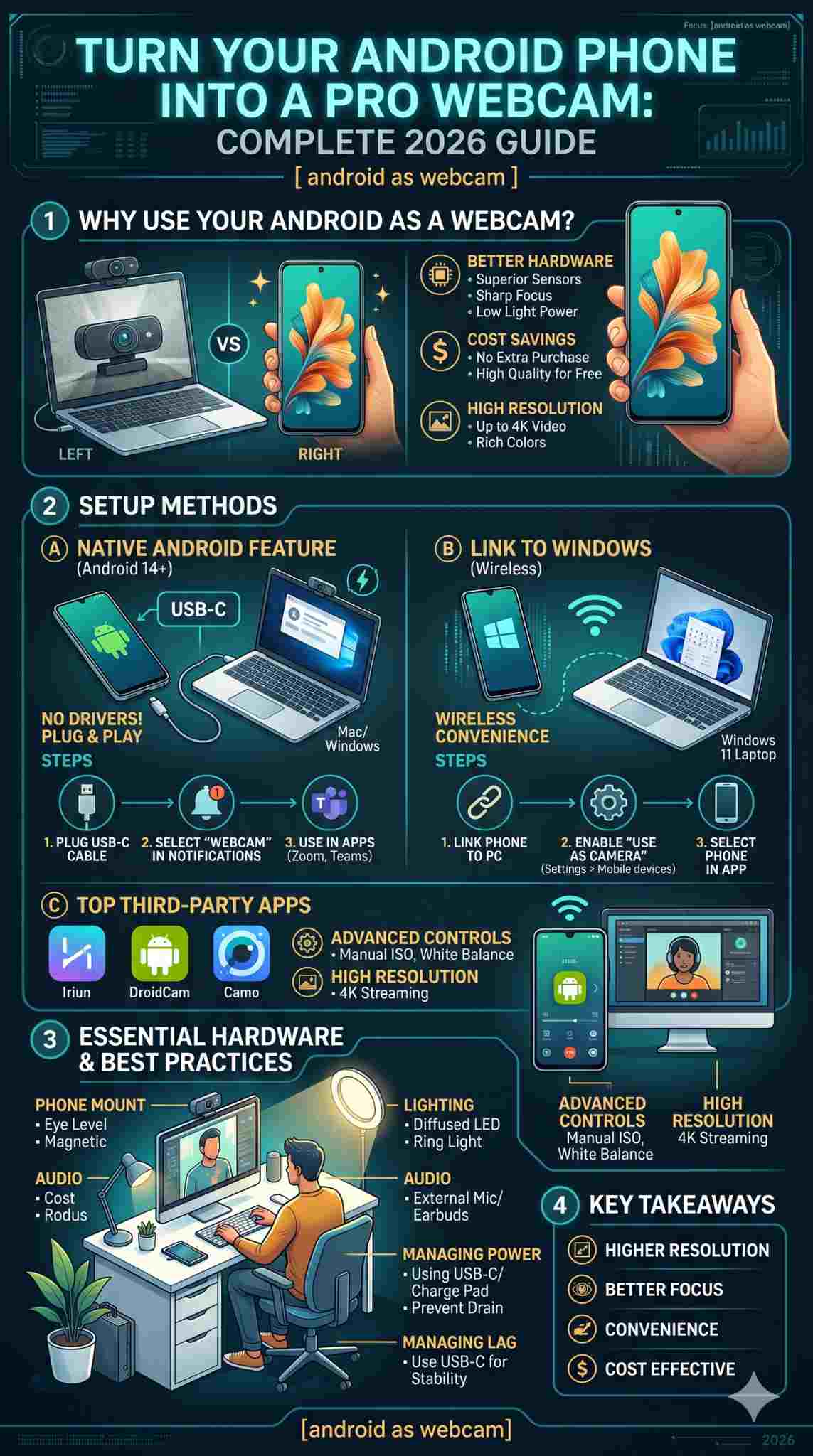
To get the most out of your setup, you need to think beyond just the software. How you position the phone and how you light your face will make a bigger difference than the resolution itself. Using your android as webcam effectively means treating your desk like a mini-studio.
|
Item |
Recommendation |
Why it matters |
|
Lighting |
Key light at 45 degrees |
Avoids harsh shadows |
|
Angle |
Eye-level |
Creates a natural connection |
|
Background |
Neutral or blurred |
Minimizes distractions |
|
Connectivity |
Wired (USB 3.0+) |
Ensures zero lag |
Optimizing the Visual Feed
The biggest mistake people make is using the front-facing “selfie” camera. While it is easier to see yourself, the rear cameras on your phone are significantly better. Use a small mirror or a dedicated app preview to frame yourself while using the main rear lens. This is where you get the best depth of field and the most accurate colors.
Using Advanced Software Settings
Most third-party apps allow you to lock the focus. This is essential. You don’t want the camera “hunting” for focus every time you move your hands or lean forward. Set the focus to your eyes and lock it. Also, manually lowering the exposure slightly can prevent your forehead from looking shiny under office lights.
Essential Hardware to Complete Your Setup
You can’t just balance your phone on your laptop lid and expect it to stay there. You need a few accessories to make this a permanent part of your workflow. The good news is that these items are relatively inexpensive and will last for years.
|
Accessory Type |
Suggested Brand/Model |
Function |
|
Phone Mount |
Continuity Mount or MagSafe Adapter |
Attaches phone to monitor |
|
Tripod |
Joby GorillaPod |
Stands on the desk |
|
Charging Cable |
Anker PowerLine (10ft) |
Long reach and fast data |
|
Lighting |
Elgato Key Light Air |
Professional facial lighting |
Phone Mounts and Tripods
A sturdy mount is your best friend. In 2026, magnetic mounts are the most popular because they allow you to snap your phone on and off in a second. If you use a desktop monitor, look for a clamp that sits on top. If you prefer a more flexible setup, a small tripod with bendable legs lets you wrap the camera around a lamp or sit it on a stack of monitor risers.
Proper Lighting Techniques
No camera looks good in the dark. Even a $1,000 phone will look grainy if you are sitting in a dim room. Place a soft light source in front of you, slightly above eye level. This fills in the shadows under your eyes and makes you look more awake and professional. Even a simple desk lamp with a white piece of paper over it to diffuse the light can work wonders.
Managing Audio and Microphones
While you are using your android as webcam, don’t forget about sound. Phone microphones are okay, but they are often too far away when the phone is mounted. It is usually better to use a dedicated USB microphone or a pair of wireless earbuds. This ensures that your voice is as crisp as your video feed.
Managing Battery Life and Connection Latency
Streaming high-definition video is one of the most intensive things a phone can do. It keeps the screen on, the sensor active, and the processor running hot. You need to manage these factors so your phone doesn’t die in the middle of a meeting.
|
Issue |
Solution |
Result |
|
Battery Drain |
Use a powered USB hub |
Phone stays charged |
|
Overheating |
Remove phone case |
Better airflow and cooling |
|
Video Lag |
Use 5GHz Wi-Fi or USB |
Smooth, real-time video |
|
Notifications |
Turn on Do Not Disturb |
No interruptions during calls |
Preventing Extreme Battery Drain
If you use a wireless connection, your battery will likely drop by 15-20% per hour. The best way to combat this is to use a wired connection which provides a “trickle charge” from your computer. If your laptop doesn’t provide enough power, use a split cable that allows you to plug the phone into both the PC for data and a wall outlet for power.
Fixing Video Lag and Delay
Lag usually happens because of Wi-Fi interference. If you see your video stuttering, try switching to a wired connection. If you must stay wireless, ensure your phone is the only high-bandwidth device on your Wi-Fi channel. In 2026, Wi-Fi 6E and Wi-Fi 7 have made this much better, but a cable is still the only way to guarantee 100% stability.
Troubleshooting Common Connection Issues
Sometimes things go wrong. Maybe your PC doesn’t see the phone, or the image is upside down. Don’t panic; most of these issues are solved with a quick setting change.
|
Problem |
Quick Fix |
|
PC doesn’t see phone |
Change the USB cable or port |
|
Image is sideways |
Toggle “Auto-Rotate” on the phone |
|
Video is blurry |
Clean the camera lens with a cloth |
|
Connection drops |
Disable battery optimization for the app |
Computer Not Recognizing Your Phone
If your phone is plugged in but doesn’t show up as an option, the cable is almost always the problem. Many USB-C cables are designed for charging only and don’t have the internal wiring for data. Always use a high-quality data cable. Also, check your computer’s “Privacy” settings to make sure you have given apps permission to use cameras.
Screen Orientation and Rotation Problems
It is frustrating when you are horizontal but the video is vertical. Most webcam apps have a “Rotate” button in their desktop settings. If you are using the native Android 14 feature, the orientation is usually determined by how you are holding the phone when you start the stream. Lock your phone’s orientation before you hit the start button to keep things consistent.
Final Thoughts
Switching to an android as webcam setup is a total game-changer for anyone who spends time in virtual meetings. We have moved past the era where you need to settle for the low-quality lens built into your laptop. With the native tools in Android 14 and the advanced features of third-party apps, you have everything you need to produce studio-quality video. Just remember to grab a solid mount, pay attention to your lighting, and use a wired connection whenever you can to keep things smooth. Your colleagues will definitely notice the difference.
Frequently Asked Questions (FAQs)
Can I use the ultrawide lens on my phone as a webcam?
Yes, most third-party apps like Camo and Iriun allow you to switch between all available lenses on your phone, including the ultrawide and telephoto lenses. This is great if you want to show a wider view of your office or a whiteboard.
Will my phone get too hot if I use it for long meetings?
It might. Capturing 4K video generates a lot of heat. To keep it cool, take the case off your phone and try to keep it out of direct sunlight. Some professional users even use small clip-on fans for their phones during long streams.
Can I use an Android phone as a webcam on a Chromebook?
Absolutely. Since the native Android feature uses the UVC standard, Chromebooks recognize the phone as a standard USB camera immediately. This is one of the easiest ways to upgrade a budget Chromebook’s video quality.
Does the screen have to stay on while I’m using it as a webcam?
Not necessarily. Apps like Iriun and DroidCam have a “black screen” mode that dims the display to save power and prevent burn-in while the camera remains active. If you are using the native Android 14 feature, you can usually turn the screen off once the stream has started.
Can I use my phone’s microphone and camera at the same time?
Yes, most apps support both. However, keep in mind that the microphone on your phone is tuned to hear you from a few inches away, not a few feet. For the best results, a dedicated microphone is still recommended.