
Waiting for a computer to respond is arguably one of the most annoying parts of modern life. You are in the middle of a project, and suddenly, that colorful spinning wheel appears, halting your momentum. Even in 2026, with incredibly powerful chips available, many users find themselves searching for ways to speed up slow mac performance.
Whether you are using a classic Intel-based machine or an earlier M-series model, software demands have increased significantly. This guide breaks down exactly why your machine is struggling and provides clear, actionable steps to get it back to its original speed.
Why Is Your Mac Lagging in 2026?
It is easy to assume your computer is just getting old, but the reality is often more technical. By 2026, the gap between older hardware and modern software requirements has widened. Most lag comes down to how your system manages its resources—specifically memory and processing power. When you understand the “why,” it becomes much easier to apply the “how” when trying to speed up slow mac systems.
The Hardware Gap: M-Series vs. Intel
The transition to Apple Silicon changed everything. If you are still running an Intel Mac in 2026, you are likely feeling the strain of “legacy” hardware. Developers now build apps primarily for the M-series architecture, meaning older chips have to work twice as hard to translate that code. Even first-generation M1 users might notice that 8GB of RAM is no longer the “magic number” it used to be, as modern apps now hog more memory than ever before.
Software Bloat and New macOS Demands
Every new version of macOS brings shiny features, but those features come at a cost. The latest operating systems use advanced background processes for indexing, security scanning, and cloud syncing. If your Mac is a few years old, these background tasks can eat up a significant portion of your CPU’s attention. Additionally, web apps have become much heavier, often acting like full-blown software suites inside your browser, which puts immense pressure on your system.
Table 1: Key Causes of Mac Slowdowns
|
Problem Area |
Common Symptom |
Root Cause |
|
Hardware Age |
Constant fan noise |
Architecture mismatch (Intel vs. Apple Silicon) |
|
System Memory |
Beachballing during app swaps |
High RAM pressure from modern software |
|
Disk Space |
Error messages about storage |
Less than 10% free space available for swap files |
|
Background Apps |
Sluggish startup |
Too many LaunchAgents and Login items |
First Steps: Quick Fixes to Speed Up Slow Mac
Before you go out and buy a new machine or try to reinstall everything, there are a few “low-hanging fruit” fixes. These steps take less than five minutes but can provide an immediate boost. If you want to speed up slow mac responsiveness, you have to clear the digital cobwebs that accumulate over weeks of use.
The Classic Restart
It sounds like the most basic advice possible, but a restart is a genuine technical fix. Most people just close the lid of their laptop for weeks at a time. This causes temporary cache files to build up and “zombie” processes to stay stuck in the background. A full restart flushes the RAM and clears out temporary system files that might be causing a conflict. It gives the operating system a chance to start fresh and reallocate resources where they are actually needed.
Check Activity Monitor for Resource Hogs
The Activity Monitor is your best friend when your computer feels sluggish. You can find it by pressing Command + Space and typing ~Activity Monitor~. Look specifically at the CPU and Memory tabs. If you see a process using 90% of your CPU that you are not even using, that is a huge problem. Often, a single webpage or a crashed background helper is the only thing standing between you and a fast computer. Force quitting these outliers can instantly restore your speed.
Table 2: Immediate Speed Fixes Checklist
|
Action |
Difficulty |
Impact |
|
Full System Restart |
Very Easy |
High (Clears RAM) |
|
Force Quit Resource Hogs |
Easy |
Instant (Saves CPU) |
|
Disable Visual Effects |
Easy |
Moderate (Saves GPU) |
|
Clear Desktop Icons |
Very Easy |
Low (Reduces UI lag) |
Free Up Storage Space
Your Mac uses your storage drive as a “backup” for your RAM when it runs out of space—this is called swap memory. If your hard drive is nearly full, your Mac has nowhere to put these temporary files, and everything grinds to a halt. To effectively speed up slow mac performance, you need to maintain a healthy amount of free space.
Optimize Built-in Storage Settings
Apple has made it pretty easy to see what is taking up space. Go to System Settings, click General, and then Storage. Here, you will see a breakdown of your files. Use the built-in “Recommendations” to store files in iCloud or empty the Trash automatically. This is the safest way to clear space without accidentally deleting something important. It often reveals massive system logs or old backups that you no longer need.
Hunt Down Large and Old Files
Sometimes the biggest space-wasters are hidden deep in your folders. Look at your Documents folder and sort by size. You might find a 4K video you downloaded three years ago or a zip file from a project you finished in 2023. Deleting just one or two massive files can give your Mac the breathing room it needs to breathe again. Pay close attention to the “System Data” category; if this is over 100GB, you likely have old cache files from deleted apps still hanging around.
Empty the Trash and Downloads Folder
This is a simple one that people often forget. Files in the Trash still take up space until you actually empty it. Likewise, the Downloads folder is usually a graveyard for installers (DMG files) that you only needed once. Once you install an app, you can safely delete the installer. Getting into the habit of cleaning your Downloads folder every Friday can prevent your storage from reaching the “danger zone” where speed begins to drop.
Read Also: How to Transfer Photos from iPhone to Mac Without Cable
Table 3: Storage Management Strategy
|
Target Area |
What to Delete |
Potential Savings |
|
Downloads Folder |
Old installers (.dmg) |
5GB – 20GB |
|
Trash Can |
Everything |
Varies |
|
System Data |
App caches/logs |
10GB – 50GB |
|
Large Files |
Old video projects |
50GB+ |
Manage Login Items and Background Processes
When you turn on your Mac, dozens of apps try to start at the exact same time. This creates a bottleneck that can make your computer feel slow for the first twenty minutes of use. Managing these startup items is a vital step to speed up slow mac boot times and overall responsiveness.
How to Disable Unnecessary Startup Apps
Go to System Settings > General > Login Items. You will see a list of apps that open automatically. Most of us have things like Spotify, Zoom, or Steam in there that we do not need every single time we turn on the computer. Remove them by clicking the minus button. Also, look at the “Allow in Background” section below. This lists apps that run silent processes even when the app is closed. Turn off anything that does not absolutely need to be running 24/7.
Keep an Eye on Menu Bar Apps
The top right corner of your screen can become very crowded. Every little icon up there—from cloud storage trackers to temperature monitors—is a program using up your RAM. While one or two do not matter, ten of them can significantly slow you down. Go through each one and decide if the information it provides is worth the performance hit. Usually, you can close most of them and only open them when you actually need to check a setting.
Table 4: Background Process Management
|
Process Type |
Action |
Benefit |
|
Login Items |
Remove from list |
Faster boot times |
|
Background Tasks |
Toggle off in settings |
More available RAM |
|
Menu Bar Icons |
Quit unnecessary ones |
Cleaner UI and less CPU usage |
|
LaunchDaemons |
Technical cleanup |
High performance gain |
Optimize Your Web Browser
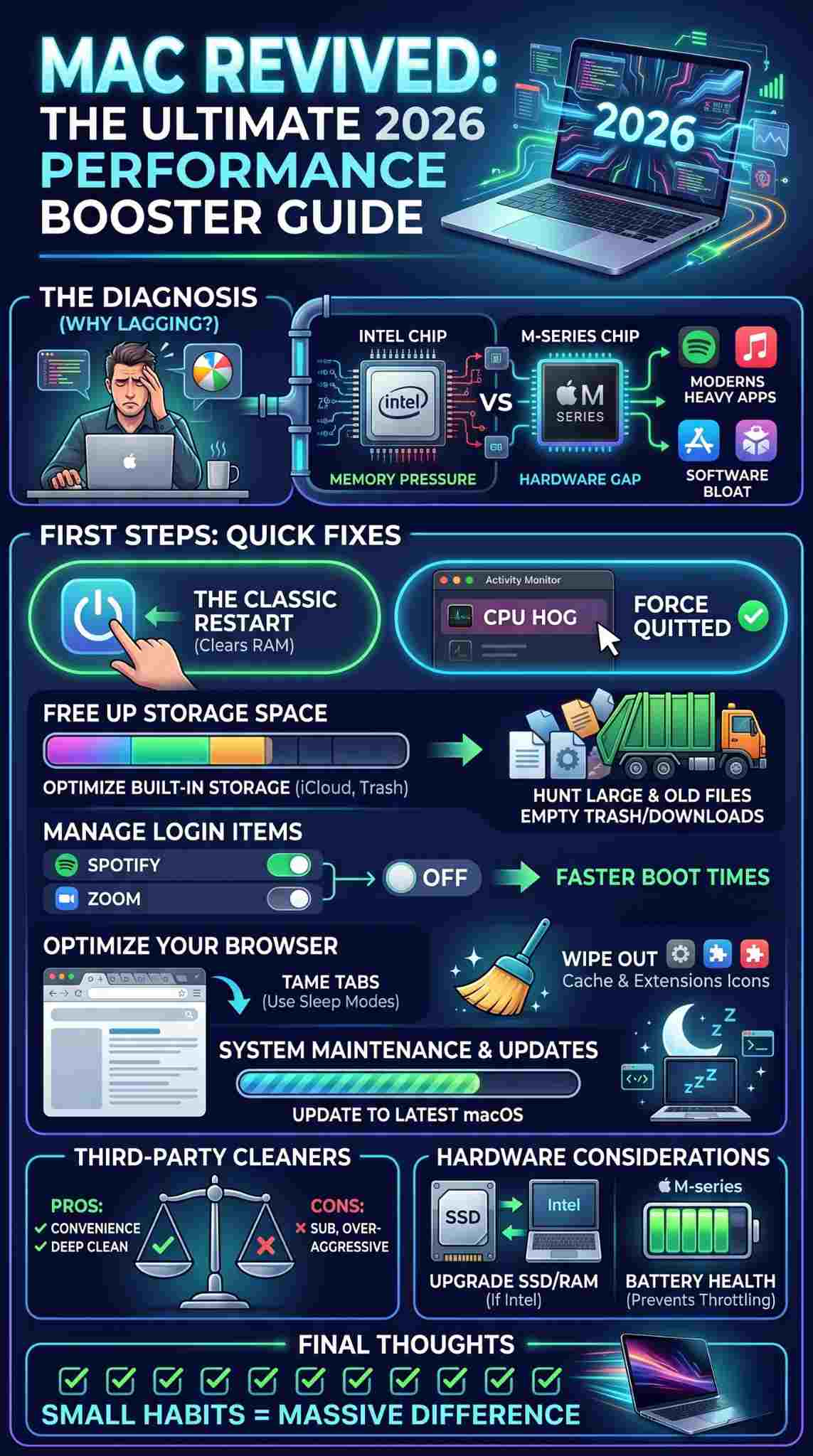
For most of us in 2026, the browser is where we spend 90% of our time. If your browser is slow, your Mac feels slow. Even if you have a fast machine, a bloated browser can make it feel like a dinosaur.
Tame Your Browser Tabs
Each open tab is like a tiny separate program running on your computer. If you have 50 tabs open, your Mac is trying to keep 50 different programs “alive” in the memory. Use a tab manager or simply bookmark things you want to read later. Modern browsers like Safari and Chrome have “memory saver” modes that put inactive tabs to sleep; make sure these are turned on in your browser settings. It is the easiest way to keep your memory pressure in the green.
Clear Browser Cache and Extensions
Over time, your browser stores images and scripts from every site you have ever visited. While this is meant to speed things up, a massive cache can eventually become corrupted and slow you down. Clear your browsing data once every few months. More importantly, look at your extensions. Do you really need that coupon finder or that grammar checker running on every single page? Extensions are notorious for leaking memory and should be kept to an absolute minimum.
Table 5: Browser Optimization Tips
|
Browser Tool |
Action |
Result |
|
Tab Sleep/Discard |
Enable in settings |
Saves RAM on idle tabs |
|
Cache Clearing |
Wipe every 3 months |
Removes corrupted temp files |
|
Extension Audit |
Remove unused ones |
Faster page loading |
|
Hardware Acceleration |
Ensure it is ON |
Uses GPU for better rendering |
System Maintenance and Updates
Keeping your software current is about more than just new emojis; it is about performance. Apple frequently releases patches that specifically target “memory leaks” or efficiency bugs found in earlier versions of the software.
Update to the Latest macOS
If there is a software update waiting, install it. In 2026, many updates are focused on optimizing how the OS interacts with the newer M-series chips. If you are a few versions behind, you are missing out on these efficiency gains. Just make sure you have a backup before you do a major OS jump. Staying updated is a key pillar in the effort to speed up slow mac devices because it ensures you have the latest drivers and security protocols.
Run Maintenance Scripts
MacOS is designed to run its own cleanup scripts during the night when the computer is idle. However, if you always shut your Mac down, these scripts never get a chance to run. You can manually trigger maintenance using third-party tools or the Terminal, but the easiest “human” way to do it is just to leave your Mac plugged in and sleeping overnight once a week. This allows the system to organize its database and clean up system logs without you having to do anything.
Table 6: Maintenance Routine
|
Task |
Frequency |
Why it Matters |
|
macOS Update |
Whenever available |
Fixes bugs and improves efficiency |
|
Disk First Aid |
Monthly |
Checks for file system errors |
|
Spotlight Re-indexing |
If search is slow |
Speeds up file finding |
|
Overnight Sleep |
Weekly |
Allows background maintenance scripts |
When to Use Third-Party Mac Cleaners
There is a lot of debate about whether “cleaning” apps are necessary. The truth is that while you can do everything manually, it takes a lot of time. In 2026, a few reputable tools have survived because they actually provide value.
Pros and Cons of Cleaning Apps
The biggest pro is the “one-click” convenience. These apps can find “orphaned” files—pieces of apps you deleted years ago that are still taking up space in hidden folders. They can also help you visualize your storage better than the built-in macOS tools. The con is that some apps are “scareware” that tell you your Mac is in danger just to get you to buy a subscription. Always stick to well-known, notarized apps and avoid anything that pops up as an ad in your browser.
Choosing the Right Tool
If you decide to use a cleaner, look for one that is transparent about what it is deleting. A good tool will categorize files into “System Cache,” “User Logs,” and “Unused Languages.” Avoid tools that promise to “boost your RAM” by clearing it; macOS is actually very good at managing RAM on its own, and “clearing” it can actually slow you down as the system has to reload everything from the hard drive.
Table 7: Third-Party Tool Comparison
|
Feature |
Built-in macOS Tools |
Reputable Cleaners |
|
Cost |
Free |
Usually Paid/Subscription |
|
Ease of Use |
Moderate |
High |
|
Deep Cleaning |
Basic |
Comprehensive |
|
Safety |
100% |
High (if reputable) |
Hardware Upgrades (For Older Models)
If you have tried every software trick in the book and your Mac is still crawling, you might be hitting a hardware ceiling. Depending on your model, there might be a physical fix.
Can You Upgrade Your RAM or SSD?
For those on Intel-based Macs from 2019 or earlier, you might be in luck. Some of these models allow you to swap out the old mechanical hard drive for a modern SSD, which is like giving the computer a new brain. You might also be able to double your RAM for a relatively low cost. However, if you have an Apple Silicon Mac (M1, M2, etc.), these components are part of the chip itself and cannot be upgraded. In that case, your only real hardware “upgrade” is ensuring your peripherals aren’t causing the lag.
Battery Health and Throttling
This is a hidden speed killer. When a Mac battery gets old and can no longer provide consistent power, macOS will actually slow down your processor to prevent the computer from shutting down unexpectedly. If your battery status says ~Service Recommended~, your CPU might be running at half-speed. Replacing the battery can often restore the full clock speed of your processor, making the whole machine feel like new again.
Table 8: Hardware Considerations
|
Component |
Upgradable? (Intel) |
Upgradable? (M-Series) |
Impact on Speed |
|
RAM |
Sometimes |
No |
High for multitasking |
|
SSD/Storage |
Yes (most) |
No |
High for file access |
|
Battery |
Yes |
Yes (at Apple) |
Critical for CPU throttling |
|
Thermal Paste |
Yes (advanced) |
No |
Moderate (prevents heat lag) |
Final Thoughts
At the end of the day, a Mac is a tool, and like any tool, it needs a bit of maintenance to stay sharp. If you take the time to clear out your storage, manage your startup apps, and keep your software updated, you can significantly extend the life of your machine. There is no single “magic button” to speed up slow mac performance, but a combination of these small habits will make a massive difference. If you have done everything here and it is still unusable, it might finally be time to look at the new M5 or M6 models, but for most people, a good spring cleaning is all that is required to get back to work.
FAQs
Why does my Mac slow down specifically when the charger is plugged in?
This is usually related to heat. When charging, the battery generates extra warmth. If your Mac is already running hot, it will “thermally throttle” the CPU to keep things cool. Try cleaning the dust out of your fans or using the Mac on a hard, flat surface.
Does having a lot of files on my desktop really slow down my Mac?
Yes, actually. macOS treats every icon on your desktop as a “window” that it has to render and keep track of in the GPU memory. If you have hundreds of individual files on your screen, it can cause lag when switching spaces or using Mission Control. Use “Stacks” to organize them into folders.
Is it safe to use “CleanMyMac” or similar apps in 2026?
As long as the app is notarized by Apple and you download it from the official source, it is safe. However, never click on “Your Mac is infected” pop-ups; those are almost always malware.
Does “Stage Manager” affect my Mac’s speed?
Stage Manager is a visual layer on top of the OS. While it uses a small amount of GPU power to animate the windows, it shouldn’t significantly slow down a modern Mac. However, if you are on an older machine with limited RAM, turning it off might save some resources.
Why is “System Data” taking up so much space?
This is a catch-all category for things like Time Machine snapshots, local caches, and library files. Often, if you have a pending macOS update or a failed backup, “System Data” will swell in size. A restart or finishing the update usually clears it out.