
You start a YouTube tutorial, switch to your notes app, and suddenly the video disappears. Annoying, right? That is exactly where youtube picture in picture helps. It lets you keep a YouTube video playing in a small floating window while you use other apps on your phone, tablet, or computer.
This is useful for more than lazy multitasking. You can follow a cooking video while checking a recipe, watch a lecture while writing notes, keep a podcast interview open while replying to messages, or follow a software tutorial while using the tool being explained. The good news is that YouTube Picture-in-Picture is now much easier to access than it used to be.
Still, there is one catch. YouTube’s PiP rules depend on your device, app settings, region, account type, and the type of content you are watching. So, this guide breaks it all down in plain English.
What Is YouTube Picture in Picture?
YouTube Picture-in-Picture, often called YouTube PiP, is a viewing mode that turns your video into a small floating player. You can move that player around your screen and keep watching while opening another app. YouTube Help explains that PiP lets users watch videos in a small player over other apps on mobile devices.
The feature is built for multitasking. It is not the same as downloading a video, playing only audio, or using YouTube’s in-app miniplayer. It keeps the video visible, so you can still see what is happening while you do something else.
|
Key Point |
What It Means |
|
Feature name |
Picture-in-Picture or PiP |
|
Main use |
Watch YouTube while using other apps |
|
Works on |
Android, iPhone, iPad, and desktop browsers |
|
Best for |
Tutorials, podcasts, news, explainers, lectures |
|
Main limitation |
Music content may require YouTube Premium |
YouTube PiP vs Miniplayer vs Background Play
The YouTube miniplayer works only inside the YouTube app or website. It lets you browse other YouTube videos while your current video keeps playing in a small box. Once you leave YouTube, the miniplayer stops being useful.
Picture-in-Picture is different. It follows you outside YouTube. You can open WhatsApp, Gmail, Google Docs, Safari, Chrome, or another app while the video stays on screen.
Background play is another thing again. It lets audio keep playing when the screen is locked or when there is no visible video window. YouTube usually treats background playback as a Premium feature on mobile.
How YouTube Picture in Picture Works for Free and Premium Users
For years, many people thought YouTube PiP was only for Premium users. That is no longer fully true. YouTube has expanded free Picture-in-Picture access for longform, non-music content on Android and iOS in many regions. The rollout may happen gradually, so some users may see the feature before others.
This means free users can often use PiP for regular videos, tutorials, interviews, explainers, and similar content. However, music videos and music-related content remain restricted. YouTube says music content such as official music videos, Art Tracks, children’s songs, and song covers may require YouTube Premium for PiP.
|
Account Type |
PiP Access |
Main Limitation |
|
Free YouTube users |
Longform, non-music videos in many regions |
Rollout timing and content restrictions |
|
YouTube Premium Lite |
Longform, non-music videos |
Music content may still be limited |
|
YouTube Premium |
Music and non-music PiP |
Paid subscription required |
|
YouTube Music users |
Music-focused playback features |
Depends on subscription and app use |
Is YouTube Premium Still Needed?
You do not always need YouTube Premium for youtube picture in picture. If you are watching eligible longform, non-music content, the feature may work on a free account. This is a major change for users outside the United States.
Premium still matters if you want a smoother experience with music content, background play, ad-free viewing, downloads, and broader playback control. So, the honest answer is simple: Premium is not always required for PiP, but it still unlocks more.
Which Videos May Not Work in PiP?
Some content may not open in PiP even when your settings are correct. Music videos are the most common example. Shorts may also behave differently because they are designed for vertical, in-app viewing.
You may also face problems with restricted content, child-directed videos, region-limited videos, or videos affected by rollout timing. If PiP fails on one video, test another normal longform video before assuming your phone is broken.
How to Use YouTube Picture in Picture on Android
Android is one of the easiest places to use YouTube PiP. You only need the YouTube app, an eligible video, and the right settings. YouTube Help says Android users should allow PiP from Android app settings and then enable Picture-in-Picture inside YouTube playback settings.
Start by checking your phone settings first. If Android blocks PiP at the system level, the YouTube app setting will not help. After that, check the YouTube app itself.
|
Step |
Action |
|
1 |
Open Android Settings |
|
2 |
Go to Apps and select YouTube |
|
3 |
Tap Picture-in-picture |
|
4 |
Turn on Allow picture-in-picture |
|
5 |
Open YouTube Settings and enable PiP under Playback |
Turn On PiP in Android Settings
Open your Android Settings app. Go to Apps, find YouTube, and open its app settings. Look for Picture-in-picture under advanced or special app access settings.
Turn on Allow picture-in-picture. The exact wording may vary by phone brand, but the idea is the same. Samsung, Pixel, Xiaomi, OnePlus, and other Android phones may place this option in slightly different menus.
Turn On PiP in the YouTube App
Open YouTube and tap your profile picture. Go to Settings, then Playback. Turn on Picture-in-Picture if it is available.
Now play a regular YouTube video. Swipe up or press the Home button. If the video is eligible, it should shrink into a small floating window.
Android Fixes If PiP Does Not Work
First, update the YouTube app from Google Play. Then restart your phone. Small app glitches can block PiP even when your settings are correct.
You should also clear the YouTube app cache. Go to Android Settings, open YouTube, tap Storage, and clear cache. Do not clear data unless you are comfortable signing in and setting up the app again.
Check battery saver too. Some Android phones limit floating windows or background behavior when power-saving mode is active.
How to Use YouTube Picture in Picture on iPhone and iPad
On iPhone and iPad, YouTube PiP depends on iOS settings and YouTube settings. YouTube says iPhone and iPad users need iOS 15.0 or later to use Picture-in-Picture.
For most users, PiP is simple once both settings are active. Play a YouTube video, swipe up from the bottom of the screen, and the video should move into a floating player. If your iPhone has a Home button, press it instead.
|
Requirement |
Details |
|
Device |
iPhone or iPad |
|
System version |
iOS 15.0 or later |
|
App |
Updated YouTube app |
|
iOS setting |
Start PiP Automatically enabled |
|
YouTube setting |
Picture-in-Picture enabled under Playback |
Turn On PiP in iOS Settings
Open Settings on your iPhone or iPad. Tap General, then Picture in Picture. Turn on Start PiP Automatically.
This setting allows supported video apps to move into PiP when you leave the app. If it is off, YouTube may close or pause instead of shrinking into a floating window.
Turn On PiP in the YouTube App
Open the YouTube app. Tap your profile picture, go to Settings, then Playback. Turn on Picture-in-Picture if you see the option.
YouTube says PiP is turned on by default for iOS 15.0 and later if background play has not been turned off in the YouTube app. Still, checking the setting manually is smart when the feature does not work.
iPhone Fixes If PiP Is Missing
Update your iPhone or iPad first. Then update YouTube from the App Store. If both are updated, force close YouTube and open it again.
Try a normal longform video, not a music video or Short. If it works on one video but not another, the problem is probably content eligibility, not your device.
If the feature still does not show, it may not have reached your account yet. YouTube’s global rollout for free users may be gradual, so waiting may be the only real fix in some cases.
Read Also: How to Block YouTube Ads on Mobile Without App
How to Use YouTube Picture in Picture on Desktop
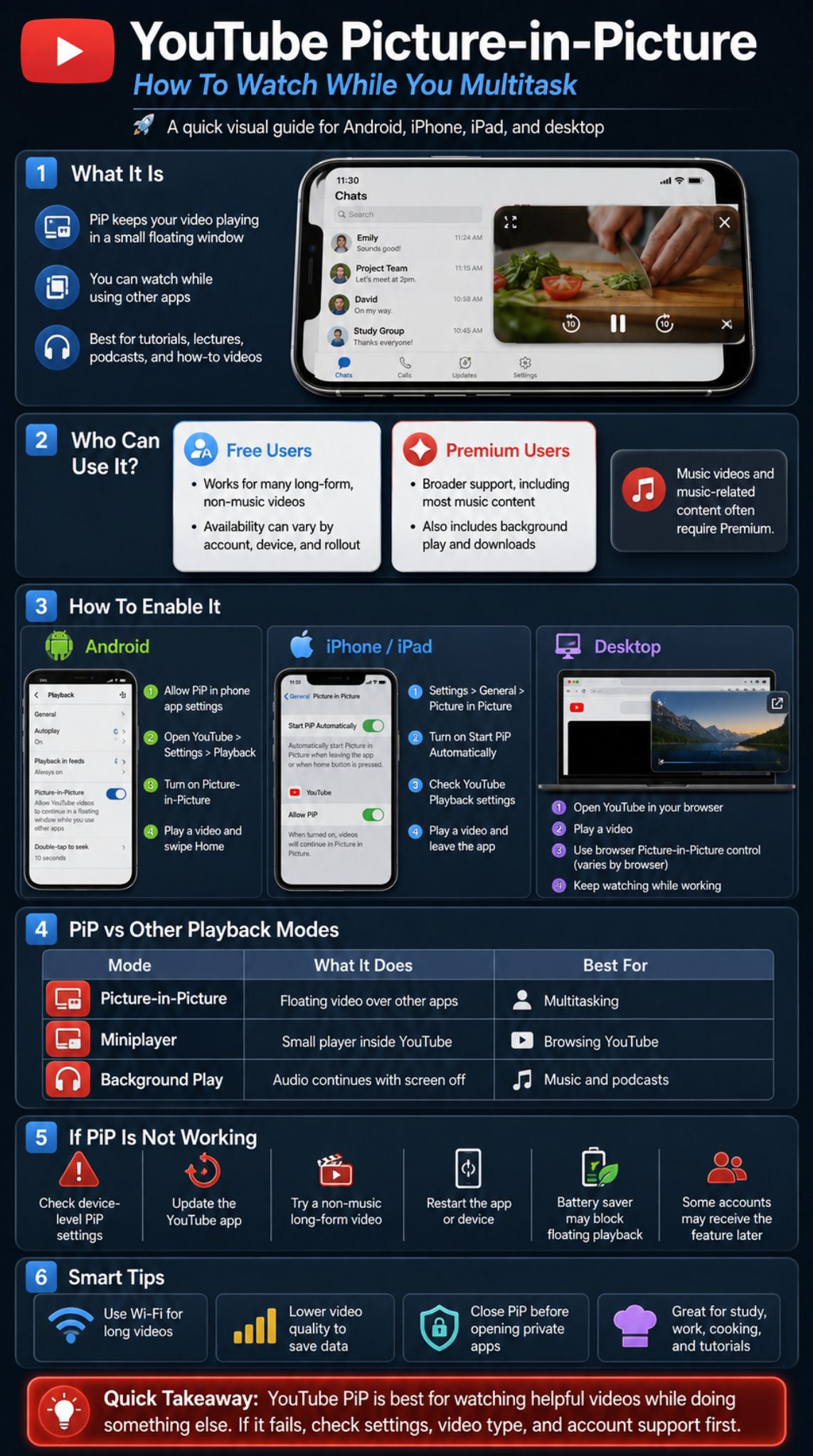
Desktop users often have more flexibility. You can use browser-level PiP in Chrome, Firefox, Safari, or Edge. This usually works even without YouTube Premium because the feature is handled by the browser, not only by the YouTube mobile app.
The process is slightly different depending on your browser. Most browsers let you right-click the video, use a toolbar icon, or select Picture-in-Picture from a video control menu.
|
Browser |
Common PiP Method |
|
Chrome |
Right-click twice or use a PiP extension |
|
Firefox |
Click the PiP icon on the video |
|
Safari |
Right-click twice or use browser video controls |
|
Edge |
Use video pop-out controls or right-click menu |
Use PiP in Google Chrome
Open YouTube in Chrome and play a video. Right-click once on the video, then right-click again to open the browser menu. Choose Picture in Picture if the option appears.
Chrome users may also use a Picture-in-Picture extension. This creates a floating video window that stays on top of other windows, which is useful if you use PiP often.
Use PiP in Firefox
Firefox usually makes PiP very easy. Play a YouTube video and hover over it. A small Picture-in-Picture button may appear on the video.
Click it, and the video opens in a floating window. You can resize it, move it, pause it, or return to the full YouTube tab.
Use PiP in Safari or Microsoft Edge
In Safari on Mac, play a YouTube video and right-click twice. Choose Enter Picture in Picture if the option appears. You can then move the video around the screen while using another app.
In Microsoft Edge, play a video and look for the browser’s video pop-out or PiP control. If you do not see it, try the right-click method.
Why YouTube Picture in Picture Is Not Working
This is where many users get stuck. The feature may fail for a small reason, such as a disabled setting, outdated app, unsupported content, or delayed rollout. That is why you should troubleshoot in order instead of guessing.
Start with the easiest checks. Make sure PiP is enabled in your phone settings and YouTube settings. Then check the video type. Finally, update the app and restart your device.
|
Problem |
Likely Fix |
|
PiP setting is off |
Turn it on in device and YouTube settings |
|
Music video will not work |
Premium may be required |
|
iPhone PiP missing |
Check iOS 15.0 or later |
|
Android PiP missing |
Allow PiP in app permissions |
|
Only some videos fail |
Content may be restricted |
|
Nothing works |
Update app, restart device, wait for rollout |
Check Device-Level Settings
Your phone may block PiP even if YouTube allows it. On Android, check YouTube’s app permissions and allow Picture-in-Picture. On iPhone, turn on Start PiP Automatically.
This is the most common fix because users often check only the YouTube app. PiP needs permission from both places.
Check YouTube App Settings
Open YouTube settings and go to Playback. Look for Picture-in-Picture and turn it on. If the option is not visible, update the app and check again.
If the setting is already on, turn it off and on again. Then close the app and reopen it.
Check the Video Type
If the video is music-related, PiP may not work on a free account. YouTube separates music content from regular videos for PiP access.
Try a tech tutorial, news explainer, interview, or educational video. If that works, your device is fine.
Best Ways to Use YouTube Picture in Picture
The real value of youtube picture in picture is not just convenience. It changes how you use educational, work-related, and longform videos. Instead of stopping the video every time you need another app, you can keep the visual context open.
Students, creators, writers, editors, developers, and casual viewers can all use it in different ways. The trick is to use PiP where seeing the video actually helps, not just where audio is enough.
|
User Type |
Useful PiP Scenario |
|
Students |
Watch a lecture while taking notes |
|
Writers |
Follow a research video while drafting |
|
Developers |
Watch coding tutorials while testing code |
|
Cooks |
Follow recipes while checking ingredients |
|
Professionals |
Watch webinars while reading documents |
For Students
Students can use PiP to watch lessons while writing notes in Google Docs, Notion, or Apple Notes. This is helpful for lectures, exam explainers, language lessons, and study walkthroughs.
It also reduces app-switching. You do not need to pause, switch, write, and return every few seconds.
For Professionals
Professionals can use PiP during webinars, product demos, market updates, and training videos. It works well when the video supports the task but does not require full-screen attention.
For example, a marketer can watch a Google Analytics tutorial while checking a dashboard. A designer can follow a Canva tutorial while editing a layout.
For Everyday Users
PiP is great for cooking videos, repair tutorials, workouts, podcasts, and interviews. You can keep the instructions visible while doing the actual task.
It is also useful for long videos. If you are watching a 40-minute interview, you do not need to stay locked inside the YouTube app the whole time.
Privacy, Battery, and Data Tips for YouTube PiP
PiP is useful, but it is still video playback. That means it uses battery, screen space, and mobile data. If you are on a limited data plan, YouTube PiP can drain your allowance faster than audio-only listening.
It can also expose private information if you screen-share or open sensitive apps while the floating video is visible. Treat PiP like a small window that is always on top.
|
Area |
Smart Tip |
|
Battery |
Lower brightness and close unused apps |
|
Data |
Use Wi-Fi or reduce video quality |
|
Privacy |
Close PiP before opening private apps |
|
Focus |
Use PiP only when multitasking helps |
|
Accessibility |
Turn on captions when needed |
Save Battery While Using PiP
Lower your screen brightness. Close apps you are not using. Avoid using PiP with heavy games or editing apps if your phone is already low on battery.
You can also reduce video quality. A tutorial does not always need to play in 1080p if you are watching it in a tiny floating window.
Save Mobile Data
PiP still streams video. It is not the same as audio-only playback. If you are using mobile data, switch to a lower resolution inside YouTube’s video quality settings.
For long videos, Wi-Fi is safer. This matters more for users who watch tutorials, podcasts, and interviews during commutes.
Protect Your Privacy
Close the floating player before opening banking apps, private messages, work documents, or personal photos. The video itself may not be private, but your screen activity can be.
This matters even more during screen-sharing. A PiP window can stay visible when you forget it is open.
Common Mistakes Users Make With YouTube PiP
Many PiP problems come from wrong expectations. Some users expect every YouTube video to work. Others think PiP is the same as background audio. A few keep using outdated advice from older articles.
The safest approach is to understand the feature first. Then troubleshooting becomes much easier.
|
Mistake |
Better Approach |
|
Expecting all videos to work |
Test with a longform, non-music video |
|
Confusing PiP with background play |
Remember PiP keeps video visible |
|
Checking only YouTube settings |
Check device settings too |
|
Using outdated guides |
Follow current YouTube rules |
|
Ignoring rollout timing |
Wait if your account has not received it |
Thinking PiP Means Locked-Screen Playback
PiP means a visible floating video window. If you lock your phone and expect audio to keep playing, that is background playback.
YouTube usually treats background play as a Premium feature on mobile. Some third-party browser workarounds for free background playback may also stop working if YouTube blocks them.
Ignoring Music Restrictions
Music content is still the big restriction. If you are trying to use PiP for official songs, music videos, or song covers, you may need Premium.
That does not mean PiP is broken. It means the video type is restricted.
Following Old Guides
Old YouTube PiP guides may say only Premium users can access the feature. That is now incomplete. Free PiP has expanded for longform, non-music videos in many regions, though rollout timing still matters.
YouTube Picture in Picture SEO Search Intent Explained
The search intent behind youtube picture in picture is mostly practical. People want to know how to turn it on, why it does not work, whether it is free, and whether Premium is required. So the article should answer those questions early.
This topic also fits a tech how-to audience because it solves a clear daily problem. For Editorialge, this content fits best under Technology, How-To, Apps, or Life Hacks.
|
SEO Element |
Recommendation |
|
Primary intent |
How-to and troubleshooting |
|
Best category |
Technology |
|
Secondary category |
How-To or Apps |
|
Best audience |
YouTube users, students, workers, multitaskers |
|
Content format |
Step-by-step guide with FAQs |
Related Keywords to Use Naturally
Use related terms without stuffing them. Good options include YouTube PiP, Picture-in-Picture mode, floating video player, YouTube background play, YouTube Premium, Android PiP, iPhone PiP, YouTube app settings, and YouTube not working.
These terms help Google understand the topic. They also match how real users search.
Suggested Internal Links
Add internal links to related Editorialge articles if available. Good internal link ideas include:
- How to fix YouTube not working
- Best YouTube settings for mobile users
- YouTube Premium features explained
- Best Android tips for productivity
- iPhone hidden features users should know
Final Thoughts
youtube picture in picture is one of those small features that makes YouTube feel much easier to use. It saves time, reduces constant app-switching, and helps when you want to watch something while doing another task.
The main thing is knowing the limits. Free users can often use PiP for longform, non-music content, but music videos and background play may still need Premium. If PiP is not working, check your phone settings, YouTube settings, app updates, video type, and rollout status before giving up.
For most people, YouTube PiP is not just a nice extra. It is a practical tool for learning, working, cooking, researching, and watching long videos without staying trapped inside one app.
Frequently Asked Questions About YouTube Picture in Picture
The FAQ section should answer questions that were not fully covered in the article body. Keep the answers short, direct, and useful. These questions are especially helpful for long-tail search traffic.
|
FAQ Theme |
User Intent |
|
Free access |
Users want to avoid paying |
|
Device support |
Users want device-specific answers |
|
Music limits |
Users are confused about restrictions |
|
Desktop PiP |
Users want browser help |
|
Troubleshooting |
Users need quick fixes |
Can I Use YouTube Picture in Picture Without Premium?
Yes, many users can use PiP without Premium for longform, non-music videos. However, music content and full background playback may still require YouTube Premium.
Why Does YouTube PiP Work for Some Videos but Not Others?
The most likely reason is content eligibility. Regular longform videos may work, while music videos, Shorts, or restricted videos may not.
Does YouTube Picture in Picture Work With Shorts?
YouTube Shorts are not the best fit for PiP because they are designed for vertical in-app viewing. Some devices may behave differently, but regular longform videos are more reliable.
Can I Resize the YouTube PiP Window?
Yes, most phones and desktop browsers let you move or resize the PiP window. Controls vary by device, operating system, and browser.
Why Does YouTube Stop When I Lock My Phone?
That is because locked-screen playback is background play, not Picture-in-Picture. Background play is usually treated as a YouTube Premium feature on mobile.
Does YouTube Picture in Picture Use More Battery?
Yes, it can. PiP keeps the video playing on screen, so it may use more battery than audio-only playback.
Is YouTube PiP Available Everywhere?
YouTube has expanded free PiP for longform, non-music content in many regions. Still, availability can vary by account, region, device, app version, and rollout timing.