
You open your Samsung phone’s camera to capture a quick photo, and instead of the viewfinder, you see a message that says “Camera failed” or “Warning Camera failed.” Annoying? Absolutely. But it doesn’t always mean your phone camera is broken.
The samsung camera failed issue often comes from software glitches, corrupted app cache, third-party app conflicts, outdated updates, or a temporary system bug. Samsung’s own support guidance says that when the camera freezes, lags, preview fails, or shows a “Camera Failed” message, it is often linked to software rather than physical camera damage.
That’s good news because software problems are usually easier to fix. You don’t need to rush to a repair shop right away. Start with the simple steps first. Reset the Camera app, restart the phone, clear cache, check updates, and test Safe Mode before trying anything serious like a factory reset.
This guide walks you through seven practical fixes in the right order, from the fastest solution to the final repair option.
|
Article Snapshot |
Details |
|
Main problem |
Samsung Camera Failed error |
|
Common cause |
Software glitch, cache issue, update bug, third-party app conflict |
|
Difficulty level |
Beginner-friendly |
|
First fix to try |
Force close and restart Camera app |
|
Last-resort fix |
Factory reset or Samsung service center |
|
Best for |
Samsung Galaxy phone users |
What Does the Samsung Camera Failed Error Mean?
The Samsung Camera Failed error means the Camera app or camera system could not start properly. The app may open and close instantly. It may show a black screen. It may freeze before taking a photo. In some cases, it may only fail when switching between the front and rear camera.
This error can appear on different Samsung Galaxy models. It may happen after a software update, after installing a third-party app, or after heavy phone use. Sometimes it appears once and disappears after a restart. Other times, it keeps coming back until you fix the root cause.
Samsung support lists several basic fixes for the Camera Failed error, including resetting the Camera app, force restarting the device, using Safe Mode, and performing a factory reset if simpler methods do not work.
|
Error Sign |
What It May Mean |
|
Camera app closes instantly |
App crash or corrupted cache |
|
Black screen in Camera app |
Camera service failed to load |
|
Error after update |
Software or Google Play system issue |
|
Error in third-party apps |
Permission or system-level camera issue |
|
Rear camera fails only |
Possible camera module issue |
|
Both cameras fail |
Software issue or deeper hardware problem |
Camera Failed vs Camera Not Working
These two problems sound similar, but they are not always the same. “Camera Failed” is a specific error message. “Camera not working” can include many issues, such as blurry images, camera lag, focus problems, missing camera permissions, or apps not detecting the camera.
Why You Should Not Panic First
A phone camera depends on the Camera app, Android system services, permissions, storage, software updates, and hardware. If one part gets stuck, the whole camera experience can fail. That’s why a simple restart or app reset can sometimes solve the problem in minutes.
Quick Checks Before You Try the 7 Fixes
Before changing settings, take one minute to check the obvious things. It sounds boring, but it can save time. A phone case, dirty lens, overheating device, or blocked permission can make the issue look worse than it is.
Try both the front and rear camera. Open another app that uses the camera, such as WhatsApp, Instagram, Snapchat, Messenger, or a QR scanner. If the camera fails everywhere, the issue may be system-wide. If it only fails in one app, that app may need permission or an update.
Google’s Android support explains that users can manage camera permission from app settings or the Permission manager. Camera permission allows an app to take pictures and record videos, so it matters when third-party apps cannot open the camera.
|
Quick Check |
What To Do |
|
Lens and case |
Remove case or lens protector and clean the lens |
|
Front and rear camera |
Test both camera sides |
|
Other apps |
Test camera in WhatsApp, Instagram, or Messenger |
|
Storage |
Free up space if storage is almost full |
|
Phone temperature |
Let the phone cool down if it feels hot |
|
Permissions |
Check camera access for third-party apps |
|
Recent apps |
Note any app installed before the error started |
Check Camera Access in Privacy Settings
Some Android versions allow users to turn off camera access for all apps. If camera access is disabled, apps may not use the camera properly. Go to Settings, then Security and Privacy, then Privacy controls, and check if Camera access is turned on.
Back Up Important Files Before Deep Fixes
Most of the early fixes are safe. But if you later try a factory reset, back up your photos, videos, contacts, and files first. Samsung’s backup guide says users can back up data through Settings, Accounts and backup, and Samsung Cloud.
Read Also: Samsung Galaxy Won’t Connect to WiFi: 8 Proven Fixes
Samsung Camera Failed: 7 Quick Fixes
The best way to fix samsung camera failed is to move from simple to serious. Don’t start with a factory reset. That’s like demolishing the kitchen because the light switch got stuck.
Start with the Camera app. Then restart the phone. After that, clear cache, update software, test Safe Mode, and only then consider a reset or service center visit.
Samsung officially recommends several of these steps, including resetting the Camera app, force restarting the phone, using Safe Mode, and factory reset if the issue remains.
|
Fix |
Best For |
Risk Level |
|
Force close Camera app |
Temporary app freeze |
Very low |
|
Restart phone |
Memory or system glitch |
Very low |
|
Reset Camera settings |
Bad camera setting or mode issue |
Low |
|
Clear cache and data |
Corrupted app files |
Low to medium |
|
Update software |
Update-related bugs |
Low |
|
Safe Mode |
Third-party app conflict |
Low |
|
Factory reset or service |
Persistent or hardware issue |
High |
1. Force Close the Camera App and Reopen It
The Camera app can get stuck in the background. This may happen after switching between apps, using video mode, scanning QR codes, or opening the camera from the lock screen.
Go to Settings, tap Apps, choose Camera, and tap Force stop. Then open the Camera app again. This does not delete your photos or videos. It only closes the app fully and gives it a fresh start.
This is the easiest fix and should always be your first move.
2. Restart or Force Restart Your Samsung Phone
A restart clears temporary system problems. If the phone has been running for days, small app conflicts and memory pressure can build up.
Hold the Side key and Volume Down key together. If the power menu appears, tap Restart. If the phone is frozen, keep holding the keys until the Samsung logo appears. Samsung’s support page also recommends force restarting when the device is slow or freezes after Camera app reset.
After the restart, open the Camera app before opening other apps.
3. Reset the Camera App Settings
If the error started after changing camera modes, filters, video settings, or advanced options, reset the Camera app settings.
Open the Camera app, tap the settings icon, scroll down, tap Reset settings, and confirm. Samsung lists this as one of the main fixes for Camera Failed issues.
This resets camera preferences. It should not delete your saved photos and videos from the Gallery.
4. Clear the Camera App Cache and Data
Cache files help apps load faster. But when cache files become corrupted, the app can crash or fail. Clearing the Camera app cache is safe and often useful.
Go to Settings, tap Apps, select Camera, tap Storage, and choose Clear cache. Samsung’s app cache guidance follows the same path: Settings, Apps, select the app, Storage, then Clear cache.
If the problem continues, you can try Clear data. This resets app data and preferences, so use it after clearing cache first.
5. Update Samsung Software and Google Play System
Updates matter because camera problems can come from software bugs. Go to Settings, tap Software update, then Download and install. Android users can also check Android version, Android security update, and Google Play system update from device settings.
Samsung has also reported a “Warning Camera failed” issue on some models, including Galaxy A13, A12, A21s, M13, A14, A04s, M12, and Galaxy Xcover 5, linked to a Google security update. Samsung’s advice for that issue was to manually update the Google Play system.
After updating, restart the phone and test the Camera app again.
6. Test the Phone in Safe Mode
Safe Mode starts the phone with downloaded apps disabled. This helps you check whether a third-party app is causing the camera problem.
Press and hold the power menu. Touch and hold Power off, then tap Safe Mode. Open the Camera app. If the camera works in Safe Mode, one of your installed apps may be the problem.
Samsung says that if the Camera Failed issue disappears in Safe Mode, a recently downloaded app was likely the cause. If the issue remains in Safe Mode, downloaded apps may not be the cause.
Remove recently installed camera, flashlight, scanner, beauty filter, social media, or editing apps one by one.
7. Factory Reset or Visit a Samsung Service Center
Factory reset should be your final software step. It erases apps, settings, accounts, and local data, so back up everything first. Samsung’s support page includes factory reset as a method when previous Camera Failed fixes do not solve the issue.
Use factory reset only when the camera keeps failing after updates, cache clearing, Camera reset, and Safe Mode testing.
Visit a Samsung service center if the phone was dropped, exposed to water, or the camera fails even after factory reset. At that point, it may be a hardware problem.
Why Does the Samsung Camera Failed Error Happen?
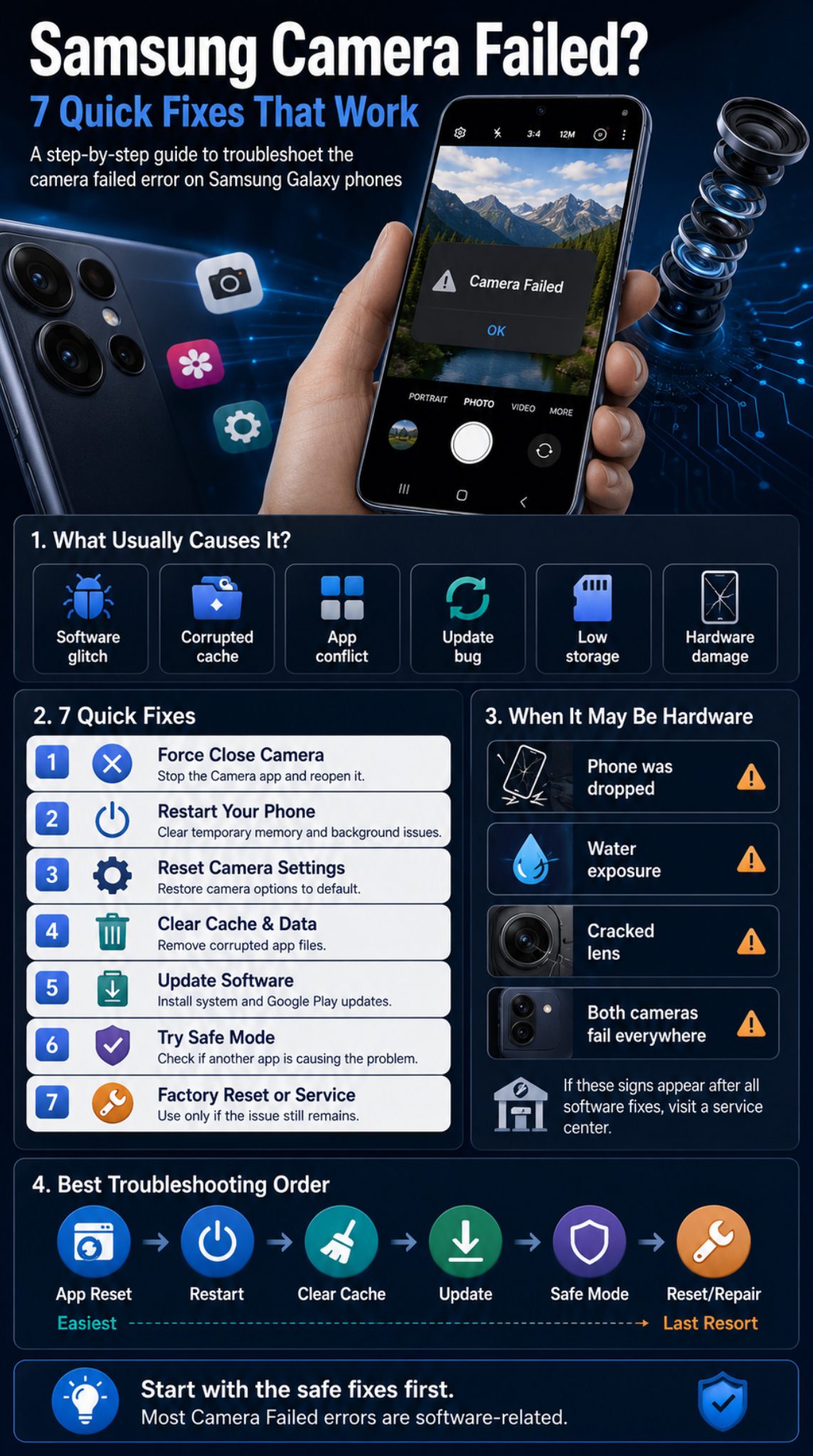
The error can happen for many reasons. The most common reason is a temporary software glitch. The Camera app is not just one app. It depends on Android services, Samsung’s camera software, permissions, storage, sensors, and sometimes third-party apps.
Another common reason is an update conflict. A new update may fix one thing but create a temporary issue somewhere else. Samsung’s own support page about “Warning Camera failed” shows that some models had camera problems linked to a Google security update, which is why checking Google Play system updates is important.
Sometimes the reason is physical. If your phone fell hard, got wet, or has a cracked camera lens, no software trick can fully repair that.
|
Possible Cause |
What It Looks Like |
Best Fix |
|
Temporary app bug |
Camera fails once or twice |
Force close app |
|
Memory issue |
Camera fails after heavy use |
Restart phone |
|
Corrupted cache |
Camera keeps crashing |
Clear cache |
|
Bad camera setting |
Specific mode fails |
Reset Camera settings |
|
Update conflict |
Error after system update |
Update software and Google Play system |
|
Third-party app conflict |
Camera works in Safe Mode |
Remove recent apps |
|
Hardware damage |
Camera fails everywhere |
Service center |
Software Problems Are More Common Than You Think
A software bug can make a perfectly good camera look broken. That’s why the early fixes in this guide focus on app reset, cache clearing, updates, and Safe Mode.
Hardware Problems Need Different Handling
If the camera module is damaged, software fixes will not solve the problem. You may see black screens, clicking sounds, focus failure, or repeated errors in every app.
What To Do If Samsung Camera Failed Started After an Update
If the camera failed after an update, don’t panic. Updates can leave temporary files, change app behavior, or create compatibility issues with old cache data. Start with a restart. Then clear Camera cache and reset Camera settings.
Next, check for another update. Sometimes manufacturers or Google release follow-up patches. Check both Samsung Software Update and Google Play system update. This matters because Samsung has specifically connected some “Warning Camera failed” cases to a Google security update on selected Galaxy models.
You can also use Samsung Members to send an error report. Samsung says users can open Samsung Members, tap Support, and send Error reports with system log data. The report should be sent soon after the issue occurs, ideally while logs are still useful.
|
After-Update Action |
Why It Helps |
|
Restart phone |
Clears temporary update-related glitches |
|
Clear Camera cache |
Removes old temporary app files |
|
Reset Camera settings |
Fixes broken or changed camera preferences |
|
Check Software Update |
Installs Samsung bug fixes |
|
Check Google Play system update |
Fixes Android system module issues |
|
Send Samsung Members report |
Shares logs with Samsung support |
|
Avoid quick factory reset |
Prevents unnecessary data loss |
Don’t Rush to Factory Reset After One Update Bug
A factory reset is powerful, but it is also disruptive. Try update checks, cache clearing, and Safe Mode first.
Report Repeat Issues
If the error happens often after an update, send an error report through Samsung Members. Logs can help support teams understand what happened.
What Not To Do When Your Samsung Camera Fails
When the camera stops working, it is tempting to download random “camera repair” apps or APK files. Don’t do that. Many of those apps are useless, and some may create privacy or security risks.
Be careful with apps asking for camera permission without a clear reason. Google treats camera permission as sensitive because it allows an app to take pictures and record video.
Also, don’t open the phone yourself unless you are trained. Modern Samsung phones are tightly sealed. A DIY repair can damage the camera module, display, waterproofing, or battery.
|
Mistake |
Why To Avoid It |
|
Installing random repair APKs |
Can create security risks |
|
Using aggressive cleaner apps |
May remove useful app data |
|
Factory resetting without backup |
Can erase important files |
|
Ignoring water damage |
Can worsen internal damage |
|
Opening the phone yourself |
Can damage sealed components |
|
Skipping updates |
May miss official bug fixes |
Avoid Unknown Camera Fix Apps
A repair app cannot physically repair a camera module. Stick to official settings, Samsung support tools, and trusted app stores.
Don’t Ignore Heat or Moisture
If the phone is hot, let it cool. If it has water exposure, stop testing the camera repeatedly and get it checked.
When Is It Probably a Hardware Problem?
Most users should try software fixes first. But some signs point toward hardware damage. If the Camera app fails after factory reset, fails in Safe Mode, and fails inside every third-party app, the issue may not be app-related.
A damaged lens, broken camera sensor, loose internal connector, or water damage can trigger repeated camera failure. You may also notice focus problems, flickering, black previews, strange noise, or one camera working while the other never opens.
At this stage, it is better to contact Samsung support or visit an authorized service center. Samsung’s support flow also points users toward service or contact support when the standard troubleshooting steps do not solve the issue.
|
Hardware Warning Sign |
What It Suggests |
|
Phone was dropped |
Possible camera module damage |
|
Water exposure happened |
Possible internal moisture damage |
|
Camera fails after factory reset |
Less likely to be app-only |
|
Both cameras fail everywhere |
System or board-level issue |
|
One camera never opens |
Specific module may be damaged |
|
Lens is cracked |
Physical repair may be needed |
|
Camera preview flickers |
Sensor or connection problem |
Test Before You Pay for Repair
Before service, test Safe Mode, another camera app, and software updates. This helps you explain the problem better to support staff.
Use Authorized Service When Possible
Camera modules, seals, and internal parts need careful handling. Authorized repair is safer than a random repair shop, especially for water-resistant Galaxy phones.
Quick Fix Comparison for Samsung Camera Failed Error
If you want the fastest path, use this order: force close Camera, restart phone, reset Camera settings, clear cache, update software, test Safe Mode, then factory reset or service.
This order keeps your data safer. It also avoids wasting time on heavy fixes when a light fix may work. The goal is simple: solve the Samsung camera failed error without deleting data unless you really have to.
|
Fix Order |
Action |
Time Needed |
Data Risk |
|
1 |
Force close Camera app |
1 minute |
None |
|
2 |
Restart phone |
2 minutes |
None |
|
3 |
Reset Camera settings |
2 minutes |
Very low |
|
4 |
Clear Camera cache |
2 minutes |
Very low |
|
5 |
Update software |
5–20 minutes |
Low |
|
6 |
Safe Mode test |
5 minutes |
None |
|
7 |
Factory reset or service |
30+ minutes |
High |
Best Fix for One-Time Errors
Restart the phone and force close the Camera app. That is usually enough for a one-time glitch.
Best Fix for Repeated Errors
Clear cache, reset Camera settings, check updates, and test Safe Mode.
Best Fix for Serious Errors
Back up your data, then consider factory reset. If the issue remains, service is the better route.
Final Thoughts
The samsung camera failed error is frustrating, but it is not always a disaster. In many cases, the fix is simple. Restart the phone, reset the Camera app, clear cache, update software, and test Safe Mode before you think about repair.
The smart approach is to move step by step. Start with safe fixes. Avoid random repair apps. Don’t factory reset without backup. And if the camera still fails after every software fix, visit a Samsung service center.
A phone camera is too important to guess your way through. Fix what you can safely fix, and get proper support when the signs point to hardware.
|
Final Advice |
Best Action |
|
Error happened once |
Restart and reopen Camera |
|
Error keeps coming back |
Clear cache and update software |
|
Error started after update |
Check Samsung and Google Play system updates |
|
Error disappears in Safe Mode |
Remove recent apps |
|
Error remains after reset |
Visit Samsung service |
FAQs About Samsung Camera Failed
These FAQs cover extra search questions that readers often ask after trying the basic fixes.
|
FAQ Theme |
User Intent |
|
Error meaning |
Understand what happened |
|
Quick repair |
Find fastest fix |
|
Data safety |
Avoid deleting photos |
|
Update issue |
Fix post-update errors |
|
App-specific issue |
Fix Instagram, WhatsApp, or Snapchat camera |
|
Hardware concern |
Know when repair is needed |
Why does my Samsung phone say Camera Failed?
It means the Camera app or camera system failed to start. This can happen because of a temporary app crash, corrupted cache, update conflict, permission issue, third-party app, or hardware problem.
How do I fix samsung camera failed quickly?
Start by force closing the Camera app and restarting the phone. Then reset Camera settings, clear Camera cache, and check for Samsung Software Update and Google Play system updates.
Will clearing Camera cache delete my photos?
No. Clearing Camera cache removes temporary app files. It should not delete photos or videos saved in your Gallery.
Why does the Camera Failed error appear after a software update?
An update can sometimes create temporary conflicts with old cache files or system components. Restart the phone, clear Camera cache, and check for another update.
What if Camera Failed appears in WhatsApp, Instagram, or Snapchat too?
That may mean the issue is system-wide, not only inside the Samsung Camera app. Check camera permission, test Safe Mode, update apps, and restart the phone.
Can low storage cause Samsung camera problems?
Yes, low storage can affect app performance. If your phone is almost full, delete unused files, move media to cloud storage, or uninstall apps you no longer use.
Should I factory reset my Samsung phone to fix the camera?
Only use factory reset as a last resort. Back up your phone first because factory reset removes apps, settings, and local data.
Can a damaged camera lens cause Camera Failed?
Yes. If the phone was dropped, exposed to water, or has a cracked lens, the error may come from hardware damage. In that case, software fixes may not solve it.