
Android Bluetooth pairing can feel simple when it works and painfully annoying when it doesn’t. One minute your earbuds connect instantly. The next minute your phone keeps saying “Couldn’t pair,” your car refuses to show up, or your speaker connects but plays no sound.
The good news is that most Bluetooth problems on Android are fixable without going to a repair shop. In many cases, the issue comes from an old saved connection, a device stuck outside pairing mode, a permission problem, or another phone quietly stealing the connection.
This guide walks through the fixes in a practical order. Start with the easy steps. Then move to device-specific fixes for headphones, cars, speakers, smartwatches, and Android Auto. Android holds a large share of the global mobile market, so these issues affect millions of users across different phone brands, from Samsung and Pixel to Xiaomi, OnePlus, Oppo, Vivo, and Motorola.
Why Android Bluetooth Pairing Issues Happen
Bluetooth problems usually happen because the phone and accessory are not starting from the same clean state. Your Android phone may remember an old connection, while the accessory is still trying to connect to another device. That mismatch can block pairing.
Sometimes the problem is even simpler. The accessory may not be in pairing mode, the battery may be low, or the device may be too far away. In other cases, the problem comes from permissions, outdated firmware, or a recent Android update.
|
Common Cause |
What It Means |
Quick Fix |
|
Old saved pairing |
Android remembers a bad or outdated connection |
Forget the device and pair again |
|
Accessory not discoverable |
The device is not in pairing mode |
Hold the Bluetooth or pairing button |
|
Connected elsewhere |
Earbuds, speaker, or car is linked to another phone |
Turn off Bluetooth on other devices |
|
Low battery |
Device may turn on but fail to pair |
Charge both devices |
|
Permission issue |
App cannot scan or connect properly |
Allow Nearby devices or Bluetooth permission |
|
Audio profile issue |
Device pairs but sound or calls do not work |
Enable Media audio or Phone calls |
Pairing And Connection Are Not The Same
Pairing means your Android phone and Bluetooth device recognize each other. Connection means they are actively linked and ready to use. A device can be paired but not connected.
That is why you may see your earbuds, speaker, or car name under saved devices but still hear sound from your phone. The phone remembers the device, but the live connection has failed.
Most Pairing Problems Start With Saved Device Conflicts
Bluetooth devices often remember several phones, tablets, laptops, or cars. This is useful until one of those old connections gets in the way.
For example, your headphones may still be connected to your laptop. Your car may still have your old phone saved. Your smartwatch may still be locked to a previous Android setup.
Android Bluetooth Pairing Quick Checks Before Advanced Fixes
Before resetting anything, run through the simple checks. These steps solve many android bluetooth pairing problems without deleting settings or changing system files.
Most Android phones let users pair from Connected devices, tap Pair new device, refresh the available list, and use common passcodes such as 0000 or 1234 if a code is requested.
|
Quick Check |
What To Do |
Why It Helps |
|
Turn Bluetooth off and on |
Wait 10 seconds before turning it back on |
Clears small connection glitches |
|
Restart both devices |
Restart phone and accessory |
Gives both devices a fresh start |
|
Move devices closer |
Keep them within a short distance |
Improves discovery and pairing |
|
Check pairing mode |
Look for blinking light or pairing message |
Makes the device visible |
|
Check battery |
Charge both devices |
Low battery can block stable pairing |
|
Remove old pairing |
Forget device and pair again |
Clears corrupted records |
Restart Your Phone And The Bluetooth Device
A restart sounds basic, but it works more often than people expect. Bluetooth can get stuck after switching between devices, after a system update, or after a long day of repeated connections.
Restart the Android phone first. Then turn the accessory off and back on. If you are using earbuds, place them inside the case, close the lid, wait a few seconds, and open the case again.
Make Sure The Accessory Is Actually Discoverable
Most Bluetooth accessories are not discoverable all the time. They usually stay visible for a short window after you press the pairing button.
For headphones, speakers, keyboards, and mice, hold the Bluetooth or power button until the light flashes. For cars, open the Bluetooth pairing screen on the car display. For smartwatches and fitness trackers, start pairing from the official app.
Check The Pairing Code Carefully
Older Bluetooth devices may ask for a PIN. The common options are 0000 and 1234, but some accessories use a device-specific code.
Do not keep guessing forever. Check the manual, the box, the device screen, or the manufacturer’s support page if the common codes fail.
Android Bluetooth Pairing: Step-By-Step Fix Guide
This is the main repair path when android bluetooth pairing does not work after the basic checks. Follow the steps in order. Do not jump straight to a factory reset.
Android supports Bluetooth through its platform stack, which allows wireless data exchange with other Bluetooth devices. That means pairing problems can involve the Android system, the accessory, the app, or the saved connection between them.
|
Step |
Fix |
Best For |
|
1 |
Turn Bluetooth off and on |
Temporary scan issues |
|
2 |
Forget the device |
Paired but not connecting |
|
3 |
Refresh device list |
Device not showing up |
|
4 |
Disconnect from other devices |
Earbuds, speakers, keyboards |
|
5 |
Check permissions |
Smartwatches, trackers, apps |
|
6 |
Reset network settings |
Stubborn Bluetooth problems |
Forget The Device And Pair Again
Open Settings, go to Connected devices, tap the saved Bluetooth device, and choose Forget or Unpair. Then restart your phone and accessory before pairing again.
This removes the old connection record. It is one of the best fixes when Android says the device is paired but refuses to connect.
Refresh The Available Devices List
If the accessory does not appear, open Bluetooth settings and tap Pair new device. If there is a refresh option, use it.
Keep the Bluetooth screen open while the accessory is in pairing mode. Some devices disappear quickly if you leave the screen or wait too long.
Disconnect The Accessory From Other Phones Or Laptops
Bluetooth headphones, speakers, and keyboards often reconnect to the last device they used. That can stop your Android phone from pairing.
Turn off Bluetooth on nearby laptops, tablets, and old phones. Then put the accessory back into pairing mode and try again from Android.
Check Media Audio And Phone Calls
Sometimes the device is connected, but only part of the connection works. Your car may handle calls but not music. Your earbuds may play music but not phone audio.
Open the Bluetooth device settings on Android. Make sure Media audio and Phone calls are turned on where available.
Fix Bluetooth Headphones Or Earbuds Not Pairing With Android
Wireless earbuds are one of the most common sources of Bluetooth complaints. They are small, battery-powered, and often switch between multiple devices. That makes them convenient, but also easier to confuse.
If one earbud connects and the other does not, the problem may be inside the earbud pair itself. If neither earbud appears on Android, the case, battery, pairing mode, or old connection record may be the issue.
|
Headphone Problem |
Likely Cause |
Best Fix |
|
Earbuds do not appear |
Not in pairing mode |
Reset earbuds and reopen case |
|
Only one earbud works |
Buds are out of sync |
Reset both earbuds |
|
Connects to laptop instead |
Multipoint or old connection |
Turn off Bluetooth on laptop |
|
Connected but no sound |
Media audio disabled |
Enable Media audio |
|
Drops connection |
Low battery or interference |
Charge and move closer |
Reset The Earbuds Properly
Most earbuds have a brand-specific reset method. Usually, you place both earbuds in the case and hold a button on the case or touch both earbuds for several seconds.
After resetting, forget the earbuds from Android settings. Then pair them again as a new device. This gives Android and the earbuds a clean connection.
Read Also: How to Use iPhone NameDrop Feature in 2026
Turn Off Multipoint Temporarily
Some newer headphones support multipoint, which lets them connect to two devices. It is useful, but it can also make pairing messy.
If your earbuds keep jumping back to a laptop or tablet, disable multipoint in the headphone app or turn Bluetooth off on the other device while pairing.
Use The Brand App After Basic Pairing Works
Apps from Samsung, Sony, JBL, Bose, Nothing, OnePlus, and other brands can update firmware and change settings. But do not rely on the app first if basic Bluetooth pairing is broken.
Pair through Android settings first when possible. Then open the brand app for firmware updates, controls, and battery information.
Fix Car Bluetooth And Android Auto Pairing Problems
Car Bluetooth can be more stubborn than headphones because two systems are involved: your Android phone and the car’s infotainment unit. Some cars also keep old phone profiles for years.
Wireless Android Auto adds another layer. If a car display supports wireless connection, the phone usually needs to pair with the car’s Bluetooth during setup. After setup, the car may connect automatically depending on the vehicle.
|
Car Bluetooth Issue |
Likely Cause |
Best Fix |
|
Car does not appear |
Car is not discoverable |
Open car pairing screen |
|
Phone won’t connect |
Old profile saved |
Delete phone from car and car from phone |
|
Calls work, music doesn’t |
Media audio disabled |
Enable Media audio |
|
Music works, calls don’t |
Phone calls disabled |
Enable Phone calls |
|
Android Auto fails |
Compatibility or wireless setup issue |
Check USB, Bluetooth, Wi-Fi, and car support |
Delete Old Profiles From Both Sides
Do not only forget the car from your phone. Also delete your phone from the car’s Bluetooth list.
Then restart the phone and car system if possible. Start pairing again from a clean screen. This is especially useful when the car keeps trying to connect to an old phone profile.
Pair From The Correct Screen
Some cars want you to start pairing from the car display. Others work better when you start from the phone.
If one method fails, try the other. Keep the phone’s Bluetooth screen open while the car is searching.
Check Android Auto Compatibility And Setup
If Android Auto does not connect through Bluetooth or wirelessly, check compatibility and connection issues first.
For wireless Android Auto, keep Bluetooth, Wi-Fi, and location services available. If wireless setup keeps failing, try a wired USB connection first.
Fix Bluetooth Speaker Not Pairing With Android
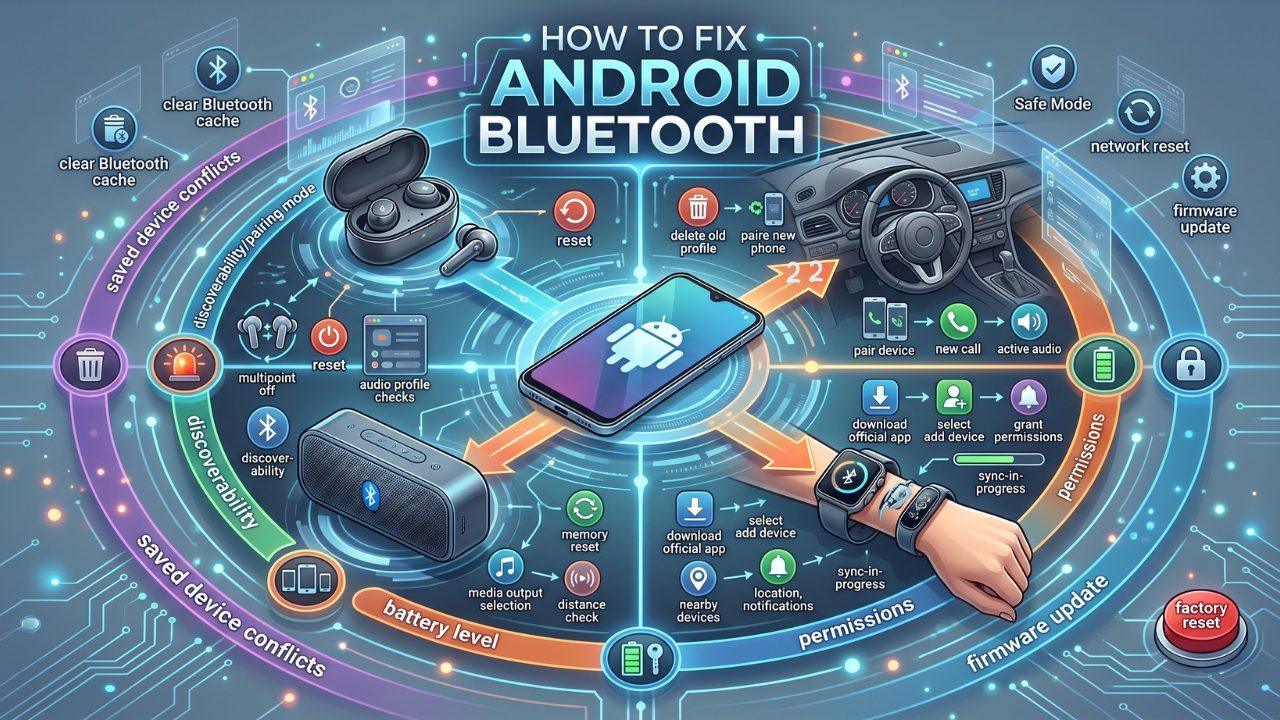
Bluetooth speakers are usually easier to fix than cars or smartwatches. The most common issue is that the speaker is still connected to another phone or tablet.
Many speakers also have limited memory. If the speaker has stored too many old devices, it may refuse new pairing until you reset it or clear its pairing list.
|
Speaker Problem |
Likely Cause |
Best Fix |
|
Speaker not visible |
Not in pairing mode |
Press Bluetooth button |
|
Connects to another phone |
Last device auto-connects |
Turn off Bluetooth elsewhere |
|
Pairing fails repeatedly |
Speaker memory issue |
Reset speaker |
|
Connected but silent |
Wrong output or volume |
Check media output and volume |
|
Cuts out often |
Distance or battery |
Charge and move closer |
Clear The Speaker’s Pairing Memory
Many speakers let you clear all saved devices by holding the Bluetooth button for several seconds. The exact method depends on the brand.
After clearing memory, forget the speaker from Android as well. Then pair again from scratch.
Check The Media Output On Android
Your phone may be connected to the speaker, but audio may still be routed somewhere else. Swipe down and check the media output selector.
Also raise volume on both devices. Some speakers keep separate volume from the Android phone.
Test The Speaker With Another Phone
If the speaker does not pair with any phone, the speaker may be the problem. If it pairs with another phone but not yours, focus on Android Bluetooth settings, saved devices, or network reset.
Fix Smartwatch Or Fitness Tracker Not Pairing With Android
Smartwatches and fitness trackers are different from speakers. Many of them should not be paired directly from Android Bluetooth settings. They need the official app to finish setup.
This matters because the app handles account login, health data, notifications, permissions, firmware updates, and syncing. Pairing only from Bluetooth settings may leave the watch half-connected.
|
Watch Or Tracker Problem |
Likely Cause |
Best Fix |
|
Watch not found |
App permission missing |
Allow Nearby devices |
|
Pairing code mismatch |
Old setup data |
Restart and re-pair |
|
Sync fails |
App restricted in background |
Disable battery restriction |
|
Watch linked to old phone |
Previous account lock |
Remove old connection |
|
Setup freezes |
Outdated app |
Update app and firmware |
Start From The Official App
Use the app made for the device. Examples include Galaxy Wearable, Fitbit, Garmin Connect, Zepp, Huawei Health, or the brand’s own app.
Open the app, choose add device, and follow the on-screen setup. Keep Bluetooth turned on while doing this.
Allow Nearby Devices And Notifications
On newer Android versions, apps may need Nearby devices permission to find Bluetooth accessories. Some watches also need notification, contacts, phone, and location access.
If you denied these permissions during setup, open app settings and allow them manually.
Reset The Watch Only After Easier Fixes
A factory reset on a watch can remove local data and settings. Try app updates, permission checks, restart, and removing old Bluetooth entries first.
Use a watch reset only when the device is stuck, linked incorrectly, or cannot be found by any phone.
Fix Android Bluetooth Device Not Showing Up Or Paired But Not Connected
This is where many users get stuck. The device is either missing completely or sitting in the saved list without connecting.
A missing device usually means discovery failed. A paired-but-not-connected device usually means Android remembers it, but the active connection cannot start.
|
Symptom |
Meaning |
Best Fix |
|
Device not showing up |
Android cannot discover it |
Re-enter pairing mode and refresh |
|
Paired but not connected |
Saved record exists, active link failed |
Tap device or forget and re-pair |
|
Connected, no audio |
Wrong audio profile |
Enable Media audio |
|
Calls not working |
Call profile disabled |
Enable Phone calls |
|
Keeps disconnecting |
Battery, distance, firmware, or interference |
Charge, update, and move closer |
When The Device Does Not Show Up
Put the accessory back into pairing mode. Keep it close to the phone. Refresh the Bluetooth list.
If it still does not appear, turn off Bluetooth on nearby devices. The accessory may already be connected somewhere else.
When The Device Is Paired But Not Connected
Tap the saved device name manually. If nothing happens, open its settings and check audio permissions.
If it still fails, forget the device and pair again. This clears the old connection record and usually fixes android bluetooth pairing conflicts.
When Bluetooth Keeps Disconnecting
Start with battery and distance. Low battery can make Bluetooth unstable even when the device looks powered on.
Then update Android, update the accessory firmware, and remove old saved pairings. If the issue started after a phone update, check whether the accessory app has a firmware update waiting.
Advanced Fixes For Stubborn Android Bluetooth Problems
Use advanced fixes only after the basic and device-specific steps. These methods can remove saved connections, reset network behavior, or help you find app conflicts.
Do not rush into a factory reset. It is rarely the first answer. A network reset or accessory reset is usually enough.
|
Advanced Fix |
What It Does |
When To Use |
|
Clear Bluetooth cache |
Removes temporary Bluetooth app data |
Bluetooth scan feels stuck |
|
Safe Mode |
Tests if another app is interfering |
Problem started after installing apps |
|
Reset network settings |
Clears Bluetooth, Wi-Fi, and mobile network settings |
Many Bluetooth devices fail |
|
Update firmware |
Fixes accessory bugs |
Earbuds, watches, cars, speakers |
|
Factory reset |
Erases phone setup |
Last option only |
Clear Bluetooth Cache Or System App Data
Some Android phones allow users to clear cache for the Bluetooth system app. The path can vary by brand.
Open Settings, go to Apps, show system apps, find Bluetooth, and clear cache if available. Restart the phone afterward.
Try Safe Mode
Safe Mode starts Android with third-party apps disabled. This helps you check whether a recently installed app is affecting Bluetooth.
If pairing works in Safe Mode, uninstall recently added Bluetooth, audio, battery saver, cleaner, or automation apps.
Reset Network Settings
Resetting network settings removes saved Bluetooth pairings and Wi-Fi networks. It usually does not delete photos, apps, or files, but you should save important Wi-Fi passwords first.
Use this when several Bluetooth devices fail, not just one accessory.
How To Prevent Android Bluetooth Pairing Problems Later
Bluetooth gets easier when you keep devices clean and updated. You do not need to micromanage everything, but a few habits help.
Fast Pair is also becoming more common on Android accessories. It uses Bluetooth Low Energy to discover nearby supported devices and make setup quicker.
|
Prevention Tip |
Why It Helps |
|
Remove old Bluetooth devices |
Reduces conflicts |
|
Update Android |
Fixes system bugs and compatibility issues |
|
Update accessory firmware |
Fixes earbuds, speaker, watch, or car bugs |
|
Keep devices charged |
Prevents weak or unstable connections |
|
Pair one device at a time |
Avoids connection confusion |
|
Save manuals or reset steps |
Makes future fixes faster |
Keep Your Saved Device List Clean
Remove devices you no longer use. Old cars, old earbuds, broken speakers, and borrowed accessories can clutter the Bluetooth list.
A cleaner list makes troubleshooting faster when something goes wrong.
Update Accessories Through Their Apps
Earbuds, smartwatches, and some speakers receive firmware updates through their official apps. These updates can fix pairing, audio, battery, and stability issues.
Do not ignore firmware updates if your device keeps disconnecting or pairing fails after an Android update.
Pair Devices In A Clean Order
Turn off Bluetooth on other nearby devices before pairing. Keep the accessory close to the phone.
Start with the main device first. Once the first pairing works, reconnect laptops, tablets, or secondary phones.
Final Thoughts On Android Bluetooth Pairing
Android Bluetooth pairing problems are frustrating, but most of them come down to a few simple causes. The device is not discoverable. The old pairing record is broken. The accessory is connected somewhere else. Or Android needs a restart, refresh, or permission change.
Start with the simple fixes: restart both devices, put the accessory in pairing mode, forget the old pairing, and pair again. For cars, delete the phone from the car and delete the car from the phone. For earbuds and watches, check the official app and firmware updates.
If nothing works, test the accessory with another phone before blaming your Android device. That one step can save a lot of wasted time. With a clean pairing process and updated devices, android bluetooth pairing usually becomes quick, stable, and painless again.
Frequently Asked Questions About Android Bluetooth Pairing
Why Does My Android Phone Ask For Location To Use Bluetooth?
Some Bluetooth scanning features work with location-related permissions because nearby device discovery can reveal physical proximity. On newer Android versions, apps may also ask for Nearby devices permission instead of only location.
Can A Phone Case Affect Bluetooth Pairing?
Usually, no. Normal phone cases rarely block Bluetooth. But metal cases, magnetic accessories, damaged cases, or very bulky mounts may affect wireless signals in some situations.
Why Do My Earbuds Pair Separately As Left And Right?
This can happen when the earbuds lose sync with each other. Put both earbuds in the case, reset them using the brand’s method, forget both entries from Android, and pair again.
Why Does My Bluetooth Device Work With Another Phone But Not Mine?
That usually points to your Android phone’s saved pairing, permissions, network settings, or software. Forget the device, restart your phone, and reset network settings if several accessories fail.
Should I Reset My Android Phone To Fix Bluetooth?
Only as a final option. Try forgetting the device, resetting the accessory, updating software, checking permissions, and resetting network settings first.
Why Does My Car Bluetooth Connect For Calls But Not Music?
Your phone may have Phone calls enabled but Media audio disabled for that car. Open the car’s Bluetooth settings on Android and turn on Media audio.
Can Bluetooth Pairing Fail Because Of Too Many Saved Devices?
Yes. Some speakers, cars, and headphones have limited memory. Clear old devices from the accessory and remove unused devices from your Android phone.
Is Fast Pair The Same As Normal Bluetooth Pairing?
No. Fast Pair is a Google feature that makes supported accessories easier to discover and connect. It still uses Bluetooth technology, but the setup process is faster and more automatic.