
Sharing a phone number used to mean typing, repeating, checking, and still somehow saving the wrong digit. Apple’s iphone namedrop feature tries to make that tiny everyday task smoother. You bring two supported Apple devices close together, check the contact card on screen, and choose whether to share your details or only receive the other person’s.
But there’s a problem. A lot of people still misunderstand NameDrop. Some think it shares personal details automatically. Others can’t find it, can’t make it work, or don’t know what information it actually sends. The truth sits in the middle. NameDrop is useful, but it’s not something to use blindly.
This guide explains how to use it in 2026, what to check before sharing, how to fix common problems, and how to turn it off when you don’t need it.
What Is iPhone NameDrop?
NameDrop is a contact-sharing feature built into Apple’s AirDrop system. It lets iPhone and Apple Watch users share new contact information by bringing supported devices close together. Apple’s official iPhone guide says NameDrop works with nearby iPhones and supported Apple Watch models, and it is meant for sending new contact information, not updating a contact you already saved.
In simple words, it is Apple’s quick handshake for contact sharing. You don’t need to spell your email address or read out your number in a noisy room. You bring the devices close, wait for the NameDrop screen, and decide what to do.
It matters more in 2026 because phone-to-phone sharing is becoming normal. Apple has AirDrop and NameDrop, while Android is also moving toward more proximity-based sharing features. In April 2026, tech reports noted that Google has been working on a Tap to Share feature that looks similar in concept to NameDrop.
|
Key Point |
What It Means |
|
Feature type |
Contact-sharing tool |
|
Built on |
AirDrop |
|
Best use |
Sharing contact details quickly |
|
Main action |
Bring devices close together |
|
User control |
Choose Share or Receive Only |
|
Limitation |
Does not update existing contacts |
NameDrop vs AirDrop
AirDrop is broader. It can send photos, links, documents, files, and other items between nearby Apple devices. NameDrop is more specific. It focuses on contact information.
Think of AirDrop as the full sharing menu and NameDrop as the quick contact exchange shortcut. NameDrop feels faster because you don’t need to open the Share menu first.
Why People Search for NameDrop
Most people search for NameDrop for three reasons. They want to know how to use it, whether it is safe, or why it is not working. That is why a good iphone namedrop guide should not only explain the steps. It should also cover privacy, settings, supported devices, and real troubleshooting.
iPhone NameDrop Requirements in 2026
Before trying NameDrop, check the basics. Both devices need compatible software and supported hardware. Apple’s Personal Safety guide says NameDrop requires iOS 17.1 or watchOS 10.1 or later on both devices. It also supports Apple Watch SE 2nd generation, Apple Watch Series 7 and later, and Apple Watch Ultra models.
You also need the devices close enough for the connection to start. Apple’s iPhone guide says to hold the display of your iPhone a few centimeters from the top of the other person’s iPhone or Apple Watch. Keep them near each other until NameDrop appears on both screens.
Bluetooth and Wi-Fi should be on because AirDrop-style sharing depends on nearby device communication. If your settings are restricted by Screen Time, school management, or workplace device management, the feature may not behave normally.
|
Requirement |
Details |
|
iPhone software |
iOS 17.1 or later |
|
Apple Watch software |
watchOS 10.1 or later |
|
Apple Watch support |
SE 2nd gen, Series 7 or later, Ultra models |
|
Distance |
Devices must be very close |
|
Settings |
AirDrop and Bring Devices Together should allow it |
|
Best condition |
Both devices unlocked and active |
Supported NameDrop Device Combinations
NameDrop can work between iPhone and iPhone. It can also work between iPhone and supported Apple Watch. Apple also explains Apple Watch-to-Apple Watch sharing through the Contacts app on Apple Watch.
If one person uses Android, NameDrop will not work. In that case, use a QR code, text message, email, WhatsApp, LinkedIn, or manual contact sharing.
Quick Settings to Check First
Open Settings, go to General, then AirDrop. Make sure Bring Devices Together is turned on. Apple says NameDrop is on by default, but users can turn it off from this same AirDrop settings page.
Also check your Contact Card before using NameDrop. If your card is messy, outdated, or too personal, NameDrop may show details you don’t want to share.
How to Set Up Your Contact Card Before NameDrop
Your Contact Card matters because NameDrop pulls sharing details from it. Apple calls this My Card in the Contacts app. iPhone uses your Apple Account to create this card, and you can edit details such as your name, address, phone number, birthday, photo, and Contact Poster.
Do not skip this step. The feature may be safe, but your card can still be too revealing. A freelancer may want to share a business email, not a private number. A student may only want to share a phone number and name. A parent may want to remove address details from a child’s card.
To edit it, open Contacts, tap My Card, then tap Edit. Apple says that if My Card does not appear, you can create your information first and then make that contact your card.
|
User Type |
Good Details to Share |
Details to Avoid |
|
Student |
Name, phone, school email |
Home address |
|
Freelancer |
Name, business email, website |
Personal backup number |
|
Business owner |
Name, title, company, work email |
Private family details |
|
Casual user |
Name and preferred number |
Birthday and address |
|
Parent setting up child’s iPhone |
First name or limited contact info |
Full address and personal notes |
Clean Up Your My Card
Remove old emails, unused numbers, and private notes. Keep the card simple. NameDrop should help someone contact you, not give them your whole personal file.
Apple’s safety guide says NameDrop shares only your name, the phone number or email address you choose, and Contact Poster information linked to your Contact Card. It does not share other information such as your home address or birthday.
Check Your Contact Poster
Apple lets users add or edit a contact photo and poster from My Card. That poster can appear when calling or messaging, and it may also be part of the contact-sharing experience.
Use a clear photo or clean design if you use NameDrop for work. For personal use, keep it casual but not embarrassing. It takes only a minute to check.
How to Use iPhone NameDrop Step by Step
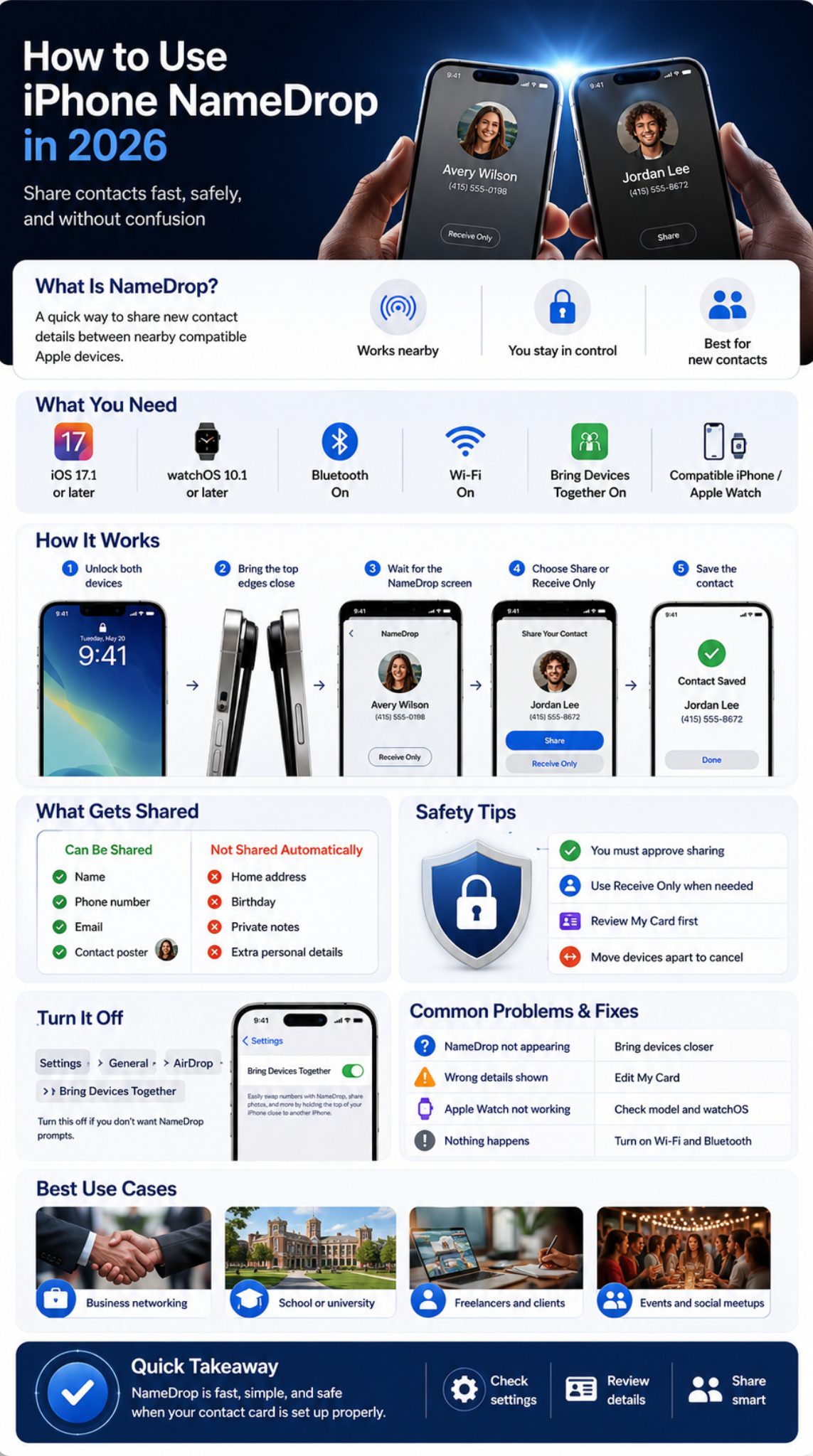
Using NameDrop is simple once the settings are ready. Apple says to hold your iPhone a few centimeters from the top of the other person’s iPhone or Apple Watch and keep the devices near each other until NameDrop appears on both screens.
When the screen appears, you can choose to share your contact card and receive the other person’s card. You can also choose Receive Only if you only want to save their details. If you share your card, Apple lets you select the fields you want to include before saving.
Here is the clean version: unlock your iPhone, bring the top area close to the other device, wait for the animation, choose Share or Receive Only, review the fields, and save.
|
Step |
Action |
Why It Matters |
|
1 |
Unlock your iPhone |
Keeps the process intentional |
|
2 |
Bring devices close |
Starts NameDrop |
|
3 |
Wait for both screens |
Confirms connection |
|
4 |
Choose Share or Receive Only |
Controls what happens |
|
5 |
Select fields |
Limits what you send |
|
6 |
Save contact |
Completes the exchange |
Ask the other person to unlock their iPhone. Hold the top part of your iPhone close to the top part of their iPhone. Don’t wave the phones around. Keep them still for a moment.
Once the NameDrop card appears, tap Share if you want to exchange details. Review the phone number or email address before sending. That one small check can save you from sharing the wrong number.
How to Use NameDrop with Apple Watch
For iPhone-to-Apple Watch sharing, bring the iPhone close to the Apple Watch and wait for the NameDrop screen. For Apple Watch-to-Apple Watch sharing, Apple says to open Contacts on Apple Watch, tap your picture, tap Share, and bring the watches close.
This is useful at events, gyms, meetups, offices, or anywhere people may not want to pull out both phones.
How to Cancel NameDrop
If you change your mind, move the devices away or lock your iPhone before the transfer finishes. Apple clearly says either action cancels the NameDrop transfer before completion.
That is one reason the feature is not as scary as some viral warnings made it sound.
Read Also: How to Find Lost iPhone Even If Powered Off
Is iPhone NameDrop Safe?
The short answer: yes, when you understand the screen prompts. NameDrop does not simply hand your details to anyone who walks near you. You still have to choose whether to share your information.
Apple’s Personal Safety guide says users can choose the specific contact details they want or do not want to share. It also says the feature shares only selected phone or email details, your name, and Contact Poster information, not your home address or birthday.
Still, safety depends on habits. Don’t share contact details with someone just because the screen appears. Check the person, check the selected field, then share. This is common sense, not paranoia.
|
Privacy Question |
Practical Answer |
|
Does it share automatically? |
No, you choose Share or Receive Only |
|
Can you cancel it? |
Yes, move devices away or lock iPhone |
|
Does it share home address? |
Apple says NameDrop does not share it |
|
Should kids use it freely? |
Only after parents explain it |
|
Best safety habit |
Review My Card before using it |
Can Strangers Steal Your Number with NameDrop?
Viral posts made NameDrop sound like a pickpocket tool for phone numbers. That is misleading. Tech and fact-checking reports have explained that strangers cannot simply bump your phone for a few seconds and walk away with your number because consent is required during the process.
The bigger risk is user carelessness. If you tap Share without looking, you may share a number or email you did not intend to send.
Should Parents Turn It Off for Kids?
Parents may prefer turning it off on a child’s iPhone, especially if the child does not understand contact sharing. Several consumer safety explainers have described NameDrop as safer than viral warnings suggested, but they also encourage parents to teach children about privacy and data sharing.
For younger kids, turning it off is reasonable. For teens, a conversation may be better than silent restrictions.
How to Turn Off iPhone NameDrop
If you do not use NameDrop, turning it off is easy. Go to Settings, tap General, tap AirDrop, then turn off Bring Devices Together. Apple says this turns off NameDrop and other Bring Devices Together features.
This does not mean you hate the feature. Some people simply don’t need it. If you use a work phone, manage a child’s device, or prefer manual contact sharing, disabling it makes sense.
You can turn it back on anytime from the same menu. It is not a permanent decision.
|
Setting Path |
Action |
|
Settings |
Open the Settings app |
|
General |
Tap General |
|
AirDrop |
Open AirDrop settings |
|
Bring Devices Together |
Turn the toggle off |
|
To use again |
Turn the toggle back on |
Does Turning Off NameDrop Disable AirDrop?
Turning off Bring Devices Together does not remove AirDrop from your iPhone. AirDrop still has separate receiving settings. Apple’s AirDrop guide says users can choose Contacts Only or Everyone for 10 Minutes when deciding who can send items to them.
So you can disable NameDrop-style contact sharing while still using AirDrop for photos, files, or links.
When Should You Keep It On?
Keep it on if you often meet people, attend events, work with clients, network, study in groups, or exchange contact details regularly. The iphone namedrop feature saves time when both people use Apple devices.
Just keep your contact card clean.
Why Is NameDrop Not Working on iPhone?
Most NameDrop problems come from settings, distance, software, or device support. If the feature does not appear, start with the simple checks before assuming something is broken.
First, make sure both devices support NameDrop. Then check that Wi-Fi and Bluetooth are on. Next, confirm Bring Devices Together is enabled under AirDrop settings. Also make sure the devices are close enough and held in the right position.
Remember one important limit: Apple says NameDrop works for sending new contact information, not updating an existing contact.
|
Problem |
Likely Cause |
Fix |
|
NameDrop does not appear |
Devices too far apart |
Bring top areas closer |
|
Feature missing |
Old software |
Update iOS or watchOS |
|
Apple Watch not working |
Unsupported model |
Check watch model |
|
Wrong details appear |
My Card is outdated |
Edit Contact Card |
|
Sharing stops |
Devices moved apart |
Hold steady until done |
|
Contact not updating |
NameDrop does not update contacts |
Edit existing contact manually |
Check the NameDrop Gesture
Hold the display area of your iPhone a few centimeters from the top of the other device. Do not place the phones side by side on a table and expect it to work every time. The top area matters.
If a thick case blocks easy positioning, remove the case and try again.
Check AirDrop and Device Restrictions
If AirDrop is disabled by Screen Time, a school profile, or a company management profile, NameDrop may not work as expected. Also check whether the other person’s device allows nearby sharing.
For normal AirDrop sharing, both sender and recipient need AirDrop turned on, and nearby recipients must have Wi-Fi and Bluetooth on.
Restart and Update
If all settings look correct, restart both devices. Then install the latest available iOS or watchOS update. Small bugs often disappear after a restart or update.
Best Ways to Use NameDrop in Daily Life
NameDrop is not only for tech demos. It is genuinely useful in everyday moments. It works well when you meet someone and want to avoid typing contact details manually.
Use it at conferences, interviews, coworking spaces, university events, sports clubs, business meetings, community programs, and social gatherings. It also helps freelancers, creators, journalists, consultants, and small business owners.
The key is to treat it like a business card, not a full identity card. Share what the person needs and nothing more.
|
Situation |
Best Way to Use NameDrop |
|
Business event |
Share name, work email, title |
|
Class project |
Share name and phone number |
|
Freelance meeting |
Share business email and website |
|
Local service |
Receive Only if you only need their details |
|
Social meetup |
Share basic contact info |
|
Child’s phone |
Use only with guidance or keep off |
For Work and Networking
For professionals, NameDrop can replace the awkward “Can you type your number here?” moment. It feels clean, quick, and modern. Before an event, set your My Card with your work email, title, and website.
If you use separate personal and business numbers, pick carefully before sharing.
For Personal Use
NameDrop is handy when meeting a new friend, neighbor, classmate, teammate, or group member. Use Receive Only when you do not want to share back.
That small button is useful. It keeps the interaction polite without giving away more than needed.
iPhone NameDrop vs QR Code Contact Sharing
NameDrop is great when both people use compatible Apple devices. But it is not the only way to share contact information. QR codes are still better when your audience uses mixed devices.
A QR contact card can work across iPhone and Android. It is also useful for events, posters, business cards, restaurant counters, and professional profiles. NameDrop is better for one-to-one Apple-device sharing.
In 2026, Android is also moving toward more tap-style sharing. Recent tech reports say Google’s Tap to Share may let users exchange contacts, photos, videos, location data, links, and more by placing Android phones close together.
|
Method |
Best For |
Weak Point |
|
NameDrop |
Apple-to-Apple sharing |
Does not work with Android |
|
QR code |
Mixed-device audiences |
Needs setup first |
|
Manual typing |
Any phone |
Slow and error-prone |
|
Messaging app |
Follow-up sharing |
Requires existing chat |
|
Business card |
Formal events |
Can be lost or outdated |
When QR Code Is Better
Use QR codes when you are speaking at an event, running a booth, printing marketing material, or sharing contact details with Android users. A QR code is more flexible because anyone with a camera can scan it.
When NameDrop Is Better
Use NameDrop when you are face-to-face with another iPhone or Apple Watch user. It feels faster and more personal than sending a link or asking someone to scan a code.
Common NameDrop Mistakes to Avoid
NameDrop is easy, but people still make avoidable mistakes. The most common one is not checking the Contact Card first. Another is expecting it to work with Android phones.
Some users also think NameDrop will update a saved contact. It will not. Apple specifically notes that NameDrop is for sending new contact information, not updating an existing contact.
Another mistake is tapping Share too quickly. Slow down for one second. Check the selected phone number or email. Then share.
|
Mistake |
Better Habit |
|
Sharing without checking |
Review selected contact field |
|
Using outdated My Card |
Edit before events |
|
Expecting Android support |
Use QR code instead |
|
Holding phones too far apart |
Bring top areas close |
|
Thinking it updates contacts |
Edit old contacts manually |
|
Ignoring kids’ settings |
Explain or disable it |
Do Not Treat NameDrop Like a Toy
The animation is fun, but it still shares real contact information. Use it the way you would use a business card. Share when there is a reason. Don’t share because someone asks casually.
Do Not Overload Your Contact Card
Your Contact Card should not contain every personal detail. Keep it practical. Name, preferred phone number, work email, and maybe a website are enough for most people.
Final Thoughts on iPhone NameDrop
The iphone namedrop feature is useful when you understand it. It is fast, clean, and much easier than typing contact details by hand. It also gives you choices, including Share, Receive Only, selected contact fields, and the option to cancel before the transfer finishes.
The best way to use it is simple. Keep your My Card clean. Share only the phone number or email you actually want to share. Use Receive Only when needed. Turn off Bring Devices Together if you do not use the feature or manage a child’s phone.
NameDrop is not something to fear. It is also not something to use without thinking. Used properly, iphone namedrop is one of those small iPhone features that can save time in real life.
|
Final Advice |
Why It Matters |
|
Review My Card |
Prevents oversharing |
|
Use Share carefully |
Keeps control with you |
|
Use Receive Only |
Saves contacts without sharing yours |
|
Turn off if unused |
Reduces unnecessary prompts |
|
Update devices |
Helps avoid bugs |
Frequently Asked Questions About iPhone NameDrop
No. NameDrop is for contact sharing. Apple says it shares selected contact details, your name, and Contact Poster information, not your home address or birthday.
Can I use NameDrop with Android?
No. NameDrop is an Apple feature for supported iPhones and Apple Watches. For Android users, use a QR code, message, email, or another contact-sharing method.
Yes. Apple says users can select the fields they want to include when sharing their contact card.
Why does NameDrop show the wrong information?
It usually means your My Card has outdated details. Open Contacts, tap My Card, tap Edit, and update your phone number, email, name, photo, or poster.
Can NameDrop update an old contact?
No. Apple says NameDrop only works for sending new contact information. If you already saved someone’s number, edit that contact manually.
Is NameDrop good for business networking?
Yes, especially if both people use iPhone. For work, keep your Contact Card clean with your name, title, company, business email, and website.
Should I turn off NameDrop before traveling?
You can, but you do not have to. If you rarely use it or feel more comfortable with fewer sharing prompts, turn off Bring Devices Together from AirDrop settings.