
Switching your phone is exciting, but losing years of WhatsApp chats isn’t. If you’re moving from an iPhone to an Android device, you want your messages, photos, and media to come with you. Thankfully, WhatsApp now supports cross‑platform transfers — though it’s not exactly plug‑and‑play like moving between Android devices. In this guide, I’ll walk you through how to backup WhatsApp from iPhone to Android in a simple, user‑friendly way.
Why Moving WhatsApp Between iPhone and Android Isn’t Straightforward
When you use WhatsApp on an iPhone, your chat backups live in iCloud. Android phones use Google Drive for WhatsApp backups. Since these cloud systems don’t talk to each other, you can’t restore an iCloud backup directly on Android. So standard backup tools on each platform don’t help when you switch platforms.
That’s why WhatsApp includes tools that let you transfer chats locally — directly from one phone to another during setup.
|
Platform |
Backup System |
Works Across Platforms? |
|
iPhone (iOS) |
iCloud |
❌ |
|
Android |
Google Drive |
❌ |
|
Official Transfer (Cable) |
Local encrypted transfer |
✔️ |
What You Need Before You Start
Before you begin the transfer, here’s what you must have:
- Your iPhone with the latest WhatsApp installed.
- Your Android phone (new or factory reset).
- A USB‑C to Lightning cable to connect the devices.
- Same phone number on both devices.
- Wi‑Fi or stable internet for initial backups and setup.
|
Requirement |
Why It Matters |
|
Same phone number |
WhatsApp verifies your account using your number |
|
Latest WhatsApp app |
Ensures transfer support |
|
USB‑C to Lightning cable |
Needed for direct device connection |
|
Android reset/new device |
Transfer must occur during setup |
Step‑by-Step: Transfer WhatsApp from iPhone to Android (Official Method)
This method works best when setting up your Android device for the first time.
1. Back Up WhatsApp on Your iPhone (Optional but Recommended)
Before connecting devices, open WhatsApp on your iPhone:
- Go to Settings → Chats → Chat Backup.
- Tap Back Up Now.
This saves a snapshot of your chats to iCloud — just in case anything goes wrong during transfer.
|
Action |
How |
|
Open WhatsApp |
In iPhone home screen |
|
Go to Chat Backup |
Settings → Chats → Chat Backup |
|
Tap Backup |
Saves to iCloud |
2. Start Setting Up Your Android Phone
If your Android device is brand new or reset:
- Turn it on and connect to Wi‑Fi.
- Follow the setup prompts until you reach the screen that asks Copy apps & data.
- Choose Copy from iPhone.
Read Also: How to Schedule WhatsApp Messages Without Apps
If your Android is already set up, you might need to factory reset it and start over — WhatsApp’s official transfer only works during setup.
|
Setup Step |
Description |
|
Power on Android |
Connect to Wi‑Fi |
|
Copy data screen |
Choose “Copy from iPhone” |
|
Factory reset needed? |
Yes if device was previously used |
3. Connect the Phones Using a Cable
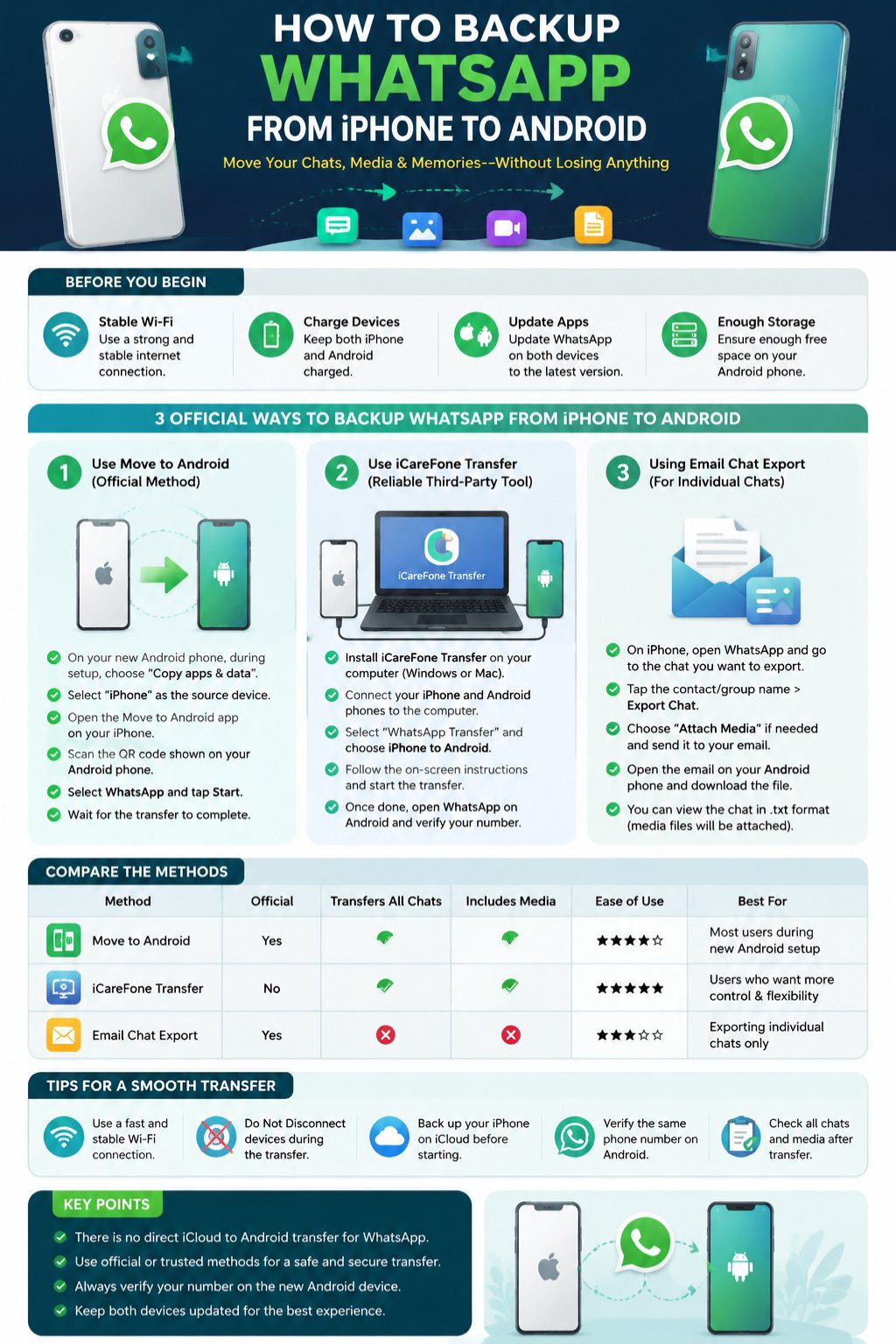
Use a USB‑C to Lightning cable to connect your iPhone and Android.
When prompted on your iPhone, tap Trust This Device.
At this stage, your Android will show a QR code.
Open WhatsApp on your iPhone and go to Settings → Chats.
Tap Move Chats to Android and use your iPhone to scan the QR code.
|
Connection Step |
What Happens |
|
Connect cable |
Phones link directly |
|
Trust prompt |
Grants permission |
|
Scan QR on iPhone |
Starts transfer setup |
4. Transfer Data and Complete Android Setup
After scanning the QR code:
- Tap Start on the iPhone to begin preparing the data.
- Let your Android phone continue the setup process.
- Install WhatsApp on Android if it doesn’t install automatically.
- Log in with the same phone number you used on iPhone.
- When prompted, tap Import to bring in your chats and media.
Most WhatsApp content — messages, photos, videos, stickers — will come over. Some things, like call history and payment records, may not transfer.
|
Final Steps |
What to Do |
|
Complete Android setup |
Finish basic phone setup |
|
Login to WhatsApp |
Use same phone number |
|
Tap Import data |
Brings in chats & media |
Using Third‑Party Tools to Transfer WhatsApp If Official Doesn’t Work
Sometimes the official method doesn’t show up, or the Android phone was already set up. In that case, third‑party tools might help. Popular tools include:
- MobileTrans – WhatsApp Transfer
- iCareFone for WhatsApp Transfer
- Dr.Fone – WhatsApp Transfer
These tools run on Windows or Mac and let you move WhatsApp data between phones. Most are paid, so choose one with good reviews and strong privacy policies.
|
Tool |
Works On |
Notes |
|
MobileTrans |
iOS → Android |
Paid tool but easy |
|
iCareFone |
iOS → Android |
Offers WhatsApp transfer |
|
Dr.Fone |
iOS → Android |
Includes extra utilities |
Alternative Options When Direct Transfer Isn’t Possible
Not all phones support the official transfer — especially older Android models. If that’s the case, you still have a few options:
Export Individual Chats by Email
- Open a chat on your iPhone.
- Tap Contact or Group Name → Export Chat.
- Choose Mail and send the chat to yourself.
This doesn’t move chats into WhatsApp on Android, but you’ll keep a readable text copy of important conversations.
Manually Move Photos and Videos
Use cloud apps to upload media from iPhone and download them on Android.
|
Method |
What It Does |
|
Email chat |
Saves text only |
|
Cloud upload |
Transfers media files |
|
Third‑party tool |
Moves full backups |
Common Problems and How to Fix Them
Even simple steps can run into snags. Here are fixes for frequent issues:
Transfer Doesn’t Start
- Make sure both phones are unlocked.
- Check cable connection — some cheap cables don’t transfer data.
- Restart both phones and try again.
Transfer Stops Midway
- Ensure enough storage on Android.
- Turn off low‑power mode on iPhone.
- Keep phones charged and close to each other.
Chats Show Up Incomplete on Android
- Large backups (lots of media) take longer.
- Try again after backing up just texts first.
|
Problem |
Quick Fix |
|
No transfer prompt |
Reset and restart phones |
|
Stuck transfer |
Check storage & cable |
|
Missing media |
Try partial transfer |
Final Words
Moving WhatsApp from iPhone to Android is finally easier in 2026, but it still needs you to follow the right steps. The key is to use the official transfer tool during Android setup with a cable. If that doesn’t work, third‑party tools can help — just back up first and be patient.
You can save your WhatsApp chats, media, and history when switching platforms. Don’t lose years of photos and messages — just follow the steps above and take it slow. Whether you’re moving to a Pixel, Samsung, or any other Android phone, whatsapp iphone to android doesn’t have to feel impossible.
Uncommon FAQs (Not Covered Above)
Can I transfer WhatsApp chats after I’ve already set up Android?
Mostly no — official tools require you to start the transfer during setup. You may need to reset the phone and start over.
Does WhatsApp transfer include voice messages and stickers?
Yes, most media including voice notes and stickers come over with the official transfer.
Will my WhatsApp calls transfer too?
Call logs usually do not transfer with the standard method.
Is it safe to use third‑party transfer tools?
Some are safe, but always check reviews and don’t give tools unnecessary permissions.
Can I use Wi‑Fi instead of a cable for transfer?
Official WhatsApp currently depends on direct device connection for cross‑platform transfers.