
Missed messages, client replies, or urgent team updates because Slack stayed quiet? If slack notifications not working, you’re not alone. The good news is that most of these issues aren’t complicated. Usually, a small tweak in Slack’s settings, your device, or browser fixes things fast.
Before you go uninstalling Slack or blaming your phone, let’s check the most common notification settings first. This guide covers desktop, mobile, browser, sound, muted channels, and delay issues—everything you need to get notifications back on track.
Quick Overview: Why Slack Notifications Fail
Slack notifications can stop working for a bunch of reasons:
|
Cause |
What Happens |
|
Slack notifications disabled |
App won’t alert you even if system settings allow it |
|
Device notifications blocked |
Your phone or computer ignores Slack alerts |
|
Do Not Disturb / Focus mode |
Alerts paused automatically |
|
Muted channels / DMs |
Only certain conversations are silenced |
|
Mobile notifications delayed |
Alerts come only when you’re inactive on desktop |
|
Browser permissions blocked |
Slack web notifications fail |
|
Battery saver / performance settings |
Background alerts restricted |
|
Slack outage |
Temporary service-side issues |
The quickest way to fix it? Start with Slack preferences, then check device permissions, muted conversations, mobile delays, browser permissions, sound, and finally app refresh steps.
Before You Start: Quick Checks
1. Check If Slack Is Down
Slack may be perfectly fine on your device but temporarily offline. Check Slack System Status to see if notifications, messaging, or connectivity is affected.
Steps:
- Visit Slack System Status
- Review Notifications and Connectivity sections
- Wait if there’s an ongoing incident
2. Confirm Workspace Login
Multiple workspaces can confuse notifications. Make sure you’re signed into the correct workspace and check unread badges.
Steps:
- Switch workspaces via profile menu
- Confirm email matches expected workspace
- Look for unread notifications
3. Test a Direct Mention
Ask a teammate to send a DM or mention you. This quickly identifies if notifications fail across the board or only in specific conversations.
Fix 1: Check Slack Notification Preferences
Slack’s own notification settings can override system settings. Even if your phone or computer allows notifications, Slack might be set to alert only for mentions or nothing at all.
Desktop Steps
|
Step |
Action |
|
1 |
Open Slack and click your profile picture |
|
2 |
Go to Preferences > Notifications |
|
3 |
Select “What to notify me about” |
|
4 |
Choose “All messages” or “Mentions & DMs” |
|
5 |
Ensure Desktop notifications are ON |
Mobile Steps
|
Step |
Action |
|
1 |
Open Slack app and tap your profile picture |
|
2 |
Tap Notifications |
|
3 |
Enable Mobile notifications |
|
4 |
Choose notification type (All messages or Mentions & DMs) |
Tip: “All messages” works for small teams. In busy workspaces, “Mentions & DMs” prevents alert fatigue.
Fix 2: Turn Off Do Not Disturb or Focus Mode
Do Not Disturb (DND) or Focus mode can silently block alerts. Check Slack and OS settings.
Slack
|
Setting |
What to Check |
|
Pause notifications |
Ensure not active |
|
Notification schedule |
Adjust as needed |
|
Workspace quiet hours |
Confirm end time |
iPhone / iPad
|
Setting |
What to Check |
|
Focus / DND / Sleep Focus |
Temporarily disable |
|
Allowed apps list |
Confirm Slack is allowed |
|
Time-sensitive notifications |
Enable if needed |
Android
|
Setting |
What to Check |
|
DND / Bedtime mode |
Turn off for Slack |
|
App notification restrictions |
Allow Slack background activity |
|
Priority notifications |
Enable for Slack |
Mac / Windows
|
Setting |
What to Check |
|
Focus or DND |
Disable temporarily |
|
Notification center |
Ensure Slack is allowed |
|
Quiet hours |
Check for active rules |
Tip: Temporarily turn off Focus/DND and ask someone to ping you.
Read Also: How to Use Safari Profiles on Mac and iPhone
Fix 3: Check System Notification Permissions
Slack can’t alert if your OS blocks it.
Windows
|
Step |
Action |
|
1 |
Settings > System > Notifications |
|
2 |
Find Slack |
|
3 |
Turn notifications ON |
|
4 |
Enable banners & sound |
|
5 |
Check taskbar badge |
macOS
|
Step |
Action |
|
1 |
System Settings > Notifications |
|
2 |
Select Slack |
|
3 |
Allow notifications, enable banners & sound |
|
4 |
Choose alert style |
iPhone
|
Step |
Action |
|
1 |
Settings > Notifications > Slack |
|
2 |
Enable Allow Notifications |
|
3 |
Turn on Lock Screen, Banners, Notification Center, Sounds & Badges |
Android
|
Step |
Action |
|
1 |
Settings > Apps > Slack > Notifications |
|
2 |
Enable all categories |
|
3 |
Check sound, vibration, badge, lock screen |
Tip: On Android, some notification categories can be blocked separately, causing alerts to fail even if general notifications are on.
Fix 4: Check Muted Channels, DMs, and Threads
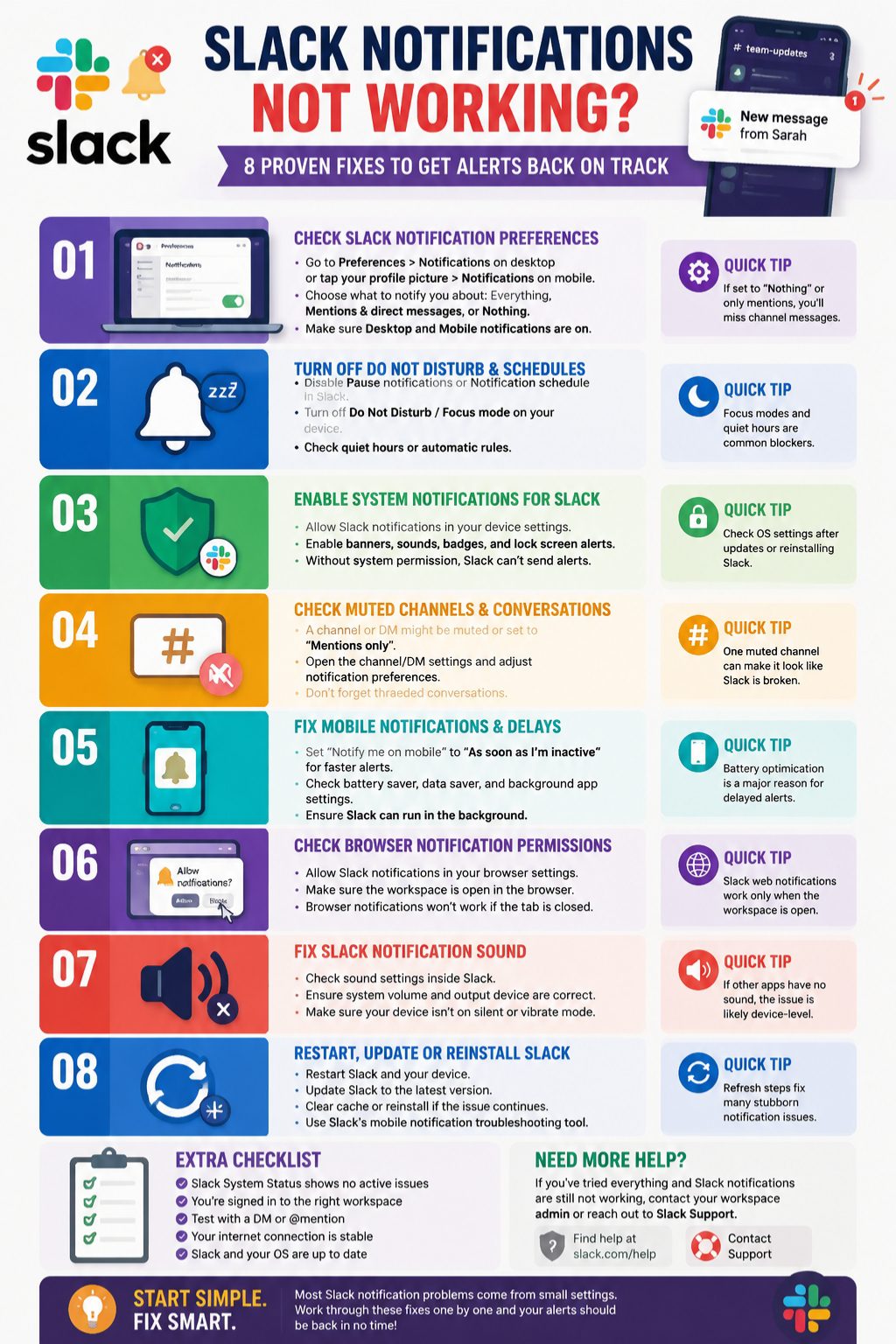
If only one channel or DM is silent, it’s probably muted.
|
Type |
What to Check |
|
Channels |
Click name > Notification settings |
|
DMs |
Tap conversation > Notifications |
|
Threads |
Follow important threads |
Tip: Muting helps reduce noise but can hide urgent messages.
Fix 5: Fix Mobile Notification Delays
Slack mobile notifications may be delayed if you’re active on desktop.
|
Platform |
What to Check |
|
iPhone |
Background App Refresh, Low Power Mode, Focus, Cellular Data |
|
Android |
Battery optimization, Data Saver, Adaptive Battery, Sleeping apps |
Tip: Change “Notify me on mobile” to “As soon as I’m inactive” in Slack mobile settings for faster alerts.
Fix 6: Browser Notification Permissions
Web users may have blocked Slack notifications in their browser.
|
Browser |
Check |
|
Chrome / Edge |
Settings > Privacy & Security > Site Settings > Notifications |
|
Firefox |
Settings > Privacy & Security > Permissions > Notifications |
|
Safari |
Preferences > Websites > Notifications |
Tip: Browser notifications only work if the Slack tab is open.
Fix 7: Fix Notification Sound
You might see notifications but hear no sound.
|
Check |
Desktop |
Mobile |
|
Slack sound |
Preferences > Notifications |
Profile > Notifications |
|
System volume |
Volume mixer |
Ringer / Media volume |
|
Output device |
Speakers / Bluetooth |
Headphones / earbuds |
|
Silent mode |
OS / Focus mode |
Phone mute switch |
Tip: Test other app notifications to see if it’s device-level.
Fix 8: Restart, Update, Clear Cache, or Reinstall
If everything else fails:
|
Action |
Steps |
|
Restart Slack |
Quit fully > Reopen |
|
Update app |
Desktop / mobile / browser updates |
|
Clear cache |
Desktop > Troubleshoot menu; Android > Settings > Apps |
|
Reinstall |
Uninstall > Restart device > Install latest version |
Tip: Use Slack’s mobile notification test to confirm alerts.
Platform-Specific Tips
|
Platform |
Key Fixes |
|
Windows |
Focus Assist, app volume mixer, Slack update |
|
Mac |
Alert style, Focus, sound output, badge |
|
iPhone |
Focus mode, Lock Screen/Banners, Background App Refresh |
|
Android |
Battery optimization, sleeping apps, background data |
|
Browser |
Tab open, permissions allowed, site notifications |
Common Notification Issues
|
Problem |
Likely Cause |
|
No notifications |
Slack or system blocked, DND active |
|
Desktop not working |
Slack notifications off, Focus mode |
|
Mobile not working |
Battery saver, background restrictions, desktop activity |
|
Delayed alerts |
Mobile timing, weak connection, battery optimization |
|
No sound |
Slack sound off, system mute, silent mode |
|
One channel missing |
Channel muted or mentions-only |
Best Slack Settings to Avoid Missing Messages
|
User Type |
Recommended Settings |
|
Small Teams |
All messages, mobile alerts as soon as inactive |
|
Busy Workspaces |
Mentions & DMs, mute low-value channels, keywords |
|
Managers/Editors |
Keep DMs on, keyword alerts for clients, thread replies |
|
Remote Workers |
Set working hours, allow priority notifications, use DND wisely |
Mistakes to Avoid
- Reinstalling without checking settings
- Enabling every notification (alert fatigue)
- Ignoring channel-specific settings
- Forgetting browser permissions
- Ignoring Android battery optimizations
When to Contact Admin or Slack Support
|
Contact |
When |
|
Workspace Admin |
Company policies restrict notifications, missing integration alerts |
|
Slack Support |
Notifications fail after troubleshooting, mobile test fails, persistent cross-device issues |
Final Thoughts
If slack notifications not working, start simple. Check Slack settings, system permissions, muted channels, mobile delay options, browser permissions, sound, and finally app refresh or reinstall. Most problems are small tweaks away from fixed. A careful step-by-step check usually brings notifications back without headaches.
FAQs
Why are my Slack notifications not working?
Usually it’s Slack preferences, system permissions, DND/Focus mode, muted channels, or mobile delay settings.
Why do I get notifications on desktop but not mobile?
Slack may delay mobile alerts while active on desktop. Check mobile settings, battery saver, and background permissions.
Why are notifications delayed on my phone?
Mobile timing, weak network, battery optimization, or background restrictions can delay alerts.
Why is notification sound missing?
Check Slack sound, system volume, Focus mode, silent switch, and connected devices.
How do I turn notifications back on?
Open Slack > Notifications > Enable desktop/mobile alerts > Choose notification type > Check device permissions.
Why am I not getting notifications from one channel?
That channel may be muted, set to mentions-only, or using a custom notification setting.
Do browser notifications work?
Yes, if browser notifications are allowed, Slack tab is open, and system notifications for the browser are enabled.
Should I reinstall Slack to fix notifications?
Only after checking Slack preferences, system permissions, DND, muted channels, browser permissions, and app updates.