
Storage fills up fast on Android. One day your phone runs smooth, the next day it starts warning you about space. Even after deleting photos and apps, nothing really changes.
That’s when people try to move apps to SD card Android hoping it will fix everything in one go.
It sounds easy, but Android doesn’t work that way anymore. Some phones allow it, some don’t, and many apps simply refuse to move. Even when the option shows up, it often works only partially.
In this guide, I’ll walk you through what actually works, what doesn’t, and how to safely free up space without messing up your phone.
Can You Move Apps to SD Card on Android?
Yes, but not for everything. Android doesn’t treat all apps the same. Some apps can move, some can’t, and some only shift part of their data. It depends on your phone, the app itself, and how your SD card is set up.
For example, games or large apps might move. But apps like WhatsApp, banking apps, or system tools usually stay on internal storage.
Here’s the truth most people miss: the move apps to SD card Android option is not guaranteed on every phone.
Quick reality check
|
Situation |
Reality |
|
Every app can move |
No |
|
SD card always works for apps |
No |
|
Third-party apps can fix it |
Rarely |
|
Feature is universal |
Not anymore |
Android has slowly limited this feature to keep apps faster and more stable.
How Android Handles SD Cards
Before you try anything, you need to understand this part. It clears up most confusion.
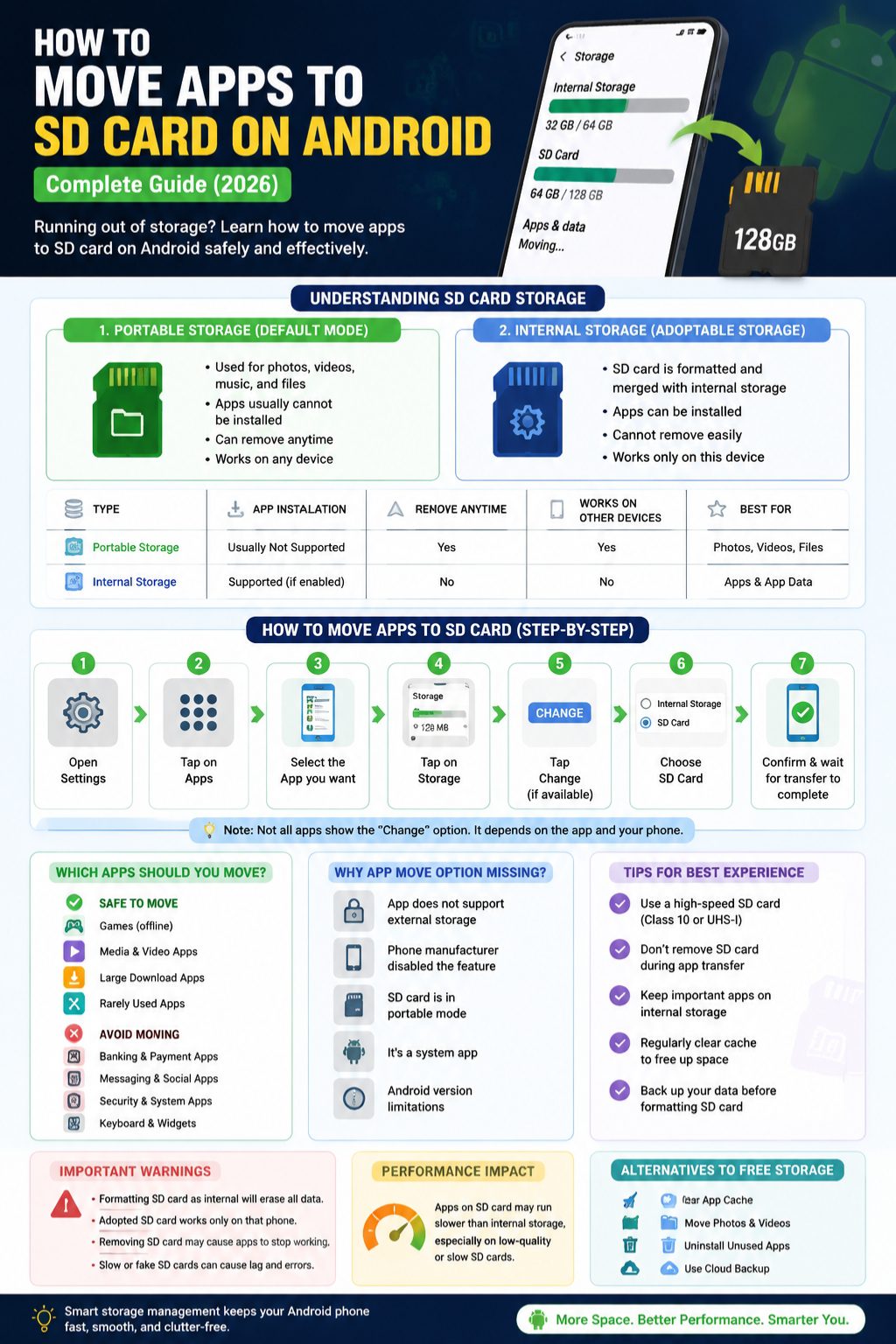
Android uses SD cards in two different ways.
Portable storage
This is the normal mode. You use it for photos, videos, music, and files.
You can remove the card anytime and use it somewhere else. But apps usually won’t install here.
Internal storage (adopted storage)
This is the “extended storage” mode. Android merges the SD card with internal memory.
It can store apps, but there’s a catch. Once you format the card this way, it only works on that phone. You can’t just move it to another device.
Simple comparison
|
Type |
What it’s for |
Apps allowed? |
Can remove? |
|
Portable |
Files & media |
No |
Yes |
|
Internal (adopted) |
Apps + data |
Yes (if supported) |
No |
Most users fail at move apps to SD card Android because their card is still in portable mode.
How to Move Apps to SD Card on Android
This is the actual method, but don’t expect it to work for every app.
Steps
- Open Settings
- Tap Apps
- Choose the app you want
- Tap Storage
- Look for Change or Move option
- Select SD card
- Wait for it to finish
If you don’t see “Change,” the app simply doesn’t support SD storage.
Important things people forget
- Don’t remove the SD card during transfer
- Some apps may slow down after moving
- Widgets might stop working
- System apps cannot move at all
Step summary
|
Step |
What you do |
What happens |
|
1 |
Open Settings |
Access system |
|
2 |
Select app |
Open app info |
|
3 |
Storage |
Check support |
|
4 |
Move |
Transfer data |
That’s the cleanest version of move apps to SD card Android.
Why Different Phones Act Differently
This is where most confusion starts.
Android looks the same, but brands change how it behaves.
Read Also: How to Recover Deleted Contacts on Android
Samsung
Samsung allows app moving only on selected apps. Newer flagship models often remove SD card support entirely.
Xiaomi / Redmi / POCO
These phones support SD cards mainly for media. App movement is limited or hidden depending on the system version.
OPPO / Vivo / Realme
Most of these phones restrict app movement. SD cards are mostly for storage, not apps.
Motorola
Motorola behaves closer to stock Android. Some models still allow more flexibility.
Quick brand view
|
Brand |
App move support |
|
Samsung |
Limited |
|
Xiaomi |
Partial |
|
OPPO |
Very limited |
|
Vivo |
Limited |
|
Motorola |
Moderate |
So yes, move apps to SD card Android depends heavily on your phone brand.
Using SD Card as Internal Storage
This is the advanced option. It gives better results, but also more risk.
When it helps
- Your internal storage is almost full
- You have a fast SD card
- Your phone supports this feature
How to enable it
- Insert SD card
- Go to Storage settings
- Select SD card
- Tap Format as internal
- Confirm
- Move apps if prompted
Be careful here
Once you do this, the card is locked to your phone. If you remove it, apps may stop working.
|
Risk |
What happens |
|
Data loss |
Card gets wiped |
|
Phone lock-in |
Card won’t work elsewhere |
|
Slow performance |
Cheap cards struggle |
|
App errors |
If card removed |
Why You Don’t See “Move to SD Card”
This is one of the most searched problems.
Here’s why it happens:
- The app blocks external storage
- Your phone disables the feature
- SD card is in portable mode
- It’s a system app
- Android version limits it
|
Reason |
Fix |
|
App restriction |
No fix |
|
Phone limitation |
Not available |
|
Portable SD |
Reformat |
|
System app |
Cannot move |
Most of the time, nothing is broken. The feature is just not available.
Which Apps You Should Move (and Which You Shouldn’t)
Not everything should go to SD card.
Safe to move
- Offline games
- Large apps
- Media editing apps
- Rarely used apps
Keep on internal storage
- Banking apps
- WhatsApp and chat apps
- Keyboard apps
- Security tools
- Widgets and launchers
|
App type |
Move it? |
|
Games |
Yes |
|
Banking apps |
No |
|
Social apps |
No |
|
Offline tools |
Yes |
Choosing right apps makes move apps to SD card Android actually useful.
Performance: What Really Happens
Let’s be honest. SD cards are slower than internal storage.
Even good SD cards can’t match phone memory speed.
What you may notice
- Apps open a bit slower
- Games may lag slightly
- Cheap cards cause freezes
- Heavy apps behave worse
|
Storage type |
Speed |
|
Internal memory |
Fast |
|
Good SD card |
متوسط |
|
Cheap SD card |
Slow |
So yes, move apps to SD card Android helps storage, but not speed.
Better Alternatives If It Doesn’t Work
If SD card moving fails, don’t worry. You still have options.
Try these instead
- Clear app cache
- Move photos and videos
- Delete offline downloads
- Use Google Photos backup
- Remove unused apps
|
Method |
Storage gain |
|
Cache clear |
Medium |
|
Media move |
High |
|
App uninstall |
High |
|
Cloud backup |
High |
Honestly, these often work better than moving apps.
Common Mistakes People Make
Here’s where things usually go wrong:
- Buying low-quality SD cards
- Expecting every app to move
- Removing SD card after moving apps
- Using random “SD booster” apps
- Moving system apps
- Skipping backup before formatting
Most problems come from unrealistic expectations.
Final Thoughts
The idea of move apps to SD card Android sounds like a perfect fix, but in reality, it’s limited.
Some apps move, some don’t. Some phones support it, some hide it completely. And SD cards, while useful, are not as fast or flexible as internal storage.
If you use it wisely, it still helps. But the real solution is a mix of storage cleanup, smart app use, and cloud backup.
At the end of the day, move apps to SD card Android is a tool, not a full solution.
FAQs
Can I move all apps to SD card?
No, only selected apps support it.
Why is the option missing?
Your phone or app doesn’t allow it.
Will apps become slower?
Yes, on slower SD cards.
Can WhatsApp move to SD?
No, it stays on internal storage.
Is SD card internal storage safe?
Yes, but it locks the card to one phone.