
A new iPhone usually feels like a fresh start. Faster, smoother, cleaner. But then comes the Apple Watch. And this is where things often slow down.
If you’re trying to pair Apple Watch with new iPhone, it doesn’t always happen in one tap. Sometimes it connects instantly. Other times, it refuses to show up, asks for old devices, or just gets stuck syncing.
The reason is simple. Your Apple Watch is tightly tied to your Apple ID and your old iPhone. It holds your health data, fitness records, apps, and settings. So Apple doesn’t treat it like a normal Bluetooth device.
In this guide, I’ll walk you through every working method to move your Apple Watch to a new iPhone without losing your data. No confusion. No guesswork. Just what actually works.
Before You Pair Apple Watch with New iPhone
A few minutes of prep saves you a lot of trouble later.
Most pairing issues don’t happen during setup. They happen before it, when something small is missing.
What you should check first
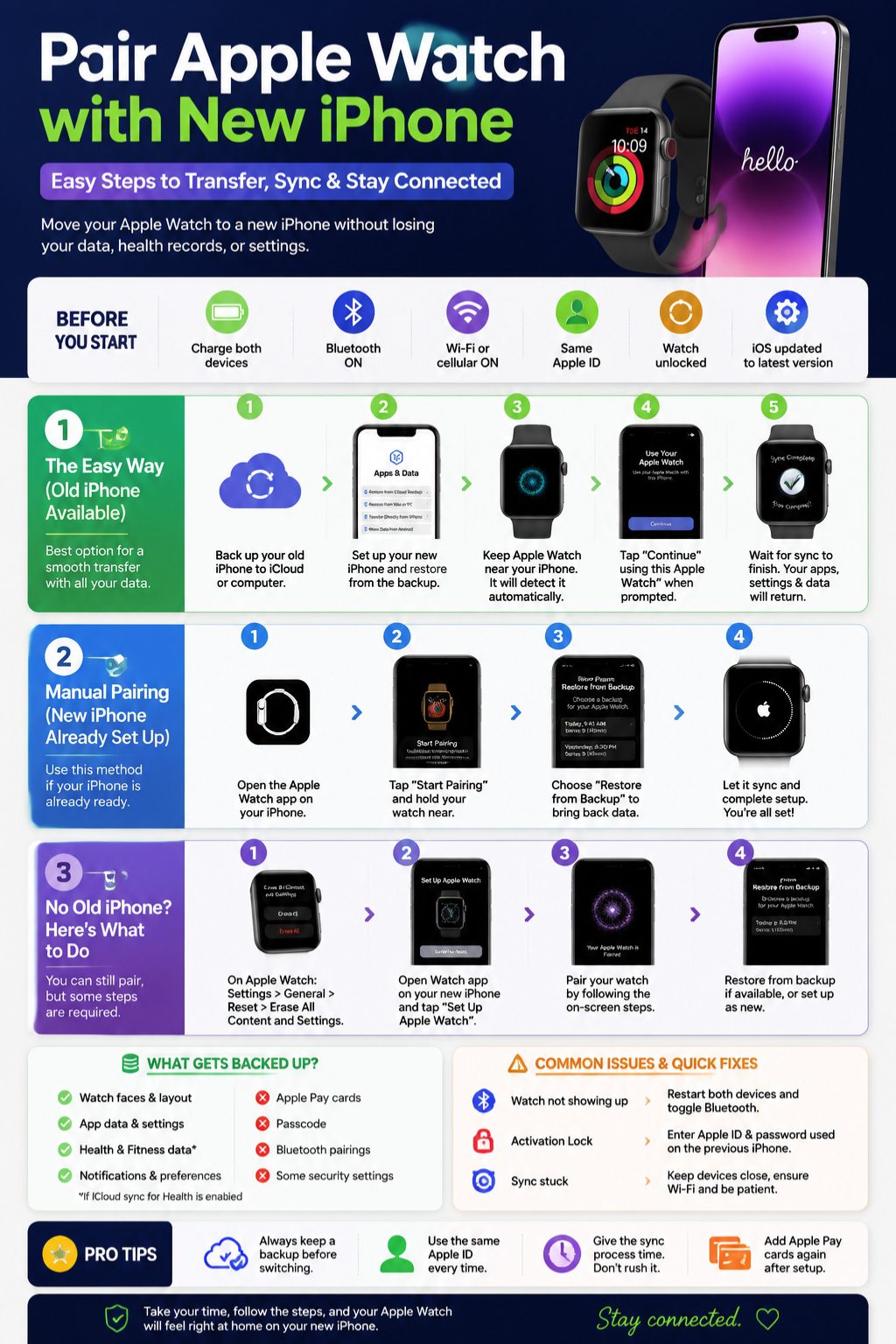
Before you start, make sure:
- Both devices are charged
- Bluetooth is turned on
- Wi-Fi or mobile data is working
- You’re using the same Apple ID
- Your Apple Watch is unlocked
- Your new iPhone is updated
If even one of these is off, things can get messy later.
Why this step matters
Your Apple Watch doesn’t store everything on its own. Most of its data comes through your iPhone and iCloud.
So if your backup is incomplete, your watch won’t fully restore either. That’s where people usually lose health data or app layouts.
Quick pre-check list
|
What to check |
Why it matters |
|
Same Apple ID |
Needed for sync |
|
iCloud backup |
Saves watch data |
|
Bluetooth ON |
Required for detection |
|
Updated iOS |
Avoids errors |
|
Charged devices |
Prevents interruptions |
Fast Way to Pair Apple Watch with New iPhone
If everything is ready, Apple usually handles most of the work for you.
When things go smoothly
If your setup is clean, this is what usually happens:
- You sign into your new iPhone
- You restore your backup
- Your Apple Watch shows up automatically
- You tap continue
- Everything syncs in the background
That’s it. No manual pairing needed.
Simple steps to follow
- Turn on your new iPhone
- Sign in with your Apple ID
- Restore from iCloud or backup
- Keep your Apple Watch nearby
- Wait for the pairing prompt
- Tap “Continue using this Apple Watch”
- Let everything sync
What you’ll notice
Your watch won’t feel “new.”
- Watch faces come back
- Apps reappear
- Health data returns
- Settings stay familiar
It feels like nothing changed, just the phone did.
Quick overview
|
Step |
What happens |
|
iPhone setup |
Restore backup |
|
Watch detection |
Automatic |
|
Confirmation |
Tap continue |
|
Sync |
Background process |
Method 1: If You Still Have Your Old iPhone
This is the easiest situation. If you still have your old phone, you’re in a good place.
Step 1: Update everything first
Before switching anything, update:
- Old iPhone
- Apple Watch (if possible)
This helps avoid weird compatibility issues.
Step 2: Back up your old iPhone
You’ve got two options:
- iCloud backup
- Computer backup (encrypted is better)
This backup is what carries most of your Apple Watch data indirectly.
Step 3: Set up your new iPhone
Now restore your new iPhone using that backup.
Don’t skip this step. This is what keeps your Apple Watch connected smoothly.
Step 4: Keep your watch close
Put your Apple Watch on your wrist. Keep it unlocked and near your iPhone.
After a few moments, your iPhone usually recognizes it.
Step 5: Accept the connection
You’ll likely see a prompt asking to use your Apple Watch.
Tap continue.
That’s it.
Summary table
|
Step |
Result |
|
Backup old iPhone |
Saves data |
|
Restore new iPhone |
Keeps continuity |
|
Watch detection |
Automatic pairing |
|
Sync |
Everything returns |
Method 2: If Your New iPhone Is Already Set Up
Sometimes people already finish setting up the new iPhone. That’s fine too.
Step 1: Open the Watch app
On your new iPhone:
- Open Apple Watch app
- Tap Start Pairing
- Bring watch close
Read Also: AirPods Not Connecting to iPhone: 8 Quick Fixes
Step 2: Choose what you want
You’ll usually see two options:
- Restore from backup
- Set up as new watch
Most people should pick restore.
Step 3: Let it sync
Now the watch rebuilds everything:
- Apps reinstall
- Watch faces return
- Settings load
It takes a few minutes. Sometimes more, depending on data size.
Step 4: Check everything
Once done, quickly check:
- Notifications
- Health app
- Fitness rings
- Apple Pay
Quick breakdown
|
Action |
Result |
|
Open Watch app |
Start pairing |
|
Choose restore |
Bring data back |
|
Sync process |
Rebuild watch |
|
Final check |
Confirm setup |
Method 3: No Old iPhone Available
This is the tricky one. But it still works.
Step 1: Watch for Activation Lock
If Activation Lock appears, don’t panic.
It simply means the watch is still tied to an Apple ID.
You’ll need:
- Apple ID email
- Password
Without it, you can’t proceed.
Step 2: Reset the Apple Watch
On the watch:
- Go to Settings
- Tap General
- Tap Reset
- Choose Erase All Content
Step 3: Pair again
Now open the Watch app on your new iPhone and start pairing.
Step 4: Restore if possible
If a backup exists in iCloud, you’ll get a restore option.
If not, you’ll start fresh.
Summary table
|
Situation |
Outcome |
|
Activation Lock ON |
Needs Apple ID |
|
Backup available |
Restore possible |
|
No backup |
Fresh setup |
|
Old iPhone missing |
Manual pairing |
Apple Watch Backup (Simple Explanation)
Here’s where people often get confused.
Apple Watch doesn’t create separate backups like photos or files.
Instead:
- It backs up through your iPhone
- iPhone backup stores watch data
- iCloud sync fills in health info
What comes back
- Watch faces
- App layout
- Settings
- Health & fitness data (if enabled)
What doesn’t come back
- Apple Pay cards
- Passcode
- Some Bluetooth connections
Quick breakdown
|
Data type |
Restores |
|
Health data |
Yes (if synced) |
|
Watch faces |
Yes |
|
Apple Pay |
No |
|
Apps layout |
Yes |
|
Passcode |
No |
Cellular Apple Watch Setup
If your watch supports cellular, there’s one extra step.
What changes
You can’t just pair it and forget it. Your carrier is involved.
How setup works
- Open Watch app
- Tap Cellular
- Follow carrier instructions
- Activate plan
Summary
|
Step |
Requirement |
|
Watch app setup |
iPhone connection |
|
Carrier approval |
Required |
|
Plan activation |
Manual or automatic |
Common Problems and Real Fixes
Watch not pairing
Try this first:
- Restart both devices
- Turn Bluetooth off and on
- Move devices closer
Watch already paired message
This means it’s still linked to another iPhone or Apple ID.
Fix:
- Unpair from old device
- Or erase watch
Sync stuck
Don’t rush it.
- Keep devices close
- Stay on Wi-Fi
- Wait a bit longer
Quick table
|
Problem |
Cause |
Fix |
|
Not detected |
Bluetooth issue |
Restart |
|
Activation Lock |
Apple ID |
Login required |
|
Slow sync |
Large data |
Wait |
Simple Tips That Actually Help
Here’s what makes things smoother:
- Don’t rush setup
- Always use the same Apple ID
- Keep old iPhone until everything works
- Let sync finish fully
- Add Apple Pay again manually
These small things save a lot of frustration.
Final Thoughts
To pair Apple Watch with new iPhone, the key isn’t speed. It’s preparation.
If your backup is ready and your Apple ID is correct, the process is almost automatic. If not, you’ll end up doing manual steps.
Either way, once it connects, everything feels familiar again—your health data, your apps, your watch faces, all right where you left them.
Take your time with it. Let the sync finish. And don’t erase your old device until everything checks out.
That’s really all there is to it.
FAQs
Can I pair Apple Watch with new iPhone without losing data?
Yes. If you restore from a backup, most data like settings, watch faces, and health info comes back.
Why won’t my Apple Watch connect to my new iPhone?
Usually due to Bluetooth off, old pairing still active, or Activation Lock.
Do I need to unpair Apple Watch before switching iPhone?
Not always. But unpairing helps if pairing fails.
What is Activation Lock?
It’s Apple’s security feature tied to your Apple ID. You must enter it to pair.
Can Apple Watch connect to two iPhones?
No. It only works with one iPhone at a time.
How long does pairing take?
Usually 5–20 minutes, depending on data and sync.
Will my health data transfer?
Yes, if iCloud sync or backup was enabled.
What if Apple Watch gets stuck during pairing?
Restart both devices and try again.
Can I use a used Apple Watch?
Yes, only if Activation Lock is removed.
Do I need internet to pair?
Yes, Wi-Fi or mobile data is required.