
Want to add multiple photos instagram story content but can’t find the right option?
That happens a lot.
Instagram keeps moving things around. One account shows Layout. Another shows a photo sticker. Some users see Select Multiple right away. Others don’t see it at all.
So the smartest move is simple: don’t rely on just one button.
There are a few easy ways to add more than one photo to an Instagram Story. You can use Layout for a neat grid. You can use the photo sticker to layer images. You can upload several photos as separate Story slides. Or you can make a polished collage in Canva, Adobe Express, CapCut, or another design app.
Stories work so well because they feel quick and casual. They’re great for travel dumps, birthday memories, product teasers, blog previews, food photos, event recaps, and behind-the-scenes updates.
They also disappear after 24 hours unless you save them as Highlights. That makes them perfect for moments you want to share now without keeping them on your main profile forever.
|
Quick Point |
Best Option |
|
Clean photo grid |
Instagram Layout |
|
Creative collage |
Photo sticker |
|
Several separate slides |
Select Multiple |
|
Branded design |
Canva or Adobe Express |
|
Animated photo Story |
CapCut or InShot |
|
Best format |
9:16 vertical |
Multiple Photos Instagram Story: Pick the Right Method First
Before you start editing, think about the final look.
Do you want all photos in one frame? Use Layout or the photo sticker.
Do you want each photo to appear as its own Story slide? Use the multi-select upload option.
Do you want a cleaner design for a brand, blog, shop, or business page? Make the Story in a design app first.
Each method has its own use. Layout keeps things tidy. Stickers give you more freedom. Multi-select saves time. Design apps make the final Story look more polished.
For casual posts, Instagram’s own tools are enough. For business posts, templates usually look sharper and more consistent.
|
Method |
Best For |
Why Use It? |
Watch Out For |
|
Layout |
Simple grids |
Fast and clean |
Limited design control |
|
Photo sticker |
Custom collages |
Easy to move and resize photos |
Can look crowded |
|
Multi-select |
Many photos at once |
Saves time |
Each photo becomes a separate slide |
|
Canva |
Branded Stories |
Better templates and spacing |
Takes extra time |
|
CapCut |
Moving photo Stories |
Adds animation |
Needs more editing |
Method 1: Use Instagram Layout for a Clean Grid
Instagram Layout is the quickest way to place several photos inside one Story frame.
It gives you a grid. Each photo sits inside its own box. You don’t need to resize every image by hand.
This method works well for travel recaps, food shots, birthday posts, outfit ideas, event highlights, product photos, and before-and-after posts.
How to Use Instagram Layout
- Open Instagram.
- Tap the plus icon or swipe right from the home screen.
- Choose Story.
- Tap Layout from the tool menu.
- Pick a grid style.
- Add photos from your gallery or take new ones.
- Fill each grid box.
- Tap the checkmark.
- Add text, stickers, music, tags, or location if needed.
- Share it to Your Story or Close Friends.
Layout looks best when the photos feel connected. Use images from the same trip, event, product shoot, recipe, or moment.
Also, check the crop before posting. Instagram may cut off edges inside the grid. Keep faces, product names, and important details away from the borders.
|
Layout Tip |
Why It Works |
|
Use 2–4 photos |
Keeps the Story easy to view |
|
Pick photos from the same moment |
Makes the post feel connected |
|
Keep faces away from edges |
Avoids bad cropping |
|
Use short text |
Keeps the grid clean |
|
Match the lighting |
Makes the design look smoother |
When Layout Works Best
Use Layout when you want a clear, neat Story.
It’s a strong choice for:
- A travel recap
- A recipe step-by-step
- Product photos from different angles
- A room makeover
- A birthday memory
- An event recap
- A before-and-after comparison
Layout may feel too stiff if you want a more playful design. For a scrapbook-style Story, the photo sticker method works better.
Method 2: Use the Photo Sticker to Layer Photos
The photo sticker gives you more control than Layout.
You can add one photo as the background, then place more photos on top. Move them around. Resize them. Tilt them. Stack them. Make the Story feel more personal.
This is one of the easiest ways to create a custom multiple photos instagram story without opening another app.
How to Add Photos as Stickers
- Open Instagram.
- Go to Story.
- Choose a background photo, video, or plain color.
- Tap the sticker icon at the top.
- Find the photo or gallery sticker.
- Pick another image from your camera roll.
- Resize and move it.
- Repeat the steps to add more photos.
- Add short text, music, tags, or polls if needed.
- Share the Story.
On some accounts, tapping the photo sticker changes its shape. You might see a circle, square, heart, star, or rounded frame.
Don’t worry if you don’t see every option. Instagram features can vary by account, region, phone, and app version.
|
Sticker Style |
Best Use |
|
One large photo with two small photos |
Travel or event recap |
|
Tilted photo stickers |
Casual photo dump |
|
Product photo plus close-ups |
Online shop Story |
|
Blog screenshot plus images |
Article teaser |
|
Review screenshot plus product image |
Social proof |
|
Final dish plus ingredients |
Food Story |
How to Make Sticker Collages Look Better
Start with one strong photo. Make it the main focus.
Then add smaller photos around it. Don’t make every image the same size. A clear size difference helps viewers understand what matters most.
Keep the text short. Use stickers only when they help. Too many GIFs, emojis, and labels can make the Story look messy.
A good collage should feel easy to scan. It shouldn’t look like a crowded notice board.
Read Also: Instagram Music Not Available: How to Fix It
Method 3: Upload Multiple Photos as Separate Story Slides
Sometimes you don’t need a collage. You just want to share a set of photos quickly.
Instagram lets you pick photos from your gallery and post them to Stories. Many accounts also show a Select or Select Multiple option. This lets you choose several photos at once and post them as separate Story slides.
This works well for birthdays, trips, events, product launches, tutorials, and behind-the-scenes updates.
How to Upload Multiple Story Slides
- Open Instagram.
- Tap Story.
- Swipe up or tap the gallery icon.
- Tap Select or Select Multiple, if you see it.
- Pick the photos in the order you want.
- Tap Next.
- Edit each slide.
- Add text, stickers, music, location, or tags.
- Share the full set to your Story.
If Select Multiple doesn’t appear, update Instagram. If it still doesn’t show up, use Layout, stickers, or a collage app instead.
|
Best Practice |
Why It Helps |
|
Put the strongest photo first |
Grabs attention fast |
|
Keep the order natural |
Helps viewers follow the story |
|
Don’t post every photo |
Keeps the Story sharp |
|
Use short captions |
Makes each slide easy to read |
|
End with a question or link |
Encourages replies or clicks |
How Many Story Slides Should You Post?
There’s no strict rule. But shorter usually works better.
For casual posts, 3–6 slides are enough. For trips, events, or tutorials, 6–10 slides can work if every photo adds something.
Avoid posting 20 similar photos. Most people will tap through them.
Think like an editor. Pick the photos that tell the story fastest.
Method 4: Use Canva, Adobe Express, or CapCut for a Better Design
Instagram’s built-in tools are useful, but they’re not always enough.
For a cleaner Story, design it in another app first. This gives you better control over spacing, colors, fonts, frames, shadows, animation, and layout.
This is a smart choice for bloggers, influencers, restaurants, online shops, coaches, media brands, real estate pages, and small businesses.
Best Apps for Instagram Story Collages
Canva is great for templates and brand kits. Adobe Express gives you clean layouts. CapCut works well when you want movement. Picsart is good for creative edits. Unfold and Mojo are useful for lifestyle-style templates.
Create your design in a 9:16 vertical format. Export it as a photo or video. Then upload it to Instagram Story.
|
App |
Best For |
Good For |
|
Canva |
Templates and brand layouts |
Bloggers, businesses, media pages |
|
Adobe Express |
Clean graphics |
Professional social posts |
|
CapCut |
Animated photo Stories |
Motion-based content |
|
Picsart |
Creative edits |
Lifestyle pages |
|
Unfold |
Minimal templates |
Travel and fashion |
|
Mojo |
Animated designs |
Product promos |
|
InShot |
Photo-video mixes |
Quick edits |
When a Design App Makes More Sense
Use a design app when you want:
- Brand colors
- A clean template
- Better photo spacing
- Custom fonts
- Animated text
- A reusable Story style
- A polished article or product teaser
For Editorialge-style content, this works especially well for article promotions. You can add the article image, headline, short hook, and space for the link sticker in one clean frame.
Best Instagram Story Size and Quality Tips
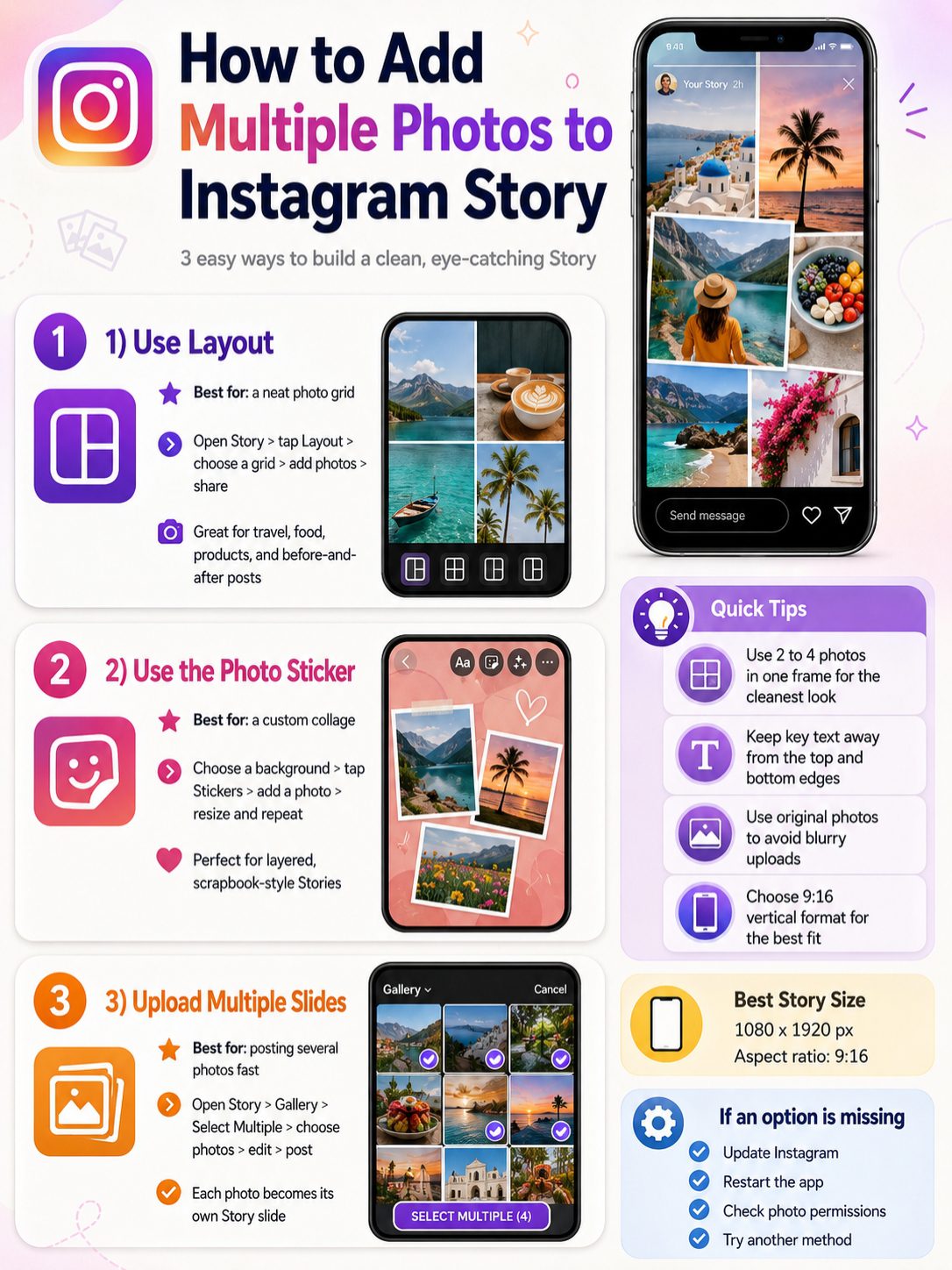
Instagram Stories are made for vertical phone screens. The safest format is 9:16.
A common Story size is 1080 x 1920 pixels. Most design apps already have an Instagram Story template, so you don’t need to set the size manually.
The main rule is simple: keep it vertical, sharp, and easy to read on a phone.
Keep Important Parts Away From the Edges
Instagram places controls over your Story. Your username appears near the top. The reply bar and buttons sit near the bottom.
So don’t place important text, faces, product names, or calls-to-action too close to the edges.
Keep the main content near the center.
|
Quality Rule |
Best Practice |
|
Aspect ratio |
9:16 vertical |
|
Common size |
1080 x 1920 pixels |
|
Best file type |
JPG or PNG for photos |
|
Text placement |
Keep it away from top and bottom |
|
Photo quality |
Use original photos |
|
Layout style |
Clean and mobile-friendly |
How to Avoid Blurry Story Uploads
Blurry Stories usually happen for a few basic reasons.
The photo may be too small. It may have been compressed by WhatsApp, Messenger, or another app. You may have used a screenshot instead of the original file. A weak internet connection can also affect upload quality.
Use original photos from your camera roll when possible. Don’t save and re-upload the same image too many times.
Creative Ideas for Multiple Photos Instagram Story Posts
A multiple photos instagram story works best when the images connect.
Random photos feel messy. Related photos tell a story.
A food creator can show ingredients, cooking steps, and the final plate. A travel page can show the airport, hotel, street, food, and sunset. A shop can show packaging, product details, reviews, and a link sticker.
|
Content Goal |
Story Idea |
|
Get replies |
“Which photo is your favorite?” |
|
Drive traffic |
Blog preview with link sticker |
|
Build trust |
Behind-the-scenes collage |
|
Sell a product |
Product detail collage |
|
Share memories |
Birthday or travel photo dump |
|
Teach quickly |
Step-by-step mini tutorial |
|
Promote an event |
Venue, crowd, speaker, best moment |
|
Show proof |
Review screenshot plus product photo |
Ideas for Personal Accounts
Try these:
- Weekend photo dump
- Birthday collage
- Travel day recap
- Family moment
- Favorite meal
- Outfit details
- Pet photos
- Desk setup
- Gym progress
- Before-and-after room clean-up
Ideas for Brands and Bloggers
Try these:
- New article preview
- Product launch collage
- Customer review Story
- Team behind-the-scenes
- Event recap
- Sale announcement
- “How it started vs how it ended”
- Mini tutorial
- FAQ Story
- Case study snapshot
For a blog post, you can use this simple flow:
- First slide: Main image and headline
- Second slide: Three key points
- Third slide: Quote, stat, or screenshot
- Final slide: Link sticker with a short call-to-action
Common Mistakes to Avoid
The biggest mistake is trying to show too much.
A Story is not a full article. People see it on a small screen and move fast. If you add six photos, long text, a poll, GIFs, music lyrics, and a link sticker, the message gets buried.
Keep it clean.
Use fewer photos. Choose better photos. Give each image space.
|
Mistake |
Better Choice |
|
Too many photos in one frame |
Use 2–4 strong images |
|
Tiny text |
Use short, readable captions |
|
Random photo order |
Create a mini story |
|
Stickers covering faces |
Put stickers in empty space |
|
No clear purpose |
Add a question, link, or message |
|
Low-quality screenshots |
Use original photos |
Don’t Hide the Main Photo
Every Story needs one clear focus.
Make one photo larger than the rest. Let the smaller photos support it. If every image fights for attention, viewers won’t know where to look.
Think About the Viewer
Before posting, ask yourself:
What should someone understand in two seconds?
If the answer isn’t clear, simplify the Story.
Troubleshooting: Why Multiple Photo Options May Not Show
Instagram doesn’t look the same for everyone.
Your friend may have a feature you don’t. Your iPhone may show a different button than someone’s Android. Your business account may not show the same sticker options as your personal account.
That’s normal.
Quick Fixes to Try
- Update Instagram from the App Store or Google Play.
- Close and reopen the app.
- Restart your phone.
- Check camera and photo permissions.
- Clear Instagram cache on Android.
- Switch from Wi-Fi to mobile data.
- Log out and log back in.
- Reinstall Instagram if needed.
- Check another account.
- Wait if the feature hasn’t reached your account yet.
|
Problem |
Likely Reason |
What to Try |
|
Layout missing |
App version or rollout issue |
Update Instagram |
|
Photo sticker missing |
Feature not available yet |
Try another method |
|
Gallery not opening |
Permission issue |
Allow photo access |
|
Story fails to post |
Weak connection |
Switch network |
|
Upload looks blurry |
Compressed or low-quality file |
Use original photo |
|
Music missing |
Regional or licensing limit |
Post without music |
Why Instagram Looks Different on iPhone and Android
Instagram keeps most core features similar, but the interface can still vary.
Button names, menu placement, sticker choices, and editing tools may look different. Instagram also tests features with selected users before rolling them out widely.
That’s why it helps to know all the main methods instead of depending on one tutorial.
Final Thoughts
Creating a multiple photos instagram story is easy once you know the right method.
Use Layout when you want a clean grid. Use the photo sticker when you want a custom collage. Use multi-select when you want to post several slides quickly. Use Canva, Adobe Express, or CapCut when you want a polished design.
The best Stories don’t need to be complicated. They need to be clear.
Pick strong photos. Keep the layout simple. Tell one quick visual story. And if one Instagram tool doesn’t show up, don’t waste time. Use another method and post the Story anyway.
FAQs About Multiple Photos on Instagram Story
Can I add multiple photos to one Instagram Story?
Yes. Use Layout for a grid or the photo sticker to place several images in one Story frame. You can also make a collage in another app and upload it.
Can I post multiple photos as separate Story slides?
Yes. Open Story, go to your gallery, tap Select or Select Multiple if available, choose your photos, edit each slide, and post them.
Why can’t I find the photo sticker on Instagram?
Your app may need an update, or Instagram may not have rolled out the feature to your account yet. Update the app and check again.
Is Layout the same as the photo sticker?
No. Layout gives you a fixed grid. The photo sticker lets you place photos freely.
How many photos should I put in one Story frame?
Use 2–4 photos for most Stories. More can work for mood boards, but too many photos can make the design hard to read.
Can I edit a multiple-photo Story after posting?
No. Once a Story is live, you can’t edit that frame. You’ll need to delete it and post a corrected version.
Can I add music to a Story with several photos?
Yes, if Instagram Music is available for your account and region. Add music after arranging your photos.
Why are my Instagram Story photos blurry?
The image may be low quality, compressed, or uploaded on a weak connection. Use original photos and avoid reposting screenshots when possible.
Can business accounts add multiple photos to Stories?
Yes. Business and creator accounts can use Story tools too. Some features may still vary by account, region, or app version.
Can I add multiple photos to Instagram Story from desktop?
The mobile app gives you the best Story tools. Desktop options are more limited, so use Instagram on iPhone or Android for this task.