
Instagram Stories move fast. People tap, swipe, react, and move on in seconds. So your Story has to look clear right away. That’s where the instagram story background color comes in.
A plain white background can make a quote feel clean. A black background can make an update feel bold. A soft pastel can make a personal Story feel warm. A strong brand color can make a business post look polished.
The best part? You don’t need a design app for basic Story backgrounds. Instagram already has the tools. You can use Create mode, the Draw tool, the eyedropper, photo stickers, and overlays to change the look in a few taps.
The only confusing part is that Instagram does not use the same method for every Story type. A text Story works one way. A repost works another way. A photo Story needs a slightly different trick.
This guide keeps things simple. You’ll learn the easiest ways to change the background color, fix common problems, and make your Stories look cleaner without overdoing the design.
What Instagram Story Background Color Means
An Instagram Story background is the base layer behind your text, image, sticker, poll, link, music, shared post, or Reel preview.
It can be a solid color. It can be a gradient. It can be a photo. It can also be a soft color layer over an image.
|
Key Point |
Details |
|
Main format |
Vertical Story layout |
|
Best aspect ratio |
9:16 |
|
Common design size |
1080 × 1920 pixels |
|
Main tools |
Create mode, Draw, eyedropper, stickers |
|
Best for |
Quotes, reposts, polls, links, product updates |
|
Main rule |
Keep the text easy to read |
The background sets the mood. It also helps people understand your message faster.
If the background is too busy, your text gets lost. If the color is too close to the text color, people won’t read it. If the Story looks messy, they may skip it before they even know what it says.
For brands and creators, color also builds recognition. When your Stories use the same color family as your logo, website, or posts, your content feels more connected.
You don’t need a perfect design system. You just need a clean look that makes sense.
Why Changing Instagram Story Background Color Matters
Changing a Story background is not just about making it pretty. It helps your content work better.
|
Benefit |
Why It Helps |
|
Better readability |
Text becomes easier to read |
|
Cleaner design |
The Story feels less messy |
|
Stronger branding |
Colors match your visual style |
|
Better reposts |
Shared posts look more intentional |
|
Clearer focus |
People notice the main message faster |
|
More control |
You can fix awkward empty space |
Instagram is huge. In 2025, Instagram reached 3 billion monthly active users. Meta also reported 3.56 billion Family daily active people across its apps in March 2026.
That means your Story is competing with friends, creators, brands, ads, memes, news, and entertainment. A small design choice can help your post stand out.
No, a background color will not magically boost reach. But it can improve how people respond.
A clean Story can get more replies. A clear poll can get more taps. A better link Story can drive more clicks. The color supports the message. The message drives the action.
Instagram Story Background Color: Best Methods at a Glance
There are a few ways to change the background. The best method depends on what you’re posting.
|
Story Type |
Best Method |
Best For |
|
Text-only Story |
Create mode |
Quotes, questions, updates |
|
Photo Story |
Draw tool |
Solid color or overlay |
|
Shared feed post |
Draw tool |
Reposts and article promos |
|
Brand Story |
Eyedropper |
Matching logo or product colors |
|
Collage Story |
Color fill + Photo sticker |
Layered designs |
|
Soft photo Story |
Highlighter tool |
Transparent color wash |
|
Template-style Story |
Custom background image |
Brand consistency |
Create mode is the fastest. The Draw tool gives more control. The eyedropper helps you match a color from a logo, product, or photo. Photo stickers help when you want a clean layout with an image on top of a colored background.
Here’s the simple rule: don’t use every tool at once.
Pick one background. Add one clear message. Use one main action. That’s usually enough.
How to Change Background Color in Create Mode
Create mode is the easiest option for a simple colored background. Use it when you want to post text, a question, a poll, or a quick update without a photo.
|
Step |
What to Do |
|
1 |
Open Instagram |
|
2 |
Swipe right or tap the plus icon |
|
3 |
Choose Story |
|
4 |
Tap Create or “Aa” |
|
5 |
Tap the color circle |
|
6 |
Pick or cycle through background colors |
|
7 |
Add text, stickers, links, or polls |
|
8 |
Post your Story |
Create mode usually gives you preset colors or gradients. Tap through them until the background fits your message.
When Create Mode Works Best
Use Create mode for:
- Quotes
- Polls
- Q&A prompts
- Flash updates
- Sale reminders
- Countdown stickers
- Blog article teasers
- Newsletter promos
- Event announcements
Create mode works because it keeps things clean. You don’t have to fight with a busy image. You start with a simple background and build the Story from there.
Create Mode Limitation
Create mode may not let you choose an exact custom shade. If you need a brand color, use the eyedropper method instead.
A quick trick works well. Save a brand color card on your phone. Upload it to Stories. Pick the color with the eyedropper. Then use that shade as your background.
How to Change Instagram Story Background Color with the Draw Tool
The Draw tool is the most useful option when you want control. It works with photos, videos, and shared posts.
|
Step |
What to Do |
|
1 |
Add a photo, video, or shared post to your Story |
|
2 |
Tap the three dots or Draw icon |
|
3 |
Choose the pen tool |
|
4 |
Pick a color from the bottom row |
|
5 |
Press and hold anywhere on the screen |
|
6 |
Wait for the screen to fill with color |
|
7 |
Tap Done |
|
8 |
Add your text, sticker, or link |
This long-press trick is one of the easiest ways to change the full instagram story background color.
How to Find More Colors
Instagram shows a row of basic colors. But you can often get more shades by pressing and holding one of the color circles.
A larger color picker should appear. Slide your finger around to choose a darker, lighter, or softer shade.
Try these colors by content type:
- Cream for lifestyle posts
- Black for bold updates
- Navy for professional posts
- Soft pink for beauty content
- Orange for sale alerts
- Green for wellness content
- Gray for clean editorial posts
What If the Color Covers Your Photo?
That’s normal.
The regular pen tool creates a solid color layer. If you press and hold, it can cover the whole photo.
Use the highlighter tool if you want a transparent overlay. Use the eraser if you want to reveal part of the photo again. Use the Photo sticker method if you want the image to sit on top of a colored background.
How to Add a Transparent Color Overlay
A transparent overlay helps when your photo is too bright, too dark, or too busy. It adds color without fully hiding the image.
|
Tool |
What It Does |
|
Pen |
Adds solid color |
|
Highlighter |
Adds transparent color |
|
Eraser |
Reveals parts of the image |
|
Eyedropper |
Picks color from the image |
Steps to Make a Soft Overlay
- Add your photo or video to the Story.
- Tap Draw.
- Choose the highlighter tool.
- Pick a color.
- Press and hold on the screen.
- Tap Done.
- Add text, link, poll, or sticker.
A dark overlay works well with white text. A light overlay works well with black text.
If the photo has too many colors, use a simple overlay like black, white, beige, navy, or soft brown. These colors calm the image and make the text easier to read.
Best Times to Use an Overlay
Use overlays for:
- Travel photos
- Food shots
- Event photos
- Product photos
- Personal updates
- Blog promotion Stories
- Behind-the-scenes content
I like this method because it saves imperfect photos. A quick overlay can hide bad lighting, messy backgrounds, and distracting corners.
How to Use the Eyedropper Tool for Brand Colors
The eyedropper tool lets you pick a color from an image. It’s one of the easiest ways to make a Story look polished.
|
Use Case |
Color Source |
|
Brand Story |
Logo |
|
Product Story |
Packaging |
|
Travel Story |
Sky, sea, sand, sunset |
|
Fashion Story |
Outfit |
|
Food Story |
Plate, sauce, drink |
|
Blog Story |
Website color palette |
Steps to Use the Eyedropper
- Upload a photo, logo, or color card to your Story.
- Tap Draw.
- Tap the eyedropper icon.
- Drag it over the color you want.
- Release your finger.
- Use that color with the pen or highlighter.
- Press and hold to apply it as the background.
This is great for creators, bloggers, and small businesses. You can match your background to your logo, product packaging, outfit, or image.
Simple Brand Trick
Save a small image with your main brand colors on your phone.
It can be a plain vertical image with color blocks. When you need a branded Story, upload it, use the eyedropper, pick the color, and build your Story.
Instagram usually does not let you type exact HEX codes inside Stories. So the eyedropper is the fastest workaround.
How to Change Background Color When Sharing a Feed Post
When you share a feed post to your Story, Instagram creates a background automatically. Sometimes it looks fine. Sometimes it looks dull, dark, or strange.
You can change it.
|
Method |
Best For |
|
Tap background |
Quick color change in some versions |
|
Draw tool |
Custom solid background |
|
Eyedropper |
Matching the post color |
|
Photo sticker method |
Better layout control |
|
Screenshot method |
Manual workaround |
- Tap the share icon under the feed post.
- Tap “Add to story.”
- Tap Draw.
- Choose a color.
- Press and hold on the background area.
- Tap Done.
- Resize the post card.
- Add a short caption or CTA.
Read Also: How to Pin a Comment on Instagram Posts
Best Colors for Reposts
For reposts, the shared post should stay the main focus. The background should support it.
Good choices include:
- Off-white
- Light gray
- Beige
- Black
- Navy
- Soft brand color
- Muted color from the post
Avoid loud colors if the post already has strong visuals. Too much color makes the Story feel crowded.
You can share a feed post to your Story only when the original account is public and allows resharing.
If the option is missing, the account may be private. The user may have turned off resharing. Or the post type may not support Story sharing.
How to Change Background Color Without Covering the Photo
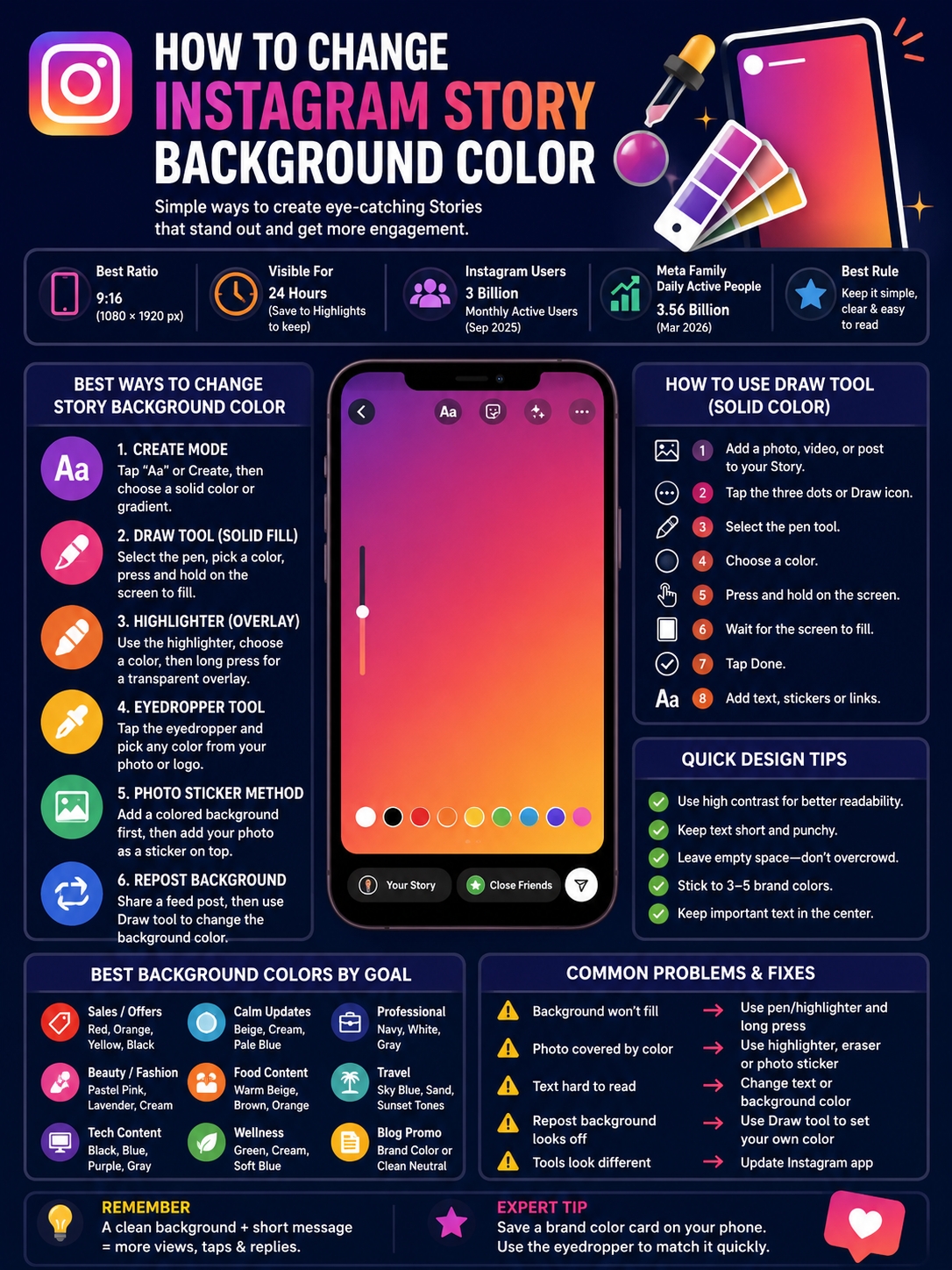
This is where many people get stuck. They want to change the blank space around the image, not cover the image itself.
The fix is layering.
|
Goal |
Best Method |
|
Keep full photo visible |
Add photo as a sticker over a colored background |
|
Show part of photo |
Use solid fill + eraser |
|
Tint the photo |
Use highlighter overlay |
|
Add a clean frame |
Shrink image after adding background |
|
Make a collage |
Use multiple Photo stickers |
Method 1: Add Background First, Photo Second
This is the cleanest method.
- Create a colored background with Create mode or Draw.
- Tap the sticker icon.
- Choose the Photo sticker.
- Add your image.
- Resize and place it.
- Add text, link, or CTA.
This works well because the photo sits on top of the color. The background does not hide it.
Use this for article promos, product shots, quote cards, testimonials, and simple collages.
Method 2: Use the Eraser Reveal Trick
This gives your Story a more creative look.
- Add a photo.
- Tap Draw.
- Choose the pen tool.
- Pick a color.
- Press and hold to cover the screen.
- Tap the eraser.
- Erase the area where you want the photo to show.
This works nicely for product reveals, countdown posts, outfit Stories, and teaser campaigns.
Method 3: Use the Highlighter
Use the highlighter when you want a color tint but still want the image to show.
It’s quick, simple, and hard to mess up.
Best Background Colors for Different Story Goals
Color changes the feel of a Story. Red feels urgent. Blue feels calm. Black feels bold. Beige feels warm. Green feels fresh.
But color choice should always serve the message.
|
Story Goal |
Best Background Style |
|
Sale or discount |
Red, orange, yellow, black |
|
Calm update |
Beige, cream, pale blue |
|
Professional announcement |
Navy, white, gray |
|
Beauty or fashion |
Pastel pink, lavender, soft cream |
|
Food post |
Warm beige, brown, orange |
|
Travel Story |
Sky blue, sand, sunset tones |
|
Tech update |
Black, blue, purple, gray |
|
Wellness content |
Green, cream, soft blue |
|
Blog promo |
Brand color or clean neutral |
Contrast Comes First
A pretty background is useless if people can’t read the text.
Use these easy pairings:
- Black background with white text
- White background with black text
- Navy background with white text
- Beige background with dark brown text
- Soft pink background with black text
- Dark overlay with white text
Keep the Copy Short
Stories are not the place for long paragraphs. People swipe fast. Keep your message tight.
Weak copy:
“Our new guide about Instagram Stories background customization is now available and you can read the full article on our website today.”
Better copy:
“New guide is live.
Change your Story background.
Tap to read.”
Short copy feels cleaner. It also fits the screen better.
Common Instagram Story Background Problems and Fixes
Instagram changes its interface often. Your app may not look exactly like someone else’s. iPhone and Android can also show tools in slightly different places.
|
Problem |
Likely Cause |
Easy Fix |
|
Background won’t fill |
Wrong brush selected |
Use pen or highlighter and long press |
|
Photo disappears |
Solid fill covered it |
Use Photo sticker or eraser |
|
Color picker missing |
App version issue |
Update Instagram |
|
Repost background looks black |
Instagram auto-generated it |
Use Draw manually |
|
Text is hard to read |
Poor contrast |
Change text or background color |
|
Stickers get covered |
Wrong layer order |
Add stickers after background |
|
Background looks cropped |
Wrong aspect ratio |
Use 9:16 vertical image |
|
Text gets hidden |
UI overlap |
Keep key text near the center |
Update Instagram
If your Story tools look different, update the app first. Instagram tests features often, and not every account gets the same tools at the same time.
Restart the Story Editor
If the fill tool stops working, close the Story editor and start again. Small glitches happen.
Respect the Safe Areas
Don’t place important text too close to the top or bottom. Instagram shows profile info, buttons, reply fields, captions, and link areas around the frame.
Keep your main text closer to the center.
Design Tips for Better Instagram Story Backgrounds
Changing the background is only one part of the design. The Story still needs balance.
|
Design Tip |
Why It Works |
|
Use one main color |
Keeps the Story clean |
|
Use short text |
Makes it easier to read |
|
Leave empty space |
Gives the design room to breathe |
|
Use strong contrast |
Helps people read fast |
|
Match brand colors |
Builds recognition |
|
Limit stickers |
Keeps focus on the message |
|
Use 9:16 assets |
Fits the Story screen properly |
Don’t Overload the Story
A clean Story does not need much.
One background.
One headline.
One sticker.
One action.
That’s enough most of the time.
Too many stickers, fonts, GIFs, and colors can make the Story feel noisy.
Build a Small Color System
Creators and brands should keep a short color list.
Use:
- One main brand color
- One dark color
- One light color
- One accent color
- One neutral color
This makes Stories faster to create. It also makes your account look more consistent.
Match Colors to Content Types
You can also use colors as a simple content system.
Example:
- Blue for tutorials
- Yellow for quick tips
- Black for announcements
- Green for sustainability posts
- Beige for lifestyle content
- Red for urgent updates
This helps regular viewers understand your content faster.
Instagram Story Background Ideas for Bloggers, Creators, and Brands
A good background can turn a basic Story into a clean content card. This helps bloggers, news sites, affiliate marketers, creators, and small businesses.
|
Use Case |
Background Idea |
|
Blog article promotion |
Brand color + article title |
|
Breaking update |
Dark background + short headline |
|
Product launch |
Clean background + product sticker |
|
Poll Story |
Bright background + one question |
|
Testimonial |
White or beige background |
|
Tutorial |
Color-coded step cards |
|
Event reminder |
Bold color + countdown sticker |
|
Newsletter promo |
Minimal background + link sticker |
|
Travel guide |
Soft photo overlay |
|
Tech guide |
Dark gradient or blue background |
Blog Promotion Story
Use a clean background and one strong headline.
Layout idea:
- Top: “New Guide”
- Middle: Article title
- Bottom: Link sticker
- Background: Brand color or soft gradient
Don’t paste a long headline if it fills the screen. Trim it. Make it easy to scan.
Product Story
Use a solid background that matches the product packaging. Add the product photo as a sticker. Then add one short CTA.
Example:
“New drop is live.”
That’s enough. Let the product image do the work.
Tutorial Story
Use one color per step.
Example:
- Step 1: Blue
- Step 2: Green
- Step 3: Yellow
- Step 4: Black
This makes the tutorial feel organized and easy to follow.
Final Thoughts
Changing instagram story background color is a small trick, but it can make your Stories look much sharper.
Use Create mode when you want speed. Use the Draw tool when you want more control. Use the highlighter when you need a soft overlay. Use the eyedropper when you want to match a logo, product, photo, or brand color.
Keep the design simple. Pick a background that supports the message. Make the text easy to read. Leave enough empty space. Keep important content away from the top and bottom edges.
The best Stories don’t feel crowded. They feel clear. They say one thing well. That’s what makes people stop, read, tap, and reply.
FAQs About Instagram Story Background Color
|
Question |
Quick Answer |
|
Can I edit the background after posting? |
No, delete and repost |
|
Can I use HEX codes? |
Not directly in most Story tools |
|
Can I make gradients? |
Yes, use Create mode or upload a gradient image |
|
Can I change repost backgrounds? |
Usually yes, with Draw or layout workarounds |
|
Does color affect reach? |
Not directly, but better design can improve engagement |
Can I change the Instagram Story background color after posting?
No. Once a Story is live, you can’t edit the background. You need to delete it, make the changes, and post it again.
Why does the background color cover my photo?
You probably used the solid pen fill. That covers the screen. Use the highlighter for a transparent overlay, the eraser to reveal the photo, or the Photo sticker method to place the image on top.
Can I use an exact brand HEX code in Instagram Stories?
Instagram Stories do not usually offer direct HEX code input. The easiest workaround is to upload a color card and pick the shade with the eyedropper.
Instagram may create a black or plain background automatically. Use the Draw tool to set your own background. If that does not work, create a manual layout with a screenshot or Photo sticker.
Can I use a photo as the Story background?
Yes. Upload a vertical image as the base layer. Then add text, stickers, links, polls, music, or another photo on top.
What is the best size for an Instagram Story background?
Use a 9:16 vertical canvas. A common size is 1080 × 1920 pixels. This fits the full-screen Story format well.
Does Instagram Story background color affect engagement?
The color itself does not guarantee more reach. But a clean background can make text easier to read, make links easier to notice, and make polls easier to answer. That can help people interact with your Story.
Why don’t I see the same background tools as other users?
Instagram tests and rolls out features at different times. Update the app and check again. If a tool is missing, use Create mode, Draw, or the Photo sticker method as a workaround.