
Using a windows 11 local account in 2026 is still possible. It’s just not as easy to find as it used to be.
Microsoft now pushes users hard toward a Microsoft account during Windows 11 setup. On Windows 11 Home, and on Windows 11 Pro for personal use, Microsoft requires internet access and a Microsoft account during the first setup flow. That catches a lot of people off guard, especially if they’re setting up a new laptop and just want a simple offline account.
But local accounts haven’t disappeared.
You can still switch to one after setup. You can also create extra local users for guests, kids, testing, office work, or a more private daily setup.
The trick is knowing what still works in 2026 and what advice has gone stale. A lot of older guides suggest setup bypasses that may fail on newer Windows builds. Some are risky. Some are outdated. Some work only in very specific cases.
This guide keeps things simple. You’ll learn how to use a local account safely, what changes after switching, what features you may lose, and what security checks you should handle right away.
What Is a Windows 11 Local Account?
A local account is a Windows user account that stays on one PC. It doesn’t use your Microsoft email address as your main Windows sign-in.
That means your login is not automatically tied to OneDrive, Outlook, Xbox, Microsoft Store, Microsoft 365, or synced Windows settings.
|
Local Account Basics |
What It Means |
|
Stored on |
Your computer |
|
Internet needed to sign in |
No |
|
Microsoft cloud sync |
Not automatic |
|
OneDrive backup |
Needs separate sign-in |
|
Password recovery |
Handled locally |
|
Best for |
Offline use, shared PCs, test accounts, privacy control |
A local account works like old-school Windows accounts. You create a username. You set a password. You sign in on that device.
You still get Windows Update. You can still browse the web. You can still install apps. You can still use Microsoft services if you sign into them separately.
The big difference is control.
With a Microsoft account, Windows connects your sign-in to Microsoft’s cloud services. With a local account, you decide when and where to sign in.
That makes a local account useful for people who want fewer automatic cloud links. It also works well for shared PCs, repair machines, school devices, family laptops, and test profiles.
Still, don’t confuse “local” with “automatically secure.” A local account with a weak password is still weak. You’ll need a strong password, recovery plan, encryption check, and regular backups.
Why Windows 11 Local Account Setup Changed in 2026
Windows 11 setup has become more Microsoft-account focused over time.
In earlier Windows 11 builds, users could often skip online sign-in with a few tricks. Some disconnected the internet. Some used command prompts. Some entered fake email addresses. Those methods became popular because many people didn’t want a Microsoft account tied to their PC.
But Microsoft has been closing those gaps.
|
Setup Reality in 2026 |
What It Means |
|
Windows 11 Home requires Microsoft account during setup |
Most home users can’t easily skip online setup |
|
Windows 11 Pro for personal use also requires it |
Pro is no longer a simple workaround |
|
Old bypass tricks are unreliable |
Many older guides may not work |
|
Local accounts still exist |
You can switch after setup |
|
Business deployment is different |
IT admins may use separate tools |
That’s why clean advice matters.
If you’re setting up a normal personal PC in 2026, the safest path is this:
Set up Windows 11 first. Reach the desktop. Then switch to a local account from Settings.
It’s not as satisfying as skipping Microsoft sign-in from the start. But it’s stable. It uses built-in Windows options. It doesn’t depend on command-line tricks that Microsoft may remove in the next update.
For most people, that’s the better trade-off.
Windows 11 Local Account: Best Method for Most Users
The best way to use a windows 11 local account in 2026 is to complete setup first, then switch from your Microsoft account to a local account inside Windows.
|
Step |
What to Do |
|
1 |
Complete the Windows 11 setup |
|
2 |
Open Settings |
|
3 |
Go to Accounts |
|
4 |
Open Your info |
|
5 |
Choose local account sign-in |
|
6 |
Create a username and password |
|
7 |
Sign out and sign back in |
This route avoids messy setup hacks. It also keeps Windows installation smooth. Your PC gets through the required setup screens, then you change your sign-in method afterward.
Before You Switch
Do a quick check first. It can save you from headaches later.
- Make sure you know your Microsoft account password.
- Let Windows finish major updates on a new PC.
- Back up important files.
- Check whether OneDrive is syncing Desktop, Documents, or Pictures.
- Confirm Windows activation.
- Save your BitLocker or Device Encryption recovery key if encryption is on.
- Keep at least one administrator account on the PC.
That last point is important. Don’t remove or downgrade your only admin account. If you do, you can make future repairs much harder.
How to Switch to a Local Account
Here’s the clean path:
- Click Start.
- Open Settings.
- Select Accounts.
- Click Your info.
- Choose Sign in with a local account instead.
- Confirm your current Microsoft account sign-in if Windows asks.
- Enter a local username.
- Create a strong password.
- Add a password hint.
- Click Next.
- Select Sign out and finish.
- Sign back in with your local account.
This does not wipe your PC. Your files should stay where they are. Your installed apps should remain installed.
Still, check your OneDrive folders after switching. If OneDrive was backing up Desktop, Documents, or Pictures, some files may still sit inside the OneDrive folder. That can make them look “missing” if you’re not looking in the right place.
How to Add a New Local User Account
You don’t have to convert your main account. You can create a second local account instead.
This is often the smarter move.
|
Use Case |
Best Account Type |
|
Guest use |
Standard local account |
|
Child account |
Standard local account |
|
Daily browsing |
Standard local account |
|
Software testing |
Standard local account |
|
PC maintenance |
Local administrator |
|
Shared office PC |
Separate local accounts |
A separate local account works well if you want to keep your Microsoft-connected account but also want a cleaner local profile.
For example, you might use your Microsoft account for Store purchases and OneDrive, then use a local account for daily writing, browsing, testing, or privacy-focused work.
Steps to Create a Local User
- Open Settings.
- Go to Accounts.
- Select Other users.
- Click Add account.
- Choose I don’t have this person’s sign-in information.
- Select Add a user without a Microsoft account.
- Enter a username.
- Add a password.
- Complete the security questions if Windows asks.
- Finish the setup.
The new user should now appear on the Windows sign-in screen.
Read Also: How to Speed Up Windows 11 Startup in 2026
Standard User or Administrator?
Don’t make every account an administrator.
A standard user can browse, use apps, save files, and change basic settings. An administrator can install software, change system settings, manage other accounts, and make deeper changes.
For daily use, a standard account is safer. Keep an admin account for maintenance.
A simple setup works best:
- One administrator account for system changes.
- One standard account for everyday work.
That way, you reduce risk without making the PC annoying to use.
Local Account vs Microsoft Account in Windows 11
A windows 11 local account gives you more control over your PC. A Microsoft account gives you more convenience across Microsoft services.
Neither one is perfect for everyone.
|
Feature |
Local Account |
Microsoft Account |
|
Offline sign-in |
Yes |
Yes after setup, but tied to online identity |
|
OneDrive integration |
Manual |
Built in |
|
Microsoft Store |
May need separate sign-in |
Integrated |
|
Settings sync |
Limited |
Built in |
|
Password recovery |
Local options only |
Online recovery available |
|
Device Encryption recovery key |
Needs manual care |
Can attach to Microsoft account |
|
Privacy control |
Stronger |
More cloud-connected |
|
Cloud convenience |
Weaker |
Stronger |
A Microsoft account is useful if you live inside Microsoft services. OneDrive, Microsoft 365, Edge sync, Xbox, Store purchases, and multiple Windows PCs all work more smoothly with it.
A local account is better if you want fewer automatic cloud connections. It also makes sense for shared computers, offline machines, test devices, and users who prefer a simple username and password.
The best setup may be a mix.
You can sign into Windows with a local account, then sign into OneDrive, Store, or Office only when you need them. That gives you control without cutting yourself off from useful tools.
Security Checklist After Switching to a Local Account
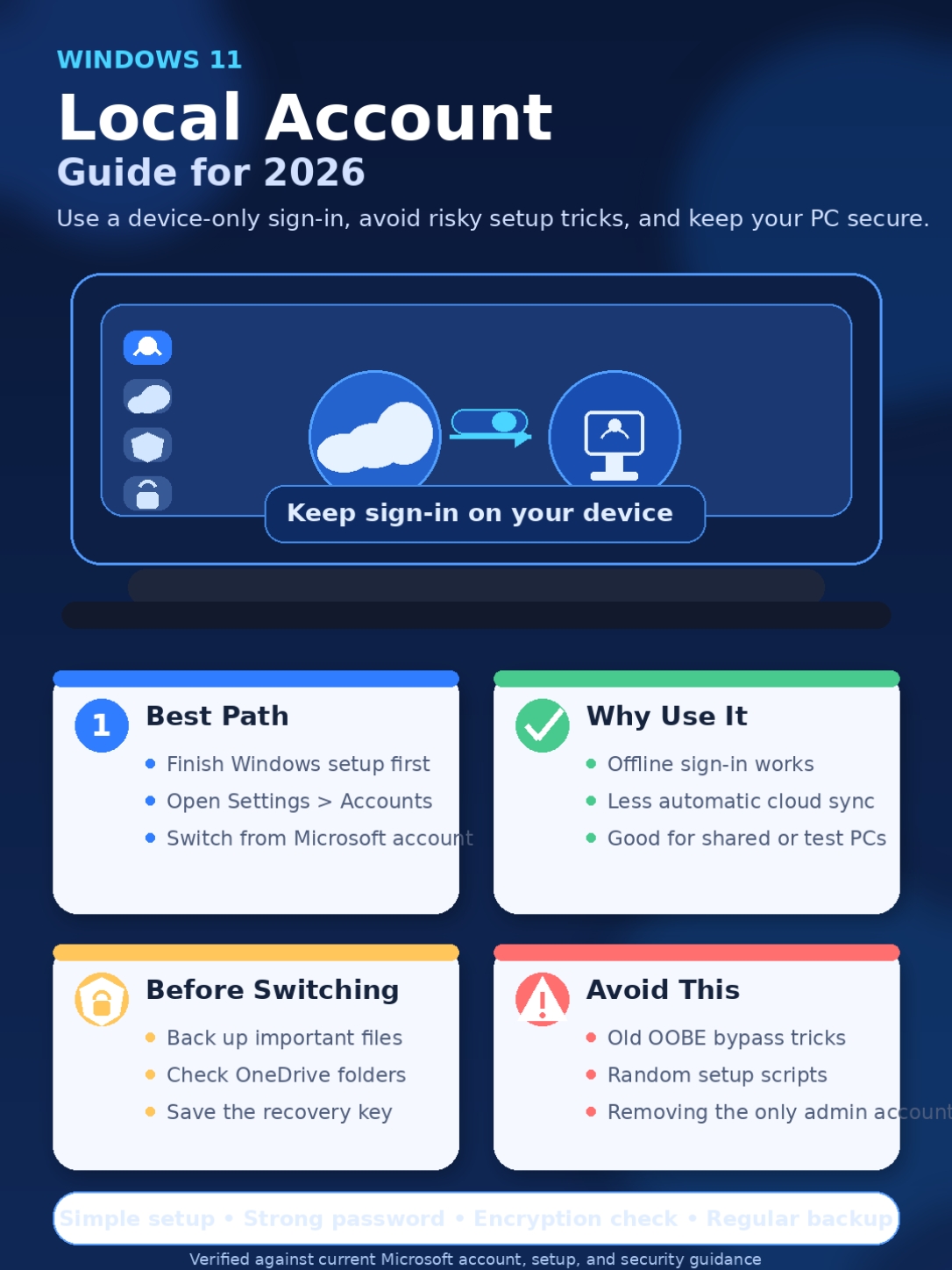
A local account gives you more independence. It also gives you more responsibility.
|
Security Task |
Why It Matters |
|
Use a strong password |
Protects your profile |
|
Set security questions |
Helps with password reset |
|
Create a password reset disk |
Useful if you forget your password |
|
Use Windows Hello |
Speeds up secure sign-in |
|
Check Device Encryption |
Protects files if the PC is stolen |
|
Save recovery keys |
Prevents lockout |
|
Keep backups |
Protects against data loss |
Use a Strong Password
Don’t leave your local account without a password on a real PC.
A blank password might be fine on a throwaway test machine. It’s a bad idea on your main laptop.
Use a password that is long, unique, and hard to guess. Avoid names, birthdays, phone numbers, “admin123,” or anything you already use elsewhere.
Set Up Windows Hello
Windows Hello lets you sign in with a PIN, fingerprint, or face recognition, depending on your device.
Go to:
Settings > Accounts > Sign-in options
Then set up a PIN, fingerprint, or face sign-in if your hardware supports it.
A Windows Hello PIN is tied to your device. It’s not the same as your Microsoft account password. That makes it handy for daily sign-in.
Check Device Encryption
This is one of the easiest things to miss.
Device Encryption can protect your files if someone steals your laptop or removes the drive. On supported PCs, Windows can encrypt the device.
But if you use a local account, don’t assume encryption turned on by itself. Check it manually.
Go to:
Settings > Privacy & security > Device encryption
If you see the option, review it. If you turn encryption on, save the recovery key somewhere safe. Don’t store the only copy on the same PC.
Clean Install Advice: Avoid Risky Bypass Tricks
A lot of people search for ways to install Windows 11 without a Microsoft account. That makes sense. Nobody likes being forced into an online sign-in.
But in 2026, bypass advice is all over the place.
|
Method |
Recommendation |
|
Finish setup, then switch to local account |
Best for most users |
|
Add local user after setup |
Safe and simple |
|
Old OOBE bypass commands |
Unreliable |
|
Fake email method |
Unreliable |
|
Random scripts from forums |
Risky |
|
Modified installation images |
Not for normal users |
|
Enterprise deployment tools |
For IT admins |
Older tricks may still show up in search results because they once worked. That doesn’t mean they’re still dependable.
Some may fail on newer builds. Some may skip setup steps. Some may create weird account issues. Random scripts are even worse because you may not know what they change.
For a normal home user, the cleanest path is still the best:
Set up Windows 11. Get to the desktop. Switch to a local account through Settings.
It’s not fancy. It works.
What You May Lose with a Local Account
Switching to a local account won’t break Windows. But some connected features may stop working automatically.
|
Feature |
What Changes |
|
OneDrive |
May stop automatic backup until you sign in |
|
Microsoft Store |
May ask you to sign in |
|
Edge sync |
May stop syncing favorites and passwords |
|
Windows settings sync |
Limited or unavailable |
|
Microsoft 365 apps |
May ask for account sign-in |
|
Xbox app |
Requires separate sign-in |
|
Password recovery |
No Microsoft cloud reset for local password |
You can still use Microsoft services. You just sign into them separately.
For example, you can use a local Windows account and still sign into OneDrive. You can use Microsoft Store. You can use Word, Excel, and PowerPoint if your license is active.
The difference is that your Windows login is no longer your Microsoft cloud identity.
For many users, that’s the whole point.
Troubleshooting Common Local Account Problems
Most local account problems have simple fixes.
|
Problem |
Likely Fix |
|
Local account option is missing |
You may already be using a local account |
|
Forgot local password |
Use security questions or password reset disk |
|
Files look missing |
Check OneDrive folders |
|
Store asks for login |
Sign into Store separately |
|
Need admin rights |
Change account type from an admin account |
|
Windows Hello fails |
Reset PIN or re-add fingerprint/face |
|
Work account blocks changes |
Check company or school policies |
“Sign in with a local account instead” Is Missing
Open:
Settings > Accounts > Your info
If Windows already shows that you’re using a local account, you won’t see the switch option.
If your PC is managed by work or school, your organization may block some account changes. Don’t force it. Ask the IT admin.
You Forgot the Local Account Password
Local account recovery is more limited than Microsoft account recovery.
Try these options:
- Use the security questions on the sign-in screen.
- Use a password reset disk if you created one.
- Sign in with another administrator account and reset the password.
- Reset the PC only as a last resort.
This is the trade-off. A local account gives you control, but you need a recovery plan.
Your Files Are Not Where You Expected
If files seem missing after switching, check these places:
- Desktop
- Documents
- Pictures
- Downloads
- OneDrive folder
- C:\Users\YourOldUserName
Many “missing file” problems are really OneDrive sync confusion. If OneDrive was backing up your folders before, sign back into OneDrive and check the sync status.
Best Setup for Privacy and Daily Use
A good local account setup should feel simple. It should also be safe.
|
Setup Choice |
Recommended Option |
|
Main daily account |
Standard local account |
|
Maintenance account |
Local administrator |
|
Password |
Strong and unique |
|
Sign-in method |
Windows Hello PIN if available |
|
Cloud backup |
Manual choice |
|
Encryption |
Check and enable if supported |
|
Recovery key |
Save outside the PC |
|
Backup |
External drive or trusted cloud |
Here’s the setup I’d recommend for most users:
- Create one local administrator account for maintenance.
- Use one standard local account for daily work.
- Sign into OneDrive only if you want cloud backup.
- Use Windows Hello PIN for quick sign-in.
- Check Device Encryption or BitLocker.
- Save recovery keys in a safe place.
- Back up important files regularly.
This setup gives you privacy, control, and basic protection without making Windows painful to use.
Final Thoughts
A windows 11 local account still has a place in 2026. It’s useful if you want a simple device-only sign-in, fewer automatic cloud connections, or a separate account for guests, testing, or daily work.
But the setup process has changed. Old bypass tricks are not the best answer anymore. Some fail. Some create problems. Some depend on methods Microsoft has already started removing.
The smarter move is simple. Finish Windows 11 setup first. Open Settings. Switch to a local account from inside Windows.
That way, Windows gets configured properly, and you still get the local sign-in you want
FAQs About Windows 11 Local Account
|
Question |
Quick Answer |
|
Can I still use a local account in 2026? |
Yes |
|
Can I create one during first setup? |
Usually not through the normal consumer setup flow |
|
Can I switch after setup? |
Yes |
|
Does Windows Update still work? |
Yes |
|
Does OneDrive still work? |
Yes, with separate sign-in |
|
Is it more private? |
It can reduce automatic cloud syncing |
|
Is it automatically safer? |
No. Security depends on your setup |
Can I Use Windows 11 Without a Microsoft Account?
Yes, but not always from the first setup screen.
For most personal Windows 11 setups in 2026, Microsoft requires internet access and a Microsoft account during initial setup. After setup, you can switch to a local account.
Can I Create a Local Account While Installing Windows 11?
For most normal users, the reliable answer is no.
Some bypass methods may still appear online. But Microsoft has been removing known local-only setup methods. The safer route is to switch after setup.
Does a Local Account Stop Windows Update?
No. Windows Update still works with a local account.
You don’t need a Microsoft account just to receive regular Windows updates.
Can I Use Microsoft Store with a Local Account?
Yes. The Store may ask you to sign in separately.
You can sign into Microsoft Store without switching your whole Windows sign-in back to a Microsoft account.
Does a Local Account Turn Off OneDrive?
It stops automatic account-level OneDrive integration. But you can still open OneDrive and sign in manually.
Will Device Encryption Work with a Local Account?
It can work on supported devices, but you should check it yourself.
Device Encryption may not turn on automatically when you use only a local account. Open Windows security settings and confirm the status.
Can I Use Windows Hello with a Local Account?
Yes, in many cases.
Go to:
Settings > Accounts > Sign-in options
Then set up PIN, fingerprint, or face sign-in if your device supports it.
Can I Go Back to a Microsoft Account Later?
Yes.
Go to:
Settings > Accounts > Your info
Then choose the option to sign in with a Microsoft account instead.
Does a Local Account Delete My Microsoft Account?
No.
It only changes how you sign into that Windows device. Your Microsoft account still exists.
Should Business PCs Use Local Accounts?
Usually, no.
Business devices should follow company policy. Many companies use Microsoft Entra ID, domain join, Intune, or other management tools. Don’t bypass those controls on a work PC.ed.