
Some YouTube videos are worth watching. They just don’t need to take an hour.
Think long podcasts, recorded meetings, lectures, software demos, and tutorials where the presenter takes their time getting to the point. Watching at 1x can feel painfully slow.
That’s where youtube playback speed becomes useful.
For years, 2x was the familiar ceiling for most viewers. That’s changed. YouTube Premium members can now play supported videos at up to 4x on Android, iOS, and the web. Free users still get the standard controls up to 2x.
And if you’re on a computer, there are ways to go beyond 2x without Premium. A simple browser command can change the video’s playback rate, while browser extensions can make custom speeds easier to use every day.
Here’s what actually works in 2026, what doesn’t, and which method makes the most sense.
How Fast Can YouTube Playback Speed Go?
The answer depends on your account and device.
|
Method |
Speed |
Premium Needed? |
Best For |
|
Standard YouTube controls |
Up to 2x |
No |
Everyday viewing |
|
YouTube Premium |
Up to 4x |
Yes |
Easy 2.5x–4x playback |
|
Browser console |
Custom speed |
No |
Occasional desktop use |
|
Browser extension |
Varies; some support much higher rates |
No |
Frequent fast viewing |
|
Hold-to-fast-forward |
Temporary 2x |
No |
Skipping slow sections |
YouTube officially gives Premium members speeds of up to 4x, with adjustments in 0.05x steps. That feature is available on Android, iPhone/iPad, and the web.
Free users can still change speed up to 2x through YouTube’s own player.
One thing needs to be clear: YouTube itself doesn’t offer official 10x or 16x playback. Those higher numbers come from third-party browser tools.
Browsers can change video speed through an HTML media setting called playbackRate. That opens the door to custom speeds, but it doesn’t mean every browser will handle every extreme rate smoothly.
How to Change YouTube Playback Speed Beyond 2x With Premium
If you already pay for YouTube Premium, this is by far the easiest route.
You don’t need to install anything. You don’t need to open developer tools. Just use YouTube’s own speed menu.
|
Feature |
Current Support |
|
Maximum manual speed |
4x |
|
Speed adjustments |
0.05x steps |
|
Android |
Yes |
|
iPhone/iPad |
Yes |
|
Web |
Yes |
|
Smart TV 4x support |
Not officially listed |
|
Auto speed |
Android only |
On Desktop
Open the video, then:
- Click the Settings gear.
- Choose Speed.
- Move past 2x.
- Pick the rate you want.
Premium users can go all the way to 4x on the web.
The 0.05x adjustments are useful too. You don’t have to jump straight from 2x to 2.5x. If 2.2x or 2.35x feels better, you can use that.
Read Also: How to Fix YouTube Not Working on Smart TV
On Android, iPhone, or iPad
The steps are almost the same:
- Start the video.
- Tap the player.
- Open Settings.
- Tap Playback speed.
- Choose your speed.
If you’re paying for Premium but don’t see anything above 2x, check two things first: make sure you’re signed into the right account, and update the YouTube app.
What About Auto Speed?
Auto speed sounds similar, but it’s a different feature.
Instead of locking a video at one speed, YouTube can adjust the pace while you watch. It may move faster through slow talking or a long opening, then slow down when the material gets denser.
That sounds handy, but support is still limited.
As of August 2026, Auto speed works only for:
- YouTube Premium members
- The Android app
- English-language content
It doesn’t work with Shorts, live streams, premieres, music, movies, or shows. You also need to turn it on again after closing and reopening the app.
So if you’re on iPhone or desktop, stick with the normal manual speed control for now.
How to Go Above 2x Without YouTube Premium
Don’t have Premium? Desktop users still have another option.
You can change the playback rate directly in your browser.
YouTube videos play through standard web video elements. Those elements use a setting called playbackRate. Change that number, and you change the speed.
|
Speed You Want |
Command |
|
2.25x |
document.querySelector(‘video’).playbackRate = 2.25 |
|
2.5x |
document.querySelector(‘video’).playbackRate = 2.5 |
|
3x |
document.querySelector(‘video’).playbackRate = 3 |
|
4x |
document.querySelector(‘video’).playbackRate = 4 |
Using Chrome or Edge
Open the YouTube video you want to watch.
Then open Developer Tools. On Windows, F12 or Ctrl + Shift + J will usually get you there. On Mac, the shortcut varies by browser.
Open the Console tab and enter:
document.querySelector(‘video’).playbackRate = 3;
Press Enter.
The video should now play at 3x.
Want 4x instead?
document.querySelector(‘video’).playbackRate = 4;
Or 2.5x:
document.querySelector(‘video’).playbackRate = 2.5;
That’s it.
You’re not changing the uploaded video. You’re only changing how fast that video plays in your browser.
Will the Setting Stay?
Usually not.
YouTube may reset the speed when you open another video, refresh the page, or the player reloads. If that happens, run the command again.
That’s why this method works best when you only need a custom speed now and then.
Can You Enter Any Number You Want?
Technically, you can try.
Practically, very high numbers stop being useful fast.
Browsers may reject playback rates they can’t support. Even when the browser accepts the value, audio may sound rough and video may become choppy at extreme speeds.
So don’t assume typing 20 gives you clean 20x playback.
For most people, 2.5x to 4x is the more realistic range.
One more thing: don’t paste random scripts into your browser console just because a website tells you to. If all you want is a faster video, the short playbackRate command above is enough.
Use a Browser Extension if You Watch Fast All the Time
The browser console works, but it’s not exactly convenient.
If you regularly watch long YouTube videos at 2.5x, 3x, or faster, a browser extension can save you a lot of clicking.
|
Option |
Listed Speed Range |
Useful Features |
|
YouTube Free |
Up to 2x |
Built in |
|
YouTube Premium |
Up to 4x |
Built in |
|
Video Speed Controller extension |
0.07x–16x, according to its listing |
Shortcuts and saved speeds |
|
Browser console |
Custom |
No installation |
One long-running Chrome extension, Video Speed Controller, currently lists a range from 0.07x to 16x. Its Chrome Web Store page also shows roughly three million users and thousands of ratings.
It offers things YouTube’s normal player doesn’t, including:
- Custom keyboard shortcuts
- Saved playback speeds
- Per-site settings
- Rewind and skip controls
- Support for HTML5 video on other websites
Just remember that 16x is the extension developer’s claimed range. It’s not a YouTube feature, and it doesn’t mean every video will be watchable at 16x.
Check the Extension Before You Install It
Browser extensions can read or change content on websites, so don’t install the first one you find.
Spend a minute checking:
- Who made it
- How recently it was updated
- What permissions it asks for
- Whether recent reviews look healthy
- What its privacy disclosure says
If you only need 3x once in a while, skip the extension and use the console.
If you’re doing it every day, the extension is much easier.
YouTube Playback Speed on Phones, Computers, and TVs
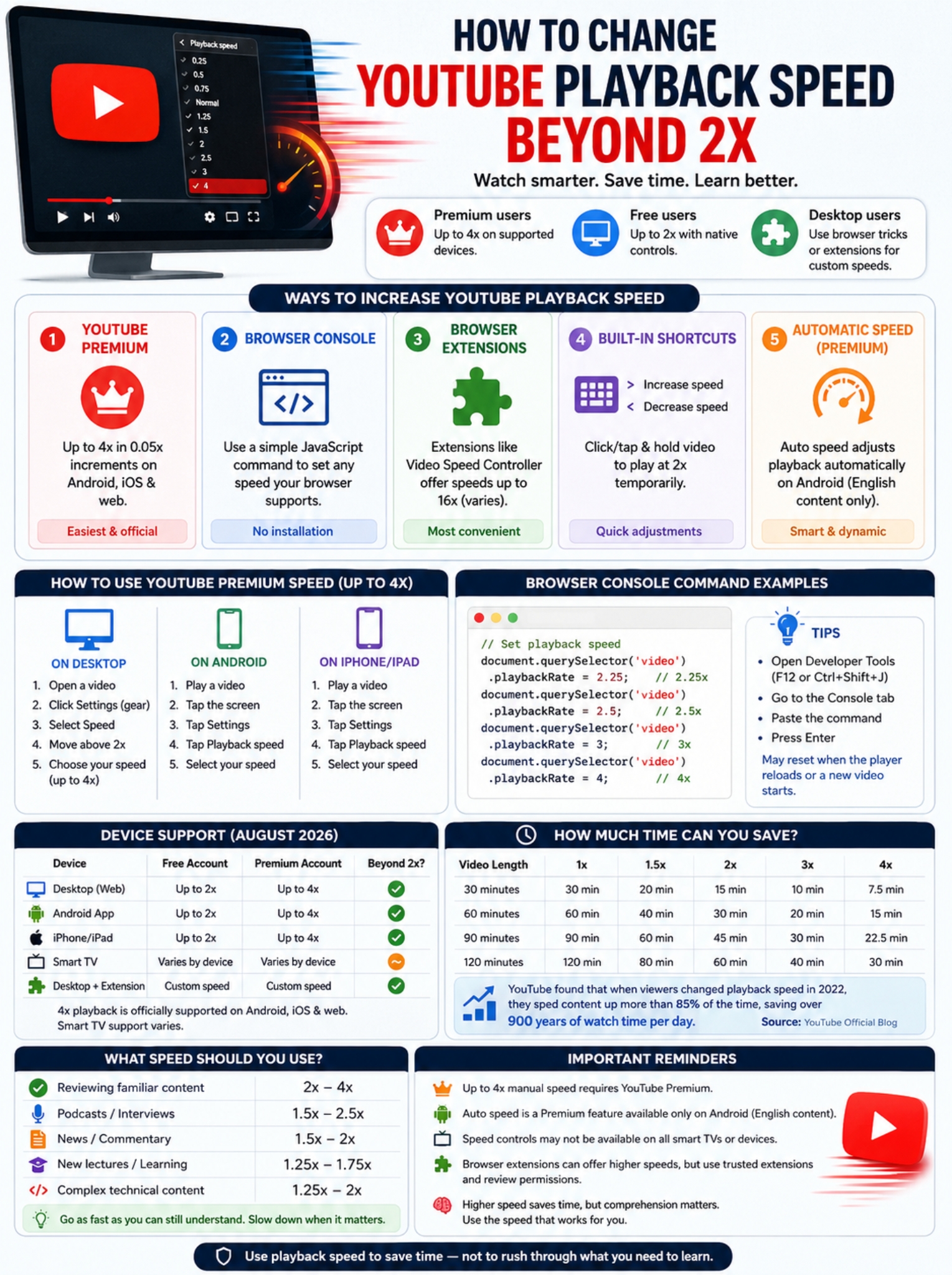
Your device makes a big difference.
|
Device |
Free Account |
Premium Account |
Beyond 2x? |
|
Desktop web |
Up to 2x |
Up to 4x |
Yes |
|
Android app |
Up to 2x |
Up to 4x |
Yes with Premium |
|
iPhone/iPad |
Up to 2x |
Up to 4x |
Yes with Premium |
|
Smart TV |
Varies |
Varies |
Not guaranteed |
|
Desktop + extension |
Custom |
Custom |
Yes |
Android, iPhone, and the web are the clearest cases. Premium users can reach 4x on all three.
Smart TVs are messier.
YouTube says speed controls aren’t available on every television or streaming device. If your device supports them, you’ll usually find the option under Settings > Speed.
YouTube also hasn’t included smart TVs in its official 4x Premium rollout. So don’t assume a Premium account automatically gives you 4x on your TV.
Handy YouTube Speed Shortcuts
YouTube has a couple of built-in shortcuts that make speed changes quicker.
|
Shortcut |
What It Does |
|
> |
Increase speed |
|
< |
Decrease speed |
|
Click and hold video |
Temporarily play at 2x |
|
Tap and hold on supported mobile devices |
Temporarily play at 2x |
You may need to click the player before the > and < keys work.
These shortcuts are handy, but they don’t unlock extra speeds on their own.
If your account’s normal limit is 2x, pressing > won’t magically take you to 3x.
Hold to Fast-Forward at 2x
There’s also a simple temporary fast-forward trick.
On desktop, click and hold the video.
On supported phones, tap and hold.
YouTube plays the video at 2x until you let go.
This is more useful than changing the full playback speed when you only want to get through a slow opening, sponsor message, or repeated explanation.
How Much Time Do You Actually Save?
This is where faster playback starts to make sense.
|
Video Length |
1x |
1.5x |
2x |
3x |
4x |
|
30 minutes |
30 min |
20 min |
15 min |
10 min |
7.5 min |
|
60 minutes |
60 min |
40 min |
30 min |
20 min |
15 min |
|
90 minutes |
90 min |
60 min |
45 min |
30 min |
22.5 min |
|
120 minutes |
120 min |
80 min |
60 min |
40 min |
30 min |
A one-hour video takes:
- 30 minutes at 2x
- 20 minutes at 3x
- 15 minutes at 4x
That’s a huge difference if you watch several long videos every week.
YouTube published some interesting playback-speed data in 2022. The company found that when viewers changed playback speed, they sped videos up more than 85% of the time.
YouTube also estimated that faster playback saved viewers more than 900 years of watch time every day during the period it studied.
Those figures are from 2022, so they shouldn’t be treated as current 2026 viewing data. Still, they show that speeding up YouTube was already a common habit years before the 4x option arrived.
Is 3x or 4x Too Fast for Learning?
Sometimes, yes.
If you’re replaying a podcast you’ve already heard or reviewing a familiar tutorial, 3x may feel completely fine.
If you’re learning calculus for the first time, that’s a different story.
|
Type of Content |
A Reasonable Starting Point |
|
Casual podcast |
1.5x–2.5x |
|
Familiar tutorial |
1.5x–3x |
|
News commentary |
1.5x–2x |
|
New lecture |
1.25x–1.75x |
|
Dense technical lesson |
1.25x–2x |
|
Reviewing material |
2x–4x |
A 2025 meta-analysis in Educational Psychology Review looked at 110 effect sizes from 24 studies. It found that faster lecture playback can hurt test performance overall.
At speeds of 1.5x or below, though, the effect was small and often not statistically significant.
Another study published in 2024 tested faster playback across four experiments. It didn’t find a statistically significant drop in test scores at speeds up to 2.5x in those specific experiments. Even so, the researchers warned against assuming faster is always better.
A 2026 study adds an interesting twist. Researchers found that students who could control their own playback speed showed less mind-wandering while achieving similar learning results to students watching at fixed speeds.
That lines up with how most people actually watch.
You don’t need one speed for an entire video.
Speed up the easy parts. Slow down when the material gets complicated. Rewind when something matters.
That’s usually smarter than trying to survive the whole thing at 4x just because you can.
Common Problems When Going Beyond 2x
Things don’t always work perfectly.
|
Problem |
Why It Happens |
What to Try |
|
4x is missing |
No Premium or unsupported device |
Check account and app |
|
Auto speed is missing on iPhone |
It’s Android-only for now |
Use manual speed |
|
Console speed resets |
YouTube reloaded the player |
Enter the command again |
|
TV doesn’t show Speed |
Device may not support it |
Try another device |
|
High speed looks choppy |
Browser can’t handle it smoothly |
Slow it down |
|
> stops at 2x |
Shortcut follows native limits |
Use Premium or desktop workaround |
One common source of confusion is 4x manual playback versus Auto speed.
They’re not the same thing.
Premium users can manually select speeds up to 4x on Android, iOS, and the web.
Auto speed is much more limited. Right now, it only works with English-language content in the Premium Android app.
Another mistake is assuming browsers support unlimited speed.
They don’t.
Browsers can reject playback rates they can’t handle.
Final Thoughts
|
Your Goal |
Best Option |
|
Watch faster for free |
Built-in controls up to 2x |
|
Use 2.5x–4x easily |
YouTube Premium |
|
Try 3x occasionally |
Browser console |
|
Use custom speed every day |
Browser extension |
|
Skip one slow section |
Hold for temporary 2x |
|
Learn difficult material |
Use a slower, comfortable pace |
Going beyond 2x is much easier now than it used to be.
If you have Premium, YouTube’s own controls can take youtube playback speed all the way to 4x on Android, iPhone/iPad, and the web.
If you don’t have Premium, desktop browsers still give you options. A short playbackRate command can set 2.5x, 3x, or 4x without installing anything. An extension makes more sense if you use custom speeds every day.
Just don’t chase the biggest number.
A 3x podcast can feel great. A 3x technical lecture can become a mess. The useful speed is the one that saves time without making you replay everything you missed.
That’s the real point of adjusting youtube playback speed: getting through the slow parts faster while still catching what matters.
FAQs About YouTube Playback Speed Beyond 2x
|
Question |
Quick Answer |
|
Can free users select 2.25x natively? |
No |
|
Does 4x require YouTube Premium? |
Yes |
|
Does Auto speed work on iPhone? |
No, not currently |
|
Does a console command change the original video? |
No |
|
Can every smart TV change playback speed? |
No |
|
Is 16x an official YouTube option? |
No |
Can I Use 2.25x Without YouTube Premium?
Not through YouTube’s own free playback controls.
Free accounts currently stop at 2x. On desktop, you can still set 2.25x with the browser console or a speed-control extension.
Does Changing playbackRate Edit the Video?
No.
It only changes how quickly the video plays in your browser. It doesn’t touch the file uploaded by the creator.
Why Does My 3x Speed Disappear on the Next Video?
Because the browser command applies to the video element that’s currently loaded.
When YouTube loads another video or rebuilds the player, your custom rate can disappear.
If that keeps bothering you, an extension with saved speed settings is easier.
Can YouTube Premium Play at 4x on a Smart TV?
Don’t assume it can.
YouTube’s official 4x rollout names Android, iOS, and the web. It doesn’t list smart TVs. YouTube also says playback-speed controls aren’t available on every TV or streaming device.
Does Auto Speed Work on YouTube Shorts?
No.
YouTube says Auto speed currently doesn’t support Shorts, live streams, premieres, music, movies, or shows.
Is a 16x Extension the Same as YouTube Offering 16x?
No.
YouTube’s own Premium control tops out at 4x.
Some extensions advertise much higher speeds by changing the browser’s HTML5 video playback rate. That’s an extension feature, not a YouTube feature.