
Maybe the app freezes on the logo. Perhaps the screen turns black, the video buffers forever, or YouTube closes before it even loads.
The phrase youtube not working smart tv can describe several problems, and they don’t all have the same cause. The app may be stuck. Your TV software could be outdated. Your Wi-Fi might look connected while struggling to stream video. On older TVs, YouTube support may have ended altogether.
The good news? You probably don’t need to reset the TV or replace it.
Most YouTube problems clear up after a proper restart, software update, cache cleanup, or network check. The key is to test one thing at a time instead of changing every setting at once.
Start at the top and stop as soon as YouTube works again.
YouTube Not Working Smart TV? Find the Cause First
Before you delete the app or dig through network menus, take a minute to narrow down the problem.
Open another streaming app on the TV. Netflix, Prime Video, or any other video app will do. Then open YouTube on your phone or computer while connected to the same Wi-Fi.
Also try two or three different YouTube videos.
These quick tests can tell you whether the problem sits with YouTube, your internet connection, the television, or one specific video.
|
What happens |
Most likely cause |
What to try first |
|
Only YouTube fails on the TV |
YouTube app problem |
Restart or update the app |
|
Every TV app fails |
TV or network problem |
Restart the TV and router |
|
YouTube fails on every device |
Network or YouTube service issue |
Test another connection |
|
Only one video fails |
Video restriction or upload issue |
Play a different video |
|
Videos play but keep buffering |
Slow or unstable Wi-Fi |
Check speed and lower quality |
|
YouTube is missing from the app store |
Device or regional support issue |
Check TV compatibility |
One broken video doesn’t mean the app has failed. The creator may have removed it, made it private, limited it by region, or applied an age restriction.
1. Close YouTube and Open It Again
This sounds obvious, but it works more often than you’d expect.
Press the Home or Back button and open another app. Wait a few seconds, then return to YouTube.
Some smart TVs keep apps running in the background. Simply leaving the YouTube screen may not close it properly.
Look for one of these options if your TV offers them:
- Close app
- Exit
- Force stop
- Recent apps
- App switcher
Force-stopping YouTube clears the current session without deleting your account or preferences.
|
Action |
What it may fix |
|
Close and reopen YouTube |
A temporary loading freeze |
|
Force-stop the app |
A stuck background process |
|
Play another video |
A video-specific error |
|
Open YouTube while signed out |
A Google Account problem |
If YouTube works when you’re signed out but fails after you log in, jump to the account section later in this guide.
2. Give the TV a Proper Restart
Turning off a smart TV with the remote doesn’t always restart it.
Many televisions enter standby mode instead. The screen switches off, but the operating system and open apps keep running in the background.
That means the same frozen YouTube session may still be waiting when you turn the TV back on.
For a full power cycle:
- Turn off the television.
- Unplug it from the wall.
- Wait at least 30 seconds.
- Plug it back in.
- Turn it on and open YouTube.
This clears temporary memory and restarts the TV’s software from scratch.
|
Restart method |
Full reboot? |
|
Tapping the Power button |
Not always |
|
Holding Power until the TV restarts |
Usually |
|
Unplugging for 30 seconds |
Yes |
|
Factory reset |
Yes, but it also erases settings |
On many Samsung TVs, holding the Power button on the remote until the television switches off and restarts performs a soft reset.
Unplugging remains the simplest option when you aren’t sure whether the TV has fully rebooted.
3. Restart Your Router
A smart TV can show a Wi-Fi connection while receiving a weak or unstable signal.
Restarting the router clears temporary network problems and creates a fresh connection between the TV and your home network.
Follow these steps:
- Unplug the router from power.
- Wait around 30 seconds.
- Plug it back in.
- Wait until the internet lights return to normal.
- Reconnect the TV if needed.
- Test YouTube again.
Don’t press the tiny reset button on the router. That button can wipe your Wi-Fi name, password, and provider settings.
|
Network test |
What it suggests |
|
Other TV apps also fail |
The TV or network may be at fault |
|
YouTube works on your phone using Wi-Fi |
The TV app may be the problem |
|
YouTube fails on every Wi-Fi device |
Router, ISP, or service issue |
|
YouTube works through a phone hotspot |
Home Wi-Fi needs attention |
A phone hotspot can be a useful test. Connect the TV to the hotspot for a minute and try YouTube.
If it works, the TV and app are probably fine. Your router, Wi-Fi signal, DNS settings, or internet provider may be causing the trouble.
Keep the test brief, though. Video streaming can burn through mobile data quickly.
Read Also: How to Turn Off YouTube Shorts in 2026
4. Check Your Internet Speed
YouTube needs a steady connection, especially for HD and 4K video.
The speed printed on your internet package isn’t always the speed reaching the television. Distance from the router, walls, interference, and other connected devices can all slow it down.
YouTube recommends roughly these sustained speeds:
|
Video quality |
Recommended speed |
|
4K UHD |
20 Mbps |
|
1080p HD |
5 Mbps |
|
720p HD |
2.5 Mbps |
|
480p SD |
1.1 Mbps |
|
360p SD |
0.7 Mbps |
Run a speed test on your phone while standing near the TV. It won’t measure the television’s connection perfectly, but it can reveal an obvious Wi-Fi problem.
Also check what else is using the network. Large downloads, cloud backups, video calls, game updates, and other 4K streams can leave less bandwidth for YouTube.
Try lowering the video quality:
- Open a YouTube video.
- Select the Settings or gear icon.
- Change 4K to 1080p or 720p.
- Play the video again.
If the buffering stops, the connection probably can’t hold the higher resolution consistently.
An Ethernet cable often gives better results than Wi-Fi. Use one if your router and TV both support a wired connection.
5. Improve the TV’s Wi-Fi Signal
When the speed looks fine on other devices but YouTube still buffers on the TV, the wireless signal may be weak where the television sits.
Try these simple changes:
- Move the router into a more open position.
- Keep it away from thick walls and metal cabinets.
- Raise it off the floor.
- Reduce the number of walls between the router and TV.
- Disconnect unused devices from Wi-Fi.
- Move wireless speakers or other electronics away from the router.
Use the 5 GHz Wi-Fi band when the TV sits close to the router. It usually offers faster speeds but has a shorter range.
Try 2.4 GHz when the TV is farther away. It tends to travel through walls more effectively, though it may be slower.
Mesh Wi-Fi, a wired connection, or a carefully placed access point may help in larger homes.
6. Update the YouTube App
An outdated YouTube app can freeze, crash, or struggle to connect to newer playback and account systems.
Open your TV’s app store and search for YouTube. Select Update if that option appears.
|
Platform |
Where to check |
|
Google TV or Android TV |
Google Play Store |
|
Samsung TV |
Apps |
|
LG TV |
Apps or LG Content Store |
|
Roku |
Highlight YouTube and press the Star button |
|
Fire TV |
Amazon Appstore |
Many TVs update apps automatically, but automatic updates can fail when storage is low or the television hasn’t connected to the internet for a while.
Even when no update appears, restarting the TV after checking can help complete a pending installation.
7. Update the Smart TV Software
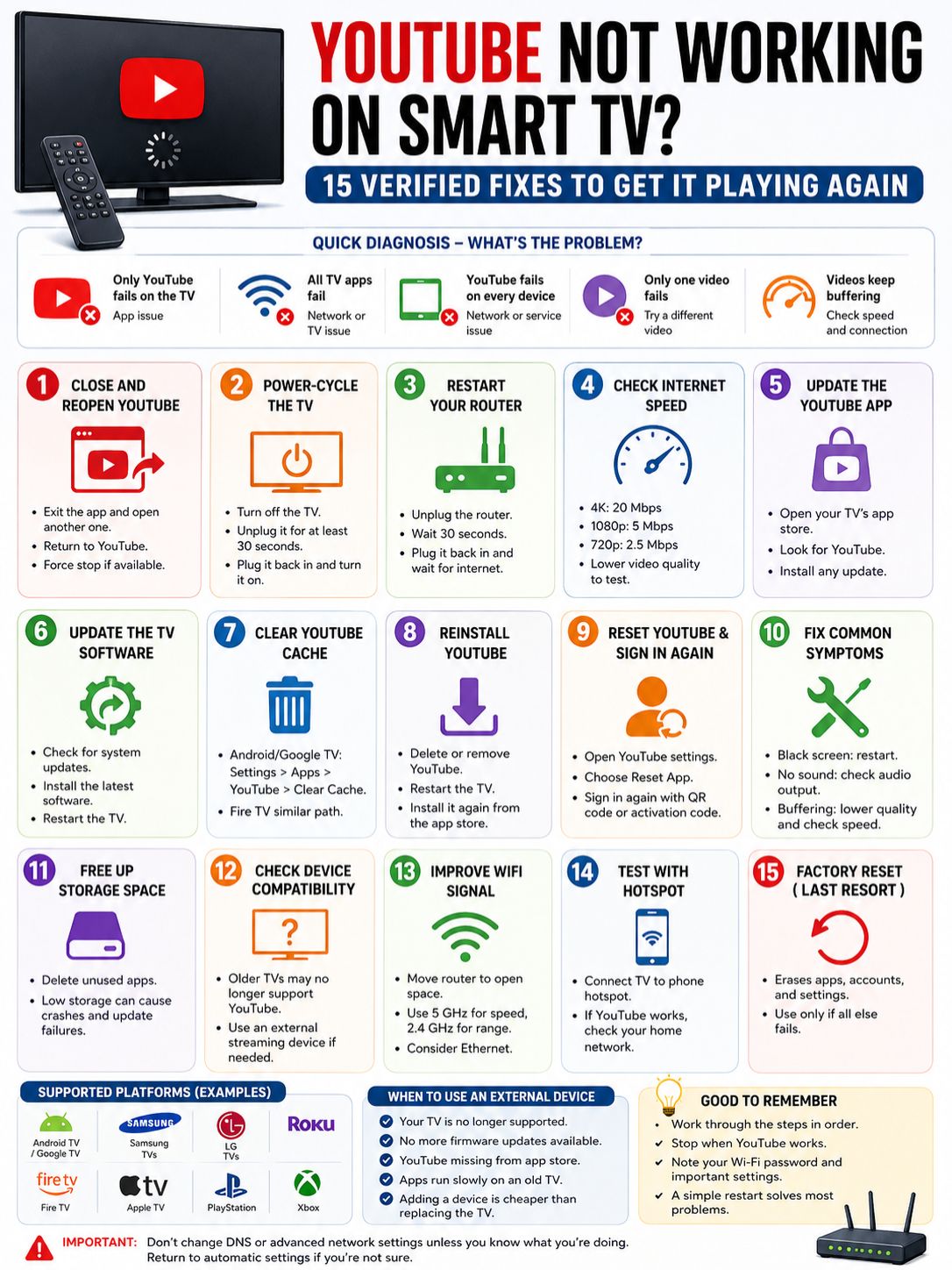
The YouTube app relies on the television’s operating system.
When that software falls behind, the app may open slowly, crash, show playback errors, or stop signing in correctly.
Common update paths include:
|
Platform |
Common menu path |
|
Samsung TV |
Settings → Support → Software Update |
|
LG webOS |
All Settings → Support → Software Update |
|
Google TV |
Settings → System → About → System Update |
|
Roku |
Settings → System → Software Update |
|
Fire TV |
Settings → My Fire TV → About → Check for Updates |
The exact wording may differ by model, country, and TV year.
Install any available update, restart the television, and try YouTube again.
Don’t turn off the TV while an update is installing. A sudden interruption can cause more serious software problems.
8. Clear the YouTube Cache
The cache holds temporary files that help YouTube load faster.
Most of the time, those files work quietly in the background. Occasionally, they become outdated or damaged and cause freezing, login errors, or app crashes.
Clearing the cache removes those temporary files. It usually doesn’t delete your account.
|
Platform |
Best action |
|
Google TV or Android TV |
Clear YouTube cache |
|
Fire TV |
Clear cache |
|
Samsung TV |
Reinstall YouTube |
|
LG TV |
Delete and reinstall YouTube |
|
Roku |
Restart or reinstall the app |
Google TV and Android TV
Try this path:
Settings → Apps → See All Apps → YouTube → Clear Cache
Then select Force Stop and reopen YouTube.
If that doesn’t work, choose Clear Data. Keep in mind that clearing data resets the app and may sign you out.
Amazon Fire TV
Open:
Settings → Applications → Manage Installed Applications → YouTube
Select Force Stop, then Clear Cache.
Use Clear Data only when the cache option fails. Clearing data can remove your saved login and app preferences.
9. Reinstall the YouTube App
A fresh installation can fix damaged files, failed updates, and apps that keep closing on launch.
Before you begin, make sure you know your Google Account login details.
|
Platform |
Reinstallation method |
|
Samsung |
Apps → Settings → YouTube → Reinstall |
|
LG |
Delete YouTube and reinstall it from the app store |
|
Roku |
Remove YouTube, restart Roku, then reinstall it |
|
Fire TV |
Uninstall YouTube and download it again |
On some Samsung TVs, YouTube comes as a built-in or recommended app. The Delete option may be greyed out. Choose Reinstall instead.
On Roku, restart the device after removing YouTube and before downloading it again. This helps clear leftover temporary files.
Reinstalling YouTube won’t delete your subscriptions, playlists, purchases, or watch history. Those belong to your Google Account.
It may sign you out, though.
10. Reset YouTube and Sign In Again
Sometimes the app itself works, but your saved account session doesn’t.
You might see an endless sign-in screen, missing subscriptions, an expired activation code, or an error after selecting your profile.
Open the YouTube app settings and look for Reset App.
Resetting the app removes its local settings and signs you out. It doesn’t delete anything from your Google Account.
|
Sign-in problem |
Best step |
|
QR code has expired |
Request a new code |
|
Sign-in screen keeps looping |
Reset the app |
|
YouTube works as a guest |
Sign out and reconnect your account |
|
Account fails on every device |
Check the Google Account itself |
|
Some videos remain unavailable |
Review age or account restrictions |
After resetting, sign in using the QR code or activation code shown on the television.
Make sure your phone and TV both have stable internet access while you complete the login.
11. Fix a Black Screen
A black screen can appear with or without sound.
Start by playing another video. Then restart the television and lower the video resolution.
If you use an external device such as Roku, Fire TV, Apple TV, or a game console, check the HDMI cable and selected input. A loose connection can look like a YouTube problem even when the app is working.
Try this order:
- Play another video.
- Close and reopen YouTube.
- Restart the TV.
- Restart the streaming device.
- Lower the video quality.
- Reconnect the HDMI cable.
- Try another HDMI port.
When the picture disappears but sound continues, the problem may involve the display connection or video decoding rather than your internet speed.
12. Fix YouTube Sound Problems
When the picture works but the sound doesn’t, check the simple things first.
Make sure the TV isn’t muted. Raise the volume using the TV remote rather than a connected phone.
Then check where the television is sending its audio.
|
Audio setup |
What to test |
|
TV speakers |
Make sure they’re selected |
|
Soundbar |
Disconnect and test internal speakers |
|
Bluetooth speaker |
Reconnect or unpair it |
|
AV receiver |
Check the correct input |
|
HDMI ARC or eARC |
Restart both connected devices |
Switch the audio output back to the television’s internal speakers for a quick test.
If the sound returns, YouTube isn’t the real problem. The fault sits somewhere in the soundbar, receiver, Bluetooth connection, cable, or TV audio setting.
13. Free Up Storage Space
Smart TVs don’t always have much storage.
When the available space runs low, YouTube may fail to update, close unexpectedly, or refuse to install.
Delete apps you no longer use. Then restart the television and try YouTube again.
|
Storage symptom |
What to do |
|
YouTube won’t update |
Remove unused apps |
|
“Not enough memory” appears |
Free storage and restart |
|
The app closes immediately |
Reinstall after freeing space |
|
Several apps fail |
Check total device storage |
Avoid deleting random system apps or changing developer settings. Stick to apps you installed and no longer need.
14. Check Whether Your TV Still Supports YouTube
Older smart TVs don’t receive software support forever.
At some point, a television may no longer meet YouTube’s technical or security requirements. When that happens, updates, cache clearing, and factory resets won’t bring the app back.
Watch for messages such as:
- YouTube is no longer available on this device
- This device is not supported
- The app is incompatible
- No update is available
- YouTube has disappeared from the app store
|
Situation |
Practical solution |
|
YouTube support has ended |
Use an external streaming player |
|
The TV has no newer firmware |
Check the manufacturer’s support page |
|
The app is missing from the store |
Confirm model and regional support |
|
The TV is extremely slow |
Add a newer HDMI streaming device |
A Roku, Fire TV, Google TV, Apple TV, game console, or similar device can add a current YouTube app to an older television.
That’s often far cheaper than replacing a screen that still works perfectly well.
15. Reset the TV Only as a Last Resort
A factory reset should sit at the bottom of your list, not the top.
It may erase:
- Wi-Fi settings
- Installed apps
- App logins
- Picture settings
- Sound settings
- Accessibility options
- Account information
Before resetting, make sure you’ve already tried:
- Restarting the app
- Power-cycling the TV
- Restarting the router
- Updating YouTube
- Updating the TV software
- Clearing cache or app data
- Reinstalling YouTube
- Testing a phone hotspot
- Checking device support
|
Reset type |
What it removes |
|
YouTube app reset |
YouTube settings and sign-in |
|
Samsung Smart Hub reset |
App accounts and Smart Hub settings |
|
TV factory reset |
Most apps, accounts, and TV settings |
|
Router factory reset |
Wi-Fi and network configuration |
Take photos of your picture and sound settings before a full reset. Also keep your Wi-Fi password and app login details nearby.
A reset may help when several apps are broken or the television behaves strangely across the whole system. It probably won’t help when YouTube has ended support for the TV model.
Final Thoughts
When youtube not working smart tv problems show up, don’t start with a factory reset.
Begin with the basics. Test another video. Open another streaming app. Restart YouTube, power-cycle the television, and reboot the router.
Then check your connection speed, update the app and TV software, clear temporary data, and reinstall YouTube if needed.
|
Best troubleshooting order |
What to do |
|
1 |
Test another video and streaming app |
|
2 |
Close and reopen YouTube |
|
3 |
Power-cycle the television |
|
4 |
Restart the router |
|
5 |
Test internet speed or a hotspot |
|
6 |
Update YouTube |
|
7 |
Update the TV software |
|
8 |
Clear cache or app data |
|
9 |
Reinstall YouTube |
|
10 |
Check device compatibility |
|
11 |
Reset the TV only as a last resort |
Most cases come down to a frozen app, weak Wi-Fi, outdated software, damaged temporary files, or an older unsupported TV.
Follow the steps in order. You’ll protect your settings, avoid unnecessary resets, and have a much better chance of finding the real problem quickly.
Frequently Asked Questions
Why does YouTube work on my phone but not my smart TV?
The TV app, TV software, storage, or wireless connection may be causing the problem. Restart the television, update YouTube, and test the TV using a phone hotspot.
Why does YouTube show thumbnails but refuse to play videos?
The app may be loading basic page information while failing to load the actual video stream. Restart the TV and router, test another video, lower the quality, and check for updates.
Should I clear the cache or clear app data first?
Clear the cache first. It removes temporary files without fully resetting the app. Clear data only if the cache fix doesn’t work, as it may sign you out.
Will reinstalling YouTube delete my subscriptions?
No. Your subscriptions, playlists, purchases, and watch history stay linked to your Google Account. You may need to sign in again after reinstalling the app.
Why can’t I delete YouTube from my Samsung TV?
Some Samsung TVs treat YouTube as a built-in or recommended app. In that case, the Delete button may be unavailable. Choose Reinstall instead.
Why does YouTube work on a mobile hotspot but not home Wi-Fi?
That points to a problem with your router, Wi-Fi signal, DNS settings, or internet provider. Restart the router and return any custom network settings to automatic before testing again.
Why do 4K videos buffer while 1080p works?
4K video needs more bandwidth and places more demand on the television’s hardware. If 1080p works smoothly, your connection or device may not be able to hold a stable 4K stream.
Can casting from my phone fix a broken YouTube app?
Not always. Casting often still depends on the YouTube app or casting service running on the TV. It may fail when the app is damaged, unsupported, or disconnected from the network.
Why does YouTube keep signing me out?
The app may have been reset, updated, reinstalled, or cleared. An expired account session can also cause repeated sign-outs. Reset the app and log in again using a fresh QR or activation code.
Can I use YouTube on an unsupported TV?
Usually, yes. Connect a supported streaming player through HDMI and install YouTube on that device instead of using the TV’s old built-in app.