
You spot a phone number on a poster. An address appears in a screenshot. A useful quote flashes on a presentation slide.
You need the text, but you don’t want to type it out by hand.
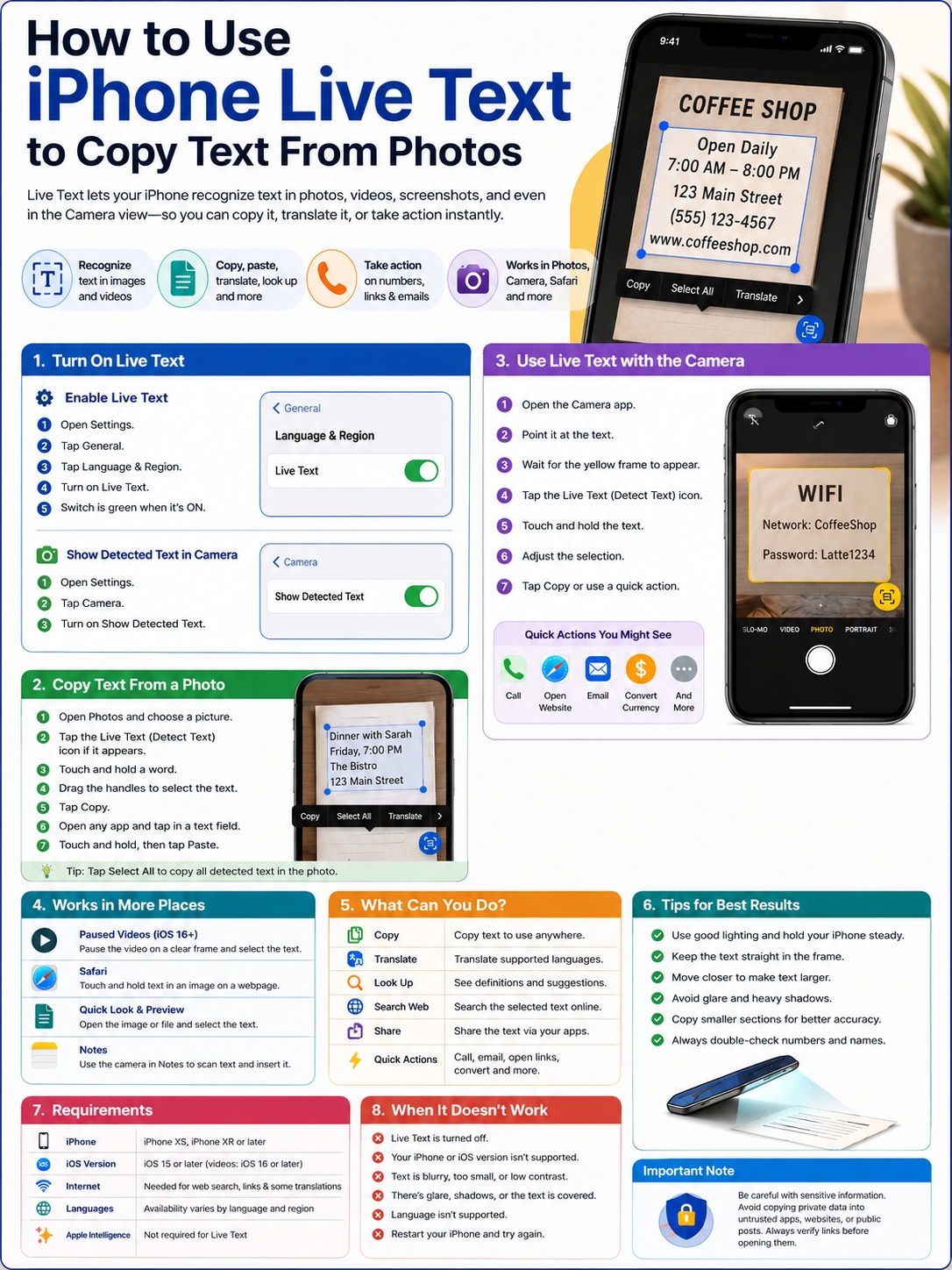
That’s where iPhone Live Text comes in. Live Text can detect words inside photos, screenshots, paused videos, websites, and the live Camera view. Once your iPhone finds the text, you can select it, copy it, translate it, search for it, or share it.
It can also recognize useful details such as phone numbers, email addresses, web links, and prices. In some cases, you can call a number, open a website, start an email, or convert a currency with one tap. Apple supports Live Text in Photos, Camera, Safari, Quick Look, Notes, Preview, and other compatible parts of iOS.
Here’s how to use it, where it works, and what to do when it doesn’t.
What Is iPhone Live Text?
Live Text is Apple’s built-in text recognition tool.
It scans the words inside an image and turns them into selectable text. That means you can interact with writing that would normally be stuck inside a photo.
For example, you can:
- Copy a sentence from a screenshot
- Open a web address from a poster
- Call a phone number shown in a photo
- Translate a menu
- Search for a product name
- Copy text from a paused video
Apple says Live Text works with photos, screenshots, online images, paused videos, the Camera app, Quick Look, and other supported areas of iOS.
|
Live Text feature |
What it does |
|
Copy Text |
Copies selected words so you can paste them elsewhere |
|
Select All |
Selects all detected text in the image |
|
Look Up |
Shows definitions and related information |
|
Translate |
Translates supported languages |
|
Search Web |
Searches for selected text online |
|
Share |
Sends the text through Messages, Mail, Notes, or other apps |
|
Quick Actions |
Opens links, calls numbers, starts emails, or converts values |
Live Text and Apple Intelligence Are Different
You don’t need Apple Intelligence to use basic Live Text.
That’s an important distinction.
Apple Intelligence works only on newer compatible devices. Live Text supports a much wider range of iPhones, starting with the iPhone XS and iPhone XR.
So even if your iPhone doesn’t support Apple Intelligence, it may still support Live Text.
iPhone Live Text Requirements and Compatibility
Apple says Live Text works on the iPhone XS, iPhone XR, and later models running iOS 15 or later.
To select text from a paused video, you need iOS 16 or later.
Both the device and the software version matter. An older iPhone may run a supported version of iOS but still lack Live Text support.
Language support also varies. Live Text won’t recognize every language or script in every region. Apple keeps an updated feature-availability page for this reason.
|
Requirement |
What you need |
|
Supported iPhone |
iPhone XS, iPhone XR, or newer |
|
Minimum software |
iOS 15 or later |
|
Live Text in video |
iOS 16 or later |
|
Apple Intelligence |
Not required |
|
Language support |
Depends on the language and region |
|
Web searches |
Internet connection required |
|
Some translations |
May need internet access or downloaded language files |
Does Live Text Still Work on Newer iOS Versions?
Yes.
Apple still includes Live Text in its current iPhone User Guide. The steps remain mostly the same: point the camera at text or open an image, tap the text detection button, select what you need, and choose an action.
The icon or menu position may shift slightly between iOS versions, but the core feature hasn’t changed much.
How to Turn On Live Text on an iPhone
Live Text is usually on by default. Still, it’s worth checking the setting if nothing happens when you press text in a photo.
Follow these steps:
- Open Settings.
- Tap General.
- Tap Language & Region.
- Find Live Text.
- Turn it on.
The switch should appear green when Live Text is active.
There’s also a separate Camera setting:
- Open Settings.
- Tap Camera.
- Turn on Show Detected Text.
This controls whether the Camera app shows text detection while you point it at words.
|
Setting |
Where to find it |
What it controls |
|
Live Text |
Settings > General > Language & Region |
Turns Live Text on for supported languages |
|
Show Detected Text |
Settings > Camera |
Shows text detection in the Camera app |
|
Software Update |
Settings > General > Software Update |
Installs available fixes and updates |
|
iPhone Language |
Settings > General > Language & Region |
May affect recognition and available actions |
How to Copy Text From a Photo With iPhone Live Text
The Photos app is the easiest place to start.
Copy a Word, Sentence, or Paragraph
- Open the Photos app.
- Choose a photo that contains clear text.
- Touch and hold a word.
- Drag the handles to select more text.
- Tap Copy.
- Open Notes, Messages, Mail, or another app.
- Touch and hold inside a text field.
- Tap Paste.
You may also see the Detect Text icon in the corner of the image. Tap it to highlight all the text your iPhone can read.
From there, you may see options such as:
- Copy
- Select All
- Look Up
- Translate
- Search Web
- Share
The available options depend on what you select.
Copy All the Text in a Photo
For a simple image with one clean block of text:
- Open the photo.
- Tap the Detect Text icon.
- Touch and hold part of the text.
- Tap Select All.
- Tap Copy.
This works well for short notices, labels, or printed paragraphs.
It works less well on busy pages with columns, sidebars, captions, or text at different angles. In those cases, copy one section at a time.
Read Also: How to Hide Photos on iPhone in 2026
Copy Text From a Screenshot
Screenshots work like any other photo.
Open the screenshot in Photos, press and hold the text, adjust the selection, and tap Copy.
This is useful when an app won’t let you select text directly.
You might use it for:
- Error messages
- Tracking numbers
- Confirmation codes
- Social media captions
- Addresses
- App instructions
- Text shown inside a video
|
What you want to copy |
Best method |
|
One word or short phrase |
Press and hold the first word |
|
A full paragraph |
Drag the selection handles |
|
Everything in the image |
Use Detect Text and Select All |
|
Text from an app |
Take a screenshot first |
|
An important number |
Copy it, then check every digit |
|
A page with columns |
Select one section at a time |
How to Copy Text Directly With the iPhone Camera
You don’t have to take a photo first.
The Camera app can detect text while it’s still in front of you. This works well for signs, menus, labels, printed forms, receipts, and presentation slides.
Copy Text Without Taking a Photo
- Open the Camera app.
- Point it at the text.
- Hold the phone steady.
- Wait for a yellow frame to appear around the words.
- Tap the Detect Text button.
- Touch and hold the text.
- Adjust the selection.
- Tap Copy.
- Paste it into another app.
Apple’s current guide uses the same basic steps. You may also see actions such as Translate, Look Up, Search Web, or Share.
Use Quick Actions Instead of Copying
Sometimes copying isn’t necessary.
If your iPhone recognizes a phone number, URL, email address, or currency amount, it may show a quick action.
You might be able to:
- Call the number
- Open the website
- Start an email
- Convert a currency
- Search for the text
Apple expanded these quick actions with iOS 16. What appears will depend on the content, region, language, and software version.
Get Better Results From the Camera
Live Text works best when the words are easy to see.
Try these simple fixes:
- Move closer.
- Hold the phone straight.
- Add more light.
- Avoid reflections.
- Tap the screen to focus.
- Keep your hands still.
- Fill more of the frame with the text.
- Scan one section at a time.
|
Camera problem |
What usually helps |
|
Text looks tiny |
Move closer |
|
Words look blurry |
Tap to focus and hold still |
|
Light reflects off the page |
Change your angle |
|
Columns get mixed together |
Frame one column |
|
The yellow frame keeps disappearing |
Steady the phone |
|
Decorative text isn’t detected |
Retake the shot in better light |
How to Use Live Text in Paused Videos
Live Text can also read words from paused videos on supported devices running iOS 16 or later.
Here’s how:
- Open the video.
- Pause on a frame with clear text.
- Tap the Detect Text button if it appears.
- Touch and hold the words.
- Adjust the selection.
- Tap Copy or choose another action.
Apple says Live Text can copy, translate, look up, share, and interact with text in supported paused videos.
This is handy when a video briefly shows:
- A recipe step
- A command
- A URL
- A book title
- A model number
- Contact details
- A presentation slide
Some apps may not support Live Text directly.
A simple workaround is to pause the video, take a screenshot, and use Live Text in Photos.
|
Video problem |
What to do |
|
The text can’t be selected |
Check that you’re using iOS 16 or later |
|
The words are blurry |
Pause on a sharper frame |
|
Playback controls cover the text |
Wait for them to disappear |
|
The app doesn’t support Live Text |
Take a screenshot |
|
Part of the sentence is missing |
Try a different frame |
How to Use Live Text in Safari, Quick Look, Notes, and Preview
Live Text isn’t limited to Photos and Camera.
Copy Text From an Image in Safari
A website may display words inside a poster, infographic, chart, or scanned image.
Touch and hold the text inside the image. If Safari recognizes it, the usual selection menu will appear.
You can then copy, translate, search, or share it.
Use Live Text in Quick Look
Quick Look opens files and images from apps such as Files and Mail.
Apple lists Quick Look as one of the places where Live Text can work.
Open the file, press and hold the text, and choose the action you need.
Insert Text Straight Into Notes
Notes has a related tool that can scan text and place it directly into a note.
Open a note, tap the attachment or camera option, choose the text scanning tool, and point the camera at the words.
You can then insert the detected text without taking a normal photo.
Use Live Text in Preview
Apple’s Preview app on iPhone can also work with text inside images.
You may be able to copy or translate the text, open a website, call a number, or start an email.
|
App or area |
Common use |
|
Photos |
Copy from saved images and screenshots |
|
Camera |
Read text in front of you |
|
Safari |
Select words inside web images |
|
Quick Look |
Copy text from files and attachments |
|
Notes |
Scan and insert text into a note |
|
Preview |
Copy or act on text in an image |
|
Reminders |
Use supported camera-based text tools |
What Else Can You Do With Live Text?
Copying is only one part of iphone live text.
Translate a Sign or Menu
Select the text and tap Translate.
This works only with supported languages. Some translations may need an internet connection, while others may work with downloaded language files.
Call a Phone Number
Tap a detected phone number.
Your iPhone may offer to call it, send a message, copy it, or add it to Contacts.
Start an Email
Tap a detected email address to open a new email draft.
This saves time and reduces typing mistakes.
Open a Website
Tap a detected web address to open it in Safari.
Take a second to check the domain before opening an unfamiliar link. Live Text may read the address correctly, but that doesn’t mean the website is safe.
Convert a Currency
If your iPhone detects a price in another currency, it may show a conversion option.
Apple lists currency conversion as one of the quick actions available through Camera and Live Text.
Look Up a Word
Select a word and tap Look Up.
You may see a definition, suggested websites, or other related information.
|
Detected content |
What your iPhone may offer |
|
Phone number |
Call, message, copy, or save |
|
Email address |
Start an email |
|
Website |
Open the link |
|
Foreign-language text |
Translate |
|
Currency |
Convert |
|
Unfamiliar word |
Look Up |
|
General text |
Copy, share, or search |
How to Improve Live Text Accuracy
Live Text can be surprisingly good, but it isn’t perfect.
Image quality makes a big difference.
Keep the Photo Sharp and Straight
Try to hold the camera directly above the page.
A steep angle can stretch or distort letters, especially near the edge of the image.
Watch Out for Glare and Shadows
Bright reflections can hide parts of a word. Heavy shadows can make dark letters blend into the background.
Move the page or change your position until the text looks clear.
Copy One Section at a Time
A complex page may include columns, headings, labels, page numbers, and captions.
Live Text may copy those in the wrong order.
For better results, select one paragraph or column at a time.
This works especially well for:
- Receipts
- Menus
- Forms
- Research papers
- Magazines
- Presentation slides
- Product labels
Double-Check Similar Characters
Text recognition tools often confuse characters that look alike.
Pay close attention to:
- 0 and O
- 1, I, and lowercase l
- 5 and S
- 8 and B
- Commas and decimal points
- Hyphens and minus signs
Always verify bank details, serial numbers, passwords, medical doses, legal wording, and security codes.
|
Accuracy tip |
Why it helps |
|
Use even lighting |
Makes each letter easier to read |
|
Hold the camera straight |
Cuts down on distortion |
|
Move closer |
Makes the text larger |
|
Copy short sections |
Keeps the reading order cleaner |
|
Check every number |
Prevents serious mistakes |
|
Compare with the original |
Catches missing or incorrect text |
Live Text vs. Scanning a Document
Live Text pulls words out of an image. Document scanning captures the whole page. Use Live Text when you need a sentence, phone number, link, or short section that you can edit.
Use document scanning when you want to keep the page layout, signature, stamp, image, or full document. Apple’s Notes app can scan documents and save them as complete pages. It can also detect page edges automatically.
|
Use Live Text when… |
Scan the document when… |
|
You need one sentence |
You need the whole page |
|
You want editable text |
You want a full document copy |
|
You need a phone number or URL |
You need signatures or page layout |
|
You want to translate a phrase |
You want to archive a receipt |
|
Formatting doesn’t matter |
The visual layout matters |
Live Text may scramble tables or multi-column pages. Scanning is usually safer when the document’s original appearance matters.
Why iPhone Live Text Is Not Working
When iphone live text doesn’t appear, start with the basics.
Check Your iPhone Model
You need an iPhone XS, iPhone XR, or newer. Older devices don’t meet Apple’s hardware requirements.
Check Your iOS Version
Basic Live Text needs iOS 15 or later. Live Text in video needs iOS 16 or later.
Turn On Live Text
Go to:
Settings > General > Language & Region > Live Text
Turn On Camera Detection
Go to:
Settings > Camera > Show Detected Text
Check the Language
Live Text doesn’t support every language. If it works with English but not another language, check Apple’s feature-availability page.
Improve the Photo
Live Text may struggle when the words are:
- Blurry
- Too small
- Curved
- Handwritten
- Heavily stylized
- Partly covered
- Low contrast
- Hidden by glare
- Written in an unsupported language
Update and Restart the iPhone
Open:
Settings > General > Software Update
Install the latest version available for your device. A quick restart may also fix a temporary Camera or Photos glitch.
|
Problem |
Likely reason |
What to try |
|
Detect Text icon is missing |
The feature is off or the text is unclear |
Check the settings and retake the photo |
|
Camera won’t highlight words |
Camera detection is disabled |
Turn on Show Detected Text |
|
Video text won’t work |
The iOS version is too old |
Update to iOS 16 or later |
|
Only some words appear |
The layout is too complex |
Select smaller sections |
|
One language isn’t detected |
That language may not be supported |
Check Apple’s availability page |
|
Copied numbers are wrong |
Recognition mistake |
Compare each digit manually |
Privacy and Security Tips
Live Text can pull information from private photos, receipts, IDs, bills, letters, and workplace documents.
Be careful where you paste that text.
Avoid putting sensitive information into:
- Public social posts
- Unknown websites
- Shared notes
- Untrusted apps
- Group chats
- Online forms you don’t recognize
Also, check every detected web address before opening it. A link can be read correctly and still lead to a fake or dangerous site.
|
Sensitive content |
What to do |
|
Bank or account number |
Check every digit |
|
Password or Wi-Fi key |
Don’t paste it into public chats |
|
Medical information |
Keep it in trusted apps |
|
Workplace document |
Follow company data rules |
|
Legal text |
Compare it with the original |
|
Web address |
Check the domain before opening |
Final Thoughts
iPhone Live Text turns ordinary photos into something you can actually use. You can copy a sentence from a screenshot, grab a phone number from a sign, translate a menu, open a website from a poster, or pull text from a paused video.
The fastest method is simple:
Open the image, press and hold the text, adjust the selection, and tap Copy. Good lighting and a sharp image will give you the best result. Complex layouts, handwriting, glare, and small fonts can cause mistakes.
For anything important, check the copied text against the original. That matters most with names, addresses, passwords, account numbers, medical details, and legal wording. Once you get used to it, Live Text can save a surprising amount of time. And since it’s built into iOS, you don’t need to install another text-scanning app.
Frequently Asked Questions (FAQs) About iPhone Live Text
Can Live Text Copy Text From a Screenshot?
Yes. Open the screenshot in Photos, press and hold the text, adjust the selection, and tap Copy.
Can It Copy Text From a Paused YouTube Video?
Sometimes. It depends on the app and the video view. If direct selection doesn’t work, pause the video, take a screenshot, and use Live Text in Photos.
Can Live Text Read Handwriting?
It may recognize neat handwriting, but results can vary. Apple doesn’t promise reliable recognition for every handwriting style. Always compare the copied text with the original. Notes also has separate handwriting tools, but those aren’t the same as guaranteed Live Text recognition from any handwritten photo.
Why Does Live Text Copy Words in the Wrong Order?
The page probably has several columns, labels, or text blocks. Instead of using Select All, copy one section at a time.
Does Live Text Work With PDFs?
It may work with scanned pages or images inside supported PDF views. If the PDF already contains selectable text, use the PDF viewer’s normal copy tool instead. Results can vary depending on the app and the quality of the scanned page.